

Microsoft has quietly pushed a fresh Canary-channel build of Windows 11 that lays bare the company’s next set of experiments: deeper Copilot integration, an expanded context-aware “Click to Do” AI surface, a console-style full-screen gaming shell for handheld PCs, and a raft of UI and recovery refinements that preview the direction of the 26H1 development branch.
Microsoft released Windows 11 Insider Preview Build 28020.1362 (KB5073095) to the Canary channel on December 15, 2025, marking a visible milestone in the ongoing 26H1 development cycle. This build is explicitly experimental: Canary-channel releases are meant to test platform-level concepts early in development and are not matched to a specific public feature update. Features may be gated, staged, changed, or dropped entirely as Microsoft collects telemetry and user feedback.
The new Canary drop focuses on two coordinated themes. First, the OS is being rewired to surface AI-assisted workflows more broadly across the shell — not only as a chat bot, but as context-aware actions that can act on what’s on the screen. Second, Microsoft continues to refine Windows for new hardware and usage models: console-like sessions for handheld gaming devices, better dark-mode fidelity, and simplified recovery workflows aimed at shortening time-to-repair after severe errors. Many of these items are hardware- and account-gated, and several are currently limited to Copilot+ PCs — the subset of devices Microsoft certifies as capable of running local AI models or otherwise delivering the full Copilot experience.
Why this matters: Settings has historically been a navigation problem for many users. Replacing or augmenting search results with an agent that can understand why a user is searching and propose actionable next steps shortens common tasks and reduces help‑desk friction. The tradeoff is complexity: these agents must make conservative suggestions, be accurate across languages and locales, and offer clear escape hatches when they’re wrong.
Key characteristics:
Potential tradeoffs:
Why this matters: visual consistency reduces cognitive friction and gives power users more predictable behavior when moving or copying lots of files — especially in low-light conditions.
The build also adds a new default location or path for some recovery configurations (details vary by device), plus an Advanced Settings area that centralizes Virtual Workspaces toggles for subsystems like Hyper‑V and Windows Sandbox. These changes make it easier for power users and IT admins to find and control powerful platform features without hunting through legacy control panels.
OneDrive receives a cosmetic but helpful update: refreshed status icons appear in Settings > Accounts and Homepages, making storage sync status easier to diagnose at a glance.
However, the road to that future requires careful navigation. Features are still experimental, hardware dependencies will create fragmentation, and privacy and manageability details remain under active development. For enthusiasts the Canary channel offers a compelling look at Microsoft’s priorities; for businesses, the signal is clear but the timing for mass deployment remains premature.
Expect Microsoft to iterate rapidly. The current Canary changes are a preview of a larger strategy: to make AI a first-class system capability in Windows while ensuring the OS stays relevant across new device categories and use cases. The balance between convenience, performance, and control will determine whether these ideas deliver real value at scale — and that balance will be decided over the next several Insider cycles.
Source: Techzine Global Microsoft tests Windows 11 26H1 update with new features
 Background / Overview
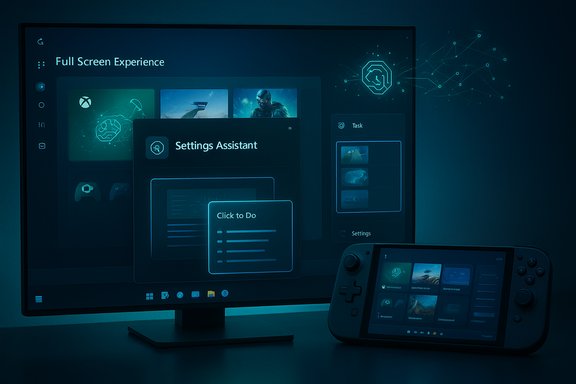
Microsoft released Windows 11 Insider Preview Build 28020.1362 (KB5073095) to the Canary channel on December 15, 2025, marking a visible milestone in the ongoing 26H1 development cycle. This build is explicitly experimental: Canary-channel releases are meant to test platform-level concepts early in development and are not matched to a specific public feature update. Features may be gated, staged, changed, or dropped entirely as Microsoft collects telemetry and user feedback.The new Canary drop focuses on two coordinated themes. First, the OS is being rewired to surface AI-assisted workflows more broadly across the shell — not only as a chat bot, but as context-aware actions that can act on what’s on the screen. Second, Microsoft continues to refine Windows for new hardware and usage models: console-like sessions for handheld gaming devices, better dark-mode fidelity, and simplified recovery workflows aimed at shortening time-to-repair after severe errors. Many of these items are hardware- and account-gated, and several are currently limited to Copilot+ PCs — the subset of devices Microsoft certifies as capable of running local AI models or otherwise delivering the full Copilot experience.
What’s new in the 26H1 Canary build (high-level)
- Expanded AI surfaces: an agent in Settings and broader Click to Do context actions that rely on local AI on Copilot+ devices.
- Click to Do redesign: a streamlined context menu for text and images with actions like Summarize, Share, and Open.
- Full Screen Experience (FSE): console-like Xbox-first shell and controller-focused navigation for compatible handhelds.
- File Explorer refinements: deeper dark-mode support in copy/move/delete dialogs, hover quick-actions on File Explorer Home, and placeholder text advertising improved Windows Search on Copilot+ devices.
- Drag Tray and sharing improvements: multi-file sharing, smarter suggestions, and the ability to disable the tray via Nearby Sharing settings.
- Quick Machine Recovery (QMR) enhancements: one-time scan behavior and clearer recovery guidance when automatic fixes aren’t available.
- New Settings page for paired mobile devices and updated OneDrive status icons.
- Platform reminders: Canary builds remain experimental and may require a clean install to return to a stable channel.
AI gets systemic: Copilot, “agents,” and Click to Do
Agent in Settings: a search assistant with actionability
This Canary release introduces an agent in Settings on Copilot+ PCs that does more than display results — it suggests inline, actionable recommendations. If you search for a setting (for example, “increase volume”), the agent can present more results in the flyout and, when appropriate, surface a dialog explaining why a setting can’t be adjusted and provide alternatives. The intent is to reduce friction inside Settings by letting AI interpret user intent and offer direct remediation or guidance.Why this matters: Settings has historically been a navigation problem for many users. Replacing or augmenting search results with an agent that can understand why a user is searching and propose actionable next steps shortens common tasks and reduces help‑desk friction. The tradeoff is complexity: these agents must make conservative suggestions, be accurate across languages and locales, and offer clear escape hatches when they’re wrong.
Click to Do: expanding context menus into an AI toolbelt
“Click to Do” is no longer just a novelty preview — the context menu that can appear when you select text or images has been redesigned to be more discoverable and to present frequently used actions (Copy, Save, Share, Open) more prominently. It also starts to automatically appear for large images or tables, anticipating a user’s needs rather than requiring a manual trigger.Key characteristics:
- Context-aware actions for selected text and images: summarization, share, edit, and other intelligent transformations.
- Local-first processing on Copilot+ hardware where possible, minimizing cloud dependency for privacy and latency reasons.
- Staged hardware support: image actions have wider availability, while some text actions are initially limited to certain Copilot+ hardware families — a phased approach that aligns with Microsoft’s broader Copilot rollout strategy.
Local vs cloud: privacy and technical implications
Microsoft emphasizes local processing on Copilot+ devices for many of these features, but the reality is nuanced. Some actions may still route to cloud services for model-backed responses depending on the action, account type, or enterprise policy. The staged rollout and hardware gating are pragmatic: local inference requires both silicon and memory headroom, plus updated drivers and firmware. From an enterprise and privacy standpoint, it’s critical that these surfaces provide clear consent dialogs, opt-outs, and policy controls — and those controls are part of the current preview discussions.Click to Do in practice: how it changes common workflows
- Summarize long passages without copying/pasting into a web tool.
- Convert a selected block of text into a bulleted list or proofread it inline.
- Act on table data: export, open URLs found inside, or copy selectively.
- Quick actions for images: blur backgrounds, remove objects, or start a visual Bing search.
Full Screen Experience (FSE): Windows behaves more like a console
What FSE is and how it works
The Full Screen Experience (FSE) makes Windows feel like a console by centering the Xbox PC app as the “home” shell on compatible handheld devices. When engaged, FSE provides:- Controller-first navigation with large, thumb-friendly tiles and a simplified Task View.
- Reduced background noise: Windows defers non-essential services and background tasks to reduce idle wakeups and micro‑stutters.
- A refactored Game Bar and session-level policies that prioritize performance and responsiveness.
Hardware and OEM gating
FSE began shipping preinstalled on select ASUS handhelds and is being previewed on devices from other OEMs. Microsoft and OEM partners use controlled rollouts and entitlements to gate the feature to devices that meet performance and firmware requirements. That means FSE availability will vary by model, and anecdotal reports show the feature first arriving on handsets like the ASUS ROG Ally family.Real-world impact: promise and caveats
Early hands-on reports indicate that FSE can reduce perceptible stutter and improve game responsiveness by cutting background overhead. The measurable gains are device-dependent — thermals, CPU/GPU configuration, storage, and installed apps all shape results. FSE’s approach (tuning session-level behavior rather than shipping a separate OS) is pragmatic: you keep the full Windows desktop underneath while getting a console-like gaming posture on demand.Potential tradeoffs:
- Some desktop services are deferred; certain background tasks will not run while in FSE.
- Enterprise scenarios that rely on background services or management agents might see functional gaps while FSE is active.
- Users will need clear indicators when FSE changes system behavior so they don’t misinterpret missing notifications or delayed background work as bugs.
Interface and usability refinements
File Explorer: dark mode and polished dialogs
This Canary drop continues a longer-term effort to close the dark-mode gaps across the shell. File Explorer’s copy/move/delete dialogs, progress bars, and confirmation dialogs now present a consistent dark appearance rather than popping into a white dialog area. Additionally, quick actions appear when hovering over files on File Explorer Home, surfaces like “Open file location” and “Ask Copilot” are more discoverable, and placeholder copy in the search box promotes the improved Windows Search experience on Copilot+ machines.Why this matters: visual consistency reduces cognitive friction and gives power users more predictable behavior when moving or copying lots of files — especially in low-light conditions.
Drag Tray: smarter, multi-file sharing
The Drag Tray — a sharing surface that appears when you drag files — now supports sharing multiple files at once and presents smarter app suggestions for sharing. Users can toggle Drag Tray behavior off via Nearby Sharing settings. The improved tray aims to shorten common workflows like “drag-to-share” while surfacing the most relevant targets.Start menu, search, and context menu polish
Minor but meaningful changes: the Start menu search pane size has been tuned to match newer Start layouts, context menus are being reworked for clarity and consistency, and Search is being nudged toward natural-language results on Copilot+ devices. These work together to make Windows 11 feel more cohesive as features like Copilot and Click to Do become part of the default rhythm.System resilience: Quick Machine Recovery and advanced settings
Quick Machine Recovery (QMR) is being tuned to run a one-time scan automatically on systems where QMR and automatic checks are enabled. If QMR cannot resolve an issue immediately, it will present guided recovery options to help the user get back to a functional state. The aim is to reduce time spent diagnosing after severe errors and to improve the first-step experience for non-technical users.The build also adds a new default location or path for some recovery configurations (details vary by device), plus an Advanced Settings area that centralizes Virtual Workspaces toggles for subsystems like Hyper‑V and Windows Sandbox. These changes make it easier for power users and IT admins to find and control powerful platform features without hunting through legacy control panels.
Mobile device management and OneDrive polish
A new Settings page under Bluetooth & Devices called Mobile Devices lets users add and manage phones directly from a Windows PC. The page surfaces device capabilities — using a device as a webcam, accessing files in File Explorer, and toggling connected camera modes — which simplifies pairing and cross‑device workflows.OneDrive receives a cosmetic but helpful update: refreshed status icons appear in Settings > Accounts and Homepages, making storage sync status easier to diagnose at a glance.
Canary channel realities: staged rollouts and limitations
Canary builds exist to test platform-level changes, and Microsoft repeatedly warns they’re not for production machines. Key operational realities:- Features are rolled out in phases (Control Feature Rollout): not all Insiders will see everything immediately.
- Some features are hardware-gated — especially Copilot+‑dependent capabilities which require specific silicon or firmware.
- Reverting from Canary to a more stable channel typically requires a clean install of Windows 11.
- Experimental features may never ship broadly; some will be refactored into Dev/Beta channels or dropped entirely.
Security, privacy, and enterprise considerations
Microsoft’s AI surface changes raise practical privacy and security questions that must be weighed by end users and IT teams.- Local processing vs cloud: Microsoft emphasizes local AI on Copilot+ devices for latency and privacy, but many features still have cloud dependencies. Enterprises must validate where data is processed and how policies control telemetry and model access.
- Data capture surfaces: features like Recall (which captures screenshots for local search) and automatic Click to Do popups introduce new data-exposure risks unless carefully configured. Administrators will want controls to disable or restrict these behaviors in managed environments.
- Policy and manageability: Microsoft has begun adding administrative policies for features like Click to Do, but IT needs robust group policies, MDM settings, and clear documentation before rolling these features into enterprise fleets.
- Attack surface: new context-actuation surfaces (right-click to transform or share content) must be hardened against misuse — for example, maliciously crafted images that could try to trigger unexpected behaviors.
What this signals about Microsoft’s Windows strategy
Taken together, the 26H1 Canary experiments reinforce three strategic threads:- AI as an infrastructure layer inside the OS, not just a standalone app: Copilot capabilities are being embedded into settings, search, and selection workflows so AI becomes a routine part of how users interact with content.
- Windows for diverse form factors: Microsoft is investing in making Windows a competitive OS for handheld gaming and console-like sessions by offering session-level tuning and controller-first shells.
- Incremental polish and resiliency: Microsoft continues to eliminate UI inconsistencies (dark mode gaps, search discoverability) while improving recovery tools to reduce time-to-fixed for common failure scenarios.
Strengths and notable improvements
- A more natural user experience: Embedding AI into context menus and Settings reduces friction for routine tasks and lowers the learning curve for non-expert users.
- Console-like gaming without leaving Windows: FSE offers a pragmatic solution for handheld gaming that preserves Windows’ flexibility while delivering a focused gaming posture.
- Visual and UX consistency: Dark mode fixes, hover quick-actions, and refined context menus improve day-to-day usability.
- Recovery improvements: QMR refinements streamline a formerly opaque recovery walk-through and can save time for non‑technical users.
Risks, unknowns, and practical recommendations
- Hardware gating will fragment availability: Copilot+ restrictions and OEM entitlements mean that the newest experiences will appear unevenly across the installed base.
- Privacy and data governance ambiguity: Early claims of local inference and privacy protections must be validated against final documentation and enterprise policy controls.
- Enterprise readiness: Organizations should not deploy these Canary features widely until Microsoft publishes enterprise management guidance for AI surfaces and administrators vet interactions with endpoint protection and MDM policies.
- Rollback complexity: Moving off Canary often requires a clean install — a real cost for testers who unexpectedly hit reliability issues.
- Power users and enthusiasts: test in a dedicated Insider machine or virtual environment; use Canary to preview changes but avoid installing on daily-driver hardware.
- IT professionals: monitor Microsoft’s official policy documentation and test specific Copilot+ behaviors in lab environments; ensure telemetry, DLP, and compliance tools observe AI-enabled surfaces.
- Gamers with handhelds: try FSE on a supported device to evaluate gains and tradeoffs; read OEM guidance before switching to an FSE session for gaming-heavy workflows.
Conclusion
Build 28020.1362 and the broader 26H1 Canary experiments map a focused path for Windows: AI that is woven into the fabric of everyday interactions, platform tuning for an expanding range of devices, and continued visual refinement. The technical direction is clear — Microsoft wants Windows to feel smarter, faster, and more adaptable across both traditional PCs and new handheld form factors.However, the road to that future requires careful navigation. Features are still experimental, hardware dependencies will create fragmentation, and privacy and manageability details remain under active development. For enthusiasts the Canary channel offers a compelling look at Microsoft’s priorities; for businesses, the signal is clear but the timing for mass deployment remains premature.
Expect Microsoft to iterate rapidly. The current Canary changes are a preview of a larger strategy: to make AI a first-class system capability in Windows while ensuring the OS stays relevant across new device categories and use cases. The balance between convenience, performance, and control will determine whether these ideas deliver real value at scale — and that balance will be decided over the next several Insider cycles.
Source: Techzine Global Microsoft tests Windows 11 26H1 update with new features
