

Microsoft’s preview of Administrator Protection in Windows 11 is a seismic shift in how the platform treats administrator privileges — turning the long‑standing model of always‑on admin accounts into a just‑in‑time, Windows Hello–backed elevation model that isolates elevated sessions, destroys their tokens when finished, and blocks untrusted drivers by default in many configurations. ([learn.microsoft.coosoft.com/en-us/windows/security/application-security/application-control/administrator-protection/)
Microsoft has previewed and documented a new security capability for Windows 11 called Administrator Protection that changes the default behavior for local administrator accounts. Rather than allowing an administrator session to run with persistent elevated privileges, Windows will by default run that account with a de‑privileged token and create a temporary, isolated admin token only when the user explicitly authorizes an administrative action (typically via Windows Hello). That elevated token is tied to the specific process and is destroyed when the process ends. The feature is being delivered through Insider Preview channels and preview documentation.
This is not merely a new checkbox — it’s an architectural change that creates a security boundary between the regular user profile and any elevated process, introduces stricter controls around driver loading and code that runs in kernel mode, and enforces interactive re‑authentication for each elevation. Microsoft frames the change around the principle of least privilege and zero‑trust thinking: no process, no matter the logged‑in account, should be assumed trustworthy by default.
Administrator Protection is designed to break that model by:
No technical control is foolproof. Administrator Protection mitigates many technical vectors, but it also produces new social engineering attack surfaces and operational risks:
For enterprises, this is a welcome alignment with zero‑trust architecture: reduce standing privileges, require explicit authorization, and assume processes are untrusted unless proven otherwise. For power users and developers, it’s a reminder that the era of frictionless local admin access is ending; that means adapting workflows, signing artifacts, and working with vendors to ensure compatibility.
But it is not a panacea. Compatibility issues, user experience tradeoffs, and social engineering risks remain. The feature will succeed only if IT teams plan carefully, vendors update drivers and installers, and organizations accept a modest amount of operational friction in return for far stronger guarantees about the shape and lifetime of elevated privileges.
Microsoft’s path — previewing in Insider channels, documenting limitations, and providing policy controls via Intune and Group Policy — is the correct one. Enterprises should treat Administrator Protection as a policy lever to reduce systemic risk, not as a magic switch that removes the need for patching, endpoint controls, and user education. The era of persistent, always‑available admin rights on Windows is closing; how smoothly we move to the new model will depend on preparation, vendor cooperation, and sober risk management.
The fundamental tradeoff boils down to this: accept a small but meaningful increase in day‑to‑day authentication friction, and gain a substantial reduction in the attack surface that has dominated Windows compromises for decades. For organizations that prioritize security and resilience, that shift is not only desirable — it’s overdue.
Source: WebProNews Microsoft’s Bold Lockdown: Windows 11’s New Administrator Protection Mode Signals a Fundamental Shift in PC Security
 Background
Microsoft has previewed and documented a new security capability for Windows 11 called Administrator Protection that changes the default behavior for local administrator accounts. Rather than allowing an administrator session to run with persistent elevated privileges, Windows will by default run that account with a de‑privileged token and create a temporary, isolated admin token only when the user explicitly authorizes an administrative action (typically via Windows Hello). That elevated token is tied to the specific process and is destroyed when the process ends. The feature is being delivered through Insider Preview channels and preview documentation.This is not merely a new checkbox — it’s an architectural change that creates a security boundary between the regular user profile and any elevated process, introduces stricter controls around driver loading and code that runs in kernel mode, and enforces interactive re‑authentication for each elevation. Microsoft frames the change around the principle of least privilege and zero‑trust thinking: no process, no matter the logged‑in account, should be assumed trustworthy by default.
How Administrator Protection works (technical overview)
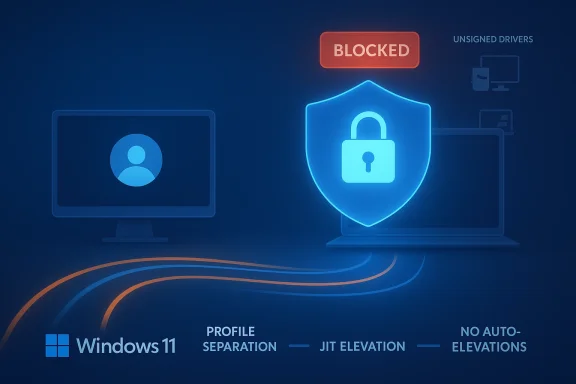
The three pillars: JIT elevation, profile separation, no auto‑elevations
Microsoft describes Administrator Protection with three central mechanics:- Just‑In‑Time (JIT) elevation — administrators remain de‑privileged in day‑to‑day operation. When an admin action is required, Windows requests authorization and issues a temporary admin token to the requesting process only for the duration of that operation. That token is destroyed immediately afterward.
- Profile separation — the elevated token is created from a hidden, system‑generated, profile‑separated account so that elevated sessions are insulated from the standard user profile. This aims to prevent user‑mode malware from piggybacking on an elevated process.
- No auto‑elevations — automatic elevation paths are removed. Every admin operation requires interactive user consent through integrated authentication (Windows Hello PIN/biometrics or equivalent). The goal is to eliminate silent privilege escalations that malware has historically exploited.
Windows Hello integration and authentication boundaries
Administrator Protection integrates with Windows Hello so that admin elevation requests prompt for biometric or PIN verification rather than a simple UAC confirmation. This deep integration strengthens the authentication factor, but also changes the user flow: elevated sessions cannot transparently inherit single‑sign‑on (SSO) tokens or network credentials from the de‑privileged session — those credentials must be re‑established inside the isolated elevated profile. Microsoft explicitly warns that SSO and network resource access behaves differently under Administrator Protection.Driver and kernel‑mode hardening
One of the most consequential operational changes is a stricter posture for drivers. Windows has for years offered a vulnerable driver blocklist model and tighter driver signing rules; Administrator Protection works alongside these controls by blocking unsigned or otherwise untrusted drivers from loading where Microsoft’s policies or HVCI/Smart App Control are active. This reduces the attack surface for kernel exploits and BYOVD (Bring‑Your‑Own‑Vulnerable‑Driver) techniques that attackers use to gain kernel privileges. Microsoft’s recommended driver block rules and the Vulnerable Driver Blocklist remain central to this defense strategy.Why this matters: the security case
Windows has historically been attractive for attackers for one simple reason: many users run with administrative privileges and those elevated sessions are persistent. Once malware gains the same privileges as the logged‑in administrator, it can disable protections, install kernel‑level components, and persist across reboots.Administrator Protection is designed to break that model by:
- Shrinking the time window an attacker would have to exploit elevated privileges (tokens exist only for the lifetime of a specific process).
- Isolating elevated sessions from user profiles so in‑memory credential or token theft becomes harder.
- Preventing unsigned or known‑vulnerable drivers from loading, removing a common route to kernel compromise.
Enterprise calculus: benefits and operational costs
For IT organizations, Administrator Protection offers clear security benefits but also introduces a non‑trivial compatibility and operational calculus.Benefits for IT
- Reduced lateral‑movement risk — attacks that rely on a long‑lived admin context are far less likely to succeed.
- Policy enforcement — enterprises can deploy Administrator Protection via Group Policy, Microsoft Intune (CSP), or the Windows Security settings catalog, giving centralized control over rollout and exception management.
- Driver governance — integrating the vulnerable driver blocklist into this model makes it harder for BYOVD attacks to reach kernel code.
Operational and compatibility costs
However, the same mechanisms that harden security also create friction:- SSO and network access — elevated sessions do not inherit SSO tokens or network credentials from the unelevated session; administrators must re‑authenticate inside the elevated context. This affects installers and management tools that assume persistent domain credentials. Microsoft warns about network drives and shared resources being inaccessible to elevated apps unless installations are first copied to a local drive.
- App and driver compatibility — older or niche drivers that are unsigned or on Microsoft’s blocklist may fail to load. That will hit peripherals, specialized hardware, and legacy software chains. Enterprises with edge cases (custom drivers for test equipment, for example) need a remediation plan.
- Productivity tradeoffs — frequent Windows Hello prompts will slow workflows that rely on repeated admin actions. For administrators and power users who perform many elevated tasks a day, the UX cost could be substantial unless mitigations or workflows are adjusted.
Developer and power‑user impact
The friction points
- Development workflows that execute repeated installs, run debuggers with elevated privileges, or iterate on unsigned drivers will feel the pain immediately. The need to re‑authenticate for each elevation is a deliberate security friction.
- Tools that expect to write to profile locations and then launch elevated processes without migrating data will encounter missing launch icons or broken launches because elevated profiles are isolated. Microsoft notes that some apps won’t appear in Start menus after elevated installs and that settings/data won’t be shared across profiles.
Practical mitigations for developers and power users
- Sign code and drivers where possible. Signed artifacts face fewer hurdles.
- Use per‑user installs or copy installers to a local drive before elevating if a network share is involved. Microsoft documents this as a recommended workaround.
- For active development, use dedicated test VMs or opt out of Administrator Protection on specific machines until tooling is updated — but do so only with careful risk assessment.
Deployment guidance for IT (a recommended playbook)
Enterprises should treat Administrator Protection like any major security control: pilot, measure, adjust, then scale.- Inventory and map dependencies
- Build a tight inventory of applications, drivers, and system utilities, and flag those that require kernel drivers or expect persistent admin tokens. Use existing configuration management databases (CMDBs) and driver inventories.
- Pilot with a small group
- Choose a representative set of users and devices (including those with legacy peripherals) and enable Administrator Protection via Intune or Group Policy for pilot devices only. Monitor breakages closely.
- Validate drivers and hardware
- Cross‑reference installed drivers with Microsoft’s vulnerable driver blocklist and the recommended driver block rules. Work with hardware vendors to obtain signed drivers or updates.
- Adjust workflows & tooling
- Update deployment scripts and installers to run in user context where feasible, or copy installation payload to local storage prior to elevation. Rework management scripts that assume SSO is available in elevated processes.
- Train and communicate
- Explain new prompts to users, including why Windows Hello re‑prompts are beneficial. Provide clear escalation steps in case an approved tool fails under Administrator Protection.
- Measure and iterate
- Use telemetry from endpoint protection and configuration management systems to measure failed elevations, blocked drivers, and user impact. Iterate policy exceptions only when necessary.
Compatibility red flags and known limits
Microsoft’s documentation explicitly lists scenarios where Administrator Protection is not recommended or will cause issues, and these are important to heed before broad deployment:- Devices that require Hyper‑V or Windows Subsystem for Linux (WSL) may not be suitable for Administrator Protection.
- Elevated processes do not inherit SSO credentials from the unelevated session; installers and management tools that assume domain tokens will need workflow changes.
- Certain applications may not place shortcuts in the Start menu after an elevated install; administrators may need to instruct users how to find installed programs in filesystem locations.
- Microsoft has at times adjusted rollout plans for this feature; preview or Canary behavior may differ from the eventual GA implementation. Expect iterative changes during the Insider testing phase.
The driver blocklist: closing a frequently exploited backdoor
Kernel drivers are among the highest‑value targets for attackers because of the level of access they provide. Microsoft’s approach to driver governance has been twofold:- Maintain and distribute a vulnerable driver blocklist that prevents known insecure drivers from loading in configured scenarios, and
- Encourage stricter driver signing and responsible disclosure with hardware partners.
No technical control is foolproof. Administrator Protection mitigates many technical vectors, but it also produces new social engineering attack surfaces and operational risks:
- Prompts can be phished — a crafty attacker might craft convincing UI or email prompts to coax an admin into authenticating for a malicious elevation. The presence of stricter prompts reduces the probability of automatic exploitation, but it doesn’t eliminate social engineering. Security awareness remains critical.
- False sense of invulnerability — organizations might overreach and assume Administrator Protection alone is sufficient. It is a substantial control, but defense in depth (endpoint protection, patching, least‑privilege app design, network segmentation) remains essential.
- Operational complexity — needing to re‑architect installers, change management processes, and retrain helpdesk staff creates transitional risk. Poorly executed rollouts can lead to user workarounds that weaken security (for example, disabling the feature or reintroducing permissive policies).
How this fits the broader industry trend
Microsoft is converging toward hardened defaults that were previously more common on other platforms: Apple’s notarization and system integrity protections, and Google’s sandboxing and restricted execution models for ChromeOS. For years Windows’ compatibility commitments made it the laxist major desktop environment; Administrator Protection signals a willingness to accept some compatibility cost to gain strong, systemic defenses.For enterprises, this is a welcome alignment with zero‑trust architecture: reduce standing privileges, require explicit authorization, and assume processes are untrusted unless proven otherwise. For power users and developers, it’s a reminder that the era of frictionless local admin access is ending; that means adapting workflows, signing artifacts, and working with vendors to ensure compatibility.
Immediate takeaways and practical recommendations
- Pilot before you push: run Administrator Protection in a constrained pilot that includes machines using legacy drivers and enterprise management tools.
- Inventory drivers now: identify kernel‑mode drivers and engage vendors for signed updates or mitigations; consult Microsoft’s driver blocklist guidance.
- Update deployment tooling: convert installers to per‑user installs where possible and copy installation packages to local drives before elevation.
- Train admins and end users: explain Windows Hello prompts and rationale so users don’t reflexively accept elevations.
- Plan for SSO differences: rework scripts and management flows that rely on transparent credentials inside elevated processes.
Final analysis: a bold, necessary shift — but not a silver bullet
Administrator Protection represents one of the most substantial changes to Windows privilege architecture since User Account Control. Unlike UAC — which relied on prompts and often habituated users into clicking through — Administrator Protection re‑imagines elevation as a short‑lived, isolated security boundary authenticated by Windows Hello. That design choice addresses many of UAC’s shortcomings and plugs real, modern attack vectors such as BYOVD and token theft.But it is not a panacea. Compatibility issues, user experience tradeoffs, and social engineering risks remain. The feature will succeed only if IT teams plan carefully, vendors update drivers and installers, and organizations accept a modest amount of operational friction in return for far stronger guarantees about the shape and lifetime of elevated privileges.
Microsoft’s path — previewing in Insider channels, documenting limitations, and providing policy controls via Intune and Group Policy — is the correct one. Enterprises should treat Administrator Protection as a policy lever to reduce systemic risk, not as a magic switch that removes the need for patching, endpoint controls, and user education. The era of persistent, always‑available admin rights on Windows is closing; how smoothly we move to the new model will depend on preparation, vendor cooperation, and sober risk management.
The fundamental tradeoff boils down to this: accept a small but meaningful increase in day‑to‑day authentication friction, and gain a substantial reduction in the attack surface that has dominated Windows compromises for decades. For organizations that prioritize security and resilience, that shift is not only desirable — it’s overdue.
Source: WebProNews Microsoft’s Bold Lockdown: Windows 11’s New Administrator Protection Mode Signals a Fundamental Shift in PC Security
