

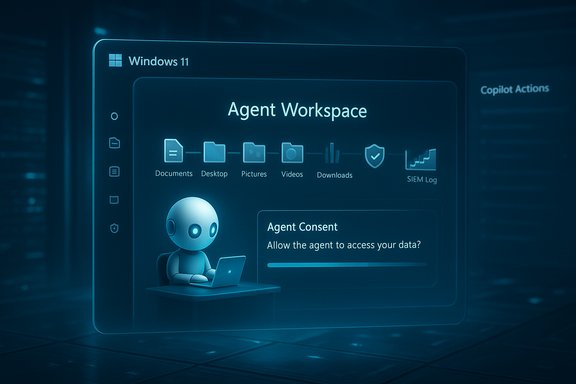
Microsoft’s Windows 11 is shipping a new, agentic layer: optional AI agents that can run in the background inside a contained “Agent Workspace,” sign into their own low‑privilege accounts, and — with user permission — read and act on files in common user folders such as Documents, Desktop, Pictures, Videos and Downloads. The capability is currently gated behind an “Experimental agentic features” toggle and is being rolled out in preview to Windows Insiders; Microsoft positions the design around opt‑in consent, per‑agent permissions, and visible progress controls, but the change still expands the OS attack surface and raises real privacy and enterprise governance questions.
Windows has long been the platform where users run apps and keep data; the new Agent Workspace concept is a deliberate architectural step toward making Windows an “agentic” OS — a place that not only hosts software but also empowers AI actors to perform multi‑step tasks on behalf of users. In Microsoft’s framing, the move is a productivity-first push: agents can automate repetitive workflows, assemble documents, batch‑process media, extract tables from PDFs, or prepare email attachments, all while the signed‑in user continues other work. Technically, Microsoft is introducing three new platform primitives in preview:
This contained session model supports visibility (you can see an agent’s progress), interruptibility (pause/stop/takeover), and auditability (actions are attributable to the agent principal). That’s the central idea behind the claimed safety posture.
However, this is an architectural change that increases risk in meaningful ways — intentional or accidental data exposure, misconfiguration, and supply‑chain weaknesses among them. Security teams and privacy‑conscious users must treat the preview as a testbed: evaluate behavior in a controlled ring, instrument logging and DLP, and insist on fast revocation and incident response processes for any signed agent components. The platform can work, but only if organizations and users apply the same operational rigor to agents that they apply to service accounts and scheduled automation today. For Windows enthusiasts and system administrators, the moment invites a practical posture: pilot with strict controls, scrutinize the UI and logs, and prepare governance policies before wide enablement. The productivity upside is real; the costs of getting governance wrong are also real. The Agent Workspace is not just a new feature — it’s a new category of principal on Windows, and it must be treated like one.
Source: The Economic Times Microsoft's Windows 11 introduces AI agents in the background, managing files - The Economic Times
 Background / Overview
Windows has long been the platform where users run apps and keep data; the new Agent Workspace concept is a deliberate architectural step toward making Windows an “agentic” OS — a place that not only hosts software but also empowers AI actors to perform multi‑step tasks on behalf of users. In Microsoft’s framing, the move is a productivity-first push: agents can automate repetitive workflows, assemble documents, batch‑process media, extract tables from PDFs, or prepare email attachments, all while the signed‑in user continues other work. Technically, Microsoft is introducing three new platform primitives in preview:- Experimental agentic features: a master, device‑wide toggle in Settings that is off by default and can only be enabled by an administrator. Enabling provisions the runtime plumbing that allows agents to be created and run.
- Agent accounts: each agent runs under a dedicated, standard (non‑administrator) Windows account so its actions are auditable, subject to ACLs, and manageable by existing Windows policy tools.
- Agent Workspace: a contained runtime session — a separate, lightweight Windows desktop session — that isolates agent activity from the primary interactive session while still allowing UI automation (clicking, typing, opening apps) and file operations in scoped folders.
What Microsoft shipped in preview — the concrete controls
The preview builds and Microsoft’s documentation outline a clear list of behaviors and guardrails that shape how agents work today:- Opt‑in, admin‑only toggle: The setting lives at Settings → System → AI components → Agent tools → Experimental agentic features. It must be enabled by an administrator and, once on, applies to the entire device (affecting all user accounts). This is a deliberate gating mechanism to force conscious adoption.
- Scoped file access to known folders: During the experimental preview agents may request access to a limited set of “known folders” in the user profile — commonly reported as Documents, Downloads, Desktop, Pictures, Music and Videos — and will otherwise be blocked from arbitrary crawling of a user’s profile. Microsoft documents this least‑privilege default.
- Separate agent identity: Because agents run under their own Windows accounts, their actions produce distinct audit trails and can be governed by the same ACLs, Intune/MDM policies, or group policy tools that admins already use. That makes agents first‑class principals in the OS security model.
- Visible progress and human‑in‑the‑loop controls: Agent activity is surfaced to the user — via taskbar icons, hover cards, progress indicators and an Agent Workspace UI — and users should be able to pause, stop or take over an agent while it runs. Microsoft describes this as non‑repudiation and a transparency mechanism.
- Signing and revocation: Agents and connectors are expected to be cryptographically signed so they can be revoked if compromised; Microsoft treats signing as a supply‑chain control to reduce risk. That control helps but is not a panacea.
How it works technically — runtime, identity, and plumbing
Agent Workspace: lightweight session isolation
The Agent Workspace is implemented as a separate Windows session that provides a distinct desktop environment and process space for an agent to operate in parallel with the human user. Microsoft positions this as a middle ground: more isolation than running code inside the primary session, but lighter on resources than a full virtual machine. The model is designed so agents can interact with app UIs (click, type, scroll) and manipulate files without co‑mingling with the interactive user’s session.This contained session model supports visibility (you can see an agent’s progress), interruptibility (pause/stop/takeover), and auditability (actions are attributable to the agent principal). That’s the central idea behind the claimed safety posture.
Agent accounts and governance
Treating agents as first‑class principals — i.e., creating micro service‑style Windows accounts for them — gives IT admins familiar levers: ACLs, policy application through Intune/MDM, event logging to SIEM, and revocation via certificate / signing mechanisms. In enterprise deployments this is important; it lets security teams apply existing controls to a new class of runtime actors.Model Context Protocol, connectors and Copilot Actions
Microsoft is pairing the workspace concept with cross‑component plumbing: Copilot Actions translate natural‑language intent into multi‑step UI automation inside the Agent Workspace, while the Model Context Protocol (MCP) aims to standardize agent‑to‑tool interactions so agents can discover and call app capabilities and connectors in a governed way. Together these pieces let agents chain app calls and file operations to complete tasks for the user.Local acceleration and Copilot+ PCs
Microsoft’s wider Windows AI strategy also includes a hardware tier — Copilot+ PCs — that require NPUs capable of 40+ TOPS to deliver certain on‑device features with low latency. Some of the richer on‑device experiences are tied to this hardware tier, although agent workspaces themselves are a runtime feature layered above standard Windows. The 40+ TOPS requirement and Copilot+ PC guidance are documented by Microsoft.What users and IT admins will actually see
- Taskbar agents and Ask Copilot: Agents are surfaced on the taskbar as icons with badges and hover previews that show progress and require attention when necessary. The Ask Copilot composer merges search, chat and agent invocation.
- Permission dialogs and per‑agent consent: When an agent wants to access files beyond the initial scope, the system should prompt for explicit consent. The exact UI wording and workflow are still being refined in preview.
- Logs and auditing: Agent actions are designed to be written to logs and be distinguishable from human actions, enabling replayability and forensic review. This is central to Microsoft’s “non‑repudiation” goal for agents.
- Administrative control: Because the experimental toggle is device‑wide and admin‑only, organizations have a single switch to prevent any agent provisioning on managed endpoints. That’s helpful for conservative deployments.
Practical scenarios — what agents can do in preview
Early demonstrations and preview notes show agents handling practical, productivity‑oriented tasks such as:- Batch processing photos: deduplicating, resizing, tagging, and exporting summaries.
- Document assembly: locating PDFs, extracting tables, compiling findings into Word or Excel, and preparing an email with attachments.
- Data extraction and transformation: OCR from images or PDFs and export into structured formats.
- Routine housekeeping: re‑organizing folders, renaming files, or updating metadata across a folder set.
Security and privacy analysis — strengths, gaps, and realistic risk
Microsoft’s design carefully layers mitigations, but the shift to agentic automation necessarily increases the set of scenarios that can expose user data. Below is a frank assessment of both the protective controls and the residual risks.Notable strengths and sensible design choices
- Opt‑in, admin‑gated rollout: Requiring an administrator to enable the master toggle is a strong, pragmatic constraint for enterprise adoption. It prevents silent provisioning and gives IT a single control point.
- Least‑privilege defaults: Limiting preview agents to a small set of known folders reduces accidental over‑reach compared with giving blanket profile access. That reduces exposure surface for many attacks.
- Separate identities and audit trails: Agent accounts and distinct logging preserve accountability and make it easier to detect misuse and forensic activity after the fact. This lets SIEM and DLP tools treat agents like other service accounts.
- Visible UI and human‑in‑the‑loop controls: Progress indicators, taskbar visibility and the ability for users to pause or takeover are meaningful usability mitigations against stealthy automation.
Persistent and new risks
- Data exfiltration by design: Agents need access to files to perform useful work. Even with scoped access, agents running in the background can read, transform and send content to external services if connectors or policies allow it — increasing the risk profile relative to passive assistants. Independent coverage has highlighted this concern.
- Misconfiguration and privilege escalation: The master toggle’s device‑wide effect means a single admin decision enables agents for all users. If an admin account is compromised or a poorly understood policy is pushed broadly, the result could be widespread exposure. The feature’s default‑off posture helps, but admin operational discipline is essential.
- Supply‑chain and agent compromise: Signing helps, but signed code can be stolen or misused. A compromised agent with signed credentials could act in unexpected ways until revoked; certificate revocation and rapid detection must be part of operational playbooks.
- Cross‑prompt injection / hallucination risk: Agents that compose multi‑step flows using untrusted web data or chain third‑party connectors can be tricked into doing harmful things or leaking data into the wrong channel. Microsoft has called out cross‑prompt injection as a specific threat to agentic systems.
- Privacy and regulatory complexity: For regulated environments (healthcare, finance, legal) the fact that an OS‑level agent can access local files and interact with cloud connectors raises compliance questions about data residency, logging retention, and consent. Standard policy controls may not be sufficient without additional controls or custom gating.
Where Microsoft’s mitigations may be insufficient alone
- Visibility ≠ comprehension: Showing a progress bar or a sequence of steps helps visibility, but does not guarantee the user or admin understands all side effects (e.g., outbound network transfers, downstream connectors). Auditing and automated policy enforcement will be necessary to make visibility actionable at scale.
- Edge cases in folder scope: Known‑folder redirection, symbolic links, or non‑standard storage locations can lead to scenarios where agents retain greater access than intended. Admins must test in real environments.
- Offline vs cloud‑assisted behaviors: Some agent actions may require cloud services for reasoning or large‑model inference; the boundary between local and cloud processing must be explicit to maintain privacy expectations. Copilot+ PCs’ on‑device acceleration helps here, but not every device will be Copilot+ capable.
Enterprise guidance — immediate and medium‑term steps
For organizations evaluating agentic Windows features, a conservative, test‑driven approach is the sensible path. Recommended actions include:- Turn the experimental toggle off by default in corporate images and only enable it in controlled test rings. The toggle is admin‑only and device‑wide, so this is a high‑leverage control.
- Define a pilot program with a limited set of users and devices, coupled with enhanced monitoring (SIEM ingestion of agent logs, DLP policies covering the known folders, and telemetry capture for agent activity).
- Review and update DLP and conditional‑access policies to include agent principals as part of your identity model so that outbound connectors and cloud services are subject to the same controls you apply to human users.
- Enforce known‑folder locations and avoid redirections that would broaden agent reach; test symbolic link handling and shared folder behaviors carefully.
- Keep a fast revocation and incident response playbook for signed agent binaries and certificates; periodic signing key rotation and revocation checks should be operationalized.
- Train helpdesk and security teams on what Agent Workspace session artifacts look like so anomalous agent behavior is not mistaken for user action.
Practical user recommendations — control your data exposure
- Keep the “Experimental agentic features” toggle off unless you intentionally want agents on your device. Remember that enabling it is a device‑wide operation done by an administrator.
- If you decide to try Copilot Actions, review per‑agent permission prompts carefully; grant only the folders an agent strictly needs for its task.
- Use folder redirection to network locations or cloud storage with strict access controls if you want to centralize datasets and reduce local agent reach — but validate how agents interact with redirected folders first.
- Watch for agent activity on the taskbar and use the pause/stop/takeover controls when a sequence looks unexpected; agents are intended to be interruptible, and you should use that affordance.
Unverified or evolving claims — caveats and things to watch
A few details reported in early hands‑on coverage and insider threads are still fluid:- Specific Insider build numbers (for example, Build 26220.7262 and cumulative KB identifiers) have been cited in preview coverage and community posts, but these are subject to rapid change across Insider flights and may differ between regions and rings. Treat build references as indicative of preview timing rather than permanent APIs or shipping behavior.
- UI labels, the exact list of “known folders” an agent can access, and the wording of permission dialogs have varied across preview reports. Microsoft’s official documentation captures the intent, but small UX differences should be expected before general availability. If precise dialogs or folder lists matter to your compliance posture, test with the exact Insider build you plan to pilot.
- Performance and resource isolation claims (for example, that Agent Workspace is consistently “lighter than a VM” in all workloads) are plausible but workload‑dependent. Independent performance analysis is required for higher‑risk server or workstation scenarios. Treat the lighter‑than‑VM claim as a design intent rather than a benchmarked guarantee.
The larger picture — platform design and industry tradeoffs
Microsoft’s Agent Workspace and related Copilot Actions reflect a clear strategic tradeoff: deliver higher‑value automation by letting software act on local data vs. maintain a conservative security posture that treats local user files as sacrosanct. The company has chosen to start with opt‑in, identity‑separated, auditable primitives — an approach that makes security and governance practical — but that architecture alone cannot eliminate all risk. Operators will need to combine platform controls, policy, logging and process to manage the new threats that arise when agents are allowed to touch user data and external connectors. Independent reporting has underscored the same tension: agents unlock productivity while simultaneously raising the specter of background processes that can access the files users keep on their PCs. For many users, the difference between “assistant that suggests” and “assistant that does” will be transformative — but not without a period of careful scrutiny and operational hardening.Final assessment — adopt carefully, monitor continuously
Windows 11’s Agent Workspace is a significant evolution in how the OS treats intelligence: it converts assistants from passive interlocutors into actors with the ability to effect change. Microsoft has deliberately wrapped the feature in opt‑in controls, separate identities, and transparency mechanisms that make enterprise adoption possible without reinventing governance tooling. Those are strong design choices and represent a pragmatic path forward.However, this is an architectural change that increases risk in meaningful ways — intentional or accidental data exposure, misconfiguration, and supply‑chain weaknesses among them. Security teams and privacy‑conscious users must treat the preview as a testbed: evaluate behavior in a controlled ring, instrument logging and DLP, and insist on fast revocation and incident response processes for any signed agent components. The platform can work, but only if organizations and users apply the same operational rigor to agents that they apply to service accounts and scheduled automation today. For Windows enthusiasts and system administrators, the moment invites a practical posture: pilot with strict controls, scrutinize the UI and logs, and prepare governance policies before wide enablement. The productivity upside is real; the costs of getting governance wrong are also real. The Agent Workspace is not just a new feature — it’s a new category of principal on Windows, and it must be treated like one.
Source: The Economic Times Microsoft's Windows 11 introduces AI agents in the background, managing files - The Economic Times
