

Microsoft’s late-April 2026 Windows 11 Insider builds introduced a cluster of update, recovery, gaming, audio, Settings, File Explorer, Task Manager, and enterprise-management changes across Experimental, Beta, Dev, and Canary channels. The headline is not that Windows suddenly has one dazzling new feature. It is that Microsoft appears to be attacking the daily friction points that make Windows feel pushy, cluttered, and opaque. For an operating system now judged as much by how little it interrupts users as by what it can do, that is a meaningful turn.
For years, Windows Update has been the place where Microsoft’s security obligations collided with the user’s calendar. The company had sound reasons for pushing patches aggressively: unpatched Windows machines are not private islands, and one neglected PC can become someone else’s botnet node. But the lived experience was often less noble than the theory. People remembered the reboot that arrived before a meeting, the driver that broke a peripheral, or the update screen that appeared exactly when the machine was supposed to be useful.
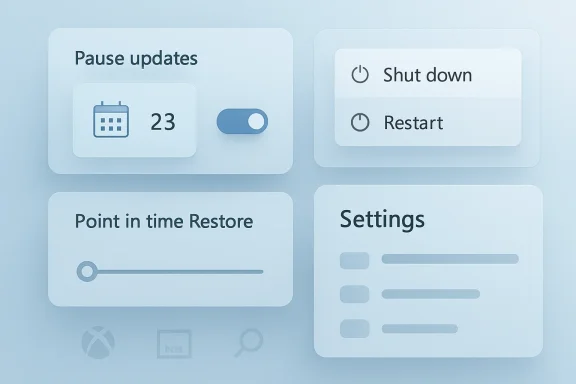
The most important April change is therefore deceptively small: a redesigned pause-updates control that lets users choose a date up to 35 days out and then extend the pause again when that date arrives. In practical terms, Windows 11 is testing a sanctioned way to keep updates deferred indefinitely, 35 days at a time. That does not abolish Windows Update, but it changes the tone of the relationship. Microsoft is no longer merely asking users to trust the update pipeline; it is acknowledging that trust sometimes requires a brake pedal.
That matters because Windows has spent much of the last decade behaving like a managed service even on personal machines. The new calendar-style pause interface is a small admission that a PC is still a personal device, not just an endpoint in Microsoft’s estate. Enthusiasts will immediately see the value during travel, exams, presentations, production deadlines, and driver-sensitive workloads. IT pros will see something subtler: Microsoft is trying to make consumer update behavior look less like a fight.
The caveat is obvious. A pause button that can be renewed forever is also a temptation to run stale systems forever. Microsoft’s challenge will be to warn without nagging, to make risk visible without returning to the coercive patterns this feature is meant to soften. If the company gets that balance wrong, it will simply move the resentment from forced restarts to security scolding.
That is the kind of plumbing improvement that rarely earns applause because users only notice it when it fails. Yet it goes directly at one of Windows 11’s most persistent irritations: the sense that the operating system is always one pending restart away from interrupting the day. A monthly rhythm is not glamorous, but predictability is a product feature when the alternative is random friction.
This also suggests Microsoft is thinking more holistically about servicing. Windows Update is no longer just the thing that delivers the operating system patch. It is the coordination layer for firmware, drivers, runtime updates, security fixes, and feature enablement. When that layer is noisy, the whole OS feels noisy. When it is quiet, Windows feels faster even if no benchmark changes at all.
The new “Available updates” grouping and clearer driver labels play into the same theme. Calling out whether a driver relates to display, audio, battery, or another device class sounds pedestrian, but ambiguity is the enemy of confidence. A user who knows an update touches the display stack may delay it before a color-critical job. An admin who sees battery or firmware can make a more informed deployment decision. Transparency does not eliminate risk, but it makes risk legible.
This is one of those changes that feels obvious only after it arrives. Users do not think of “shut down” as a policy decision; they think of it as leaving the room. When the OS quietly turns that moment into an update installation, the machine feels less like a tool and more like a landlord.
The distinction is especially important on laptops. A person trying to preserve battery, pack for a flight, or end a workday may not want to begin a firmware or cumulative update just because they need the machine off. Separating power actions from update actions gives Windows back a bit of ordinary language. Shutdown means shutdown. Restart means restart. Updating is something else.
Of course, this does not mean updates disappear. It means Microsoft is finally recognizing that the timing of maintenance is part of user experience. The more Windows can distinguish between “I am done using this machine” and “please service this machine now,” the less users will look for registry hacks, group policy workarounds, or third-party tools to reclaim control.
That distinction matters because classic System Restore became one of those Windows features people vaguely remembered but did not necessarily trust. It existed, it sometimes helped, and it often felt like something from another administrative era. Point-in-time Restore, by contrast, is being positioned as an expected part of the Windows 11 recovery story, visible in Settings and Windows Recovery Environment rather than buried in folklore.
The default behavior is also telling. Microsoft says the feature is enabled by default on eligible Home and Pro devices with at least 200GB of storage, creates restore points daily, and keeps them for three days. That is a compromise between usefulness and disk consumption. Three days will not rescue every user from every slow-burning problem, but it may catch the exact class of failures that most often poison confidence in updates: the bad driver installed yesterday, the configuration mistake made this morning, the update that turned a working machine into a troubleshooting session.
For IT pros, the interesting phrase is not “restore.” It is predictable. Recovery features only become operationally useful when administrators can understand their cadence, storage cost, and failure modes. A recovery mechanism that exists but cannot be planned around is a comfort blanket. One that can be measured and managed is infrastructure.
There are still unanswered questions. How well will Point-in-time Restore handle encrypted storage, domain-joined machines, cloud-synced identity, enterprise backup agents, and modern app data? What happens when malware deliberately targets restore points? How clearly will Windows explain the difference between rolling back system state and preserving user data? The feature is promising precisely because it raises these questions in the open.
The new mode, appearing in late-April Insider builds, turns the Xbox app into a full-screen, controller-friendly experience on regular PCs. It also aims to reduce background activity and distractions, making the machine behave more like a console when the user wants to play. That is not a new dream. Steam Big Picture, handheld gaming PCs, Windows-based living-room experiments, and the gravitational pull of the Steam Deck have all made the same point: Windows is powerful, but it is not naturally graceful from ten feet away.
Microsoft’s advantage is obvious. It owns Windows, Xbox, Game Pass, DirectX, and a vast amount of the PC gaming plumbing. Its disadvantage is equally obvious. Windows carries decades of desktop assumptions into every room it enters. Notifications, launchers, updaters, driver panels, system tray agents, and login prompts are tolerable at a desk and absurd on a couch.
If Xbox mode is serious, it cannot be a skin over chaos. It has to suppress the ambient Windows-ness that makes PC gaming powerful but fussy. A console-like shell that still dumps the user into desktop dialogs will not satisfy anyone. A mode that meaningfully reduces background churn, respects controller input, and makes game launching feel appliance-like could matter, especially as handheld Windows gaming devices continue to chase SteamOS-style simplicity.
The timing is also useful. Microsoft is increasingly expected to defend Windows as a gaming platform not only against consoles, but against Linux-based handheld experiences that present less friction. Xbox mode reads like an answer to that pressure. It says Microsoft knows performance is not the whole story. The path into the game matters too.
This is not glamorous, but it hits a real administrative nerve. Windows images have long arrived with a mix of useful tools, promotional clutter, consumer defaults, and apps that make sense for one audience but not another. Enterprises respond by building scripts, custom images, provisioning packages, and removal workflows. Every unofficial cleanup path introduces the possibility that the next feature update puts something back, breaks an assumption, or changes a package name.
A dynamic policy does not solve the philosophical debate over what belongs in Windows. It does, however, make the cleanup process less artisanal. That matters in schools, labs, call centers, regulated environments, and shared-device deployments where the difference between “clean” and “distracting” is not aesthetic. It affects support calls, training materials, attack surface, and user trust.
This is also part of a larger Microsoft retreat from one-size-fits-all defaults. The company is not abandoning its services, nor is Windows about to become a minimalist operating system. But it is showing signs that it understands different Windows audiences need different Windows shapes. A consumer laptop, a classroom device, a development workstation, and a kiosk should not all begin life with the same assumptions.
This migration has been slow enough to become a running joke, but the destination still matters. Windows cannot feel coherent while major configuration paths are split between a modern app and 1990s-era panels. Every relocated control is one fewer context switch, one fewer visual language, one fewer support article that begins with “open Control Panel.”
The Sound improvements are also unusually practical. Audio is one of those subsystems where small mismatches produce outsized frustration. Exclusive mode matters for musicians, streamers, gamers, and conferencing setups. Communication ducking can be a blessing or a curse depending on the user. Hardware acceleration can affect latency, battery, and compatibility. Putting these controls where ordinary users now expect to find them is not just tidying; it is discoverability.
The new volume slider behavior, which visually indicates active audio playback, is part of the same cleanup. Windows audio routing can still be maddening, especially across Bluetooth devices, HDMI displays, USB headsets, virtual audio cables, and conferencing apps. Any visual signal that helps a user understand what is alive in the audio stack reduces the feeling that sound is governed by ghosts.
The Settings changes around location are smaller but similarly disciplined. If Location services are turned off, related options such as default location and location override become unavailable. That is how settings pages should behave: dependent controls should reflect the actual state of the system. Greyed-out logic may not be exciting, but it prevents users from believing they have configured something the OS is currently ignoring.
Explorer is one of the most emotionally important components in Windows because it is where users confront the machine as a machine. Files, folders, drives, shares, archives, OneDrive placeholders, thumbnails, search, context menus, and permissions all converge there. When Explorer feels slow or inconsistent, the whole operating system feels unwell.
A tiny icon alignment fix does not solve that. But UI consistency is not meaningless. It signals that Microsoft is paying attention to the edges, and Windows 11 has accumulated a lot of edges. The modern context menu, the legacy “show more options” path, the search box, command bar spacing, cloud status indicators, and device-specific scaling behaviors have all made Explorer feel like a negotiation between design systems.
The harder work is performance and predictability. Users can forgive a slightly imperfect icon if folders open instantly, search behaves consistently, and right-click menus appear without hesitation. But when performance wobbles, every cosmetic flaw becomes evidence in a larger indictment. Microsoft’s April changes suggest the company knows Explorer cannot merely be redesigned. It has to be made trustworthy again.
This is the right kind of boring. AI PCs have been sold with a lot of marketing language and not enough everyday observability. Users are told their machines contain neural processing units, but then they are left to wonder what, if anything, is using them. Task Manager is where Windows traditionally turns invisible contention into visible numbers. CPU, memory, disk, network, GPU, and now NPU all become part of the same civic dashboard.
That visibility will become more important as more local AI features arrive. If background models chew through power, if conferencing effects hit the NPU, if creative apps offload inference, or if Copilot-adjacent services run locally, users and admins will need to see it. Otherwise, “AI PC” becomes a sticker with no accountability.
The new Isolation column is also quietly useful. Showing which apps run in an AppContainer gives power users and administrators another hint about application boundaries and sandboxing. It will not turn Task Manager into a security console, but it gives Windows more vocabulary for explaining itself. That is an underrated theme in these builds: Microsoft is not only changing behavior; it is exposing more state.
The old Insider story was comparatively simple: Canary was wild, Dev was early, Beta was closer, Release Preview was nearly done. The modern story is more conditional. Features can appear in one channel and not another, roll out behind Controlled Feature Rollout technology, depend on toggles, move across build series, or never ship at all. Microsoft wants the flexibility to test platform work separately from feature work, but flexibility has a communication cost.
For enthusiasts, this means build numbers matter more than channel names alone. For journalists, it means every “Windows is getting X” headline needs caveats. For admins, it means Insider signals are useful but not definitive. A feature showing up in an Experimental build is evidence of intent, not a contract.
Still, the churn has a purpose. Microsoft is trying to make Windows development more responsive without returning to the chaos of shipping half-formed ideas broadly. The late-April batch feels like a test of that model. Some changes are user-facing and likely to graduate. Some are platform experiments. Some are administrative refinements. The challenge is making the pipeline understandable enough that Insiders know what they are actually testing.
That is why the “faster and cleaner” framing mostly works, even when several changes do not directly increase speed. A system feels faster when it interrupts less. It feels cleaner when the option you need is where you expect it. It feels more modern when recovery, audio, gaming, and update controls are designed as first-class experiences rather than bolted-on exceptions.
This matters because Windows 11’s biggest competitor is not always macOS, ChromeOS, Linux, or SteamOS. Often, Windows is competing against the user’s own memory of being annoyed by Windows. Every forced reboot story, every mystery driver, every duplicated settings path, and every unwanted default app becomes part of the brand. Microsoft can ship brilliant subsystems and still lose goodwill if the daily surface feels disrespectful.
The April builds suggest a company trying to earn back some of that goodwill through practical concessions. Let people pause updates. Let them restart without updating. Let them see what hardware is doing. Let admins remove more clutter. Let gamers enter a quieter mode. Let recovery be expected rather than mystical.
That is not a revolution. It is more like Microsoft rediscovering that an operating system’s job is to recede at the right moments. Windows does not need to be invisible all the time; enthusiasts and professionals often want depth, knobs, diagnostics, and power. But it does need to stop mistaking interruption for importance.
Microsoft’s late-April Insider builds do not make Windows 11 a different operating system overnight, but they do point toward a better bargain: fewer ambushes, clearer controls, more visible system behavior, and a cleaner path for both consumers and administrators. If the company carries that philosophy into the stable releases that follow, 2026 may be remembered less for a single marquee Windows feature than for the year Microsoft finally started treating everyday friction as a bug.
Source: Windows Central https://www.windowscentral.com/micr...ges-in-april-2026-you-need-to-know-right-now/
 Microsoft Finally Treats Control as a Feature
For years, Windows Update has been the place where Microsoft’s security obligations collided with the user’s calendar. The company had sound reasons for pushing patches aggressively: unpatched Windows machines are not private islands, and one neglected PC can become someone else’s botnet node. But the lived experience was often less noble than the theory. People remembered the reboot that arrived before a meeting, the driver that broke a peripheral, or the update screen that appeared exactly when the machine was supposed to be useful.The most important April change is therefore deceptively small: a redesigned pause-updates control that lets users choose a date up to 35 days out and then extend the pause again when that date arrives. In practical terms, Windows 11 is testing a sanctioned way to keep updates deferred indefinitely, 35 days at a time. That does not abolish Windows Update, but it changes the tone of the relationship. Microsoft is no longer merely asking users to trust the update pipeline; it is acknowledging that trust sometimes requires a brake pedal.
That matters because Windows has spent much of the last decade behaving like a managed service even on personal machines. The new calendar-style pause interface is a small admission that a PC is still a personal device, not just an endpoint in Microsoft’s estate. Enthusiasts will immediately see the value during travel, exams, presentations, production deadlines, and driver-sensitive workloads. IT pros will see something subtler: Microsoft is trying to make consumer update behavior look less like a fight.
The caveat is obvious. A pause button that can be renewed forever is also a temptation to run stale systems forever. Microsoft’s challenge will be to warn without nagging, to make risk visible without returning to the coercive patterns this feature is meant to soften. If the company gets that balance wrong, it will simply move the resentment from forced restarts to security scolding.
The Reboot Is Becoming a Scheduled Event, Not a Surprise Attack
The second Windows Update change is less emotionally satisfying than indefinite pause, but arguably more important for normal users. Microsoft is testing a model that lines up drivers, .NET updates, firmware, and other restart-requiring components with the monthly quality update cadence. The promise is straightforward: if several things need a reboot, Windows should try to make them share one.That is the kind of plumbing improvement that rarely earns applause because users only notice it when it fails. Yet it goes directly at one of Windows 11’s most persistent irritations: the sense that the operating system is always one pending restart away from interrupting the day. A monthly rhythm is not glamorous, but predictability is a product feature when the alternative is random friction.
This also suggests Microsoft is thinking more holistically about servicing. Windows Update is no longer just the thing that delivers the operating system patch. It is the coordination layer for firmware, drivers, runtime updates, security fixes, and feature enablement. When that layer is noisy, the whole OS feels noisy. When it is quiet, Windows feels faster even if no benchmark changes at all.
The new “Available updates” grouping and clearer driver labels play into the same theme. Calling out whether a driver relates to display, audio, battery, or another device class sounds pedestrian, but ambiguity is the enemy of confidence. A user who knows an update touches the display stack may delay it before a color-critical job. An admin who sees battery or firmware can make a more informed deployment decision. Transparency does not eliminate risk, but it makes risk legible.
The Power Menu Stops Holding Shutdown Hostage
The updated Power menu may be the most human of the April changes. Microsoft is separating ordinary restart and shutdown actions from update-and-restart or update-and-shutdown choices. In other words, turning off the PC should not always mean entering into an involuntary servicing contract.This is one of those changes that feels obvious only after it arrives. Users do not think of “shut down” as a policy decision; they think of it as leaving the room. When the OS quietly turns that moment into an update installation, the machine feels less like a tool and more like a landlord.
The distinction is especially important on laptops. A person trying to preserve battery, pack for a flight, or end a workday may not want to begin a firmware or cumulative update just because they need the machine off. Separating power actions from update actions gives Windows back a bit of ordinary language. Shutdown means shutdown. Restart means restart. Updating is something else.
Of course, this does not mean updates disappear. It means Microsoft is finally recognizing that the timing of maintenance is part of user experience. The more Windows can distinguish between “I am done using this machine” and “please service this machine now,” the less users will look for registry hacks, group policy workarounds, or third-party tools to reclaim control.
Recovery Moves From Museum Piece to Operating-System Strategy
Point-in-time Restore is the other major philosophical change in the late-April builds. On paper, it sounds like System Restore reborn: roll the machine back to an earlier state after a bad update, broken driver, misconfiguration, malware incident, or other disruption. But the framing is more ambitious. Microsoft is presenting it as a modern recovery layer that can include the state of the operating system, apps, settings, and user files.That distinction matters because classic System Restore became one of those Windows features people vaguely remembered but did not necessarily trust. It existed, it sometimes helped, and it often felt like something from another administrative era. Point-in-time Restore, by contrast, is being positioned as an expected part of the Windows 11 recovery story, visible in Settings and Windows Recovery Environment rather than buried in folklore.
The default behavior is also telling. Microsoft says the feature is enabled by default on eligible Home and Pro devices with at least 200GB of storage, creates restore points daily, and keeps them for three days. That is a compromise between usefulness and disk consumption. Three days will not rescue every user from every slow-burning problem, but it may catch the exact class of failures that most often poison confidence in updates: the bad driver installed yesterday, the configuration mistake made this morning, the update that turned a working machine into a troubleshooting session.
For IT pros, the interesting phrase is not “restore.” It is predictable. Recovery features only become operationally useful when administrators can understand their cadence, storage cost, and failure modes. A recovery mechanism that exists but cannot be planned around is a comfort blanket. One that can be measured and managed is infrastructure.
There are still unanswered questions. How well will Point-in-time Restore handle encrypted storage, domain-joined machines, cloud-synced identity, enterprise backup agents, and modern app data? What happens when malware deliberately targets restore points? How clearly will Windows explain the difference between rolling back system state and preserving user data? The feature is promising precisely because it raises these questions in the open.
Xbox Mode Is Microsoft’s Living-Room Ambition Returning Through the Side Door
Xbox mode is not merely a gaming feature. It is Microsoft once again trying to answer a question it has circled for years: what should Windows become when the keyboard and mouse are not the center of the experience?The new mode, appearing in late-April Insider builds, turns the Xbox app into a full-screen, controller-friendly experience on regular PCs. It also aims to reduce background activity and distractions, making the machine behave more like a console when the user wants to play. That is not a new dream. Steam Big Picture, handheld gaming PCs, Windows-based living-room experiments, and the gravitational pull of the Steam Deck have all made the same point: Windows is powerful, but it is not naturally graceful from ten feet away.
Microsoft’s advantage is obvious. It owns Windows, Xbox, Game Pass, DirectX, and a vast amount of the PC gaming plumbing. Its disadvantage is equally obvious. Windows carries decades of desktop assumptions into every room it enters. Notifications, launchers, updaters, driver panels, system tray agents, and login prompts are tolerable at a desk and absurd on a couch.
If Xbox mode is serious, it cannot be a skin over chaos. It has to suppress the ambient Windows-ness that makes PC gaming powerful but fussy. A console-like shell that still dumps the user into desktop dialogs will not satisfy anyone. A mode that meaningfully reduces background churn, respects controller input, and makes game launching feel appliance-like could matter, especially as handheld Windows gaming devices continue to chase SteamOS-style simplicity.
The timing is also useful. Microsoft is increasingly expected to defend Windows as a gaming platform not only against consoles, but against Linux-based handheld experiences that present less friction. Xbox mode reads like an answer to that pressure. It says Microsoft knows performance is not the whole story. The path into the game matters too.
Enterprise Debloating Becomes Less of a Hack
The updated policy for removing default Microsoft Store packages in Windows 11 Enterprise and Education editions is easy to underestimate. It lets administrators use a dynamic list option to remove additional MSIX and APPX programs when creating new accounts. In plain English, Microsoft is giving organizations more official machinery to strip down the out-of-box app load.This is not glamorous, but it hits a real administrative nerve. Windows images have long arrived with a mix of useful tools, promotional clutter, consumer defaults, and apps that make sense for one audience but not another. Enterprises respond by building scripts, custom images, provisioning packages, and removal workflows. Every unofficial cleanup path introduces the possibility that the next feature update puts something back, breaks an assumption, or changes a package name.
A dynamic policy does not solve the philosophical debate over what belongs in Windows. It does, however, make the cleanup process less artisanal. That matters in schools, labs, call centers, regulated environments, and shared-device deployments where the difference between “clean” and “distracting” is not aesthetic. It affects support calls, training materials, attack surface, and user trust.
This is also part of a larger Microsoft retreat from one-size-fits-all defaults. The company is not abandoning its services, nor is Windows about to become a minimalist operating system. But it is showing signs that it understands different Windows audiences need different Windows shapes. A consumer laptop, a classroom device, a development workstation, and a kiosk should not all begin life with the same assumptions.
Settings Keeps Eating the Control Panel, One Checkbox at a Time
The April builds continue the long migration from Control Panel to Settings. This time, the Sound page is the most visible beneficiary. Hardware acceleration, exclusive mode, adaptive communication sound levels, and default communication-device behavior are moving into the modern Settings experience, reducing the need to spelunk through legacy dialogs.This migration has been slow enough to become a running joke, but the destination still matters. Windows cannot feel coherent while major configuration paths are split between a modern app and 1990s-era panels. Every relocated control is one fewer context switch, one fewer visual language, one fewer support article that begins with “open Control Panel.”
The Sound improvements are also unusually practical. Audio is one of those subsystems where small mismatches produce outsized frustration. Exclusive mode matters for musicians, streamers, gamers, and conferencing setups. Communication ducking can be a blessing or a curse depending on the user. Hardware acceleration can affect latency, battery, and compatibility. Putting these controls where ordinary users now expect to find them is not just tidying; it is discoverability.
The new volume slider behavior, which visually indicates active audio playback, is part of the same cleanup. Windows audio routing can still be maddening, especially across Bluetooth devices, HDMI displays, USB headsets, virtual audio cables, and conferencing apps. Any visual signal that helps a user understand what is alive in the audio stack reduces the feeling that sound is governed by ghosts.
The Settings changes around location are smaller but similarly disciplined. If Location services are turned off, related options such as default location and location override become unavailable. That is how settings pages should behave: dependent controls should reflect the actual state of the system. Greyed-out logic may not be exciting, but it prevents users from believing they have configured something the OS is currently ignoring.
File Explorer Gets a Cosmetic Fix in a Performance War
The File Explorer change called out in these builds is modest: search box icon placement is being adjusted for consistency across devices. Nobody should pretend that is a revolution. But it lands inside a broader context where Microsoft has been trying to make File Explorer feel less sluggish, less visually uneven, and less like a web shell awkwardly bolted onto native expectations.Explorer is one of the most emotionally important components in Windows because it is where users confront the machine as a machine. Files, folders, drives, shares, archives, OneDrive placeholders, thumbnails, search, context menus, and permissions all converge there. When Explorer feels slow or inconsistent, the whole operating system feels unwell.
A tiny icon alignment fix does not solve that. But UI consistency is not meaningless. It signals that Microsoft is paying attention to the edges, and Windows 11 has accumulated a lot of edges. The modern context menu, the legacy “show more options” path, the search box, command bar spacing, cloud status indicators, and device-specific scaling behaviors have all made Explorer feel like a negotiation between design systems.
The harder work is performance and predictability. Users can forgive a slightly imperfect icon if folders open instantly, search behaves consistently, and right-click menus appear without hesitation. But when performance wobbles, every cosmetic flaw becomes evidence in a larger indictment. Microsoft’s April changes suggest the company knows Explorer cannot merely be redesigned. It has to be made trustworthy again.
Task Manager Learns the Language of AI Hardware
The new Task Manager columns for NPU usage are a sign of where Windows hardware is going. Optional NPU and NPU Engine columns are being added across Processes, Users, and Details, with dedicated and shared NPU memory visible on the Details page. If a GPU includes neural engines, those can appear on the Performance page as part of the AI workload picture.This is the right kind of boring. AI PCs have been sold with a lot of marketing language and not enough everyday observability. Users are told their machines contain neural processing units, but then they are left to wonder what, if anything, is using them. Task Manager is where Windows traditionally turns invisible contention into visible numbers. CPU, memory, disk, network, GPU, and now NPU all become part of the same civic dashboard.
That visibility will become more important as more local AI features arrive. If background models chew through power, if conferencing effects hit the NPU, if creative apps offload inference, or if Copilot-adjacent services run locally, users and admins will need to see it. Otherwise, “AI PC” becomes a sticker with no accountability.
The new Isolation column is also quietly useful. Showing which apps run in an AppContainer gives power users and administrators another hint about application boundaries and sandboxing. It will not turn Task Manager into a security console, but it gives Windows more vocabulary for explaining itself. That is an underrated theme in these builds: Microsoft is not only changing behavior; it is exposing more state.
The Insider Program Is Being Rewired While the Plane Is Flying
The channel naming around these builds is messy because Microsoft is in the middle of changing the Windows Insider Program. April saw references to Experimental, Beta, Feature Platforms, Dev, Canary, 25H2, 26H1, and build trains that do not map neatly onto the older mental model. That confusion is not just cosmetic. It reflects the increasingly complex way Windows features are built, tested, gated, and backported.The old Insider story was comparatively simple: Canary was wild, Dev was early, Beta was closer, Release Preview was nearly done. The modern story is more conditional. Features can appear in one channel and not another, roll out behind Controlled Feature Rollout technology, depend on toggles, move across build series, or never ship at all. Microsoft wants the flexibility to test platform work separately from feature work, but flexibility has a communication cost.
For enthusiasts, this means build numbers matter more than channel names alone. For journalists, it means every “Windows is getting X” headline needs caveats. For admins, it means Insider signals are useful but not definitive. A feature showing up in an Experimental build is evidence of intent, not a contract.
Still, the churn has a purpose. Microsoft is trying to make Windows development more responsive without returning to the chaos of shipping half-formed ideas broadly. The late-April batch feels like a test of that model. Some changes are user-facing and likely to graduate. Some are platform experiments. Some are administrative refinements. The challenge is making the pipeline understandable enough that Insiders know what they are actually testing.
The Quiet Pattern Is a Less Hostile Windows
Taken together, these 11 changes are not a feature parade. They are a pattern. Microsoft is sanding down places where Windows 11 has felt needlessly adversarial: updates that arrive at the wrong time, restarts that ambush the user, settings hidden in old panels, recovery tools that feel uncertain, bundled apps that enterprise admins must remove by hand, and system resources that remain invisible until something slows down.That is why the “faster and cleaner” framing mostly works, even when several changes do not directly increase speed. A system feels faster when it interrupts less. It feels cleaner when the option you need is where you expect it. It feels more modern when recovery, audio, gaming, and update controls are designed as first-class experiences rather than bolted-on exceptions.
This matters because Windows 11’s biggest competitor is not always macOS, ChromeOS, Linux, or SteamOS. Often, Windows is competing against the user’s own memory of being annoyed by Windows. Every forced reboot story, every mystery driver, every duplicated settings path, and every unwanted default app becomes part of the brand. Microsoft can ship brilliant subsystems and still lose goodwill if the daily surface feels disrespectful.
The April builds suggest a company trying to earn back some of that goodwill through practical concessions. Let people pause updates. Let them restart without updating. Let them see what hardware is doing. Let admins remove more clutter. Let gamers enter a quieter mode. Let recovery be expected rather than mystical.
That is not a revolution. It is more like Microsoft rediscovering that an operating system’s job is to recede at the right moments. Windows does not need to be invisible all the time; enthusiasts and professionals often want depth, knobs, diagnostics, and power. But it does need to stop mistaking interruption for importance.
April’s Most Concrete Signals From Redmond
The late-April Insider wave is best understood as groundwork for a more manageable Windows 11 rather than a single blockbuster release. These are the practical signals worth carrying forward as the builds move through testing.- Windows 11 is testing a pause-updates experience that can be extended repeatedly in 35-day increments, giving users far more control over when servicing resumes.
- Microsoft is trying to consolidate restart-requiring updates into a more predictable monthly rhythm, reducing the drip-feed reboot problem that has long irritated users.
- The Power menu is being adjusted so shutdown and restart actions can exist separately from update-and-power actions, restoring a distinction users always assumed should be there.
- Point-in-time Restore modernizes the old rollback idea by making recovery more visible, more predictable, and more closely tied to the current Windows 11 Settings and recovery experience.
- Xbox mode shows Microsoft is taking the controller-first PC experience more seriously as Windows faces pressure from handhelds and console-like gaming shells.
- Task Manager’s NPU visibility is an early but necessary step toward making AI PC hardware accountable to users instead of merely marketable.
Microsoft’s late-April Insider builds do not make Windows 11 a different operating system overnight, but they do point toward a better bargain: fewer ambushes, clearer controls, more visible system behavior, and a cleaner path for both consumers and administrators. If the company carries that philosophy into the stable releases that follow, 2026 may be remembered less for a single marquee Windows feature than for the year Microsoft finally started treating everyday friction as a bug.
Source: Windows Central https://www.windowscentral.com/micr...ges-in-april-2026-you-need-to-know-right-now/
