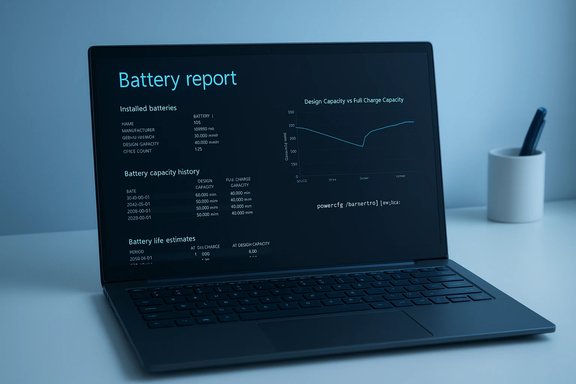
If your laptop’s battery life has slipped from a reliable half‑day to a nervous hour-and-a-half, Windows 11 hides a free, fast diagnostic that can tell you whether the problem is software, settings, or simply a tired battery — and running it takes less than a minute.
Windows includes a built‑in battery reporting tool — invoked with the powercfg utility — that generates a detailed HTML report showing installed battery specs, a history of capacity over time, recent usage, and runtime estimates. This is the same OS‑level diagnostic used by technicians and power users to move beyond vague “the battery feels weak” impressions to objective numbers you can act on.
Third‑party utilities (for example, Battery Flyout) now surface similar diagnostics in a GUI and add historical tracking and recommendations, but the underlying authoritative export remains the battery report produced by powercfg. That makes the command‑line report a privacy‑friendly, vendor‑agnostic baseline when diagnosing battery issues.
Flag: exact “replace at X%” rules can vary by OEM policy and user expectations; treat the 15%–20% band as a guideline rather than a strict rule.
Flag: cycle specifications are manufacturer‑defined; some premium or business models use higher‑end cells with larger cycle lifespans, so check your OEM documentation if you need contract‑grade accuracy.
Use the numbers. Track trends. Replace hardware when the math and your mobility needs align.
Source: ZDNET I used Microsoft's free Windows 11 battery health tool to diagnose my PC - and got helpful results
 Background
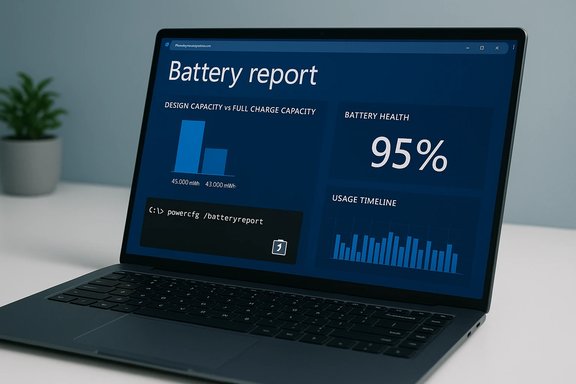
Windows includes a built‑in battery reporting tool — invoked with the powercfg utility — that generates a detailed HTML report showing installed battery specs, a history of capacity over time, recent usage, and runtime estimates. This is the same OS‑level diagnostic used by technicians and power users to move beyond vague “the battery feels weak” impressions to objective numbers you can act on.Third‑party utilities (for example, Battery Flyout) now surface similar diagnostics in a GUI and add historical tracking and recommendations, but the underlying authoritative export remains the battery report produced by powercfg. That makes the command‑line report a privacy‑friendly, vendor‑agnostic baseline when diagnosing battery issues.
How to run the Windows 11 battery report
Generating the report is simple and requires only an elevated shell.- Open an elevated terminal: right‑click Start → Windows Terminal (Admin) or search for PowerShell / Command Prompt and choose “Run as administrator.”
- At the prompt, run the single command:
powercfg /batteryreport /output "C:\battery-report.html"
Windows will write an HTML file and print the full path when complete. - Open File Explorer, navigate to C:\, and double‑click battery-report.html to view it in your browser.
What the report contains (quick overview)
The battery report is structured and labeled. The sections you’ll use most often are:- Installed batteries — Manufacturer, chemistry (usually Li‑ion or Li‑polymer), Design Capacity (mWh), Full Charge Capacity (mWh), and cycle count if the firmware exposes it.
- Recent usage — A timestamped log showing AC vs battery sessions and percentage at events. Useful to correlate big drains with app activity.
- Battery capacity history — A time series comparing Design Capacity to Full Charge Capacity to illustrate degradation.
- Battery life estimates — Calculated runtimes based on design capacity (what the battery could do when new) and current full charge (what it will likely do now).
Interpreting the key metrics
Design capacity vs Full charge capacity
- Design capacity is the energy the battery was rated to hold when new, reported in milli‑watt hours (mWh).
- Full charge capacity is what the battery actually holds now when charged to “full,” also in mWh.
Flag: exact “replace at X%” rules can vary by OEM policy and user expectations; treat the 15%–20% band as a guideline rather than a strict rule.
Cycle count
- The report shows cycle count when the battery controller exposes it; that’s the tally of full equivalent charge/discharge cycles (100% of capacity used, aggregated over time).
Flag: cycle specifications are manufacturer‑defined; some premium or business models use higher‑end cells with larger cycle lifespans, so check your OEM documentation if you need contract‑grade accuracy.
Battery life estimates and recent usage
The report includes measurements of how long the battery lasted during recent runs and what the same runs would look like at design capacity. Large divergences between “then” and “now” runtimes point to measurable degradation; similar runtimes suggest the issue might be software or settings rather than cell wear. Use the recent usage and battery usage graphs to correlate heavy drains with particular sessions or apps.Practical thresholds and replacement guidance
- If Full Charge Capacity is within 80%–100% of Design Capacity, the battery is generally healthy for everyday use.
- Between ~60%–80%, portable users will likely feel reduced runtime; consider replacement if you regularly need long unplugged sessions.
- Below ~60%, replacement is usually justified for power‑dependent users; at that stage software tweaks will only provide marginal gains.
- The system randomly shuts off at non‑zero percentage.
- The battery swells or shows physical deformation — replace immediately and stop using the device until serviced.
- Cycle count matches or exceeds the OEM’s rated cycles and capacity has dropped significantly.
How to replace the battery (overview and options)
You rarely need to buy a new laptop because of an aged battery. There are three common paths:- OEM replacement — Order an official battery from the laptop manufacturer (Dell, HP, Lenovo, etc. or have the manufacturer perform the swap. If under warranty or covered by a service plan, this may be free. OEM replacements preserve warranties and ensure compatibility.
- Authorized repair shops — Third‑party repair centers can replace batteries for a fee and may be faster in some regions, but guarantees vary.
- User replaceable — On older or business laptops with removable battery modules, users can swap the battery themselves following ESD and safety guidelines. Consult the service manual and use OEM‑specified parts when possible.
- Prefer OEM or high‑quality aftermarket cells that match the original chemistry and physical fit.
- Ask about warranty coverage for the replacement battery and the installation work.
Troubleshooting: when numbers don’t match experience
If the report looks healthy but runtime is poor, run targeted diagnostics:- Use Task Manager to check real‑time Power Usage and Power Usage Trend columns and close or uninstall high‑consumption processes.
- Run powercfg /energy to generate an energy diagnostics report that surfaces drivers or devices preventing sleep or causing abnormal activity.
- On Modern Standby systems, run powercfg /sleepstudy to see which devices or apps are waking the machine or consuming energy while the screen is off.
- Correlate sudden drops in Full Charge Capacity with recent BIOS, EC (embedded controller), or driver updates — if a drop aligns with an update, roll back or contact OEM support before replacing hardware.
Practical tips to slow battery degradation (what actually helps)
Batteries inevitably age, but these habits reduce the rate of chemical wear:- Avoid sustained high temperatures — heat accelerates degradation. Don’t run intense workloads on laps or inside tightly packed bags.
- When possible, avoid constant 0→100 full cycles; shallow cycles are gentler on lithium chemistry. That said, you don’t need to obsess over precise percentages — everyday use is normal and expected.
- Use power profiles: select “Best power efficiency” when mobility matters and “Balanced” or “Best performance” only when needed.
- Reduce screen brightness, limit high refresh rates, and disable unused radios (Bluetooth, Wi‑Fi) or keyboard backlight when not needed. These changes have immediate, measurable runtime benefits.
Strengths of the Windows battery report — why this matters
- Free and built‑in: No extra software, no telemetry — it’s an OS‑level export you can generate anywhere.
- Actionable history: The capacity history and recent usage let you correlate usage patterns, firmware changes, or software updates with capacity loss. That historical context is why technicians rely on the report.
- Vendor‑agnostic baseline: When talking to manufacturer support or a repair shop, the battery report provides authoritative numbers that reduce back‑and‑forth and misdiagnosis.
Risks and limitations — what the report won’t tell you
- Firmware/OEM visibility gaps: Some batteries or EC firmware do not expose cycle counts or detailed chemistry; missing fields can confuse interpretation. The report is only as complete as what the battery controller reports.
- Calibration and sampling variance: Differences in how firmware measures a “full” charge or how sensors are calibrated mean that absolute mWh numbers can vary slightly across models. Use trends over time rather than a single snapshot.
- Not a panacea for hardware faults: The report quantifies capacity but won’t diagnose a failing power delivery circuit, a damaged charging port, or battery swell (which is a physical hazard and requires immediate service). Combine the report with other diagnostics (powercfg /energy, Task Manager, SleepStudy) for a complete picture.
A short checklist to take action today
- Generate the battery report: powercfg /batteryreport /output "C:\battery-report.html".
- Note Design Capacity, Full Charge Capacity, and cycle count (if present). Calculate health percentage.
- If Full Charge ≤ ~80% of Design and you need portability, plan replacement; if ≤ ~60% replace promptly. Use OEM documentation to confirm cycle specs.
- Run powercfg /energy and powercfg /sleepstudy (on Modern Standby devices) if runtime seems worse than capacity suggests.
- If replacing the battery, prefer OEM or authorized service; for sealed models, prefer professional installation.
Conclusion
Windows 11’s battery report is a low‑effort, high‑value diagnostic every laptop owner should run before concluding their battery is “mysteriously dying.” It converts feelings and estimates into measurable facts — design vs full capacity, cycle counts, and real runtime history — so you can make a calm, informed decision about software fixes, power settings, or buying a replacement. Third‑party apps can make the data friendlier, but the authoritative OS export remains the powercfg battery report, and it’s an essential tool for anyone who depends on laptop mobility.Use the numbers. Track trends. Replace hardware when the math and your mobility needs align.
Source: ZDNET I used Microsoft's free Windows 11 battery health tool to diagnose my PC - and got helpful results