Windows 11 Battery Report: One-Minute Health Check with PowerCfg

  • Thread Author
Microsoft’s built‑in battery report in Windows 11 is one of those small, quietly powerful features you’ll wish you’d used sooner — a one‑minute, no‑install HTML diagnostic that turns “my battery feels weak” into measurable facts you can act on. The report (generated with a single command) lays out the installed battery’s chemistry, design capacity, current full‑charge capacity, available cycle count, recent usage events, and realistic runtime estimates — the baseline data techs use to decide whether a laptop needs a settings tweak, software fix, or a new battery. dows has exposed the battery‑report function for several versions, and in Windows 11 it remains an authoritative, vendor‑agnostic diagnostic that requires no third‑party software. You generate a static HTML file that contains historical data Windows collects about battery sessions and capacity over time; that same report is suitable for attaching to OEM support tickets or saving for trend tracking. Microsoft documents the command and its options in official support material and technical docs.
The ZDNET hands‑on column that prompted renewed attention walked through running the report, interpreting key fields such as Design Capacity, Full Charge Capacity, and Cycle Count, and then used those numbers to decide whether a batwarranted — a practical demonstration of how numbers beat guesswork.
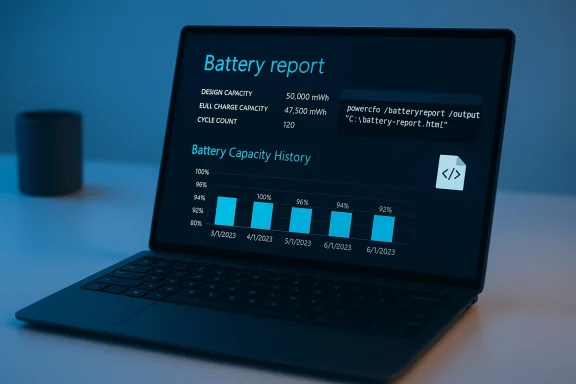
Laptop displaying a dark blue battery report with capacity metrics and a history chart.What the Windows battery report is and why it matters​

The battery report is a static HTML export produced by the PowerCfg tool. It collects and organizes telemetry the operating system has about the battery and presents it in readable sections:
  • Installed Batteries — manufacturer, chemistry (Li‑ion / Li‑polymer), design capacity (mWh), full charge capacity (mWh), and cycle count when exposed by firmware.
  • Battery Capacity History — a time series comparing original design capacity to full charge capacity over days and weeks.
  • Recent Usage / Usage History — time‑stamped AC vs battery sessions that help correlate runtime drops to specific events.
  • Battery Life Estimates — practical run‑time calculations that rmance to the device’s out‑of‑box expectations.
Why this is useful: it converts subjective impressions into reproducible metrics. Instead of guessing whether an app or a degraded cell is to blame, you can point to a chart that shows your battery at 60% of original capacity with 700 cycles logged. When logged and shared, these numbers reduce the back‑and‑forth wite repair decisions faster.

How to run the battery report (a quick, authoritative guide)​

  • Open an elevated shell: right‑click Start → Windows Terminal (Admin), or search for PowerShell / Command Prompt and choose "Run as administrator".
  • At the prompt type exactly:
  • powercfg /batteryreport /output "C:\battery-report.html"
  • Press Enter. Windows will create the HTML file and display its path when complete.
  • Open File Explorer, navigate to C:\, and double‑click battery-report.html to view it in your browser.
You can change the output path or omit the /output parameter to save the report to your user profile. You can also use /duration days to limit the historical window the report analyzes. The command is part of the long‑standing PowerCfg utility that also produces energy and sleep diagnostics.

Deep dive: the most important report fields and how to interpret them​

Installed Batteries: Design Capacity vs Full Charge Capacity​

  • Design Capacity (mWh) is the energy the battery was specified to hold when new.
  • Full Charge Capacity (mWh) is what the battery can actually hold today.
  • The difference is your battery’s health in practical terms.
For example: a 50,000 mWh design battery that now reads 40,000 mWh is operating at 80% of its original capacity. Many technicians treat the 80% mark as an important inflection point — below it you’ll likely notice shorter runtimes and the device’s mobility is practically impacted. However, this is guidance not mandate: the comfort threshold varies by user and battery size.

Cycle Count — what it means and why it matters​

  • Cycle count records how many full equivalent charge cycles the battery has experienced: discharging 100% once, or 50% twice, both count as one cycle.
  • Typical consumer laptop cells are designed for roughly 300–500 cycles before capacity reaches around 80% of original — though some cells and premium replacements rate higher. Lifecycle depends on chemistry, thermal stress, and charge/discharge depth.
A cycle count near or beyond a battery’s rated cycles is a strong signal that capacity loss is expected. Combine cycle data with the capacity percentage to decide whether a battery is approaching replacement.

Battery life estimates and recent usage​

The report’s runtime estimates show how long the device lasted in specific recorded new” comparison derived from design capacity. If the observed runtime is dramatically shorter than the “as new” estimate, that’s further evidence of capacity degradation. Keep in mind that estimated times vary with workload; they are directional rather than forensic.

Practical thresholds and real‑world guidance​

  • If Full Charge Capacity ≤ ~80% of Design, you’ll probably notice reduced mobility and should plan for a replacement if portability matters.
  • A 20% loss is commonly cited as a practical replacement threshold; it aligns with battery manufacturers’ definition of reaching the end of nominal lifecycle (80% remaining). Use this as a rule‑of‑thumb, not an absolute.
  • Cycle count ≈ 500 is a frequent engineering target for mainstream cells; many notebooks will show significant capacity reduction in that neighborhood. Heavy users and gaming laptops often hit this earlier.
These thresholds are useful because they anchor subjective complaints to objective metrics. But caveats apply: firmware reporting varies between OEMs, some batteries don’t expose cycle counts, and calibration differences can shift absoluly. Always use trends rather than one snapshot and, when in doubt, attach the battery report when contacting OEM support.

What the report won’t tell you (limitations and rreport quantifies capacity but won’t detect certain hardware problems like a failing power delivery circuit, damaged charging port, or physical battery a safety issue that requires immediate service.​

  • Some firmware doesn’t expose cycle counts or voltage history; in those cases the report will show blanks or “not available” fields. Interpretation must account for missing data.
  • Calibration and sampling variance mean two reports taken minutes apaferences; use longer‑term capacity history to spot real trends.
To diagnose other electrical or thermal issues, combine the battery report with powercfg /energy, Task Manager power columns, and (on Modern Standby devices) powercfg /sleepstudy. These additional diagnostics help differentiate software/firmware power drains from genuine battery capacity loss.

How the battery report helped in a real case (the ZDNET example)​

In the ZDNET column, the reporter ran the battery report, inspected the Installed Batteries and Battery Capacity History sections, and discovered oss rather than a mysterious app or rogue update. The report’s design vs full charge comparison and recorded cycle count gave the columnist the confidence to consider battery replacement rather than endless pothe practical value: the report transforms troubleshooting from guesswork into a numbers‑driven decision.
That same workflow — generate the report, check design vs full capacity, note cycles and runtime history — is the recommended first step before investing time in deeor paying for service calls.

Replacement options: OEM, third‑party, and DIY considerations​

  • Most major manufacturers (Dell, HP, Lenovo) sell replacement batteriesr service plans; if your device is under warranty, OEM support may replace a failing battery at no charge.
  • Third‑party repair shops and online sellers offer lower prices but vary in quality and warranty. For sealed professional installation is often safer.
  • If you choose DIY replacement, prefer OEM or high‑quality aftermarket cells and follow anti‑static and battery safety precautions. Be mindful of battery model numbers, connectors, and the risk of voiding warranty.
Suggested decision flow:
  • Run powercfg /batteryreport and confirm capacity and cycle numbers.
  • If Full Charge ≤ ~80% and you need portability, get a price estimate for OEM replacement.
  • If cycle count is extremely high (>500) and capacity is low, plan replacement sooner rather than later.
  • If the report shows normal capacity but poor runtime, run powercfg /energy and investigate software or thermal issues.

Complementary tools: when to use third‑party apps​

There’s a thriving ecosystem of third‑party battery utilities (e.g., Battery Flyout and others) that present the same data in friendlier UIs, add historical charts, and offer quick recommendations. These apps are conveni: the PowerCfg report remains the authoritative OS export you can attach to support tickets. Use third‑party apps for daily monitoring, and powercfg /batteryreport for authoritative diagnostics and record‑keeping.

A short, practical checklist you can run through right now​

  • Open an elevated terminal and run: powercfg /batteryreport /output "C:\battery-report.html". (learn.microsoft.com)
  • Open the HTML and look at Installed Batteries: note Design Capacity, Full Charge Capacity, and Cycle Count.
  • Calculate the health percentage: (Full Charge Capacity ÷ Design Capacity) × 100. If it’s below ~80% and you rely on battery time, start replacement planning. poor but capacity looks healthy, run powercfg /energy to search for software or driver causes.
  • If you see physical signs of swelling, stop using the device on battery immediately and seek professional service. The report cannot diagnose swelling.

Interpreting edge cases and cautionary notes​

  • If the battery report shows missing fields (for example, no cycle count), that’s often an OEM firmware limitation — it doesn’t mean the battery is healthy by default. Attach the report to a support case and ask the manufacturer to interpret any blanks.
  • Don’t over‑optimize: obsessing over micro‑habits (like never charging past 80%) offers limited gains for typical users. Batteries are consumables; the goal is informed maintenanceesholds (80% remaining, ~500 cycles) are practical rules of thumb backed by industry norms and battery chemistry studies, but they’re not legal or hard technical cutoffs. Use them as a guide and consider your needs: a desktop replacement user may tolerate more degradation than a mobile professional.

Final analysis: strengths, weaknesses, and best practices​

The Windows battery report’s strengths are clear: it’s free, built‑in, vendor‑agnostic, and produces an exportable record that technicians trust. For most users it’s a low‑effort, high‑value diagnostic you should run before concluding the battery is “mysteriously dying.”
However, it’s not a panacea. The report requires correct firmware exposure to be complete, won’t highlight mechanical or charger faults, and must be interpreted with the device’s usage pattern and thermal history in mind. Combine it with powercfg /energy, Task Manager, and physical inspection for a comprehensive picture.
Best practices for Windows users:
  • Run the report periodically (quarterly or before warranty calls).
  • Save copies for trend analysis.
  • Use the numbers to plan replacements rationally instead of chasing anecdotal fixes.
  • Prioritize OEM or reputable repair services for sealed units.

The next time your laptop “suddenly” quits at 18% or doesn’t last through a flight, don’t start guessing — generate the battery report, check design vs full charge and cycle count, and let the numbers lead the decision. It’s a one‑minute diagnostic that rewards calm, fact‑based choices: tweak settings, run a targeted energy analysis, or order a replacement battery — depending on what the report actually shows.
Conclusion: Windows 11 already gives you the tools to diagnose battery health — use them. The command is simple, the report is informative, and the result is quieter, cheaper, and faster troubleshooting than most users expect.

Source: ZDNET Microsoft has a free Windows 11 battery health tool to diagnose your PC - how it helped me
 

Windows 11 quietly ships a powerful, no‑install battery diagnostic that can turn the vague feeling of “my laptop dies too fast” into concrete numbers you can act on — and you can generate it in under a minute from an elevated terminal.

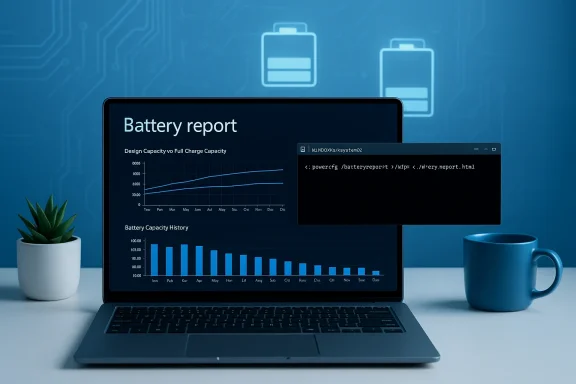
Laptop shows a battery report with charts, beside a plant and a blue mug on a blue tech-themed desk.Background​

Laptop batteries are consumable components: they age chemically, lose capacity, and eventually fail. That decline can be gradual — a few minutes less each month — or sudden, such as an unexpected shutdown or rapid drop from 30% to 0%. Windows’ built‑in battery report gives you an obe software and settings problems from a battery that’s simply reached the end of its useful life.
Microsoft documents the battery‑report feature as part of the powercfg command suite; the tool writes a self‑contained HTML file with sections that matter nstalled Batteries, Recent Usage, Battery Capacity History, and Battery Life Estimates. That HTML file can be saved, shared with OEM support, or archived for trend tracking.

What the Windows battery report actually is — and why it matters​

The batteird‑party utility, a telemetry agent, or a “smart” recommendation engine. It is a static export of telemetry Windows already collects about battery capacity and usage. Because it’s vendor‑agnostic and offline, it map before you call support or decide to buy a replacement battery.
Key strengths:
  • It’s free and built into Windows 10 and Wiequired).
  • Tan‑readable tables and graphs you can keep or share with repair technicians.
  • It records history: you canover months, which helps determine whether degradation is normal or sudden.
Important limitations:
  • The report only shows whatr and EC firmware expose. Cycle counts or certain fields may be absent on some devices.
  • It won’t diagnose physical issues like battery swelling or a damaged DC jack; those require inspection.
  • Absolute mWh numbers can vary between manufacturers due to calibration differences; trends matter more than single snapshots.

How to generate a Windows 11 battery report (step‑by‑step)​

  • Open an elevated terminal:
  • Right‑click the Start button and select Windows Terminal (Admin), or search for PowerShell / Command Prompt, right‑click and choose Run as administrator. Confirm the UAC prompt when it appears.
  • Run the battery report command exactly (paste or type it):
    powercfg /batteryreport /output "C:\battery-report.html"
    Press Enter. Windows will generate the HTML file and print the saved path in the console.
  • Open File Explorer and navigate to the path shown (commonly C:). Double‑click the generated battery‑report.html file to view it in your browser.
Pro tips:
  • You can change the /output path to save the report anywhere (for example, D:\reports\my-laptop-battery.html).
  • If you only want recent data, add /duration X to limit the analysis to X days; otherwise the report covers the lifetime of the device.

Reading the report: the sections that matter (and how to interpret themed into labeled blocks. Below are the ones you’ll use most for a health diagnosis, with plain‑English interpretation and SEO‑friendly phrases like “Windows 11 battery report,” “design capacity vs full charge capacity,” and “battery cycle count” naturally included.​

Installed Batteries — the diagnostic heart​

This table lists:
  • Name/Manufacturer and model.
  • Chemistry (most laptops use Lithium‑Ion or Lithium Capacity** (mWh): the battery energy rating when the laptop was new.
  • Full Charge Capacity (mWh): what the battery actually holds now when reported “full.”
  • Cycle Count (if the battery controller reports it).
How to use it:
  • Calculate battery health percentage = ÷ Design Capacity) × 100.
  • A practical rule of thumb from community practice and industry guidance: if Full Charge Capacity drops below roughly 80% of Design Capacity, you’ll likely notice reduced runtime; at ~60% or lower it becomes urgent to plan replacement if portability mat are guidelines, not absolute rules.
Example:
  • Design Capacity = 60,000 mWh; Full Charge Capacity = 48,000 mWh → health = 80% (useable but starting to show wear).
  • Design Capacity = 60,000 mWh; Full Charge Capacity = 36,000 mWh → health = 60% (replace if you rely on mobile Battery Capacity History
    This time series shows Full Charge Capacity values recorded over days or months. Key uses:
  • Spot steady declines (normal aging), sudden drops (possible firmware or cell fault), or anomalies after updates. Trends are more diagnostic than any single reading.

Recent Usage and Battery Usage​

  • Recent Usage is a timestampettery sessions and percentage at events; useful to correlate big drains with specific workloads.
  • Battery Usage visually summarizes drains over the last ~72 hours; it can point out a runaway app or a background process causing rapid cycles. Use Task Manager’s Power Usage column in correlation.

Battery Life Estimates​

This section calculates two runtimes:
  • At Design Capacity — how long the battery should have lasted when new.
  • At Full Charge Capacity — the realistic runtime based on current capacity.
If those numbers are dramatically different, the battery has lost a lot of usable energy and replacement should be considered.

The science behind the numbers: cycle counts, chemistry, and how batteries age​

  • A “cycle” counts a cumulative 100% of discharge, regardless of whether it occurs in one go or across several partial discharges. Hitting 100% total among several sessions still equals one cycle.
  • Most consumer laptop Li‑ion batteries are engineered for roughly 300–500 cycles before falling to about ~80% of design capacity, though variations exist by vendor and cell chemistry. Battery University and industry guidance explain that cycle ratings are conservative design targets and actual calendar lifespan depends heavily on temperature, depth‑of‑discharge, and charging patterns.
  • Heat is a major accelerant of aging: sustained high temperatures — from heavy workloadsan reduce cycle life significantly. Avoiding excessive heat is one of the biggest practical steps to prolong battery health.

Action threshold battery (and how urgently)​

There’s no single universal rule, but a sensible decision framework looks like this:
  • If Full Charge Capacity ≥ 90% of Design Capacity — battery is healthy for most users. No action required.
  • If 80% ≤ Fu90% — capacity loss is noticeable; consider replacement if you need full portability, otherwise continue monitoring.
  • If Full Charge Capacity < 80% — many users begin to feel poor runtime and should plan replacement; if below ~60%, replace promptly if you rely on battery life.
  • If the report shows abnormal behavior — sudden capacity drops, missing or wildly inconsistent numbers, or the device suffers abrupt shutdowns despite reasonable capacity — investigate firmware, drivers, and power delivery hardware; don’t immediately assume the battery itself is bad.
Practi terms sometimes include specific battery health thresholds for replacement. If your laptop is under warranty or a service plan, open a support case and attach the battery‑report HTML to expedite diagnosis.

Troubleshooting odd reports and errors​

If the battery report is missing fields, shows implausible numbers, or fails to run, try these steps:
  • Re‑run from an admin terminal and specify an explicit /output path.
  • Update or reinstall ACPI drivers in Device Manager (uninstall Microsoft ACPI‑Compliant System and scan for hardware changes). Community posts and Microsoft Q&A often recommend this when the report lacks data.
  • Update BIOS/UEFI and chipseoften exposes battery telemetry through those interfaces.
  • If powercfg reports “unable to perform operation” or an error code, check Microsoft’s community Q&A or run the Surface/HP/Dell diagnostic tools for device‑specific checks.
If a machine powers down suddenly despite reasonable battery capacity reported, suspect sensors, power‑delivery circuitry, or a calibration issue; combine the battery report with powercfg /energy and Task Manager metrics to isolate the cause.

Follow‑up diagnostics and monitoring tools​

The battery report tells a lot, but it’s best used with these follow‑ups:
  • powercfg /energy — generates an energy report that can identify devices, drivers, or settings causing excess drain.
  • powercfg /sleepstudy — useful on Modern Standby systems to inspect wake‑sources and standby drains.
  • Task Manager’s Power Usage and Power Usage Trend columns — for realtime app-level power consumption.
  • Third‑party monitoring utilities (optional) — some GUI tools simplify trend tracking and visualize battery health over time, but remember that powercfg’s HTML export remains the authoritative baseline you can always supply to support.

Practical battery care: habits that actually help​

Small changes add up. Battery University and Microsoft recommend several practical habits to reduce stress ontend usable life:
  • Avoid sustained high temperatures. Don’t block vents; avoid using a laptop on soft bedding; clean dust periodically. Hcal aging.
  • Store at moderate charge levels. If you’ll store a device long‑term, ke 40–60% and place the device in a cool, dry spot. This reduces calendar aging.
  • Favor partial charges. Full 0–100% cycling stresses cells more than shallower cycles; staying between roughly 20–80% when possible will lengthen cycle life. Battery manufacturers and battery‑chemistry resources support this practice. ([batteryuniversity.com](BU-808: How to Prolong Lithium-based Batteries Don’t obsess. Occasional full charges are fine and sometimes necessat rigid rituals (never charge to 100% ever) add complexity with marginal payoff for most users. Practical co---

If you decide to replace the battery: options and safety​

  • OEM replacement: Best for guaranteed compatibility and safety. Many manufacturers sell batteries for specific models or provide service replacements. If the device is under warranty, replacement may be free.
  • Authorized service center: For sealed or glued designs, choose an authorized service provider to avoid damaging the chassis or battery.
  • *Thi Usually cheaper, but pick reputable vendors, prefer cells from known suppliers, and verify return policy and warranty. Beware of low‑quality cells that will degrade faster or pose safety risks.
Safety notes:
  • If the battery appears physically swollen or the laptop shows heat/odors, stop using it and seek professional service immediately; swollen cells are a safety hazard.
  • Dispose of old batteries through proper recycling channels; do not throw them in general waste.

A short diagnostic checklist you can run in 5an elevated terminal and run: powercfg /batteryreport /output "C:\battery-report.html".​

  • Open the report and note Design Capacity, Full Charge Capacity, and any Cycle Count. Calculate health %.
  • Check Battery Capacity History for steady decline or sudden drops.
  • Correlate recent usage and Battery Usage graphs with Task Manager’s unaway apps.
  • If capacity is low (<80%) or numbers are inconsistent, run powercfg /energy and consider opening a support case with your OEM; attach the HTML report.

Common questions — quick answers​

  • My report shows no cycle count. Is it broken?
    Not necessarifirmware do not expose cycle count information; missing fields are a visibility gap, not a bug. Use capa
  • The report shows Full Charge Capacity higher than Design Capacity. What gives?
    Some replacement batteries or recalibrations can temporarily produce odd numbers. If valutent or change dramatically day to day, investigate firmware/drivers or confirm you’re using the original OEM battery. Microsoft community guidance shows this can happen and lacement or calibration issues.
  • Will tweaking Windows power settings fix a badly degraded battery?
    Settings can reduce drain and improve runtime temporarily, but they won’t restore lost chemical capacity. If the battery health percentage is low, the only fix is replacement.

Final analysis: strengths, risks, and best practice​

The Windows 11 battery report is onh‑value features: free, fast, and authoritative for baseline diagnostics. It converts subjective “it dies faster” complaints into numbers — design vs full capacity, cycle counts, and runtime estimates — that technicians and users can use to make rational decisions. That alone makes it worth running before you consider buying a new laptop or wasting time on software tweaks.
Notable strengths:
  • Authority and portability: it’s a Microsoft‑generated HTML file you can attach to support tickets.
  • Actionability: clear fields (Design Capacity, Full Charge Capacity) let you compute health and schedule replacement logically.
  • No agent footprint: the report writes a one‑time HTML file and doesn’t run background telemetry.
Potential risks and caveats:
  • Incomplete telemetry: missing fields or calibration differences can mislead; always interpret single snapshots cautiously and favor trends.
  • Non‑battery faults: a “good” report does not rule out power‑delivery problems like DC jack faults or swollen cells — use visual inspection and additional diagnostics.
  • DIY replacement hazards: for sealed laptops, battery replacement can be tricky and risky; choose professional service unless you’re confident and follow device‑specific guides.

Run the Windows 11 battery report now. Save the HTML, calculate the health percentage, and use the checklist above to decide whether software, settings, or a replacement battery is appropriate. The numbers will make the decision clearer — and may save you from a costly, unnecessary replacement or, conversely, from being stranded by a battery that’s quietly failed.

Source: ZDNET How to use Windows 11's hidden battery health tool to diagnose your PC (before it's too late)
 

Back
Top