

TweakTown’s Windows 11 black-screen guide, published as a practical fix-it walkthrough, says users should start with cables, monitor input, and graphics reset shortcuts before moving into Windows Recovery, Startup Repair, update removal, Safe Mode driver work, power resets, and hardware isolation. That advice is not glamorous, but it is mostly the right hierarchy. The black screen is a symptom, not a diagnosis, and the fastest repair is usually the one that refuses to guess too early. For Windows users and administrators, the bigger lesson is that Microsoft’s recovery stack has become as important as the desktop itself.
A Windows 11 black screen feels like a single problem because the result is brutally simple: the machine appears to be dead, frozen, or locked behind an invisible wall. In reality, it can represent several very different failures. A loose DisplayPort cable, a crashed graphics driver, a failed Explorer shell, a bad update, a corrupted boot path, a misbehaving GPU, or a dying monitor can all collapse into the same blank rectangle.
That ambiguity is why TweakTown’s sequence starts in the right place. Before treating the operating system as guilty, the guide pushes users to verify power, cable seating, input selection, port choice, and multi-monitor behavior. It sounds pedestrian, but this is exactly where real troubleshooting begins: with the cheapest, least destructive test.
Windows has trained users to expect software explanations for everything. But display failures remain stubbornly physical. A desktop plugged into the motherboard HDMI port instead of the discrete GPU can look like an OS disaster; a monitor waiting on the wrong input can mimic a failed boot; a flaky cable can turn a healthy PC into a noir film.
The important distinction is whether the PC is failing to produce an image, failing to load Windows, or loading Windows into a session the user cannot see. Those are different battles. Treating them as one is how people end up reinstalling Windows when they needed a new cable.
That order matters because panic is expensive. A user staring at a black screen is tempted to hard reset repeatedly, boot from random USB media, or jump straight to “Reset this PC.” Those options can work, but they also widen the blast radius. A black screen after login may be a graphics driver or shell issue; a full reset is a sledgehammer.
The Windows + Ctrl + Shift + B shortcut occupies a useful middle ground. It tells Windows to reset the graphics driver path and refresh the display connection. On a system that is still alive underneath the black screen, that shortcut can produce a beep, a flicker, and sometimes a working desktop.
But it is not magic. If the machine never reaches Windows, if firmware is not handing off properly, if the GPU is not outputting signal, or if the display chain is broken before the OS loads, the shortcut will do nothing. Its value is precisely that it is fast, non-destructive, and diagnostic.
Recovery Mode is where Microsoft hides the levers that matter when the desktop is unavailable. Startup Repair can inspect boot configuration and startup files. Uninstall Updates can remove a recent quality or feature update. Startup Settings can launch Safe Mode. System Restore and reset options sit nearby for cases where lighter tools fail.
That architecture reflects a hard truth about modern Windows. The operating system is now updated constantly, layered with drivers from multiple vendors, protected by encryption, and dependent on firmware behavior that varies widely by OEM. When something breaks before login, the normal repair surface is gone.
The guide’s forced-entry method—interrupting startup repeatedly until Windows detects failed boots—is inelegant but familiar to technicians. It is also a reminder that Microsoft still relies on failure detection as a gateway to recovery. If Windows cannot be trusted to load, the user has to persuade it to stop trying.
There is risk here. Repeated hard shutdowns are not a habit anyone should cultivate, particularly on systems already suspected of storage trouble. But when the screen is black and there is no visible path into Settings, forced entry into recovery may be the only practical move left for a home user.
The problem is that Startup Repair is often treated as a universal remedy. It is not. A black screen after successful login is unlikely to be fixed by repairing boot files. A monitor input problem will not yield to a Windows tool. A failing GPU will not be persuaded by automated diagnostics.
Still, it belongs early in the recovery sequence because it is comparatively low risk. It does not immediately erase user data, does not require deep technical knowledge, and does not force the user to choose a driver package from a vendor site while blind. For many users, that alone makes it a sensible first recovery step.
The better way to think about Startup Repair is as a gatekeeper. If it works, the problem was probably in the boot or startup path. If it fails, the diagnosis narrows. The user then moves from “Windows cannot start correctly” toward “Windows starts but display, update, driver, or hardware state is broken.”
Windows 11 sits at the intersection of Microsoft code, OEM firmware, GPU drivers, chipset drivers, display protocols, docking stations, and security features. A monthly quality update may be perfectly sound in Microsoft’s test matrix and still expose a vendor-specific edge case on a particular laptop, monitor, or graphics stack. That does not make patching optional, but it does make rollback necessary.
TweakTown’s distinction between uninstalling the latest quality update first and removing a feature update only when necessary is sound. Quality updates are the more common recent change and are generally the narrower rollback. Feature updates are larger transitions, and removing them is a more significant move.
For administrators, the lesson is familiar: update timing is evidence. If dozens of machines in the same fleet go black after a patch cycle, the problem is not an isolated cable. If one desktop goes black after a GPU driver update delivered through Windows Update, the failure path is more specific. Recovery steps should follow the chronology.
The consumer version of that same discipline is simple: remember what changed. A new driver, a BIOS update, a Windows cumulative update, a monitor swap, a dock replacement, or a display setting change can all matter. The black screen may be blank, but the timeline usually is not.
Safe Mode loads Windows with a minimal driver and service set. That makes it especially useful when the normal graphics stack has become the suspect. If Safe Mode produces a usable screen, the monitor and basic video output are likely functioning, and the investigation shifts toward drivers, startup software, display configuration, or shell components.
The guide’s Device Manager path is conventional: expand Display adapters, update the driver, or uninstall the device so Windows can reinstall a basic driver on reboot. That can fix a corrupted driver install or a bad vendor package. It can also create a temporary low-resolution experience while the user retrieves the right driver from the GPU or PC maker.
There is a nuance worth adding for WindowsForum readers. “Search automatically for drivers” is convenient, but it is not always the best final answer. For Intel, AMD, NVIDIA, and OEM-tuned laptop graphics, vendor packages may matter, particularly where hybrid graphics, power management, or manufacturer display switching is involved.
Safe Mode is not just a repair mode. It is a truth serum. If Windows works there, the machine is not simply dead; the normal boot environment is contaminated by something that Safe Mode avoided loading.
Yet it has a practical basis. Modern PCs do not always return to a clean electrical or firmware state after a normal shutdown, especially when fast startup, sleep states, docks, USB-C display paths, external GPUs, embedded controllers, and laptop power management are involved. A full power drain can reset hardware state in a way a normal reboot does not.
This is especially relevant when the black screen appears before Windows has any realistic chance to intervene. If there is no logo, no firmware splash, no external display output, and no recovery screen, the fault may be below Windows. Power cycling at the hardware level is a reasonable bridge between cable checks and component diagnosis.
The limitation is obvious. A power reset will not repair corrupted system files, uninstall a bad update, or replace a failing GPU. But as a low-cost step before disassembly or service, it earns its slot in the sequence.
The recommended tests are classic isolation steps. Try a different display. Try a different cable. Reseat the GPU. Boot with one RAM stick at a time. Use bootable media to see whether the machine can display and load an alternate environment. Check for loose components.
This is where the line between home troubleshooting and professional repair becomes visible. A desktop user comfortable opening a case can reseat a card and swap memory modules. A laptop user may be limited to external display testing, power reset, and recovery tools. A managed enterprise device may be sealed not by screws but by policy.
Hardware diagnosis also changes the risk calculation. If storage failure is suspected, the priority should shift from “make Windows boot” to “preserve data.” If a GPU is failing intermittently, repeated stress from reboot loops may not help. If RAM is unstable, reinstalling Windows could fail halfway and leave the machine worse off.
The TweakTown piece correctly frames System Restore and Windows reset as last resorts. That restraint matters. A reset may fix a software-side black screen, but it can also erase configuration, applications, and local state. It should come after the user has separated display failure from Windows failure as much as possible.
BitLocker also complicates recovery. Entering advanced startup, changing boot behavior, or booting from external media can trigger recovery-key requirements depending on device state and policy. That is not a reason to avoid recovery; it is a reason to know where the keys are before the crisis.
Enterprise administrators should also treat a black screen after login differently from a black screen before the Windows logo. After-login failures may involve Explorer, profile corruption, shell extensions, security agents, display drivers, or remote management hooks. Pre-login failures point more strongly toward boot, firmware, driver initialization, or display path problems.
The most important enterprise asset is telemetry. If the same model fails after the same update, rollback and pause decisions become defensible. If failures are scattered, local hardware or user-specific configuration is more likely. The blank screen is the same; the fleet pattern is the evidence.
That is why a consumer troubleshooting checklist should not become an enterprise runbook without modification. The home user wants the screen back. The administrator wants the screen back and wants to know whether the next thousand machines are about to follow it into darkness.
But approachability is not the same as clarity. A black screen gives users almost no information. It does not say whether the display pipeline failed, the shell failed, the driver failed, the bootloader failed, or the hardware failed. The user is forced into inference.
This is one reason guides like TweakTown’s continue to matter. Microsoft can document the tools, but users need a sequence. They need to know what to try first, what each step proves, and when to stop digging. The official recovery stack is only useful if someone can map symptoms to actions.
The irony is that Windows often has logs, error states, and diagnostic breadcrumbs, but the person who needs them most cannot see the screen. Until Windows can surface more actionable recovery information in plain language, black-screen troubleshooting will remain a blend of engineering, ritual, and patience.
Source: TweakTown How to Fix Windows 11 Black Screen on Boot or After Login
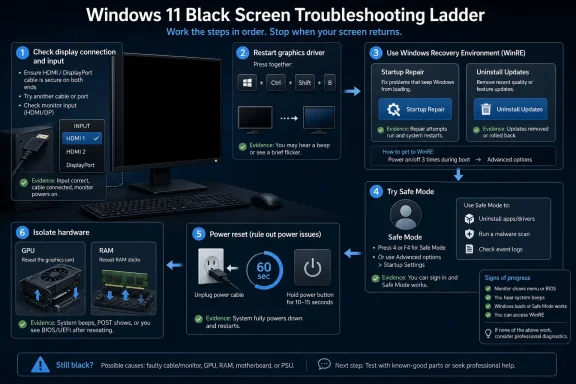 The Black Screen Is Windows’ Most Ambiguous Failure Mode
A Windows 11 black screen feels like a single problem because the result is brutally simple: the machine appears to be dead, frozen, or locked behind an invisible wall. In reality, it can represent several very different failures. A loose DisplayPort cable, a crashed graphics driver, a failed Explorer shell, a bad update, a corrupted boot path, a misbehaving GPU, or a dying monitor can all collapse into the same blank rectangle.That ambiguity is why TweakTown’s sequence starts in the right place. Before treating the operating system as guilty, the guide pushes users to verify power, cable seating, input selection, port choice, and multi-monitor behavior. It sounds pedestrian, but this is exactly where real troubleshooting begins: with the cheapest, least destructive test.
Windows has trained users to expect software explanations for everything. But display failures remain stubbornly physical. A desktop plugged into the motherboard HDMI port instead of the discrete GPU can look like an OS disaster; a monitor waiting on the wrong input can mimic a failed boot; a flaky cable can turn a healthy PC into a noir film.
The important distinction is whether the PC is failing to produce an image, failing to load Windows, or loading Windows into a session the user cannot see. Those are different battles. Treating them as one is how people end up reinstalling Windows when they needed a new cable.
The First Fix Is Not a Fix, It Is a Triage Philosophy
The most useful part of the TweakTown piece is not any single button combination. It is the order of operations. The guide implicitly argues that black-screen troubleshooting should proceed from external checks to transient software resets, then to recovery tools, then to driver and update rollback, and only finally to invasive repair or hardware teardown.That order matters because panic is expensive. A user staring at a black screen is tempted to hard reset repeatedly, boot from random USB media, or jump straight to “Reset this PC.” Those options can work, but they also widen the blast radius. A black screen after login may be a graphics driver or shell issue; a full reset is a sledgehammer.
The Windows + Ctrl + Shift + B shortcut occupies a useful middle ground. It tells Windows to reset the graphics driver path and refresh the display connection. On a system that is still alive underneath the black screen, that shortcut can produce a beep, a flicker, and sometimes a working desktop.
But it is not magic. If the machine never reaches Windows, if firmware is not handing off properly, if the GPU is not outputting signal, or if the display chain is broken before the OS loads, the shortcut will do nothing. Its value is precisely that it is fast, non-destructive, and diagnostic.
Recovery Mode Is the Real Control Panel Now
For many Windows 11 users, the most important interface on the machine is no longer Settings. It is the Windows Recovery Environment, the blue-and-gray rescue layer that appears when Windows cannot boot cleanly or when the user deliberately restarts into advanced startup. TweakTown’s guide correctly moves there once basic checks fail.Recovery Mode is where Microsoft hides the levers that matter when the desktop is unavailable. Startup Repair can inspect boot configuration and startup files. Uninstall Updates can remove a recent quality or feature update. Startup Settings can launch Safe Mode. System Restore and reset options sit nearby for cases where lighter tools fail.
That architecture reflects a hard truth about modern Windows. The operating system is now updated constantly, layered with drivers from multiple vendors, protected by encryption, and dependent on firmware behavior that varies widely by OEM. When something breaks before login, the normal repair surface is gone.
The guide’s forced-entry method—interrupting startup repeatedly until Windows detects failed boots—is inelegant but familiar to technicians. It is also a reminder that Microsoft still relies on failure detection as a gateway to recovery. If Windows cannot be trusted to load, the user has to persuade it to stop trying.
There is risk here. Repeated hard shutdowns are not a habit anyone should cultivate, particularly on systems already suspected of storage trouble. But when the screen is black and there is no visible path into Settings, forced entry into recovery may be the only practical move left for a home user.
Startup Repair Is Worth Trying, but It Should Not Be Oversold
Startup Repair has an appealing name because it promises exactly what a frightened user wants: let Windows fix itself. Sometimes it does. If the black screen is tied to damaged boot files, broken startup configuration, or a failed update transition, Startup Repair can restore enough order to boot normally.The problem is that Startup Repair is often treated as a universal remedy. It is not. A black screen after successful login is unlikely to be fixed by repairing boot files. A monitor input problem will not yield to a Windows tool. A failing GPU will not be persuaded by automated diagnostics.
Still, it belongs early in the recovery sequence because it is comparatively low risk. It does not immediately erase user data, does not require deep technical knowledge, and does not force the user to choose a driver package from a vendor site while blind. For many users, that alone makes it a sensible first recovery step.
The better way to think about Startup Repair is as a gatekeeper. If it works, the problem was probably in the boot or startup path. If it fails, the diagnosis narrows. The user then moves from “Windows cannot start correctly” toward “Windows starts but display, update, driver, or hardware state is broken.”
Updates Remain Both the Cure and the Suspect
The guide’s advice to uninstall recently installed Windows updates is practical and politically delicate. Windows Update is central to security, and telling users to remove updates can sound like encouraging bad hygiene. But in the real world, update rollback is a legitimate troubleshooting step when a black screen appears immediately after patching.Windows 11 sits at the intersection of Microsoft code, OEM firmware, GPU drivers, chipset drivers, display protocols, docking stations, and security features. A monthly quality update may be perfectly sound in Microsoft’s test matrix and still expose a vendor-specific edge case on a particular laptop, monitor, or graphics stack. That does not make patching optional, but it does make rollback necessary.
TweakTown’s distinction between uninstalling the latest quality update first and removing a feature update only when necessary is sound. Quality updates are the more common recent change and are generally the narrower rollback. Feature updates are larger transitions, and removing them is a more significant move.
For administrators, the lesson is familiar: update timing is evidence. If dozens of machines in the same fleet go black after a patch cycle, the problem is not an isolated cable. If one desktop goes black after a GPU driver update delivered through Windows Update, the failure path is more specific. Recovery steps should follow the chronology.
The consumer version of that same discipline is simple: remember what changed. A new driver, a BIOS update, a Windows cumulative update, a monitor swap, a dock replacement, or a display setting change can all matter. The black screen may be blank, but the timeline usually is not.
Safe Mode Still Matters Because It Shrinks Windows to Something Understandable
Safe Mode feels like a relic, but Windows 11 still needs it. When TweakTown recommends booting into Safe Mode to update or reinstall display drivers, it is leaning on one of the oldest truths in PC support: reduce the system until the failure stops, then add complexity back.Safe Mode loads Windows with a minimal driver and service set. That makes it especially useful when the normal graphics stack has become the suspect. If Safe Mode produces a usable screen, the monitor and basic video output are likely functioning, and the investigation shifts toward drivers, startup software, display configuration, or shell components.
The guide’s Device Manager path is conventional: expand Display adapters, update the driver, or uninstall the device so Windows can reinstall a basic driver on reboot. That can fix a corrupted driver install or a bad vendor package. It can also create a temporary low-resolution experience while the user retrieves the right driver from the GPU or PC maker.
There is a nuance worth adding for WindowsForum readers. “Search automatically for drivers” is convenient, but it is not always the best final answer. For Intel, AMD, NVIDIA, and OEM-tuned laptop graphics, vendor packages may matter, particularly where hybrid graphics, power management, or manufacturer display switching is involved.
Safe Mode is not just a repair mode. It is a truth serum. If Windows works there, the machine is not simply dead; the normal boot environment is contaminated by something that Safe Mode avoided loading.
The Power Reset Is the Least Sophisticated Fix That Still Earns Its Place
The TweakTown guide includes a power reset, and this is where seasoned technicians nod while some readers roll their eyes. Unplug the desktop, remove the laptop battery if possible, hold the power button, drain residual charge, reconnect, and try again. It sounds like folklore because, in some support circles, it has been repeated like a charm.Yet it has a practical basis. Modern PCs do not always return to a clean electrical or firmware state after a normal shutdown, especially when fast startup, sleep states, docks, USB-C display paths, external GPUs, embedded controllers, and laptop power management are involved. A full power drain can reset hardware state in a way a normal reboot does not.
This is especially relevant when the black screen appears before Windows has any realistic chance to intervene. If there is no logo, no firmware splash, no external display output, and no recovery screen, the fault may be below Windows. Power cycling at the hardware level is a reasonable bridge between cable checks and component diagnosis.
The limitation is obvious. A power reset will not repair corrupted system files, uninstall a bad update, or replace a failing GPU. But as a low-cost step before disassembly or service, it earns its slot in the sequence.
Hardware Is the Diagnosis Everyone Delays
The guide eventually arrives at hardware, and that is where many users wish it would not go. A black screen can mean the monitor is bad. It can mean the graphics card is loose or failing. It can mean RAM instability is preventing a clean boot. It can mean storage corruption has damaged Windows badly enough that startup never completes.The recommended tests are classic isolation steps. Try a different display. Try a different cable. Reseat the GPU. Boot with one RAM stick at a time. Use bootable media to see whether the machine can display and load an alternate environment. Check for loose components.
This is where the line between home troubleshooting and professional repair becomes visible. A desktop user comfortable opening a case can reseat a card and swap memory modules. A laptop user may be limited to external display testing, power reset, and recovery tools. A managed enterprise device may be sealed not by screws but by policy.
Hardware diagnosis also changes the risk calculation. If storage failure is suspected, the priority should shift from “make Windows boot” to “preserve data.” If a GPU is failing intermittently, repeated stress from reboot loops may not help. If RAM is unstable, reinstalling Windows could fail halfway and leave the machine worse off.
The TweakTown piece correctly frames System Restore and Windows reset as last resorts. That restraint matters. A reset may fix a software-side black screen, but it can also erase configuration, applications, and local state. It should come after the user has separated display failure from Windows failure as much as possible.
The Missing Enterprise Layer Is Policy, Encryption, and Fleet Evidence
For home users, the guide is serviceable. For sysadmins, it is only the first half of the story. In a managed Windows 11 environment, black-screen incidents are rarely judged one machine at a time. They are correlated against update rings, driver deployment schedules, firmware baselines, endpoint security changes, and device models.BitLocker also complicates recovery. Entering advanced startup, changing boot behavior, or booting from external media can trigger recovery-key requirements depending on device state and policy. That is not a reason to avoid recovery; it is a reason to know where the keys are before the crisis.
Enterprise administrators should also treat a black screen after login differently from a black screen before the Windows logo. After-login failures may involve Explorer, profile corruption, shell extensions, security agents, display drivers, or remote management hooks. Pre-login failures point more strongly toward boot, firmware, driver initialization, or display path problems.
The most important enterprise asset is telemetry. If the same model fails after the same update, rollback and pause decisions become defensible. If failures are scattered, local hardware or user-specific configuration is more likely. The blank screen is the same; the fleet pattern is the evidence.
That is why a consumer troubleshooting checklist should not become an enterprise runbook without modification. The home user wants the screen back. The administrator wants the screen back and wants to know whether the next thousand machines are about to follow it into darkness.
Windows Recovery Has Improved, but the User Experience Still Fails at the Worst Moment
Microsoft deserves some credit for the recovery architecture. Windows 11 gives users multiple off-ramps: Startup Repair, update removal, Safe Mode, System Restore, reset, and installation media repair. Compared with the old days of cryptic boot failures and command-line archaeology, the modern recovery environment is more approachable.But approachability is not the same as clarity. A black screen gives users almost no information. It does not say whether the display pipeline failed, the shell failed, the driver failed, the bootloader failed, or the hardware failed. The user is forced into inference.
This is one reason guides like TweakTown’s continue to matter. Microsoft can document the tools, but users need a sequence. They need to know what to try first, what each step proves, and when to stop digging. The official recovery stack is only useful if someone can map symptoms to actions.
The irony is that Windows often has logs, error states, and diagnostic breadcrumbs, but the person who needs them most cannot see the screen. Until Windows can surface more actionable recovery information in plain language, black-screen troubleshooting will remain a blend of engineering, ritual, and patience.
The Sensible Path Through the Blank Screen
TweakTown’s walkthrough is best read not as a bag of tricks but as a ladder. Each rung either restores the display or tells the user something useful about where the failure lives. The sequence matters because it keeps the user from destroying evidence or data before simpler explanations have been ruled out.- Users should check monitor power, input selection, cables, ports, and GPU-versus-motherboard connections before assuming Windows itself has failed.
- The Windows + Ctrl + Shift + B shortcut is worth trying when the system appears alive but the display remains black.
- Windows Recovery Environment is the key repair surface for black screens that block normal login or desktop access.
- Startup Repair and update rollback are reasonable early recovery steps, especially when the failure follows a patch or interrupted boot.
- Safe Mode is most useful when the display works there, because that shifts suspicion toward drivers, startup software, or normal-session configuration.
- System Restore, Reset this PC, and full reinstallation should remain late-stage options after hardware and less destructive software fixes have been tested.
Source: TweakTown How to Fix Windows 11 Black Screen on Boot or After Login
