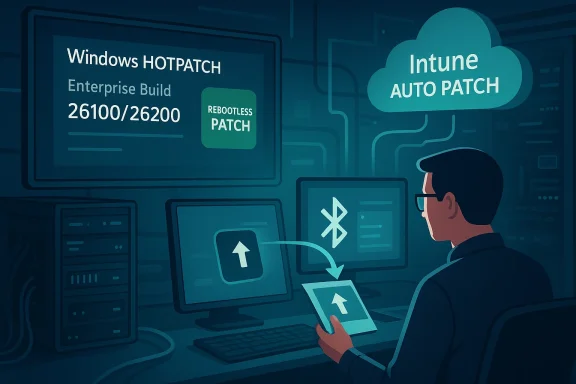
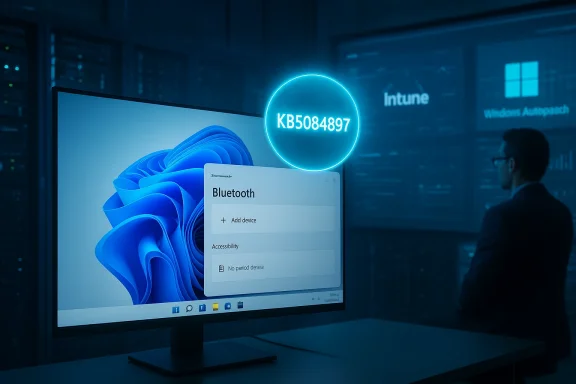
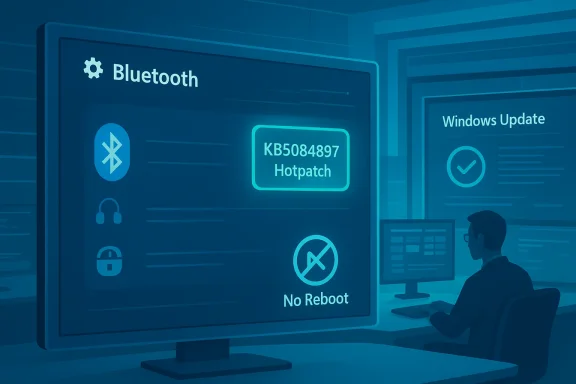
Microsoft has released an out‑of‑band hotpatch (KB5084897) on March 16, 2026 that fixes a puzzling — and in some environments, disruptive — Bluetooth visibility bug: devices that are connected and working could be invisible on the Bluetooth & devices page in Windows Settings and in Quick Settings, and the Add device flow could show no available devices. The patch is delivered as a hotpatch (no reboot required) and is targeted only at hotpatch‑enabled devices; Microsoft reports no known issues with this release.
Microsoft's hotpatch mechanism is designed to reduce downtime for urgent fixes by applying certain servicing updates without forcing a system restart. That makes it an attractive tool for quick remediation in managed environments where reboots are costly or tightly controlled. Hotpatches are scoped by OS build, device platform, management configuration and licensing; they are commonly used for targeted out‑of‑band fixes that must reach production systems fast.
Hotpatch KB5084897 is an out‑of‑band release that applies to Windows 11 devices under the hotpatch program. The update combines the servicing stack update (SSU) with the hotpatch code so that eligible, hotpatch‑enrolled devices receive the fix through Windows Update and it takes effect without a reboot. Microsoft specifically calls out that this update addresses a Bluetooth visibility issue — not a Bluetooth pairing or connectivity protocol change — and that it is offered only to hotpatch‑enabled devices. Microsoft also lists prerequisites and enrollment requirements for hotpatching (Windows 11 Enterprise 25H2/24H2, managed Intune policies, VBS enabled, CHPE disabled, and eligible licensing).
Potential contributing factors:
At the same time, the patch highlights the limits of hotpatch distribution: eligibility constraints and dependencies on management, licensing and device configuration mean that not all affected machines will receive the fix automatically. Administrators should validate prerequisites, pilot the hotpatch, keep Bluetooth drivers up to date, and equip helpdesks with quick troubleshooting steps. End users outside hotpatch channels should still follow standard troubleshooting and driver update paths if they encounter the issue.
If your environment relies on Bluetooth peripherals for daily operations, treat this hotpatch as a priority to validate and, where eligible, to deploy. For all others, checking OEM driver updates and following the outlined troubleshooting steps will remain essential until the fix reaches devices through standard update channels.
Source: Microsoft - Message Center March 16, 2026—Hotpatch KB5084897 (OS Builds 26200.7984 and 26100.7984) Out-of-band - Microsoft Support
 Background
Microsoft's hotpatch mechanism is designed to reduce downtime for urgent fixes by applying certain servicing updates without forcing a system restart. That makes it an attractive tool for quick remediation in managed environments where reboots are costly or tightly controlled. Hotpatches are scoped by OS build, device platform, management configuration and licensing; they are commonly used for targeted out‑of‑band fixes that must reach production systems fast.Hotpatch KB5084897 is an out‑of‑band release that applies to Windows 11 devices under the hotpatch program. The update combines the servicing stack update (SSU) with the hotpatch code so that eligible, hotpatch‑enrolled devices receive the fix through Windows Update and it takes effect without a reboot. Microsoft specifically calls out that this update addresses a Bluetooth visibility issue — not a Bluetooth pairing or connectivity protocol change — and that it is offered only to hotpatch‑enabled devices. Microsoft also lists prerequisites and enrollment requirements for hotpatching (Windows 11 Enterprise 25H2/24H2, managed Intune policies, VBS enabled, CHPE disabled, and eligible licensing).
What Microsoft says this update fixes
- The update addresses a manifest symptom where Bluetooth devices — including headsets, keyboards, mice and other peripherals — may not appear on the Bluetooth & devices page in Windows Settings.
- The issue also affected the Quick Settings flyout (the network/volume/battery menu in the taskbar), where Bluetooth devices could be invisible or the Bluetooth tile could fail to enumerate devices.
- Because available devices did not appear in the UI, users could be prevented from adding new devices — the Add device dialog would show no discoverable devices, effectively blocking new pairings even when the remote peripheral was in pairing mode.
- Microsoft states this is a UI/enumeration failure for devices that are connected and functioning; the underlying Bluetooth link could be working even while Settings fails to list connected peripherals.
- The hotpatch is delivered without a restart and will be installed automatically on eligible devices via Windows Update; devices that receive standard Windows updates (i.e., non‑hotpatch channels) do not need to take additional action.
Why this matters: user and enterprise impact
At first glance a "missing device in Settings" problem is merely cosmetic, but in reality the bug can have meaningful operational impact:- For end users: the inability to view or add Bluetooth devices in Settings is a clear usability regression. Users who rely on quick pairing (headsets, mice, keyboards) may be unable to add or manage devices without resorting to driver utilities or manufacturer tools.
- For IT admins: the symptom is particularly disruptive in kiosk, shared‑workstation, or call‑center environments where fast pairing or remote troubleshooting is common. Administrators who manage fleets through MDM expect predictable UI behavior; a failure to enumerate devices breaks standard support flows and escalations.
- For managed rollouts: organizations that control update timing with patch windows benefit from hotpatch delivery because it avoids immediate reboots; however, limited hotpatch eligibility and the dependency on Intune and licensing restricts the reach of the fix. That means many consumer and non‑managed devices may not receive this out‑of‑band correction.
Scope and prerequisites — who will get this patch
This hotpatch has a narrower target than a typical monthly cumulative update. Important scope details IT teams must know:- The update is an out‑of‑band hotpatch and is offered only to hotpatch‑enabled devices. If a device is not enrolled for hotpatching, it will not receive KB5084897 through the hotpatch channel.
- Hotpatch capability requires specific prerequisites: Windows 11 Enterprise (25H2 or 24H2) with the current baseline installed, management via Microsoft Intune with a hotpatch‑enabled Windows quality update policy, eligible licensing (Windows 11 Enterprise E3/E5, Microsoft 365 F3, Windows 11 Education A3/A5, Microsoft 365 Business Premium, or Windows 365 Enterprise), virtualization‑based security (VBS) enabled, and Compiled Hybrid PE (CHPE) disabled. Those requirements limit hotpatch availability to managed enterprise Arm64 and select other deployments.
- Microsoft notes hotpatch is now generally available for Windows 11, versions 25H2 and 24H2 Arm64 devices. Devices that do not meet the prerequisites will remain on standard update channels and will be unaffected by this hotpatch delivery method.
How the update is delivered and what to expect during installation
- Microsoft delivers this update through Windows Update on eligible devices; the company indicates Windows Update will automatically download and install the hotpatch on hotpatch‑enabled endpoints.
- The hotpatch includes a servicing stack update (SSU) that gets installed together with the hotpatch payload; this is standard practice to ensure the update can be applied reliably.
- Critically, the hotpatch is designed to take effect without requiring a system restart. That means the USB/BT stacks and the Settings UI can be corrected while the device stays online and in use.
- Microsoft also provides a file information package for the out‑of‑band update and a separate SSU file listing for administrators who need to inspect shipped files or verify hashes.
Recommended actions for consumers and IT admins
For individual users- Check Windows Update > Update history to confirm whether your device has installed the hotpatch (or the standard cumulative update that contains the fix).
- If your PC is not hotpatch‑enabled and you still see the Bluetooth visibility issue, follow established Bluetooth troubleshooting steps: update Bluetooth drivers from the OEM, restart the Bluetooth Support Service, use the built‑in Bluetooth troubleshooter, and try removing and re‑pairing devices via Device Manager where necessary.
- If the UI still doesn’t show devices after applying the update, test whether the device is functioning (e.g., does audio flow to a headset?) — that confirms an enumeration/UI problem rather than a raw radio/driver failure.
- Confirm which devices in your inventory are enrolled and eligible for hotpatching: verify Windows edition, OS build baseline, Intune policy configuration, VBS status, and CHPE setting. Address prerequisites before relying on hotpatch delivery.
- Use a phased pilot deployment: enable hotpatch for a small pilot group and confirm KB5084897 reaches pilot devices and resolves the reporting/visibility issue without side effects.
- Monitor update histories, device compliance, and user support tickets after hotpatch rollout to spot any residual issues quickly.
- Keep OEM Bluetooth drivers up to date in your driver catalog. Hotpatches often address OS‑level enumeration bugs, but device drivers remain a frequent root cause of Bluetooth problems; pairing issues may persist if drivers are old or incompatible.
- If hotpatch delivery does not reach some devices, consider the fallback of a standard cumulative update (or manual driver updates) and document the restart requirements for those channels.
Troubleshooting steps if Bluetooth still misbehaves after the hotpatch
If you or your users still have issues after the hotpatch is applied, work through the following sequence. The steps are ordered to start with low‑impact actions and progress to more invasive troubleshooting.- Confirm the patch was installed: open Update history and verify the hotpatch entry (or the cumulative update that contains the fix).
- Check Device Manager for the Bluetooth adapter: verify the adapter is present and enabled, and look for yellow warning icons.
- Restart the Bluetooth Support Service and Device Association Service, and set them to Automatic start.
- Update or reinstall the Bluetooth adapter driver from the PC/motherboard vendor. If the manufacturer provides a vendor‑signed driver, prefer that over the generic Microsoft driver.
- Toggle Bluetooth off and on in Settings > Bluetooth & devices; if the device appears as connected in Device Manager but not in Settings, remove (uninstall) the device from Device Manager and re‑scan.
- Use the Bluetooth troubleshooter in Windows (Settings > System > Troubleshoot > Other troubleshooters > Bluetooth) to collect diagnostic logs.
- If visible in Device Manager only as a hidden device, enable "Show hidden devices" and remove stale or phantom entries.
- For stubborn pairing failures, attempt pairing with the Windows Add device UI after the hotpatch — if Add device remains empty, try pairing via OEM pairing utilities or via Settings > Bluetooth & devices > Devices and the OK/Remove options.
- If all else fails on a managed device, gather logs and escalate through vendor or Microsoft support channels — include Device Manager states, Bluetooth driver versions, and the exact OS build numbers.
Technical analysis: likely causes and why a hotpatch helps
Microsoft’s wording points to an enumeration or UI‑layer defect: Bluetooth peripherals that are connected but fail to appear in the Settings UI typically indicate that the Bluetooth stack and the pairing/profile layers are working while the system’s device enumeration or Settings process fails to surface the device list correctly.Potential contributing factors:
- A regression in the code path that populates the Settings UI or the Quick Settings flyout.
- An unexpected state introduced by a prior update where the OS's internal device registry holds connections but the Settings process cannot read or map the device objects for display.
- Interaction with virtualization‑related features such as VBS or CHPE in some hardware/firmware combinations that alters how certain kernel components report device state.
- Hotpatches are intended for limited, urgent fixes where a code correction can be safely applied to a running system without a reboot.
- A UI/enumeration fix that updates an OS component or registry handling behavior can often be applied with a lower risk profile than a kernel or driver update that requires rebooting.
- Enterprises that cannot tolerate immediate restarts (for instance, in call centers or certain healthcare settings) benefit from receiving the fix immediately and continuing operations without scheduling downtime.
Risk assessment and what to watch for
Strengths of Microsoft’s approach:- Rapid remediation with low operational disruption. The no‑restart flow reduces immediate support volume and avoids scheduled downtime.
- Clear, focused fix for a problem that affects day‑to‑day user productivity.
- Inclusion of SSU reduces risk of installation failures.
- Narrow eligibility: only hotpatch‑enabled (and typically enterprise) devices will receive the out‑of‑band fix. Many consumer devices remain reliant on the standard update cadence.
- Dependency on Intune, licensing, and device configuration to receive the hotpatch — organizations must verify prerequisites before expecting the fix to arrive automatically.
- A "no known issues" declaration at release is a snapshot; organizations still should pilot the patch and monitor support channels because edge cases sometimes surface after broader deployment.
- Hotpatches change system components while running; although Microsoft has engineered hotpatch delivery to be safe, there is a non‑zero risk of unexpected interactions in highly customized environments.
- Maintain a rollback or mitigation plan. While hotpatches themselves do not usually require a rollback, administrators should be prepared to address any behavior regressions and have a supported path (driver rollback, policy temporary adjustments, or staged reboots) if necessary.
- Communicate with end users and helpdesk staff so they understand that a fix has been shipped and what steps to take if they still encounter Bluetooth problems.
Broader context: hotpatching is maturing as a tool — but it’s not universal
Hotpatching as a delivery mechanism continues to mature. Microsoft is expanding hotpatch availability and refining enrollment prerequisites; meanwhile, the broader endpoint ecosystem — drivers, OEM firmware, and MDM policies — remains heterogeneous. This hotpatch is a case study in the strengths and limits of hotpatching:- Strength: speed and minimal disruption for eligible enterprise fleets.
- Limit: complex eligibility rules and the continuing need to manage OEM drivers and firmware separately.
Practical checklist for rolling this hotpatch out in your environment
- Verify eligibility: confirm OS edition, version (25H2/24H2), build baseline, Intune enrollment, VBS status, CHPE disabled and licensing.
- Pilot in a controlled group: pick representative devices (including those with Bluetooth peripherals commonly used in your environment).
- Review update telemetry: collect device update histories, event logs, and support tickets pre‑ and post‑deployment.
- Update driver catalog: ensure OEM Bluetooth drivers are current in your distribution system and flagged for testing where applicable.
- Prepare support scripts: create short scripts or procedural steps for helpdesk agents to confirm the patch and to run basic Bluetooth troubleshooting quickly.
- Monitor Microsoft release channels and community forums for any post‑deployment issues and remediate as needed.
Conclusion
Microsoft’s KB5084897 hotpatch is a targeted and pragmatic response to a real‑world pain point: Bluetooth devices that are connected but invisible in Windows Settings and Quick Settings. By delivering the fix as an out‑of‑band hotpatch that applies without a reboot, Microsoft has prioritized continuity of service for eligible, managed devices — a meaningful benefit for many enterprises.At the same time, the patch highlights the limits of hotpatch distribution: eligibility constraints and dependencies on management, licensing and device configuration mean that not all affected machines will receive the fix automatically. Administrators should validate prerequisites, pilot the hotpatch, keep Bluetooth drivers up to date, and equip helpdesks with quick troubleshooting steps. End users outside hotpatch channels should still follow standard troubleshooting and driver update paths if they encounter the issue.
If your environment relies on Bluetooth peripherals for daily operations, treat this hotpatch as a priority to validate and, where eligible, to deploy. For all others, checking OEM driver updates and following the outlined troubleshooting steps will remain essential until the fix reaches devices through standard update channels.
Source: Microsoft - Message Center March 16, 2026—Hotpatch KB5084897 (OS Builds 26200.7984 and 26100.7984) Out-of-band - Microsoft Support