

The Bluetooth & Devices pane in Windows 11 is the single place Microsoft intends you to manage every peripheral — from headphones and mice to printers, cameras, touchpads and USB accessories — and understanding its layout, capabilities, and limits is essential for anyone who relies on multiple external devices. This article distills the Windows Report overview into a practical, deeply referenced guide that verifies major claims, explains advanced features (including LE Audio and Shared Audio), and highlights the troubleshooting, security, and compatibility issues you need to know before you change settings or buy new hardware.
Windows 11 groups peripheral controls under Settings > Bluetooth & devices so users have a single place to configure connections, pair accessories, and troubleshoot device problems. That centralization makes day-to-day management easier: you can pair a headset, set a default printer, inspect connected USB devices, and adjust touchpad gestures without bouncing between multiple control panels. User-facing paths include the Settings app, Quick Settings (taskbar), Device Manager, and services when escalation is required.
Consolidation improves discoverability and speeds workflows, but it also raises two important practical realities:
If a claim in product marketing or a third-party review requires a hardware-compatibility matrix (for example, whether a specific laptop model supports LE Audio), that is a per-device fact that must be confirmed on the vendor’s driver/firmware notes — the OS setting alone is insufficient and therefore marked as conditional above. These conditional or hardware-dependent claims are identified with cautionary language throughout.
Practical, conservative expectations will deliver the best outcomes: use the centralized UI for routine tasks, follow the structured troubleshooting checklist for problems, and verify hardware compatibility explicitly when newer Bluetooth features (LE Audio, Shared Audio) matter to your workflow.
Source: Windows Report Bluetooth and Devices Settings Windows 11 Full Overview
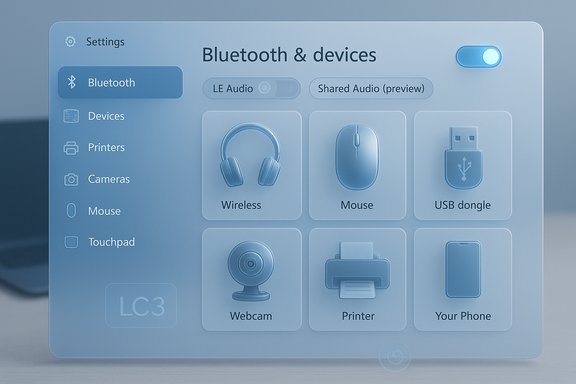 Background — why a centralized Bluetooth & Devices pane matters
Windows 11 groups peripheral controls under Settings > Bluetooth & devices so users have a single place to configure connections, pair accessories, and troubleshoot device problems. That centralization makes day-to-day management easier: you can pair a headset, set a default printer, inspect connected USB devices, and adjust touchpad gestures without bouncing between multiple control panels. User-facing paths include the Settings app, Quick Settings (taskbar), Device Manager, and services when escalation is required.Consolidation improves discoverability and speeds workflows, but it also raises two important practical realities:
- Device behavior often depends not just on Windows settings, but on the hardware, driver, and firmware chain — meaning features advertised in Settings may be unavailable until your Bluetooth adapter, vendor driver, and peripheral firmware all support them.
- Newer Bluetooth capabilities (notably Bluetooth LE Audio) require coordinated updates across headset firmware, controller firmware, and OS support — Windows alone cannot enable LE Audio without compatible hardware.
Overview of the Bluetooth & Devices sections
The Settings pane divides device management into focused subsections. The following distills the Windows Report list into what each area does in practice, and the key settings you should know.Bluetooth
- Core functions: toggle Bluetooth radio on/off, view paired and available devices, Add device for pairing, and remove or rename devices.
- Fast access: Quick Settings (Win + A) offers a quick on/off tile; Settings exposes the device list and pairing UI.
- Real-world note: If Bluetooth controls are missing, it usually means the adapter or drivers are absent or disabled in Device Manager.
Devices
- Shows a consolidated list of peripherals (USB, Bluetooth, HID controllers, webcams).
- Useful for verifying which devices Windows recognizes and for initiating driver or compatibility checks.
Printers & Scanners
- Add or remove printers/scanners, set a default printer, view print queues, and access driver configuration.
- Tip: Windows may auto-install drivers for many modern printers, but vendor drivers often expose extra features that the generic driver does not.
Your Phone (Link to Windows)
- Connect Android phones for notifications, messaging, photo sync, and call handling from your PC.
- Practical limit: iOS support is limited; the feature is primarily for Android integration.
Cameras
- Manage built-in and external webcams, set app permissions, and troubleshoot camera access.
- Security point: Camera permission controls live in Privacy settings as well as this pane.
Mouse and Touchpad
- Mouse: pointer speed, primary button swap, scrolling behavior, precision settings.
- Touchpad: gesture sensitivity, two-finger and three-finger gestures, and tap-to-click toggles — important for laptop ergonomics.
Typing
- Options for text suggestions, autocorrect, spell check, emoji panels, and language preferences.
- Accessibility tie-in: Typing settings interact with Ease of Access features for users who need assistive tech.
Pen & Windows Ink
- Configure stylus behavior, pressure sensitivity, button shortcuts, and handwriting input where supported.
AutoPlay and USB
- AutoPlay: set actions for external media (open files, do nothing, or prompt).
- USB: view alerts for problematic USB devices, and troubleshoot unrecognized accessories.
How to open and navigate Bluetooth & devices (quick reference)
- Press Windows + I to open Settings.
- Click Bluetooth & devices in the left sidebar.
- Use Quick Settings (Windows + A) to toggle Bluetooth instantly or access paired device shortcuts.
The big recent changes: LE Audio, LC3 and Shared Audio
Windows 11 has been updated to support the modern Bluetooth LE Audio architecture and related features, but the practical availability depends on an ecosystem of support.What LE Audio and LC3 change
- LE Audio replaces parts of the legacy Bluetooth Classic approach and introduces the LC3 codec (better perceived audio at lower bitrates), Isochronous Channels (ISO) for synchronized multi-streams, and TMAP for combined telephony and media flows.
- The technical payoff: when the chain (PC radio firmware, driver, and headset firmware) supports LE Audio, stereo media playback can continue while a headset microphone runs at super‑wideband quality instead of collapsing to mono low-fidelity voice — solving the long-standing “music goes to mud” problem.
Shared Audio (preview) — streaming to two headsets
- Microsoft has introduced a Shared audio (preview) capability that can stream the same LE Audio feed to two Bluetooth accessories simultaneously, surfaced as a Quick Settings tile for Insiders on selected Copilot+ hardware builds.
- Important caveats: this is a staged preview limited to compatible Copilot+ PCs and LE Audio-capable accessories; older Classic Bluetooth devices will not participate. The feature is standards-based (LE Audio / Auracast primitives) and Microsoft has been conservative in the initial rollouts to avoid a fragmented experience.
Practical pairing and troubleshooting workflows
Most Bluetooth problems follow predictable patterns. Use this structured checklist for rapid diagnosis and recovery.Quick checklist (fastest fixes first)
- Toggle Bluetooth off/on in Quick Settings or Settings.
- Restart the peripheral and put it into pairing/discoverable mode.
- Remove the device in Settings and re-pair it.
- Run the Windows Bluetooth troubleshooter (Settings > System > Troubleshoot > Other troubleshooters > Bluetooth > Run).
Escalation steps
- Check Device Manager for driver status; update or roll back OEM chipset/Bluetooth drivers if necessary. If a recent Windows update introduced the problem, consider rolling back or using System Restore.
- Confirm Bluetooth Support Service (bthserv) is running in services.msc; restart it if needed. Adjust service startup types only with caution on managed devices.
- Disable selective power management: in Device Manager, open adapter properties → Power Management, then uncheck “Allow the computer to turn off this device to save power.” Do the same for relevant HID or headset entries.
- Test the peripheral on another host to isolate whether the headset is at fault.
When to seek vendor drivers
- Audio and advanced device features often require vendor drivers (Intel, Qualcomm, Realtek). If the generic Windows driver lacks controls or features, install the OEM driver from the vendor or laptop maker. For LE Audio features, the Bluetooth controller vendor must expose ISO channels via firmware and driver updates.
Security, privacy, and accessibility considerations
Security and pairing
- Bluetooth pairing opens a short window of discoverability for new devices. Use pairing in a controlled environment, and remove stale or unused pairings to reduce attack surface.
- Some devices support Just Works pairing with no PIN — convenient, but less secure — while others use PINs or numeric confirmations. Choose devices and workflows that match your security needs.
Privacy and permissions
- App-level camera and microphone permissions still govern access to those hardware components. Controlling camera and microphone permissions in Privacy settings remains essential even when hardware is paired.
Accessibility: Shared Audio and hearing aids
- Shared Audio and LE Audio’s broadcast-style primitives offer meaningful accessibility benefits — synchronized audio to hearing aids and multiple listeners without external hardware — but only when the entire device chain supports LE Audio. The preview targets accessibility as a core use case.
Deep dive: Printers, Cameras, USB, and Your Phone (Link to Windows)
Printers & Scanners
- Use this pane to add/remove printers, set defaults, and clear print queues.
- For enterprise or multifunction devices, vendor drivers again matter: features such as duplexing, scan-to-folder, or advanced color profiles may require the manufacturer’s driver package.
Cameras
- Manage built-in and external webcams and app permissions. If a camera isn’t visible, check Device Manager and workload-specific drivers.
- Troubleshooting camera problems often requires inspecting Windows Privacy settings as well as the device entry in Bluetooth & devices.
USB
- The USB subsection surfaces alerts for malfunctioning USB devices and lets you inspect recognized vs unrecognized accessories.
- If a USB device fails to enumerate, try different ports (USB 2.0 vs 3.0), replace cables, and check for chipset or root-hub driver updates.
Your Phone (Link to Windows)
- Provides Android integration for notifications, messages, photos, and calls; performance and features depend on the app and pairing workflow.
- iPhone integration remains limited; expect the most seamless experience with Android devices that support the Link to Windows ecosystem.
Strengths: what Microsoft got right
- Centralized management: One consistent UX for pairing, device visibility, and basic troubleshooting reduces friction for non-technical users.
- Quick Settings integration: Fast toggles give instant control over radios without needing to open Settings.
- Modern audio roadmap: LE Audio and Shared Audio reflect Microsoft aligning with Bluetooth standards that solve long-standing audio compromises. When supported, these features materially improve audio + mic experiences.
Risks and limitations you must accept
- Hardware and driver dependency: Many new features (LE Audio, Shared Audio) require firmware and vendor driver updates. Installing Windows alone will not make legacy radios or headsets magically compatible. If you expect LE Audio features, verify your Bluetooth adapter, its firmware, and the accessory all advertise LE Audio / LC3 support.
- Windows Update regressions: Bluetooth failures frequently follow driver or OS updates. Rolling back drivers or updates may be necessary in some cases — a nontrivial task on managed corporate devices.
- Preview and limited rollouts: Shared Audio began as a preview on a constrained Copilot+ hardware list; that means many users will not see the feature in stable channels for some time. Avoid assuming preview features are widely available.
- Security posture: Leaving Bluetooth discoverable for long stretches increases exposure. Use discoverability only when pairing and remove unused devices to reduce risk.
Step‑by‑step recipes (copyable)
Pair Bluetooth headphones (reliable 6-step)
- Charge the headphones and enter manufacturer-specified pairing mode.
- Press Windows + I → Bluetooth & devices → toggle Bluetooth to On.
- Click Add device → choose Bluetooth.
- Select your headset from the list and accept any PIN prompts.
- If audio quality or mic behavior is poor, install the vendor’s audio driver and check for firmware updates.
- If issues persist, remove device → re‑pair; run the Bluetooth troubleshooter.
Enable Shared Audio (Insider preview flow)
- Enroll a supported Copilot+ PC in Windows Insider Dev/Beta and install the build containing the preview.
- Pair two LE Audio-capable accessories in Settings > Bluetooth & devices.
- Open Quick Settings (Win + A) and click Shared audio (preview) tile.
- Select two connected devices and click Share; click Stop sharing to end.
Verification and cross-references
Key technical claims (LE Audio, Shared Audio availability, and Settings navigation) were verified against multiple independent summaries and community-tested playbooks included in the provided materials. Windows Settings navigation and troubleshooting practices are consistently described across community guides and Microsoft‑aligned walkthroughs, while LE Audio and Shared Audio descriptions reflect multi-source reporting and hands‑on previews. Where the evidence depends on staged previews or vendor firmware, that limitation is explicitly flagged.If a claim in product marketing or a third-party review requires a hardware-compatibility matrix (for example, whether a specific laptop model supports LE Audio), that is a per-device fact that must be confirmed on the vendor’s driver/firmware notes — the OS setting alone is insufficient and therefore marked as conditional above. These conditional or hardware-dependent claims are identified with cautionary language throughout.
Recommendations for users and IT admins
- For everyday users: learn the Quick Settings toggle and the Settings > Bluetooth & devices flow; keep drivers updated via Windows Update and vendor pages; run the Bluetooth troubleshooter before advanced fixes.
- For buyers: if LE Audio or Shared Audio is a must-have, confirm that both the PC’s Bluetooth controller and the headset explicitly list LE Audio (LC3, ISO) support; do not purchase based on OS support alone.
- For IT admins: pilot driver updates in a representative group before broad rollout; document rollback procedures and System Restore points; avoid disabling Bluetooth services or drivers on managed endpoints without policy review.
Final assessment
Windows 11’s Bluetooth & Devices settings present a pragmatic, user-oriented control surface that simplifies everyday peripheral management while preparing the platform for modern Bluetooth features such as LE Audio and Shared Audio. The architecture is well thought out from a UX perspective: quick toggles for convenience, a single Settings pane for management, and built‑in troubleshooters for common problems. However, the real-world effectiveness of advanced audio and multi-sink features depends on an entire ecosystem of compatible controllers, drivers, and accessory firmware. Users and organizations should treat the Settings UI as the control plane, while confirming hardware and firmware readiness before expecting headline features to work.Practical, conservative expectations will deliver the best outcomes: use the centralized UI for routine tasks, follow the structured troubleshooting checklist for problems, and verify hardware compatibility explicitly when newer Bluetooth features (LE Audio, Shared Audio) matter to your workflow.
Source: Windows Report Bluetooth and Devices Settings Windows 11 Full Overview
