• Thread Author
Microsoft has released an out‑of‑band hotpatch (KB5084897) on March 16, 2026 that fixes a puzzling — and in some environments, disruptive — Bluetooth visibility bug: devices that are connected and working could be invisible on the Bluetooth & devices page in Windows Settings and in Quick Settings, and the Add device flow could show no available devices. The patch is delivered as a hotpatch (no reboot required) and is targeted only at hotpatch‑enabled devices; Microsoft reports no known issues with this release.

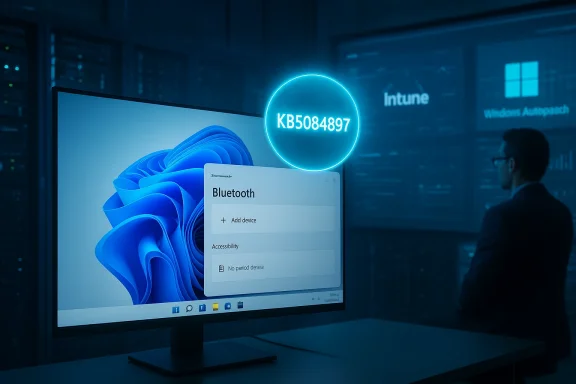
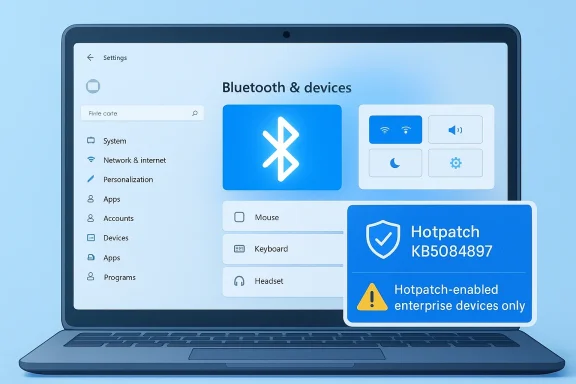
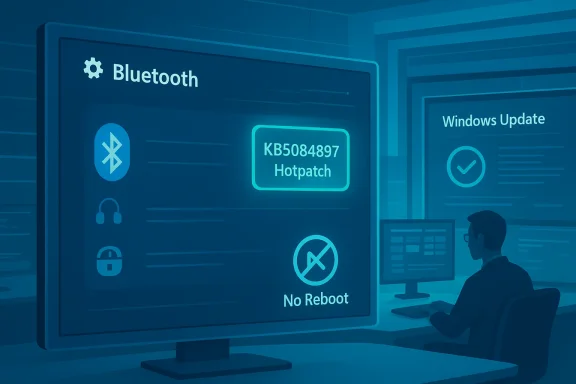
Blue-toned dashboard displays Bluetooth options, KB5084897 hotpatch, and Windows Update status.Background​

Microsoft's hotpatch mechanism is designed to reduce downtime for urgent fixes by applying certain servicing updates without forcing a system restart. That makes it an attractive tool for quick remediation in managed environments where reboots are costly or tightly controlled. Hotpatches are scoped by OS build, device platform, management configuration and licensing; they are commonly used for targeted out‑of‑band fixes that must reach production systems fast.
Hotpatch KB5084897 is an out‑of‑band release that applies to Windows 11 devices under the hotpatch program. The update combines the servicing stack update (SSU) with the hotpatch code so that eligible, hotpatch‑enrolled devices receive the fix through Windows Update and it takes effect without a reboot. Microsoft specifically calls out that this update addresses a Bluetooth visibility issue — not a Bluetooth pairing or connectivity protocol change — and that it is offered only to hotpatch‑enabled devices. Microsoft also lists prerequisites and enrollment requirements for hotpatching (Windows 11 Enterprise 25H2/24H2, managed Intune policies, VBS enabled, CHPE disabled, and eligible licensing).

What Microsoft says this update fixes​

  • The update addresses a manifest symptom where Bluetooth devices — including headsets, keyboards, mice and other peripherals — may not appear on the Bluetooth & devices page in Windows Settings.
  • The issue also affected the Quick Settings flyout (the network/volume/battery menu in the taskbar), where Bluetooth devices could be invisible or the Bluetooth tile could fail to enumerate devices.
  • Because available devices did not appear in the UI, users could be prevented from adding new devices — the Add device dialog would show no discoverable devices, effectively blocking new pairings even when the remote peripheral was in pairing mode.
  • Microsoft states this is a UI/enumeration failure for devices that are connected and functioning; the underlying Bluetooth link could be working even while Settings fails to list connected peripherals.
  • The hotpatch is delivered without a restart and will be installed automatically on eligible devices via Windows Update; devices that receive standard Windows updates (i.e., non‑hotpatch channels) do not need to take additional action.
These items are the core claims Microsoft documents for KB5084897. The company additionally indicates that if prior updates are present, the device will download and install only the incremental components included in this update.

Why this matters: user and enterprise impact​

At first glance a "missing device in Settings" problem is merely cosmetic, but in reality the bug can have meaningful operational impact:
  • For end users: the inability to view or add Bluetooth devices in Settings is a clear usability regression. Users who rely on quick pairing (headsets, mice, keyboards) may be unable to add or manage devices without resorting to driver utilities or manufacturer tools.
  • For IT admins: the symptom is particularly disruptive in kiosk, shared‑workstation, or call‑center environments where fast pairing or remote troubleshooting is common. Administrators who manage fleets through MDM expect predictable UI behavior; a failure to enumerate devices breaks standard support flows and escalations.
  • For managed rollouts: organizations that control update timing with patch windows benefit from hotpatch delivery because it avoids immediate reboots; however, limited hotpatch eligibility and the dependency on Intune and licensing restricts the reach of the fix. That means many consumer and non‑managed devices may not receive this out‑of‑band correction.
In short, it’s not just a dialog box that doesn’t render: it can be a wedge that interrupts how users and support teams interact with Bluetooth devices.

Scope and prerequisites — who will get this patch​

This hotpatch has a narrower target than a typical monthly cumulative update. Important scope details IT teams must know:
  • The update is an out‑of‑band hotpatch and is offered only to hotpatch‑enabled devices. If a device is not enrolled for hotpatching, it will not receive KB5084897 through the hotpatch channel.
  • Hotpatch capability requires specific prerequisites: Windows 11 Enterprise (25H2 or 24H2) with the current baseline installed, management via Microsoft Intune with a hotpatch‑enabled Windows quality update policy, eligible licensing (Windows 11 Enterprise E3/E5, Microsoft 365 F3, Windows 11 Education A3/A5, Microsoft 365 Business Premium, or Windows 365 Enterprise), virtualization‑based security (VBS) enabled, and Compiled Hybrid PE (CHPE) disabled. Those requirements limit hotpatch availability to managed enterprise Arm64 and select other deployments.
  • Microsoft notes hotpatch is now generally available for Windows 11, versions 25H2 and 24H2 Arm64 devices. Devices that do not meet the prerequisites will remain on standard update channels and will be unaffected by this hotpatch delivery method.
This narrow eligibility is a deliberate tradeoff: hotpatches are designed to minimize disruption on qualifying enterprise fleets, not to be a universal distribution mechanism for every consumer PC.

How the update is delivered and what to expect during installation​

  • Microsoft delivers this update through Windows Update on eligible devices; the company indicates Windows Update will automatically download and install the hotpatch on hotpatch‑enabled endpoints.
  • The hotpatch includes a servicing stack update (SSU) that gets installed together with the hotpatch payload; this is standard practice to ensure the update can be applied reliably.
  • Critically, the hotpatch is designed to take effect without requiring a system restart. That means the USB/BT stacks and the Settings UI can be corrected while the device stays online and in use.
  • Microsoft also provides a file information package for the out‑of‑band update and a separate SSU file listing for administrators who need to inspect shipped files or verify hashes.
Administrators should expect the patch to appear in update histories on managed devices and to see the applicable OS build numbers increment after the hotpatch is applied.

Recommended actions for consumers and IT admins​

For individual users
  • Check Windows Update > Update history to confirm whether your device has installed the hotpatch (or the standard cumulative update that contains the fix).
  • If your PC is not hotpatch‑enabled and you still see the Bluetooth visibility issue, follow established Bluetooth troubleshooting steps: update Bluetooth drivers from the OEM, restart the Bluetooth Support Service, use the built‑in Bluetooth troubleshooter, and try removing and re‑pairing devices via Device Manager where necessary.
  • If the UI still doesn’t show devices after applying the update, test whether the device is functioning (e.g., does audio flow to a headset?) — that confirms an enumeration/UI problem rather than a raw radio/driver failure.
For IT administrators and endpoint managers
  • Confirm which devices in your inventory are enrolled and eligible for hotpatching: verify Windows edition, OS build baseline, Intune policy configuration, VBS status, and CHPE setting. Address prerequisites before relying on hotpatch delivery.
  • Use a phased pilot deployment: enable hotpatch for a small pilot group and confirm KB5084897 reaches pilot devices and resolves the reporting/visibility issue without side effects.
  • Monitor update histories, device compliance, and user support tickets after hotpatch rollout to spot any residual issues quickly.
  • Keep OEM Bluetooth drivers up to date in your driver catalog. Hotpatches often address OS‑level enumeration bugs, but device drivers remain a frequent root cause of Bluetooth problems; pairing issues may persist if drivers are old or incompatible.
  • If hotpatch delivery does not reach some devices, consider the fallback of a standard cumulative update (or manual driver updates) and document the restart requirements for those channels.

Troubleshooting steps if Bluetooth still misbehaves after the hotpatch​

If you or your users still have issues after the hotpatch is applied, work through the following sequence. The steps are ordered to start with low‑impact actions and progress to more invasive troubleshooting.
  • Confirm the patch was installed: open Update history and verify the hotpatch entry (or the cumulative update that contains the fix).
  • Check Device Manager for the Bluetooth adapter: verify the adapter is present and enabled, and look for yellow warning icons.
  • Restart the Bluetooth Support Service and Device Association Service, and set them to Automatic start.
  • Update or reinstall the Bluetooth adapter driver from the PC/motherboard vendor. If the manufacturer provides a vendor‑signed driver, prefer that over the generic Microsoft driver.
  • Toggle Bluetooth off and on in Settings > Bluetooth & devices; if the device appears as connected in Device Manager but not in Settings, remove (uninstall) the device from Device Manager and re‑scan.
  • Use the Bluetooth troubleshooter in Windows (Settings > System > Troubleshoot > Other troubleshooters > Bluetooth) to collect diagnostic logs.
  • If visible in Device Manager only as a hidden device, enable "Show hidden devices" and remove stale or phantom entries.
  • For stubborn pairing failures, attempt pairing with the Windows Add device UI after the hotpatch — if Add device remains empty, try pairing via OEM pairing utilities or via Settings > Bluetooth & devices > Devices and the OK/Remove options.
  • If all else fails on a managed device, gather logs and escalate through vendor or Microsoft support channels — include Device Manager states, Bluetooth driver versions, and the exact OS build numbers.
Flag any inference: Microsoft states the hotpatch corrects a visibility/enumeration issue; where troubleshooting reveals actual radio/driver failures the hotpatch may not resolve those root causes. If driver incompatibility is present, a hotpatch that modifies the system UI will not fix firmware or driver bugs.

Technical analysis: likely causes and why a hotpatch helps​

Microsoft’s wording points to an enumeration or UI‑layer defect: Bluetooth peripherals that are connected but fail to appear in the Settings UI typically indicate that the Bluetooth stack and the pairing/profile layers are working while the system’s device enumeration or Settings process fails to surface the device list correctly.
Potential contributing factors:
  • A regression in the code path that populates the Settings UI or the Quick Settings flyout.
  • An unexpected state introduced by a prior update where the OS's internal device registry holds connections but the Settings process cannot read or map the device objects for display.
  • Interaction with virtualization‑related features such as VBS or CHPE in some hardware/firmware combinations that alters how certain kernel components report device state.
Why a hotpatch is an appropriate fix:
  • Hotpatches are intended for limited, urgent fixes where a code correction can be safely applied to a running system without a reboot.
  • A UI/enumeration fix that updates an OS component or registry handling behavior can often be applied with a lower risk profile than a kernel or driver update that requires rebooting.
  • Enterprises that cannot tolerate immediate restarts (for instance, in call centers or certain healthcare settings) benefit from receiving the fix immediately and continuing operations without scheduling downtime.
Caveat: If the root cause is driver incompatibility or a hardware firmware bug, a hotpatch that repairs enumeration may be only partially effective; drivers or firmware updates could still be required for full stability.

Risk assessment and what to watch for​

Strengths of Microsoft’s approach:
  • Rapid remediation with low operational disruption. The no‑restart flow reduces immediate support volume and avoids scheduled downtime.
  • Clear, focused fix for a problem that affects day‑to‑day user productivity.
  • Inclusion of SSU reduces risk of installation failures.
Potential risks and limitations:
  • Narrow eligibility: only hotpatch‑enabled (and typically enterprise) devices will receive the out‑of‑band fix. Many consumer devices remain reliant on the standard update cadence.
  • Dependency on Intune, licensing, and device configuration to receive the hotpatch — organizations must verify prerequisites before expecting the fix to arrive automatically.
  • A "no known issues" declaration at release is a snapshot; organizations still should pilot the patch and monitor support channels because edge cases sometimes surface after broader deployment.
  • Hotpatches change system components while running; although Microsoft has engineered hotpatch delivery to be safe, there is a non‑zero risk of unexpected interactions in highly customized environments.
Operational considerations:
  • Maintain a rollback or mitigation plan. While hotpatches themselves do not usually require a rollback, administrators should be prepared to address any behavior regressions and have a supported path (driver rollback, policy temporary adjustments, or staged reboots) if necessary.
  • Communicate with end users and helpdesk staff so they understand that a fix has been shipped and what steps to take if they still encounter Bluetooth problems.

Broader context: hotpatching is maturing as a tool — but it’s not universal​

Hotpatching as a delivery mechanism continues to mature. Microsoft is expanding hotpatch availability and refining enrollment prerequisites; meanwhile, the broader endpoint ecosystem — drivers, OEM firmware, and MDM policies — remains heterogeneous. This hotpatch is a case study in the strengths and limits of hotpatching:
  • Strength: speed and minimal disruption for eligible enterprise fleets.
  • Limit: complex eligibility rules and the continuing need to manage OEM drivers and firmware separately.
Administrators should view hotpatches as an important tool in their toolbox, not a replacement for routine patch management, driver governance, or sound user communication.

Practical checklist for rolling this hotpatch out in your environment​

  • Verify eligibility: confirm OS edition, version (25H2/24H2), build baseline, Intune enrollment, VBS status, CHPE disabled and licensing.
  • Pilot in a controlled group: pick representative devices (including those with Bluetooth peripherals commonly used in your environment).
  • Review update telemetry: collect device update histories, event logs, and support tickets pre‑ and post‑deployment.
  • Update driver catalog: ensure OEM Bluetooth drivers are current in your distribution system and flagged for testing where applicable.
  • Prepare support scripts: create short scripts or procedural steps for helpdesk agents to confirm the patch and to run basic Bluetooth troubleshooting quickly.
  • Monitor Microsoft release channels and community forums for any post‑deployment issues and remediate as needed.

Conclusion​

Microsoft’s KB5084897 hotpatch is a targeted and pragmatic response to a real‑world pain point: Bluetooth devices that are connected but invisible in Windows Settings and Quick Settings. By delivering the fix as an out‑of‑band hotpatch that applies without a reboot, Microsoft has prioritized continuity of service for eligible, managed devices — a meaningful benefit for many enterprises.
At the same time, the patch highlights the limits of hotpatch distribution: eligibility constraints and dependencies on management, licensing and device configuration mean that not all affected machines will receive the fix automatically. Administrators should validate prerequisites, pilot the hotpatch, keep Bluetooth drivers up to date, and equip helpdesks with quick troubleshooting steps. End users outside hotpatch channels should still follow standard troubleshooting and driver update paths if they encounter the issue.
If your environment relies on Bluetooth peripherals for daily operations, treat this hotpatch as a priority to validate and, where eligible, to deploy. For all others, checking OEM driver updates and following the outlined troubleshooting steps will remain essential until the fix reaches devices through standard update channels.

Source: Microsoft - Message Center March 16, 2026—Hotpatch KB5084897 (OS Builds 26200.7984 and 26100.7984) Out-of-band - Microsoft Support
 

Microsoft has quietly pushed an out‑of‑band hotpatch — identified in community reports as KB5084897 — to hotpatch‑enabled Windows 11 devices running 25H2 and 24H2 in an attempt to repair a recent, high‑visibility Bluetooth regression that caused connected peripherals to vanish from Settings and Quick Settings and, in some cases, prevented new pairings from appearing at all. ows servicing in 2025–2026 moved beyond a once‑monthly Patch Tuesday cadence toward a model in which Microsoft can deliver hotpatch (rebootless) updates to eligible enterprise devices. Hotpatch capability is intended to reduce downtime for mission‑critical endpoints by applying targeted fixes without forcing a device restart. Microsoft documents how hotpatch works and publishes release notes for the 24H2 and 25H2 hotpatch tracks, while third‑party coverage has chronicled Microsoft’s push to make hotpatching a common option for Autopatch and Intune customers.
Out‑of‑band hotpatches are not new: Microsoft has used this channel for urgent fixes before, including several emergency updates in late 2025 and early 2026 that addressed regressions affecting WinRE, cloud file I/O and other high‑impact behaviors. Those prior incidents established the operational pattern: a narrowly targeted hotpatch is released to enrolled devices, installs without a reboot for most machines, and appears in enterprise update diagnostics and catalog entries that are later documented in Microsoft’s support pages.

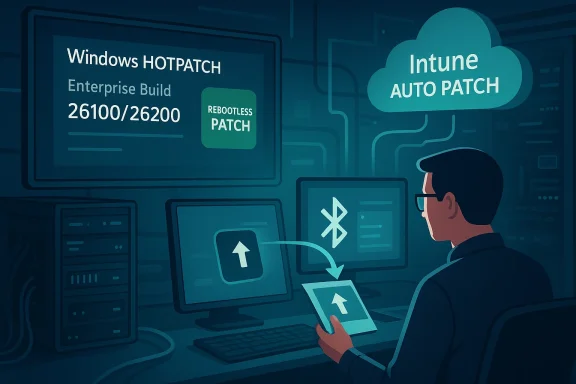
An IT professional patches Windows with Intune Auto Patch in a server room.What the reported KB5084897 fix does (community summary)​

  • The hotpatch reportedly addresses a *Bluetooth vivices that remained connected at the hardware level could disappear from the Bluetooth & devices page in Settings and from Quick Settings. Users still heard audio or used devices that were functionally connected, yet Windows did not surface them in the UI or in the Add device flow.
  • The fix is described as a hotpatch, meaning it was pushed to hotpatch‑enabled tenants and — when it reaches a device — applies without a restart. That behavior is consistent with Microsoft’s documented hotpatch delivery model for 24H2 and 25H2 Enterprise devices.
  • Community posts report the update as being rolled to hotpatch‑enrolled devices around March 16, 2026, though at the time of writing there ne Microsoft KB article publicly indexed for KB5084897 or it has not yet been widely cataloged in the public Microsoft support pages. That partial visibility is typical for very small hotpatches in the first hours after deployment.
Important verification note: independent, vendor‑authored documentation for KB5084897 (an official Microsoft KB page or Microsoft Update Catalog entry) was not discoverable via public indexing at the time this article was prepared. Microsoft publishes hotpatch release notes and out‑of‑band KB pages for other hotpatches (for example KB5078167), which indicates the vendor’s normal behavior for documenting such fixes; the absence of a public KB for KB5084897 should be treated as a timing/visibility gap, not proof the fix does not exist. Administrators should treat early community reports with caution until Microsoft posts an official support article or catalog listing.

Why this matters: the real cost of a broken Bluetooth stack​

Bluetooth peripherals — earbuds, headsets with microphones, mice, keyboards, and even certain proximity devices — are ubiquitous in both consumer and business deployments. When Windows fails to surface connected Bluetooth devices in Settings or Quick Settings, the user experience degrades in several ways:
  • Users can be confused by mismatched system state (sound comes from a device the UI does not list), making troubleshooting hard and leading to repeated repairs or unnecessary reinstalls.
  • Admins in hybrid work environments can see a flood of helpdesk tickets as headset and microphone issues block video calls and collaboration.
  • Automated management and monitoring scripts that query Windows Bluetooth state can return stale or inconsistent data, complicating remote diagnostics.
The Microsoft‑documented purpose of hotpatching is to reduce downtime for precisely such high‑impact issues — security or functionality regressions that demand a speedy remedy without forcing restarts across a fleet. That rationale explains why Microsoft often prefers to push small, surgical hotpatches to enrolled enterprise devices before releasing broad guidance.

Technical root causes that commonly lead to Bluetooth regressions​

Bluetooth on Windows is a complex stack that spans user‑mode UI components, service‑level components (such as the Bluetooth Support Service), kernel drivers (rfcomm.sys, bthserv and vendor kernel modules), and OEM driver packages (Intel, Qualcomm/CSR, Realtek, Broadcom). A single patch can create regressions in any of those layers by:
  • Changing how Windows enumerates or surfaces paired devices in Settings and Quick Settings.
  • Modifying the Bluetooth service behavior or IPC surface that the Settings UI queries.
  • Introducing timing or race conditions in the kernel RFCOMM driver leading to devices that are connected but not enumerated in the UI.
  • Creating mismatches between Windows’ expected driver interfaces and OEM driver implementations.
Past incidents demonstrate this complexity: community and Microsoft Q&A threads have tracked Bluetooth HID and audio regressions following cumulative updates, and Microsoft has repeatedly used out‑of‑band fixes to roll back or mitigate those regressions. That history makes the KB5084897 report plausible, even if the precise code changes remain undisclosed.

What administrators and advanced users should do now​

For enterprise administrators and power users, the recommended approach is pragmatic and defensive: acknowledge hotpatches may appear automatically for enrolled devices, confirm the presence and scope of any hotpatch, and prepare rollback or blocking measures if a hotpatch causes regression. Below is an operational checklist.
  • Confirm device enrollment in hotpatch:
  • Check Intune/Windows Autopatch policies and hotpatch reporting to identify whether the target device group is eligible and enrolled for hotpatch delivery. Hotpatch is an opt‑in/tenant setting for now, though Microsoft has signalled plans to enable hotpatch by default for eligible devices in Autopatch starting in May 2026.
  • Validate whether KB5084897 (or an unidentified OOB hotpatch) landed:
  • Query your enterprise update inventory for recent hotpatch entries (look for out‑of‑band hotpatch identifiers and build numbers corresponding to the 26100/26200 lines). Use the update reporting in Intune or your management tool to see which devices received the patch and when.
  • If users report Bluetooth UI or pairing issues:
  • Run the built‑in Bluetooth troubleshooters first, but escalate quickly because this class of regression frequently requires a patch-level remedy rather than per‑device fixes. Microsoft’s official troubleshooting advice covers driver reinstallation and service checks but will not always repair a systemic regression introduced by an OS update.
  • Consider driver updates from OEMs:
  • In parallel, ensure Bluetooth driver packages from Intel, Qualcomm and others are current; OEM driver updates sometimes restore expected behavior when the OS changes enumeration semantics. Vendor release notes (for example, Intel’s Bluetooth driver releases) occasionally list fixes that correspond with Windows servicing changes.
  • Block or roll back if necessary:
  • If the hotpatch causes additional problems, enterprise patch management tools can block or remove updates and — for non‑hotpatch cumulative updates — pause or defer deployments. Hotpatches are intentionally designed to be low‑visibility; coordination with Microsoft Support may be required for removal or advanced remediation.
  • Report telemetry and logs:
  • Collect event logs, Bluetooth service logs, and Device Manager snapshots from affected machines and correlate them with patch timestamps to support Microsoft and OEM investigations. This data is crucial if a KIR (Known Issue Rollback) or follow‑up hotpatch is required.

Consumer guidance: what to try if your Bluetooth suddenly disappears​

  • Check hardware switches and Airplane mode: make sure the radio isn’t accidentally turned off.
  • Open Device Manager and look for the Bluetooth adapter. If the adapter is present but devices are missing, try:
  • Right‑click adapter → Uninstall device → Reboot (or restart Bluetooth support service).
  • Reinstall the vendor driver from the OEM or Intel/Qualcomm site rather than relying on the in‑box driver.
  • Use the built‑in troubleshooters in Settings → System → Troubleshoot → Other troubleshooters → Bluetooth.
  • If the problem appeared after a specific update and persists across many devices in your home or business, pause updates and check for vendor advisories or community reports — mass regressions often attract quick follow‑up fixes.

Analysis: strengths of Microsoft’s hotpatch approach and the operational tradeoffs​

Microsoft’s hotpatch architecture offers clear, material benefits when it works as intended:
  • Reduced downtime: critical security and reliability fixes can be applied without forcing thousands of reboots across production endpoints, minimizing business disruption.
  • Faster remediation: hotpatches let Microsoft respond quickly to regressions or zero‑day risks without waiting for the next monthly baseline.
  • Granular targeting: hotpatching can be targeted to devices that have opted in, enabling enterprises to pilot fixes with minimal surface area.
However, hotpatching introduces operational tradeoffs and risk vectors that are now visible in practice:
  • Visibility gap: hotpatches can be less visible to end users and administrators, particularly in the first hours after release. That invisibility makes rapid diagnosis harder when unexpected behavior appears and complicates communication with affected users.
  • Driver/stack mismatch risk: rapid, surgical fixes that alter UI enumeration or kernel surfaces may interact unpredictably with OEM drivers, producing subtle regressions that are hard to reproduce in limited test rings.
  • Dependency chain fragility: the pace of hotpatch delivery places new pressure on OEM driver vendors and downstream software maintainers to ensure compatibility with the latest OS surface. In some incidents, a driver update would be necessary to fully resolve a regression, even after Microsoft’s hotpatch is applied.
  • Operational load for IT: support desks must be prepared to correlate new user problems with recent hotpatches and to escalate to vendor support — doing so requires logging, telemetry, and strong change control.
Those tradeoffs mean that while hotpatching improves response time, it simultaneously increases the need for careful pilot testing, effective telemetry, and clear vendor communication.

How we verified the report and where uncertainty remains​

  • Community reporting and forum threads indicate a targeted hotpatch attributed to KB5084897, rolled in mid‑March 2026 to hotpatch‑enrolled devices and described as fixing Bluetooth visibility problems without requiring reboots. Those accounts show consistent symptom descriptions and timing across multiple discussion threads.
  • Microsoft’s public hotpatch documentation and previously published out‑of‑band hotpatch KBs confirm the delivery model (rebootless patches for enrolled devices) and demonstrate that Microsoft routinely follows this pattern for urgent fixes; this supports the technical plausibility of the community reports.
  • Counterpoint: at the time this article was prepared, I could not find a publicly indexed, standalone Microsoft support KB page or Update Catalog entry for KB5084897. That absence suggests one of three possibilities: (a) the hotpatch is brand new and documentation hasn’t been posted yet; (b) the hotpatch identifier referenced by community posts is provisional or internal; or (c) public indexing is delayed. Until Microsoft posts an official KB and corresponding advisory, the KB number and exact scope should be treated as unverified vendor metadata rather than fully confirmed fact. Administrators should rely on their own device inventories, update reporting, and Microsoft Support channels for definitive confirmation.

Short‑term recommendations (practical, prioritized)​

  • If you manage Windows fleets: Immediately check Intune/Autopatch hotpatch reporting and correlate device symptoms with hotpatch install timestamps. Prioritize remediation resource allocation to collaboration‑critical users (video conferencing hardware, headsets).
  • If you’re an affected end user: Try restarting Bluetooth services and reinstalling OEM drivers first. If multiple devices in your environment behave similarly, pause updates and contact support.
  • For everyone: Monitor Microsoft Release Health and Intune/Autopatch dashboards for an official KB or follow‑up hotpatch. Microsoft typically documents OOB hotpatches within hours to a few days; once published, the KB will include symptoms, affected builds and any known issues or rollback guidance.

Long‑term lessons for IT teams​

  • Treat patch and driver testing as a continuous program, not a quarterly project. The increasing pace of targeted fixes demands smaller, more frequent validation cycles across representative hardware.
  • Invest in telemetry that links patch events to functional outcomes at scale — that data is toot cause when a hotpatch interacts badly with a vendor driver.
  • Build a playbook to temporarily opt devices out of hotpatching when the business cannot tolerate silent changes, and conversely, establish a fast‑response acceptance ring for mission‑critical hotpatches when quick fixes are necessary.
  • Strengthen OEM relationships: insist on driver validation for new servicing baselines and maintain prioritized channels for distributing signed driver updates that address platform changes.

Final assessment​

The KB5084897 community reports read like a textbook hotpatch response: Microsoft uses hotpatching to surgically repair a regressive user‑facing defect, minimizing reboots for enterprise devices. The reported symptom — connected Bluetooth devices disappearing from Settings and Quick Settings, with pairing flows showing nothing available — is consistent with a UI/enumeration regression that a small, surgical fix could plausibly correct.
That said, a key caveat is unresolved: the public, vendor‑authored KB for KB5084897 was not discoverable during our verification checks. Until Microsoft publishes an official support article or the Update Catalog lists KB5084897, the KB identifier remains a community‑reported label that should be correlated with vendor telemetry and official Microsoft channels.
For administrators and power users the takeaways are clear: (a) do not assume hotpatches are inert — they can and do change user‑visible behavior; (b) use Intune/Autopatch reporting to verify which systems received updates; and (c) be prepared with roll‑forward or rollback actions and vendor driver updates. When hotpatching is working well, it’s a huge operational win; when a hotpatch interacts poorly with drivers or services, the speed of delivery makes diagnostic discipline and telemetry more important than ever.

Key points to remember:
  • KB5084897 has been reported as a hotpatch addressing Bluetooth visibility and pairing issues on Windows 11 25H2/24H2, delivered to hotpatch‑enrolled devices.
  • Microsoft’s hotpatch model allows rapid, rebootless fixes but can be less visible and create compatibility pressure on OEM drivers.
  • Administrators should verify enrollment, use Intune/Autopatch reporting, track symptoms against install times, and coordinate with Microsoft and OEM vendors if the issue affects production users.
Conclusion: the community‑reported hotpatch labeled KB5084897 appears to be a targeted, sensible response to a disruptive Bluetooth regression. The absence of a public, official KB page at the moment of reporting means IT teams must rely on internal telemetry, Microsoft’s hotpatch release notes and support channels for authoritative confirmation and for any required rollback or mitigation steps.

Source: Neowin KB5084897: Windows 11 25H2, 24H2 get another emergency update for broken Bluetooth
 

Microsoft has quietly rolled out an out‑of‑band hotpatch identified in community reports as KB5084897 to hotpatch‑enabled Windows 11 devices (versions 25H2 and 24H2) in an attempt to repair a recent Bluetooth regression that left connected devices invisible in Settings and Quick Settings and, in some cases, prevented new pairings from appearing. rview
Windows servicing in 2025–2026 has evolved: Microsoft now ships targeted, small‑footprint updates outside the monthly Patch Tuesday window and, for eligible enterprise customers, can deliver hotpatch updates that install without requiring a reboot. Hotpatching is a deliberate design to reduce downtime for managed fleets, but it also changes the operational expectations for administrators and users—updates that previously required manual review or a reboot can now silently apply and take effect immediately. Microsoft’s documentation and Intune guidance describe how hotpatch is delivered through Windows quality update policies and Windows Autopatch or Intune-managed policies.
Over the last several months, Windows 11 cumulative updates and enablement waves have prompted repeated, high‑visibility regressions — ranging from WinRE input failures to file‑I/O and Bluetooth problems. Microsoft’s rapid out‑of‑band responses (and the rise of hotpatch delivery) are intended to reduce disruption, but they also raise new operational questions about visibility, testing, and rollback for enterprises and advanced consumers. The KB5084897 hotpatch is the latest example of this pattern.

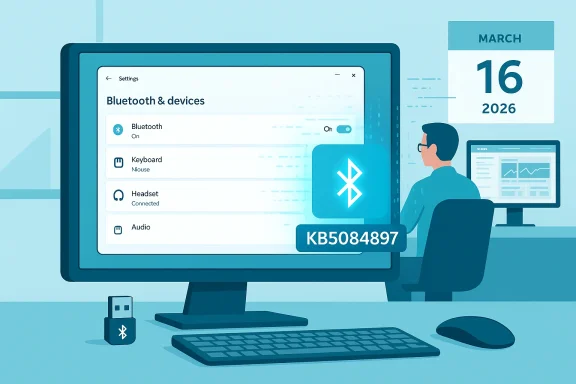
Blue-toned data center scene with a monitor displaying Bluetooth settings and a glowing KB5084897 badge.What KB5084897 reportedly does​

Symptoms addressed​

Community reporting indicates KB5084897 targets a Bluetooth UI visibility and pairing regression. Affected systems could experience one or more of these symptoms:
  • Connected Bluetooth devices (audio, mice, keyboards, headsets) appear to be missing from the Settings > Bluetooth & devices list and from Quick Settings even though the device remains connected and functional at the OS level.
  • The Add device flow returns an empty device list, preventing new pairings from being discovered and added through the Settings wizard.
  • Intermittent or partial Bluetooth behavior where a device shows as “connected” in the system tray or audio switcher but does not appear in the canonical device list.
These descriptions are drawn from community posts and early reports aggregated in forum threads about the hotpatch. The hotpatch format is said to allow the fix to apply without a reboot on hotpatch‑enabled devices.

How it was delivered​

According to the community reports and admin summaries, the fix was rolled out as a hotpatch — a small, targeted update that installs on devices enrolled in Microsoft’s hotpatch program (generally via Microsoft Intune / Windows Autopatch or other supported management tooling). Hotpatches are intended to be applied without a full OS restart, making them attractive for production fleets where reboots disrupt users or critical services. Microsoft’s hotpatching mechanism requires specific prerequisites (OS build, licensing, management enrollment) and is managed via Windows quality update policies.
The community timeline places the rollout on or about March 16, 2026, delivered to hotpatch‑enabled endpoints. Microsoft’s own hotpatch baseline and message center posts confirm the general availability of targeted hotpatch delivery during this servicing window, even while specific KB catalog entries for KB5084897 were not yet broadly indexed in public Microsoft KB listings at time of early reporting. Because the catalog entry is not universally visible in all release catalogs at the moment, the rollout and its exact targeting are best treated as community‑reported and provisional until Microsoft publishes a formal KB article or update history entry.

Why this matters: operational impact for users and enterprises​

Short‑term user pain vs operational benefit​

For home users and small offices, a Bluetooth UI regression can be a severe nuisance: missing audio devices, inaccessible headsets, and keyboards or mice that appear disconnected in Settings can break day‑to‑day work. For enterprises, the stakes are different but equally urgent: call centers, conference rooms, and collaboration environments that depend on Bluetooth audio peripherals can see degraded productivity.
Hotpatch delivery mitigates one operational pain point — it allows Microsoft to push a fix that takes effect without the planned disruption of mass restarts. That’s great for uptime, but it has trade‑offs:
  • Hotpatches can be less visible in traditional testing gates if administrators rely only on change windows tied to reboots.
  • The lack of a reboot complicates rollback semantics and forensic timelines: what changed, when it took effect, and which devices received the patch are all information items administrators must be prepared to verify.
  • Because hotpatching requires enrollment and policy configuration, not every device receives the same fix at the same time, producing an asymmetric environment within the same organization.

Trust and transparency​

Repeated emergency out‑of‑band packages in quick succession (January and February followed by March responses) have eroded confidence for some admins, who now expect baseline updates to occasionally require immediate remediation. A hotpatch that silently resolves a visible Bluetooth bug improves user experience quickly, but it also raises trust questions: administrators need clear telemetry (who got the hotpatch, when it applied), reliable rollback mechanisms, and authoritative KB guidance from Microsoft that documents the change and any known side effects. The present situation—where community reports appear ahead of widespread Microsoft KB indexing—illustrates that communication improvements remain essential.

Technical analysis: likely root causes and Microsoft’s approach​

What likely went wrong​

Bluetooth on Windows is an intersection of OS frameworks (the Bluetooth stack / bthserv), driver model (vendor Bluetooth adapters and unified wireless packages), and the Settings UI code that surfaces paired devices and pairing flows. When multiple cumulative updates and driver rollouts coincide with a major enablement update (like 25H2), timing windows and driver/OS API contract changes can cause:
  • Inconsistent state between the hardware adapter driver and the OS Bluetooth policy store.
  • UI layer failures where the Settings process or Quick Settings tile doesn't enumerate or display a device list even though device objects exist.
  • Race conditions in the Add device (pairing) flow where discovery callbacks are suppressed or filtered.
A small hotpatch aimed at the Settings/UI layer or a discovery/pathway in the Bluetooth service could restore enumeration without changing drivers. That would explain why users sometimes reported connected devices remaining functional while they were invisible in Settings. However, that same approach might not help devices whose drivers were also changed or corrupted by other cumulative packages. For that reason, Microsoft’s remediation strategy may be surgical (fix the symptomatic UI bug) rather than broad (replacing or rolling back drivers), which is a prudent first step for quick remediation but not a universal cure. This technical inference aligns with the community summary of the hotpatch behavior.

Microsoft’s operational choices​

The hotpatch approach used for KB5084897 suggests Microsoft judged the regression to be high enough impact to warrant a non‑reboot remediation but narrow enough to be safely patched in place. Microsoft’s hotpatch system was designed for exactly this category of problem: high‑impact regressions that do not require broad build changes but need immediate distribution. The same mechanism has been used previously to fix WinRE and other urgent regressions. Administrators can enable or disable hotpatching and control which devices receive such updates via Intune and Windows quality update policies.

Veracity and caveats: what we can and cannot confirm​

  • Community reports and forum aggregations (including early forum threads collated in the uploaded material) identify the package as KB5084897 and place the rollout around March 16, 2026 to hotpatch‑enabled Windows 11 24H2/25H2 devices. This reporting appears consistent across multiple community threads and incident summaries collated in the last 48 hours.
  • At the time of early reporting, Microsoft’s public KB catalog listings did not yet show a universally accessible KB article for KB5084897 in every channel, and major catalog indexes may take longer to list hotpatch entries. Until and unless Microsoft publishes an authoritative KB article or update history entry specifically naming KB5084897, the package identification remains community‑reported. Treat the KB number and rollout timing as provisional until Microsoft confirms it via official support pages or release notes. Caution: this is a real and important data caveat.
  • Independent validation: Microsoft’s hotpatch tooling, prerequisites and behavior are documented by Microsoft Learn and Intune guidance; those documents corroborate that hotpatch delivery without reboot is a supported mechanism for eligible enterprise devices. That mechanism explains how such a Bluetooth fix could be delivered quickly and without reboot.
  • Community signals: user reports across forums and Microsoft Answers show a long‑running pattern of Bluetooth regressions associated with recent Windows servicing waves. Those independent symptoms and remediation patterns increase the credibility of the KB5084897 hotpatch narrative, though they do not replace an official Microsoft KB article.

What administrators and power users should do now​

If you manage Windows 11 devices (or are a power user experiencing Bluetooth regressions), follow these prioritized steps.

1. Verify whether your devices are hotpatch‑enabled​

  • Check whether devices are enrolled in Windows Autopatch or a Windows quality update policy with hotpatch enabled. Hotpatching requires Intune or other supported management, and specific licensing prerequisites. If you are not hotpatch‑enabled you will not receive this no‑reboot fix automatically. Microsoft’s documentation explains how hotpatch policies work and how to verify enrollment.

2. Confirm presence of the hotpatch​

  • On a device you control, open Windows Update > Update history or run diagnostic logs to see if an entry referencing KB5084897 (or a recent “hotpatch” update) is present. Managed environthe Intune update reports to identify devices that applied the recent hotpatch. If the hotpatch is not listed, the device may not have received it or may be on a different servicing baseline.

3. Short diagnostic and remedial checklist for the Bluetooth issue​

  • Reboot once if practical — rebooting can often clear transient driver and stack states.
  • In Settings > Bluetooth & devices, toggle Bluetooth off and on again.
  • In Device Manager, expand Bluetooth, right‑click the adapter, and select Update driver; if that fails, select Uninstall device and then scan for hardware changes to re‑install the adapter.
  • Confirm the Bluetooth Support Service is running (services.msc -> Bluetooth Support Service) and set to Automatic.
  • If the Settings UI is still blank but device functions (audio, keyboard) work, check for the presence of a hotpatch in update history (step 2). If a hotpatch is present but problems persist, escalate to driver reinstall from the vendor (Intel, Broadcom, Qualcomm) rather than waiting for further OS patches.

4. For enterprises: pilot and telemetry​

  • Don’t assume uniform delivery: verify which test/devices got the hotpatch, monitor user‑reported Bluetooth symptoms for at least 24–72 hours post‑deployment, and use Intune/Autopatch telemetry to spot anomalies.
  • If you rely on imaging or driver packages, coordinate with hardware vendors to ensure Bluetooth drivers are updated and validated against the version of Windows you run (25H2 / 24H2 driver validation guidance exists from OEMs and driver vendors).

5. Rollback considerations​

  • Because hotpatches minimize reboots and can apply in place, standard uninstall paths may differ. If you must revert, consult the management plane (Intune/Windows Autopatch) to determine the supported rollback path for hotpatch updates. If no formal uninstall is available, you may need to apply a full cumulative update that supersedes the hotpatch or restore from backup. This is one of the operational trade‑offs of no‑reboot remediation: rollbacks can be more complicated. Plan emergency revert steps now if your environment cannot tolerate untested hotpatches.

Strengths and risks of Microsoft’s hotpatch strategy (analysis)​

Strengths​

  • Reduced downtime: hotpatches let administrators fix critical regressions without mass reboots, preserving worker productivity and service availability.
  • Faster remediation: high‑impact bugs (like a disappearing device list) can be addressed in hours/days instead of weeks, which is important for business continuity.
  • Granular targeting: Microsoft can push narrow fixes to impacted baselines rather than assembling a full cumulative, reducing blast radius.

Risks and downsides​

  • Visibility and trust erosion: silent hotpatches can create asymmetric states across fleets and complicate auditing unless telemetry is robust and readily available to admins.
  • Rollback complexity: returning a device to a pre‑hotpatch state may not be straightforward, which increases the operational burden for IT teams that value strict change windows.
  • Testing gap: hotpatch‑first fixes presuppose that the patched code path is low risk; repeated emergency fixes suggest a gap in pre‑release validation that enterprises must account for in their testing matrices.
  • Dependence on managed tooling: organizations that do not use Intune/Autopatch or whose licensing doesn’t support hotpatch capabilities will not benefit from these low‑disruption fixes and may be left with more manual remediation work.

What to watch next​

  • Official Microsoft KB and release notes: wait for Microsoft to publish an authoritative KB article listing KB5084897 and its exact contents, affected builds, and known issues. That documentation will confirm the scope and safe deployment guidance.
  • Driver vendor advisories: OEMs and driver vendors (Intel, Broadcom, Qualcomm, Realtek, etc.) may publish updated Bluetooth driver packages or advisories explaining interactions with recent cumulative updates; coordinate driver deployments where appropriate.
  • Telemetry and user reports: watch your own environment for inconsistent application of the hotpatch; users may show symptoms for reasons unrelated to the UI bug (e.g., actual driver failure), so correlate symptoms against update history and device driver versions.
  • Microsoft message center and admin guidance: Microsoft’s message center and Windows release‑health pages will likely post follow‑up guidance for enterprise environments; these are primary sources for policy and action items.

Final verdict and practical recommendation​

KB5084897 — as reported by the community — appears to be a fast, narrowly scoped hotpatch intended to repair a Bluetooth enumeration and pairing UI regression on hotpatch‑enabled Windows 11 24H2 and 25H2 devices. If you are affected by missing Bluetooth devices or pairing failures, and you manage your devices via Intune/Autopatch, check your update telemetry and consider applying vendor‑validated Bluetooth drivers where the hotpatch does not resolve device‑level driver issues.
For enterprise operators: enable monitoring, verify hotpatch enrollment, deploy the hotpatch to pilot groups first (even though it is low‑disruption), and prepare rollback and support playbooks. If you are a home or small business user without hotpatch enrollment, follow the standard troubleshooting checklist (reboot, device manager driver reinstallation, vendor drivers) while awaiting an official Microsoft KB article that formally documents the hotpatch.
Caveat: the KB identifier and rrom community and forum aggregations at the time of reporting and should be treated as provisional until Microsoft posts an official KB and release note for KB5084897. If your environment is at high risk from silent changes, pause automatic update application in favor of controlled testing and consult Microsoft support for authoritative guidance.

Quick checklist (one‑page reference)​

  • Confirm hotpatch enrollment via Intune/Autopatch.
  • Check Windows Update history for KB5084897 or recent hotpatch entries.
  • If you see Bluetooth missing, attempt: 1) reboot, 2) toggle Bluetooth off/on, 3) reinstall adapter driver, 4) update vendor driver.
  • For fleets: pilot the hotpatch, monitor telemetry for 72 hours, and maintain a documented rollback plan.
  • Await Microsoft KB/release note for definitive confirmation and follow their guidance. Do not assume a hotpatch supersedes necessary vendor driver updates.

Microsoft’s ability to deliver targeted, no‑reboot fixes via hotpatch is a useful tool for mitigating urgent platform regressions — but it also demands better telemetry, clearer communication, and rigorous operational planning from IT teams. KB5084897, as reported by early adopters and community aggregators, is a case study in the tension between speed and visibility: fast fixes can return users to productivity quickly, but they place a new premium on communication, testing, and fleet management discipline. If your business depends on Bluetooth peripherals, verify your update posture today and treat this class of hotpatches as a new first‑class item in your change‑control checklist.

Source: Neowin KB5084897: Windows 11 25H2, 24H2 get another emergency update for broken Bluetooth
 

Microsoft has quietly pushed what community reporters are calling an out‑of‑band hotpatch — widely referenced as KB5084897 — to hotpatch‑enabled Windows 11 devices to address a troubling Bluetooth regression that left connected peripherals invisible in Settings and Quick Settings and, in some cases, prevented new pairings from appearing at all. Community traces of the rollout place the initial push on March 16, 2026, and multiple forum threads and news summaries picked up the story within 24 hours, describing a no‑reboot hotpatch targeted at Enterprise/hotpatch‑enrolled machines. eing has evolved: Microsoft increasingly uses targeted, small‑footprint updates delivered outside the monthly Patch Tuesday cadence to address urgent regressions. The hotpatch model — which installs quality and security fixes without requiring a restart on eligible devices — has been available to organizations running Windows 11 Enterprise when devices are enrolled in Microsoft’s hotpatch program via Intune or other supported management flows. This approach drastically shortens remediation windows for critical regressions, but it also narrows the audience of machines that receive the fix automatically.
Bluetooth troubles in Windows 11 have been a recurring pain point since the 24H2/25H2 release cycle. Administrators and end users reported several variants of the same high‑visibility symptom: Bluetooth devices stayed connected and functional (audio continued to play, HID devices responded), yet the Bluetooth & devices page in Settings and the Quick Settings Bluetooth tile showed no devices, or the Add device flow returned an empty list. That mismatch — working hardware plus invisible UI devices — is what made the issue especially confusing and urgent for support teams. Microsoft Q&A threads and OEM support forums show many similar reports, with users asking whether a Windows update broke device enumeration or whether driver vendors were at fault.

Blue-tinted office scene with Bluetooth settings on a monitor, a Bluetooth dongle, and a worker at a desk.What the KB5084897 hotpatch reportedly does​

Root symptoms addressed​

According to community reports and early forum summaries, KB5084897 targets a regression in the user‑facing Bluetooth experience where:
  • Connected Bluetooth peripherals intermittently disappear from the Settings → Bluetooth & devices page.
  • The Quick Settings Bluetooth tile showed no connected devices or failed to list available devices during pairing.
  • In some cases, the Add device flow did not discover new Bluetooth devices, blocking new pairings.
Those descriptions appear repeatedly in community threads noting the rollout on March 16, 2026.

Delivery method and scope​

Community evidence suggests KB5084897 was delivered as a hotpatch — meaning it installs without an immediate reboot — and that it was targeted at hotpatch‑enabled devices running Windows 11 versions 24H2 and 25H2. That matches the hotpatch delivery model Microsoft documents for quickly remediating quality issues on enterprise fleets, where updates are applied silently by management tooling (for example, Intune with the proper update policies) to minimize user disruption. However, the community‑assigned KB number and the rollout details are not, as of March 17, 2026, visible in a single official KB article publicly posted by Microsoft; the initial disclosures appear to be community and enterprise reporting rather toft standalone Knowledge Base page. Readers should treat the KB identifier and rollout specifics as community‑reported until Microsoft publishes the formal support entry.

Why this matters: user and enterprise impact​

Bluetooth peripherals are ubiquitous: headsets, mice, keyboards, game controllers, and even medical or assistive devices depend on consistent Bluetooth enumeration and pairing flows. The regression’s most harmful characteristics were:
  • It produced a deceptive state where devices remained functional (audio, HID input) while disappearing from UI lists, making support and triage harder.
  • It blocked new pairings, which directly prevented users from adding essential peripherals.
  • Because the fault touches the Settings and Quick Settings UI and the device enumeration stack, ordinary troubleshooting steps (toggle, unpair/re‑pair from Settings) could be impossible or ineffective.
Enterprises value hotpatching because it allows fixes like this to reach machines quickly with no downtime. For end users not enrolled in the hotpatch program, Microsoft’s regular servicing channels (monthly CUs or targeted OOB updates) are the path to remediation — which can mean a longer exposure window for the problem. Community discussions picked up the hotpatch label for KB5084897 almost immediately after reports of the fix appeared on March 16, 2026.

Technical analysis: what likely went wrong​

Two likely fault domains​

From a technical standpoint, this class of regression usually falls into one of two buckets:
  • A UI/Settings process regression where the Bluetooth stack still functions, but Settings/Quick Settings fails to enumerate or display devices. This can be a corruption or mismatch in how Settings queries the Bluetooth device list or in how device metadata is reported to the UI.
  • A Bluetooth stack/driver regression where enumeration is inconsistent or device metadata is misreported, causing devices to be hidden from the Settings UI even though their profiles (A2DP, HID) continue to work at kernel or driver layers.
The observed symptom set — working peripherals but invisible in Settings — suggests the bug was more likely in userland enumeration or Settings‑related COM/UWP interfaces than in the low‑level driver stack. A hotpatch that corrects those higher‑level calls is a plausible fix because the corrected code paths may be contained and safe to update without a reboot. That aligns with how Microsoft uses hotpatches to fix limited, high‑impact UI or logic regressions.

Why a hotpatch could be safe and effective here​

Hotpatches are designed to be small, targeted fixes that replace specific in‑memory code paths without updating the entire OS image; they’re used for minimal perturbation. When the regression is confined to a subset of services or libraries — for example, a Settings UI library or the Bluetooth platform API surface used by Settings — a hotpatch can be both safe and effective. However, hotpatches are only supported on properly configured enterprise clients, which is why consumer devices or unmanaged machines may not see the KB5084897 fix automatically.

Verification and sources — what’s confirmed and what’s still open​

  • Confirmed by community reporting: an out‑of‑band hotpatch identified as KB5084897 was observed being pushed to hotpatch‑enabled devices on March 16, 2026 to address Bluetooth UI/visibility and pairing issues. Multiple forum threads and news summaries reflect this timeline.
  • Confirmed by Microsoft documentation: the hotpatch delivery mechanism and its scope (Windows 11 Enterprise devices enrolled via Intune/MDM and meeting baseline prerequisites) are described in Microsoft’s hotpatch FAQ and Intune documentation. Those resources explain why only certain devices will receive no‑reboot updates and how organizations manage hotpatch behavior.
  • Not yet fully verified in a single public KB article: as of March 17, 2026, an official Microsoft Knowledge Base support page that explicitly lists “KB5084897” with public release notes and the exact installable package details was not found in standard Microsoft support indexes. That means the KB identifier in community threads may be an internal or management/packaging identifier that Microsoft hasn’t published as a standalone public KB (yet). Treat community KB labels as useful signposts but verify in your environment using Windows Update history or management console logs.
Because the fix affects a broad set of user‑facing scenarios, administrators should look for corroboration in their own management telemetry (Windows Update logs, Intune update compliance reports, or WSUS/hotpatch logs) rather than relying solely on forum posts.

What enterprise IT should do now​

Immediate steps for hotpatch‑enabled fleets​

  • Check hotpatch enrollment and update policies in Microsoft Intune (or your MDM). Ensure the device baseline and hotpatch options are enabled if you wanto‑reboot fixes. Microsoft provides clear guidance on prerequisites and enrollment steps.
  • Confirm the presence of the hotpatch in Windows Update history for affected devices (look for a KB identifier or a hotpatch entry with a March 16, 2026 timestamp). If your management logs show a successful install and devices report improved Bluetooth behavior, you have a high degree of confidence the hotpatch applied correctly.
  • If devices still show the problem despite a reported hotpatch install, collect the following telemetry before escalating:
  • Event logs (Application and System) around the time of the last update and the moment Bluetooth behavior changed.
  • Windows Update logs and hotpatch service logs.
  • A Device Manager snapshot showing the Bluetooth adapter and driver versions.

For organizations not on hotpatch​

  • Understand that consumer and unmanaged devices will not automatically receive hotpatch‑only fixes. Monitor Microsoft’s Windows Message Center and Support pages for any follow‑up OOB or monthly CU that backports the fix to the broader audience. Micr and Message Center posts are the authoritative channels for public KBs and OOB updates.

Guidance for consumers and technicians​

If you’re an individual who lost Bluetooth visibility in Settings, follow this prioritized checklist:
  • Quick checks (fast, reversible)
  • Reboot the PC and power‑cycle the Bluetooth peripheral.
  • Open Device Manager and confirm the Bluetooth adapter is present. If Bluetooth is missing entirely from Device Manager, the underlying adapter is not being detected — that’s often driver or hardware related.
  • Run the Windows Bluetooth troubleshooter (Settings → System → Troubleshoot → Other troubleshooters).
  • Mid‑level remediation
  • Update or reinstall Bluetooth drivers using the OEM or chipset vendor package rather than generic drivers. Many regressions manifest as UI/listing oddities that vendor driver updates resolve.
  • Confirm Bluetooth services (bthserv) are running and she service fails to start or shows permission errors, collect event logs before making changes.
  • When the UI is broken but devices still work
  • If devices operate but don’t show in Settings, try removing entries via Device Manager and re‑pairing from scratch. If the Add device UI returns no devices, use the peripheral’s vendor pairing method (some devices expose a direct pairing button or use manufacturer apps) as a workaround.
  • If you’re on a managed device, contact your IT team and ask whether hotpatch policies are enabled and whether the hotpatch (community‑reported KB5084897) has been applied to managed devices.
If none of these steps help, collect logs (Event Viewer, Device Manager dumps, and Windows Update history) and escalate to Microsoft support or the device vendor.

Risks and caveats​

  • Hotpatch shape and scope: Because hotpatches are intentionally small and targeted, they may only fix the observed UI/logic path. If your Bluetooth issue stems from a vendor driver regression or firmware problem, a hotpatch that corrects Settings’ enumeration calls may not fully resolve pairing or audio problems. Expect mixed outcomes if multiple faults overlap.
  • Incomplete public documentation: Community reports named KB5084897 and dated the rollout to March 16, 2026; however, Microsoft had not, at the time of writing (March 17, 2026), published a standard public KB article with the same identifier in its main support index. This is not unusual: hotpatches can be distributed through enterprise management channels before a public support article is created. Administrators should validate with their telemetry and Microsoft support if they require an official KB before approving the fix.
  • Driver interactions: Because Bluetooth on Windows involves close cooperation between OS platform components and chipset drivers (Intel, Qualcomm, Realtek, MediaTek), a change in OS behavior can surface latent driver bugs. Vendor coordination is essential in these situations; check vendor advisories and driver releases as part of triage. Community threads show repeated instances where chipset vendor driver updates were the root cause or the eventual fix for Bluetooth regressions.

Recommended best practices going forward​

  • For enterprises
  • Maintain a telemetry pipeline that captures Windows Update and hotpatch events, plus Bluetooth event logs and driver inventory. That allows fast correlation between update rollouts and reported regressions.
  • Test hotpatch behavior in a pilot group before broad adoption. Hotpatch reduces restarts, but it also changes patch windows and the immediate rollback options available to administrators.
  • Coordinate with key peripheral vendors (headset, keyboard, mouse suppliers) to ensure driver compatibility with current Windows servicing baselines.
  • For consumers and small businesses
  • Keep drivers updated from OEMs and chipset vendors. Where possible, prefer vendor packages over Microsoft‑distributed generic drivers.
  • If you experience Bluetooth UI oddities, document the OS build and update history and check vendor forums; often a small driver update or a cumulative patch resolves the issue.

A short troubleshooting playbook (step‑by‑step)​

  • Reboot the PC and power cycle the Bluetooth peripheral.
  • Open Device Manager → confirm Bluetooth adapter presence. If missing, show hidden devices and check Network adapters or Other devices for unknown entries.
  • Run the Windows Bluetooth troubleshooter (Settings → System → Troubleshoot).
  • Update Bluetooth driver with OEM/chipset vendor package; reboot.
  • If Settings still hides devices but they function, attempt remove/re‑pair via Device Manager or vendor pairing utility.
  • If on a managed device, ask IT to confirm hotpatch enrollment and whether KB5084897 (hotpatch) applied on March 16, 2026; collect Windows Update logs for verification.

Bottom line: practical verdict​

The KB5084897 hotpatch — as reported by multiple community sources on March 16, 2026 — appears to have been an effective, no‑reboot mitigation for a specific Bluetooth UI/visibility regression affecting hotpatch‑enabled Windows 11 devices. Hotpatch delivery enabled rapid remediation for enrolled enterprise fleets, which is exactly the scenario Microsoft designed the mechanism to handle. That said, the KB identifier and rollout details are currently grounded in community reporting and management telemetry rather than a single, just‑published Microsoft public KB article; admins should verify installation status via their update management tools and Microsoft’s Release Health channels.
For individual users and organizations not enrolled in hotpatch, the path to resolution remains a combination of driver updates, standard Windows quality updates, and vendor coordination. Keep an eye on Windows Message Center and Microsoft Support announcements for any formal public KB or cumulative backport that documents the fix more fully.

Final recommendations​

  • If you are an enterprise admin and rely on Bluetooth devices for workstations or meeting rooms, prioritize enabling hotpatch where supported, but pilot thoroughly.
  • If you are a consumer or small business administrator, start by updating Bluetooth drivers from OEMs and gather Windows Update logs before assuming a full OS regression.
  • Document and collect telemetry when the issue occurs: Event Viewer, Device Manager screenshots, and Windows Update history significantly speed root cause analysis.
  • Where ambiguity remains — particularly about official KB identifiers — validate via your management portal logs and Microsoft support channels rather than relying solely on community labels.
This incident is a useful case study in modern Windows servicing: hotpatching can deliver surgical, no‑reboot repairs for high‑impact UI regressions, but its targeted nature means visibility into the rollouts and clear management telemetry are more important than ever.

Source: Windows Report https://windowsreport.com/kb5084897...luetooth-missing-from-settings-in-windows-11/
 

Microsoft’s servicing model for enterprise Windows just got another chapter: community reports and investigative coverage indicate an out‑of‑band, rebootless hotpatch was rolled to hotpatch‑enabled Windows 11 Enterprise fleets to repair a troubling Bluetooth visibility and pairing regression that surfaced in mid‑March 2026. The patch—reported in community reporting as KB5084897 and circulated quietly to hotpatch‑eligible machines—aims to restore missing Bluetooth devices from the Settings and Quick Settings surfaces and to correct an Add device flow that sometimes showed no available devices. erview
Hotpatching is Microsoft’s low‑disruption servicing model for Windows 11 Enterprise: narrowly scoped, in‑memory fixes that can take effect without forcing a restart on eligible devices. The capability is gated to commercially managed environments that adopt hotpatch policies via Intune and Windows Update for Business, and it has been steadily used since the hotpatch public preview and early rollouts in 2024–2025. That model is central to understanding why this Bluetooth repair arrived the way it did: it was targeted, restartless, and limited to hotpatch‑enrolled endpoints rather than the broad consumer population.
What changed this week is not the mechanism so much as the scenario: Bluetooth problems that manifest as functional regressions in the UI—connected peripherals working but invisible on the Bluetooth & devices page and Quick Settings—are exactly the kind of high‑visibility problem enterprises want fixed quickly and quietly. Community traces place the initial push on or around March 16, 2026; BornCity’s reporting and multiple community threads pthin 24 hours.

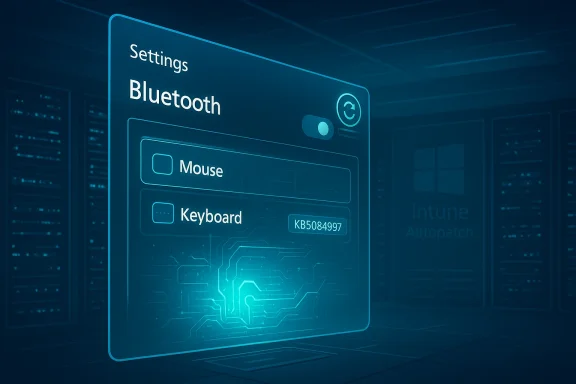
Neon blue Bluetooth settings panel with toggle and options for Mouse and Keyboard.What the hotpatch (community ID KB5084897) reportedly fixes​

The symptoms administrators and users reported​

  • Connected Bluetooth peripherals (keyboards, mice, headsets) appearing to be missing from Settings > Bluetooth & devices and Quick Settings, despite remaining connected anhe Add device flow showing no discoverable devices, blocking new pairings on some machines.
Thesfusing user experiences: connected hardware that continued to operate but was not visible in standard management UI, and inability to pair new devices in environments that rely on Bluetooth input or audio for daily workflows. The regression attracted immediate attention because it affects both productivity devices (keyboards/mice) and accessibility scenarios (assistive audio/hearing devices).

The fix behavior — restartless, targeted delivery​

Community reporting and the initial BornCity coverage emphasize two operational characteristics of the update:
  • It was delivered as a hotpatch (no forced reboot) to hotpatch‑enabled devices.
  • The rollout was *targemulative update; only devices enrolled in Microsoft’s hotpatch program or managed via Autopatch/Intune in hotpatch mode received it.
Those characteristics explain why many consumer machines and non‑enrolled corporate devices did not see the package through Windows Update. For enterprises that configured hotpatching, the patch appears to have been applied without the usual operational disruption of a restart.

Why Microsoft might use a hotpatch for this problem​

Hotpatching’s promise is fast mitigation with minimal disruption. For problems that:
  • Have high visibility but are scoped to a specific component (in this case, Bluetooth UI and pairing flows), and
  • Don’t require broad binary replacement or kernel restarts,
a hotpatch is an operationally sensible choice. It minimizes downtime for critical workers (call centers, labs, hospital workstations, production floors) where reboots are costly.
At the same time, hotpatch distribution requires enrollment and configuration. Organizations that haven’t enabled hotpatching through Intune or Windows Autopatch won’t receive such targeted fixes, creating a divergence in experience between hotpatch‑enabled fleets and unmanaged or consumer devices. Microsoft’s hotpatch documentation lays out those enrollment and policy prerequisites and the governance model for enterprise hotpatch delivery.

Verification: what’s confirmed, what’s community‑sourced, and what remains unverified​

  • Confirmed (via Microsoft hotpatch program documentation): Hotpatches can be delivered without a reboot and are available to eligible Windows 11 Enterprise devices managed through Intune/Autopatch policies. This is the servicing mechanism Microsoft documents for targeted, in‑memory updates.
  • Reported by BornCity and forum research: *An oue was circulated to hotpatch‑enabled devices around March 16, 2026, addressing Bluetooth UI visibility and pairing problems. Multiple community threads referenced the patch and traced the rollout.
  • Not yet corroborated (as of publishing): A public Microsoft KB article or dedicated Microsoft Support page explicitly for KB5084897 was not located in Microsoft Support search results at the time this piece was prepared. Microsoft has posted hotpatch release notes and message center updates for other hotpatch packages in recent months, but an authoritative, dedicated KB entry matching KB5084897 was not discoverable through official support channels during verification. Because the patch was small, targeted, and distributed to hotpatch‑enrolled endpoints, Microsoft sometimes posts a short message in the Windows Message Center or updates release notes later; that appears to be the case here. Treat the specific KB ID as community‑reported until Microsoft publishes a formal support article.
  • Independent community corroboration: multiple independent community posts and forum threads picked up the hotpatch story and used the KB5084897 identifier in their reporting, corroborating the BornCity piece and signaling a cross‑community recognition of the fix. Community sources (forums, Reddit threads, and IT community summaries) reported similar symptoms and the arrival of a restartless repair. These corroborations are valuable but secondary to an official Microsoft support article.
Because the publicly indexed Microsoft Support entry for this exact KB number could not be located at press time, this article relies on a mix of a detailed community report (BornCity) and corroborating community threads, plus Microsoft’s documented hotpatch mechanics. If Microsoft publishes an official KB article for KB5084897 later, administrators should consult it for the definitive guidance and any post‑deployment known issues that Microsoft documents.

Technical analysis: what likely caused the regression, and what the hotpatch probably changes​

Windows Bluetooth behavior relies on several components and layers:
  • The Bluetooth radio driver and adapter stack (adapter firmware + driver).
  • The Operating System’s Bluetooth service and system components (BthServ and associated drivers).
  • User‑interface layers that enumerate and display paired/connected devices (Settings, Quick Settings integration).
  • The Add device discovery flow, which relies on scanning and UI refresh paths.
The regression community described—devices remaining connected yet disappearing from UI surfaces—suggests a state‑synchronization or UI enumeration bug rather than a pure driver failure. In other words, the kernel‑level connection might have remained intact while the Settings/Quick Settings code path failed to refresh or enumerate devices properly. That’s a plausible reason Microsoft chose a hotpatch: to adjust in‑memory UI or service behavior without replacing on‑disk binaries tha.
What the hotpatch likely does:
  • Corrects a race condition or caching logic in the Bluetooth device enumeration code path so that connected devices are surfaced consistently across Settings and Quick Settings.
  • Ensures the Add device flow triggers a fresh scan and populates available devices correctly.
  • Updates in‑memory state transition handling for Bluetooth services so that UI components reflect the true device state.
These are inferred technical behaviors consistent with the reported symptoms and the narrow, restartless nature of hotpatches; the exact code changes remain proprietary and are not published in the community reporting. Treat the above as a reasoned technical hypothesis rather than a verbatim changelog.

Strengths of Microsoft’s response — why this rollout matters​

  • Speed and reduced disruption. A restartless fix delivered directly to hotpatch‑enabled endpoints is operationally superior for time‑sensitive environments. It reduces lost productivity and avoids the risky, user‑initiated reboots that often follow large cumulative updates.
  • Targeted remediation. Because and can be restricted to enrolled machines, Microsoft can address pressing regressions in critical environments—healthcare, retail, manufacturing—without rolling a one‑size‑fits‑all cumulative update.
  • Demonstrates maturity of the hotpatch channel. The use of hotpatch for a UI/driver-stack interaction bug shows that the hotpatch pipeline is being used for more than just security fixes; it’s being leveraged for operational quality and reliability. That evolution matters for enterprise IT planning.

Risks, caveats, and what administrators must watch for​

  • Visibility gap for non‑enrolled devices. If your organization doesn’t use hotpatching, you will not receive this targeted fix. That leaves a divergence between devices: some will have the fix, others will still exhibit the bug until Microsoft releases a broader cumulative update. This divergence can complicate helpdesk triage and create inconsistent user experiences.
  • Limited public documentation at first. Community reporting named the KB as KB5084897, but an official, detailed Microsoft KB page was not publicly available at the time. Lack of an immediate, fo tracking known issues, rollback instructions, and remediation steps harder for administrators. Treat community IDs cautiously and verify against Microsoft Support when the company posts the official entry.
  • Potential for driver/firmware interactions. Bluetooth stacks are tightly coupled with hardware firmware and OEM drivers. Restoring UI enumeration may surface underlying driver bugs on some devices (for example, devices whose drivers misreport state). Admins should monitor post‑deployment telemetry and user reports for any new symptoms.
  • Rollout and rollback complexity. Hotpatches applied in memory may require specific rollback procedures if they interact poorly with endpoint security or EDR products. Ensure your deployment testing includes rollback validation and that your support teams can escalate to Microsoft if a hotpatch causes unexpected behavior.

Practical guidance and recommended admin checklist​

If your organization runs Windows 11 Enterprise (LTSC 2024, 24H2, or 25H2) and you manage devices at scale, here are practical steps to take now:
  • Verify hotpatch eligibility and configuration:
  • Confirm whether your Intune/Autopatch policidates and which device groups are enrolled. If your fleet is not enrolled, plan for how you will receive a broader fix or apply manual mitigations.
  • Check for signs of the regression:
  • Look for user reports of connected Bluetooth hardware disappearing from Settings/Quick Settings or inability to pair new devices. Triage by comparing device behavior across patched and unpatched machines to confirm the pattern.
  • Monitor deployment status:
  • On hotpatch‑enrolled machines, monitor Windows update logs and your management console for the package identifier that corresponds to the hotpatch. Because Microsoft hadn’t posted a dedicated KB page at the time of reporting, tracking may require cross‑referencing internal update catalog entries and management logs.
  • Validate functionality after the patch:
  • Test the Settings > Bluetooth & devices UI, Quick Settings visibility, and the Add device flow on a representative set of hardware (including common OEM Bluetooth adapters and USB dongles). Include audio, HID, and LE Audio devices where relevant.
  • Prepare rollback and escalation plans:
  • Ensure you have a path to uninstall or block the hotpatch if needed (monitor your management tools for the hotpatch KB or catalog package ID and test the rollback flow on non‑production machines). Document incident escalation paths to Microsoft support for hotpatch rollbacks.
  • Communicate to users:
  • If you expect ongoing divergence between hotpatch‑enrolled and non‑enrolled devices, inform helpdesk teams and users about expected behavior and known workarounds (for example, temporarily using a wired mouse/keyboard or updating OEM Bluetooth drivers where available). Clear communication reduces helpdesk load.

Troubleshooting tips for unpatched or affected machines​

  • Quick checks for end users:
  • Toggle the Bluetooth radio off and on via Quick Settings or the Bluetooth toggle in Settings.
  • Reboot the machine (as a short‑term workaround) to force a full driver/service reinitialization if a hotpatch is not available.
  • Update OEM Bluetooth drivers from vendor repositories where possible; driver mismatches sometimes exacerbate enumeration issues.
  • Admin diagnostics:
  • Review Event Viewer logs for Bluetooth‑related errors and service restarts.
  • Collect the Bluetooth driver stack and firmware versions (manufacturer reporting) to look for patterns tied to specific vendors or drivers.
  • If the issue is blocking critical workflows and hotpatching is not an option, consideracks or temporary policy changes that permit a restart-based cumulative update.
Note: Because specific commands and vendor driver packages change over time, treat the above as process guidance rather than an exact step‑by‑step script. Consult OEM driver guidance and Microsoft Support articles for vendor‑specific instructions.

Broader implications for enterprise patching strategy​

This hotpatch—and the way it was circulated—reinforces the larger tradeoffs IT teams must weigh when choosing between convenience, control, and coverage:
  • Hotpatching reduces downtime and allows rapid, surgical fixes. That is a clear operational advantage for uptime‑sensitive workloads.
  • However, hotpatching creates a difference in update exposure between enrolled and non‑enrolled endpoints. That divergence complicates triage, compliance reporting, and helpdesk scripting if organizations do not standardize enrollment across their fleets.
  • Finally, the initial lag in formal Microsoft documentation for some hotpatches (short, targeted fixes may be distributed before a full KB is posted) means enterprises must rely on community reporting and the Windows Message Center until Microsoft publishes a canonical article. That increases the importance of trusted community sources, telemetry, and vendor relationships to verify and track fixes.

Conclusion​

The KB5084897 hotpatch story — as reported by BornCit community threads — is a useful case study in modern enterprise servicing: it's evidence that hotpatching is being used beyond pure security fixes to correct high‑visibility functional regressions quickly and with minimal user disruption. For administrators, the event underscores the value of hotpatch enrollment for uptime‑critical systems and the need for strong telemetry, testing, and communication practices to manage the new, more granular update surface.
If your organization cares about minimizing restarts and rapid remediation for operationally critical endpoints, now is the moment to verify hotpatch eligibility, test the enrollment and rollback flows, and align helpdesk guidance with the reality that targeted, rebootless fixes may arrive faster than formal KB documentation. For everyone else—particularly those on consumer or non‑enrolled commercial SKUs—keep monitoring Microsoft Support for an official KB entry and apply the standard troubleshooting steps for Bluetooth if you continue to see missing device symptoms.


Source: BornCity Windows 11 Enterprise LTSC 2024: Hotpatch Update KB508489 for Bluetooth
 

Microsoft has quietly pushed an out‑of‑band hotpatch on March 16 that restores missing Bluetooth device visibility in Windows 11 Enterprise — a fix targeted only at hotpatch‑enabled Windows 11, versions 25H2 and 24H2 — and it lands days after a separate emergency hotpatch for the RRAS management tool, underscoring how quickly Microsoft is using hotpatching to deliver restart‑free fixes to managed fleets.

Glowing HOTPATCH icon surrounded by laptops, tablets, and phones illustrating Bluetooth setup.Background: why this matters now​

Hotpatching — the ability to install certain quality and security updates without forcing a system restart — has moved from niche to mainstream for enterprise Windows management. Microsoft announced that hotpatch updates will be enabled by default for eligible devices managed through Windows Autopatch and Microsoft Intune starting with the May 2026 security update, with tenant‑level opt‑out controls made available in April 2026. That shift means an increasing portion of managed Windows 11 endpoints will receive restart‑free updates automatically unless administrators explicitly opt out.
Against that backdrop, Microsoft’s March 16 out‑of‑band (OOB) hotpatch (offered only to hotpatch‑enrolled Enterprise devices) addresses a regression where Bluetooth devices — headsets, mice, keyboards and other peripherals — could be connected and functioning at the system level but fail to appear in Settings’ Bluetooth & devices page and the Add a device lists. The bug also blocked adding new devices because available devices did not appear for pairing.
This is the second hotpatch in a short window: on March 13 Microsoft issued another OOB hotpatch addressing a serious security issue in the Routing and Remote Access Service (RRAS) management tool. Both updates were deployed as hotpatches, meaning eligible systems received the fixes automatically without rebooting.

What Microsoft changed and who gets it​

The patch mechanics — hotpatch, no reboot​

  • The March 16 OOB was released as a hotpatch and is targeted at hotpatch‑enabled Windows 11 Enterprise devices on 25H2 and 24H2.
  • Because it’s a hotpatch, installation does not require a reboot — updates apply while the OS remains live, minimizing disruption for end users.
  • Microsoft’s messaging makes clear the update is not offered to Enterprise devices that receive standard (restart‑required) Windows updates. In other words, the fix is available only to devices enrolled in hotpatch update policies.

Scope and symptoms fixed​

  • Symptom: Bluetooth peripherals could be connected and operational, yet not show up in Settings > Bluetooth & devices, in Quick Settings, or in the pairing UI when attempting to add devices.
  • Impact: Users could lose the ability to see or pair devices through the Settings UI — a high‑friction problem for remote workers and knowledge workers who rely on wireless headsets, mice, and keyboards.
  • Target: Enterprise endpoints on the specified Windows 11 builds that meet hotpatch prerequisites and are enrolled in hotpatch via Intune / Windows Autopatch.
Microsoft’s announcement did not include a timeline for a separate non‑hotpatch (restart‑required) release of the same fix; for organizations not using hotpatching, Microsoft did not commit to when a standard update would be provided.

Why this is important for IT teams and enterprises​

The operational upside: faster, less disruptive remediation​

Hotpatching is attractive for several reasons:
  • Restart‑free remediation: Applying security and reliability fixes without waiting for users to reboot can dramatically shrink the window in which devices remain vulnerable.
  • Rapid rollouts: Hotpatch updates can be pushed quickly to enrolled fleets; Microsoft’s March hotpatch cadence shows the mechanism works for both security and functional fixes.
  • Higher compliance speed: Microsoft claims hotpatching helps organizations reach higher update compliance faster because fixes take effect immediately rather than waiting on reboots.
For critical vulnerabilities (for example, RRAS RCE issues), hotpatching minimizes exposure time without disrupting services or user workflows.

The downside: more frequent emergency fixes and potential regressions​

But the convenience has costs:
  • Increased out‑of‑band frequency: Two OOB hotpatches in a matter of days highlights a real operational trade‑off: faster fixes, but more frequent emergency deployments to the environment.
  • Regression risk: Rapid, post‑release fixes can be symptomatic of regressions making it past QA gates. Each emergency fix increases patch churn and the chance of unexpected interactions with drivers or third‑party software.
  • Visibility and control: Hotpatching centralizes fast remediation under Intune/Autopatch control, which is good for security but can surprise administrators who do not expect weekly or out‑of‑band changes outside their standard change windows.
  • Uneven coverage: Only hotpatch‑enrolled devices are covered; the rest of an organization (or partners, contractors, and unmanaged user devices) may remain exposed or suffer different behaviors, complicating support.

The technical picture: hotpatch prerequisites and constraints​

Understanding what qualifies for hotpatching is essential for safe adoption:
  • Hotpatch support requires specific OS builds and licensing: typically Windows 11 Enterprise editions on supported 24H2/25H2 baselines and the hotpatch capability enabled via Intune / Windows Autopatch policies.
  • Baseline months (the baseline releases that hotpatches sit on) still require a restart. After a baseline install, subsequent hotpatches can be applied restart‑free.
  • Devices on older builds or those that have taken certain updates that are incompatible with hotpatching will not receive hotpatches until brought onto a supported baseline. That phased behavior is deliberate but adds operational complexity during migrations.
  • Hotpatch rollout behavior and controls are managed through Windows quality update policies in Intune and Windows Autopatch, and Microsoft is rolling out tenant‑level opt‑outs to let admins block the new default behavior if needed.

Practical implications and recommended actions for administrators​

If you manage Windows desktops at scale, this moment requires decisions and practical steps. The objective: make hotpatching work for your organization while containing risk.

Immediate actions (short term)​

  • Check hotpatch enrollment: Inventory which devices in your environment are hotpatch‑enabled. Use Intune and Windows Autopatch reporting to identify hotpatch status.
  • Monitor Message Center and release health: The Windows Message Center and Release Health pages are the primary channels for OOB hotpatch advisories. Subscribe or automate monitoring to detect emergency hotpatches the moment they ship.
  • Scope a pilot: If you haven’t already, place a conservative pilot ring under Windows Autopatch for hotpatch reception. Hotpatch adoption should be staged: pilot → broader pilot → production.
  • Consider a temporary opt‑out: If your environment has critical third‑party dependencies or you cannot absorb frequent emergency changes, use the tenant‑level opt‑out control that Microsoft is making available. The opt‑out is not a long‑term escape hatch — it’s a tool to buy time.
  • Communicate with support teams: Inform Service Desk and user support that hotpatching can change behavior without reboots. Update runbooks to reflect hotpatch deployment checks and how to troubleshoot issues that appear between reboots.

Medium‑term configuration and policy​

  • Set hotpatching policy windows: Even with hotpatch enabled, define maintenance windows and pilot sizes. Use Autopatch ring strategies to gate updates for sensitive groups like executives, call centers, or regulated workloads.
  • Integrate driver/firmware testing: Bluetooth issues commonly involve interactions between OS updates and vendor drivers. Establish a continuous compatibility test suite for vendor drivers (chipset, audio, Bluetooth stacks) and require vendor‑certified drivers for hotpatched fleets.
  • Enhance telemetry coverage: Collect and analyze pre‑ and post‑update telemetry to rapidly detect regressions. Endpoint health signals, crash reports, and driver errors should feed automated alerts for rollback or mitigation.
  • Define rollback and mitigation playbooks: Hotpatch rollbacks are different from standard uninstall flows. Work with Microsoft guidance and have documented steps for isolating hotpatch effects, removing problematic updates where feasible, and blocking hotpatch delivery to specific groups.

For helpdesk and end users: troubleshooting options if you don’t get the hotpatch​

Not every user or device will be hotpatch‑enrolled. If a user encounters missing Bluetooth devices but has not received the hotpatch, the practical interim workarounds remain the same established troubleshooting steps that address many Bluetooth UI and discovery problems:
  • Restart the machine: A full reboot still resolves many device enumeration and driver initialization issues.
  • Toggle Bluetooth off and on: In Settings > Bluetooth & devices, turn Bluetooth off, wait a few seconds, and turn it back on to force a re‑enumeration.
  • Restart Bluetooth services: Use services.msc to restart the Bluetooth Support Service (and related Bluetooth services) which can nudge the stack back into a healthy state.
  • Device Manager checks: Open Device Manager and choose View > Show hidden devices. Uninstall any stale or error‑marked Bluetooth adapters and then use Scan for hardware changes.
  • Driver updates: Check optional drivers in Windows Update or install vendor drivers (Intel, Qualcomm, Realtek) from OEM support sites for known good versions.
  • Power‑cycle the PC: For desktops, a hard power‑cycle (disconnect power and discharge capacitors) can restore hardware initialization in edge cases.
  • Use the Bluetooth troubleshooter: Windows has built‑in troubleshooters that can automate common fixes and provide actionable clues.
These steps are not a substitute for the hotpatch fix but are practical for helpdesk resolution before Microsoft’s restart‑required update arrives (if and when it does for non‑hotpatch devices).

A critical look: strengths, risks, and what Microsoft needs to keep delivering​

Strengths demonstrated by this hotpatch strategy​

  • Speed of remediation: Microsoft can patch security issues and functional regressions quickly for enrolled fleets without interrupting users — a significant operational advantage for always‑on services.
  • Reduced attack window: For security fixes, removing the reboot as a gating factor materially shortens time‑to‑compliance and reduces exposure.
  • Operational continuity: For organizations that demand near‑continuous uptime (call centers, trading floors, healthcare endpoints), restart‑free updates are transformational.

Risks and friction points​

  • Perception of declining QA: Frequent out‑of‑band fixes can erode trust in Microsoft’s QA pipeline. Admins will rightly ask whether quicker deployment sacrificed stability.
  • Inconsistent coverage across device classes: Hotpatching primarily targets Enterprise endpoints configured via Intune/Autopatch. Mixed environments (servers, unmanaged BYOD, partner devices) complicate incident response and increase support load.
  • Driver and firmware incompatibilities: Hardware vendors must coordinate more tightly with Microsoft to validate drivers across hotpatch baselines. Bluetooth stacks are especially susceptible to subtle regressions because they interact with audio codecs, USB controllers, and power management.
  • Change management fatigue: Service desks and change boards will need to adapt to a higher cadence of emergency fixes. Without process automation, frequent OOBs can overwhelm support pipelines.

What Microsoft and vendors should do next​

  • Improve pre‑release driver validation: Microsoft should expand its compatibility testing matrix for popular Bluetooth chipset vendors and audio stacks to catch UI regressions before mass rollout.
  • Enhance telemetry for regressions: Faster detection requires better, privacy‑respecting telemetry surfaced to admins so they can quickly identify hotpatch‑related regressions and scope rollbacks.
  • Offer clearer timelines for non‑hotpatch fixes: When a hotpatch is offered only to hotpatch‑enrolled devices, Microsoft should clearly state when a standard, restart‑required update will be available. That transparency helps helpdesks and admins plan.
  • Provide richer opt‑out controls: Tenant‑level opt‑outs are a good start; granular group or device‑profile opt‑outs (based on workload sensitivity) will let organizations adopt hotpatch in a controlled manner.

The strategic decision for organizations: adopt fast, adopt cautiously, or opt out​

There is no single right answer. The choice depends on your telemetry fidelity, vendor driver posture, and tolerance for change.
  • If your organization values immediate security and has a mature update automation pipeline, embracing hotpatch — with staged rings and telemetry‑driven rollouts — is likely beneficial.
  • If your environment is dependent on niche hardware, legacy drivers, or tightly certified images, opt out temporarily while you mature your compatibility testing and vendor coordination.
  • If you manage mixed estates, the pragmatic option is hybrid: hotpatch for modern, well‑tested fleets and traditional restart‑required updates for sensitive or legacy systems.
No matter the choice, treat this change as a project: test, measure, document, and iterate.

The long view: hotpatching changes the economics of patching​

Hotpatching is not merely a technical feature — it reshapes how organizations think about risk and downtime. Historically, patching strategy traded off security for convenience: delay reboots, maintain uptime, accept exposure. Hotpatching flips that trade‑off, enabling immediate remediation without interrupting service.
But as Microsoft’s recent back‑to‑back OOB hotpatches reveal, the operational model also shifts risk: more frequent, smaller fixes require faster detection, better telemetry, and tighter vendor coordination. The net effect will be positive for organizations that invest in automation and compatibility testing; for those that don’t, the new cadence could increase support noise.
This new reality places pressure not only on Microsoft but on the broader ecosystem — device vendors, ISVs, and enterprise IT organizations must all modernize their testing and update practices to keep up.

Practical checklist for Windows admins today​

  • Audit your fleet: identify hotpatch‑enabled devices and the percentage of endpoints that will receive hotpatch updates by default come May 2026.
  • Establish pilot rings: never open the floodgates without staged validation. Use Autopatch rings to automate staging.
  • Harden telemetry: ensure crash, driver, and user experience telemetry is collected and monitored for regression signals.
  • Coordinate with vendors: get firmware and driver sign‑offs for hotpatch baselines from Bluetooth and audio vendors.
  • Prepare helpdesk runbooks: include hotpatch detection, mitigation steps, and the temporary troubleshooting measures (toggle Bluetooth, restart services, update drivers).
  • Decide your posture: plan to accept hotpatch by default, opt out temporarily to buy time, or adopt a hybrid approach based on workload criticality.

Conclusion​

Microsoft’s March 16 hotpatch for Bluetooth visibility is a concise demonstration of the power and the new responsibilities that come with hotpatching. For enterprises the benefit is obvious: urgent fixes, applied without disrupting users. For IT teams, the message is equally clear: hotpatching changes the update playbook and raises the bar for compatibility testing, telemetry, and change control.
If your organization is ready to modernize its update processes, hotpatching — used with sensible pilot rings and solid telemetry — will shrink risk and reduce downtime. If you’re not ready, the tenant‑level opt‑out and a staged adoption plan give you breathing room. Either way, the era of restart‑free emergency remediation is here; how well your organization adapts will determine whether that era is liberating — or simply another source of late‑night tickets for the helpdesk.

Source: theregister.com Microsoft pushes out-of-band hotpatch for Bluetooth
 

Microsoft has quietly shipped a targeted fix for a frustrating Bluetooth regression in Windows 11, and it matters most for users who have watched devices vanish from Settings, Quick Settings, or the pairing screen without warning. The hotpatch, identified in community reporting as KB5084897, is aimed at hotpatch-enabled Windows 11 systems and is designed to restore Bluetooth device visibility without forcing a reboot, a notable advantage for managed fleets and anyone tired of update-induced downtime. this Bluetooth bug hit a nerve
Bluetooth problems on Windows are hardly new, but this one stands out because it affects the parts of the interface people rely on most. In Microsoft’s own support guidance, the company says the Bluetooth icon or toggle may go missing or appear grayed out when Windows cannot detect or enable the feature, and it explicitly lists recent Windows updates as one of the possible causes. The support page also notes that symptoms can include missing Bluetooth options, inability to turn Bluetooth on or off, and issues caused by drivers, services, hardware, or updates.
That broad framing matches what users and community reports have been describing for months: Bluetooth devices that once worked suddenly disappear from the system, while attempts to add new devices fail or show an empty list. Microsoft Community and Microsoft Q&A threads show the same pattern after recent Windows 11 updates, with users reporting that Bluetooth vanishes from Device Manager and Settings entirely.
The new hotfix matters because it addresses a specific, high-friction form of the problem: not merely flaky pairing, but a broken Bre connected devices stop showing up where they should. That is a different class of defect from the usual “restart the adapter” complaint, and it is exactly the kind of issue that can make Windows feel unreliable even when the underlying radio is still functioning.

Laptop screen shows “Bluetooth & devices” with Bluetooth icon, alongside headphones and a mouse.What Microsoft appears to have fixed​

The clearest description in the available material comes from community documentation of KB5084897. According to those reports, Microsoft released an out-of-band hotpatch on March 16, 2026 that repairs a Bluetooth visibility bug in Windows 11: conbe invisible in the Bluetooth & devices page in Settings, could fail to appear in Quick Settings, and the Add device flow could show no available devices. The same material says the patch is delivered as a hotpatch and does not require a reboot.
That rebootless delivery model is important. Microsoft has been expanding hotpatching across Windows 11 servicing, and recent support pages show the company continuing to ship both regular monthly cumulative updates and smaller out-of-band releases. Microsoft’s March 2026 Windows 11 cumulative update notes also reinforce the broader pattern: Windows 11 version 24H2 and 25H2 continue to receive servicing on a monthly cadence, while hotpatch and out-of-band mechanisms are used for urgent fixes. ([support.microsoft.com](March 10, 2026—KB5079473 (OS Builds 26200.8037 and 26100.8037) - Microsoft Support perspective, this is the headline: Microsoft is now willing to patch a visible Bluetooth UI regression outside the normal monthly rhythm, and do it in a way that avoids rebooting endpoints. For enterprises, that is a meaningful quality-of-service improvement. For consumers, it is an indicator that the issue was disruptive enough to warrant special treatment.

Who gets the fix — and who does not​

This is where the sversal than the headline suggests. The available material indicates that KB5084897 is targeted only at hotpatch-enabled devices, which means this is not a broad consumer patch for every Windows 11 PC. In other words, the fix is highly relevant, but it is not automatically the answer for every home user whose Bluetooth has gone missing.
Microsoft’s own support page for “Fix Bluetooth disappeared in Windows” still recommends the classic remediation path: run the automated troubleshooter in Get Help, install the latest Bluetooth drivers, verify Airplane mode is off, check Windows Update, and restart the PC. That guidance suggests that for the general population, Microsoft still treats Bluetooth disappearance as a multi-cause issue rather than a single patchable defect.
That distinction matters because Windows Bluetooth failures are often layered. A bad update can expose driver incompatibilities, a driver can break the Bluetooth stack, and power management can make the adapter seem to vanish after sleep or reboot. Community threads show all of those variants in the wild, which is why a single hotfix may solve one specific regression while leaving many other Bluetooth failures untouched.

Why this update is a big deal for enterprise Windows​

For enterprise administrators, the value of a rebootless hotpatcence; it is operational stability. Bluetooth may sound like a peripheral concern, but in modern Windows deployments it touches mice, keyboards, headsets, barcode scanners, meeting-room accessories, accessibility devices, and mobile workflows. When those endpoints stop appearing in Settings, help desk tickets spike fast.
Hotpatching reduces friction in three ways:
  • No reboot window for a fix that may need to be applied quickly.
  • Less user disruption on shared or always-on workstations.
  • Faster containment when a UI-level bug begins spreading across a fleet.
Microsoft’s broader Windows servicing strategy makes more sense when seen through that lens. The company increasingly uses out-of-band and hotpatch releases to address urgent issues without waiting for the next monthly cycle. Recent support pages for Windows 11 updates show this pattern continuing into March 2026.
For businesses, that is good news. For Windows as a platform, it is also a quiet admission: modern operating systems are complex enough that critical fixes sometimes need to land immediately, not in four weeks. The Bluetooth hotpatch is a textbook example.

Why Bluetooth problems keep recurring on Windows​

The most frustrating thing about Bluetooth on Windows is that “Bluetooth broke” rarely means the same thing twice. Microsoft’s support guidance and user reports point to several distinct failure modes: missing toggles, disappeared adapters, devices that cannot pair, devices that pair but do not work, and peripherals that vanish after sleep or restart.

The common culprits​

  • Outdated or incompatible drivers
  • Stopped system services
  • Windows updates that expose firmware or driver bugs
  • Power management settings
  • Hardware faults or BIOS-level issues
  • Adapter-specific compatibility problems
Some of the community reports are especially telling because they show Bluetooth disappearing entirely from Device Manager, which usually points to deeper stack or driver problems rather than a simple pairing issue. Others show the opposite: the adapter exists, but new devices cannot be discovered. Those are related symptoms, but not identical fixes.
The hotfix is therefore best understood as one targeted repair in a much bigger troubleshooting ecosystem. It may cure the latest regression, but it does not eliminate the long-standing fragility that has made Windows Bluetooth troubleshooting a recurring ritual for power users.

How Microsoft’s official troubleshooting advice still fits in​

Even with a hotpatch available for the affected fleet, Microsoft’s standard guidance remains the right starting point for most users. The support article recommends the automated Bluetooth troubleshooter first, followed by driver updates, Airplane mode checks, Windows Update, and a restart. That sequence is sensible because many Bluetooth failures are not caused by one dramatic bug but by a stale driver or a hung servict.com]

Practical steps users should still try​

  • Run the Bluetooth troubleshooter in the Get Help app.
  • Update Bluetooth drivers through Device Manager or theools.
  • Confirm Airplane mode is off.
  • Install pending Windows updates.
  • Restart the PC to reset the stack.
For readers dealing with disappearing peripherals right now, this matters because many systems are not eligible for KB5084897 at all. Even whe, Microsoft’s own support flow still assumes that basic device, driver, and service health checks remain part of the diagnosis.

Strengths of the hotfix approach​

Microsoft deserves cred on a visible, user-facing defect. Bluetooth problems are not glamorous, but they are highly disruptive, especially in mixed work-from-home and office environments where a headset or mouse failure can derail a meeting in seconds. A rebootless hotfix is exactly the kind of operationally smart response that modern Windows servicing should deliver.

Key strengths​

  • Fast delivery to affected managed endpoints.
  • No reboot required, reducing productivity loss.
  • Narrow scope, which can be safer than a broad, risky cumulative change.
  • Acknowledgement of a real user pain point rather than leaving the issue to community troubleshooting.
There is also a trust factor here. When Microsoft patches an issue this specific, it signals that the bug has been reproduced and validated internally. That matters in a landscape where user reports can sometimes outpace official confirmation. Even if consumers cannot all install the hotpatch, the existence of a targeted fix suggests the company has identified a concrete failure mode rather than hand-waving the problem away.

The risks and limitations​

The biggest limitation is simple: this is not a universal Bluetooth miracle patch. The evidence available indicates that KB5084897 is for hotpatch-enabled Windows 11 devices, so most home users are still left with standard troubleshooting or later broader updates. That is a meaningful gap between headline and reality.

Other risks to keep in mind​

  • The fix may solve only the UI/visibility regression, not every Bluetooth malfunction.
  • Systems suffering from bad firmware or OEM driver issues may need separate remediation.
  • Users who assume “Microsoft has fixed Bluetooth” may ignore a hardware or driver root cause.
  • The issue could still recur on devices outside the hotpatch channel if a different bug is responsible.
There is also the broader Windows servicing concern: every time Microsoft uses urgent out-of-band patches for user-visible regressions, it reinforces the idea that reliability is increasingly being managed in real time. That is good when it works, but it also means administrators must stay alert to a more fluid update landscape. The convenience of hotpatching comes with the expectation that IT will monitor and respond faster.

What readers should take away​

For most Windows users, the practical takeaway is not “install KB5084897 right now,” because many systems will not even qualify for it. The real takeaway is that Microsoft has acknowledged a recent Bluetooth visibility problem serious enough to warrant an out-of-band, rebootless response on supported systems. That is reassuring, but it does not replace the usual troubleshooting playbook.
For IT pros, the hotfix is a reminder that Windows 11 servicing is becoming more granular, more responsive, and more dependent on deployment channel awareness. If you manage hotpatch-enabled endpoints, this is exactly the kind of update you want to track closely. If you manage consumer or mixed-device estates, you still need the old basics: drivers, firmware, power settings, and update validation.
In the end, Microsoft’s new Bluetooth hotfix is less about one broken radio stack than about the evolving contract between Windows and its users. The company can now ship a narrow, rapid repair when a core feature appears to vanish, and that is a good thing. But it also highlights how fragile everyday device connectivity can be in a modern Windows environment, where even a mouse or headset can become collateral damage in the update cycle.

Source: HotHardware Are Your Bluetooth Devices Disappearing? Apply Microsoft's New Hotfix
 

Microsoft has quietly added another piece to its growing hotpatch strategy for Windows 11 Enterprise, and this one is aimed at a bug that was annoying rather than catastrophic: Bluetooth devices that still work but stop showing up where users expect to see them. The new out-of-band update, KB5084897, reportedly restores visibility for connected Bluetooth accessories in Windows 11 Settings and Quick Settings on devices enrolled in the hotpatch program, without forcing a restart. That may sound small, but in enterprise environments, small fixes that preserve uptime can matter just as much as dramatic security patches.
The update lands only days after Microsoft released another out-of-band hotpatch, KB5084597, to close serious RRAS vulnerabilities. Together, the two releases highlight an increasingly aggressive cadence for Microsoft’s Windows 11 hotpatch channel, which is now being used not only for security response but also for rapid reliability corrections. For IT teams, that is both reassuring and a little provocative: the platform is becoming more responsive, but it is also becoming more operationally complex.

Neon-lit laptop settings screen shows “Bluetooth & devices” with wireless headset and sync icons.Background​

Hotpatching has been one of Microsoft’s more important Windows management experiments because it tries to solve a familiar enterprise problem: how do you deliver urgent fixes without forcing reboot windows across a fleet of managed devices? The answer, in Microsoft’s model, is to patch running code in memory and then update the underlying files on disk so the change persists after a reboot. That makes hotpatch a continuity feature as much as a servicing feature.
On Windows 11 Enterprise, hotpatch is not a universal default. It is tied to specific editions, licensing, and device-management prerequisites, and Microsoft’s own support material makes clear that it applies to Windows 11 Enterprise and Education, version 24H2 and 25H2, on enrolled devices. Microsoft has also been publishing dedicated hotpatch release notes and calendars for these channels, which is a signal that the company now treats hotpatch as a first-class servicing track rather than an exotic add-on.
That matters because the hotpatch channel is not the same as standard Windows Update servicing. Microsoft’s documentation and support pages show that hotpatch updates are delivered to eligible devices through managed update pipelines, and only devices with the right licensing and enrollment state receive them. In practice, that means an enterprise admin can have one Windows 11 estate running traditional cumulative updates and another on hotpatch, with different delivery cadence and different reboot behavior.
The new Bluetooth fix, KB5084897, fits that broader pattern. According to the reporting around the release, the bug does not break Bluetooth connectivity itself; instead, it disrupts how Windows exposes Bluetooth status and connected devices in the UI. That distinction is important. A device that still functions but disappears from Settings can create confusion, support tickets, and unnecessary troubleshooting, especially in environments where help desks rely on visible device state to confirm policy compliance or diagnose pairing problems. This is a classic management-plane bug rather than a data-plane bug.
Enterprise administrators will also notice the timing. The update arrived as an out-of-band hotpatch, meaning Microsoft judged the issue important enough to ship immediately rather than wait for the next normal servicing cycle. That decision reflects a broader change in expectations around Windows 11 servicing: when a defect reaches a certain level of operational pain, Microsoft now appears willing to treat it with the same urgency as a security fix. That is a useful capability, but it also makes the cadence of enterprise change more fluid and less predictable than in the old monthly patch rhythm.

What KB5084897 Actually Fixes​

The headline issue is deceptively simple: on affected Windows 11 Enterprise devices, Bluetooth accessories could remain connected and functional but fail to appear in Settings > Bluetooth & devices or in Quick Settings. That means the user sees an empty or incomplete device list even while audio headsets, keyboards, mice, or other paired accessories continue to work in the background.
This kind of mismatch between actual device state and displayed device state is especially frustrating because it undermines user trust in the operating system. If a mouse works but is missing from the control panel, the instinctive assumption is that the pairing is broken. In reality, the UI layer is the thing failing, which makes the problem harder to explain and harder to triage. It is the sort of defect that looks trivial in isolation but expands rapidly in enterprise support environments.

Why visibility matters as much as connectivity​

Bluetooth management in Windows is not just about making devices connect. It is also about helping users and admins confirm that a device is trusted, paired, and available when needed. Visibility problems can block new pairing attempts because Windows relies on that inventory to present existing and nearby devices cleanly.
The practical impact, according to the report, is that users affected by the bug may be unable to add new Bluetooth devices because they do not show up in the connection list. That is a meaningful workflow disruption for organizations that issue wireless headsets, presentation remotes, or peripheral kits as part of a standardized desktop experience. A bug like this can trigger repeated calls to the service desk even if the underlying hardware and radio are fine.
  • Connected Bluetooth devices may remain functional.
  • Devices may disappear from Bluetooth & Devices.
  • Devices may also vanish from Quick Settings.
  • New Bluetooth pairing can fail if the list is incomplete.
  • Help desk staff may mistakenly suspect hardware failure.
  • The visible problem can outlast the actual functional issue.

Why this bug is more than a cosmetic defect​

Microsoft has spent years trying to turn Windows into a more predictable managed platform, and UI reliability is part of that story. When core settings pages lie about device state, the issue is not merely aesthetic; it becomes a source of misdiagnosis. That is especially true in enterprises where remote support agents depend on screenshots or descriptions from end users.
There is also a subtle security angle. If administrators cannot easily confirm what Bluetooth devices are present, the endpoint’s accessory posture becomes harder to audit at a glance. That does not mean the bug creates a direct vulnerability, but it does weaken operational observability, which is never a good thing in managed fleets.

Why Hotpatch Matters for Windows 11 Enterprise​

The most interesting thing about KB5084897 is not just the Bluetooth fix itself, but the delivery mechanism. Microsoft is using the hotpatch channel to ship a user-facing reliability correction that can be applied without a restart, which reinforces the promise that hotpatch is no longer reserved only for emergency security response.
Hotpatch is designed to be applied directly to running processes in memory while also updating on-disk files so the change survives reboot. Microsoft’s own hotpatch release notes for Windows 11 Enterprise versions 24H2 and 25H2 show that the company now maintains a parallel servicing narrative for these devices, including ongoing monthly hotpatch builds and explicit applicability rules.

Operational benefits for IT teams​

For IT departments, the obvious appeal is uptime. A hotpatch that fixes a UI problem without forcing a reboot reduces disruption during the workday, especially for laptops that are frequently in use or rarely fully powered down.
The second benefit is predictability. If Microsoft can ship targeted fixes that do not require the normal reboot-and-reconcile cycle, then support teams can respond faster to defects that affect productivity but do not justify a traditional service interruption. That can reduce the gap between “problem identified” and “problem fixed,” which is one of the most frustrating parts of enterprise Windows management.
  • Less downtime for end users.
  • Fewer scheduled maintenance interruptions.
  • Faster remediation of high-impact defects.
  • Reduced pressure on after-hours update windows.
  • Better alignment with always-on work patterns.

The tradeoff: more moving parts​

The flip side is that hotpatch creates another servicing lane to understand. Not every Windows 11 Enterprise device is eligible, and not every device that is eligible is necessarily on the same baseline. Microsoft’s support pages show that hotpatch eligibility is tightly linked to editions, build levels, and enrollment state, which means admins need to know exactly where each machine sits in the servicing matrix.
That matters because mixed update states are where troubleshooting becomes expensive. If one device gets a hotpatch and another gets a standard cumulative update, the visible behavior may differ even though both are technically “up to date.” In other words, hotpatch is an efficiency multiplier, but it also increases the cognitive load on endpoint managers.

The RRAS Hotpatch Before It​

KB5084897 is notable partly because it is the second out-of-band hotpatch Microsoft has shipped for Windows 11 Enterprise in quick succession. The first, KB5084597, addressed serious vulnerabilities in the Windows Routing and Remote Access Service. According to the reporting, the flaws could allow an attacker with domain credentials to execute malicious code by persuading a user to connect to a malicious server through the RRAS snap-in.
That is the kind of issue that justifies emergency action. If Microsoft is willing to push a hotpatch for RRAS and then, shortly afterward, another one for Bluetooth visibility, it suggests the company is now comfortable using the same deployment mechanism for both security and productivity issues. That is a strong sign of maturity in the platform, but also of pressure: the hotpatch channel is becoming a rapid-response lane, not merely a security expressway.

What the RRAS case tells us​

RRAS is not a consumer feature most people think about day to day, but it is part of the networking backbone in certain enterprise and server-adjacent scenarios. That made the flaw potentially dangerous because it touched infrastructure tools that administrators trust.
The RRAS hotpatch also reinforces the idea that Microsoft wants organizations to view hotpatch as an operational norm. If administrators become accustomed to receiving urgent fixes with no reboot, the bar for what qualifies as a “must wait until Patch Tuesday” issue may keep falling. That is good for responsiveness, but it can also make Windows servicing feel more continuous and therefore more difficult to schedule around.
  • Hotpatch is being used for both security and reliability.
  • Microsoft is willing to ship out-of-band fixes quickly.
  • Enterprise tools like RRAS remain high-value targets.
  • The release cadence is becoming more agile.
  • Admins need to monitor hotpatch and baseline updates separately.

A broader shift in servicing philosophy​

The RRAS case and the Bluetooth bug together show a company trying to reduce the cost of waiting. In the old model, organizations accepted that some issues would remain visible until the next monthly cycle. In the new model, Microsoft appears more willing to break out a targeted fix when the impact is real enough.
That shift is attractive, but it also changes expectations. Once enterprises get used to fast hotpatches, they will expect fast hotpatches. That creates a new standard for responsiveness that Microsoft will have to meet consistently if it wants the program to remain credible.

How the Update Lands on Devices​

According to the reporting, KB5084897 installs automatically on qualified systems and does not require a restart. That is consistent with the general hotpatch promise and with Microsoft’s broader servicing narrative for eligible Windows 11 Enterprise devices. The update is also described as including the March 2026 hotpatch release’s security and feature improvements, which means it is not a point fix in isolation. It is a packaged cumulative hotpatch release with the Bluetooth fix as the headline item.
That automatic delivery is both convenient and potentially opaque. Users may not notice the change happen, which is exactly what IT wants from a maintenance standpoint, but it also means the update can be missed in day-to-day conversation until someone notices that Bluetooth accessories are visible again. Invisible servicing is a feature right up until the moment someone needs to prove it happened.

Who gets it and who doesn’t​

The update is said to apply to Windows 11 versions 24H2 and 25H2 on Enterprise editions with hotpatch enabled. It will not install on Enterprise devices that receive standard cumulative updates. That distinction is critical, because it means the fix is not universally available across all Windows 11 Enterprise endpoints.
For organizations running a mixed estate, this could create parallel support experiences. One group of devices may self-remediate through the hotpatch channel, while another remains on the conventional monthly servicing path and does not benefit from the same packaging. That is not necessarily a problem, but it is an administrative reality that must be tracked carefully.

Why automatic installation is a double-edged sword​

Automatic installation reduces friction, which is exactly why many enterprises adopt managed Windows servicing in the first place. But it also reduces visibility for the end user, who may not understand why a problem disappeared. That can be a positive from a service-desk standpoint, yet it can also make change management harder to explain.
The more subtle issue is trust. If a Bluetooth device vanishes from Settings one day and reappears the next after an invisible patch, users may not connect the dots. IT teams should expect a burst of “what changed?” questions, especially in environments where users are sensitive to OS behavior or have experienced repeated Bluetooth instability in the past.

Enterprise Impact Versus Consumer Impact​

At first glance, a Bluetooth visibility bug sounds like it could affect anyone. In practice, the damage is sharply different depending on whether the machine belongs to a home user or an enterprise fleet. The update itself is limited to hotpatch-enrolled Windows 11 Enterprise devices, so the immediate impact is concentrated in managed business environments rather than consumer PCs.
For consumers, Bluetooth issues usually mean inconvenience. For enterprises, they can mean delayed meetings, inaccessible peripherals, support ticket spikes, and avoidable downtime. A missing headset in a conference room or an absent keyboard on a hot-desk system is not just annoying; it can slow work across an entire team.

Consumer expectations are different​

Most home users do not think in terms of hotpatch channels, baselines, or update rings. They expect Bluetooth to work, and if it fails, they usually troubleshoot through the standard Settings app. If Microsoft eventually brings similar fixes into broader release channels, the user experience improvement will be welcome, but the stakes remain relatively modest compared with enterprise scale.
The consumer lens also matters because it shapes perception. A bug that is “just visual” on paper can still be interpreted as evidence that Windows is flaky. That kind of perception is especially costly in a market where reliability and polish are often judged by the quality of the small details.

Enterprise support teams feel the pain first​

In an enterprise, one defect can generate dozens or hundreds of support contacts if the issue aligns with a common device class. Bluetooth headsets are a good example because they are ubiquitous in hybrid work environments. If a help desk cannot reliably confirm device presence in Windows Settings, it loses an important triage signal.
That is why the Bluetooth visibility bug deserves more attention than a casual reader might expect. It sits at the intersection of user workflow, support diagnostics, and device-management confidence. Fixing it quickly helps preserve the credibility of the Windows 11 Enterprise platform as a managed desktop environment.
  • Enterprise support queues are more sensitive to UI bugs.
  • Bluetooth accessories are common in hybrid work.
  • Visibility issues complicate troubleshooting.
  • Automatic remediation lowers help-desk load.
  • The patch reinforces confidence in managed devices.

A signal to other platform vendors​

Microsoft’s willingness to hotpatch a UI-level defect may also send a message to competing desktop platforms and device-management vendors. Users increasingly expect serviceability to be invisible. If Windows can correct a defect like this without a reboot and without waiting for a monthly cycle, the bar rises for everyone else.
That competitive pressure is especially relevant in enterprises that compare endpoint management ecosystems rather than just operating systems. Fast remediation has become part of the value proposition.

What This Says About Windows 11 Reliability​

There is a deeper story here than Bluetooth visibility alone. Microsoft is gradually shaping Windows 11 Enterprise into a system where reliability fixes can be delivered in multiple layers, with hotpatch serving as the fast lane. That can improve user experience, but it also implies a more sophisticated servicing architecture under the hood.
The existence of a hotpatch for a Bluetooth UI defect tells us that Microsoft is treating operational cleanliness as something worth fixing immediately. That is not a bad sign. It suggests the company is willing to spend engineering and release-management effort on issues that would once have been considered too minor for emergency treatment.

Reliability is now a strategic feature​

Microsoft has long marketed Windows as manageable at scale, but manageability is only half the promise. The other half is the confidence that the platform can be kept in a stable, usable state without constant disruption. Hotpatch helps deliver that promise by reducing the restart tax associated with routine remediation.
Still, reliability in 2026 is not just about crashes and blue screens. It is also about whether Settings panels accurately reflect what the system is doing, whether connected accessories are visible, and whether users can trust the UI when something goes wrong. That is a more nuanced definition of reliability, and one Windows can ill afford to ignore.

The hidden cost of fast fixes​

Rapid patching improves responsiveness, but every new servicing lane adds complexity. More complexity means more testing, more support documentation, more enterprise policy alignment, and more room for mismatch between what Microsoft intends and what customers experience.
That is why hotpatch success will depend not only on speed but on clarity. Enterprises will need to know exactly which devices are eligible, which KBs are installed, and what behavior should be expected after each release. The more seamless Microsoft makes the experience, the more valuable hotpatch becomes.

Strengths and Opportunities​

The new Bluetooth hotpatch highlights several strengths in Microsoft’s current approach and points to a future where Windows maintenance is less disruptive and more adaptive. It also gives enterprise IT teams a reason to revisit their update strategy, especially if they are already evaluating the hotpatch channel for other business-critical workloads.
  • No-restart remediation is a major operational win for business users.
  • Faster defect turnaround can reduce support tickets and user frustration.
  • Targeted servicing helps Microsoft address issues without waiting for a full monthly cycle.
  • Improved trust in Windows UI can reduce misdiagnosis and wasted troubleshooting time.
  • Better fit for hybrid work where peripherals and wireless accessories are essential.
  • Stronger hotpatch adoption could simplify fleet maintenance for eligible enterprises.
  • Continuous servicing maturity may improve Windows 11’s standing in managed environments.
The opportunity here is not just about this one Bluetooth fix. It is about proving that hotpatch can handle a wide range of issues quickly, safely, and transparently enough that IT teams trust it for more than emergency security response. If Microsoft can keep that promise, the program becomes strategically important, not merely convenient.

Risks and Concerns​

Even though the update is welcome, there are real concerns around how hotpatch is evolving and how enterprises will manage the added complexity. The more Microsoft relies on overlapping servicing paths, the more critical it becomes to keep documentation, eligibility rules, and rollout expectations crystal clear.
  • Mixed servicing states can make troubleshooting harder across different device groups.
  • Eligibility confusion may leave admins unsure why some machines receive a fix and others do not.
  • Invisible updates can create communication gaps with end users.
  • Hotpatch complexity adds another layer of policy and compliance management.
  • UI-only bugs can still generate significant support burden despite limited technical severity.
  • Assumption drift may occur if organizations expect all Windows 11 Enterprise devices to behave the same.
  • Overuse of out-of-band releases could make update planning feel more chaotic over time.
There is also the broader risk that a fast-fix culture can normalize urgency. If every important problem is handled out of band, IT teams may feel perpetually reactive. Microsoft will need to balance speed with restraint so that hotpatch remains a precision tool rather than a default escape hatch.

Looking Ahead​

The immediate question is whether KB5084897 resolves the Bluetooth visibility issue cleanly across the hotpatch-enrolled population or whether edge cases remain. In enterprise servicing, even a good fix can take time to prove itself because fleet diversity often exposes behavior that lab testing misses. Microsoft’s own release-health and hotpatch notes will be the place to watch for follow-on adjustments, regressions, or clarifications.
The larger question is what this means for the future of Windows 11 Enterprise servicing. If Microsoft continues to use hotpatch for both security and reliability issues, the cadence of change will keep accelerating. That may be exactly what enterprise customers want, provided the system remains understandable, auditable, and predictable.

What IT teams should watch​

  • Whether the Bluetooth visibility fix appears in additional March 2026 servicing notes.
  • Whether Microsoft reports any side effects tied to KB5084897 deployment.
  • How quickly hotpatch updates continue to follow out-of-band security releases.
  • Whether more user-facing reliability fixes move into the hotpatch channel.
  • Whether Microsoft expands hotpatch eligibility or keeps it tightly controlled.
The most likely outcome is that hotpatch becomes a standard part of enterprise Windows operations rather than a niche feature. If that happens, KB5084897 will be remembered less for Bluetooth and more for what it represents: Microsoft’s growing willingness to treat uptime, visibility, and responsiveness as equally important pillars of Windows maintenance.
Windows 11 Enterprise is still becoming the platform Microsoft wants it to be, and this update is another sign of that evolution. The technology is not just being patched; it is being operationalized in real time, one invisible fix at a time.

Source: gHacks Microsoft Fixes Bluetooth Visibility Bug on Windows 11 Enterprise Devices - gHacks Tech News
 

Laptop screen shows Windows Bluetooth & devices settings with a Hotpatch KB5084897 warning overlay.
Microsoft did issue a hotpatch for this Bluetooth visibility problem on March 16, 2026. The official Microsoft Support entry says KB5084897 is an out-of-band hotpatch for hotpatch-enabled Windows 11 devices, and it fixes a bug where Bluetooth devices may not appear in Settings’ Bluetooth & devices page or Quick Settings, and where adding new devices could fail because no devices appear in the list. Microsoft says it installs automatically and does not require a restart. citeturn0search??
A couple of important caveats:
  • It’s for hotpatch-enabled enterprise devices, not all Windows 11 PCs. citeturn0search??
  • The Petri summary is directionally consistent with the Microsoft Support guidance, but Microsoft’s own page is the authoritative source. citeturn0search??
If you want, I can also turn this into a short “what it means / who’s affected / how to verify” summary for your team.

Source: Petri IT Knowledgebase Windows 11 Hotpatch Fixes Bluetooth Visibility Bug
 

Back
Top