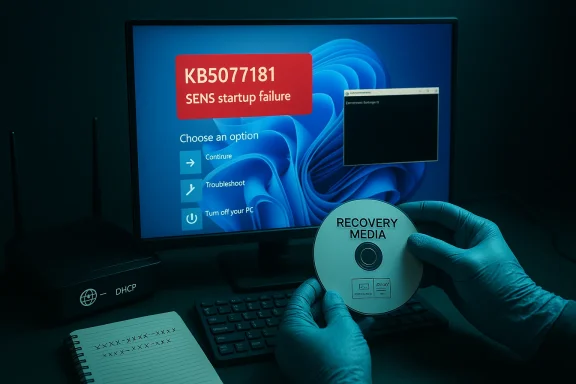
Microsoft’s February 10, 2026 cumulative for Windows 11 — KB5077181 — is leaving a sizeable subset of machines effectively unbootable: after installation many systems enter an infinite restart loop, preventing access to the desktop and, in some cases, forcing recovery consoles or full image restores. The problem surfaced within days of the Patch Tuesday roll‑out and has been widely reported across community support threads and technician logs, where users describe more than a dozen automatic reboots, blocked sign‑ins with System Event Notification Service (SENS) errors, DHCP/network disruptions, and servicing/installation error codes such as 0x800f0983 and 0x800f0991. Early field triage points to interactions between the cumulative’s servicing stack payloads, pre‑boot certificate updates, and drivers or OEM firmware as the likely root vectors; the most consistent mitigation so far is removal of KB5077181 and pausing updates until Microsoft issues a corrected package.
Microsoft published its February 2026 cumulative update for Windows 11 on Patch Tuesday (February 10, 2026). The package is delivered as a combined monthly cumulative that raises affected machines to OS build numbers 26200.7840 (25H2) and 26100.7840 (24H2). KB5077181 bundles the usual security fixes (reported to patch 58 vulnerabilities and include several actively exploited zero‑days), servicing‑stack updates (SSUs), and platform payloads intended to prepare devices for near‑term changes such as Secure Boot certificate refreshes slated for mid‑2026. Despite those security hardenings, the update has caused severe stability regressions on a nontrivial number of systems.
The field evidence is clear: in many cases the fastest remediation is uninstalling the cumulative and pausing updates until Microsoft certifies a corrected build. That’s uncomfortable because it postpones important security fixes — but the operational risk from bricking endpoints often outweighs the incremental risk of delaying the patch by a short interval, particularly when administrators can use targeted compensating controls (network segmentation, endpoint monitoring) to mitigate exposure.
Source: Cyber Press https://cyberpress.org/microsoft-windows-11-kb5077181/
 Background
Microsoft published its February 2026 cumulative update for Windows 11 on Patch Tuesday (February 10, 2026). The package is delivered as a combined monthly cumulative that raises affected machines to OS build numbers 26200.7840 (25H2) and 26100.7840 (24H2). KB5077181 bundles the usual security fixes (reported to patch 58 vulnerabilities and include several actively exploited zero‑days), servicing‑stack updates (SSUs), and platform payloads intended to prepare devices for near‑term changes such as Secure Boot certificate refreshes slated for mid‑2026. Despite those security hardenings, the update has caused severe stability regressions on a nontrivial number of systems.- Affected builds: 26100.7840 (24H2) and 26200.7840 (25H2).
- High‑impact fixes included: multiple elevation‑of‑privilege and remote code execution patches (several CVEs called out by community reporting). These security fixes remain important; the compatibility and reliability regression is the operational problem.
What users are actually seeing (symptoms)
Core symptom: endless reboot / unavailable desktop
The most disruptive and consistent symptom is an infinite restart loop where the machine repeatedly powers off and back on, sometimes cycling more than a dozen times, and never reaches a stable interactive desktop. In many reports, when the desktop briefly appears users are blocked from signing in because the System Event Notification Service (SENS) fails during early session initialization. When present, the SENS failure shows messages like “The System Event Notification Service service failed the sign‑in” or “a specified procedure could not be found”, indicative of a missing or incompatible exported procedure required during early service startup.Network corruption: connected but no internet
Another frequent pattern is link‑level connectivity (Wi‑Fi or Ethernet shows a physical connection) while the TCP/IP stack cannot obtain DHCP leases or resolve DNS, leaving devices “connected” but offline. Community troubleshooting often traces this to the DHCP Client service failing to initialize correctly or network service registration becoming corrupted after a partial or faulty servicing commit. This network disruption compounds recovery because it can cut off remote support and online repair tools.Installation/servicing error codes
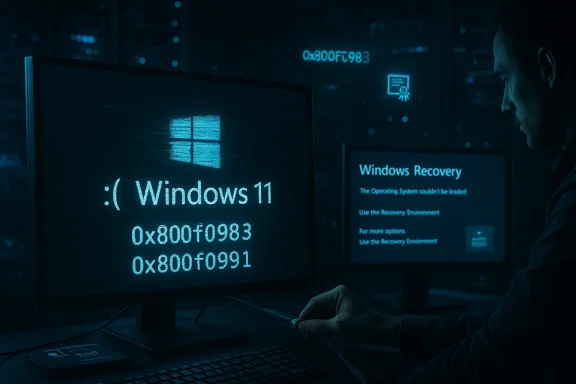
Technicians attempting manual installs or servicing repairs frequently encounter error codes such as 0x800f0983, 0x800f0991, and occasionally 0x800f082f during uninstall or removal from offline images. These codes usually mean the component store (WinSxS) or servicing stack is in a partially committed or mismatched state where DISM and SFC cannot fully reconcile pending operations. The practical effect is that some recovery steps succeed on many machines, while others require in‑place repair or a full image restore.Edge cases: pre‑boot failures and Secure Boot interactions
A minority of cases have produced Stop Codes such as UNMOUNTABLE_BOOT_VOLUME or Secure Boot violations triggered by pre‑boot certificate changes bundled in the SSU/boot‑certificate portion of the cumulative. These are rarer but severe: they can render a device unable to reach WinRE without external recovery media or a host‑level image restore. The inclusion of Secure Boot certificate updates and SSUs in modern cumulatives makes these edge cases plausible and explains why outcomes vary widely across hardware and firmware versions.Why this update can break boot: technical analysis
1) Servicing stack / SSU complexity
Modern cumulative rollouts often include a Servicing Stack Update (SSU) and other pre‑OS payloads bundled into a single monthly package. SSUs modify the component store and servicing logic that Windows uses to install future packages. When an SSU or its pre‑boot components are applied and there is an existing driver, firmware, or component‑store mismatch, the servicing process can end in a partially committed state — a brittle condition that may prevent essential early services from loading correctly. The symptoms described (SENS failures, restart loops, weird servicing error codes) are classic signs of servicing stack mismatch or partial commit.2) Pre‑boot certificate and Secure Boot interactions
KB5077181 explicitly carries Secure Boot certificate changes intended to address certificate expirations (community reports note related certificate refresh steps ahead of certificate expirations scheduled for June 2026). Because these changes affect pre‑OS validation steps, any unexpected firmware or firmware driver behavior can surface as pre‑boot failures or Secure Boot errors on affected platforms. When pre‑boot components change, the margin for hardware/firmware incompatibility grows — especially on devices with older or vendor‑modified UEFI stacks.3) Driver and OEM firmware incompatibilities
The update’s payload touches early‑load drivers and services. If a third‑party driver (particularly network or storage drivers) is incompatible with a newly applied servicing component, early service initialization can fail and cause sign‑in blockers or boot loops. Community logs show that rolling back NIC drivers or restarting the DHCP Client service sometimes remedies the network symptoms, pointing toward driver/service mismatches as a major contributor.4) Component store corruption and pending operations
When the Windows component store (WinSxS) or the servicing stack contains pending operations or mismatched package versions, DISM and SFC can fail to reconcile them. Error codes like 0x800f0983 and 0x800f0991 are consistent with these states. In a subset of devices, SFC/DISM repairs restore function; in others, only uninstalling the cumulative prevents further boot failures.Verified mitigations and recovery steps
The community and frontline support technicians have converged on a pragmatic, repeatable mitigation path. If you manage systems that received KB5077181 and you see these failures, follow the prioritized steps below. These are field‑tested tactics that have restored normal boots for many affected devices. Each step is accompanied by the core commands used in the field.Important safety notes before you start
- If you can sign in, take an immediate backup of critical files before attempting uninstall or repair. Pausing updates is essential after remediation to prevent re‑application.
- If BitLocker is enabled, suspend BitLocker or ensure recovery keys are accessible prior to any in‑place repair or WinRE operation.
- Some rarer cases require external recovery media or a full image restore. If you manage fleets, make sure recovery images and media are staged and accessible.
If you can sign in (desktop accessible)
- Back up critical files.
- Open Control Panel → Programs and Features → View installed updates.
- Locate and select KB5077181 (or the update entry matching build 26200.7840 / 26100.7840) and click Uninstall. Reboot when prompted.
- After successful boot, run elevated repairs:
- DISM /Online /Cleanup‑Image /RestoreHealth
- sfc /scannow
- Pause Windows Update: Settings → Windows Update → Pause updates (to avoid immediate reinstallation).
If the desktop is unreachable (WinRE method)
- Enter Windows Recovery Environment (WinRE) by interrupting boot three times (power off as Windows begins to start) or boot from recovery media.
- Choose Troubleshoot → Advanced options → Uninstall Updates → Uninstall latest quality update. If this UI path works, reboot and verify.
- If the UI uninstall option is unavailable or fails, open Command Prompt in WinRE and run:
- wusa /uninstall /kb:5077181 /quiet /norestart
- Reboot and verify sign‑in. Once the desktop is reachable, run DISM /RestoreHealth and sfc /scannow, then pause updates.
Network quick fixes when you retain desktop access
- ipconfig /release && ipconfig /renew
- netsh int ip reset
- Restart the DHCP Client service
- Roll back NIC drivers via Device Manager if network services remain unstable
These steps have been used as quick follow‑ups for network corruption cases after uninstalling the KB.
When uninstall fails or servicing remains broken
If the system is in a partially committed servicing state that prevents clean uninstall or continuing servicing, field technicians report the following escalations:- Attempt SFC and DISM repair cycles (sometimes repeated after reboots).
- If that fails, perform an in‑place repair upgrade (also called a repair install) using matching build media; this can rehydrate the component store without wiping user data, but it requires free disk space and BitLocker suspension.
- As a last resort, restore from a system image or reinstall the OS — ensure backups are available first.
Enterprise and managed‑IT guidance
For IT teams and system administrators the KB5077181 incident is a textbook case for conservative deployment practices and pilot rings.- Immediately move KB5077181 to a pilot ring if you have not broadly deployed it. Validate the update on representative hardware combinations (consumer OEMs, business SKUs, diverse NIC/storage drivers, and mixed firmware versions) before achieving wider deployment.
- If you already see widespread impact, coordinate with OEM partners and Microsoft support; save logs (CBS, DISM, Setupact logs) and attach them to support cases. Collect BitLocker keys and recovery media for affected endpoints.
- Ensure your recovery playbook is updated: verified WinRE USB/ISO images, recovery SOPs for forced WinRE entry, automated uninstall scripts, and stepwise rollback procedures should be ready for immediate execution.
- Avoid immediate remedial updates until Microsoft releases a fix. Use update deferral (Windows Update for Business, WSUS, or other management tooling) to block the package from reaching production endpoints.
What this says about modern cumulative packaging risk
KB5077181 highlights a systemic tension in Windows servicing: bundling SSUs, pre‑boot certificates, and security fixes in a single monthly package reduces update churn and helps ensure devices are prepared for near‑term security milestones; but it also concentrates risk. When a single monthly cumulative modifies both pre‑OS validation and in‑OS servicing logic, incompatibilities with third‑party drivers, OEM firmware quirks, or partial commits can produce high‑impact failures that are much harder to diagnose and remediate than a single benign hotfix.The field evidence is clear: in many cases the fastest remediation is uninstalling the cumulative and pausing updates until Microsoft certifies a corrected build. That’s uncomfortable because it postpones important security fixes — but the operational risk from bricking endpoints often outweighs the incremental risk of delaying the patch by a short interval, particularly when administrators can use targeted compensating controls (network segmentation, endpoint monitoring) to mitigate exposure.
Strengths and weaknesses of Microsoft’s handling so far
Notable strengths
- The update includes important security hardenings and fixes that target actively exploited vulnerabilities; patching those is necessary to reduce real attack surface.
- The design goal of consolidating SSU and security fixes into a single monthly package simplifies the update pipeline for many customers in the long run.
Notable weaknesses and risks
- At the time community reporting escalated (mid‑February 2026), Microsoft’s release notes and health dashboard did not list a public “known issues” entry acknowledging the infinite reboot situations or the SENS/DHCP patterns being reported. That delayed community trust and prolonged field troubleshooting.
- Bundling pre‑boot certificates and SSUs increases the risk that a single faulty delivery will impact devices at an early stage of boot, making them harder to recover without offline media or manual intervention.
- The update surfaced on a wide range of hardware combinations, which suggests that regression testing across diverse vendor firmware and older drivers was insufficient to catch the broader compatibility surface. This is a longstanding industry problem but one that modern cumulatives amplify.
Practical recommendations (what to do now)
- If you manage a few machines: check for KB5077181 in the installed updates list and do not install it until you have a recovery plan. If already installed and you see symptoms, follow the uninstall steps above and pause updates.
- If you manage fleets: place the KB into a pilot ring and run compatibility tests across all OEM/driver/firmware permutations you support. Ensure BitLocker keys and recovery media are accessible, and stage toolsets (WinRE USBs, in‑place repair images).
- For affected machines you can currently sign into, uninstall via Control Panel → Programs and Features → View installed updates and pause updates immediately afterward. Then run DISM /Online /Cleanup‑Image /RestoreHealth followed by sfc /scannow.
- For machines in infinite reboot or WinRE only: open WinRE → Troubleshoot → Advanced options → Uninstall Updates, or use the WinRE command: wusa /uninstall /kb:5077181 /quiet /norestart. Reboot and verify. If that fails, escalate to repair install or image restore.
What remains unverified and what to watch for
A number of causal links remain plausible but not fully proven in the wild. Community telemetry strongly implicates SSU/certificate changes and driver/firmware incompatibilities, but there is not yet a conclusive, Microsoft‑published root cause analysis (as of mid‑February 2026) that ties the reboot loop to a single component. That means administrators should treat causal claims with measured skepticism and focus on the empirically‑validated mitigations (uninstall + pause updates) until an authoritative patch and postmortem are published. If Microsoft releases a patch or advisory, revalidate the fix against representative hardware before broad re‑deployment.Conclusion
KB5077181 is a stark reminder that cumulative servicing complexity — particularly when SSUs and pre‑boot certificate changes are involved — magnifies the operational cost of a single failed update. The security fixes in KB5077181 are real and necessary, but the real‑world outcome for many users has been catastrophic: machines rendered unavailable, locked out of sessions by SENS failures, or caught in endless reboot cycles. The fastest, most reliable field mitigation has been to uninstall the update and pause further installations while awaiting a corrected cumulative from Microsoft. For administrators the defensive playbook is clear: treat this roll‑out as a case study in conservative deployment, pilot testing, and recovery preparedness. If you are affected, follow the documented uninstall paths, prioritize backups and BitLocker key access, and stage recovery media — and, crucially, do not assume the next cumulative will be problem‑free without validating it first.Source: Cyber Press https://cyberpress.org/microsoft-windows-11-kb5077181/