

Microsoft’s Windows 11 Insider Beta (26H1) Preview Build 28020.2539 is a relatively compact release, but its accessibility changes carry more weight than the build’s short changelog might suggest. Released to testers on July 20, 2026, the update brings plug-and-play support for HID-standard braille displays, enables compatible USB braille hardware during Windows setup, expands Voice Access to Portuguese and Korean variants, adds gamepad navigation to Bluetooth Quick Settings, fixes a Graphics Settings crash, and refines system sounds used with dark mode. The central theme is reducing the number of barriers between a user and the Windows interface, particularly at the moments when independent access matters most.
Windows accessibility has evolved from a collection of optional utilities into a more integrated part of the operating system. Narrator, Magnifier, Voice Access, live captions, contrast themes, text scaling, and other tools increasingly appear in Windows setup, Settings, sign-in, and recovery experiences rather than only after a user reaches the desktop.
Build 28020.2539 continues that transition. Instead of introducing a visually dramatic desktop feature, Microsoft is addressing connection friction, language availability, controller navigation, and setup-stage accessibility—areas where a few extra steps can determine whether someone can use a PC independently.
Narrator has gradually gained deeper Windows integration, better application support, more natural voices, and broader braille capabilities. The current Insider work extends that foundation by making compatible braille displays behave more like standard peripherals rather than unusual devices that require separate installation procedures.
If assistive hardware does not work at that stage, the user may need sighted assistance before reaching the accessibility features intended to provide independence. Supporting compatible braille hardware during OOBE therefore changes more than device compatibility; it changes who can complete Windows setup without assistance.
That reduction in setup time may sound modest to someone using a conventional monitor, keyboard, and mouse. For a braille user, however, eliminating a driver installation, device-specific utility, or manual selection step removes several possible failure points.
Many displays also include navigation buttons, routing keys, and braille input controls. They are not merely passive output devices; they can become a primary method for reading and controlling a computer.
The quality of the experience depends on several layers working together:
Plug-and-play support helps break that cycle. It also reduces the burden on family members, school technology coordinators, workplace IT departments, and accessibility specialists who would otherwise prepare the machine before handing it to the user.
Extending this model to braille hardware lets Windows recognize compatible displays through a common interface. The long-term goal is straightforward: a compliant display should work without requiring a unique Windows driver package for every manufacturer and model.
An open standard improves the baseline experience in several ways:
Insider testing is particularly valuable here because assistive hardware tends to remain in service for years. Microsoft must account for newer HID-compliant products as well as older models, different firmware implementations, regional braille tables, intermittent Bluetooth conditions, and a wide range of Windows applications.
The distinction between USB and Bluetooth is important. The documented OOBE improvement applies to compatible USB-connected HID braille displays. Bluetooth displays can be paired through Settings for wireless use once the relevant Windows environment is available, but users should not assume that every Bluetooth display will provide the same first-screen setup experience.
A typical accessible setup path can now look like this:
When a user needs another person to complete setup, that helper may inevitably encounter sensitive information. Better built-in braille support gives the user more control over those decisions and credentials.
This benefit extends to enterprises. An employee can participate more directly in device enrollment rather than relying on an administrator to perform all setup tasks under the employee’s identity.
Braille is not a single universal configuration. Languages, contractions, literacy needs, input methods, and workplace conventions can all affect the preferred table and behavior.
Windows therefore has to handle both translation directions:
Microsoft still needs to ensure that every part of the page is fully accessible through Narrator, braille input, keyboard commands, and other assistive technologies. An accessibility configuration page that itself presents navigation or labeling problems would undermine the value of the underlying feature.
Voice Access is designed to let users navigate the interface, open applications, select controls, manipulate text, and dictate without depending on a conventional keyboard and mouse. Microsoft has also emphasized on-device operation for the feature, making it useful in environments where a constant cloud connection would be undesirable or unavailable.
A generic language model may recognize ordinary words but still perform poorly with local accents or command formulations. Separate variants allow Microsoft to tune acoustic recognition and language behavior for each audience.
Korean presents a different set of input and recognition requirements. Voice Access must map spoken language not only to dictated text but also to Windows commands, interface labels, numbers, punctuation, and editing actions.
That includes commands for actions such as:
A user might navigate with voice, read with Narrator, and verify content through a braille display. The value of Windows accessibility increasingly lies in allowing these technologies to operate together.
This change aligns with the growing use of Windows PCs in living rooms, handheld gaming devices, accessibility setups, and controller-first environments. It also addresses a common weakness in desktop operating systems: interfaces may be technically visible on a television but remain awkward to operate from across the room.
Bluetooth is particularly relevant because a user may need the panel to reconnect headphones, controllers, keyboards, accessibility switches, or other peripherals. Controller navigation reduces the interruption.
Testing should examine whether:
A Settings crash can appear minor compared with a system crash, but it blocks users from reaching controls that may be needed to troubleshoot performance, power use, compatibility, or rendering behavior.
Per-application preferences can help determine which processor Windows should use. If the Graphics page crashes, users may lose the simplest supported route for changing that behavior.
The fix matters to several groups:
Windows themes have traditionally changed colors, wallpapers, and interface surfaces more visibly than sounds. Linking sound design to dark mode could make the theme feel more cohesive, but the benefit depends on whether the changes remain clear and functional.
A darker visual theme often aims to reduce glare and create a less intrusive environment. Softer or differently balanced sounds could support that goal, particularly during evening use, but Microsoft should avoid reducing the distinction between important alerts.
Microsoft should evaluate the changes for recognizability, volume consistency, and compatibility with notification settings. A theme-specific sound should still communicate urgency and meaning as effectively as its standard counterpart.
The branch distinction matters because Microsoft is simultaneously testing multiple Windows development lines. A feature appearing in one branch does not automatically mean that every Beta tester will receive it on the same date or build number.
The labels should be read together with the build number:
That process does not guarantee an immediate stable release. Microsoft may alter compatibility, pause the rollout, fix regressions, or move an experience into a later cumulative update.
Accessibility features can determine whether a PC is usable at all. They also frequently produce improvements that benefit broader audiences, such as standardized device detection, controller-friendly navigation, offline speech recognition, and more resilient setup experiences.
Portuguese- and Korean-speaking users gain access to hands-free Windows control in additional regional language configurations. Controller users gain a more convenient way to navigate Bluetooth Quick Settings, especially on gaming-oriented PCs and television-connected systems.
Anyone who depends on a braille display for work or education should test preview software on a secondary device whenever possible. A new connection path may improve one part of the experience while introducing unexpected issues elsewhere.
Native HID braille support can reduce packaging and deployment complexity. It may also improve device recovery, Autopilot-style provisioning, and replacement-PC workflows when a user needs access before the full organizational software stack is installed.
Potential organizational benefits include:
Privacy teams should also document how on-device speech processing operates within the organization’s compliance framework. Local processing can reduce cloud exposure, but administrators still need clear policies for microphone access, dictated confidential information, and accessibility data.
Reports involving legacy displays will be especially important. Standardized support is most useful when it complements existing hardware rather than pressuring users to replace expensive equipment prematurely.
A truly end-to-end accessible system should preserve meaningful input and output across these transitions. Losing braille access during a recovery event can be more disruptive than losing it during ordinary desktop use.
Microsoft will also need to decide how quickly these languages receive newer Voice Access capabilities. Feature parity matters; a language should not remain permanently limited to basic commands while English gains advanced recognition and editing tools.
Windows handhelds and living-room PCs make this work increasingly relevant. The operating system cannot become fully controller-friendly if users still need a touchscreen or mouse whenever a system dialog interrupts a game.
The braille work appears suited to broader deployment because it strengthens a core accessibility path rather than depending on a major visual redesign. Even so, Microsoft must evaluate reliability data and user feedback before treating it as production-ready.
Windows 11 Insider Beta Build 28020.2539 is a reminder that some of the operating system’s most meaningful advances are measured not by how different Windows looks, but by how many people can use it without assistance. Plug-and-play braille support, tactile access during USB-based setup, broader Voice Access language coverage, controller navigation, and targeted stability fixes each remove a specific point of friction. If Microsoft carries these changes into stable Windows with strong hardware compatibility and consistent pre-desktop support, 26H1 could represent an important step toward a Windows experience that is accessible from the first screen rather than only after setup is complete.
 Background
Windows accessibility has evolved from a collection of optional utilities into a more integrated part of the operating system. Narrator, Magnifier, Voice Access, live captions, contrast themes, text scaling, and other tools increasingly appear in Windows setup, Settings, sign-in, and recovery experiences rather than only after a user reaches the desktop.Build 28020.2539 continues that transition. Instead of introducing a visually dramatic desktop feature, Microsoft is addressing connection friction, language availability, controller navigation, and setup-stage accessibility—areas where a few extra steps can determine whether someone can use a PC independently.
From specialist software to built-in access
Historically, many blind and deaf-blind Windows users depended on third-party screen readers, manufacturer-specific braille drivers, and specialized configuration tools. Those products remain important, especially for advanced professional workflows, but the operating system’s built-in accessibility layer now has to provide a dependable starting point.Narrator has gradually gained deeper Windows integration, better application support, more natural voices, and broader braille capabilities. The current Insider work extends that foundation by making compatible braille displays behave more like standard peripherals rather than unusual devices that require separate installation procedures.
Accessibility during setup matters
Accessibility is most effective when it works from the first screen, not only after Windows has been configured by someone else. The out-of-box experience, commonly known as OOBE, is where users select a region, connect to a network, accept configuration options, add an account, and establish initial privacy and security settings.If assistive hardware does not work at that stage, the user may need sighted assistance before reaching the accessibility features intended to provide independence. Supporting compatible braille hardware during OOBE therefore changes more than device compatibility; it changes who can complete Windows setup without assistance.
Braille Displays Gain Faster Narrator Connections
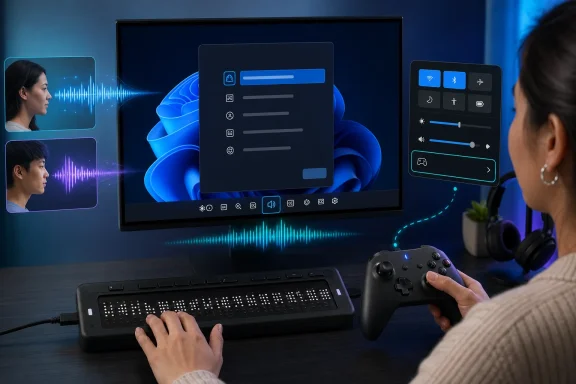
The headline improvement in Build 28020.2539 is that supported braille displays can connect instantly with Narrator. Microsoft describes the experience as requiring no additional setup when a compatible HID display is attached through USB.That reduction in setup time may sound modest to someone using a conventional monitor, keyboard, and mouse. For a braille user, however, eliminating a driver installation, device-specific utility, or manual selection step removes several possible failure points.
What a refreshable braille display does
A refreshable braille display presents text through rows of small pins that move up and down to form braille characters. As focus moves through a document, application, dialog box, or webpage, the pins refresh to represent the currently selected text and relevant interface information.Many displays also include navigation buttons, routing keys, and braille input controls. They are not merely passive output devices; they can become a primary method for reading and controlling a computer.
The quality of the experience depends on several layers working together:
- Windows must identify the connected hardware correctly.
- Narrator must communicate with the display without disruptive delays.
- The system must translate text into the selected braille table.
- Navigation commands must correspond predictably to Windows controls.
- The connection must remain stable across sign-in, application changes, sleep, and reconnection.
Instant access reduces cascading problems
Assistive technology setup can become circular. A user may need a screen reader to install the driver required by a braille display, yet may want the braille display to operate the screen reader. If another accessible output method is unavailable or impractical, completing the initial configuration becomes difficult.Plug-and-play support helps break that cycle. It also reduces the burden on family members, school technology coordinators, workplace IT departments, and accessibility specialists who would otherwise prepare the machine before handing it to the user.
HID Standard Support Is the Technical Foundation
Microsoft’s implementation relies on HID, the Human Interface Device standard used by familiar peripherals such as keyboards, mice, game controllers, and many accessibility devices. HID defines standardized ways for hardware to identify its capabilities and exchange input or output reports with the operating system.Extending this model to braille hardware lets Windows recognize compatible displays through a common interface. The long-term goal is straightforward: a compliant display should work without requiring a unique Windows driver package for every manufacturer and model.
Why standardization matters
Proprietary drivers can enable sophisticated device-specific features, but they also introduce compatibility risks. A driver designed for an older Windows release may stop working after an operating system update, require administrative rights to install, or remain unavailable on locked-down corporate devices.An open standard improves the baseline experience in several ways:
- Device manufacturers can target a common Windows interface instead of maintaining separate foundational drivers.
- Users can move a display between compatible PCs with less reconfiguration.
- Schools and employers can deploy assistive hardware more consistently.
- Windows setup and recovery environments can support devices before optional software is installed.
- Future servicing changes are less likely to break the basic connection path.
Compatible hardware and real-world testing
Microsoft has previously identified devices such as the Orbit Reader 20, Orbit Slate 340, Freedom Scientific Focus 40, and APH Mantis Q40 as examples of compatible HID braille displays. That list should not be interpreted as a guarantee that every revision, firmware version, connection mode, or advanced function will behave identically.Insider testing is particularly valuable here because assistive hardware tends to remain in service for years. Microsoft must account for newer HID-compliant products as well as older models, different firmware implementations, regional braille tables, intermittent Bluetooth conditions, and a wide range of Windows applications.
Braille Support Reaches Windows Setup
Build 28020.2539 allows compatible HID braille displays connected through USB to function during OOBE. This is one of the most consequential changes in the release because it brings tactile output into the initial Windows configuration process.The distinction between USB and Bluetooth is important. The documented OOBE improvement applies to compatible USB-connected HID braille displays. Bluetooth displays can be paired through Settings for wireless use once the relevant Windows environment is available, but users should not assume that every Bluetooth display will provide the same first-screen setup experience.
Independent setup from the first screen
For deaf-blind users, audio output from Narrator may not be sufficient. A USB braille display operating from the start of OOBE can provide access to setup prompts, selectable controls, account fields, and other information without relying on speech.A typical accessible setup path can now look like this:
- The user connects a compatible HID braille display through USB before or during Windows setup.
- Windows identifies the display through the standardized HID interface.
- Narrator begins communicating with the device without a separate manufacturer driver.
- The user navigates the OOBE controls and enters the required information.
- After reaching the desktop, the user can adjust braille preferences and pair supported Bluetooth hardware if desired.
Security and privacy implications
Independent OOBE access also has a privacy dimension. Windows setup may involve account credentials, network passwords, device names, recovery information, privacy choices, and organizational enrollment details.When a user needs another person to complete setup, that helper may inevitably encounter sensitive information. Better built-in braille support gives the user more control over those decisions and credentials.
This benefit extends to enterprises. An employee can participate more directly in device enrollment rather than relying on an administrator to perform all setup tasks under the employee’s identity.
Braille Preferences Remain Available in Settings
Automatic connection does not eliminate the need for customization. Users can manage braille input and output options under Settings > Accessibility > Narrator > Braille, where Windows provides the configuration layer needed to adapt the display to personal preferences.Braille is not a single universal configuration. Languages, contractions, literacy needs, input methods, and workplace conventions can all affect the preferred table and behavior.
Input and output are separate concerns
A user may read using one braille table while entering text with another configuration. Some users prefer contracted braille for faster reading, while others need uncontracted output for technical material, language learning, programming, or precise spelling.Windows therefore has to handle both translation directions:
- Output settings determine how Windows text is represented on the display.
- Input settings determine how braille keystrokes are interpreted as text or commands.
- Language and table choices affect contractions, symbols, punctuation, and character mappings.
- Navigation settings influence how display controls interact with Narrator focus and the system cursor.
Settings discoverability remains critical
Placing braille options in the Accessibility section gives users a predictable location for configuration. It also makes remote support easier because technicians and accessibility trainers can provide a standard navigation path instead of troubleshooting a vendor-specific control panel.Microsoft still needs to ensure that every part of the page is fully accessible through Narrator, braille input, keyboard commands, and other assistive technologies. An accessibility configuration page that itself presents navigation or labeling problems would undermine the value of the underlying feature.
Voice Access Expands to Portuguese and Korean
Voice Access in Build 28020.2539 adds support for Portuguese as used in Portugal, Portuguese as used in Brazil, and Korean as used in South Korea. The additions expand the number of people who can control Windows and enter text using spoken commands in their primary language.Voice Access is designed to let users navigate the interface, open applications, select controls, manipulate text, and dictate without depending on a conventional keyboard and mouse. Microsoft has also emphasized on-device operation for the feature, making it useful in environments where a constant cloud connection would be undesirable or unavailable.
Language variants are not interchangeable
Treating Portuguese from Portugal and Portuguese from Brazil as separate variants is technically and linguistically important. Pronunciation, vocabulary, phrasing, and expected command patterns can differ even when two regions share a written language.A generic language model may recognize ordinary words but still perform poorly with local accents or command formulations. Separate variants allow Microsoft to tune acoustic recognition and language behavior for each audience.
Korean presents a different set of input and recognition requirements. Voice Access must map spoken language not only to dictated text but also to Windows commands, interface labels, numbers, punctuation, and editing actions.
Voice control goes beyond dictation
Voice typing primarily focuses on converting speech into text. Voice Access has a broader role because it must let a user operate the desktop.That includes commands for actions such as:
- Opening and switching between applications.
- Selecting buttons, links, menus, and text fields.
- Scrolling pages and moving through lists.
- Positioning the pointer through overlays or grid-based navigation.
- Selecting, correcting, deleting, and formatting dictated text.
- Interacting with controls that do not expose simple spoken labels.
More inclusive input options
Voice Access can benefit people with limited mobility, repetitive strain injuries, temporary injuries, neurological conditions, or workflows in which hands-free control is useful. It can also supplement other accessibility tools rather than replacing them.A user might navigate with voice, read with Narrator, and verify content through a braille display. The value of Windows accessibility increasingly lies in allowing these technologies to operate together.
Gamepad Navigation Comes to Bluetooth Quick Settings
Microsoft has made the Bluetooth Quick Settings page navigable with gamepad input. Users can move through Bluetooth controls using a connected controller rather than switching to a keyboard, mouse, or touchscreen.This change aligns with the growing use of Windows PCs in living rooms, handheld gaming devices, accessibility setups, and controller-first environments. It also addresses a common weakness in desktop operating systems: interfaces may be technically visible on a television but remain awkward to operate from across the room.
A small change with broader implications
Quick Settings contains high-frequency controls for networking, sound, Bluetooth, display behavior, and other system functions. If one part of that interface does not accept controller focus, the user may be forced to abandon the gamepad and locate another input device.Bluetooth is particularly relevant because a user may need the panel to reconnect headphones, controllers, keyboards, accessibility switches, or other peripherals. Controller navigation reduces the interruption.
Focus behavior will determine usability
Successful gamepad support requires more than mapping a directional pad to arrow keys. Windows must provide a clear visual focus indicator, a logical movement order, predictable button behavior, and a reliable way to return to the previous screen.Testing should examine whether:
- Focus always lands on an actionable control.
- Directional navigation follows the visual layout.
- Confirm and back buttons behave consistently.
- Scrolling works when the device list exceeds the visible panel.
- Connection-state changes do not unexpectedly reset focus.
- Narrator announces controls and status changes correctly.
Graphics Settings Stability Gets Attention
Build 28020.2539 fixes an issue that caused the Graphics page in Settings to crash for some Insiders after recent updates. The page is used to manage application-specific GPU preferences and other graphics options, making reliability important on systems with integrated and discrete graphics processors.A Settings crash can appear minor compared with a system crash, but it blocks users from reaching controls that may be needed to troubleshoot performance, power use, compatibility, or rendering behavior.
Why per-application graphics controls matter
Modern Windows PCs often contain more than one graphics processor. A laptop may use integrated graphics for efficiency and a discrete GPU for demanding games, creative software, local AI workloads, or engineering applications.Per-application preferences can help determine which processor Windows should use. If the Graphics page crashes, users may lose the simplest supported route for changing that behavior.
The fix matters to several groups:
- Gamers may need to direct a title to the high-performance GPU.
- Laptop users may want less demanding applications to favor power efficiency.
- Creative professionals may need predictable GPU selection for editing or rendering software.
- IT teams may use the page while diagnosing application-specific display problems.
Dark Mode Receives System Sound Refinements
Microsoft says it has improved system sounds when Windows is using dark mode, although the release notes do not specify every sound or explain precisely how the behavior changes. The wording suggests an effort to make the auditory side of the interface better match its visual state.Windows themes have traditionally changed colors, wallpapers, and interface surfaces more visibly than sounds. Linking sound design to dark mode could make the theme feel more cohesive, but the benefit depends on whether the changes remain clear and functional.
Sound is part of interface feedback
System sounds communicate events such as errors, notifications, device connections, warnings, and completed actions. Their role is not purely decorative; they help confirm that Windows accepted an input or changed state.A darker visual theme often aims to reduce glare and create a less intrusive environment. Softer or differently balanced sounds could support that goal, particularly during evening use, but Microsoft should avoid reducing the distinction between important alerts.
Accessibility must remain the priority
Some users rely heavily on sound cues. If dark-mode sounds are quieter, less distinct, or lower in frequency, they could be harder to perceive for people with certain forms of hearing loss.Microsoft should evaluate the changes for recognizability, volume consistency, and compatibility with notification settings. A theme-specific sound should still communicate urgency and meaning as effectively as its standard counterpart.
Understanding the 26H1 Beta Branch
Build 28020.2539 belongs to the Windows 11 Beta (26H1) channel based on the 28000-series branch. Microsoft introduced this separate Beta path in June 2026 as part of a broader reorganization of the Windows Insider Program.The branch distinction matters because Microsoft is simultaneously testing multiple Windows development lines. A feature appearing in one branch does not automatically mean that every Beta tester will receive it on the same date or build number.
Parallel builds can confuse testers
Alongside Build 28020.2539, Microsoft released Beta Preview Build 26220.8925 and Experimental Preview Build 26300.8935 for other Insider paths. Those builds target different development foundations and may contain separate combinations of features and fixes.The labels should be read together with the build number:
- Beta 26220 builds follow the mainstream Beta development path associated with the existing Windows servicing foundation.
- Beta 26H1 28020 builds target the separate Windows 11 version 26H1 branch.
- Experimental 26300 builds test changes with a higher likelihood of revision, delayed release, or cancellation.
- Other future-platform branches may validate Windows on hardware and platform work that is not ready for ordinary deployment.
Features can travel between branches
The braille work illustrates Microsoft’s controlled-feature rollout strategy. Related functionality appeared earlier in Experimental testing before reaching additional branches, allowing the company to gather feedback and then broaden deployment.That process does not guarantee an immediate stable release. Microsoft may alter compatibility, pause the rollout, fix regressions, or move an experience into a later cumulative update.
Consumer Impact
For most consumers, Build 28020.2539 will not dramatically change the Windows 11 desktop. Its most important improvements target specific interaction methods, and that is precisely why the release deserves attention.Accessibility features can determine whether a PC is usable at all. They also frequently produce improvements that benefit broader audiences, such as standardized device detection, controller-friendly navigation, offline speech recognition, and more resilient setup experiences.
Immediate benefits for affected users
Braille users gain a faster path from connecting a display to receiving Narrator output. Deaf-blind users with compatible USB HID hardware gain the possibility of navigating initial Windows setup independently.Portuguese- and Korean-speaking users gain access to hands-free Windows control in additional regional language configurations. Controller users gain a more convenient way to navigate Bluetooth Quick Settings, especially on gaming-oriented PCs and television-connected systems.
Reasons not to install solely for these features
This remains an Insider build. Users should not move a primary PC into the Beta 26H1 channel simply because one accessibility feature looks useful without first considering stability, rollback options, application compatibility, and the requirements for leaving that branch.Anyone who depends on a braille display for work or education should test preview software on a secondary device whenever possible. A new connection path may improve one part of the experience while introducing unexpected issues elsewhere.
Enterprise and Education Impact
Organizations have additional reasons to monitor these changes. Schools, universities, government agencies, and employers often manage standardized Windows images while also supporting individualized accessibility requirements.Native HID braille support can reduce packaging and deployment complexity. It may also improve device recovery, Autopilot-style provisioning, and replacement-PC workflows when a user needs access before the full organizational software stack is installed.
Lower support overhead
A common driver model can simplify help-desk documentation and reduce dependence on local administrator rights. IT teams may be able to support a wider range of compliant devices using the Windows inbox experience, then add manufacturer software only where advanced features require it.Potential organizational benefits include:
- Faster preparation of replacement computers.
- Fewer device-specific driver packages in managed images.
- Better access during enrollment and first-run configuration.
- More consistent troubleshooting across hardware models.
- Reduced dependence on a sighted technician during setup.
- Easier movement between office, classroom, and loaner PCs.
Voice Access in multilingual environments
Expanded Portuguese and Korean support could help multinational organizations offer more consistent hands-free access across regional offices. However, speech recognition must be tested against workplace vocabulary, names, technical terminology, headsets, room acoustics, and local accents.Privacy teams should also document how on-device speech processing operates within the organization’s compliance framework. Local processing can reduce cloud exposure, but administrators still need clear policies for microphone access, dictated confidential information, and accessibility data.
Strengths and Opportunities
Build 28020.2539 demonstrates how focused platform improvements can create meaningful changes without a major interface redesign. Its strongest opportunity is to establish dependable accessibility at the lowest practical layer of Windows.- Plug-and-play HID support can make braille hardware more portable and easier to maintain.
- USB braille availability during OOBE supports independent setup and protects user privacy.
- Separate Portuguese variants acknowledge real regional differences in speech recognition.
- Korean Voice Access broadens Windows control for another substantial language community.
- Gamepad navigation moves Windows closer to a controller-complete experience.
- The Graphics Settings fix removes a regression from a commonly used performance-control page.
- Theme-aware system sounds could make Windows feel more coherent if clarity remains intact.
- Cross-branch testing gives Microsoft more opportunities to catch hardware-specific failures before general release.
Risks and Concerns
The build also raises practical questions that Insider testers should examine carefully. Standardization improves the baseline, but real-world assistive technology rarely behaves as uniformly as a short compatibility list implies.- Older braille displays may not support the required HID implementation.
- Advanced vendor-specific functions may still require separate drivers or software.
- Bluetooth behavior may differ from the USB experience, especially during setup and reconnection.
- OOBE failures are particularly serious because troubleshooting tools are limited before the desktop loads.
- New Voice Access languages may initially struggle with accents, background noise, specialized vocabulary, or mixed-language speech.
- Controller focus could become trapped or reset when Bluetooth devices appear and disappear.
- Dark-mode sound changes could reduce alert clarity for users who depend on auditory feedback.
- Insider branch complexity may lead users to install the wrong build while searching for a particular feature.
What to Watch Next
The next stage will reveal whether Microsoft can move these improvements from a promising preview into a dependable production feature. Accessibility users need reliability across months of cumulative updates, not only a successful demonstration in one Insider build.Broader device validation
Microsoft should continue expanding and clarifying its braille compatibility information. Testers will want to know which models work over USB, which work over Bluetooth, which operate during OOBE, and which require updated firmware.Reports involving legacy displays will be especially important. Standardized support is most useful when it complements existing hardware rather than pressuring users to replace expensive equipment prematurely.
More complete pre-desktop access
OOBE support is a major step, but Windows includes other pre-desktop and recovery environments. Future testing should examine sign-in, BitLocker recovery, Windows Recovery Environment, Safe Mode, reset workflows, and enterprise enrollment.A truly end-to-end accessible system should preserve meaningful input and output across these transitions. Losing braille access during a recovery event can be more disruptive than losing it during ordinary desktop use.
Voice Access language quality
The addition of Portuguese and Korean variants begins the testing process rather than completing it. Recognition quality must improve through regional feedback, and command documentation must be localized accurately.Microsoft will also need to decide how quickly these languages receive newer Voice Access capabilities. Feature parity matters; a language should not remain permanently limited to basic commands while English gains advanced recognition and editing tools.
Expansion of gamepad-friendly Windows controls
Bluetooth Quick Settings is a useful starting point, but controller users will expect consistent navigation across Wi-Fi controls, audio output selection, notifications, power menus, the taskbar, Settings, and common security prompts.Windows handhelds and living-room PCs make this work increasingly relevant. The operating system cannot become fully controller-friendly if users still need a touchscreen or mouse whenever a system dialog interrupts a game.
Stable-channel timing
Microsoft has not guaranteed that every item in Build 28020.2539 will reach the stable channel in its current form. Insider features can be revised, delayed, removed, or delivered independently through servicing updates.The braille work appears suited to broader deployment because it strengthens a core accessibility path rather than depending on a major visual redesign. Even so, Microsoft must evaluate reliability data and user feedback before treating it as production-ready.
Windows 11 Insider Beta Build 28020.2539 is a reminder that some of the operating system’s most meaningful advances are measured not by how different Windows looks, but by how many people can use it without assistance. Plug-and-play braille support, tactile access during USB-based setup, broader Voice Access language coverage, controller navigation, and targeted stability fixes each remove a specific point of friction. If Microsoft carries these changes into stable Windows with strong hardware compatibility and consistent pre-desktop support, 26H1 could represent an important step toward a Windows experience that is accessible from the first screen rather than only after setup is complete.
References
- Primary source: Windows Report
Published: 2026-07-21T05:22:28+00:00
Windows 11 Insider Beta (26H1) Improves Braille and Voice Access
Windows 11 Insider Beta (26H1) Preview Build 28020.2539 improves braille support, Voice Access languages, Bluetooth navigation, and more. windowsreport.com
- Official source: blogs.windows.com
Announcing new builds for 22 May 2026
Hello Windows Insiders, Today, we continue to expand the rollout of the new Windows Insider Program changes to devices in channels already announced. As a reminder, we have not yet begun moving devices in the Canary 29500 Series Channelblogs.windows.com - Related coverage: neowin.net
New Windows 11 Beta Insider builds bring a resizable Start menu and new touchpad gestures - Neowin
Check out what's included in the new builds 26220.8925 and 28020.2539 for the Beta channel of the Windows 11 Insider program. www.neowin.net
- Official source: learn.microsoft.com
Experimental Preview Build 26300.8497 - Windows Insider Program | Microsoft Learn
Release notes for Experimental Preview Build 26300.8497learn.microsoft.com - Official source: support.microsoft.com
Use voice access to set up and log in to your PC | Microsoft Support
Voice access, accessibility, Set-up, log-insupport.microsoft.com - Related coverage: elevenforum.com
Change Braille Display Input and Output Language and Table Type in Windows 11 | Windows 11 Forum
This tutorial will show you how to change the braille display input and output language and table type for your account in Windows 11. Narrator is a screen...www.elevenforum.com