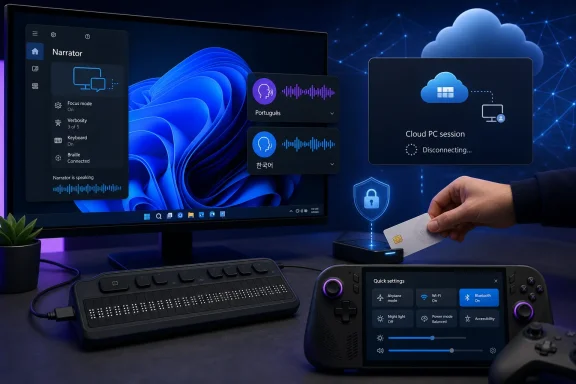
Microsoft’s Windows 11 Insider Preview Build 28120.2546 arrives in the Experimental 26H1 channel as a relatively compact update, but its most important changes reach well beyond routine polish. The build expands Narrator support for standards-based braille displays, enables braille access during the Windows setup experience, adds three languages to Voice Access, and gives administrators stronger control over smart-card-backed Azure Virtual Desktop and Windows 365 sessions. Alongside smaller improvements to Settings, gamepad navigation, graphics stability, and dark-mode sounds, the release illustrates how Microsoft is using Experimental builds to test accessibility and enterprise security changes that could eventually affect the broader Windows ecosystem.
Microsoft released Build 28120.2546 on July 21, 2026, specifically for Windows Insiders enrolled in the Experimental channel’s 26H1 branch. It belongs to the 28120 build family previously associated with the Canary-derived path that Microsoft moved into its reorganized Insider structure earlier in 2026.
The build number and branch designation matter because neither guarantees that every included capability will appear in the next public Windows 11 feature update. Experimental builds can contain components at different stages of development, and Microsoft may modify, postpone, selectively ship, or abandon individual features after evaluating telemetry and Insider feedback.
In April 2026, Microsoft began replacing Canary and Dev with a broader Experimental channel. Most Dev users moved into Experimental, while Canary users were separated according to their underlying Windows core version:
Microsoft increasingly develops Windows through parallel branches, servicing technologies, enablement packages, Controlled Feature Rollouts, app updates, and cloud-managed components. A feature tested on one branch can later move to another branch or ship independently of the operating system build in which Insiders first encountered it.
That distinction is especially relevant here because Build 28120.2546 combines platform-level accessibility work, remote-session policy enforcement, Settings changes, language expansion, and cosmetic audio refinements. Those components do not necessarily share one release schedule.
That modest framing should not obscure the significance of the accessibility work. Adding standards-based braille connectivity during both normal Windows use and initial setup addresses a foundational issue: whether a person can independently begin using a PC before assistance or proprietary software is available.
Insiders should distinguish among three potential situations:
For compatible braille hardware, Microsoft says the practical result is immediate connectivity. A user can attach a supported display over USB and begin working with Narrator without completing an additional device-specific setup procedure.
Historically, braille access on desktop operating systems has often depended on vendor drivers, screen-reader compatibility layers, or model-specific configuration. Those dependencies can introduce several problems:
Insiders testing one of these products should still verify navigation commands, cursor routing, input modes, contractions, language tables, and reconnection behavior. Successful device detection is only the first layer of accessibility.
OOBE handles critical tasks such as language selection, keyboard configuration, network connectivity, account creation, privacy choices, and device naming. Accessibility during this stage determines whether a user can configure the computer independently or must rely on another person before reaching the desktop.
The change also improves privacy. Initial setup can involve account identifiers, network credentials, organization information, recovery options, and security settings. A user should not have to disclose those details merely because the accessibility hardware becomes usable only after setup is complete.
Bluetooth setup requires radio initialization, device scanning, pairing confirmation, and sometimes the entry or verification of codes. Each additional state introduces another interface that must itself be accessible before the accessibility device can begin working.
USB provides a clearer bootstrap path:
Wireless support gives users more flexibility in how they position a display and reduces cable clutter. It can be particularly useful when a braille display doubles as a portable note-taking device or needs to move between a desktop PC, laptop, tablet, and phone.
Bluetooth introduces its own challenges, including battery management, radio interference, delayed reconnection, and inconsistent behavior after sleep. Insiders should test not just initial pairing but the full device lifecycle:
Useful testing should include braille table selection, input behavior, cursor representation, status information, verbosity, and command mapping. Compatibility must be measured by more than whether the device appears in Settings; the tactile output must accurately reflect changing focus and interface state.
Language support is not merely a matter of translating menus. Effective voice control requires acoustic modeling, pronunciation handling, command recognition, text normalization, punctuation behavior, and adaptation to regional vocabulary.
Microsoft must also account for regional conventions in dates, numbers, punctuation, application names, and command phrasing. Dictation quality may vary depending on microphone hardware, environmental noise, speaking speed, and individual accents within each country.
Users should evaluate Korean Voice Access across both modern and traditional Windows applications. Web browsers, Microsoft 365 programs, Win32 utilities, packaged apps, text editors, and remote sessions can expose different behavior when receiving generated input.
This closes a policy gap between traditional Windows sign-in scenarios and newer cloud-authenticated remote desktops. Organizations that use smart cards as part of regulated or high-assurance access workflows can now make physical card presence more directly relevant to the continuing remote session.
That model supports centralized desktops while retaining a hardware-backed credential at the user’s location. It also creates a security question: what should happen if the user removes the card but leaves the remote session active?
Build 28120.2546 gives administrators a clearer answer for supported Microsoft Entra-authenticated environments. The session can automatically disconnect, reducing the risk that an unattended endpoint continues displaying or providing access to corporate resources.
That differs from signing out, which terminates the user session and closes applications. It also differs from merely locking the local PC, which may not guarantee that every remote access path receives equivalent protection.
The distinction affects both security and user experience:
Extending enforcement to cloud-hosted desktops helps organizations apply more consistent expectations across physical PCs, pooled Azure Virtual Desktop hosts, and Windows 365 Cloud PCs.
Without removal enforcement, the remote session may remain interactive until a separate inactivity timer or lock policy takes effect. With the new policy, removal of the redirected card can become an immediate security signal.
This can reduce the window in which another person might:
A controlled deployment should validate the following sequence:
Gamepad navigation can matter when a PC is connected to a television, when a handheld device lacks a convenient mouse, or when a user relies on alternative input methods. Bluetooth is especially important in these scenarios because controllers, headsets, keyboards, and other accessories frequently need to be connected without leaving the controller-driven workflow.
Adding gamepad navigation to the Bluetooth Quick Settings interface reduces one such dead end. It may allow a user to manage an accessory without putting down the controller and locating another input device.
The broader test is consistency. A controller-friendly Bluetooth page offers limited value if the pairing confirmation, permission prompt, driver error, or device properties page cannot also be navigated.
The fix is particularly relevant to laptops and desktops with more than one graphics processor. Users may rely on the page to choose between power-saving and high-performance GPUs for individual applications.
A crash can prevent users from correcting poor GPU selection, potentially affecting battery life, application compatibility, and gaming performance. Although this is a repair rather than a new capability, Settings reliability is essential because Windows increasingly uses the app as the main control surface for system configuration.
The idea suggests that Windows’ theme is expanding beyond visual color choices. Sound can reinforce the perceived character of an interface, with dark-mode cues potentially designed to feel softer, less sharp, or less disruptive.
Coordinating sounds with dark mode could make the interface feel more cohesive, especially during evening use. It may also reduce the jarring effect of bright or aggressive notification tones in an otherwise subdued environment.
Microsoft must take care not to sacrifice clarity. System sounds communicate warnings, device events, notifications, errors, and confirmations, so aesthetic changes should preserve recognizability and urgency.
Insider testing should therefore consider both taste and function. The important questions are whether sounds remain distinguishable, whether critical alerts stand apart from routine notifications, and whether the changes behave consistently when the theme switches automatically.
Its strongest consumer impact is concentrated among people who use braille displays, Voice Access, gamepads, or specialized accessibility configurations. For those users, the update may remove barriers that are far more consequential than a conventional visual redesign.
The same principle applies to Voice Access language expansion. Portuguese- and Korean-speaking users who need hands-free control move closer to receiving capabilities that English-speaking users have had more time to test and refine.
Practical precautions include maintaining current backups, preserving recovery media, documenting accessibility settings, and keeping an alternative input method available during initial testing. Users dependent on a specific braille display or Voice Access workflow should not assume that every application will behave correctly merely because Windows recognizes the hardware or language.
The accessibility changes also matter to enterprises. Standardized HID support may simplify device provisioning, reduce dependency on vendor packages, and improve onboarding for employees who use refreshable braille displays.
Native HID support creates an opportunity to reduce some of that burden. It may allow compatible displays to function earlier in deployment and with fewer custom packages, although enterprises must still validate firmware, translation tables, application compatibility, and support procedures.
Smart card removal enforcement strengthens that consistency. It links a physical credential event on the endpoint to the availability of a cloud-hosted Windows session, making the cloud desktop behave more like a tightly governed corporate workstation.
Insiders should also watch whether the capabilities appear in other Windows branches. Movement into Beta would generally suggest greater confidence, while continued isolation in Experimental could mean Microsoft is still changing foundational components.
A production-ready control should let administrators determine why a session disconnected, which credential event triggered the action, whether the endpoint reported the removal correctly, and how reconnection was authenticated. Without that visibility, help desks may struggle to distinguish policy enforcement from infrastructure failure.
Build 28120.2546 is a reminder that meaningful Windows development does not always arrive through dramatic interface redesigns or heavily promoted applications. By improving standards-based braille access, bringing tactile output into initial setup, widening hands-free control, and extending smart card enforcement to cloud desktops, Microsoft is addressing the points where Windows must interact reliably with real people, specialized hardware, and modern enterprise boundaries. The build remains experimental and its features are not guaranteed to ship unchanged, but if Microsoft can turn these early implementations into dependable, broadly supported capabilities, this modest flight may ultimately matter more than its short release notes suggest.
 Background
Microsoft released Build 28120.2546 on July 21, 2026, specifically for Windows Insiders enrolled in the Experimental channel’s 26H1 branch. It belongs to the 28120 build family previously associated with the Canary-derived path that Microsoft moved into its reorganized Insider structure earlier in 2026.The build number and branch designation matter because neither guarantees that every included capability will appear in the next public Windows 11 feature update. Experimental builds can contain components at different stages of development, and Microsoft may modify, postpone, selectively ship, or abandon individual features after evaluating telemetry and Insider feedback.
The transition from Canary to Experimental
Microsoft previously organized early Windows development around Canary, Dev, Beta, and Release Preview channels. That arrangement offered considerable flexibility, but it also created confusion about which builds corresponded to a future Windows release and which were simply testing platform work.In April 2026, Microsoft began replacing Canary and Dev with a broader Experimental channel. Most Dev users moved into Experimental, while Canary users were separated according to their underlying Windows core version:
- Canary devices on 28000-series builds moved toward Experimental 26H1.
- Canary devices on 29500-series builds moved toward Experimental Future Platforms.
- Beta remained the more appropriate destination for users who wanted features closer to public availability.
- Release Preview continued serving as the final validation stage for updates approaching general release.
What the 26H1 label actually means
The 26H1 designation identifies the Windows core branch on which this update is based. It should not automatically be interpreted as confirmation of a conventional consumer feature update named Windows 11 version 26H1.Microsoft increasingly develops Windows through parallel branches, servicing technologies, enablement packages, Controlled Feature Rollouts, app updates, and cloud-managed components. A feature tested on one branch can later move to another branch or ship independently of the operating system build in which Insiders first encountered it.
That distinction is especially relevant here because Build 28120.2546 combines platform-level accessibility work, remote-session policy enforcement, Settings changes, language expansion, and cosmetic audio refinements. Those components do not necessarily share one release schedule.
Understanding Build 28120.2546
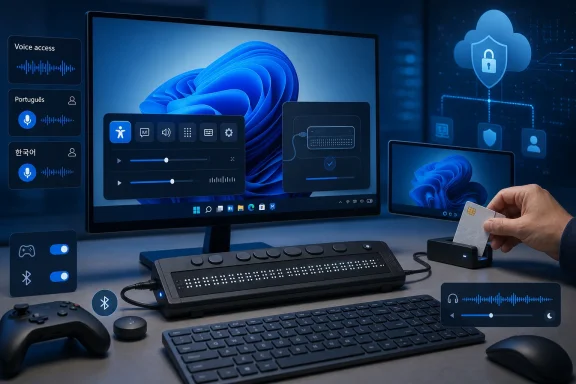
Build 28120.2546 is not a headline-heavy flight filled with new consumer applications or a redesigned desktop. Microsoft describes it as a small collection of general improvements and fixes, with several changes rolling out gradually rather than appearing immediately on every eligible PC.That modest framing should not obscure the significance of the accessibility work. Adding standards-based braille connectivity during both normal Windows use and initial setup addresses a foundational issue: whether a person can independently begin using a PC before assistance or proprietary software is available.
A focused rather than transformative release
The update concentrates on six areas:- Narrator can connect more directly to compatible HID braille displays.
- USB-connected HID braille devices can work during the out-of-box setup process.
- Voice Access gains Portuguese and Korean language support.
- Smart card removal policies extend to certain Microsoft Entra-authenticated remote sessions.
- Bluetooth Quick Settings becomes navigable with a gamepad.
- Microsoft fixes a Settings crash and refines system sounds in dark mode.
Gradual rollout remains a critical caveat
Microsoft says the changes and improvements are being rolled out gradually. Consequently, installing Build 28120.2546 does not necessarily mean that every feature will become available immediately.Insiders should distinguish among three potential situations:
- A feature is included and enabled on the device.
- A feature’s supporting code is installed, but its activation remains controlled by Microsoft.
- A feature is not yet assigned to that device’s rollout group.
Narrator Embraces HID Braille Displays
The most consequential consumer-facing development is Narrator’s new support for braille displays that use the Human Interface Device standard. HID is an open industry standard that allows operating systems and peripherals to communicate through broadly defined device classes rather than relying exclusively on product-specific integration.For compatible braille hardware, Microsoft says the practical result is immediate connectivity. A user can attach a supported display over USB and begin working with Narrator without completing an additional device-specific setup procedure.
Why standards-based support matters
Refreshable braille displays use arrays of mechanically raised and lowered pins to represent text. They can give blind and deaf-blind users tactile access to interface controls, documents, messages, web pages, and other information that a screen reader would otherwise present through speech.Historically, braille access on desktop operating systems has often depended on vendor drivers, screen-reader compatibility layers, or model-specific configuration. Those dependencies can introduce several problems:
- A new Windows release can expose compatibility issues in an older driver.
- A user may need sighted assistance before accessibility software is operational.
- Educational or corporate administrators may have to maintain separate deployment packages.
- A device can become harder to use if its manufacturer stops updating proprietary software.
- Switching between computers can involve repeated installation and troubleshooting.
Supported devices named by Microsoft
Microsoft identifies several compatible displays in the Build 28120.2546 release notes:- Orbit Reader 20.
- Orbit Slate 340.
- Freedom Scientific Focus 40.
- APH Mantis Q40.
Insiders testing one of these products should still verify navigation commands, cursor routing, input modes, contractions, language tables, and reconnection behavior. Successful device detection is only the first layer of accessibility.
Braille Access During Windows Setup
Build 28120.2546 allows supported HID braille displays to operate over USB during the Windows out-of-box experience, commonly called OOBE. This is the sequence that appears when a new PC starts for the first time or after Windows has been reset.OOBE handles critical tasks such as language selection, keyboard configuration, network connectivity, account creation, privacy choices, and device naming. Accessibility during this stage determines whether a user can configure the computer independently or must rely on another person before reaching the desktop.
Independence from the first screen
For users who are deaf-blind, speech output alone may not provide usable access to setup. Braille support from the first screen can therefore make the difference between an independently deployable PC and one that requires assistance.The change also improves privacy. Initial setup can involve account identifiers, network credentials, organization information, recovery options, and security settings. A user should not have to disclose those details merely because the accessibility hardware becomes usable only after setup is complete.
Why USB arrives before Bluetooth in OOBE
Microsoft specifically identifies USB support during OOBE. That limitation is understandable because wired device discovery is more deterministic than Bluetooth pairing during a pre-desktop environment.Bluetooth setup requires radio initialization, device scanning, pairing confirmation, and sometimes the entry or verification of codes. Each additional state introduces another interface that must itself be accessible before the accessibility device can begin working.
USB provides a clearer bootstrap path:
- Connect the compatible braille display to the PC.
- Allow Windows setup to identify it as an HID device.
- Start Narrator and establish tactile output.
- Complete the remaining Windows setup screens.
- Configure optional wireless operation after reaching the full Settings environment.
Bluetooth and Braille Configuration
After Windows is running, HID braille displays can also connect through Bluetooth. Microsoft says users can pair them from Settings > Bluetooth & devices, following a workflow similar to other wireless accessories.Wireless support gives users more flexibility in how they position a display and reduces cable clutter. It can be particularly useful when a braille display doubles as a portable note-taking device or needs to move between a desktop PC, laptop, tablet, and phone.
The practical value of wireless access
A tethered display is not always convenient. USB cables can constrain desk placement, interfere with portable use, and create additional points of physical failure.Bluetooth introduces its own challenges, including battery management, radio interference, delayed reconnection, and inconsistent behavior after sleep. Insiders should test not just initial pairing but the full device lifecycle:
- Whether the display reconnects after the PC resumes from sleep.
- Whether Narrator automatically restores braille output.
- Whether the connection survives switching between user accounts.
- Whether pairing information remains intact after a cumulative update.
- Whether input latency remains acceptable during rapid navigation.
- Whether multiple paired computers create connection conflicts.
Centralized Narrator controls
Braille input and output options remain available under Settings > Accessibility > Narrator > Braille. Centralizing these controls gives users a discoverable location for configuring how Narrator communicates with the display.Useful testing should include braille table selection, input behavior, cursor representation, status information, verbosity, and command mapping. Compatibility must be measured by more than whether the device appears in Settings; the tactile output must accurately reflect changing focus and interface state.
Voice Access Expands to More Languages
Voice Access now supports Portuguese as spoken in Portugal, Portuguese as spoken in Brazil, and Korean as spoken in South Korea. This extends a Windows 11 accessibility feature that allows users to control the operating system and dictate text using spoken commands.Language support is not merely a matter of translating menus. Effective voice control requires acoustic modeling, pronunciation handling, command recognition, text normalization, punctuation behavior, and adaptation to regional vocabulary.
Portuguese requires regional treatment
Portuguese from Portugal and Portuguese from Brazil share a written foundation, but they differ significantly in pronunciation, rhythm, vocabulary, and common usage. Treating them as separate Voice Access options should improve recognition and reduce the need for users to adapt their natural speech to a generic model.Microsoft must also account for regional conventions in dates, numbers, punctuation, application names, and command phrasing. Dictation quality may vary depending on microphone hardware, environmental noise, speaking speed, and individual accents within each country.
Korean presents distinct input challenges
Korean support requires Voice Access to handle Hangul composition and the language’s grammatical structure. The system must distinguish between operating commands and dictated content while constructing text accurately in applications that may implement input handling differently.Users should evaluate Korean Voice Access across both modern and traditional Windows applications. Web browsers, Microsoft 365 programs, Win32 utilities, packaged apps, text editors, and remote sessions can expose different behavior when receiving generated input.
Voice control goes beyond dictation
Voice Access is designed to provide navigation as well as text entry. That means meaningful testing should cover:- Opening and closing applications.
- Selecting visible controls.
- Navigating numbered interface overlays.
- Switching between windows.
- Scrolling through documents and web pages.
- Editing text through spoken commands.
- Correcting recognition errors without a mouse or keyboard.
- Recovering when an application stops responding to commands.
Smart Card Removal Policy Reaches Cloud Desktops
The principal enterprise change extends smart card removal policy enforcement to Azure Virtual Desktop and Windows 365 sessions authenticated through Microsoft Entra ID using RDS AAD Auth. Administrators can configure those remote sessions to disconnect when a redirected smart card is removed.This closes a policy gap between traditional Windows sign-in scenarios and newer cloud-authenticated remote desktops. Organizations that use smart cards as part of regulated or high-assurance access workflows can now make physical card presence more directly relevant to the continuing remote session.
How redirected smart cards work
Smart card redirection allows a card attached to the local endpoint to be made available inside a remote Windows session through the Remote Desktop Protocol. Applications and authentication components in the session can use the card without requiring the physical reader to be attached to the remote host.That model supports centralized desktops while retaining a hardware-backed credential at the user’s location. It also creates a security question: what should happen if the user removes the card but leaves the remote session active?
Build 28120.2546 gives administrators a clearer answer for supported Microsoft Entra-authenticated environments. The session can automatically disconnect, reducing the risk that an unattended endpoint continues displaying or providing access to corporate resources.
Disconnecting is not the same as signing out
Administrators must understand the meaning of the configured action. Disconnecting a remote session generally preserves its running applications and state on the remote machine, while removing the active view and interaction path from the local endpoint.That differs from signing out, which terminates the user session and closes applications. It also differs from merely locking the local PC, which may not guarantee that every remote access path receives equivalent protection.
The distinction affects both security and user experience:
- A disconnected session can often be resumed after reauthentication.
- Unsaved work is less likely to be lost than with a forced sign-out.
- Server resources can remain allocated while the session is disconnected.
- Administrators may need separate timeout policies to close abandoned sessions.
- Monitoring tools must distinguish policy-triggered disconnects from network failures.
Security and Compliance Implications
Smart card removal policies are particularly relevant in environments where possession of a physical credential forms part of the access control model. Government, defense, healthcare, finance, engineering, and other regulated sectors may require tighter relationships between authentication hardware and session availability.Extending enforcement to cloud-hosted desktops helps organizations apply more consistent expectations across physical PCs, pooled Azure Virtual Desktop hosts, and Windows 365 Cloud PCs.
Reducing unattended-session exposure
The basic threat scenario is straightforward. A user authenticates to a remote desktop with a smart card, steps away with the card, and leaves the endpoint accessible to another person.Without removal enforcement, the remote session may remain interactive until a separate inactivity timer or lock policy takes effect. With the new policy, removal of the redirected card can become an immediate security signal.
This can reduce the window in which another person might:
- Read sensitive information displayed in the session.
- Send messages or approve actions as the authenticated user.
- Access line-of-business applications already open.
- Copy data through permitted redirection channels.
- Modify records before an inactivity timeout expires.
Deployment demands careful validation
Enterprises should avoid enabling the policy across production environments without testing representative hardware and workflows. Smart card readers, middleware, endpoint operating systems, Remote Desktop clients, session-host builds, and authentication configurations can all affect behavior.A controlled deployment should validate the following sequence:
- Confirm that smart card redirection functions in the target client.
- Verify Microsoft Entra authentication and remote-session sign-in.
- Remove the card during normal use.
- Confirm that the expected session disconnect occurs.
- Reinsert the card and test reconnection.
- Review event records and administrative monitoring data.
- Test application behavior when the session disconnects during active transactions.
- Validate fallback procedures for reader or card failures.
Settings and Input Improvements
The Bluetooth Quick Settings page can now be navigated using gamepad input. This is a comparatively small change, but it reinforces Microsoft’s ongoing effort to make Windows usable in living-room, handheld, and controller-first environments.Gamepad navigation can matter when a PC is connected to a television, when a handheld device lacks a convenient mouse, or when a user relies on alternative input methods. Bluetooth is especially important in these scenarios because controllers, headsets, keyboards, and other accessories frequently need to be connected without leaving the controller-driven workflow.
A small step toward controller-friendly Windows
Windows still contains many interfaces designed primarily around mouse and keyboard interaction. A controller can often move through simplified launchers or gaming overlays, only to become ineffective when the user enters a conventional Settings page or system dialog.Adding gamepad navigation to the Bluetooth Quick Settings interface reduces one such dead end. It may allow a user to manage an accessory without putting down the controller and locating another input device.
The broader test is consistency. A controller-friendly Bluetooth page offers limited value if the pairing confirmation, permission prompt, driver error, or device properties page cannot also be navigated.
Graphics Settings crash fixed
Microsoft has fixed an issue that caused the Graphics page in Settings to crash for some Insiders after recent updates. That page is important for assigning application-specific GPU preferences and managing graphics-related Windows features.The fix is particularly relevant to laptops and desktops with more than one graphics processor. Users may rely on the page to choose between power-saving and high-performance GPUs for individual applications.
A crash can prevent users from correcting poor GPU selection, potentially affecting battery life, application compatibility, and gaming performance. Although this is a repair rather than a new capability, Settings reliability is essential because Windows increasingly uses the app as the main control surface for system configuration.
Dark-Mode System Sounds
Build 28120.2546 also improves system sounds when Windows operates in dark mode. Microsoft provides little detail about exactly which sounds changed or how the operating system determines the appropriate audio treatment.The idea suggests that Windows’ theme is expanding beyond visual color choices. Sound can reinforce the perceived character of an interface, with dark-mode cues potentially designed to feel softer, less sharp, or less disruptive.
Toward a multisensory theme
Windows themes have traditionally focused on wallpapers, colors, contrast, and visual materials. Audio is usually governed by a separate sound scheme, even though both influence how the operating system feels.Coordinating sounds with dark mode could make the interface feel more cohesive, especially during evening use. It may also reduce the jarring effect of bright or aggressive notification tones in an otherwise subdued environment.
Microsoft must take care not to sacrifice clarity. System sounds communicate warnings, device events, notifications, errors, and confirmations, so aesthetic changes should preserve recognizability and urgency.
Accessibility must remain part of the design
Audio refinements can affect users who rely on system sounds as supplementary feedback. Any reduction in volume, frequency contrast, duration, or distinctiveness could make events harder to identify for people with some forms of hearing loss.Insider testing should therefore consider both taste and function. The important questions are whether sounds remain distinguishable, whether critical alerts stand apart from routine notifications, and whether the changes behave consistently when the theme switches automatically.
Consumer Impact
For most general Windows users, Build 28120.2546 will feel incremental. There is no major Start menu redesign, File Explorer overhaul, or new AI application leading the release.Its strongest consumer impact is concentrated among people who use braille displays, Voice Access, gamepads, or specialized accessibility configurations. For those users, the update may remove barriers that are far more consequential than a conventional visual redesign.
Accessibility improvements have disproportionate value
A change does not need to affect every Windows installation to be strategically important. Enabling a deaf-blind user to set up a new computer independently is a substantial improvement even if only a relatively small percentage of PCs attach to braille hardware.The same principle applies to Voice Access language expansion. Portuguese- and Korean-speaking users who need hands-free control move closer to receiving capabilities that English-speaking users have had more time to test and refine.
Experimental users should protect important systems
This remains an early Windows build. Consumers should avoid installing it on a sole production PC unless they understand the possibility of regressions, incomplete rollouts, and recovery requirements.Practical precautions include maintaining current backups, preserving recovery media, documenting accessibility settings, and keeping an alternative input method available during initial testing. Users dependent on a specific braille display or Voice Access workflow should not assume that every application will behave correctly merely because Windows recognizes the hardware or language.
Enterprise Impact
Business administrators will find the smart card removal enhancement more immediately relevant than the consumer-facing refinements. It can help bring cloud desktops into closer alignment with established physical workstation security policies.The accessibility changes also matter to enterprises. Standardized HID support may simplify device provisioning, reduce dependency on vendor packages, and improve onboarding for employees who use refreshable braille displays.
A more manageable accessibility baseline
Organizations frequently struggle to reconcile accessibility with tightly controlled endpoint images. Proprietary drivers and utilities can complicate application allowlists, servicing schedules, security reviews, and Windows deployment processes.Native HID support creates an opportunity to reduce some of that burden. It may allow compatible displays to function earlier in deployment and with fewer custom packages, although enterprises must still validate firmware, translation tables, application compatibility, and support procedures.
Cloud PC policy consistency
Windows 365 and Azure Virtual Desktop are often introduced to centralize data and simplify endpoint management. Their security value depends on whether policy controls behave consistently across local and remote boundaries.Smart card removal enforcement strengthens that consistency. It links a physical credential event on the endpoint to the availability of a cloud-hosted Windows session, making the cloud desktop behave more like a tightly governed corporate workstation.
Strengths and Opportunities
Build 28120.2546 is strongest where it removes dependencies and closes policy gaps. Its feature list is short, but several changes have the potential to improve Windows deployments in durable ways.Notable advantages
- HID braille support can reduce reliance on proprietary drivers. Standards-based connectivity should make supported hardware easier to deploy, maintain, and move between Windows PCs.
- Braille during OOBE improves independence and privacy. Users can begin configuring a PC from the first screen rather than waiting until the desktop and additional software are available.
- Bluetooth provides flexible hardware placement. Wireless operation can improve portability and reduce the physical constraints of USB-only workflows.
- Voice Access reaches three additional language variants. Separate treatment of Brazilian and European Portuguese acknowledges meaningful regional differences.
- Smart card removal becomes relevant to modern cloud desktops. Administrators gain a stronger response to physical credential removal in supported Entra-authenticated sessions.
- Gamepad navigation reduces a controller workflow dead end. Bluetooth management becomes more practical on handheld and television-connected PCs.
- The Graphics Settings fix restores an important configuration surface. Multi-GPU users regain access to application-specific graphics preferences.
- Dark-mode sounds explore a more cohesive Windows theme. Audio can become part of the operating system’s broader visual and sensory design.
Risks and Concerns
Experimental builds always carry technical uncertainty, but this update also introduces policy and accessibility behaviors that require more careful evaluation than ordinary cosmetic features.Areas that need scrutiny
- Gradual rollout can produce inconsistent test results. Two devices on Build 28120.2546 may not expose the same capabilities at the same time.
- HID certification does not guarantee flawless usability. Detection, navigation, translation, cursor routing, and reconnection must all work reliably.
- Bluetooth can introduce accessibility failure points. Battery depletion, pairing loss, sleep behavior, and radio interference could interrupt an essential output device.
- OOBE support must survive recovery scenarios. Braille access should work consistently after a reset, reinstall, failed update, or entry into related setup paths.
- Voice models may perform unevenly across accents. Regional language labels cannot capture every pronunciation pattern or speech characteristic.
- Automatic smart card disconnects can interrupt work. Loose readers, failing hardware, or accidental removal could terminate interactive access at sensitive moments.
- Disconnected sessions may continue consuming resources. Administrators still need timeout and sign-out policies for abandoned cloud sessions.
- Dark-mode sound changes could reduce clarity. Softer audio must remain recognizable to users who depend on sound cues.
- Gamepad support may stop at the edge of Quick Settings. A partially navigable workflow can still strand users in inaccessible dialogs.
What to Watch Next
The next few Experimental 26H1 flights should reveal whether Microsoft broadens the rollout, expands the list of compatible braille displays, or addresses issues found during initial testing. Detailed fixes involving Narrator, OOBE, Bluetooth reconnection, and smart card policy behavior would indicate that these features are moving from proof of concept toward production readiness.Insiders should also watch whether the capabilities appear in other Windows branches. Movement into Beta would generally suggest greater confidence, while continued isolation in Experimental could mean Microsoft is still changing foundational components.
Signs of accessibility maturity
Several developments would demonstrate that HID braille support is becoming a complete Windows feature rather than a narrow compatibility preview:- Additional manufacturers and device models appear in compatibility guidance.
- Bluetooth braille devices reconnect predictably after sleep and restart.
- OOBE support expands without requiring sighted assistance at intermediate prompts.
- Narrator provides clear recovery behavior when a display disconnects.
- Enterprise deployment guidance covers managed accessibility configurations.
- Feedback results in documented fixes for navigation and translation problems.
Signs of enterprise readiness
For the smart card policy, administrators should look for formal configuration documentation, event logging details, supported-client matrices, and troubleshooting guidance. Enterprise deployment depends as much on observability as on the policy itself.A production-ready control should let administrators determine why a session disconnected, which credential event triggered the action, whether the endpoint reported the removal correctly, and how reconnection was authenticated. Without that visibility, help desks may struggle to distinguish policy enforcement from infrastructure failure.
A practical Insider test plan
Users evaluating Build 28120.2546 can obtain more useful results by testing complete workflows rather than isolated announcements:- Record which announced features appear after installation and restart.
- Test supported accessibility hardware over USB before changing configuration.
- Verify braille behavior during reset or clean-install setup on a nonessential device.
- Pair the display over Bluetooth and test sleep, restart, and reconnection.
- Exercise Voice Access in several application types and report reproducible errors.
- Navigate Bluetooth Quick Settings without touching a mouse or keyboard.
- Open the Graphics page repeatedly and change an application preference.
- Compare system sounds in light and dark modes at different volume levels.
- Test smart card removal in a controlled remote-session environment.
- Submit feedback with hardware models, firmware versions, language settings, and exact reproduction steps.
Build 28120.2546 is a reminder that meaningful Windows development does not always arrive through dramatic interface redesigns or heavily promoted applications. By improving standards-based braille access, bringing tactile output into initial setup, widening hands-free control, and extending smart card enforcement to cloud desktops, Microsoft is addressing the points where Windows must interact reliably with real people, specialized hardware, and modern enterprise boundaries. The build remains experimental and its features are not guaranteed to ship unchanged, but if Microsoft can turn these early implementations into dependable, broadly supported capabilities, this modest flight may ultimately matter more than its short release notes suggest.
References
- Primary source: Microsoft - Windows Insiders Blog
Published: Tue, 21 Jul 2026 21:03:05 +0000
Announcing Windows 11 Insider Preview Build 28120.2546 for Experimental (26H1)
Hello Windows Insiders, Today we're releasing build 28120.2546 for the Experimental (26H1) channel. Release notes can be found over in theblogs.windows.com - Official source: learn.microsoft.com
Windows 11 Insider Experimental (26H1) Versión preliminar 28120.2387 - Windows Insider Program | Microsoft Learn
Notas de la versión de Windows 11 Insider Experimental (26H1) Versión preliminar 28120.2387learn.microsoft.com