Windows 11’s built‑in VPN client still gives you a fast, privacy‑focused route to a remote network — but it’s not a “one‑click” replacement for a commercial VPN app: you must supply the server details, pick the right protocol, and sometimes tweak advanced settings to make things reliable.
Windows 11 includes a native VPN client that supports the common tunneling protocols used by corporate VPNs and many personal providers. The client is a client‑only component: Microsoft does not operate public VPN servers for general use, so you need either a third‑party VPN service, a corporate VPN endpoint, or a self‑hosted server to connect to. The built‑in client is intentionally minimal: it integrates with the Settings app for profile creation and the quick settings / taskbar for connection control, and it supports the established Windows tunnel types — IKEv2, L2TP/IPsec, SSTP, PPTP (legacy) and an Automatic option that tries available protocols in order. For enterprise deployment and advanced policies you can use MDM/Intune profiles and the VPNv2 CSP. This article gives a practical, step‑by‑step manual setup guide, explains protocol tradeoffs, covers Control Panel and Settings methods, outlines troubleshooting and hardening steps, and analyzes the security and usability tradeoffs of using the Windows built‑in client versus third‑party apps.
Manual setup is not hard, but the security outcome depends on making the right protocol choices, keeping certificates/time in sync, and testing for DNS/IPv6 leaks after connecting. If in doubt, prioritize IKEv2 or SSTP, avoid PPTP, and use provider guidance or MDM for multi‑device rollouts. (If a specific provider or connection profile needs deeper troubleshooting — for example certificate chains, NAT traversal, or router GRE issues — consult the provider’s manual and the Windows RasClient/IKEEXT event logs for actionable error codes.
Source: Windows Report How to Manually Set Up a VPN on Windows 11
 Background / Overview
Windows 11 includes a native VPN client that supports the common tunneling protocols used by corporate VPNs and many personal providers. The client is a client‑only component: Microsoft does not operate public VPN servers for general use, so you need either a third‑party VPN service, a corporate VPN endpoint, or a self‑hosted server to connect to. The built‑in client is intentionally minimal: it integrates with the Settings app for profile creation and the quick settings / taskbar for connection control, and it supports the established Windows tunnel types — IKEv2, L2TP/IPsec, SSTP, PPTP (legacy) and an Automatic option that tries available protocols in order. For enterprise deployment and advanced policies you can use MDM/Intune profiles and the VPNv2 CSP. This article gives a practical, step‑by‑step manual setup guide, explains protocol tradeoffs, covers Control Panel and Settings methods, outlines troubleshooting and hardening steps, and analyzes the security and usability tradeoffs of using the Windows built‑in client versus third‑party apps.How to manually add a VPN profile in Windows 11 (Settings method)
The Settings method is the most straightforward and the one Microsoft documents as the modern approach.- Open Settings (Windows key + I).
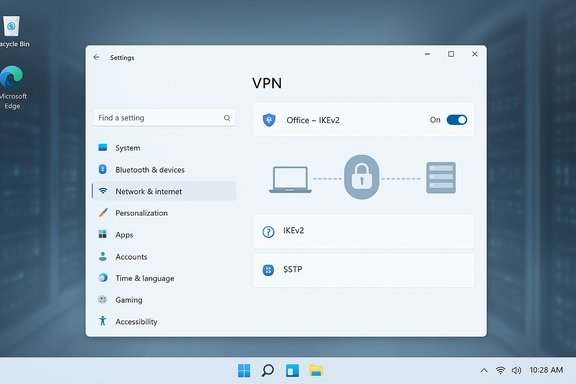
- Go to Network & internet > VPN.
- Click Add VPN.
- Fill the fields:
- VPN provider: Windows (built‑in).
- Connection name: a friendly name (e.g., “Office – IKEv2”).
- Server name or address: hostname or IP of the VPN server.
- VPN type: Automatic, IKEv2, L2TP/IPsec with certificate/PSK, SSTP, PPTP.
- Type of sign‑in info: Username and password, smart card, one‑time password, or certificate.
- Click Save, then connect from Settings or the taskbar network menu.
Quick connect and the taskbar
You can quickly connect from the taskbar by clicking the Network/Volume/Battery icon -> VPN and selecting the profile. If you prefer a visible quick setting for VPN in the quick settings pane, edit Quick Settings to add the VPN tile.Alternate method: Control Panel / Network and Sharing Center
Some technicians and older guides still use the legacy Control Panel flow — useful when scripting old server connections or when you prefer the classic UI.- Press Windows + R, type control and press Enter.
- Open Network and Sharing Center.
- Click Set up a new connection or network.
- Choose Connect to a workplace → Use my Internet connection (VPN).
- Enter server address, destination name and credentials, then Create.
Which VPN protocols does Windows 11 support — and which should you pick?
Windows 11’s client supports these built‑in tunnel types:- IKEv2 — modern, fast, stable on roaming networks (recommended for most use cases).
- SSTP — Microsoft’s SSL/TLS‑based protocol that works well behind restrictive firewalls.
- L2TP/IPsec — widely supported; requires configuration of a pre‑shared key (PSK) or certificates.
- PPTP — legacy protocol maintained for compatibility but widely deprecated for security reasons.
- Automatic — the client iterates available protocols from most secure to least until one succeeds.
Protocol tradeoffs — deeper technical view
IKEv2
- Pros: Fast, stable when moving between networks (excellent for laptops and phones), strong cryptography when properly configured.
- Cons: Requires the server to be correctly configured for IPsec parameters; certificates are often recommended.
SSTP
- Pros: Uses TLS over TCP (typically port 443), so it traverses restrictive networks and proxies reliably.
- Cons: Proprietary Microsoft technology (not an issue for most users but some auditors prefer open standards).
L2TP/IPsec
- Pros: Mature and widely supported.
- Cons: Difficulties arise with NAT traversal (unless using NAT‑T), and PSK use can be fragile if not managed carefully. Certificates are preferable.
PPTP
- Pros: Historically simple and fast.
- Cons: Broken authentication and encryption primitives — not recommended for privacy or corporate use.
Step‑by‑step: practical example (IKEv2 profile)
- In Settings > Network & internet > VPN > Add VPN:
- VPN provider: Windows (built‑in)
- Connection name: ACME IKEv2
- Server name or address: vpn.acme.example
- VPN type: IKEv2
- Type of sign‑in info: Username and password (or Certificate)
- If the server uses certificate auth, install the client certificate on the device first (Certificates MMC or MDM).
- Save, click the profile and press Connect.
- If a certificate validation error appears, check the installed root CA and system time (certificate trust and clock skew often cause failures).
Troubleshooting — the checklist that fixes most issues
When a manual VPN connection fails, work through these items in order:- Double‑check server address and credentials — typos are the most common cause.
- Check protocol & auth method — use the protocol your provider requires (Automatic can help during diagnostics).
- Time & certificates — ensure Windows clock is accurate; install any required root CA or client certificate. Certificate date mismatch blocks IPsec/IKE handshakes.
- Firewall & routing — verify local firewall, router and corporate firewall allow required ports:
- IKEv2 uses UDP 500 and 4500 (NAT‑T).
- L2TP/IPsec uses UDP 500, 4500 and ESP.
- PPTP uses TCP 1723 and GRE (protocol 47) — GRE often causes problems behind NAT, and many consumer routers block it.
- Network adapter & drivers — ensure network drivers are current; try disabling/re‑enabling the adapter or restarting the machine.
- Conflicting virtualization features — Hyper‑V or third‑party virtual adapters sometimes interfere with tunneling; disabling Hyper‑V in tests can identify conflicts.
- Use provider diagnostics — many VPN services publish connection logs or troubleshooting guides for manual configurations (SSTP, IKEv2, L2TP specifics).
Hardening and privacy checks (what to verify after connecting)
- Verify your public IP changed via an external IP check (to confirm traffic egress is through the VPN).
- Run a DNS leak test and check for IPv6 leaks — ensure your VPN either disables IPv6 or handles IPv6 DNS correctly.
- Test WebRTC leaks (important for browser‑based apps).
- If your provider supports a kill switch, prefer the vendor app for a system‑level kill switch. The built‑in Windows client lacks a built‑in kill‑switch equivalent; you may need firewall rules to emulate one.
When to use the built‑in client — and when to choose a vendor app
Use the built‑in Windows client when:- You’re connecting to a corporate VPN endpoint that expects IKEv2/SSTP/L2TP (standard for site‑to‑site and device‑to‑site access).
- You need minimal external software, or corporate policy forbids third‑party apps.
- You want to configure a small number of profiles quickly.
- You require features like a guaranteed system‑level kill switch, kill‑switch across all interfaces, integrated DNS leak protection, or per‑app split‑tunneling UI.
- You want WireGuard/OpenVPN/WireGuard‑variant support without manual config.
- You need automatic server selection, speed optimization, and integrated streaming/gaming server lists.
Advanced: deploying VPN for multiple users or devices
- For single‑machine multi‑user setups, manual profiles created in Settings are per‑user by default. To provision system‑wide or enforce “Always On” VPN you should use Intune/MDM and the VPNv2 CSP or configure RRAS/DirectAccess/Azure VPN Gateway and distribute profiles centrally. For enterprise Always On and per‑user/policy control, MDM enrollment is the recommended path.
- For home‑wide protection, install the VPN on a capable router (that supports OpenVPN/WireGuard or a vendor firmware), which secures every device on the LAN but shifts trust to your router. Be aware routers are CPU‑bounded — high throughput VPNs may saturate consumer routers.
Common pitfalls and how to avoid them
- Relying on PPTP for privacy — don’t. It’s obsolete and unsafe. Use IKEv2/OpenVPN/WireGuard where possible.
- Ignoring DNS leaks — ensure VPN DNS is used, or configure DNS manually after connecting.
- Using unvetted free VPNs for sensitive tasks — many free services monetize or log traffic. Prioritize audited providers.
- Assuming the built‑in client provides all features — it’s excellent for standard tunnels, but lacks integrated kill switches and vendor feature sets.
Quick troubleshooting scripts and tips for IT admins
- Verify basic reachability:
- ping vpn.example.com
- nslookup vpn.example.com
- Confirm UDP ports (IKEv2/L2TP):
- Use a port scan from a known‑good remote host (or ask provider support) to verify UDP/500 and UDP/4500 are open.
- If PPTP must be used for a legacy reason, confirm GRE (protocol 47) passes through the firewall — many consumer NATs and corporate firewalls block GRE by default. If GRE fails, prefer SSTP or IKEv2.
What changed recently and what to watch for
Microsoft has experimented with baked‑in browser/Defender privacy features in the past; one such Microsoft Defender VPN benefit for Microsoft 365 subscribers was removed in early 2025. This demonstrates that built‑in, consumer VPN features can appear and disappear depending on product strategy — relying on a third‑party provider with a clear roadmap remains the safer choice for long‑term VPN needs. Also watch Windows platform changes around networking and virtualization features (new Windows security primitives, or changes to RRAS) — these can impact how VPNs behave and how vendors implement kill‑switches and kernel networking hooks. Use vendor documentation and Microsoft’s VPNv2 CSP docs for enterprise deployment planning.Final checklist before you go live
- Confirm you have:
- VPN server hostname/IP.
- Protocol recommended by the provider (prefer IKEv2/SSTP).
- Sign‑in method (username/password, certificate).
- Any PSK or CA certificate installed if required.
- Create the profile in Settings and test connect.
- Run an IP/DNS leak test and check for IPv6 leaks.
- If this is a multi‑user or corporate rollout, prepare an MDM/Intune profile or an enterprise deployment plan.
- If you need a system‑level kill switch, evaluate vendor clients or router‑level VPN solutions.
Conclusion — practical recommendation
Windows 11’s built‑in VPN client is a robust, standards‑based tool that is ideal for corporate device‑to‑site access and lightweight personal use when you have the necessary server details. It supports the protocols most enterprises use and integrates natively into the operating system, making manual configuration straightforward. For advanced privacy features (kill switch, WireGuard/OpenVPN, per‑app split tunnelling), or for users who prefer one‑click convenience and faster server selection, a reputable vendor app is typically the better option.Manual setup is not hard, but the security outcome depends on making the right protocol choices, keeping certificates/time in sync, and testing for DNS/IPv6 leaks after connecting. If in doubt, prioritize IKEv2 or SSTP, avoid PPTP, and use provider guidance or MDM for multi‑device rollouts. (If a specific provider or connection profile needs deeper troubleshooting — for example certificate chains, NAT traversal, or router GRE issues — consult the provider’s manual and the Windows RasClient/IKEEXT event logs for actionable error codes.
Source: Windows Report How to Manually Set Up a VPN on Windows 11