

Paul Thurrott published a page titled “click-to-do” on July 12, 2026, inside the Windows 11 Field Guide’s screenshots and screen-recordings material, documenting the interface through which Copilot+ PCs turn visible text and images into contextual actions without requiring the user to leave the current screen. The attachment page itself is sparse—it displays Thurrott’s name, the date, and a zero share count—but the feature it captures represents one of Microsoft’s most consequential attempts to redesign everyday interaction with Windows.
Click to Do is less dramatic than Recall and potentially more important. Rather than building a searchable history of computer activity, it waits for the user to invoke it, takes a screenshot of the current display, identifies selectable text and images, and offers actions appropriate to what Windows sees. Its significance lies not in any single summarization or image-editing command, but in Microsoft’s effort to create a new action layer that floats above applications.
That distinction makes Click to Do a better test of the Copilot+ PC proposition than many of Microsoft’s louder AI demonstrations. The question is no longer whether Windows can run an AI model; it is whether a context-sensitive overlay can become useful enough to replace the deeply learned habits of selecting, copying, right-clicking, switching applications, and pasting.
Windows has traditionally treated application boundaries as hard borders. A browser knows what is inside the browser, Word knows what is inside a document, and Paint knows what is inside an image, but the operating system has had only a limited understanding of what those applications are displaying.
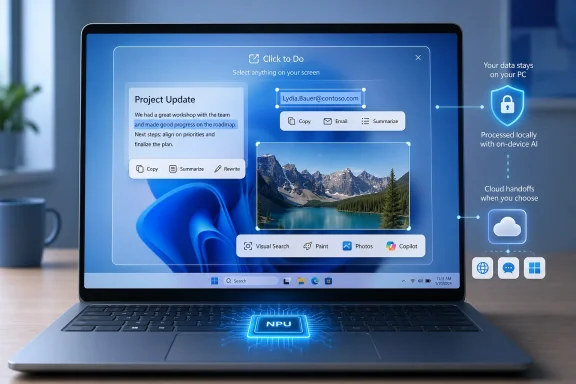
Click to Do changes the level at which the interaction occurs. When invoked, it places an overlay across the visible screen and converts the current view into something Windows can inspect and act upon. Text inside an image can become selectable, an email address can become the beginning of a message or meeting, and a photograph can become an input for Paint, Photos, Bing, or Copilot.
Microsoft describes the feature as a way to remain “in the flow,” but the more meaningful architectural point is that Click to Do does not require the originating application to support these actions. The feature can recognize what is visible even when the underlying program exposes no equivalent command. In effect, Windows is using the rendered screen as a universal interchange format.
That approach is both clever and inelegant. It is clever because every graphical application already produces pixels, eliminating the need for Microsoft to negotiate bespoke integrations with every software vendor. It is inelegant because screenshots discard much of the structured information that applications possess, forcing Windows to reconstruct text, images, addresses, and other entities through optical character recognition and visual analysis.
The result resembles an operating-system-wide context menu, but one assembled after the fact. Instead of asking the active application what an object is, Click to Do looks at the screen, infers what might be actionable, and presents a menu of possible destinations. That makes it broadly compatible, but its reliability depends on recognition quality, interface clarity, and the usefulness of the actions Microsoft chooses to expose.
Microsoft’s official documentation says users can invoke the feature with the Windows key and a mouse click, Windows key plus Q, a right-edge gesture on compatible touch devices, Windows Search, the Start menu, or Snipping Tool. That abundance of entry points reveals the ambition: Click to Do is not intended to remain a hidden Copilot+ demonstration. Microsoft wants it to become a routine gesture.
The problem is that Windows already has a routine gesture for contextual actions: the right-click. Click to Do must therefore prove that it can identify and complete jobs that existing application menus cannot, or that it can reach familiar actions with meaningfully less friction. If it merely rearranges commands users already know, its overlay risks becoming another layer of interface rather than a simplification of one.
Microsoft Support further states that the screenshot analysis is performed locally and only begins after active engagement. The feature evaluates what is currently visible, excluding minimized applications and material that is not on the screen. Its initial recognition is intended to identify selectable text and images rather than silently interpret an ongoing history of the user’s activity.
PCWorld consequently characterized Click to Do as something close to the “anti-Recall.” That description is directionally useful even if the two features remain related. Recall is designed around preserving and retrieving past context, while standalone Click to Do is designed around an explicit request to act on present context.
This is a far more defensible privacy model than passive collection. The user initiates the capture, sees the overlay, selects the content, chooses an action, and can exit immediately. Those steps create visible moments at which a person can understand that processing is occurring and decide whether to continue.
But “processed locally” does not mean “never leaves the device.” The initial screenshot recognition may remain on the PC, while the action selected afterward determines whether content stays local, passes to an installed application, or is sent to an online service. Microsoft’s documentation is explicit that web search and visual search transmit the selected material to the relevant provider.
Ask Copilot introduces the same boundary in a more conversational form. Click to Do recognizes the object locally, but when the user chooses a cloud-backed Copilot action, the selected text or image is handed to Copilot for completion. Microsoft 365 Copilot, Bing, Teams, Word, Photos, and Paint can each become providers, with their own processing and data-handling implications.
That distinction is easy to lose in an interface that presents every command in one menu. “Copy,” “Summarize,” “Search the web,” and “Ask Copilot” may appear beside one another, yet they do not represent equivalent data paths. Users and administrators should treat the action menu as a set of separate trust decisions rather than as a single feature with one universal privacy promise.
Microsoft says temporary files may be created when Click to Do sends information to an application such as Paint. Its management documentation identifies the user’s local temporary directory as the location used for these transfers and says the files are not retained long term. Diagnostic information may also be collected to maintain security, reliability, and updates.
For ordinary users, the practical rule is simple: invoking Click to Do is not itself the same as uploading the screen. The consequential moment is the action selected afterward. For organizations handling regulated, confidential, or contractually restricted information, however, relying on users to recognize that distinction every time may be insufficient.
This is a more credible use of on-device AI than asking a small local model to compete directly with enormous cloud systems. A bounded transformation—rewrite this paragraph, summarize this selection, turn these sentences into bullets—does not require encyclopedic knowledge, long conversational memory, or access to constantly changing information. It requires speed, privacy, and reasonable linguistic quality.
PCWorld was skeptical that local models could match the output of cloud-based language models, and that skepticism remains justified. Click to Do is unlikely to produce the depth or flexibility of a powerful online assistant when dealing with complex material. But parity with a cloud chatbot may be the wrong benchmark.
The relevant comparison is the manual workflow. A user who wants a short summary currently has to select the text, copy it, open another application or browser tab, choose an AI service, paste the content, enter an instruction, wait for a response, and move the result back. If Click to Do can produce an adequate summary in place with one gesture and one menu choice, “adequate” may be more useful than “best available.”
This is where the Copilot+ PC hardware argument becomes coherent. Microsoft requires suitable neural-processing hardware, along with baseline memory, processor, and storage capabilities, because it wants recognition and common transformations to occur quickly and efficiently on the device. The NPU is not valuable merely because it can run an AI workload; it is valuable if that workload becomes an invisible part of a frequent interaction.
Click to Do also avoids one of the weaknesses of standalone chatbots: the user does not need to explain the context from scratch. The selected item is the context. The system already knows which paragraph, image, address, or visible object the user wants to act upon.
The constraint is that a screenshot provides a narrow and lossy context window. A selected paragraph may depend on material elsewhere in a document, an image may lack its original metadata, and a table may be reconstructed imperfectly. The convenience of acting on pixels comes at the cost of the richer structure available inside the source application.
Microsoft’s challenge is therefore not simply improving model quality. It must decide when screen-derived context is sufficient and when Click to Do should defer to an application that understands the original file. A universal overlay is valuable only if it knows the boundaries of its own understanding.
Individually, none of these capabilities is revolutionary. Image background removal has existed for years, optical character recognition is mature technology, and sending selected text to a search engine is hardly novel. The strategic move is placing those capabilities behind a single recognition-and-action interface.
Microsoft is effectively separating the identification of content from the completion of a task. Windows identifies the object and proposes an action; an application or online service completes it. Microsoft’s developer documentation even provides a URI mechanism through which applications can launch the Click to Do overlay, opening the door to a broader ecosystem around the feature.
That provider model could make Click to Do more than a Microsoft-app launcher. If Windows eventually permits richer participation by third-party applications, users could choose among competing providers for editing, communication, search, accessibility, or AI transformation. The overlay would then function as an operating-system broker rather than a funnel into Microsoft’s services.
The current experience, however, remains heavily aligned with Microsoft’s own portfolio. Bing handles prominent search actions, Copilot handles general AI requests, Teams handles collaboration, and Windows inbox applications handle common image edits. This makes commercial sense, but it complicates Microsoft’s claim that the feature primarily exists to reduce friction.
A shortcut that consistently routes users toward Microsoft services may save clicks while also strengthening platform lock-in. The two outcomes are not mutually exclusive. Microsoft can make a genuinely useful interface and use that interface to improve the distribution of its own products at the same time.
Admins should watch the provider layer closely. Microsoft says actions associated with an application appear only when that application is installed, and removing the application removes the corresponding options. Users can also disable unwanted actions through the Windows app-actions settings.
That gives organizations more control than a monolithic AI assistant would, but it also creates configuration complexity. Two nominally identical Copilot+ PCs may show different Click to Do menus depending on installed applications, account type, language, region, licensing, policy, and staged feature availability. Support desks will have to diagnose not just whether Click to Do is present, but why a specific action is missing.
That distinction matters because “Windows 11 feature” can imply far broader availability than Microsoft actually provides. A user may see Click to Do in a demonstration, read that it is part of Windows, and then discover that the shortcut does nothing on an otherwise capable desktop or recent laptop. The hardware boundary is a product segmentation decision as much as a technical requirement.
There is also no single universal Click to Do menu. Microsoft says intelligent text actions vary by language, with English receiving the broadest set and French and Spanish receiving a smaller subset. Regional restrictions can remove visual search, Copilot integration, advanced image operations, Teams actions, or other functions.
Account state matters as well. Some intelligent actions require the user to be signed in with an appropriate Microsoft or Microsoft Entra account. Installed software determines whether app-specific destinations appear, and commercial licensing can change whether Microsoft 365 Copilot becomes part of the experience.
This variability weakens discoverability. A context menu is easiest to learn when it behaves consistently, but Click to Do’s options can change according to the object selected, the applications installed, the organization’s policies, the language used, and the market in which the PC operates. Context sensitivity is the point of the feature, yet too much variability can make it feel unpredictable.
Microsoft has attempted to address this with an interactive tutorial and labels for newer or popular actions. That may help users discover individual commands, but it does not solve the larger support problem: screenshots in documentation may not match the screen in front of the user.
The correct enterprise approach is to evaluate Click to Do as a configurable capability stack, not a binary feature. IT departments should document which actions their standard build permits, which providers those actions invoke, what account requirements apply, and whether regional differences affect multinational deployments.
April 25, 2025 — Microsoft described Click to Do as generally available across Copilot+ PCs while continuing to label the experience as a preview.
July 22, 2025 — Microsoft highlighted an expanded action set, including accessibility, Word, Copilot, and Teams workflows, as part of its broader push to position Windows 11 as an AI-centered operating system.
July 12, 2026 — Paul Thurrott’s “click-to-do” attachment page appeared in the Windows 11 Field Guide material covering screenshots and screen recordings, reflecting the feature’s transition from announcement-stage novelty into documented Windows behavior.
The progression shows Microsoft expanding Click to Do horizontally rather than redefining its core mechanism. The overlay remains the stable center; the menu of possible actions keeps growing around it. That is consistent with Microsoft’s apparent goal of turning Click to Do into infrastructure rather than leaving it as a finite set of AI tricks.
The policy disables the standalone component and its entry points, but Microsoft warns that it does not govern Click to Do functionality inside Recall. That is an important exception. An organization that prohibits standalone Click to Do cannot assume that one policy has removed every route to related actions.
The same problem applies at the provider level. Permitting local summarization does not necessarily mean permitting selected content to be submitted to web search, Copilot, or another online service. Conversely, an organization may accept certain cloud actions while rejecting image transfers or unsanctioned collaboration workflows.
Application controls can help narrow the menu because actions tied to absent applications are not shown. That creates a practical relationship between software deployment and AI governance: controlling which applications are installed also controls some of the destinations available from the overlay.
Yet removal alone is a blunt instrument. An organization may need Word or Teams while still wanting to restrict how sensitive on-screen content reaches those applications. Click to Do therefore belongs in data-handling reviews alongside clipboard controls, browser uploads, screen capture, generative AI access, and application-control policy.
This is not because the feature is uniquely dangerous. In many respects, a user can already take a screenshot, copy confidential text, or upload an image manually. Click to Do’s risk is that it makes those transitions faster, more discoverable, and easier to perform without consciously switching context.
Convenience changes behavior. A workflow that once required several deliberate steps can become a menu choice immediately beside a safe local action. Organizations should evaluate not only what Click to Do technically permits, but also which behaviors its placement is likely to normalize.
Snipping Tool already extracts text from screenshots, browsers already search selected phrases, and applications already provide their own contextual commands. Experienced users may reasonably conclude that Click to Do solves a problem they have already solved through muscle memory.
This is the same obstacle that has confronted many Windows productivity additions. A new feature can be objectively efficient and still fail because the established workflow is familiar, predictable, and available everywhere. Saving two clicks does not matter if remembering the new gesture imposes more cognitive effort than those clicks.
Click to Do’s best chance is not to replace copy and paste in every situation. It is to win a set of narrow scenarios where traditional selection is awkward or impossible: text embedded in a video frame, an address rendered inside a remote session, a photograph in an application with no extraction tools, or an interface element that cannot be copied normally.
Accessibility actions may also prove more durable than generic AI writing commands. Moving selected text directly into Immersive Reader or Reading Coach can connect people to specialized tools without forcing them to understand which application provides the capability. Here, the overlay acts as an accessibility bridge rather than merely an AI shortcut.
Communication workflows have similar potential. Recognizing an email address and offering to begin a message, Teams conversation, or meeting can eliminate repetitive navigation. The value is not the intelligence of the model; it is Windows identifying the user’s probable next step from the object selected.
Microsoft should resist measuring success by the raw number of actions it can add. A menu with dozens of weakly relevant possibilities will reproduce the context-menu clutter that Windows 11 has repeatedly tried to tame. The feature will succeed if it presents a small number of highly probable actions with consistent behavior and clear data boundaries.
It must also become fast enough to feel native. An overlay that hesitates, visibly processes, or presents unstable highlights will feel like an application layered on top of Windows. A gesture that responds immediately and selects the expected object can eventually feel like part of the operating system itself.
The latter is more conservative, but it may also be more compatible with how people expect a personal computer to behave. The PC waits, the user points, and the system acts. Intelligence is added to an explicit command rather than used to justify background observation.
That does not eliminate the need for transparency. Microsoft’s language about local processing can sound broader than it is if users fail to distinguish recognition from completion. A locally identified image can still be transmitted to an online visual-search provider, and locally recognized text can still become input for a cloud assistant.
Still, Click to Do gives Microsoft a better foundation on which to earn trust. The feature has a visible activation gesture, a visible overlay, a visible selection, and a visible action. It can be disabled, managed through policy, and constrained indirectly by controlling installed applications.
The more difficult problem is proving that the Copilot+ hardware requirement produces enough value. If the best Click to Do actions are ultimately cloud-backed, users may question why the overlay is restricted to computers with high-performance NPUs. Microsoft needs its local recognition and Phi Silica transformations to be fast, useful, and private enough to make the hardware boundary feel like capability rather than artificial segmentation.
Developers will also determine whether the feature becomes a platform. Microsoft’s URI-based launch mechanism allows applications to invoke the overlay, but invocation alone is not a rich ecosystem. The long-term opportunity lies in letting trusted third-party providers contribute actions while preserving understandable permissions and organizational control.
That expansion could create a difficult security model. If many applications can register themselves as providers, Click to Do will need defenses against misleading labels, excessive data collection, provider hijacking, and menu spam. Windows has struggled before when extensibility turned context menus and startup paths into contested territory.
Microsoft should learn from those precedents early. Provider identity must be obvious, data destinations must be understandable, and administrators must be able to allow or deny actions at a granular level. Otherwise, the universal action layer could become another surface that enterprises disable wholesale because selective governance is too difficult.
Click to Do is less dramatic than Recall and potentially more important. Rather than building a searchable history of computer activity, it waits for the user to invoke it, takes a screenshot of the current display, identifies selectable text and images, and offers actions appropriate to what Windows sees. Its significance lies not in any single summarization or image-editing command, but in Microsoft’s effort to create a new action layer that floats above applications.
That distinction makes Click to Do a better test of the Copilot+ PC proposition than many of Microsoft’s louder AI demonstrations. The question is no longer whether Windows can run an AI model; it is whether a context-sensitive overlay can become useful enough to replace the deeply learned habits of selecting, copying, right-clicking, switching applications, and pasting.
 Microsoft Is Building a Context Menu for the Entire Screen
Windows has traditionally treated application boundaries as hard borders. A browser knows what is inside the browser, Word knows what is inside a document, and Paint knows what is inside an image, but the operating system has had only a limited understanding of what those applications are displaying.Click to Do changes the level at which the interaction occurs. When invoked, it places an overlay across the visible screen and converts the current view into something Windows can inspect and act upon. Text inside an image can become selectable, an email address can become the beginning of a message or meeting, and a photograph can become an input for Paint, Photos, Bing, or Copilot.
Microsoft describes the feature as a way to remain “in the flow,” but the more meaningful architectural point is that Click to Do does not require the originating application to support these actions. The feature can recognize what is visible even when the underlying program exposes no equivalent command. In effect, Windows is using the rendered screen as a universal interchange format.
That approach is both clever and inelegant. It is clever because every graphical application already produces pixels, eliminating the need for Microsoft to negotiate bespoke integrations with every software vendor. It is inelegant because screenshots discard much of the structured information that applications possess, forcing Windows to reconstruct text, images, addresses, and other entities through optical character recognition and visual analysis.
The result resembles an operating-system-wide context menu, but one assembled after the fact. Instead of asking the active application what an object is, Click to Do looks at the screen, infers what might be actionable, and presents a menu of possible destinations. That makes it broadly compatible, but its reliability depends on recognition quality, interface clarity, and the usefulness of the actions Microsoft chooses to expose.
Microsoft’s official documentation says users can invoke the feature with the Windows key and a mouse click, Windows key plus Q, a right-edge gesture on compatible touch devices, Windows Search, the Start menu, or Snipping Tool. That abundance of entry points reveals the ambition: Click to Do is not intended to remain a hidden Copilot+ demonstration. Microsoft wants it to become a routine gesture.
The problem is that Windows already has a routine gesture for contextual actions: the right-click. Click to Do must therefore prove that it can identify and complete jobs that existing application menus cannot, or that it can reach familiar actions with meaningfully less friction. If it merely rearranges commands users already know, its overlay risks becoming another layer of interface rather than a simplification of one.
A Screenshot Is the Feature’s Power—and Its Privacy Boundary
Click to Do begins by taking a screenshot when the user activates it. That sentence inevitably invites comparison with Recall, but the behavioral difference is substantial: Microsoft says Click to Do does not run continuously, does not take screenshots while closed, and ends its analysis when the user exits the experience.Microsoft Support further states that the screenshot analysis is performed locally and only begins after active engagement. The feature evaluates what is currently visible, excluding minimized applications and material that is not on the screen. Its initial recognition is intended to identify selectable text and images rather than silently interpret an ongoing history of the user’s activity.
PCWorld consequently characterized Click to Do as something close to the “anti-Recall.” That description is directionally useful even if the two features remain related. Recall is designed around preserving and retrieving past context, while standalone Click to Do is designed around an explicit request to act on present context.
This is a far more defensible privacy model than passive collection. The user initiates the capture, sees the overlay, selects the content, chooses an action, and can exit immediately. Those steps create visible moments at which a person can understand that processing is occurring and decide whether to continue.
But “processed locally” does not mean “never leaves the device.” The initial screenshot recognition may remain on the PC, while the action selected afterward determines whether content stays local, passes to an installed application, or is sent to an online service. Microsoft’s documentation is explicit that web search and visual search transmit the selected material to the relevant provider.
Ask Copilot introduces the same boundary in a more conversational form. Click to Do recognizes the object locally, but when the user chooses a cloud-backed Copilot action, the selected text or image is handed to Copilot for completion. Microsoft 365 Copilot, Bing, Teams, Word, Photos, and Paint can each become providers, with their own processing and data-handling implications.
That distinction is easy to lose in an interface that presents every command in one menu. “Copy,” “Summarize,” “Search the web,” and “Ask Copilot” may appear beside one another, yet they do not represent equivalent data paths. Users and administrators should treat the action menu as a set of separate trust decisions rather than as a single feature with one universal privacy promise.
| Action path | Typical examples | Initial recognition | Where selected content goes | Practical implication |
|---|---|---|---|---|
| Local Windows action | Copy, summarize, rewrite, create a bulleted list | On the device | Clipboard or on-device model | Content can remain on the PC |
| Installed-app handoff | Remove background with Paint, edit with Photos, draft in Word | On the device | The selected provider application | Provider behavior and organizational controls apply |
| Online action | Web search, visual search, Ask Copilot | On the device | Bing, Copilot, or another online provider | Selected content leaves the local recognition boundary |
| Communication action | Send email, message in Teams, schedule a meeting | On the device | Email or collaboration application | Recognized identity data becomes part of a new communication workflow |
For ordinary users, the practical rule is simple: invoking Click to Do is not itself the same as uploading the screen. The consequential moment is the action selected afterward. For organizations handling regulated, confidential, or contractually restricted information, however, relying on users to recognize that distinction every time may be insufficient.
Local AI Finally Has a Job That Fits Its Limitations
Microsoft’s Phi Silica model powers several of Click to Do’s intelligent text actions on supported systems. These include summarizing selected text, rewriting it in different styles, and converting it into a bulleted list. The model runs locally and uses the neural processing unit rather than requiring every request to travel to a cloud service.This is a more credible use of on-device AI than asking a small local model to compete directly with enormous cloud systems. A bounded transformation—rewrite this paragraph, summarize this selection, turn these sentences into bullets—does not require encyclopedic knowledge, long conversational memory, or access to constantly changing information. It requires speed, privacy, and reasonable linguistic quality.
PCWorld was skeptical that local models could match the output of cloud-based language models, and that skepticism remains justified. Click to Do is unlikely to produce the depth or flexibility of a powerful online assistant when dealing with complex material. But parity with a cloud chatbot may be the wrong benchmark.
The relevant comparison is the manual workflow. A user who wants a short summary currently has to select the text, copy it, open another application or browser tab, choose an AI service, paste the content, enter an instruction, wait for a response, and move the result back. If Click to Do can produce an adequate summary in place with one gesture and one menu choice, “adequate” may be more useful than “best available.”
This is where the Copilot+ PC hardware argument becomes coherent. Microsoft requires suitable neural-processing hardware, along with baseline memory, processor, and storage capabilities, because it wants recognition and common transformations to occur quickly and efficiently on the device. The NPU is not valuable merely because it can run an AI workload; it is valuable if that workload becomes an invisible part of a frequent interaction.
Click to Do also avoids one of the weaknesses of standalone chatbots: the user does not need to explain the context from scratch. The selected item is the context. The system already knows which paragraph, image, address, or visible object the user wants to act upon.
The constraint is that a screenshot provides a narrow and lossy context window. A selected paragraph may depend on material elsewhere in a document, an image may lack its original metadata, and a table may be reconstructed imperfectly. The convenience of acting on pixels comes at the cost of the richer structure available inside the source application.
Microsoft’s challenge is therefore not simply improving model quality. It must decide when screen-derived context is sufficient and when Click to Do should defer to an application that understands the original file. A universal overlay is valuable only if it knows the boundaries of its own understanding.
The Action Menu Reveals Microsoft’s Platform Strategy
The first generation of Windows AI features often felt like a collection of disconnected demonstrations. Click to Do offers a possible way to bind them together. Paint can remove a background, Photos can blur or erase objects, Bing can perform visual search, Copilot can discuss selected content, Word can begin a draft, and Teams can turn an email address into a communication action.Individually, none of these capabilities is revolutionary. Image background removal has existed for years, optical character recognition is mature technology, and sending selected text to a search engine is hardly novel. The strategic move is placing those capabilities behind a single recognition-and-action interface.
Microsoft is effectively separating the identification of content from the completion of a task. Windows identifies the object and proposes an action; an application or online service completes it. Microsoft’s developer documentation even provides a URI mechanism through which applications can launch the Click to Do overlay, opening the door to a broader ecosystem around the feature.
That provider model could make Click to Do more than a Microsoft-app launcher. If Windows eventually permits richer participation by third-party applications, users could choose among competing providers for editing, communication, search, accessibility, or AI transformation. The overlay would then function as an operating-system broker rather than a funnel into Microsoft’s services.
The current experience, however, remains heavily aligned with Microsoft’s own portfolio. Bing handles prominent search actions, Copilot handles general AI requests, Teams handles collaboration, and Windows inbox applications handle common image edits. This makes commercial sense, but it complicates Microsoft’s claim that the feature primarily exists to reduce friction.
A shortcut that consistently routes users toward Microsoft services may save clicks while also strengthening platform lock-in. The two outcomes are not mutually exclusive. Microsoft can make a genuinely useful interface and use that interface to improve the distribution of its own products at the same time.
Admins should watch the provider layer closely. Microsoft says actions associated with an application appear only when that application is installed, and removing the application removes the corresponding options. Users can also disable unwanted actions through the Windows app-actions settings.
That gives organizations more control than a monolithic AI assistant would, but it also creates configuration complexity. Two nominally identical Copilot+ PCs may show different Click to Do menus depending on installed applications, account type, language, region, licensing, policy, and staged feature availability. Support desks will have to diagnose not just whether Click to Do is present, but why a specific action is missing.
Availability Is a Matrix, Not a Switch
Windows Central’s coverage emphasizes that Click to Do belongs to the Copilot+ PC experience rather than to every Windows 11 machine. Microsoft’s support documentation also lists an eligible Cloud PC as a possible route, but the consumer experience is primarily tied to systems that meet Microsoft’s Copilot+ hardware threshold.That distinction matters because “Windows 11 feature” can imply far broader availability than Microsoft actually provides. A user may see Click to Do in a demonstration, read that it is part of Windows, and then discover that the shortcut does nothing on an otherwise capable desktop or recent laptop. The hardware boundary is a product segmentation decision as much as a technical requirement.
There is also no single universal Click to Do menu. Microsoft says intelligent text actions vary by language, with English receiving the broadest set and French and Spanish receiving a smaller subset. Regional restrictions can remove visual search, Copilot integration, advanced image operations, Teams actions, or other functions.
Account state matters as well. Some intelligent actions require the user to be signed in with an appropriate Microsoft or Microsoft Entra account. Installed software determines whether app-specific destinations appear, and commercial licensing can change whether Microsoft 365 Copilot becomes part of the experience.
This variability weakens discoverability. A context menu is easiest to learn when it behaves consistently, but Click to Do’s options can change according to the object selected, the applications installed, the organization’s policies, the language used, and the market in which the PC operates. Context sensitivity is the point of the feature, yet too much variability can make it feel unpredictable.
Microsoft has attempted to address this with an interactive tutorial and labels for newer or popular actions. That may help users discover individual commands, but it does not solve the larger support problem: screenshots in documentation may not match the screen in front of the user.
The correct enterprise approach is to evaluate Click to Do as a configurable capability stack, not a binary feature. IT departments should document which actions their standard build permits, which providers those actions invoke, what account requirements apply, and whether regional differences affect multinational deployments.
Timeline
October 1, 2024 — Microsoft publicly presented Click to Do as a Copilot+ PC experience that could place an interactive overlay over the screen and suggest actions for visible text and images.April 25, 2025 — Microsoft described Click to Do as generally available across Copilot+ PCs while continuing to label the experience as a preview.
July 22, 2025 — Microsoft highlighted an expanded action set, including accessibility, Word, Copilot, and Teams workflows, as part of its broader push to position Windows 11 as an AI-centered operating system.
July 12, 2026 — Paul Thurrott’s “click-to-do” attachment page appeared in the Windows 11 Field Guide material covering screenshots and screen recordings, reflecting the feature’s transition from announcement-stage novelty into documented Windows behavior.
The progression shows Microsoft expanding Click to Do horizontally rather than redefining its core mechanism. The overlay remains the stable center; the menu of possible actions keeps growing around it. That is consistent with Microsoft’s apparent goal of turning Click to Do into infrastructure rather than leaving it as a finite set of AI tricks.
Privacy Controls Do Not End at the Main Toggle
Microsoft enables Click to Do by default on supported systems, according to its support documentation. Consumers can turn it off under Privacy & security in Settings, and administrators can disable it through Windows AI policy at the computer or user level.The policy disables the standalone component and its entry points, but Microsoft warns that it does not govern Click to Do functionality inside Recall. That is an important exception. An organization that prohibits standalone Click to Do cannot assume that one policy has removed every route to related actions.
The same problem applies at the provider level. Permitting local summarization does not necessarily mean permitting selected content to be submitted to web search, Copilot, or another online service. Conversely, an organization may accept certain cloud actions while rejecting image transfers or unsanctioned collaboration workflows.
Application controls can help narrow the menu because actions tied to absent applications are not shown. That creates a practical relationship between software deployment and AI governance: controlling which applications are installed also controls some of the destinations available from the overlay.
Yet removal alone is a blunt instrument. An organization may need Word or Teams while still wanting to restrict how sensitive on-screen content reaches those applications. Click to Do therefore belongs in data-handling reviews alongside clipboard controls, browser uploads, screen capture, generative AI access, and application-control policy.
This is not because the feature is uniquely dangerous. In many respects, a user can already take a screenshot, copy confidential text, or upload an image manually. Click to Do’s risk is that it makes those transitions faster, more discoverable, and easier to perform without consciously switching context.
Convenience changes behavior. A workflow that once required several deliberate steps can become a menu choice immediately beside a safe local action. Organizations should evaluate not only what Click to Do technically permits, but also which behaviors its placement is likely to normalize.
Action checklist for admins
- Inventory which managed devices actually meet the Copilot+ PC or eligible Cloud PC requirements.
- Test the standalone Click to Do experience separately from Click to Do actions available inside Recall.
- Map each permitted action to its processing destination: local model, installed application, or online provider.
- Review the Windows AI policy for disabling Click to Do at the device or user level where the feature is not approved.
- Audit installed providers such as Copilot, Microsoft 365 applications, Teams, Paint, and Photos because their presence changes the available menu.
- Document language, region, account, and licensing differences before publishing support guidance.
- Include temporary files, diagnostics, cloud handoffs, and user-selected web actions in the organization’s data-governance assessment.
- Train users to distinguish local recognition from actions that transmit selected content to an online service.
The Biggest Competitor Is Copy and Paste
PCWorld’s practical criticism is the most serious one: users may simply continue copying and pasting. That behavior works across practically every Windows PC, does not require Copilot+ hardware, and lets the user choose any destination rather than one of the providers Windows happens to recommend.Snipping Tool already extracts text from screenshots, browsers already search selected phrases, and applications already provide their own contextual commands. Experienced users may reasonably conclude that Click to Do solves a problem they have already solved through muscle memory.
This is the same obstacle that has confronted many Windows productivity additions. A new feature can be objectively efficient and still fail because the established workflow is familiar, predictable, and available everywhere. Saving two clicks does not matter if remembering the new gesture imposes more cognitive effort than those clicks.
Click to Do’s best chance is not to replace copy and paste in every situation. It is to win a set of narrow scenarios where traditional selection is awkward or impossible: text embedded in a video frame, an address rendered inside a remote session, a photograph in an application with no extraction tools, or an interface element that cannot be copied normally.
Accessibility actions may also prove more durable than generic AI writing commands. Moving selected text directly into Immersive Reader or Reading Coach can connect people to specialized tools without forcing them to understand which application provides the capability. Here, the overlay acts as an accessibility bridge rather than merely an AI shortcut.
Communication workflows have similar potential. Recognizing an email address and offering to begin a message, Teams conversation, or meeting can eliminate repetitive navigation. The value is not the intelligence of the model; it is Windows identifying the user’s probable next step from the object selected.
Microsoft should resist measuring success by the raw number of actions it can add. A menu with dozens of weakly relevant possibilities will reproduce the context-menu clutter that Windows 11 has repeatedly tried to tame. The feature will succeed if it presents a small number of highly probable actions with consistent behavior and clear data boundaries.
It must also become fast enough to feel native. An overlay that hesitates, visibly processes, or presents unstable highlights will feel like an application layered on top of Windows. A gesture that responds immediately and selects the expected object can eventually feel like part of the operating system itself.
Click to Do Is the Safer Heir to Recall’s Ambition
Recall and Click to Do are often discussed together because both operate on screen content, but they embody different theories of AI assistance. Recall assumes that Windows should preserve context now because the user may need it later. Click to Do assumes that Windows should interpret context only when the user requests help.The latter is more conservative, but it may also be more compatible with how people expect a personal computer to behave. The PC waits, the user points, and the system acts. Intelligence is added to an explicit command rather than used to justify background observation.
That does not eliminate the need for transparency. Microsoft’s language about local processing can sound broader than it is if users fail to distinguish recognition from completion. A locally identified image can still be transmitted to an online visual-search provider, and locally recognized text can still become input for a cloud assistant.
Still, Click to Do gives Microsoft a better foundation on which to earn trust. The feature has a visible activation gesture, a visible overlay, a visible selection, and a visible action. It can be disabled, managed through policy, and constrained indirectly by controlling installed applications.
The more difficult problem is proving that the Copilot+ hardware requirement produces enough value. If the best Click to Do actions are ultimately cloud-backed, users may question why the overlay is restricted to computers with high-performance NPUs. Microsoft needs its local recognition and Phi Silica transformations to be fast, useful, and private enough to make the hardware boundary feel like capability rather than artificial segmentation.
Developers will also determine whether the feature becomes a platform. Microsoft’s URI-based launch mechanism allows applications to invoke the overlay, but invocation alone is not a rich ecosystem. The long-term opportunity lies in letting trusted third-party providers contribute actions while preserving understandable permissions and organizational control.
That expansion could create a difficult security model. If many applications can register themselves as providers, Click to Do will need defenses against misleading labels, excessive data collection, provider hijacking, and menu spam. Windows has struggled before when extensibility turned context menus and startup paths into contested territory.
Microsoft should learn from those precedents early. Provider identity must be obvious, data destinations must be understandable, and administrators must be able to allow or deny actions at a granular level. Otherwise, the universal action layer could become another surface that enterprises disable wholesale because selective governance is too difficult.
What Windows Users Should Remember
Click to Do matters because it turns the visible screen into an actionable Windows surface, not because any one of its commands is unprecedented. Its future depends on whether Microsoft can make that surface predictable, private by default, and substantially faster than the workflows users already know.- The feature analyzes a screenshot only after the user invokes it; it is not the same continuous-capture model associated with Recall.
- Initial text and image recognition occurs locally, but web search, visual search, Copilot, and other provider actions can transmit selected content.
- Phi Silica handles bounded text transformations locally, giving the Copilot+ PC’s NPU a practical workload suited to a smaller model.
- Available actions vary by hardware, region, language, account, installed applications, licensing, and organizational policy.
- Disabling standalone Click to Do does not automatically disable related functionality inside Recall.
- The feature’s real test is whether it becomes more natural than copying, pasting, switching applications, and using existing context menus.
References
- Primary source: thurrott.com
Published: 2026-07-12T18:33:09.417484
click-to-do - Thurrott.com
 www.thurrott.com
- Official source: learn.microsoft.com
Click to Do overview - Windows apps | Microsoft Learn
Learn how to use the AI-assisted Click to Do feature in Windows.learn.microsoft.com - Official source: support.microsoft.com
Click to Do: do more with what’s on your screen | Microsoft Support
Click to Do: do more with what’s on your screensupport.microsoft.com - Related coverage: windowscentral.com
How to use Click to Do on Windows 11 with a Copilot+ PC | Windows Central
You can use Click to Do to perform quick tasks with AI from anything that appears on your screen in Windows 11, and here's how you can start using it.www.windowscentral.com - Related coverage: pcworld.com
What is Click To Do? Meet Microsoft's next AI headliner for Windows PCs | PCWorld
With Recall a bust, it's time to move on. Here's the next big selling point for Microsoft's AI laptops.www.pcworld.com - Official source: blogs.windows.com
- Related coverage: dotjesper.com
dotjesper.com | Exploring AI actions in Windows 11 - Click to Do
Discover Click to Do, the AI features in Windows 11 Copilot+ PCs that lets you take instant actions on anything visible on your screen. dotjesper.com
- Official source: news.microsoft.com
- Related coverage: tomsguide.com
How to disable Copilot in Windows 11 | Tom's Guide
Completely disable Copilot in Windows 11 in just a few simple steps.www.tomsguide.com - Related coverage: techradar.com
Windows 11 review | TechRadar
Windows 11 is the latest operating system from Microsoft, and while it gets a lot right, there's still work to be done.www.techradar.com - Related coverage: tomshardware.com
Microsoft responds to Gaming Copilot controversy, says it uses screenshots to understand in-game events, not for training AI models — optional feature can be turned off, but not easily uninstalled | Tom's Hardware
Microsoft says it isn't using your data to train its AI.www.tomshardware.com