

Windows 11’s context menu story has become a perfect example of Microsoft solving one problem by creating another. The simplified right-click menu introduced in 2021 was supposed to reduce clutter and make common actions easier to find, but over time it has accumulated enough third-party, driver, and Microsoft-added entries to feel crowded again. A small free utility called Windows 11 Context Menu Manager has now emerged as one of the cleanest ways to take that menu back under control, and its rise says as much about Windows customization fatigue as it does about the state of File Explorer itself. Microsoft is aware of the issue, but for now, users are still turning to third-party tools to do the heavy lifting.
When Windows 11 first arrived, Microsoft made a visible philosophical change to the right-click experience. Instead of showing everything at once, File Explorer and the desktop used a new streamlined context menu, with older items pushed behind “Show more options” for compatibility. Microsoft still notes that not every Windows 10 extension appears in the simplified menu, even though those items remain available in the classic layer.
That design choice made sense on paper. Windows 10’s right-click menus could become unwieldy, especially on systems loaded with archive tools, graphics suites, cloud clients, and vendor utilities. The new Windows 11 menu promised a cleaner look and a more modern feel, while preserving access to legacy commands. The problem is that the menu never really got simpler in practice; it just shifted the clutter around.
Over time, the context menu started absorbing more entries from the broader Windows ecosystem. Microsoft has continued to add or test new actions in File Explorer, including AI-related items and other context-sensitive options, which makes the menu even more dynamic and, in some cases, more crowded. In parallel, vendors such as AMD, NVIDIA, and other software makers continue to attach their own shell extensions and verbs to Explorer.
What frustrates power users is not only the visual clutter, but the fact that many of these additions are redundant. A menu entry that appears on files where it makes little sense can feel less like a convenience and more like a marketing billboard. That’s why right-click cleanup tools have become a small but persistent category in the Windows utility ecosystem.
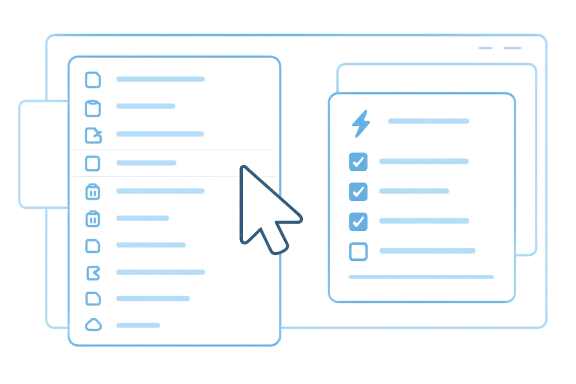
The new app in question, Windows 11 Context Menu Manager, fits into that tradition, but with a friendlier angle. Instead of asking users to understand registry paths, CLSIDs, or shell-extension quirks, it presents a toggle-based list of what is visible and lets people disable unwanted entries one by one. That simplicity is the real draw: it reduces friction in the same place Windows itself introduced friction.
The practical effect is familiar to anyone who has right-clicked a file on a well-equipped machine. You wait for a split second, then another, while Explorer resolves what should appear. That delay is often small in isolation, but the cumulative annoyance is real, especially on systems with GPU utilities, sync clients, archive suites, backup tools, or multiple app integrations.
The irony is that many of these entries are installed by design. A user may never explicitly choose to add them; they arrive bundled with the software. That is why cleaning the menu is often less about personal preference and more about reclaiming control from an ecosystem that defaults to “show everything.”
The app also avoids the most annoying part of traditional shell cleanup: the waiting. The article’s description emphasizes that changes take effect without restarts, which matters because Explorer restarts are fine once, but tedious if you are making several adjustments. In usability terms, the difference between “apply” and “reboot Explorer” is huge.
There is also a strong discoverability angle. The tool reportedly shows associated file extensions, offers links to Settings or Microsoft Store, and includes uninstall options for some menu-littering apps. That turns a purely defensive utility into a small control center for the right-click surface.
That makes the app especially useful in mixed environments. Home users get faster menus and fewer distractions, while enthusiasts can prune the menu without digging through documentation. For the kind of person who already installs PowerToys, this is less a novelty than a cleanup instrument.
This matters because PowerToys has trained users to expect more from Microsoft than bare minimum system functionality. When a community utility can solve a common annoyance faster than the platform vendor, it changes user expectations. It also creates a subtle pressure on Microsoft to either integrate the feature or improve shell management in another way.
The broader ecosystem already contains several adjacent tools. Some, like Shell-X or WinContextTweaker, aim to create or edit custom context menu entries. Others, like RightClickTools, integrate with specialized menu systems. Windows 11 Context Menu Manager is different because it is primarily a declutter tool, not a menu authoring studio.
The upside is that these tools often surface unmet needs faster than product teams can. The downside is that users are left navigating a patchwork of utilities, registry tweaks, and unofficial fixes. In this case, the patchwork exists because the operating system still lacks a polished, built-in context menu management surface.
This does not mean every extension is a performance disaster. Good shell extensions can be efficient, and many are effectively negligible. But in aggregate, especially on systems with lots of utilities installed, the menu can become sluggish enough that the user experiences it as a delay every single time they right-click.
The performance angle is why cleanup tools are more than aesthetic toys. A system may feel “faster” not because CPU benchmarks change dramatically, but because one of the most common interface actions becomes less obstructed. That psychological impact matters, and Windows UI responsiveness is as much about perception as it is about raw timing.
The benefit is even stronger on older or budget hardware, where Explorer responsiveness can feel less forgiving. But enterprise users on faster machines can benefit too, because workflow efficiency is not only about horsepower; it is about reducing interruptions in repeated tasks. Small annoyances are still annoyances.
That mismatch is especially visible in examples like “Open with Notepad” or vendor-specific entries appearing where they do not obviously belong. Even if each entry is individually defensible, the aggregate effect can feel absurd. The menu stops reflecting user intent and starts reflecting software accumulation.
The deeper issue is that Windows still treats context menus as an extensibility layer first and a curated UX surface second. That is powerful, but it places the burden of hygiene on the user. When the platform cannot keep that layer tidy by itself, third-party cleanup tools become inevitable.
That leaves a clear opening for community developers. If Microsoft moves slowly, the ecosystem will keep filling the gap. And as long as Windows remains one of the most extensible desktop platforms on the market, users will keep reaching for utilities that expose control in a more direct way.
The other consumer benefit is reversibility. If a toggle approach is done well, users can experiment without fear of permanently breaking their workflow. That kind of safety net matters more than most people realize, because Windows tweaking often succeeds or fails on the basis of confidence, not capability.
That said, organizations must also be careful. Removing shell entries globally can affect workflows for design teams, administrators, and power users who depend on specific integrations. The more diverse the fleet, the more likely a blanket cleanup policy will create edge cases. One-size-fits-all is rarely ideal in enterprise UX management.
There is also a branding argument. Windows 11 has often been criticized for polished surfaces hiding rough edges. A robust menu manager would fit Microsoft’s broader effort to make the desktop feel more coherent and less fragmented. It would not solve every UX complaint, but it would address one of the most visible ones.
This is also a reminder that the Windows shell remains one of the platform’s most contested user-interface layers. Whoever makes it easier to shape gets loyalty from advanced users. That loyalty may not be mass-market, but it is influential, especially in enthusiast and IT communities.
The most likely near-term outcome is a coexistence model. Power users will continue to rely on utilities like Windows 11 Context Menu Manager, while casual users live with the defaults and occasional “Show more options” detour. If Microsoft eventually folds context-menu management into PowerToys, it will be because the ecosystem proved the need first.
Source: Neowin This small app is a must-have for fixing Windows 11 context menus
 Background
When Windows 11 first arrived, Microsoft made a visible philosophical change to the right-click experience. Instead of showing everything at once, File Explorer and the desktop used a new streamlined context menu, with older items pushed behind “Show more options” for compatibility. Microsoft still notes that not every Windows 10 extension appears in the simplified menu, even though those items remain available in the classic layer.That design choice made sense on paper. Windows 10’s right-click menus could become unwieldy, especially on systems loaded with archive tools, graphics suites, cloud clients, and vendor utilities. The new Windows 11 menu promised a cleaner look and a more modern feel, while preserving access to legacy commands. The problem is that the menu never really got simpler in practice; it just shifted the clutter around.
Over time, the context menu started absorbing more entries from the broader Windows ecosystem. Microsoft has continued to add or test new actions in File Explorer, including AI-related items and other context-sensitive options, which makes the menu even more dynamic and, in some cases, more crowded. In parallel, vendors such as AMD, NVIDIA, and other software makers continue to attach their own shell extensions and verbs to Explorer.
What frustrates power users is not only the visual clutter, but the fact that many of these additions are redundant. A menu entry that appears on files where it makes little sense can feel less like a convenience and more like a marketing billboard. That’s why right-click cleanup tools have become a small but persistent category in the Windows utility ecosystem.
The new app in question, Windows 11 Context Menu Manager, fits into that tradition, but with a friendlier angle. Instead of asking users to understand registry paths, CLSIDs, or shell-extension quirks, it presents a toggle-based list of what is visible and lets people disable unwanted entries one by one. That simplicity is the real draw: it reduces friction in the same place Windows itself introduced friction.
Why the Windows 11 Context Menu Became a Problem Again
The original Windows 11 menu was marketed as an answer to Windows 10 overload, but it only solved part of the issue. The top-level menu is shorter, yes, yet that brevity can hide the complexity below the surface. The “Show more options” submenu exists precisely because so much functionality still depends on older shell-extension behavior.The hidden cost of convenience
Every extra shell extension has the potential to add load time, especially when Explorer has to enumerate handlers before drawing the menu. Microsoft’s own documentation shows that context menu handlers are a formal Shell Extension mechanism, not just cosmetic add-ons. That means every vendor utility that hooks into Explorer participates in the menu-building process, which is why clutter can also become latency.The practical effect is familiar to anyone who has right-clicked a file on a well-equipped machine. You wait for a split second, then another, while Explorer resolves what should appear. That delay is often small in isolation, but the cumulative annoyance is real, especially on systems with GPU utilities, sync clients, archive suites, backup tools, or multiple app integrations.
The irony is that many of these entries are installed by design. A user may never explicitly choose to add them; they arrive bundled with the software. That is why cleaning the menu is often less about personal preference and more about reclaiming control from an ecosystem that defaults to “show everything.”
- Windows 11’s streamlined menu reduced visible clutter, but not underlying complexity.
- Legacy commands still live behind “Show more options.”
- Third-party software frequently adds shell extensions automatically.
- Each extra handler can contribute to delay and visual noise.
- The result is a modern menu that often feels less elegant under real-world use.
What Windows 11 Context Menu Manager Actually Does
Windows 11 Context Menu Manager’s appeal is that it targets the problem at the right abstraction level. It doesn’t ask the user to edit registry entries manually or uninstall half a toolbox just to remove one unwanted verb. Instead, it surfaces the menu entries in a readable list and gives the user a switch for each one.A toggle-first workflow
The utility’s key design decision is that it uses a simple enable/disable model. That lowers the learning curve dramatically compared with registry editing, where a single misstep can create confusion or break an extension entirely. For ordinary users, a toggle is exactly the right level of control.The app also avoids the most annoying part of traditional shell cleanup: the waiting. The article’s description emphasizes that changes take effect without restarts, which matters because Explorer restarts are fine once, but tedious if you are making several adjustments. In usability terms, the difference between “apply” and “reboot Explorer” is huge.
There is also a strong discoverability angle. The tool reportedly shows associated file extensions, offers links to Settings or Microsoft Store, and includes uninstall options for some menu-littering apps. That turns a purely defensive utility into a small control center for the right-click surface.
Why that matters
Most context menu frustration is not technical expertise failure; it is interface bloat failure. People do not want to learn how Explorer’s internal command model works just to remove “Open with Notepad” from image files or a GPU vendor shortcut from a folder menu. A cleaner UX reduces the gap between intent and action.That makes the app especially useful in mixed environments. Home users get faster menus and fewer distractions, while enthusiasts can prune the menu without digging through documentation. For the kind of person who already installs PowerToys, this is less a novelty than a cleanup instrument.
- No installation is required.
- Changes are applied with a single toggle.
- The app is aimed at reducing both clutter and perceived lag.
- It exposes entries that would otherwise require registry spelunking.
- It works as a practical tool, not just a visual customizer.
How It Fits Into the Wider Windows Customization Ecosystem
The existence of Windows 11 Context Menu Manager is itself a sign of demand. Microsoft already ships some power-user tools through PowerToys, but context-menu management is still not a first-party feature. That gap leaves room for community projects to step in, especially when users want faster cleanup rather than a whole customization suite.The PowerToys connection
PowerToys has become the symbolic home for Windows utilities that are useful but not core enough for Windows itself. The PowerToys team has publicly tracked the idea of a context menu manager, according to the article’s cited social post, which is a strong signal that Microsoft recognizes the need. But recognition is not delivery, and that delay has kept third-party tools relevant.This matters because PowerToys has trained users to expect more from Microsoft than bare minimum system functionality. When a community utility can solve a common annoyance faster than the platform vendor, it changes user expectations. It also creates a subtle pressure on Microsoft to either integrate the feature or improve shell management in another way.
The broader ecosystem already contains several adjacent tools. Some, like Shell-X or WinContextTweaker, aim to create or edit custom context menu entries. Others, like RightClickTools, integrate with specialized menu systems. Windows 11 Context Menu Manager is different because it is primarily a declutter tool, not a menu authoring studio.
Community tools thrive where Microsoft hesitates
This is a familiar Windows pattern. When native support is partial, enthusiasts build the missing layer. The win is usually speed or control; the tradeoff is fragmentation and occasional compatibility pain. That bargain is acceptable to power users, but less ideal for mainstream customers.The upside is that these tools often surface unmet needs faster than product teams can. The downside is that users are left navigating a patchwork of utilities, registry tweaks, and unofficial fixes. In this case, the patchwork exists because the operating system still lacks a polished, built-in context menu management surface.
- PowerToys validates the idea category, but does not yet solve it.
- Third-party tools fill the gap between cleanup and customization.
- Decluttering tools are simpler than menu-building tools.
- The Windows ecosystem continues to rely on community experimentation.
- User expectations now include some degree of shell control by default.
Performance, Not Just Aesthetics
The strongest argument for cleaning up the Windows 11 context menu is not cosmetic. It is that Explorer becomes less burdened when it does not have to surface every registered extension and irrelevant command. In a menu that is already slower than users expect, removing unnecessary entries can make the experience feel more responsive.Why shell extensions can slow things down
Context menu handlers are COM components that Explorer consults when building menus. That is a robust model, but also a heavy one, because Windows has to query installed handlers and determine what should appear for a given file or folder type. The more entries you have, the more work Explorer may need to do.This does not mean every extension is a performance disaster. Good shell extensions can be efficient, and many are effectively negligible. But in aggregate, especially on systems with lots of utilities installed, the menu can become sluggish enough that the user experiences it as a delay every single time they right-click.
The performance angle is why cleanup tools are more than aesthetic toys. A system may feel “faster” not because CPU benchmarks change dramatically, but because one of the most common interface actions becomes less obstructed. That psychological impact matters, and Windows UI responsiveness is as much about perception as it is about raw timing.
A subtle but real productivity win
For users who right-click dozens or hundreds of times a day, shaving off friction compounds. The menu becomes a place where useful commands surface quickly instead of competing with driver utilities, generic app shortcuts, and items that were added once and never removed. That is the difference between a tool and a filing cabinet.The benefit is even stronger on older or budget hardware, where Explorer responsiveness can feel less forgiving. But enterprise users on faster machines can benefit too, because workflow efficiency is not only about horsepower; it is about reducing interruptions in repeated tasks. Small annoyances are still annoyances.
- Fewer handlers can mean less Explorer work.
- Less work can translate into faster menu display.
- The gain is often felt more than measured.
- Workflow benefits compound across repeated actions.
- Context menu clutter hurts productivity even when the system is otherwise fast.
Why Windows 11 Still Leaves Users Looking for Third-Party Help
One reason the tool resonates is that Microsoft’s own guidance stops short of giving users true menu management. The company explains the streamlined menu and the “Show more options” fallback, but that is not the same as letting users remove unwanted entries from the primary menu. That gap is exactly where utilities like Windows 11 Context Menu Manager become attractive.The mismatch between design and reality
The streamlined menu was supposed to be the answer to clutter. Yet Microsoft continues to add features, some of which are useful only to a subset of users, while hardware and app vendors continue to inject their own shortcuts. The result is a menu that can be both simplified and overcrowded at the same time, depending on what is installed.That mismatch is especially visible in examples like “Open with Notepad” or vendor-specific entries appearing where they do not obviously belong. Even if each entry is individually defensible, the aggregate effect can feel absurd. The menu stops reflecting user intent and starts reflecting software accumulation.
The deeper issue is that Windows still treats context menus as an extensibility layer first and a curated UX surface second. That is powerful, but it places the burden of hygiene on the user. When the platform cannot keep that layer tidy by itself, third-party cleanup tools become inevitable.
Microsoft’s partial response
Microsoft has been incrementally improving File Explorer, and some recent changes suggest the company is at least listening to complaints. It has also started trimming certain context-sensitive clutter, such as hiding AI actions when no AI action is available. Still, those improvements are selective, not a full menu-management strategy.That leaves a clear opening for community developers. If Microsoft moves slowly, the ecosystem will keep filling the gap. And as long as Windows remains one of the most extensible desktop platforms on the market, users will keep reaching for utilities that expose control in a more direct way.
- Microsoft has explained the new menu, but not fully empowered users to manage it.
- Recent trimming efforts are targeted, not systemic.
- Vendor and Microsoft entries continue to accumulate.
- The platform’s extensibility is both its strength and its weakness.
- Third-party utilities are filling a real product gap, not just a hobbyist niche.
Enterprise Versus Consumer Impact
For consumers, the appeal is straightforward: fewer distractions, faster access, and less friction when right-clicking files and folders. A tool like Windows 11 Context Menu Manager also reduces the fear factor of registry editing, which is important because many users are willing to tweak Windows only if the process feels safe.What home users gain
Home users usually want the menu to contain the commands they actually use, not the ones software vendors think they should see. That means removing redundant items, limiting noise from installed apps, and avoiding unnecessary vendor branding. The app does that with almost no setup overhead.The other consumer benefit is reversibility. If a toggle approach is done well, users can experiment without fear of permanently breaking their workflow. That kind of safety net matters more than most people realize, because Windows tweaking often succeeds or fails on the basis of confidence, not capability.
What enterprises should think about
In enterprise settings, context-menu management is less about aesthetics and more about standardization. IT teams want predictable desktops, fewer support calls, and less confusion when users rely on shared systems. A cluttered context menu can slow employees down and make training harder.That said, organizations must also be careful. Removing shell entries globally can affect workflows for design teams, administrators, and power users who depend on specific integrations. The more diverse the fleet, the more likely a blanket cleanup policy will create edge cases. One-size-fits-all is rarely ideal in enterprise UX management.
- Consumers benefit from simplicity and speed.
- Enterprises benefit from consistency and supportability.
- Both groups benefit from less registry editing.
- Both groups face tradeoffs if they remove specialized tools.
- The most valuable feature is reversible control.
Competitive Implications for Microsoft, Power Users, and Rivals
This kind of tool has implications beyond one menu. It reinforces the idea that Windows power users want modular control over the shell, not just prettier defaults. That creates pressure on Microsoft to make shell customization first-class, or risk seeing an ecosystem of third-party fixes define the user experience instead.Microsoft’s opportunity
If Microsoft were to build a native context menu manager into PowerToys or Windows Settings, it could reclaim a class of users who currently depend on unofficial utilities. That would also reduce the risk that users adopt tools with varying quality, compatibility, or privacy practices. In other words, there is a trust advantage to first-party implementation.There is also a branding argument. Windows 11 has often been criticized for polished surfaces hiding rough edges. A robust menu manager would fit Microsoft’s broader effort to make the desktop feel more coherent and less fragmented. It would not solve every UX complaint, but it would address one of the most visible ones.
The rival ecosystem
For third-party developers, the rise of a context menu manager validates the market. Tools that reduce right-click noise, streamline Explorer, or add custom actions have a real audience because Windows itself still leaves room for improvement. That is why projects in this space continue to appear and persist.This is also a reminder that the Windows shell remains one of the platform’s most contested user-interface layers. Whoever makes it easier to shape gets loyalty from advanced users. That loyalty may not be mass-market, but it is influential, especially in enthusiast and IT communities.
- Microsoft can either integrate the idea or watch the ecosystem do it.
- First-party support would likely be safer and more trusted.
- Third-party developers still have room to innovate.
- Enthusiast users drive a disproportionate amount of influence.
- The context menu remains a strategic UX battleground.
Strengths and Opportunities
The strongest thing about Windows 11 Context Menu Manager is that it solves a real pain point with minimal ceremony. It does not try to reinvent Explorer; it just gives users direct control over the clutter that has accumulated around it. That makes it especially compelling in a Windows environment where too many fixes are still buried in registry files and forum threads.- Simple toggle-based control lowers the barrier to entry.
- No-install usage makes it easy to try and easy to remove.
- No-restart workflow preserves momentum while editing menus.
- Search support helps when the menu is heavily populated.
- Uninstall shortcuts can remove not just the entry, but the source app.
- Performance gains are plausible when unnecessary handlers are disabled.
- Low learning curve makes it friendlier than registry editing.
Risks and Concerns
The big caution is that context menu cleanup is not always a pure win. Some entries look useless until the user needs them, and some are tied to vendor workflows that are inconvenient to recreate. If users disable too much, they may later find themselves hunting for missing commands that used to be one click away.- Over-removal can break useful workflows.
- Vendor updates may reintroduce entries after cleanup.
- Compatibility changes in Windows updates can affect behavior.
- False confidence may lead users to disable more than they should.
- Mixed-device environments make blanket settings harder to manage.
- Third-party utility quality varies across the ecosystem.
- Shell extension complexity means not every issue is obvious or reversible.
Looking Ahead
Microsoft’s recent behavior suggests it knows the Windows 11 shell needs ongoing refinement, not just a one-time redesign. The company has already shown that it can trim or hide certain context-sensitive actions when they are not useful, which makes a more comprehensive management story feel plausible. But plausible is not the same as available, and the gap will keep third-party tools relevant for the foreseeable future.The most likely near-term outcome is a coexistence model. Power users will continue to rely on utilities like Windows 11 Context Menu Manager, while casual users live with the defaults and occasional “Show more options” detour. If Microsoft eventually folds context-menu management into PowerToys, it will be because the ecosystem proved the need first.
- Microsoft may continue trimming individual menu irritants.
- PowerToys could still absorb the feature idea later.
- Third-party cleanup tools will remain useful as long as shell clutter persists.
- Vendor-added context actions will likely keep multiplying.
- User demand for a clean, controllable right-click menu is not going away.
Source: Neowin This small app is a must-have for fixing Windows 11 context menus
