

When Windows 11 shipped, Microsoft promised a cleaner right-click experience. Four years later, that promise has largely been replaced by something more familiar to longtime Windows users: a context menu ecosystem that can feel cluttered, inconsistent, and oddly slow. A new third-party utility, Windows 11 Context Menu Manager, is drawing attention because it gives users a quick way to disable unwanted shell entries without registry edits, reboots, or uninstalling half the software on the machine.
Windows context menus have always been a balancing act between convenience and overload. In Windows 10, the classic right-click menu often accumulated entries from drivers, utilities, archivers, editors, and OEM software until it became a long scroll of rarely used actions. Windows 11’s redesign was supposed to solve that problem by trimming the visible menu and pushing legacy actions into “Show more options.” The idea was elegant: surface the most common commands, hide the rest, and make the desktop feel modern.
But simplification is only as good as the ecosystem around it. Windows still allows software to register shell extensions, file handlers, and context menu commands, and many vendors take full advantage of that. Microsoft’s own utilities add entries too, including PowerToys modules such as File Locksmith, which Microsoft documents as a shell extension accessible from File Explorer’s context menu. That means the menu can still become crowded, just in a more layered way.
The result is a familiar Windows pattern: the interface looks cleaner on the surface, while the underlying behavior remains highly extensible. That extensibility is useful for power users and enterprises, but it also means every installed app can leave fingerprints in the right-click menu. Microsoft’s own documentation on legacy context menus and shell extensions makes clear that these features are part of the platform’s design, not a bug in the system.
That is why tools like Windows 11 Context Menu Manager are finding an audience. The app’s appeal is not just cosmetic. Users want a practical way to remove dead weight from File Explorer and reclaim a little speed, a little clarity, and a lot less friction. When the menu is full of items from GPU tools, editors, and assorted helper apps, the problem becomes less about aesthetics and more about workflow hygiene.
The second reason is vendor behavior. Many applications add context menu entries because it is an easy way to promote features and keep their brand visible. The user may never ask for “Open with Notepad” on an image file or a GPU control panel shortcut on a generic folder, but the software vendors can still place them there. Once those entries exist, the only traditional cleanup paths are either uninstalling the software or manually editing the registry.
Microsoft’s support materials for shell extensions confirm that context menu handlers are a normal part of Windows file type behavior. That is not surprising, but it explains why cleanup is hard: the menu is not a single list under one owner. It is the combined result of many independent registrations, each with its own lifecycle and assumptions.
This is the sort of utility that makes sense only after you have suffered through the alternative. Manually removing context menu entries can be a tedious exercise in identifying CLSIDs, searching shell extension locations, and testing whether File Explorer needs a restart. A manager that centralizes the process lowers the barrier for average users and reduces the risk of breaking something that was not supposed to be touched.
Neowin also notes that the app offers extra conveniences such as links to Settings and Microsoft Store pages, file extension information, search, and per-item uninstall options. Those additions make the tool less of a blunt instrument and more of a lightweight control panel for right-click hygiene. The search box is especially practical once the menu starts containing entries from multiple vendors and product families.
Microsoft’s own documentation on shell extensions shows that these handlers are real system components, not mere labels. They may query file types, expose actions, or interact with Explorer in ways that affect load time and menu rendering. When a menu becomes crowded, those costs can stack. The result is not necessarily catastrophic lag, but a user experience that feels less immediate than it should.
This is also why performance complaints about Windows 11 context menus have persisted for years. Microsoft has continued to refine the interface, and recent Windows 11 builds have even introduced visual and functional updates to context menus in Insiders channels. But UI improvements do not automatically eliminate third-party overhead or the accumulated effect of app integrations.
That is not a criticism of PowerToys. In fact, PowerToys is a strong example of why shell integration remains valuable. Features like file unlocking, image resizing, and power-user utilities are genuinely handy when they are discoverable. But if the goal is a minimal menu, every bonus feature becomes a tradeoff.
The same logic applies to GPU utilities and OEM software. A driver package may be perfectly legitimate in adding a management shortcut, but when that shortcut appears on unrelated file types, the user experience feels presumptive. The system stops being a neutral platform and starts looking like a billboard.
GitHub hosts several related projects, including tools such as Shell, WinContextTweaker, Open with++, and others that manage or extend Explorer menus in different ways. These projects show a consistent demand signal: users want more control over how Windows surfaces actions in the shell. The fact that multiple independent developers have tackled this space suggests the problem is persistent enough to sustain a niche ecosystem.
The challenge for third-party developers is to make the experience easy enough that users actually adopt it. If a utility requires obscure registry knowledge, it will only appeal to the already initiated. If it is portable, visual, and quick, it can reach a much wider audience.
That said, Microsoft moves carefully when a feature touches the shell. Context menus are one of the most sensitive parts of Explorer because they affect both functionality and stability. Any built-in manager would need to avoid breaking app integrations, respect enterprise policies, and stay intelligible to nontechnical users.
Microsoft has recently continued to adjust Windows 11 context menu behavior in Insider and Release Preview builds, including changes to the redesigned menu and additional labels for common actions. That suggests the company is still actively refining the experience, but refinement is not the same as comprehensive management.
This tension shows up across Windows in general. The platform is powerful because it is open to customization, but that openness is exactly what creates clutter and inconsistency. The best utilities in this space do not try to redesign Windows from scratch. They let users reclaim the parts that matter to them.
The appeal is especially strong for users who are comfortable with Windows but not excited about low-level system edits. Those users are often the most underserved: technical enough to care, but not interested in wrestling with CLSIDs just to delete a stray entry.
The more interesting question is whether Microsoft eventually accepts that cleanup is part of the platform, not an optional power-user hobby. If context menu clutter keeps recurring across consumer, enterprise, and OEM installations, then a native management layer starts to look less like a niche request and more like a basic usability requirement.
Windows 11 promised a cleaner shell, but the reality is that the right-click menu remains one of the most contested pieces of UI in the operating system. Until Microsoft gives users better native control, tools like Windows 11 Context Menu Manager will continue to matter—not because they are flashy, but because they solve a deeply ordinary problem that Windows still has not solved well enough on its own.
Source: Neowin This small app is a must-have for fixing Windows 11 context menus
 Background
Windows context menus have always been a balancing act between convenience and overload. In Windows 10, the classic right-click menu often accumulated entries from drivers, utilities, archivers, editors, and OEM software until it became a long scroll of rarely used actions. Windows 11’s redesign was supposed to solve that problem by trimming the visible menu and pushing legacy actions into “Show more options.” The idea was elegant: surface the most common commands, hide the rest, and make the desktop feel modern.But simplification is only as good as the ecosystem around it. Windows still allows software to register shell extensions, file handlers, and context menu commands, and many vendors take full advantage of that. Microsoft’s own utilities add entries too, including PowerToys modules such as File Locksmith, which Microsoft documents as a shell extension accessible from File Explorer’s context menu. That means the menu can still become crowded, just in a more layered way.
The result is a familiar Windows pattern: the interface looks cleaner on the surface, while the underlying behavior remains highly extensible. That extensibility is useful for power users and enterprises, but it also means every installed app can leave fingerprints in the right-click menu. Microsoft’s own documentation on legacy context menus and shell extensions makes clear that these features are part of the platform’s design, not a bug in the system.
That is why tools like Windows 11 Context Menu Manager are finding an audience. The app’s appeal is not just cosmetic. Users want a practical way to remove dead weight from File Explorer and reclaim a little speed, a little clarity, and a lot less friction. When the menu is full of items from GPU tools, editors, and assorted helper apps, the problem becomes less about aesthetics and more about workflow hygiene.
Why Context Menus Became Messy Again
The first reason context menus became messy again is simple: Windows 11 did not eliminate extensibility, it relocated it. The compact menu still has to coexist with the classic one behind Show more options, and many installed programs still inject commands into one or both layers. That creates a split experience where the menu feels clean until you need the older path, and then the old familiar clutter returns.The second reason is vendor behavior. Many applications add context menu entries because it is an easy way to promote features and keep their brand visible. The user may never ask for “Open with Notepad” on an image file or a GPU control panel shortcut on a generic folder, but the software vendors can still place them there. Once those entries exist, the only traditional cleanup paths are either uninstalling the software or manually editing the registry.
The Hidden Cost of Convenience
The convenience argument cuts both ways. A context menu entry can be genuinely helpful when it surfaces a frequently used operation in one click. But the same mechanism becomes wasteful when every utility, launcher, driver package, and productivity suite insists on its own shortcut. The clutter then becomes a form of UI debt that users pay every single time they right-click.Microsoft’s support materials for shell extensions confirm that context menu handlers are a normal part of Windows file type behavior. That is not surprising, but it explains why cleanup is hard: the menu is not a single list under one owner. It is the combined result of many independent registrations, each with its own lifecycle and assumptions.
- Many context menu entries come from third-party shell extensions.
- Some entries are tied to file types or file classes.
- Others come from drivers, utilities, or system add-ons.
- Removing them manually often means editing the registry.
- In some cases, the only easy remedy is uninstalling the app.
What Windows 11 Context Menu Manager Actually Does
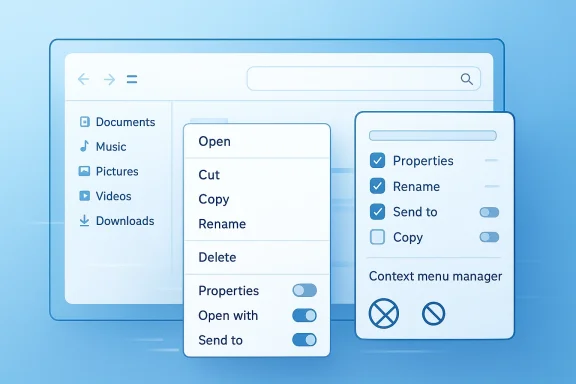
Windows 11 Context Menu Manager is appealing because it attacks the problem directly. Instead of forcing users to hunt through registry paths, the app presents a list of visible context menu items and lets them toggle entries off with a click. According to the Neowin report, the app is portable, does not require installation, and can remove unwanted extensions without a reboot. That last detail matters a great deal, because it makes the tool feel immediate rather than administrative.This is the sort of utility that makes sense only after you have suffered through the alternative. Manually removing context menu entries can be a tedious exercise in identifying CLSIDs, searching shell extension locations, and testing whether File Explorer needs a restart. A manager that centralizes the process lowers the barrier for average users and reduces the risk of breaking something that was not supposed to be touched.
Simplicity as the Main Feature
The app’s biggest strength is not depth, but focus. It does one job: show what is present, let you disable what you do not want, and keep the process understandable. That is often more valuable than a sprawling suite of advanced tuning options. In the Windows ecosystem, a small utility that solves one annoying problem well can beat a large utility that solves ten problems only partially.Neowin also notes that the app offers extra conveniences such as links to Settings and Microsoft Store pages, file extension information, search, and per-item uninstall options. Those additions make the tool less of a blunt instrument and more of a lightweight control panel for right-click hygiene. The search box is especially practical once the menu starts containing entries from multiple vendors and product families.
- Portable and easy to launch
- Toggle-based removal of unwanted items
- No restart required for changes to apply
- Search function for large menu lists
- Extra links for uninstall or app management
Why Performance Matters More Than Aesthetics
The article’s headline claim is not just that the menus look better when trimmed. The bigger issue is responsiveness. File Explorer context menus are a visible part of the shell, and every extension can add overhead when Windows enumerates commands, loads metadata, or checks whether an action should be shown. The more items the system has to consider, the more opportunities there are for sluggishness.Microsoft’s own documentation on shell extensions shows that these handlers are real system components, not mere labels. They may query file types, expose actions, or interact with Explorer in ways that affect load time and menu rendering. When a menu becomes crowded, those costs can stack. The result is not necessarily catastrophic lag, but a user experience that feels less immediate than it should.
The Difference Between Visible and Invisible Overhead
A menu item is not just text on a screen. It may represent a DLL load, a registry lookup, a COM activation, or a check against driver state. If multiple extensions are registered, Windows must do more work before you even click anything. That is why a poorly managed context menu can feel mysteriously slow even when the machine itself is fast.This is also why performance complaints about Windows 11 context menus have persisted for years. Microsoft has continued to refine the interface, and recent Windows 11 builds have even introduced visual and functional updates to context menus in Insiders channels. But UI improvements do not automatically eliminate third-party overhead or the accumulated effect of app integrations.
- Fewer entries generally mean fewer shell extensions to evaluate.
- Less clutter can reduce perceived lag.
- Some slowdowns come from app-added handlers, not Windows itself.
- Cleaner menus are easier to scan and use.
- Small delays become more noticeable when repeated constantly.
Enterprise and Consumer Impact
For consumers, this is mostly about everyday annoyance. People want to right-click a photo, folder, or archive and see only the actions that matter. For enterprises, the issue is larger: menu clutter can interfere with help desk troubleshooting, standard operating environments, and user training. A predictable menu reduces support calls and makes workflows more repeatable.Microsoft’s Own Footprint in the Menu
One of the more interesting subtexts here is that Microsoft itself contributes to the clutter problem. PowerToys is a useful suite, but it is also a package of shell integrations that appear in Explorer. Microsoft documents File Locksmith as a shell extension accessed through the expanded context menu, and that means even first-party tools can add to the load.That is not a criticism of PowerToys. In fact, PowerToys is a strong example of why shell integration remains valuable. Features like file unlocking, image resizing, and power-user utilities are genuinely handy when they are discoverable. But if the goal is a minimal menu, every bonus feature becomes a tradeoff.
The PowerToys Dilemma
PowerToys sits in a strange middle ground. It is designed for advanced users, and advanced users often welcome direct shell access. At the same time, the sheer number of PowerToys modules means context menus can become another surface where the suite is visible everywhere. That visibility is great for power users, but it can be noisy for everyone else.The same logic applies to GPU utilities and OEM software. A driver package may be perfectly legitimate in adding a management shortcut, but when that shortcut appears on unrelated file types, the user experience feels presumptive. The system stops being a neutral platform and starts looking like a billboard.
- Microsoft’s own tools can add shell entries.
- Power users may value those entries more than casual users.
- OEM and driver utilities often add promotional shortcuts.
- More integrations mean more maintenance and more clutter.
- A cleaner menu can improve trust as much as speed.
How Third-Party Tools Fill the Gap
There is no shortage of third-party utilities that work on Windows context menus, but they differ in philosophy. Some tools are designed to add custom actions. Others, like Windows 11 Context Menu Manager, are more about pruning. That distinction matters because many users do not want a new customization framework; they want relief from the existing mess.GitHub hosts several related projects, including tools such as Shell, WinContextTweaker, Open with++, and others that manage or extend Explorer menus in different ways. These projects show a consistent demand signal: users want more control over how Windows surfaces actions in the shell. The fact that multiple independent developers have tackled this space suggests the problem is persistent enough to sustain a niche ecosystem.
Why These Apps Keep Appearing
The right-click menu remains one of Windows’ most important discovery surfaces. It is where users expect power actions to live, and it is often the fastest route to common tasks. That makes it a high-value piece of UI real estate, which in turn makes it a magnet for both useful integrations and noisy ones.The challenge for third-party developers is to make the experience easy enough that users actually adopt it. If a utility requires obscure registry knowledge, it will only appeal to the already initiated. If it is portable, visual, and quick, it can reach a much wider audience.
- Many users want removal, not more customization.
- Portable tools reduce adoption friction.
- Visual toggles are easier than registry edits.
- Search is essential once menus get crowded.
- One-click actions lower the risk of mistakes.
PowerToys Could Make This Native
The Neowin story notes that PowerToys Product Manager Niels Laute has acknowledged the idea on X, with the team tracking it for possible future consideration. That matters because if Microsoft folds a context menu manager into PowerToys, it instantly changes the accessibility of the feature. A built-in solution would likely become the default recommendation for many Windows 11 users.That said, Microsoft moves carefully when a feature touches the shell. Context menus are one of the most sensitive parts of Explorer because they affect both functionality and stability. Any built-in manager would need to avoid breaking app integrations, respect enterprise policies, and stay intelligible to nontechnical users.
Why Native Support Would Be Hard
The difficulty is not the concept; it is the edge cases. Different apps register commands in different ways. Some are per-user, some system-wide, some are tied to specific file types, and some are designed to appear only under certain conditions. A native manager would need to present all that complexity without turning into another advanced admin tool.Microsoft has recently continued to adjust Windows 11 context menu behavior in Insider and Release Preview builds, including changes to the redesigned menu and additional labels for common actions. That suggests the company is still actively refining the experience, but refinement is not the same as comprehensive management.
- A native tool would help mainstream users.
- It would need clear safety boundaries.
- It would have to distinguish Microsoft and third-party entries.
- It would need to avoid destabilizing Explorer.
- It would probably still leave room for power-user tools.
Usability Versus Control
The broader lesson in all of this is that Windows users increasingly want two things at once: simplicity and control. Windows 11 context menus were supposed to improve simplicity, but without good control over what appears there, the menu can drift back toward chaos. A manager like this restores some balance by giving users agency over the shell.This tension shows up across Windows in general. The platform is powerful because it is open to customization, but that openness is exactly what creates clutter and inconsistency. The best utilities in this space do not try to redesign Windows from scratch. They let users reclaim the parts that matter to them.
The Right Size for a Utility
A tool like Windows 11 Context Menu Manager works because it is narrow. It does not try to be a full automation suite, a registry editor, or a shell replacement. It simply exposes the menu layer in a way that is more approachable than the native system. That narrowness is a strength, not a limitation.The appeal is especially strong for users who are comfortable with Windows but not excited about low-level system edits. Those users are often the most underserved: technical enough to care, but not interested in wrestling with CLSIDs just to delete a stray entry.
- Simplicity encourages adoption.
- Control reduces frustration.
- Narrow tools are often easier to trust.
- Less technical exposure means fewer mistakes.
- Better UI can save support time.
Strengths and Opportunities
The main strength of Windows 11 Context Menu Manager is that it turns a messy, technical cleanup job into something close to ordinary app management. That is a meaningful step forward for consumers and IT admins alike, especially in an operating system where context menu sprawl is still easy to create and hard to undo. It also aligns with a larger Windows trend: users want fewer surprises and faster access to the controls they actually use.- Portable design lowers friction and avoids installation overhead.
- Toggle-based cleanup makes the tool approachable for nonexperts.
- No-reboot behavior improves the sense of immediacy.
- Search support scales well as the menu grows.
- Uninstall links help users remove the source, not just hide the symptom.
- Better performance perception can make File Explorer feel much more responsive.
- Fits PowerToys-style workflows and could inspire a native implementation.
Risks and Concerns
The biggest concern is that any tool operating on shell extensions can, if misused, create confusion or break expected workflows. Users may disable something they later need, or misread a menu entry and remove a helpful command. There is also the broader risk that third-party utilities become stopgap solutions while Microsoft continues to treat context menu management as an edge case rather than a core usability problem.- Over-removal can hide genuinely useful actions.
- Misidentification of entries may lead to unnecessary troubleshooting.
- Shell instability is always a possibility when dealing with context integrations.
- Vendor updates can reintroduce clutter after cleanup.
- User trust may suffer if the tool is not transparent about what it changes.
- Fragmentation grows when every user relies on a different cleanup method.
- Microsoft delay leaves the burden on third-party developers.
Looking Ahead
The near-term future of Windows context menus will probably be defined by two parallel tracks. Microsoft will keep refining the visual design and default behavior, while third-party developers will continue building tools that let users manage the mess underneath. The gap between those tracks is where products like Windows 11 Context Menu Manager become genuinely useful.The more interesting question is whether Microsoft eventually accepts that cleanup is part of the platform, not an optional power-user hobby. If context menu clutter keeps recurring across consumer, enterprise, and OEM installations, then a native management layer starts to look less like a niche request and more like a basic usability requirement.
What to Watch
- Whether PowerToys adds a built-in context menu manager.
- Whether Microsoft expands default controls for shell extensions.
- Whether more users embrace portable cleanup utilities.
- Whether vendor software becomes less aggressive about menu entries.
- Whether Windows 11 context menus become more consistent across builds.
Windows 11 promised a cleaner shell, but the reality is that the right-click menu remains one of the most contested pieces of UI in the operating system. Until Microsoft gives users better native control, tools like Windows 11 Context Menu Manager will continue to matter—not because they are flashy, but because they solve a deeply ordinary problem that Windows still has not solved well enough on its own.
Source: Neowin This small app is a must-have for fixing Windows 11 context menus
