Windows 11 Copilot Brings AI to Taskbar and File Explorer

  • Thread Author
Microsoft's latest demos show artificial intelligence moving out of a sidebar and straight into the places Windows users open every day: the taskbar and File Explorer — a practical, system-level push that folds Microsoft 365 Copilot and a new class of long-running agents into the Windows 11 shell for quick answers, document summaries, image edits, and background work you can monitor from the taskbar.

Futuristic laptop screen with AI Actions panel offering Generate caption, Generate image, and Blur.Background / Overview​

Microsoft has been steadily folding Copilot features into Windows 11 for more than a year, but recent previews and demonstrations mark a clear evolution: Copilot is no longer an isolated assistant living in a panel — it’s becoming an operating-system–level service that can be invoked from the taskbar, surface contextual actions in File Explorer, and run agentic tasks in sandboxed workspaces. This shift blends local, on-device AI capabilities with cloud models and connective "agent" patterns that can access apps, files, and services when authorized.
Key pieces of Microsoft’s approach:
  • Ask Copilot on the taskbar — an optional, opt-in replacement for the classic search box that lets users type or speak to Copilot and launch or monitor AI agents.
  • AI Actions in File Explorer — context-aware right‑click options that surface summarization, visual search, and micro‑edits without opening a full editor.
  • Agent Workspace + Model Context Protocol (MCP) — a sandboxed runtime and a protocol to let agents connect to apps, run multi-step workflows, and use connectors registered to the on‑device registry (ODR). Microsoft positions these as managed, auditable ways for agents to act on files and settings with admin controls.
These features are being validated in the Windows Insider channels and Copilot Labs before broader rollouts; test builds already carry the visible UI changes and the early File Explorer AI context menu items.

What Microsoft demonstrated — concrete details from the demo​

Ask Copilot on the taskbar: instant access, persistent agents​

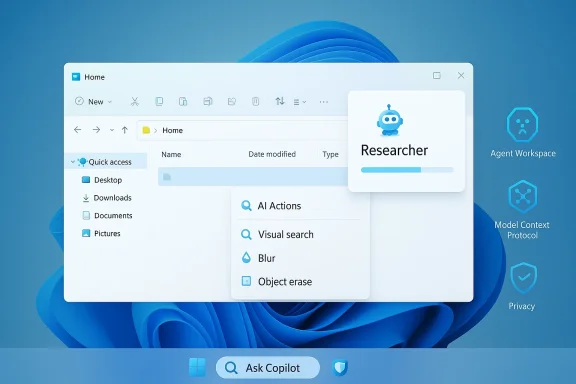
The taskbar demo replaces (optionally) the search box with an Ask Copilot composer. Typing queries or using voice/vision produces conversational results, but the more notable capability is agents — user-invoked assistants that can run longer tasks in the background and be observed from the taskbar via progress indicators and status badges. Agents can be summoned with an “@” followed by an agent name (for example, the Researcher agent), and they can keep running for many minutes to fetch, summarize, or analyze content across your files, mail, and meetings. The demo highlights progress icons on taskbar entries and a small summary once a background agent completes its work.
Practical implications shown:
  • Agents surface intermediate results and status without taking over the screen.
  • Agents can be started from a quick prompt and left to run while you continue working.
  • Agents integrate with Microsoft 365 content sources (Outlook, Teams, OneDrive) for richer context than local search alone.

Copilot inside File Explorer: inline intelligence for files​

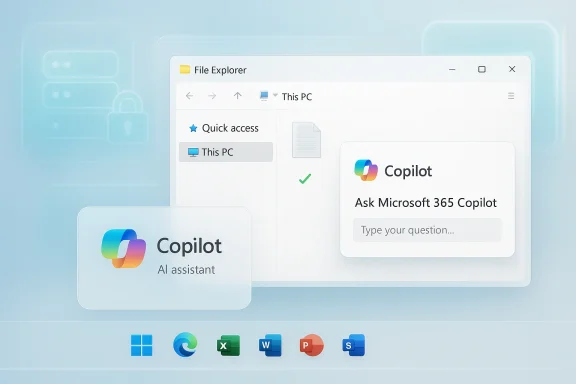
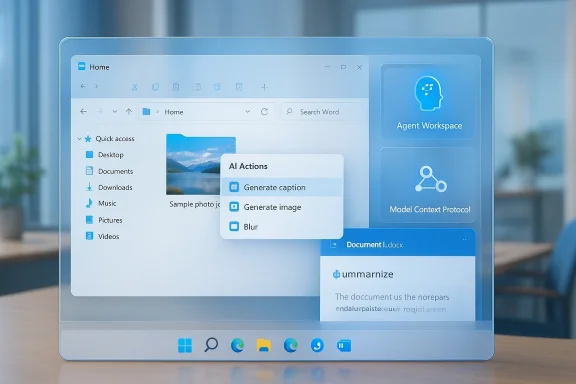
File Explorer demonstrated a new “Ask Microsoft 365 Copilot” affordance, plus an AI Actions context menu for files. For synced Microsoft 365 documents, Copilot can provide a short summary, a suggested next step, or extract key details. For images, quick actions such as background blur/removal, object erasure, and visual search (Bing Visual Search integration) are surfaced directly from Explorer’s context menu, reducing friction for small edits that previously required opening Photos or Paint.
Notable UI and behavior details:
  • Right‑click an image or document → see AI Actions → select available operations (summarize, edit, visual search).
  • File Explorer’s AI actions are context-sensitive: options appear only if relevant to the file type and user’s configuration.
  • Some insiders and regions may see staged rollouts and differences in the initial feature set.

How this is implemented (technical verification)​

Microsoft’s public documentation and company demos make three implementation claims repeatedly: agentic features run in an isolated Agent Workspace, agent-to-app integration uses a Model Context Protocol (MCP) with registered connectors, and administrators retain policy controls for deployment. Those claims are corroborated by Microsoft support notes and independent reporting. The Agent Workspace and MCP are described as sandboxed execution contexts where agents can be observed, limited, and audited. Developers can build agent connectors (MCP servers) that expose app-specific actions to agents; connectors are discoverable through the Windows On‑Device Registry (ODR).
Additional technical points verified across sources:
  • The taskbar Ask Copilot interface uses the same indexing that powers Windows Search but layers Copilot’s access to cloud resources and connectors on top of it. Microsoft says Ask Copilot uses fewer resources and is designed for responsiveness.
  • Some advanced features (for example, Windows Recall and other high‑bandwidth vision capabilities) require Copilot+ PCs with NPUs or hardware-enabled model acceleration. Microsoft’s hardware gating for certain on‑device features is documented in their Copilot+ materials.
  • Insider build numbers and changelog notes show AI Actions in Explorer and taskbar experiments appearing in Dev/Beta channel releases (for example, builds in the 26120–26220 range), which aligns with community testing and the company’s staged rollout plan.

Why Microsoft is doing this: the productivity argument​

Microsoft’s pitch is straightforward: put AI in places users already work so they can get faster answers, keep flow, and reduce context switching. The demos emphasize:
  • Faster retrieval of meeting or document facts without opening multiple apps.
  • Micro-editing tasks (image edits, quick rewrites) available with fewer clicks.
  • Background, long-running research tasks that finish while you continue to work.
From a product-design standpoint, integrating Copilot into the taskbar and Explorer reduces friction and makes AI feel like part of the OS rather than an add-on. That said, design alone is not the whole story — it creates new privacy, governance, and security tradeoffs, which we analyze below.

Strengths — what this delivers well​

  • Seamless workflows: Having Copilot-derived summaries and edits available directly in Explorer reduces app switches and small repetitive tasks. This can measurably shorten document triage and simple image edits.
  • Agent productivity: Taskbar-visible agents let users launch longer tasks (research, aggregated summaries) and track progress without losing focus — a genuine UX improvement for heavy knowledge workers.
  • Hybrid cloud + local model design: Microsoft’s dual approach — cloud models for heavy reasoning, local on‑device models for low-latency or sensitive tasks on Copilot+ hardware — gives admins and users choices over performance and privacy.
  • Developer extensibility (MCP): Opening a formal protocol for agents to use connectors creates an ecosystem opportunity. Organizations can build controlled connectors to their internal apps, enabling safe, auditable automation.

Risks and trade-offs — what to watch closely​

No major platform shift is without risk. Here are the primary areas of concern with practical context and mitigation direction.

1) Data exposure and connectors​

Agents that access mail, calendars, shared drives, and third‑party services expand the attack surface. Even with an ODR‑managed connector system, a misconfigured connector or an overly permissive agent could surface sensitive information into model prompts or cloud services.
Mitigation: Enterprises should adopt a phased rollout, restrict connector registration via device management, and audit connector permissions before enabling agent use at scale. Microsoft’s documentation and preview guidance highlight ODR and admin controls; organizations must use them.

2) Hallucination and automation risk​

Copilot-style models can produce plausible but incorrect outputs. When agents are allowed to perform multi-step actions (modify files, change settings, send messages), an incorrect instruction could have outsized consequences.
Mitigation: Keep human‑in‑the‑loop for any agent action that writes or sends external communications. Use conservative defaults (summarize, suggest, and require explicit approval for changes). Microsoft’s design for Copilot Actions emphasizes explicit consent and sandboxing; organizations should enforce confirmation steps.

3) Persistent background agents and resource/privacy tradeoffs​

Long‑running agents improve productivity, but they also introduce persistent background processes that may keep search indexes, files, or cached credentials in memory longer than before.
Mitigation: Provide visibility and controls for active agents (start/stop, scope, logs) and limit agent lifetime by default. The taskbar progress indicators and Agent Workspace are steps in this direction, but admins will want logging and telemetry to be configurable.

4) Regulatory and regional fragmentation​

Microsoft’s behavior in different regions — e.g., the EEA or jurisdictions with strict AI/data rules — may be constrained. Prior previews have shown feature gating by region, and Microsoft has already introduced admin policies (for example, a RemoveMicrosoftCopilotApp policy surfaced in preview notes) to allow enterprises to control Copilot’s footprint.

How enterprises and IT teams should prepare (practical checklist)​

  • Inventory and policy
  • Audit where Copilot/agents will be allowed to connect (OneDrive, Exchange, third‑party connectors).
  • Define a policy for connector registration and scope.
  • Pilot and measure
  • Start with a small Insider/early adopter group.
  • Measure agent usage patterns, resource impacts, and error rates for any automated actions.
  • Safety gates
  • Enforce approval for agent actions that write files, send mail, or change system settings.
  • Require explicit human confirmation for any outbound messages generated by agents.
  • Visibility and logging
  • Ensure Agent Workspace activity is logged to enterprise SIEM.
  • Configure telemetry levels consistent with privacy rules.
  • Training and documentation
  • Educate end users on when Copilot may access corporate data and how to revoke agent permissions.
  • Provide a simple “how to disable Ask Copilot” and “how to opt out” guide for non‑participants.
These controls echo Microsoft’s own guidance and administrative surfaces for managing Copilot and agentic features. Administrators are already seeing management hooks in preview builds and release notes.

Real-world examples — how this changes common tasks​

Example: Summarize a shared report without opening Word​

  • Select the synced Word file in File Explorer.
  • Right‑click → AI Actions → choose Summarize.
  • Copilot returns a short brief with action suggestions (talking points, next steps).
  • If you accept, the summary can be pasted into an email draft or opened in Copilot for refinement.
This micro‑flow keeps you in Explorer and avoids launching multiple apps — a small time‑saver that compounds across daily use.

Example: Start a research agent from the taskbar​

  • Click Ask Copilot on the taskbar (or press the configured shortcut).
  • Type “@Researcher: Compile recent regulation changes for X.”
  • Agent appears in taskbar with a progress indicator and runs for several minutes, aggregating documents and emails.
  • Agent completes, surfaces a slide‑ready summary and a link to deeper notes in the Copilot app.
The ability to keep a research job running while continuing to work is one of the agentic model’s most tangible advantages.

Developer and ecosystem opportunity​

The Model Context Protocol and agent connectors create a platform play: independent developers and enterprise vendors can expose controlled capabilities to agents. The ODR provides a discoverable, registry-based approach to manage connectors, which helps with governance but also presents an integration surface for productivity vendors, LOB apps, and SI partners. Careful API design and permission scoping will determine whether MCP fosters secure innovation or a chaotic permission sprawl.

What we still don’t fully know — caution on unverifiable claims​

  • Timing for general availability: Microsoft’s demos and insider rollouts indicate a staged release, but exact GA dates and which Windows update will include the features for all users remain vendor-controlled and subject to change. Public previews show builds in the 26120–26220 range, but Microsoft has historically adjusted timelines based on feedback.
  • The scope of third‑party connector vetting: MCP/ODR are documented, but the exact certification process and enforcement level for third‑party connectors will be critical and are not fully specified in the public preview docs. Treat any connector integration as a governance risk until the vetting workflow is transparent.
  • Offline / local model limitations: Microsoft emphasizes hybrid cloud+local models, but the performance and accuracy tradeoffs for on‑device models on Copilot+ PCs versus cloud models vary by hardware and are influenced by model updates Microsoft may push. Organizations reliant on strictly offline inference should validate behavior on their Copilot+ hardware.
Where direct, pressable claims or numbers appear in demos (for example, specific runtime lengths, progress indicator semantics, or default agent timeouts), those are best validated with hands‑on testing in the Insider channel because demos often simplify edge cases.

Final assessment — balancing optimism with caution​

Microsoft’s integration of Copilot into the taskbar and File Explorer is an important and logical step toward AI that feels native to the OS. The productivity potential is real: fewer context switches, faster triage of files, and background agents that can do the grunt work while humans focus on decisions. The technical architecture — Agent Workspace, MCP, and ODR — is a sensible attempt to balance capability and control, and Microsoft’s preview notes already show admin-oriented controls and opt‑in UX design.
However, the same integration also raises real enterprise and consumer concerns. Data governance, connector security, hallucination risk when automations act, and regional regulatory differences are not hypothetical — they are immediate operational questions that IT teams and privacy officers must address before enabling broad adoption. The prudent rollout path is a staged, measured approach that prioritizes pilot programs, strict connector governance, human approval for automated actions, and comprehensive logging.
If you manage Windows deployments, treat this as a policy-first feature set: decide where agents may run, which connectors are allowed, and how end users will be trained. If you’re a power user, try the Insider builds in a test environment to understand how the new taskbar and File Explorer interactions change your daily flow. Either way, this shift signals that Windows 11 is moving from a passive platform into a workspace where AI agents are first-class citizens — a powerful change, but one that demands governance, testing, and a clear view of the security boundaries.

Conclusion: Microsoft’s demo of AI running in the Windows 11 taskbar and File Explorer shows a maturing Copilot vision — one that promises meaningful productivity gains while also introducing governance and security responsibilities. For individuals and organizations, the immediate next steps are simple and practical: pilot carefully, lock down connectors and permissions, ensure human oversight for automated actions, and watch Microsoft’s public preview notes and administrative controls as these features make their way from Insider builds into broadly available releases.

Source: TechPowerUp Microsoft Shows AI Integration in Windows 11 Running in Task Bar and File Explorer
 

Microsoft’s latest demos make it clear: Windows 11 is moving from a passive operating system into an “agentic” workspace where AI runs alongside you — visible in the taskbar, accessible inside File Explorer, and capable of running long-running background tasks that surface progress and results without forcing you into a browser or a separate app.

Windows 11-style desktop showing Copilot AI assistant integrated into File Explorer.Background​

Microsoft has been steadily folding AI into Windows 11 for more than a year, but the recent demonstrations mark a step change: the company is treating AI assistants as first-class, persistent entities on the desktop rather than one-off helpers hidden behind apps. The two most visible changes shown by Microsoft are (1) the new Ask Copilot composer and agent experience embedded in the taskbar, and (2) deeper Microsoft 365 Copilot integration inside File Explorer that can summarize files, suggest next steps, and surface contextual insights where you manage your documents.
These additions are part of a broader platform push that includes the Model Context Protocol (MCP) for agent-to-tool discovery, an Agent Workspace that isolates agent activity from the user session, and new governance features aimed at enterprises. The previewed features will appear first in Windows Insider builds and roll out to a wider audience in stages.

What Microsoft showed​

Ask Copilot: an AI composer in the taskbar​

Microsoft took the familiar Windows Search area of the taskbar and introduced a new Ask Copilot composer. This is an opt‑in replacement for the classic taskbar search experience that blends local search (files and settings) with conversational Copilot chat and, importantly, agent invocation. Users can:
  • Type text or use voice inside the Ask Copilot box.
  • Invoke agents by typing the at-sign (the “@” symbol) followed by an agent name or selecting from a tools menu.
  • Monitor running agents on the taskbar via visible indicators and hover cards.
The UI is explicitly designed for both quick answers (think “where’s my meeting?” or “how do I change cursor size?”) and longer-running, multi-step tasks that agents can execute while you continue working.

Taskbar agents and live status​

A radical change is that agents can run in the background and remain visible as taskbar icons while they work. The taskbar shows status badges — for example, progress indicators, a green check when an agent completes its work, or an alert when an agent needs input — and hover cards present short summaries of what the agent is doing. The idea is to make agent activity glanceable, not buried in a docked window or browser tab.
Microsoft’s demos included a “Researcher” agent that can carry out extended research tasks and return concise summaries, illustrating the multi-minute background work scenario. The agent remains accessible via the taskbar icon so you can check progress, view intermediate summaries, or open the full Copilot app for deeper interaction.

Copilot inside File Explorer​

File Explorer — the simplest, most-used tool in Windows — now contains visible AI affordances. In the File Explorer Home view, you can hover over files and ask Microsoft 365 Copilot for insights about a selected or synced document. The new “Ask Microsoft 365 Copilot” affordance is designed to give:
  • Quick summaries of the contents of a document.
  • Suggested next steps or actions (for example, “extract the main talking points”).
  • Contextual help for shared files stored in OneDrive or SharePoint.
Additionally, Microsoft is continuing to roll out AI actions in File Explorer’s context menu, enabling right-click tasks such as image edits (background removal, object removal), content summarization, or starting Copilot conversations about a specific file.

Platform pieces: MCP, Agent Workspace and admin controls​

All of this sits on top of several platform foundations:
  • Model Context Protocol (MCP): a discovery and connectivity framework that lets agents find and call "MCP servers" — local or cloud connectors that expose functionality (for example, File Explorer, Settings, or third‑party services).
  • Agent Workspace: a sandboxed environment where agents can execute UI automation, interact with files, and run tasks without disrupting the main user desktop. This is intended to reduce stability and security risks by isolating agent activity.
  • Admin and governance features: Microsoft is providing enterprise controls so admins can inventory, monitor, and manage MCP-enabled agents through Microsoft 365 admin tooling, including metadata about agent capabilities and data sources.

Why this matters: the benefits​

1. Productivity without context switching​

By placing Copilot and agents in the taskbar and in File Explorer, Microsoft aims to reduce context switching. You no longer need to copy a file, open a browser, load Copilot or a cloud app, and paste — the assistant is available where your files live. That can shave minutes off common tasks like summarizing reports, extracting talking points, or batch-editing images.

2. Persistent, multi-step automation​

Agents that can run for minutes (or longer) while you continue working change the interaction model. Instead of asking for one answer and closing the dialog, you can assign a longer workflow to an agent and let it process data while you maintain flow. The taskbar visibility model is explicitly built to make those background tasks manageable.

3. Extensibility via MCP​

The Model Context Protocol is a notable move toward a more extensible agent ecosystem. By standardizing how agents discover and use tools and connectors, Microsoft is opening a path for third-party agents and richer integrations with apps like design tools, enterprise systems, and specialized services.

4. Enterprise governance and auditability​

Microsoft has emphasized admin-level visibility and governance primitives, which matter for enterprises that will be cautious about agent permissions and data access. The ability to inventory agents and see their declared capabilities and data sources gives IT teams a starting point for audit and compliance.

Technical analysis: how it works (and how it’s been implemented)​

Agent invocation and lifecycle​

The Ask Copilot composer appears to combine existing Windows Search APIs with Copilot chat. Agents are invoked either directly from the composer (using the tools menu or by typing “@”) or via right-click actions within File Explorer. Once started, agents run in a separate agentic workspace and present status in the taskbar.
The agent lifecycle — start, run, finish, or request attention — is surfaced through:
  • A taskbar icon for the agent.
  • Hover cards that explain current operations.
  • Badges or status indicators (progress, needs attention, complete).
This lifecycle model matches modern UX patterns for long-running operations and maps well to both consumer and enterprise scenarios.

Architecture: MCP registry and MCP servers​

MCP is implemented as a registry and server model on the device. Agents can discover MCP servers via the registry and call exposed actions. Microsoft’s intent is to expose system functionality (file system operations, settings changes, and so on) as MCP servers in a controlled way. That enables an agent to request an operation and have the system provide an authenticated, auditable path for it to run.

Isolation: the Agent Workspace​

The Agent Workspace concept is central to mitigating the risk of agents performing arbitrary UI automation that interferes with users. In practice, this workspace acts like a contained session where agents can open windows, interact with files, and manipulate UIs under restricted privileges. The agent runs under a dedicated, low‑privilege account to make audit trails and policy enforcement feasible.

Local vs cloud models​

Microsoft’s approach is hybrid: some Copilot and agent tasks will use cloud models for heavy-lift tasks while others will use local models where possible. Copilot+ PC hardware capabilities (NPUs and local model acceleration) remain part of Microsoft’s framing for offline or faster local experiences, but much of the Microsoft 365 Copilot functionality still relies on cloud services for indexing, summarization, and large-model reasoning.

Risks, trade-offs, and unanswered questions​

Even well-designed features come with trade-offs. Below are the most important considerations for users, IT admins, and developers.

1. Privacy and data governance​

Bringing agents into the OS and letting them access files, calendars, and email raises immediate privacy questions. Microsoft says Copilot uses the same Windows Search APIs and that agents are governed by permission flows, but the risk surface grows as agents gain access to more connectors.
  • Risk: Agents could surface or transmit sensitive data if permission flows are misunderstood or default settings are permissive.
  • Mitigation: Users and admins must understand default opt-in settings; enterprises should use the provided admin inventory and controls to limit which agents can run and which data sources they can access.

2. Hallucinations and accuracy​

Any LLM-driven assistant can hallucinate or produce confidently wrong summaries. In a File Explorer scenario, a misleading summary of a sensitive document could have real consequences.
  • Risk: Automated summaries or actions could contain errors that are accepted without verification.
  • Mitigation: Always validate critical outputs and design workflows to require confirmation before applying destructive actions to files.

3. Attack surface: malicious agents or connectors​

Opening a programmatic pathway for agents to discover and call tools increases the potential attack surface. MCP servers that expose actions must be authenticated and auditable.
  • Risk: A malicious agent could exploit poorly secured connectors or social-engineer permissions.
  • Mitigation: Admin controls, code signing, MCP server authentication, and an auditable registry are essential. Enterprises should require agent vetting and enforce policies around MCP server publishing.

4. Performance and power consumption​

Running long-running agents, especially those that do on-device inference, can impact battery life and system responsiveness.
  • Risk: Laptops and lower-power devices may suffer thermal throttling and battery drain if agents execute heavy workloads locally.
  • Mitigation: Microsoft’s Agent Workspace and power-management strategies will be important; users should have clear toggles to limit on-device AI compute and prefer cloud execution for heavy tasks.

5. UI clutter and feature creep​

If too many agents or persistent Copilot affordances are visible, the desktop could become noisy. Microsoft has already responded to similar concerns by making some AI actions opt-in and by adjusting when AI actions appear in context menus.
  • Risk: A proliferation of agent icons, context menu entries, and taskbar affordances might degrade the day-to-day user experience.
  • Mitigation: Default opt-out settings, user controls, and smarter context-sensitive visibility (only show AI actions when relevant) reduce clutter.

6. Vendor lock-in and third-party ecosystem dynamics​

The MCP standard is promising, but the details of interoperability and whether different vendors will be able to run agents on Windows without special entitlements remain to be seen.
  • Risk: If MCP implementations become proprietary or gated by major vendors, it could limit competition and choice.
  • Mitigation: Open standards, transparent registries, and clear third-party onboarding paths will be important.

Practical guidance: what to expect and how to prepare​

For everyday users​

  • Expect Ask Copilot and agent icons to appear first in Windows Insider preview builds; broader rollouts will follow in stages.
  • The new taskbar composer is opt-in by default — you should be able to keep the classic search behavior if you prefer.
  • Use Copilot for quick summaries and routine edits but double-check outputs before acting on them, especially for business or legal documents.
  • If you’re concerned about privacy or clutter, explore Settings -> Copilot/Privacy to turn off taskbar integration and limit Copilot’s access to files.

For IT admins​

  • Inventory agents and MCP-enabled tools using Microsoft 365 admin tooling.
  • Define policies about which MCP servers and agents are allowed on corporate devices.
  • Educate end users about what data Copilot can access and how to request an agent to perform an action.
  • Monitor audit logs and require review for agents that perform data-extracting or destructive actions.
  • Test Agent Workspace behavior in a controlled environment before wide deployment to ensure applications and security controls behave as expected.

For developers and ISVs​

  • Evaluate how MCP could enable richer integrations for your app (for example, exposing a safe set of actions via an MCP server).
  • Design actions to be idempotent and reversible where possible.
  • Plan to support auditability and include capability metadata so admins can make governance decisions.
  • Consider how UI/UX will work when agents operate on behalf of users — you’ll want clear consent and transparent error handling.

Broader implications: an agentic OS and the future of desktop computing​

Microsoft’s shift to an agentic OS is not just a Copilot UI change — it reframes the desktop as a coordination layer for intelligent services. If executed well, this model could make personal computing more productive by letting agents take care of tedious, repetitive, or time-consuming tasks while keeping users in control.
However, the model also forces a new set of expectations: agents need discoverability, trustworthy permissions, clearly communicated audits, and performance controls. The company’s emphasis on sandboxing, admin tooling, and opt-in experiences suggests it recognizes these challenges, but real-world adoption will prove whether the balance between convenience and control has been struck.

Strengths and notable positives​

  • Seamless in-context assistance: Putting Copilot inside File Explorer and the taskbar minimizes friction and keeps users in their workflow.
  • Persistent agents with progress visibility: Taskbar indicators and hover cards model long-running automation in a way users can manage.
  • Platform openness via MCP: Standardizing how agents find and use tools gives developers and enterprises a clear integration path.
  • Enterprise governance primitives: Admin inventory, agent metadata, and the concept of low-privilege agent accounts are sensible first steps toward enterprise readiness.
  • User choice: Making the Ask Copilot composer opt-in addresses early privacy and UI-clutter concerns.

Weaknesses and potential pitfalls​

  • Ambiguous default behaviors: If settings or consent flows are unclear, users could inadvertently grant more access than they realize.
  • Accuracy and trust: LLM-driven summaries and actions require human verification; over-reliance could cause mistakes.
  • Security surface area: MCP and agent connectors must be tightly controlled to avoid new attack vectors.
  • Resource usage: The impact on battery life and system performance will depend on how aggressively agents use local compute.
  • Ecosystem fragmentation risk: If MCP adoption is uneven or gated, the promised third-party agent ecosystem may underdeliver.

What Microsoft should do next​

  • Ship clear, accessible user controls that explain exactly what Copilot and agents can access — using plain language and concrete examples.
  • Provide conservative defaults: disabled-by-default for invasive features, with granular, discoverable opt-in flows.
  • Harden MCP server authentication and require signed MCP manifests for agents in managed environments.
  • Offer robust audit logs and alerting for administrators that clearly show agent actions, data accessed, and any failures or errors.
  • Publish best-practice guidelines for developers, including reversible action patterns and safe default scopes for MCP actions.

Conclusion​

Microsoft’s demos show a bold vision: a Windows where AI is not an occasional tool but an always-available collaborator integrated into the taskbar, the file shell, and the operating system itself. The Ask Copilot composer, taskbar agent UX, File Explorer Copilot integration, the Model Context Protocol, and the Agent Workspace compose a coherent platform that can improve productivity substantially.
That promise comes with significant responsibilities. Accurate consent flows, robust admin controls, performance management, and a careful approach to discoverability will determine whether these features become helpful extensions of user intent or sources of confusion and risk. For users, the immediate takeaway is to try the features in controlled environments, understand the default settings, and treat AI outputs as assistive rather than authoritative. For enterprises and developers, the message is clear: plan governance, validate MCP integrations, and build with safety-first patterns.
If Microsoft delivers on the governance and isolation primitives it’s advertising, an agentic Windows could be a powerful productivity paradigm. If those safeguards fall short, the risks — privacy surprises, hallucinated content, and new attack vectors — will become real issues. The next months of Insider previews and early rollouts will show whether Microsoft has found the right balance between empowerment and control.

Source: TechPowerUp Microsoft Shows AI Integration in Windows 11 Running in Task Bar and File Explorer | TechPowerUp}
 

Microsoft just demonstrated a major step in making Windows 11 feel less like a static desktop and more like an agentic workspace: a new Ask Copilot experience that surfaces AI agents directly from the taskbar and deeper Copilot integration inside File Explorer, letting small, long‑running AI tasks run, report progress, and offer contextual help without leaving your current window.

Windows-style desktop shows a Copilot AI panel over a modern file explorer window.Background​

Windows has carried Microsoft’s Copilot experiments through several stages — from an optional sidebar and web‑backed helper to a native app and now into the OS shell itself. The company’s recent demonstrations and Insider previews indicate a deliberate shift: instead of treating Copilot as a separate app users open, Microsoft wants Copilot to be a first‑class, taskbar‑visible assistant that can operate in the background, surface results in context, and hook into files, Microsoft 365 content, and local apps via a standardized set of protocols.
This change is part product evolution and part product strategy. Microsoft’s public messaging frames the push as an effort to keep people “in flow” — reducing context switches by bringing AI where users already work. But the move also raises new questions about UI clutter, telemetry and privacy, enterprise governance, and how much agency the operating system should hand to automated processes. Multiple Insider builds and Canary experiments have already hinted at the feature set that will underpin this shift.

What Microsoft showed: Ask Copilot, Agents on the Taskbar, and File Explorer Copilot​

The Ask Copilot composer on the taskbar​

Microsoft demonstrated an updated taskbar composer — a compact, opt‑in box that can replace the classic search field and act as a conversational launcher for Copilot. The composer accepts typed prompts, voice input, and short visual captures (Copilot Vision), and it blends immediate local search results (apps, files, settings) with Copilot‑generated answers and actions. Users can trigger agents from that composer by typing “@”, which lists available specialized AI agents.
Key interactions shown:
  • Type a question or command and the composer returns a short blended result: local items first, then Copilot suggestions.
  • Type “@” to summon a list of agent profiles (for example, a Researcher agent).
  • Agents can be started in the background so you can continue working while they run.

Taskbar‑visible agents and progress indicators​

A central UX decision: agents appear as taskbar icons while they are running, just like minimized apps or ongoing downloads. Hovering those agent icons reveals a small progress card that explains what the agent is doing, whether it’s accessing files or cloud content, and offers controls to pause, cancel, or bring the agent forward for more interaction. That design treats agents as first‑class, monitorable workloads rather than invisible background services.
Microsoft’s demo included an example called “Researcher” — an agent that can run for several minutes while compiling notes and summaries from email, calendar events, and files. When complete, the Researcher drops a short summary that you can inspect or expand into the Copilot app for deeper exploration.

Copilot inside File Explorer: AI Actions and contextual help​

File Explorer is getting two closely related capabilities:
  • AI Actions: a context menu (right‑click) entry for images and supported files that surfaces quick AI tasks — Bing Visual Search, background blur/removal, object erase, and other micro‑edits — without launching a full editor. Some preview Canary builds have also shown quick “summary” options for synced documents in OneDrive/SharePoint that let Copilot generate context and next steps.
  • Ask Microsoft 365 Copilot in Explorer Home: a Copilot button and hover actions that let you ask for summaries or contextual insights about files visible in Explorer Home, especially for shared, synced, or cloud‑backed documents. This aims to turn Explorer into a hub where you can quickly get the gist of a file without opening Word, Excel, or the web.
Microsoft has also been refining the discovery behavior: AI Actions will hide from the context menu when there are no actionable items (so the right‑click menu is not permanently cluttered by an empty AI section). That change responds to user feedback and will be available to Insiders and coming to broader rings.

Technical foundations: Agent Workspace, Model Context Protocol, on‑device registry​

Microsoft did not just demo UI changes — it outlined a small platform for agents to work safely and interoperably.
  • Agent Workspace: a sandboxed runtime where agents execute multi‑step tasks. The workspace isolates agent activity from the main desktop experience to reduce accidental interference, help stability, and provide an audit trail of actions. Agents can request access to files or services and must obtain consent for sensitive operations.
  • Model Context Protocol (MCP): a developer‑facing protocol that standardizes how agents discover and call tools, connectors, and services. MCP acts as a plumbing layer so third‑party agents can interoperate with the OS and with Microsoft 365 connectors in a predictable, governed way.
  • On‑device registry (ODR) and connector model: agents discover available tools and connectors using an on‑device registry that lists local and cloud capabilities. This registry is intended to give admins and users visibility over what an agent can access. Microsoft is positioning the ODR as a control plane for governance and auditing.
Those platform pieces are what allow a Researcher agent to both fetch cloud content securely and operate locally for parts of the task, and to show progress in a predictable UI. They also permit admins to limit or audit what agents can do in enterprise environments.

Why Microsoft is doing this: productivity, platform control, and Copilot as infrastructure​

Microsoft’s explanation is straightforward: bringing Copilot into the shell reduces context switching and saves time. Instead of juggling apps, tabs, or separate web CLIs, users can ask a single, familiar surface (the taskbar) for help that reaches across local files and cloud‑backed content. The company frames the change as a way to keep users “in flow” — a classic productivity pitch.
There is also a strategic motive. Embedding Copilot more deeply into Windows abstracts away the point where an AI assistant runs. When Windows is the host for agentic capabilities, Microsoft can better coordinate index data, M365 connectors, on‑device inference, and cloud reasoning across its ecosystem. For enterprise customers this makes Copilot an infrastructure element — a platform capability that admins can configure, monitor, and integrate with existing security controls.

The user experience: what changes and what stays optional​

Microsoft emphasizes that Ask Copilot and taskbar agents are opt‑in features. The company reiterated this during the demos and in Insider notes: if you prefer the classic search, you can keep it. Similarly, AI Actions in Explorer can be turned off or removed from context menus when not in use. That opt‑in posture is crucial to adoption because users have repeatedly pushed back against “AI everywhere” defaults.
Still, opt‑in does not mean invisible. The presence of even optional AI affordances inside a core shell surface (the taskbar) is a big UX signal: Microsoft is inviting users to make AI part of their everyday workflows. For users who enable it, the experience aims for:
  • Fewer context switches — quick Copilot responses embedded where you already work.
  • Background productivity — agents can run tasks while you continue to use the PC.
  • File‑centric insights — Copilot can provide summaries and suggestions tied to specific files and shared documents.

Administrative controls, enterprise governance, and privacy​

Microsoft is not blind to the governance question. The Agent Workspace, MCP, and the on‑device registry are presented as control surfaces for admins to audit, restrict, or approve agent behavior. Microsoft also introduced policies that allow enterprises to remove or limit Copilot presence — including a policy that can hide or remove the Copilot app for managed devices. Preview builds have surfaced an explicit RemoveMicrosoftCopilotApp policy for admins.
On privacy and telemetry, Microsoft’s messaging emphasizes parity with Windows Search: Copilot access is limited to the same indexes and connectors the OS already uses, and local processing is prioritized where possible. But critics and skeptical IT teams will want:
  • Clear documentation of what data is uploaded to cloud models and under what consent model.
  • Transparent telemetry disclosure and simple toggles for disabling cloud‑backed reasoning.
  • Audit logs that show agent actions and any file or service access the agent performed.
Microsoft’s official channels and Insider notes promise admin controls and visibility, but enterprise teams should validate those controls in test environments before broad rollouts. Community feedback in preview rings suggests admins will push for granular MDM/GPO settings and clearer consent dialogs.

Potential benefits (what Microsoft promises)​

  • Faster, contextual search and task completion: Copilot’s blended results and Explorer summaries reduce the need to open multiple apps for quick facts or document overviews.
  • Background automation: Agents can run long tasks and report progress via the taskbar, freeing users to continue work while the AI compiles results.
  • Integrated micro‑editing: AI Actions in File Explorer enable quick image fixes (blur, background removal, object erase) without launching a full editor.
  • Developer extensibility: MCP allows third‑party agents and connectors to register capabilities in a standardized way, fostering an ecosystem of specialized assistants.
These benefits are real in principle and will be compelling for power users, knowledge workers, and enterprises that can govern the integrations effectively.

Risks, tradeoffs, and open questions​

Microsoft’s demo and the current Insider builds make clear that the company is tackling a hard design problem: balancing useful omnipresence with user control and safety. The rollout surfaces several risk areas:
  • Privacy and unintended data flow: Even with promises of parity with Windows Search, the fusion of local indexes, cloud connectors, and agentic workflows could expand the surface where sensitive data is exposed to cloud models. Enterprises must validate what leaves the device and under what consent model.
  • UI clutter and decision fatigue: Taskbar agents and right‑click AI menus risk adding persistent affordances that users feel obliged to manage. Microsoft’s move to hide AI Actions when irrelevant is a pragmatic response, but long‑term UX balance will matter.
  • Automation mistakes and liability: Agents capable of file edits, email summaries, or decision support may make mistakes. Who owns the error? What safeguards prevent an agent from acting on the wrong document or sending inaccurate summaries to downstream systems? Microsoft’s Agent Workspace and consent patterns mitigate this but do not eliminate the risk.
  • Attack surface and supply‑chain concerns: Agents will have connectors and the ability to call tools. If MCP or connectors are poorly secured, they could become attack vectors for privilege escalation or data exfiltration. Enterprises should insist on hardened connector verification and whitelisting.
  • User backlash and feature fatigue: Microsoft has previously received strong pushback for perceived “AI creep” and controversial features (and for a bug that unpinned/uninstalled Copilot in past updates). The company appears sensitive to this and is keeping features opt‑in, but perception and rollout choices will shape adoption.

How to evaluate and prepare (practical steps for IT teams and power users)​

  • Test in a controlled Insider ring: Use Windows Insider builds (Dev/Canary) to validate Agent Workspace behavior, connector permissions, and auditability before enabling broadly. Many of the discussed features are rolling out in Insider builds first.
  • Review and apply admin policies: Use the RemoveMicrosoftCopilotApp and related MDM/GPO policies to control Copilot presence on managed devices. Confirm the behavior works as advertised for both admins and end users.
  • Audit telemetry and consent: Verify exactly what data Copilot and agents export to cloud models and confirm consent dialogs meet corporate compliance needs. Ask vendors (or Microsoft reps) for precise data flow diagrams.
  • Create a connector whitelist: If your enterprise adopts agent connectors, enforce a whitelist and review each connector’s permissions and code provenance. Treat connectors like any other privileged extension.
  • Train users and create escalation patterns: Agents may produce summaries or take micro‑edits; set expectations with users about verification steps and create escalation paths for incorrect or suspicious agent activity.
If you’re a power user rather than an admin:
  • Try Ask Copilot in a controlled setting and practice the pause/cancel controls on taskbar agents.
  • Disable AI Actions in File Explorer if you prefer fewer context‑menu options; Microsoft is making the AI Actions menu hideable and removable where inactive.
For users who want to re‑enable classic search or remove Copilot from the taskbar, Microsoft’s community guidance and Q&A pages show registry or PowerShell commands that can toggle taskbar Copilot, but admins should prefer policy settings for managed environments.

How credible is the demo — verification and cross checks​

The demo’s core claims — Ask Copilot in the taskbar, agents visible on the taskbar, File Explorer “AI Actions,” and platform pieces like Agent Workspace and MCP — are corroborated by Microsoft’s own community posts and multiple independent outlets. Microsoft’s Windows IT Pro blog and Insider release notes describe Agent Workspace and MCP as part of the upcoming preview wave. Independent coverage from WindowsLatest, Windows Central, and other outlets independently observed the same taskbar agent UI and Explorer AI Actions in recent Insider and Canary builds. That cross‑section of official documentation and hands‑on reporting gives the announcements strong credibility.
However, there are caveats:
  • Many items remain in preview/testing and will change before broad consumer and enterprise rollouts.
  • Some behaviors (how connectors operate, exactly what telemetry is sent) are described at a high level in Microsoft’s posts and will require hands‑on verification in Insider or lab environments to confirm compliance with specific organizational policies. Treat early demos as accurate for high‑level direction and illustrative UX, but not as final shipped behavior.

Verdict: significant potential, but governance will determine whether this is welcome​

Microsoft’s move to place Copilot and agents into the Windows shell is a consequential UX and platform bet. If executed with thoughtful controls, clear privacy boundaries, and sensible UX defaults, Ask Copilot and taskbar agents can accelerate routine work, streamline file‑centric tasks, and reduce low‑value context switches for knowledge workers.
Yet the same features can become sources of friction if they are opt‑out‑only or if connectors, telemetry, and background automation are not tightly governed. Enterprises should treat this as an infrastructure rollout — evaluate it like they would any other privileged platform change — and insist on testable, auditable controls before enabling it at scale.

Quick reference: what to watch next​

  • Rollout cadence: features are currently in Insider and Canary builds and are slated to reach broader preview rings in the coming months; watch official Windows Insider release notes for specific build numbers and release channels.
  • Governance tools: confirm the presence and behavior of RemoveMicrosoftCopilotApp, ODR governance controls, and connector whitelisting.
  • Context menu changes: Microsoft will hide AI Actions when none are available and provide toggles to remove the section; this addresses a major early UX complaint.
  • Security reviews: perform penetration testing on MCP connectors and agent registration flows before allowing third‑party agents on corporate machines.

Microsoft’s demo shows an ambitious next step: making AI an operating system capability rather than an optional add‑on. That shift can be enormously productive for users and enterprises — but only if it arrives with the right guardrails, clear opt‑outs, and practical governance. For now, the Ask Copilot composer, taskbar agents, and File Explorer integrations are preview features you should test, audit, and plan for; whether they become a net win will depend less on the novelty of the demo and more on the discipline of rollout and control.

Source: TechPowerUp Microsoft Shows AI Integration in Windows 11 Running in Task Bar and File Explorer
 

Back
Top