

Microsoft is quietly experimenting with embedding Copilot directly into Windows 11’s File Explorer as a docked, detachable side panel — and at the same time shipping targeted controls that let administrators remove the consumer Copilot app under narrow conditions.
Microsoft has steadily expanded Copilot from a separate app and taskbar composer into a system-level assistant across Windows 11 and Microsoft 365. Recent Insider preview artifacts point to a next step: moving Copilot from a context-menu helper to a persistent, in‑Explorer assistant that can be invoked and kept open while you browse, preview, and manage files. This work is appearing in the 26220.x family of Insider builds where UI strings and inert controls have been found in File Explorer resources. At the same time, Microsoft has introduced an administrative Group Policy that can uninstall the consumer Copilot app from managed devices when very specific conditions are met. That control is surfaced in Build 26220.7535 and is targeted at Pro, Enterprise, and Education SKUs. Independent reporting and the preview build notes confirm both the experimental in‑Explorer UI strings and the removal policy.
The expected behavior, based on naming and patterns Microsoft has used elsewhere, would be:
For now, both changes remain experiments for Insiders: the in‑Explorer Copilot exists primarily as resource strings and inert UI in the 26220.x preview family, while the uninstall policy is a one‑time cleanup tool with practical constraints. Organizations should treat these as preview items to evaluate in controlled labs, verify telemetry and DLP interactions, and prepare user communications before any broad rollouts. Meanwhile, users should expect Copilot to become more visible inside Windows — not less — and plan accordingly.
Microsoft’s direction is clear: make Windows 11 an AI‑native platform where assistance is available directly in the flow of work. The technical, security, and licensing details will determine whether that assistance is a productivity multiplier or a governance headache. Evidence from Insider builds and recent previews shows progress toward an in‑Explorer Copilot and a conservative administrative escape hatch, but the final UX, entitlements, and enterprise controls will only be verifiable when these features move beyond preview.
Source: NEWS.am TECH Microsoft is testing AI Copilot directly inside Windows 11 File Explorer | NEWS.am TECH - Innovations and science
 Background
Microsoft has steadily expanded Copilot from a separate app and taskbar composer into a system-level assistant across Windows 11 and Microsoft 365. Recent Insider preview artifacts point to a next step: moving Copilot from a context-menu helper to a persistent, in‑Explorer assistant that can be invoked and kept open while you browse, preview, and manage files. This work is appearing in the 26220.x family of Insider builds where UI strings and inert controls have been found in File Explorer resources. At the same time, Microsoft has introduced an administrative Group Policy that can uninstall the consumer Copilot app from managed devices when very specific conditions are met. That control is surfaced in Build 26220.7535 and is targeted at Pro, Enterprise, and Education SKUs. Independent reporting and the preview build notes confirm both the experimental in‑Explorer UI strings and the removal policy. What the new File Explorer Copilot experiment looks like
A docked, detachable Copilot pane
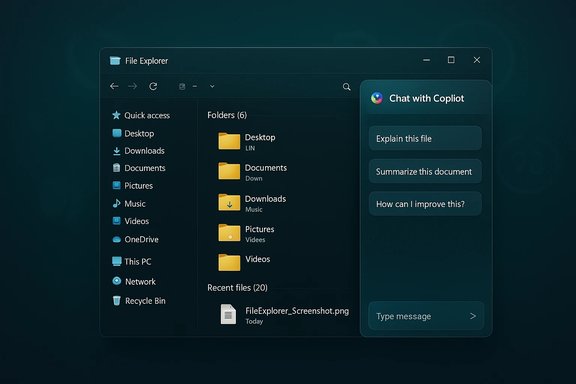
Insider sleuths found evidence of a nearly invisible UI hotspot in File Explorer’s toolbar area that reveals a “Chat with Copilot” affordance on hover and a companion “Detach Copilot” string. Those resource keys — found in FileExplorerExtensions inside the 26220.x packages — strongly suggest Microsoft is testing a right‑hand panel or details-pane style integration that can stay open as you navigate folders. The strings themselves are inert user‑interface artifacts in preview binaries; they do not guarantee a final design, but they are a reliable indicator of intent.The expected behavior, based on naming and patterns Microsoft has used elsewhere, would be:
- A docked Copilot chat/assistant panel inside File Explorer that updates context based on the selected file or folder.
- A detachable mode so the Copilot conversation can float free of Explorer for longer tasks.
- Quick file-centric prompts like “Summarize this PDF,” “Extract tables from this spreadsheet,” or “What’s in this folder?” delivered without opening each file in its native app.
What is and isn’t confirmed
Confirmed:- Resource strings for “Chat with Copilot” and “Detach Copilot” were found in Insider build artifacts (26220.x family).
- The UI element is present only as an inert placeholder in the builds examined; it’s not fully functional for public Insiders yet.
- Whether the side panel will be enabled by default for general users.
- The final scope of file types Copilot will analyze inline (some flows may still require Microsoft 365 Copilot licensing).
- Server‑side gating, telemetry changes, and exact privacy controls for in‑Explorer file analysis remain to be published by Microsoft.
The administrative control to remove Copilot: what IT needs to know
The RemoveMicrosoftCopilotApp policy
Windows 11 Insider Preview Build 26220.7535 introduces a Group Policy named RemoveMicrosoftCopilotApp. When enabled and its gating conditions are satisfied, the policy triggers a one‑time uninstall of the consumer Microsoft Copilot app for a targeted user on Pro, Enterprise, and Education SKUs. Multiple independent reports and hands‑on notes from the build confirm the policy’s behavior and constraints. The uninstall runs only when all of the following are true:- Both Microsoft 365 Copilot (the paid, tenant‑aware service) and the consumer Microsoft Copilot app are present on the machine.
- The consumer Copilot app was not installed by the user (it must be OEM‑provisioned, tenant‑pushed, or provisioned as part of an image).
- The consumer Copilot app has not been launched in the prior 28 days.
Why Microsoft designed it this way
Those conditions reflect Microsoft’s risk‑mitigating priorities:- Avoid removing the tenant‑managed Microsoft 365 Copilot that enterprise users may rely on.
- Avoid surprising active users by requiring a 28‑day inactivity window.
- Target preinstalled copies that were pushed inadvertently (for example, OEM images or provisioned classroom devices) rather than user‑installed copies.
Why embedding Copilot in File Explorer matters
Productivity and workflow compression
File Explorer is a cornerstone of daily Windows workflows. Embedding Copilot inside Explorer reduces friction in common tasks:- Summarize long documents without opening Word.
- Extract tables or structured data from PDFs and images inline.
- Generate or rewrite filenames, descriptions, or metadata quickly.
- Ask natural‑language questions about folder contents (“Which invoices are unpaid?”) that combine local file context with Copilot’s reasoning.
Integration with Microsoft 365 Copilot and entitlements
Not all Copilot behaviors are equivalent. Microsoft ships multiple Copilot surfaces and offerings:- The consumer Copilot app and web client (public-facing).
- The Microsoft 365 Copilot service which can reason over tenant data and Graph content under license.
- On‑device, Copilot+ flows that run some inference locally on NPUs for latency and privacy advantages.
Privacy, security, and compliance implications
Embedding an AI assistant directly into the file manager raises several non‑trivial considerations for privacy and enterprise compliance.- Data handling: When Copilot analyzes local files, administrators and users need guarantees about what leaves the device. Microsoft has emphasized permissioned, session‑bound access (for example, Copilot Vision requires explicit selection of windows or regions). But any cloud‑backed reasoning step implies data transit to Microsoft services unless the processing is executed locally on a Copilot+ NPU. The presence of an in‑Explorer pane makes the UX smoother but does not change the technical reality: permissions, logs, and tenant controls matter.
- Telemetry & auditing: Enterprises should verify what telemetry is recorded and whether Copilot’s file accesses are visible in compliance logs. The admin uninstall policy’s gating (requiring Microsoft 365 Copilot to be present) suggests Microsoft is deliberately keeping tenant and consumer Copilots distinct for governance reasons. However, admins must still map Copilot flows to existing DLP, eDiscovery, and retention policies to avoid surprises.
- Risk of automated actions: Some Copilot features (Copilot Actions / agentic automations) can operate across apps to perform multi‑step tasks. If / when those capabilities are combined with in‑Explorer access, the risk surface increases: automated renaming, moving, or content transformations could inadvertently alter or move sensitive files. Microsoft’s agent features are currently sandboxed and permissioned in preview, but the combination of automation + file access demands stricter admin controls and clear user consent flows.
- Accessibility considerations: Microsoft is also bringing Copilot-powered descriptions to Narrator (screen reader), which expands accessibility but also means audio/narrative descriptions may access file content in ways administrators need to understand and control. Build notes indicate Narrator improvements powered by Copilot are now being rolled out beyond Copilot+ hardware.
UX trade-offs and adoption signals
Pros
- Lower friction for quick file-focused tasks.
- Consistent conversational interface across Windows surfaces.
- Potential for on‑device processing on Copilot+ hardware to preserve privacy and improve latency.
Cons / friction points
- Feature sprawl and duplicate Copilots: Microsoft ships multiple Copilot surfaces which can confuse users (consumer Copilot app, Microsoft 365 Copilot, taskbar composer, and now in‑Explorer panel). This can lead to mixed signals about where data is being analyzed and which entitlements apply.
- Auto‑launch and discoverability: Copilot integrations are increasingly visible — taskbar, context menus, and potentially an always‑present Explorer pane — which some users view as intrusive.
- Licensing complexity: Enterprise users may be required to have Microsoft 365 Copilot to get tenant‑aware results; consumer experiences will be different.
Practical guidance for admins and power users
How to evaluate the in‑Explorer Copilot experiment (Insiders / testers)
- Join the Windows Insider Program (Dev/Beta channels) and ensure you have an image that matches the 26220.x family if you want to see the artifacts in question.
- Inspect File Explorer for the faint hover hotspot around the navigation/toolbar area; note the presence of “Chat with Copilot” resource strings in build resources if you extract package assets. Remember these artifacts may be inert.
- Test permission flows: explicitly grant or deny Copilot access to files and observe whether analysis occurs locally or triggers cloud uploads.
- Validate telemetry: review diagnostic settings, MDM/Intune logs, and any new Copilot‑related event types to confirm what ends up in Microsoft telemetry streams.
How to apply the RemoveMicrosoftCopilotApp policy (for admins)
- Confirm prerequisites: Microsoft 365 Copilot and the consumer Copilot app must both be present on the device.
- Ensure the targeted Copilot app was not installed by users (policy is for provisioned copies).
- Disable auto‑launch and refrain from launching the app for 28 days to meet the inactivity condition if you plan to trigger a one‑time uninstall for a given user.
- Enable the Group Policy: User Configuration → Administrative Templates → Windows AI → Remove Microsoft Copilot App.
- Validate in a lab first: the policy executes once per user and does not prevent future reinstalls via store or provisioning.
Practical tips for privacy-conscious users
- Disable any Copilot auto‑start options and remove taskbar/shortcut affordances you don’t want.
- For enterprise machines, request clarification from IT about whether Microsoft 365 Copilot is used and what the governance for Copilot actions is.
- Use local-only features on Copilot+ hardware when available to minimize cloud transit of sensitive files.
Risks and open questions
- Will an always‑present in‑Explorer panel encourage accidental data sharing? The UX must make file access and uploads explicit and reversible.
- How will Microsoft delineate the consumer Copilot app’s behavior from Microsoft 365 Copilot’s tenant‑aware behaviors in mixed environments?
- Will administrators get more deterministic controls for blocking Copilot at image or MDM level rather than relying on a one‑time uninstall policy?
- How will third‑party EDR/DLP vendors integrate with Copilot’s file‑analysis flows to enforce policy in real time?
Takeaway
Microsoft’s in‑Explorer Copilot experiment represents a logical next step: putting intelligence directly where users manage files. The potential productivity gains are obvious, but so are the governance and privacy trade‑offs. The simultaneous introduction of a narrowly scoped RemoveMicrosoftCopilotApp Group Policy signals Microsoft’s awareness of the enterprise management challenge, yet the policy’s strict gating limits its practical usefulness for many real‑world fleets.For now, both changes remain experiments for Insiders: the in‑Explorer Copilot exists primarily as resource strings and inert UI in the 26220.x preview family, while the uninstall policy is a one‑time cleanup tool with practical constraints. Organizations should treat these as preview items to evaluate in controlled labs, verify telemetry and DLP interactions, and prepare user communications before any broad rollouts. Meanwhile, users should expect Copilot to become more visible inside Windows — not less — and plan accordingly.
Microsoft’s direction is clear: make Windows 11 an AI‑native platform where assistance is available directly in the flow of work. The technical, security, and licensing details will determine whether that assistance is a productivity multiplier or a governance headache. Evidence from Insider builds and recent previews shows progress toward an in‑Explorer Copilot and a conservative administrative escape hatch, but the final UX, entitlements, and enterprise controls will only be verifiable when these features move beyond preview.
Source: NEWS.am TECH Microsoft is testing AI Copilot directly inside Windows 11 File Explorer | NEWS.am TECH - Innovations and science
