

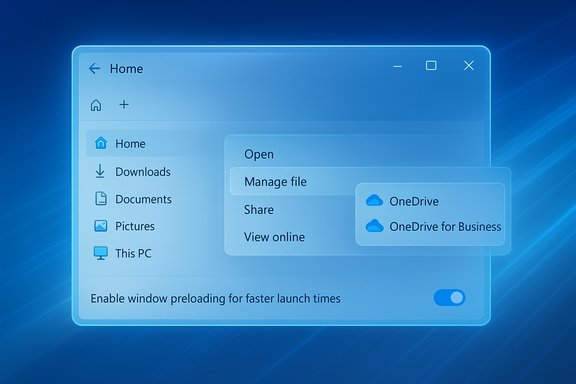
Microsoft’s newest Windows 11 Insider preview tightens two long-running screws on File Explorer: an optional background preloading mechanism that promises snappier launches on lower-powered devices, and a reworked right‑click menu that tucks less‑used actions into a new Manage file flyout and provider-specific Cloud Provider submenus to reduce vertical clutter.
File Explorer is one of the most frequently used surfaces in Windows, and the “cold‑start” pause when opening Explorer has been a persistent irritation since Windows 11’s interface refresh. Microsoft’s recent Insider preview builds—delivered as part of Windows 11 Insider Preview Build 26220.7271 (KB5070307)—surface a pair of narrowly scoped experiments aimed at improving perceived performance and clarity without rewriting Explorer’s core architecture.
The two headline changes are straightforward:
This is a proven pattern at Microsoft. Similar tactics include:
Neither change is revolutionary, but both are meaningful: together they will make File Explorer feel faster and cleaner for most users without breaking workflows for those who rely on older patterns. That said, the real test will be in the details—battery and memory behavior on low‑end devices, third‑party shell extension interactions, and accessibility outcomes. Organizations and power users should pilot carefully; everyday users who crave faster Explorer launches can look forward to a smoother experience once testing is complete and Microsoft begins the staged rollout.
Source: 247news.com.pk https://247news.com.pk/?amp=1&p=23391
 Background / Overview
File Explorer is one of the most frequently used surfaces in Windows, and the “cold‑start” pause when opening Explorer has been a persistent irritation since Windows 11’s interface refresh. Microsoft’s recent Insider preview builds—delivered as part of Windows 11 Insider Preview Build 26220.7271 (KB5070307)—surface a pair of narrowly scoped experiments aimed at improving perceived performance and clarity without rewriting Explorer’s core architecture.The two headline changes are straightforward:
- Preloading: Explorer can be preinitialized in the background after boot so the first visible window paints faster. The behavior is optional and exposed as a user toggle labelled Enable window preloading for faster launch times (Folder Options → View).
- Context‑menu reorganization: Several infrequently used actions (for example, compress to ZIP, copy path, set as desktop background, image rotation) are now grouped under a Manage file flyout, and cloud‑storage actions (Always keep on this device, Free up space) are moved into provider‑specific submenus to shorten the top‑level menu.
Why this matters: the user problem and Microsoft’s approach
Windows users open File Explorer dozens of times per day. Even a half‑second lag multiplies into minutes of wasted time and a sense that the system is sluggish. Microsoft’s fixes take a pragmatic route: rather than attempting an expensive rearchitecture of Explorer’s file enumeration and preview systems, the company is reducing perceived latency by warming only the parts of Explorer that determine the initial UI paint.This is a proven pattern at Microsoft. Similar tactics include:
- Edge’s Startup Boost (a warmed background process to speed up first launches).
- Office’s scheduled prelaunch/startup boost experiments (background warmers to accelerate Word/Excel startup).
What’s new — practical details
Preloading: what it does and how to control it
- The feature keeps a minimal Explorer instance warmed in the background after sign‑in or idle time so that when you open Explorer the UI renders quickly.
- The setting is exposed as a toggle in File Explorer’s Folder Options (View tab): Enable window preloading for faster launch times. Insiders who get the feature will see it enabled by default but can uncheck it to return to the legacy behavior.
- Preloading is intentionally targeted at improving the first paint; it does not change how Explorer enumerates folders, resolves cloud placeholders, or accelerates heavy I/O operations.
Context menu cleanup
- Frequently used verbs (Open, Open with, Cut, Copy, Rename, Delete, etc. remain top‑level.
- Less common actions are grouped into a Manage file flyout, which reduces the vertical length of the context menu. Items moved into that flyout include:
- Compress to ZIP (archive actions)
- Copy as path
- Set as desktop background
- Rotate right / Rotate left
- Cloud provider commands (OneDrive, and other installed shell providers) are relocated into provider‑specific flyouts. The Send to My Phone entry is placed adjacent to cloud/provider options for more logical grouping.
- Microsoft notes the “Manage file” label may change as the experiment iterates.
What these changes deliver — benefits for users
- Faster perceived launches on constrained hardware. Devices with slow storage, limited RAM, or handheld/tablet form factors will see the biggest improvement in Explorer’s responsiveness.
- Cleaner, more scannable context menu. Reducing visible rows in the right‑click menu makes common actions easier to find and helps avoid vertical scrolling in long menus.
- User control and reversibility. The preloading behavior is optional and can be disabled immediately via Folder Options, providing a safety valve for users who prefer zero background processes.
- Logical grouping of cloud actions. By sinking provider‑specific items into their own flyouts, Microsoft reduces accidental clicks and organizes sync actions where users expect them.
- Low‑risk, incremental rollout. Because these are staged experiments, enterprises and power users won’t be forced into a wholesale change without testing and opt‑out options.
Important technical limitations and clarifications
- Preloading reduces time to first paint only. It does not fix deep performance problems such as:
- Slow enumerations of large network shares.
- Long thumbnail generation for large image folders.
- Latency caused by misbehaving preview handlers or third‑party shell extensions.
- Memory tradeoffs: a warmed Explorer instance consumes memory. On modern systems the hit is negligible, but on very low‑RAM devices or battery‑sensitive tablets there may be a measurable tradeoff between launch speed and memory/battery usage.
- Third‑party shell extensions and context‑menu handlers could change the perceived effects. If a third‑party handler is slow or buggy, moving it or its items into a submenu does not remove the handler’s cost at execution time.
- Accessibility considerations: adding a nesting level to reach certain actions may increase keystrokes for keyboard users or expand the navigation tree for assistive technologies. Accessibility testing should be part of Insider feedback.
Risks and trade‑offs — what to watch for
- Battery life impact: preloading runs during idle time; while designed to remain paused/suspended, it still reserves memory and can cause tiny CPU spikes during initialization. Laptops and handhelds should be monitored for battery implications.
- Memory pressure on low‑end devices: devices with limited RAM may see increased swapping if Explorer is kept warmed.
- Power‑user friction: experts who rely on immediate access to items like “Compress to ZIP” or “Copy as path” may find the extra click irritating. Power users can, however, still use the legacy menu via Show more options or keyboard shortcuts.
- Enterprise deployment concerns: there’s no immediate public administrative template or Group Policy described with these Insider experiments. Organizations should pilot the feature and wait for Microsoft to publish formal deployable controls before wide rollout.
- Accessibility regressions: moving actions deeper in the menu can reduce discoverability for keyboard and screen‑reader users. Microsoft’s iterative approach should surface this through Insider feedback, but organizations with strict accessibility requirements should test carefully.
- Telemetry gating and feature flags: Microsoft often uses server‑side gating to roll out features. Installing a build may not guarantee feature exposure—this complicates lab testing and rollout planning.
How to test and measure impact (practical guidance)
If you’re an enthusiast, power user, or IT admin planning to evaluate the change, these steps provide a repeatable test plan.- Verify the preview build is installed:
- Run winver and confirm your build number corresponds to the preview (for example, build 26220.7271 or later).
- Confirm feature exposure:
- Open File Explorer → View → Options → Folder Options → View and look for the checkbox Enable window preloading for faster launch times.
- If the checkbox is absent, Microsoft may be gating the feature server‑side.
- Baseline measurements (before enabling preloading):
- Reboot machine and measure cold‑start File Explorer latency using a stopwatch or automated UI timer (open Explorer right after login).
- Record Task Manager memory usage for explorer.exe immediately after first open and after a minute.
- Log battery drain over a 30‑ to 60‑minute idle test on a laptop (if battery impact is a concern).
- Enable preloading:
- Toggle Enable window preloading for faster launch times.
- Repeat the cold‑start timing and memory/battery measurements.
- Compare results:
- Look for reductions in first‑paint time and changes in explorer.exe memory footprint. Also, confirm there are no regressions in functionality such as delayed context menus, broken shell extensions, or accessibility behavior.
- Test context menu workflow:
- Verify the Manage file flyout contains expected items (Compress to ZIP, Copy as path, Set as desktop background, Rotate Right/Left).
- Confirm cloud provider actions are present under provider flyouts and that Send to My Phone is positioned as expected.
- Real‑world tests:
- Open large folders, cloud‑synced folders, and network shares. Validate that preloading does not mask long‑running issues that still require architectural fixes.
- Report issues:
- Use the Feedback Hub with precise reproduction steps if you see crashes, accessibility regressions, or major performance regressions.
Recommendations for different audiences
For home users and enthusiasts
- Try the preview if you’re in the Windows Insider program and want a snappier Explorer on a tablet, handheld, or older laptop.
- Keep the toggle handy—if you notice battery or memory problems, uncheck the preloading option to revert immediately.
- Use keyboard shortcuts (Ctrl+C, Ctrl+V, Shift+Right‑click → Copy as path) to mitigate extra clicks while Microsoft iterates.
For power users and creators
- Consider keeping the setting disabled until you’ve tested third‑party shell integrations. Utilities that extend Explorer may not behave identically with the warmed instance.
- Map frequently used actions to keyboard shortcuts or Quick Access toolbar entries to avoid additional clicks placed by the Manage file flyout.
For IT administrators and enterprise pilots
- Pilot the build on a representative set of hardware (ultraportable laptops, docking stations, desktops) and measure RAM and battery impact quantitatively.
- Do not deploy broadly until Microsoft publishes management controls (Group Policy/ADMX and Intune support) and confirms enterprise‑grade accessibility testing.
- Use controlled rings (pilot → pre‑production → production) and collect telemetry on memory and support call volume.
Accessibility and third‑party extension considerations
Grouping actions can improve visual clarity, but it also increases navigation depth. Accessibility teams should test the new menu layout with screen readers, keyboard navigation, and voice access workflows to ensure:- Logical tab order and focus behavior when opening nested flyouts.
- Screen‑reader verbosity does not increase time to complete an action unreasonably.
- Keyboard accelerators remain usable or are reintroduced via alternate bindings.
Long‑term significance and what Microsoft is—and isn’t—doing
These Explorer experiments are iterative and pragmatic: they address the feeling of slowness without attempting a fundamental overhaul of how Windows manages file system operations. That decision reflects a trade‑off:- Short‑term wins: many users will notice a speed improvement with minimal code changes.
- Long‑term fixes: performance issues tied to network protocols, cloud placeholder mechanics, and preview handler performance still require deeper investment.
Final assessment — strengths and cautionary notes
Strengths:- Practical, low‑risk engineering to improve day‑to‑day responsiveness.
- Cleaner UX for the majority of users with a shorter, more scannable right‑click menu.
- User control via a toggle and staged Insider testing to catch regressions before broad rollout.
- Not a silver bullet for deep performance problems; network and I/O heavy tasks remain bounded by hardware and protocol limits.
- Potential resource tradeoffs for low‑end or battery‑constrained devices—piloting is essential.
- Power users and accessibility advocates should evaluate whether the reorganized menu increases friction for their workflows.
Practical checklist for readers
- If you’re enrolled in the Windows Insider program and want to try the change:
- Confirm build number via winver (look for build 26220.7271 or later).
- Check File Explorer → View → Options → Folder Options → View for Enable window preloading for faster launch times.
- Measure cold‑start latency and memory usage before and after toggling the feature.
- Report any regressions via Feedback Hub under Files, Folders and Online Storage → File Explorer Performance.
- If you manage systems at scale:
- Put the preview into a controlled pilot group on representative hardware.
- Measure explorer.exe memory delta, battery drain, and support ticket volume.
- Wait for Microsoft’s formal management guidance before broad deployment.
Conclusion
This round of File Explorer tweaks is emblematic of Microsoft’s current strategy: small, pragmatic experiments that address widely felt pain points, rolled out via the Insider channels so telemetry and community feedback can refine the details. The background preloading aims to shave seconds off the daily grind for users on slower devices, while the context‑menu regrouping reduces visual clutter for the majority of day‑to‑day tasks.Neither change is revolutionary, but both are meaningful: together they will make File Explorer feel faster and cleaner for most users without breaking workflows for those who rely on older patterns. That said, the real test will be in the details—battery and memory behavior on low‑end devices, third‑party shell extension interactions, and accessibility outcomes. Organizations and power users should pilot carefully; everyday users who crave faster Explorer launches can look forward to a smoother experience once testing is complete and Microsoft begins the staged rollout.
Source: 247news.com.pk https://247news.com.pk/?amp=1&p=23391
