Windows 11 File Explorer Preloading: Faster Launches in Insider Preview

  • Thread Author
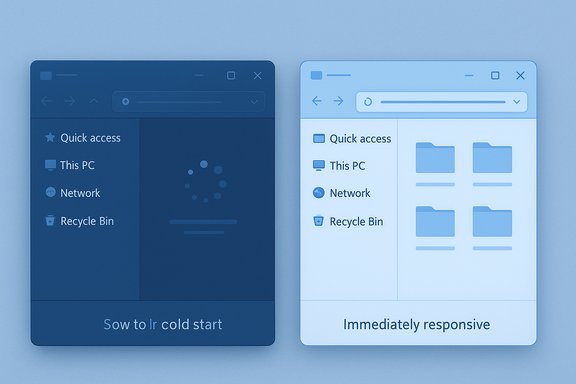
Two Windows-style UI sketches comparing slow startup (left) with immediately responsive design (right).
Microsoft has quietly begun testing a background “preload” for File Explorer in Windows 11 that keeps a lightweight portion of the application resident so the first click opens near‑instantly, and the change is shipped in Insider Preview Build 26220.7271 (KB5070307) with a user-facing toggle labeled “Enable window preloading for faster launch times.”

Background​

Microsoft’s File Explorer has been a perennial focus of performance complaints since the Windows 11 visual overhaul: users frequently experience a one‑to‑two‑second “cold start” pause the first time they open Explorer after sign‑in, caused by a mixture of UI composition, handler initialization, thumbnailing, and third‑party shell extension loading. Rather than attempt a large‑scale rearchitecture, Microsoft is testing a pragmatic warm‑start approach that performs predictable initialization during idle time so the first user‑initiated open feels instantaneous.
This preload experiment appears in the Windows Insider program as part of the 25H2 preview stream — specifically Build 26220.7271 (KB5070307) — and is visible to recipients in both the Dev and Beta channels. Microsoft exposes the behavior with a reversible Folder Options checkbox, so testers and admins can opt out without registry edits.
Alongside preloading, Microsoft bundled a cleanup of the File Explorer right‑click context menu: less‑used file actions such as rotate and compress were grouped into a nested “Manage file” flyout, and cloud provider actions were moved into provider‑specific submenus to reduce top‑level clutter. That change is intended to improve scan‑ability and accessibility of the most common verbs.

What Microsoft shipped to Insiders (the facts)​

  • Build and channel: Windows 11 Insider Preview Build 26220.7271 (KB5070307) is the carrier for the experiment; it is being evaluated in Dev and Beta rings.
  • Feature visibility: A Folder Options toggle appears at File Explorer → View → Options → Folder Options → View labeled “Enable window preloading for faster launch times.” Insiders who receive the change typically see it enabled by default.
  • UX pairing: The preload is paired with a context‑menu reorganization that groups seldom‑used commands into a “Manage file” flyout and moves cloud actions into provider submenus.
These are the verifiable, user‑visible points Microsoft documented for the Insider flight. The company describes the work as an exploration that will be tuned with telemetry and Feedback Hub reports rather than a prescriptive, permanent redesign at this stage.

How the preload likely works (technical sketch)​

Microsoft’s release notes intentionally remain high level; they state the intent but do not publish low‑level implementation details or memory budgets. Community engineering analysis and precedent from similar Microsoft features suggest the following plausible model:
  • Instantiate or prepare a lightweight UI skeleton in the background (address bar, command bar, and common controls) so the first paint completes without the heavy initialization cost.
  • Prime small in‑memory caches (icons, common thumbnails, and navigation state) used for the first interactive paint.
  • Optionally pre‑register a minimal set of preview/thumbnail handlers and shell extension entry points to avoid first‑use stalls introduced by third‑party components.
  • Keep the warmed instance dormant or suspended to minimize CPU use while reserving a small, predictable RAM footprint for rapid resume.
This model mirrors Microsoft’s earlier warm‑start strategies — for example, Edge’s Startup Boost and Office’s scheduled prelaunch tasks — which trade a small background memory reservation for substantially faster click‑to‑interactive times. However, Microsoft has not published exact memory numbers or the heuristics used to decide which components are warmed; any specific figures are therefore inference until Microsoft supplies telemetry or an engineering blog.

Expected benefits and early reports​

Early hands‑on feedback from Insiders and community testing consistently reports a meaningful improvement in perceived launch speed: Explorer opens “near‑instantly” on the first click after sign‑in on many devices, especially those where cold‑start latency was most visible (HDD machines, low‑RAM laptops, or systems with heavy shell extension loads). Reported gains are primarily perceptual: time to first paint and the first interactive state drop significantly.
Measured changes reported so far indicate:
  • Faster first paint and interactive window on cold start.
  • Little to no measurable change in steady‑state RAM usage on many test machines, according to early community tests; Microsoft has not published formal telemetry yet.
Importantly, preloading does not replace deeper fixes: it does not rework network enumeration, cloud placeholder resolution or expensive thumbnail generation. Those subsystems still govern responsiveness when opening very large or remote folders, and preloading only addresses the initial UI cost.

What this does not fix (and why that matters)​

  • Slow folder enumeration on network shares or large local directories remains unchanged; the preload simply reduces the window‑creation latency.
  • Third‑party shell extension regressions (e.g., poorly written context‑menu handlers that block UI threads) must still be addressed by vendor fixes or Microsoft optimizations. Preloading can mitigate the perceptual stall when those handlers first load, but it does not remove the handlers.
  • Thumbnail generation and heavy preview handlers are still costly operations; the preload will not eliminate visible delays while the system loads thumbnails for very large folders.
Be clear: preloading is an engineering trade‑off — it improves perceived responsiveness by shifting predictable work into idle time rather than eliminating the underlying costs entirely.

Context‑menu redesign: what changed and why it matters​

Microsoft reorganized File Explorer’s right‑click menu to make the top level shorter and more scannable:
  • Common verbs (Open, Rename, Cut/Copy/Paste) remain top‑level.
  • Less‑used commands — image rotation, compress to ZIP, and similar actions — are grouped under a new Manage file flyout to reduce vertical clutter.
  • Cloud provider actions (OneDrive sync control, “Free up space”, etc. are moved into provider‑specific submenus to avoid bloating the primary list.
This is a usability‑driven change: decluttering the top level should make it faster to find everyday actions while keeping advanced or provider‑specific items one click deeper. However, grouping must be implemented with robust keyboard and assistive‑technology semantics to avoid creating discovery regressions for screen‑reader users. Some early commentary cautions that power users who relied on quick access to advanced verbs may need to adapt or retrain.

Risks, tradeoffs and what to test​

Preloading introduces a small but non‑zero surface of operational considerations. IT teams, power users, and enthusiasts should be aware of the following tradeoffs:
  • Memory footprint: The warmed Explorer instance will reserve RAM while dormant. On constrained devices (low RAM or tablet modes), this may reduce headroom for memory‑heavy apps and could affect system responsiveness under stress. Microsoft’s preview notes do not disclose precise budgets; measure on representative hardware.
  • Battery life: Background processes that wake periodically or keep memory resident can negatively affect battery on mobile devices. Test battery impact under real workloads, including sleep/resume cycles.
  • Compatibility: VDI/imaging and certain enterprise provisioning workflows assume a particular process startup behaviour. Keeping a warmed Explorer resident may interact poorly with image‑first deployments, non‑persistent VDI pools, or custom shell integrations; IT should pilot before broad rollout.
  • Third‑party shell extensions: Vendors that register expensive handlers might still cause runtime stalls; preloading can mask initial slowness but not eliminate regressions caused by misbehaving extensions. Validate critical third‑party integrations (cloud providers, backup agents, security tools).
Recommended testing checklist for IT teams:
  1. Pilot the Insider build (Dev/Beta) on a representative set of hardware.
  2. Measure memory and battery differences with and without the preload toggle enabled.
  3. Validate user flows that depend on Explorer’s default timing (file server mounts, scripted folder opens, and third‑party context‑menu integrations).
  4. Confirm recovery and management workflows (WinRE, imaging, Autopatch/Intune policies) function as expected.

How to control the feature (step‑by‑step)​

If your device receives the experiment and you prefer not to keep Explorer continuously warmed, you can disable it via Folder Options:
  1. Open File Explorer.
  2. Click View → Options to open Folder Options.
  3. Select the View tab.
  4. Uncheck Enable window preloading for faster launch times.
  5. Click Apply and OK.
This user‑visible toggle provides a straightforward opt‑out for both Insiders and IT pilots without registry edits.

Timeline and what to expect next​

The preload feature is currently an Insider experiment. Microsoft has framed it as an exploration and is collecting telemetry and feedback before any wider rollout. Community reporting and early previews suggest a broader release could arrive with a future servicing wave; some coverage notes early‑2026 as a plausible public rollout window coincident with the Windows 11 26H1 servicing timeline, but that schedule is provisional and not officially confirmed by Microsoft — treat any public release dates as tentative until Microsoft publishes an official roadmap.
Microsoft’s staged approach—Insider (Dev/Beta) → Release Preview → general availability—means the feature will be tuned across multiple flights and may be adjusted or rolled back depending on real‑world telemetry and Feedback Hub reports. Administrators should plan pilot timelines accordingly and sign up representative devices to the relevant Insider channels if they want early visibility.

Broader product context and Microsoft messaging​

The Explorer preload comes at a delicate moment for Windows engineering and messaging. The Windows leadership team has publicly acknowledged that reliability, performance and the power‑user experience remain priorities — and that the company is balancing high‑profile AI investments with core polish work. Public follow‑ups from Windows leadership emphasized the team is listening and continuing to ship reliability and performance improvements; those remarks frame the preload as part of a broader optimization push rather than the only change to Explorer. Because some of those comments came in response to community concern, they should be interpreted as intent rather than concrete timelines.

Practical guidance for enthusiasts and power users​

  • If you’re an Insider: opt in to Dev/Beta on a non‑production machine and try Build 26220.7271. Use the toggle to compare behavior and file a Feedback Hub report for any regressions.
  • If you’re a power user who depends on minimal background activity: disable preloading until Microsoft publishes detailed telemetry and memory budgets.
  • If you’re an IT admin: pilot the change across representative hardware and ensure third‑party vendors (backup, security, cloud storage providers) validate compatibility before rolling to production. Document any differences in memory and battery behaviour and share Feedback Hub items for critical regressions.

Critical analysis — strengths and potential risks​

Strengths
  • Perceptual performance gains: Preloading directly addresses the most visible annoyance — the cold‑start pause — with a pragmatic, low‑risk engineering approach. Early tests show meaningful user‑visible improvements.
  • Low friction opt‑out: The user‑visible Folder Options toggle makes the experiment reversible and safe for pilots and individual users.
  • Complementary UX cleanups: Pairing preloading with context‑menu decluttering improves everyday usability beyond raw speed, reducing friction for common tasks.
Risks and unknowns
  • Resource trade‑offs: The warmed instance reserves RAM and may influence battery life on mobile devices. Microsoft has not published a formal memory budget, so device‑level testing is required.
  • Compatibility surface: Enterprise provisioning, VDI, and third‑party shell extensions may behave differently; the preload could introduce unexpected interactions in tightly managed environments. Pilot broadly.
  • Not a root‑cause fix: Preloading masks the symptom (perceived latency) rather than fixing underlying enumeration, thumbnail, and preview handler inefficiencies — those will require targeted engineering. Treat preload as a pragmatic mitigation, not a cure.
Where Microsoft should go next
  1. Publish telemetry and heuristics (memory budgets, CPU wake frequency) so admins can make informed rollout decisions.
  2. Couple preloading with targeted work on expensive shell extension and thumbnail handling paths to reduce long‑term dependency on warm starts.
  3. Ensure accessibility and keyboard discoverability for any context‑menu grouping so assistive technology users do not lose discoverability.

Conclusion​

Microsoft’s File Explorer preload is a pragmatic, narrowly scoped experiment that directly addresses a long‑running user pain point: the cold‑start pause. Early Insider builds show promising perceptual speedups and a sensible opt‑out, and the context‑menu cleanup is a welcome usability improvement. At the same time, the change is an engineering trade‑off: it shifts initialization into idle time at the cost of a small background footprint, and it does not replace deeper fixes for enumeration, thumbnailing, or costly third‑party handlers. Administrators and power users should pilot the feature on representative hardware, measure memory and battery effects, and validate third‑party integrations before any broad rollout. Microsoft’s staged Insider testing and the visible toggle give the ecosystem a low‑risk way to evaluate the trade‑offs while the company collects telemetry and feedback to decide whether and how to ship the optimization more widely.


Source: hi-Tech.ua Microsoft will preload File Explorer in Windows 11
 

Microsoft’s attempt to make File Explorer “fast” in Windows 11 has opened a surprising new front: a background preloading experiment intended to shave milliseconds off the first click is already showing real-world trade‑offs — higher idle RAM use, inconsistent perceptual gains, and persistent sluggishness in other Explorer interactions that preloading doesn’t fix. This isn’t hypothetical: the change is part of Windows 11 Insider Preview Build 26220.7271 (KB5070307), Microsoft’s release notes name the feature explicitly and surface a user-facing toggle, and independent hands‑on testing finds the preload helps cold opens while leaving context‑menu and navigation jank largely unchanged.

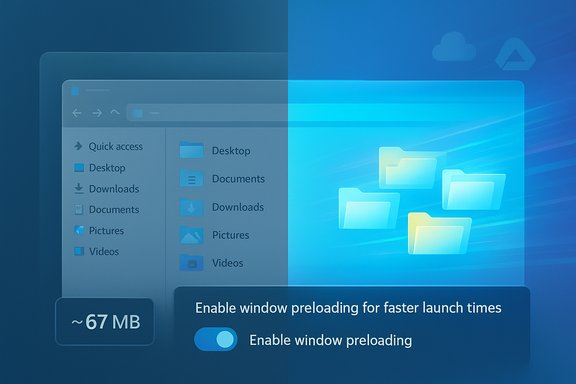
Windows-style desktop UI showing a 'Enable window preloading' toggle.Background​

Why Microsoft tried preloading​

File Explorer is one of Windows’ most used apps — you open it dozens of times a day to move files, manage downloads, attach documents, and run quick searches. In Windows 11, many users have noticed a visible cold‑start pause the first time Explorer appears after boot or after all Explorer windows are closed. Microsoft’s engineering choice in Build 26220.7271 is pragmatic: instead of rewriting core Explorer internals, keep a lightweight Explorer state warmed in memory so that the UI paints instantly on demand. The change is explicitly framed as an experiment and is exposed to Insiders as “Enable window preloading for faster launch times” in Folder Options so testers and admins can opt out.

How the experiment fits into ongoing Explorer work​

Preloading arrives alongside other small UX edits — most visibly a reorganized right‑click context menu that groups less‑used actions into a “Manage file” flyout and moves cloud provider items into submenus. Taken together, Microsoft is pursuing perceptual fixes (faster first paint, less menu clutter) while avoiding a full rearchitecture of Explorer’s mixed Win32 + WinUI surface. Those design choices explain both the potential upside and the inherent limits of the approach.

What Microsoft shipped (insider details)​

The build and the toggle​

  • Build: Windows 11 Insider Preview Build 26220.7271 (KB5070307), Dev & Beta channels.
  • Feature label and location: Folder Options → View → check box labeled “Enable window preloading for faster launch times.”
  • Behavior: Explorer keeps a warmed instance (or minimal warmed state) resident so initial launches paint faster; the option is enabled by default for Insiders who receive the experiment but can be disabled immediately.

Context‑menu declutter​

  • Actions such as “Compress to ZIP”, “Copy as Path”, and certain image rotations are grouped into a Manage file flyout to shorten the top‑level menu.
  • Cloud provider state and “Send to My Phone” are moved into provider‑specific flyouts to reduce dynamic query overhead and menu height.
    These are UI changes meant to reduce the chance of the menu having to compute and render dozens of entries on every right‑click. Microsoft describes them as experiment‑driven and subject to change.

What independent testing shows​

Windows Latest: measured gains, small memory cost, persistent jank​

Windows Latest performed hands‑on tests and slow‑motion comparisons. In a virtual machine with 4 GB RAM the publication measured Explorer’s background footprint increasing when preloading was enabled — roughly showing Explorer using about 32 MB idle before the preload and adding roughly ~35 MB after enabling the warmed state (totaling ~67 MB in their test). They also recorded launch videos: the preloaded Explorer opened visibly faster when slowed down in footage, and even under load (many Edge tabs open) the preloaded instance showed a quicker first paint. That said, Windows Latest emphasized the key limitations: preloading only helps initial open times and does not make context menus or deeper folder navigation faster; those elements still show perceptible latency. The article also cautions the memory number and the speed delta are device‑dependent and measured on a specific test configuration.

Other outlets report the same experiment and the same caveats​

Major outlets such as The Verge, TechRadar, BetaNews and others reproduced Microsoft’s notes and emphasized that preloading is a warm‑start mitigation rather than a root‑cause fix — and that Microsoft has deliberately exposed an opt‑out. The Verge and TechRadar framed the work as pragmatic but interim, and both point out that modern high‑end systems see little net benefit while low‑spec devices may notice the difference more — and may also bear the memory cost more painfully.

Community telemetry and forum analysis​

Conversations and aggregated testing from community forums confirm the pattern: subjective improvements in first open latency on some devices, measurable but modest memory overhead, and unchanged sluggishness in other Explorer interactions (context menu, navigation, thumbnail generation). That community feedback is what Microsoft cites as the reason the change is an exploration rather than immediate broad rollout.

Technical analysis: why preloading helps — and why it doesn’t solve everything​

The cold‑start problem​

Cold starts are the classic symptom of multi‑layer UI stacks. Explorer in Windows 11 is no longer a single pure Win32 surface: Microsoft has been migrating parts of Explorer to WinUI and the Windows App SDK (WinUI 3), introducing additional composition layers and initialization work on first use. The cold start includes:
  • Initializing XAML/WinUI controls and the rendering pipeline
  • Loading icon and thumbnail caches
  • Invoking shell extensions and preview handlers (third‑party code)
  • Querying cloud providers (OneDrive and third‑party sync clients) for status overlays
Preloading reduces the user‑visible cost by doing some of that work before the user asks for Explorer, so the first paint is faster. But it does not reduce the per‑interaction cost that occurs when a context menu is opened and the OS must query shell extensions and cloud integrations for each right‑click.

Memory and battery trade‑offs​

Warming a suspended or idle Explorer state necessarily uses memory. For modern desktops with 16–32 GB RAM that overhead is negligible; on machines with 4–8 GB it’s proportionally more meaningful. Preloading can also create occasional background CPU wakeups and may have a small battery impact on thin laptops and tablets. Microsoft’s decision to expose the toggle addresses that trade‑off, but organizations and users should measure before enabling it fleetwide.

The Win32 ↔ WinUI mix: rendering and API friction​

Explorer’s underlying file‑management engine still sits on legacy Win32/COM shell foundations (explorer.exe, shell32), while the modern chrome and some controls come from WinUI. That hybrid model introduces rendering and context‑switch overhead that a preload can mask at first launch, but not remove:
  • WinUI elements still need to be warmed or compiled (XAML load costs).
  • Third‑party shell extensions remain synchronous blockers for context menus.
  • Cloud integrations that resolve overlay icons or status may query disk/network on demand.
    Fixing these requires deeper work — optimized rendering paths, async shell extension handling, or rearchitecting the shell surface — not just a warm‑start trick.

Who is affected, and how badly?​

Low‑spec devices (4–8 GB RAM, older SSD/HDD)​

  • The memory reservation for preloading proportionally reduces available RAM for browsers, editors, and background services.
  • Systems with mechanical drives or fragmented storage still suffer from thumbnail/metadata stalls; preloading won’t eliminate I/O bottlenecks.
  • Result: users can feel more sluggish during multitasking even if Explorer opens faster from cold.

Modern desktops and power users (16+ GB, NVMe)​

  • The raw benefit of preloading is smaller because their cold‑start is already quick.
  • Power users who rely on frequent right‑clicks, deep folder navigations, and rapid file operations see no improvement in those micro‑interactions.
  • In short: preloading buys a cosmetic win for first open, not a systemic speedup for heavy workflows.

IT admins and VDI/managed fleets​

  • Enabling the preload by default across a fleet without measuring memory and battery impact could cause regressions on thin clients and VDI images that are tightly budgeted for RAM.
  • Enterprises should pilot rather than flip the toggle fleetwide until Microsoft ships Group Policy/MDM controls and publishes telemetry budgets.

Practical guidance — what you can do today​

If the preloaded Explorer experiment has reached your device or you’re evaluating whether to enable it, here are clear, immediate steps:
  • How to toggle preloading
  • Open File Explorer → View → Options → Folder Options → View tab → uncheck Enable window preloading for faster launch times to disable, or check it to enable. The setting takes effect immediately.
  • Quick mitigations for sluggish Explorer interactions
  • Disable heavy preview handlers and third‑party context menu extensions (use ShellExView or similar trusted tools to identify and disable non‑Microsoft shell extensions).
  • Set frequently bloaty folders (e.g., Downloads) to Optimize for: General items and turn off thumbnails (Folder Options → View → Always show icons, never thumbnails).
  • Pause cloud sync (OneDrive/Dropbox) temporarily during high‑I/O operations to see if overlays and sync checks are the bottleneck.
  • Consider a lightweight alternative file manager for high‑throughput workflows (several mature open‑source and commercial options exist).
  • For administrators (pilot checklist)
  • Test representative devices (thin clients, budget laptops, high‑end workstations) with preload both on and off.
  • Measure: idle RAM, cold open latency, battery life (for laptops), and frequency of user complaints about context menu delays.
  • Wait for Microsoft to publish enterprise controls or Group Policy settings before enabling preload across managed images.
  • If you’re a tinkerer
  • Keep an eye on Feedback Hub entries under Files, Folders and Online Storage → File Explorer Performance and submit reproducible traces and logs when you encounter jank; Microsoft is explicitly asking for telemetry during this experiment.

Why preloading feels like a band‑aid — and what a proper fix would require​

Preloading is a sensible short‑term pattern: it hides startup latency with minimal risk and is easy to toggle. That said, the community and independent testing show it’s a pragmatic workaround, not a cure. To truly restore Explorer’s day‑to‑day snappiness across different hardware classes Microsoft would likely need to:
  • Optimize WinUI rendering paths and reduce the initial XAML load cost.
  • Move shell extensions and preview handlers toward asynchronous or deferred models so context menus don’t block on each third‑party call.
  • Tighten cloud provider integration so status overlays and network queries are cached or postponed when not immediately necessary.
  • Reduce default background services or offer low‑resource modes for constrained devices.
Those fixes require deeper engineering effort and time; preloading is a fast, low‑risk way to reduce the most visible symptom while the heavier work is scheduled. Forums and hands‑on testers see the preload as a pragmatic compromise — useful for perception, insufficient for power‑user workflows.

The risk profile and UX signal​

There is a subtle product message embedded in Microsoft’s choice to preload Explorer: the company prioritized a low‑touch, incremental fix that improves the first‑open experience rather than investing immediately in large architectural changes. That’s a practical engineering choice, but it also signals trade‑offs:
  • It acknowledges performance regressions exist, and it buys time while Microsoft develops deeper optimizations.
  • It underscores the complexity of modern Windows: mixing legacy Win32 foundations and modern WinUI surfaces creates hard‑to‑resolve performance intersections.
  • It creates a bifurcation in user experience: those on modern hardware feel a minor polish; those on constrained hardware may experience net negative effects if background memory reservation competes with active workloads.
Where the balance tips will determine whether the change is remembered as a thoughtful stopgap or as an admission that Explorer needs a more thorough rework.

What to watch next​

  • Telemetry and enterprise controls: Microsoft has framed the change as an exploration; watch for published telemetry budgets, Group Policy or MDM controls, and clearer documentation about memory and battery impact before broad enterprise enablement.
  • Further Insider builds: Microsoft is likely to iterate — toggles, naming changes (the “Manage file” label is explicitly subject to change), and tuning of what Explorer preloads and how aggressively it warms the state.
  • Deeper fixes: anything that meaningfully reduces context menu latency will require rethinking third‑party extension behavior and WinUI integration. If Microsoft prioritizes that, users should see more structural improvements over the coming quarters.

Conclusion​

Microsoft’s preloading experiment in Windows 11 is honest engineering: it trades a modest, predictable memory reservation to make the first visual paint of File Explorer feel faster. That trade works on the narrow problem Microsoft targeted — cold start latency — and the change is reversible via a toggle. Independent tests confirm the perceptual gains for first open and measure a small background memory footprint, but they also show the limits: context menus and folder navigation remain noticeably slower in many scenarios, and the preload can reduce usable RAM on constrained machines. For users and IT teams the correct posture is pragmatic: test, measure, and keep the option available to opt out. For Microsoft the clearer path to restoring universal snappiness is harder — it will require structural optimization across rendering, shell extension handling, and cloud integrations rather than incremental warm‑start tricks alone. Until then, preloading will help some users, annoy others, and highlight a core truth: File Explorer is central to the Windows experience, and perceptual polish that does not address interactive jank is only a partial victory.
Source: Digital Trends Windows 11’s “fast” File Explorer is slower than ever and hogs more RAM
 

Back
Top