• Thread Author
Microsoft is quietly testing a background preloading feature for File Explorer in Windows 11 that aims to eliminate the familiar "cold start" pause and make the file manager appear ready the instant a user clicks its icon.

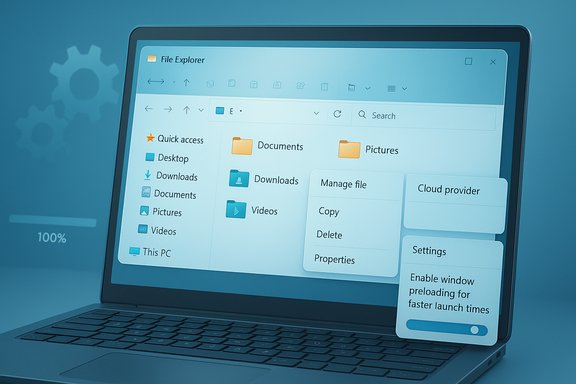
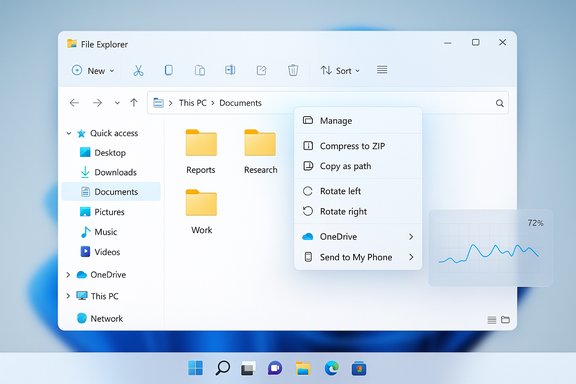
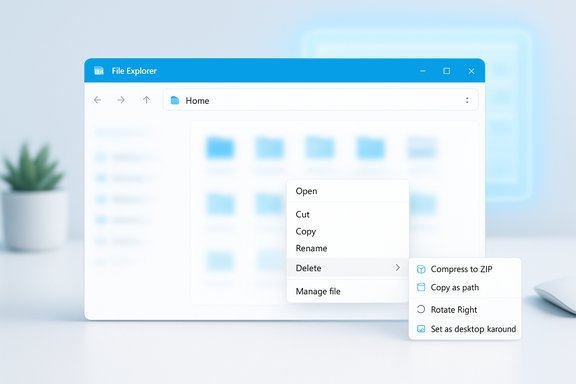
Blue Windows-like desktop with a floating File Explorer window and a context menu.Background​

File Explorer has long been a cornerstone of the Windows experience, but it has also been a regular target of complaints about sluggishness, inconsistent behavior, and surprising regressions as the operating system evolves. Many users report that opening File Explorer from a cold state — after boot or when no Explorer instance is resident in memory — can take a noticeable second or more before the UI is interactive. That delay is a frequent irritant for power users, developers, and anyone who relies on rapid navigation between folders throughout the workday.
Microsoft’s latest Insider Preview builds show a continuation of a broader strategy: reduce perceived app startup latency by preloading or keeping lightweight components resident in the background. The company has already shipped similar startup boost techniques for other first-party software — notably Microsoft Edge’s Startup Boost and new scheduled preloading for Office apps — and the File Explorer change fits squarely into that pattern. The new File Explorer behavior is being trialed as an optional setting that, when enabled, will preload portions of File Explorer in the background so the UI can be presented immediately when launched.
Alongside preloading, Microsoft is also experimenting with a redesigned File Explorer right‑click (context) menu that groups related file-management commands to produce a cleaner, less cluttered surface. These two changes together reflect an ongoing balance Microsoft is attempting to strike between responsiveness, simplicity, and the needs of advanced users.

What Microsoft is testing: the feature explained​

How preloading will work (in principle)​

The preview change being tested is a window preloading mechanism for File Explorer. Rather than requiring a complete cold initialization when the user interacts with the shell, the OS will start selected Explorer components in a dormant or paused state before they are needed. When the user opens File Explorer, those pre-initialized objects resume and render the UI far faster than a full cold boot of the process.
This approach is similar to existing strategies used elsewhere in the Windows ecosystem:
  • Keeping a small set of core process threads resident so the UI can come up faster.
  • Running a scheduled prelaunch task that prepares an app's runtime and then pauses it until user interaction resumes initialization.
  • Using heuristics to decide when to preload (for example, after system idle or only for frequently used apps) to avoid degrading startup performance.
The change is described as optional. A user-facing toggle called “Enable window preloading for faster launch times” will be available in File Explorer’s Folder Options under the View tab for systems that receive this preview feature. If preferred, users can turn the setting off and prevent background preloads.

What the simplified context menu does​

The redesigned context menu groups file-management operations (like rotate, compress, or other file handling options) under consolidated menu items to reduce visual noise. The goal is to make the menu feel less overwhelming to casual users while keeping advanced commands reachable for those who need them.

Why this matters: benefits for everyday use​

Several immediate benefits follow from preloading File Explorer:
  • Far faster perceived launch times. The most visible improvement will be a near-instant File Explorer window when a user opens it from the taskbar or Start menu, eliminating the one-or-more second lag typical on cold starts.
  • Smoother workflows for power users. For users who bounce in and out of Explorer hundreds of times a day, shaving even a second per open adds up into meaningful time savings and fewer friction points.
  • Lower cognitive load. Faster, predictably responsive apps reduce interruption and help maintain flow, which is especially valuable in multi-tasking scenarios.
  • Consistency with other Microsoft preloading approaches. A unified strategy across first-party apps (browser, Office, shell) can deliver a more consistent performance experience and reduce surprise regressions.
These benefits are primarily user-facing: they change how the system feels rather than making dramatic changes to core functionality.

Technical trade-offs and potential risks​

No background preload is without costs. The File Explorer preloading experiment raises a mix of manageable trade-offs and issues that deserve attention.

Memory and battery trade-offs​

Preloading keeps at least part of the Explorer process resident in memory. On systems with plenty of RAM this will be a negligible cost, but on low-memory PCs or long‑running battery sessions the background resident could:
  • Consume several tens of megabytes of RAM (more on systems with many shell extensions).
  • Slightly increase background CPU wake-ups when the OS resumes or manages the paused components.
  • Impact battery life on laptops when many apps use preloading aggressively.
A sensible implementation will include heuristics to avoid preloading on devices that are low on RAM, are in Energy Saver mode, or when the system is otherwise resource-constrained.

Third‑party shell extensions and instability surface area​

File Explorer hosts third‑party shell extensions that add menu items, preview handlers, and additional functionality. Preloading Explorer in the background may also load those extensions earlier than before, which can surface issues:
  • Poorly written shell extensions could increase preload resource consumption or cause crashes during background initialization.
  • Security and compatibility problems tied to preview handlers might be triggered before a user explicitly opens a folder or file.
Robust preloading should therefore delay expensive or risky extension initialization until needed, and give administrators straightforward ways to control which extensions can be active in preloaded states.

Privacy and network effects​

The preloaded process must be careful not to access network resources, user data, or remote locations unintentionally while idle. In particular:
  • Preloading should not auto-load extra network-mounted directories, remote shares, or cloud content that could expose credentials or create unexpected lateral network activity.
  • Any prefetching of cloud-stored thumbnails or metadata should honor privacy and security boundaries, including user sign-in state and enterprise network policies.
Microsoft’s prior security work on the File Explorer preview pane — where previewing internet-downloaded files was restricted to prevent credential leakage — underscores that seemingly helpful features can have security side effects. Preloading must be conservative to avoid reintroducing such risks.

Power-user discoverability and control​

Simplifying UI elements (like the right‑click menu) helps mainstream users but can frustrate power users who rely on direct access to specific commands. The preloading change is optional, which mitigates the risk, but a larger design trend of removing or hiding advanced options has generated pushback in the past. Microsoft should preserve:
  • Clear access to advanced Explorer settings (and avoid silently removing controls).
  • Group policy or enterprise management knobs to control preloading in managed environments.
  • Transparent UI to show when preloading is active and how to disable it.

Telemetry and transparency​

Performance experiments rely on telemetry to tune heuristics, but users and enterprises increasingly expect transparency about what’s being measured and why. Any rollout should include:
  • Clear documentation of what telemetry is collected to measure preloading effectiveness.
  • Administrator controls to opt out of telemetry for managed systems.
  • Public performance numbers demonstrating benefits and costs.

Enterprise and IT management considerations​

Enterprises will evaluate preloading on different criteria than consumers. IT teams typically care about reliability, security posture, and predictable resource usage. Key concerns for administrators include:
  • Policy controls: Enterprise environments require Windows Update ring control and Group Policy settings to disable preloading across deployments. If a toggle is only present in a GUI, admins will need GPO settings or registry keys to enforce behavior.
  • Compatibility testing: Organizations with custom shell extensions, line-of-business applications that interact with Explorer, or network-mounted filesystems should test carefully before broad deployment.
  • Security posture: Preloading should honor existing security hardening (for example, not initializing preview handlers for Mark-of-the-Web files) and avoid unnecessary authentication attempts to network resources.
  • Power and battery management: On laptop fleets, admins may prefer preloading disabled to conserve battery life.
Until Microsoft publishes explicit enterprise management documentation for this feature, admins should treat it as experimental in preview channels and validate in a test environment.

Where this fits into Microsoft’s broader strategy​

This File Explorer trial aligns with a clear pattern: use lightweight background pre-initialization to reduce perceived app launch times while still offering a user-controllable toggle. Microsoft has already applied similar techniques to the browser and Office apps:
  • Edge’s Startup Boost keeps core processes alive in the background so the browser starts instantly from a cold state.
  • Office’s recent Startup Boost schedule uses a Task Scheduler job to preload Word components in a paused state, improving first-launch latency when the app is later opened.
Extending the approach to Explorer is logical: the shell is one of the most frequently opened "apps" in Windows and improving its responsiveness yields broad user benefit.
However, consistency across features matters: it will be important for Microsoft to document system requirements, throttle behavior for low‑resource systems, and provide a single administrative surface for controlling preloading across Edge, Office, and Explorer. Without that coordination, users and IT admins may face conflicting behaviors and fragmented controls.

Practical guidance for users​

For those running Insider Preview builds or watching for the change in Stable Windows releases, here are concrete, practical tips:
  • If preloading arrives on a system, look for the option named “Enable window preloading for faster launch times” in File Explorer’s Folder Options (View tab). This control lets users disable preloading if it causes issues.
  • On low-memory devices, or when battery longevity is a priority, keep preloading disabled to avoid background memory use and minor power drains.
  • For users who value instant responsiveness and have modern hardware (multi‑GB RAM, SSD), enabling preloading will likely deliver an immediately noticeable improvement in how quickly Explorer becomes interactive.
  • If Explorer instability appears after enabling preloading (crashes, high memory use, or missing context menu items), disable the option and report the behavior through Feedback Hub when in Insider builds.
  • Administrators should withhold wide deployment in corporate environments until Microsoft releases official Group Policy / MDM controls and documentation.

Design trade-offs: simplification versus power​

The simultaneous context‑menu simplification and removal/hiding of certain older Folder Options has reignited a recurring tension: simplifying the UI for mainstream users often comes at the expense of legacy options that power users rely on. The streamlined context menu reduces cognitive load, but:
  • It can bury advanced file operations under nested menus, which slows down power workflows.
  • It increases reliance on the “Show more” or “See more” affordances to access the full command set.
  • It may push advanced users to seek third‑party tools or Registry hacks to restore previous behaviors.
A pragmatic compromise is to preserve discoverability: hide complex options by default, but provide a visible, single-click path to the full legacy menu or an explicit “Show classic options” setting. That keeps the UI approachable while respecting long-term power workflows.

What remains unknown and what to watch for​

Several aspects of this preloading experiment require confirmation as the feature matures:
  • Exact resource footprint for the preloaded Explorer state: how much memory and CPU are used while paused.
  • Heuristics controlling preload behavior: whether preloading runs only after idle time, only for frequently used accounts, or only on devices meeting resource thresholds.
  • Interaction with security changes — particularly the ongoing lock-down of the preview pane for files marked as coming from the internet — and whether preloading could inadvertently load preview handlers or network content.
  • Administrative controls such as registry keys, GPOs, or MDM policies for enterprise management.
  • Telemetry practices: clarity on what performance and error telemetry is collected and whether that telemetry is disabled by default in enterprise-managed systems.
Until Microsoft publishes these details in an official Insider or documentation post, the above points should be considered open questions.

Final assessment: sensible optimization with caveats​

Preloading File Explorer is a sensible, low-friction optimization that addresses one of the most visible user experience complaints in Windows: the slow cold start of the shell. When implemented with conservative heuristics, transparent controls, and enterprise policy support, the feature promises meaningful user experience gains with modest system cost.
However, the success of this change depends on Microsoft avoiding several pitfalls:
  • Allowing poorly written shell extensions to undermine stability during background initialization.
  • Failing to provide straightforward administrative controls and clear documentation for enterprise IT.
  • Applying preloading too aggressively on low‑RAM or battery‑sensitive systems without appropriate throttles.
  • Removing discoverable options from the user interface without providing accessible alternatives for power users.
If Microsoft balances progress with caution — making preloading optional, throttled, and manageable — File Explorer will feel significantly snappier for many users without introducing undue overhead or security exposure. The change is small in scope but emblematic: solving perceived latency with thoughtful, system-level preload mechanics can deliver disproportionate improvement in daily usability.

Source: Windows Central https://www.windowscentral.com/micr...-the-background-in-an-attempt-to-speed-it-up/
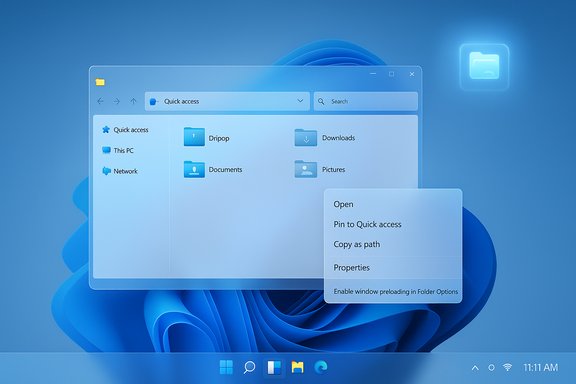
 

Microsoft has quietly acknowledged the long‑running complaint about Windows 11 File Explorer lag and begun testing a practical — if pragmatic — fix: keep parts of Explorer warmed in memory so folder windows open near‑instantly, with the change appearing as an opt‑out experiment in Windows 11 Insider Preview Build 26220.7271.

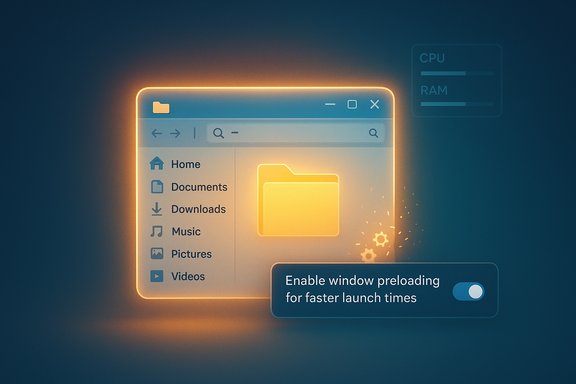
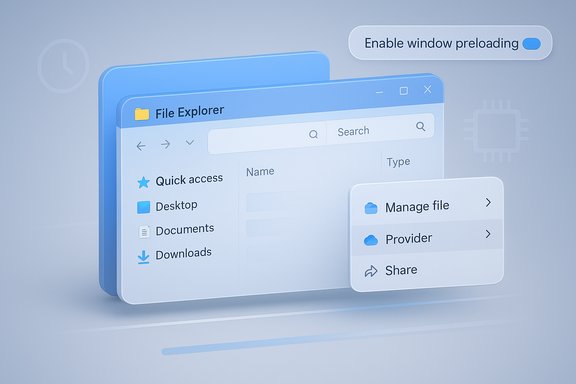
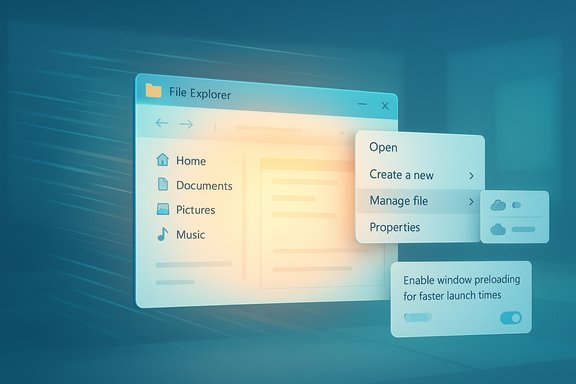
Glowing file explorer window with a yellow folder and a toggle to enable window preloading.Background​

File Explorer is the single most‑used graphical surface in Windows, and its responsiveness shapes daily productivity for millions of users. For many people the shift from Windows 10 to Windows 11 introduced an irritating regression: a noticeable “cold‑start” pause when opening Explorer after sign‑in or when no Explorer instance was resident in memory. That delay — often a second or two, sometimes longer — became a frequent gripe across forums and review coverage. Microsoft has now acknowledged that perceived latency and is experimenting with a technique that trades a small, predictable background cost for a more responsive foreground experience.
Why did this happen? The root causes are layered. File Explorer in Windows 11 is a composite surface that mixes older Win32 shell components with newer XAML/WinUI surfaces, third‑party shell extensions, cloud placeholder systems (OneDrive, provider overlays), thumbnail and preview handlers, and file enumeration logic. Those subsystems can each inject latency during a cold launch. Rather than refactoring all of those pieces at once — a major engineering undertaking — Microsoft is experimenting with preloading as a pragmatic shortcut to improve perceived responsiveness quickly.

What Microsoft shipped in the Insider preview​

The change in plain terms​

In Windows 11 Insider Preview Build 26220.7271 (KB5070307), Microsoft is "exploring preloading File Explorer in the background to help improve File Explorer launch performance." When the experiment appears on a device it surfaces a user‑visible setting under File Explorer → View → Folder Options → View labeled “Enable window preloading for faster launch times.” The option is enabled by default for Insiders who receive the experiment, but it can be unchecked to restore legacy behavior.
Microsoft describes the change as an exploration, not a permanent architectural rewrite. The company is soliciting feedback from Insider testers and collecting telemetry to guide any broader rollout. At present the experiment is limited to Dev/Beta rings of the Insider Program while Microsoft evaluates the telemetry and feedback.

Where the toggle lives (how to find it)​

  • Open File Explorer.
  • Select View → Options → Folder Options.
  • Under the View tab look for Enable window preloading for faster launch times and uncheck it to disable preloading.
This simple toggle gives users a non‑registry, user‑facing control to disable the preload if they prefer lower background memory usage or observe regressions.

How preloading likely works (technical sketch)​

Microsoft's official notes do not publish code‑level implementation details, so the breakdown below is an informed inference based on Microsoft’s precedent (Edge Startup Boost, Office prelaunch tasks) and the behavior reported by testers.
  • A lightweight portion of explorer.exe — the UI skeleton (address bar wiring, command bar, common controls) — is instantiated early or kept in a paused/dormant state.
  • Common caches and minimal registrations (icon overlays, light preview handlers, frequently used caches) may be populated proactively.
  • When the user asks for a window, the warmed instance is resumed and the visible paint completes far faster than a full cold initialization.
Treat these implementation details as informed inference rather than confirmed facts: Microsoft has intentionally kept internals high‑level in the release notes, and independent verification is limited to community observation and analogous product behaviors. Flagging this as an inference is important because the exact preload heuristics, memory budget, or gating rules are not published.

Immediate benefits: what users will notice​

This preload approach delivers fast, perceived improvements with minimal user friction. Key benefits reported in early tests and described in the preview notes include:
  • Near‑instant first paint for Explorer windows after boot or idle, shaving the frustrating one‑to‑two second cold start.
  • Reduced visual stutter on the first file operations after sign‑in.
  • A low‑effort rollback path via the Folder Options toggle for anyone who prefers the previous behavior or needs to conserve resources.
For many users on modern hardware this will feel like a simple quality‑of‑life win: the OS feels snappier when browsing files, and repetitive interruptions to workflows vanish.

Costs, trade‑offs and potential risks​

No optimization comes for free. Preloading Explorer trades RAM (and a small potential background energy footprint) for improved responsiveness, and it raises a set of questions that Insiders and administrators should test carefully.

Memory footprint and battery life​

Preloading keeps a portion of Explorer resident in RAM. On high‑end desktops the footprint may be negligible; on low‑RAM systems (4–8 GB devices, small tablets, older laptops) the impact can be noticeable. Community reports are currently anecdotal and Microsoft has not published a fixed memory budget for the preload, so treat claims of a trivial footprint as provisional until measured telemetry is available. Battery‑sensitive devices may also see a small penalty if the preload wakes CPU or I/O subsystems during idle.

Compatibility and shell extension behavior​

Explorer’s cold start often triggers registration and initialization of third‑party shell extensions, context menu handlers, and preview handlers. Preloading could change the timing of when those extensions are initialized — for better or worse. Potential real‑world issues include:
  • Third‑party shell extensions that assume initialization only occurs on explicit Explorer launch might behave differently when Explorer is kept resident.
  • Extensions with heavy on‑start I/O could increase background resource consumption if they’re not gated properly.
  • Enterprise or custom shell integrations should be verified in pilot rings to ensure no regressions.

Enterprise management considerations​

For managed environments, the preload raises additional operational questions:
  • Will Microsoft expose Group Policy or Intune controls to force preload on/off at scale? Early previews only include the Folder Options toggle; centralized controls are not yet published.
  • How will the preload interact with multi‑user images, VDI, multi‑session servers, and shared workstation environments? These scenarios often require specialized tuning and testing.
Until Microsoft documents an explicit enterprise policy surface, administrators should treat Insiders’ early telemetry and pilot tests as essential before enabling the feature broadly.

Independent verification and measurement: what’s missing​

The most load‑bearing factual claims (build number, toggle location, preview status) are confirmed in Insider notes and community reports, but important technical numbers remain unpublished:
  • Microsoft has not published a precise memory or CPU budget for the preload experiment. Community figures are anecdotal.
  • The exact preload heuristics — whether Explorer is launched on boot, only after a set idle period, or adaptive to user behavior — are not documented beyond high‑level guidance.
Because those technical specifics are unverified, any claim about a specific megabyte cost or battery penalty must be treated as provisional. Insiders and independent testers should run controlled before/after benchmarks and measure memory, CPU, wake counts, and battery drain to validate the trade‑offs on the full spectrum of devices they support.

How to test and what to measure (practical steps)​

For power users, Insiders, and IT testers, here’s a reproducible sequence to evaluate Explorer preloading:
  • Enroll a test device in Windows Insider Dev/Beta and install Build 26220.7271 (KB5070307) via Settings → Windows Update.
  • Confirm the Folder Options toggle appears: File Explorer → View → Options → Folder Options → View tab → Enable window preloading for faster launch times. Note the default state.
  • With preloading ON: run a set of scripted actions that simulate common workflows (cold boot → open Explorer, open specific folders, right‑click cloud files, open large directories). Measure: time‑to‑first‑paint, memory usage of explorer.exe, CPU wakeups, and battery drain over a fixed interval. Use tools such as Windows Performance Recorder, Task Manager, and battery reporting.
  • Disable preloading via the Folder Options toggle and repeat the same scripted tests. Capture comparative metrics.
  • If you manage multiple device classes (thin clients, low‑end laptops, high‑end desktops), repeat tests across representative hardware to build a device‑class view.
Document differences and file Feedback Hub reports for any regressions; Microsoft will rely on telemetry and Insider feedback to inform final rollout decisions.

Enterprise rollout advice​

Enterprises should treat this as a preview experiment and not rush to enable it broadly without testing. Recommended approach:
  • Pilot in a narrow ring: select representative devices (VDI images, low‑memory laptops, engineering workstations, and shared point‑of‑sale hardware).
  • Measure real‑world impact: memory pressure, login time, battery life for mobile workers, and any changes to shell extension behavior.
  • Hold vendor compatibility checks: prioritize vendors that provide shell extensions (backup/sync clients, security/AV, cloud drives) to validate integration with preload semantics.
  • Prepare rollback and enforcement: implement a strategy (scripts or MDM profiles) to disable the feature at scale if Microsoft does not publish Group Policy settings before broader deployment.

The broader engineering debate: workaround vs. root cause​

This preload is a pragmatic engineering trade: it improves the perception of speed by shifting initialization earlier. That approach mirrors successful patterns Microsoft has used elsewhere — notably Edge’s Startup Boost and Office’s scheduled prelaunch tasks — which keep tiny runtime components resident so first interactions feel instant. For many users, the result is a better experience today rather than waiting months or years for a full shell refactor.
Critics rightly note that preloading masks deeper inefficiencies. If the underlying cause is architectural — for example, heavier initialization due to XAML/WinUI + Win32 stitching or slow third‑party handlers — then preloading is a stopgap. It makes Explorer feel faster without fundamentally reducing the total work the system must do for various operations (like enumerating large network folders or resolving cloud placeholders). That means users may still encounter lag for specific tasks even with preload active. Microsoft has framed this as an experiment and provided the user toggle precisely because it is an incremental mitigation rather than a full cure.

What to expect next​

Microsoft is collecting telemetry and Insider feedback to decide whether the preload will graduate to the broader Windows 11 population. Some coverage and community posts anticipate a wider rollout in a future update, but Microsoft has not published a firm public release date for the stable‑channel deployment. Treat any timeline beyond the Insider preview as tentative until Microsoft announces a controlled rollout cadence.
When a wider rollout occurs, expect Microsoft to either:
  • Publish telemetry and more detailed guidance (memory budgets, heuristics), or
  • Offer enterprise management controls (Group Policy/Intune) to manage preload at scale, and/or
  • Iterate the preload heuristics to minimize background cost on low‑end devices.
Any of those moves would materially reduce the operational unknowns that currently make organizations cautious.

Verdict: pragmatic, effective — with caveats​

Microsoft’s Explorer preloading experiment is a sensible, low‑friction attempt to fix a high‑visibility pain point quickly. For many users the immediate experience improvements will be meaningful: snappier Explorer launches, fewer interrupted workflows, and a smoother feeling desktop. The on/off toggle in Folder Options makes the experiment low risk for individual Insiders and consumer testers.
However, the approach is not without trade‑offs. The lack of published memory and energy budgets, unknown interactions with third‑party extensions, and the absence of enterprise management controls in the preview mean administrators must pilot carefully. Moreover, preloading is a workaround that may delay deeper architectural refinements — a compromise between shipping a user‑facing fix now and committing to a longer‑term rework of Explorer’s internals.
For users who value immediate snappiness, enabling the preload (or leaving it enabled when Microsoft ships it) will likely feel like a clear improvement. For those on low‑RAM devices, multi‑session environments, or strict battery constraints, the safe path is to test and measure, using the Folder Options toggle to disable preloading where it causes regressions.

Final thoughts​

This preview is an important signal about Microsoft’s priorities: visible quality and responsiveness improvements remain front and center for Windows 11. Preloading File Explorer is a pragmatic engineering choice that follows proven patterns in modern Windows products, but it surfaces a broader tension in platform engineering — the trade between perceived responsiveness and resource economy. Insiders, power users, and IT teams should test carefully, measure transparently, and feed experience back through the channels Microsoft has provided so the company can refine the feature before any broad rollout.
For now, the most important, actionable points are clear and simple:
  • If you’re an Insider and you see Build 26220.7271, try the preload and measure the delta on your hardware.
  • If you prefer to conserve RAM or are testing in an enterprise image, use the Folder Options toggle to disable the preload and include the change in pilot test plans.
  • Expect Microsoft to iterate based on telemetry; treat this as an experiment, not a permanent architectural fix.
The trade‑offs are measurable; the user experience gains are immediate. The question for most readers isn’t whether Microsoft can make Explorer feel faster — it can — but whether the company will balance that speed with transparent telemetry, careful enterprise controls, and a long‑term plan to address the underlying causes.

Source: KitGuru Microsoft acknowledges Windows 11 File Explorer lag - KitGuru
 

Microsoft is testing a background “preload” for File Explorer in the latest Windows 11 Insider Preview that aims to make folder windows appear nearly instantly by warming essential Explorer components during idle time, and the change is exposed to testers as a toggle labeled “Enable window preloading for faster launch times.”

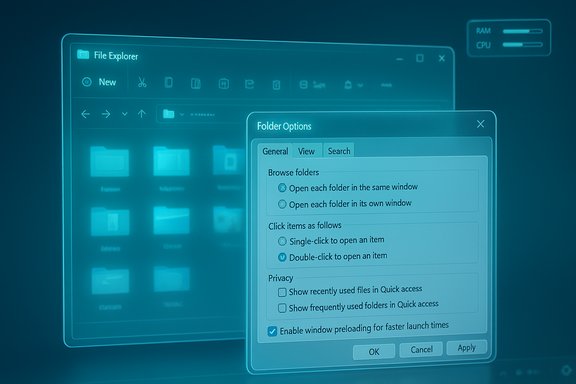
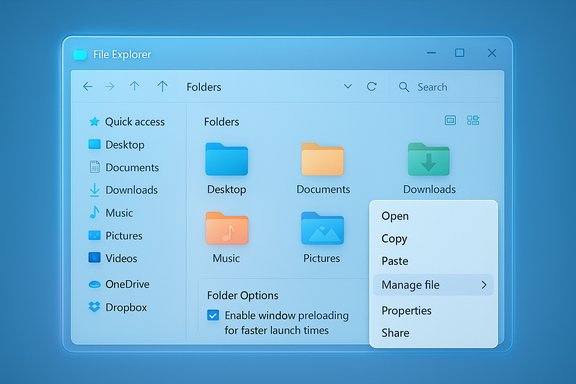
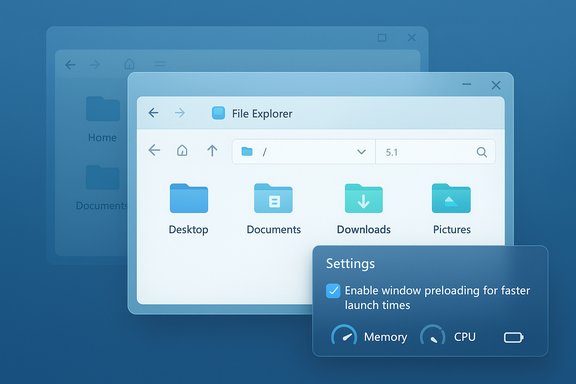
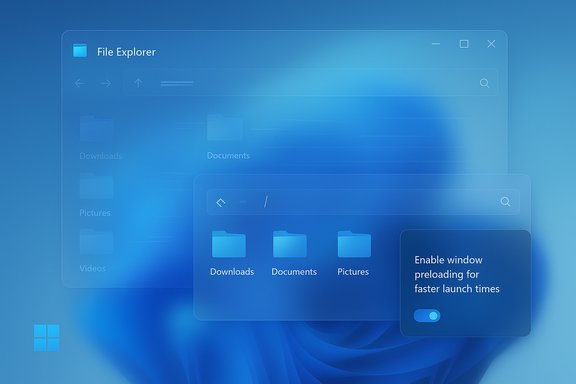
A blue-tinted Windows File Explorer with a floating Folder Options dialog.Background​

File Explorer remains one of the highest-frequency user surfaces in Windows, and a persistent complaint has been the perceptible “cold start” pause users see the first time they open a folder after boot or sign-in. Microsoft has begun experimenting with a pragmatic mitigation: preload a lightweight part of File Explorer in the background so the first visible window paints faster. This experiment appears in Windows 11 Insider Preview Build 26220.7271 (KB5070307) and is currently being evaluated in Dev and Beta channels.
This preload effort is presented as an exploration rather than a permanent architecture change. Microsoft exposes a user-facing opt-out in File Explorer’s Folder Options so testers and administrators can disable the behavior if it creates undesirable side effects.

What Microsoft shipped in the preview​

The core features in Build 26220.7271 (KB5070307)​

  • An optional File Explorer background preload mechanism, surfaced as a checkbox in File Explorer → View → Options → Folder Options → View called “Enable window preloading for faster launch times.”
  • A reorganized right‑click (context) menu that groups rarely used verbs into a Manage-file flyout and moves cloud/provider commands into provider-specific submenus.
  • A set of unrelated preview items in the same flight, including an Xbox full-screen experience on PC, point-in-time restore for Windows, and improvements to voice typing and Android app resumption.
Microsoft frames the preload change narrowly: it aims to reduce the perceived launch latency by moving predictable initialization into idle time rather than rewriting how enumeration, cloud sync, or third‑party handlers operate.

How the preload likely works (technical sketch)​

Microsoft’s public notes are intentionally high level, so the following is a practical engineering summary informed by how similar prelaunch strategies have been used elsewhere:
  • Pre-initialize a UI skeleton for File Explorer (address bar, command bar, common controls) in memory so the first paint completes quickly.
  • Prime small in-memory caches such as icon and thumbnail caches and common navigation state used by the initial view.
  • Optionally register a limited set of preview/thumbnail handlers and shell extension entry points to avoid first‑use stalls.
  • Hold the warmed instance in a dormant/suspended state to limit CPU usage while reserving memory for a fast resume.
This pattern mirrors other Microsoft techniques such as Edge’s Startup Boost and Office’s scheduled prelaunch tasks: warm critical paths during idle to improve perceived interactivity when the user next opens the app. Treat specifics about exact memory budgets, suspension models, or which handlers are pre-registered as informed inference until Microsoft provides deeper engineering notes.

What users will see (and won’t)​

Visible improvements​

  • Near‑instant first‑open: On many devices, particularly those with slower storage or limited RAM, opening File Explorer after sign-in should show a populated window faster, eliminating the familiar one‑to‑two second pause.
  • Cleaner context menu: The reorganized right‑click menu surfaces common verbs first and tucks less-used commands behind a Manage-file flyout, reducing vertical clutter.

What the preload does not promise​

  • It is not a wholesale fix for slow folder enumeration across network NAS devices, poorly implemented preview handlers that synchronously read disk or network on folder change, or cloud sync latency caused by remote storage performance.
  • It does not change how Explorer resolves placeholders or performs I/O-heavy tasks during navigation; those subsystems would require targeted architectural fixes.

Benefits: why this is a useful engineering trade​

Preloading is a classic trade-off: spend a small, predictable amount of background resources to gain much larger, user-visible improvements at the moment of interaction. Tangible benefits include:
  • Faster perceived responsiveness for a surface users hit dozens or hundreds of times daily.
  • Reduced context-switch friction for power users who repeatedly open and close Explorer.
  • A low-risk, reversible mechanism (user toggle) that lets Microsoft gather telemetry and tune behavior before any wide rollout.
For many everyday operations, shaving even a single second off repeated actions meaningfully improves the sense of speed across the system.

Risks, trade-offs, and unknowns​

While the preload concept is straightforward, several practical concerns must be weighed and validated through testing.

Memory footprint and battery impact​

Preloading necessarily reserves memory for a warmed Explorer instance. The impact varies widely by device:
  • On high-RAM desktops this is likely negligible.
  • On low‑RAM laptops, handheld Windows devices, or systems that rely on aggressive memory reclamation, a reserved warmed instance could reduce available working set and influence paging, potentially making the system feel slower overall.
  • Battery-sensitive scenarios (mobile devices or long sessions) may see increased power draw if the warmed process is not strictly dormant.
Microsoft has not published a fixed memory budget or heuristics specifying when preload is disabled (for example, under low RAM or battery saver profiles). Those numbers matter for enterprise rollouts and for users on constrained hardware and are currently unpublished. Treat claims about exact memory overhead as provisional until controlled measurements are available.

Interactions with third‑party shell extensions and enterprise tooling​

File Explorer is heavily extensible, and enterprise environments often use custom shell extensions and context menu entries. Potential issues include:
  • Compatibility risk: Warming and pre-registering certain handlers could surface code paths earlier than vendors expect, potentially exposing latent bugs or timing-dependent behavior.
  • Policy and manageability: Enterprises will want to know whether preload is controllable via policy, group policy objects (GPOs), or MDM configuration before approving broad rollouts.
  • VDI and image-provisioning: Non-persistent VDI images and provisioning workflows could see surprising memory footprints at scale if preload is enabled across many sessions.
Microsoft’s Insider notes expose the feature as optional and solicit feedback, but administrators should treat the preview as a test and not assume default-on behavior in production images until Microsoft documents enterprise controls.

Telemetry and privacy concerns​

Any background preloading collects telemetry for tuning heuristics. Two practical questions to watch for:
  • What telemetry fields will Microsoft collect related to preloading (memory use, battery, handler startup time, extension crash rates)?
  • Will enterprise tenants be able to opt their fleet out of telemetry related to experimental preload behavior until the feature is fully vetted?
Those operational details matter for privacy-sensitive and regulated environments and should be part of pilot plans.

Practical guidance: how to test and evaluate preload​

For Windows enthusiasts, IT teams, and early adopters evaluating the Insider build, a short, repeatable test plan helps validate whether preload delivers net gains on specific hardware.
  • Identify test machines that represent the fleet mix: low‑RAM laptops, typical desktop workstations, and any specialized devices (handheld Windows PCs, tablets).
  • Record baseline metrics:
  • Cold-start Explorer launch time (time from click to first interactive paint).
  • Memory usage (overall system and explorer.exe RSS) after sign-in with preload off.
  • Battery drain over a fixed idle interval for mobile scenarios.
  • Enable the preload via File Explorer → View → Options → Folder Options → View → check “Enable window preloading for faster launch times.” (Insider builds may enable it by default for recipients.
  • Repeat metrics from step 2 and compare differences.
  • Validate compatibility by exercising common third‑party context menu integrations, shell extensions, device management tooling, and any automation that invokes file‑system verbs.
  • Test long-term behavior: reboot a machine, resume from sleep, and run a multi-hour battery profile to detect any subtle resource leaks or CPU wakeups attributed to the warmed instance.
Suggested diagnostic values to collect:
  • Cold-open time (ms)
  • explorer.exe resident memory (MB) after sign-in and after preload occurs
  • Platform-wide commit and free memory
  • Battery percentage delta over a fixed interval
  • Event logs related to explorer crashes or extension failures
Early community testing suggests perceptible first‑open gains, but measured idle memory overhead has varied across reports; controlled lab runs are essential before making fleet decisions.

How to disable the preload (quick steps)​

If you encounter higher memory use, battery impact, or compatibility problems, the preview exposes a straightforward opt-out:
  • Open File Explorer.
  • Click View → Options → Folder Options.
  • Select the View tab.
  • Uncheck “Enable window preloading for faster launch times.”
  • Apply and restart sign-in to validate behavior.
This built-in toggle makes it easy for testers and individual users to disable the experiment without registry edits.

Enterprise rollout considerations​

IT teams should take a staged approach to assessing preload:
  • Pilot early on representative hardware with telemetry collection that maps preload behavior to application compatibility and battery metrics.
  • Require a documented eviction policy (will preload be automatically disabled under low memory or when a designated power profile is active? before broad deployment.
  • Ask vendor partners to validate shell extension behavior against preloaded Explorer instances and surface fixes if needed.
  • Validate image provisioning and VDI boot sequences; confirm preload does not significantly affect image size or session density in multi-user environments.
As with any system-level experiment, the path from Insider preview to general availability should be guided by telemetry, compatibility signoffs, and explicit enterprise controls.

Comparison: this vs. other Microsoft preloads​

Microsoft has used similar warm-start strategies elsewhere:
  • Edge Startup Boost: Keeps a lightweight Edge process resident to shorten initial browser window time.
  • Office prelaunch: Microsoft introduced scheduled prelaunch for Office apps to speed first open.
The File Explorer preload follows the same pattern—shift predictable initialization out of the click path and into idle time. That continuity in approach reduces surprise for users and gives Microsoft a tested playbook for tuning heuristics. However, the shell and Explorer are uniquely extensible and integrated into many workflows, so the compatibility surface is larger and requires more caution.

Long-term outlook and what to watch​

This preload is an incremental but practical improvement. The ideal long-term plan would pair the warm-start approach with targeted fixes to the underlying causes of slow navigation:
  • Better management and lazy-loading strategies for third‑party shell extensions.
  • Improved placeholder and cloud enumeration for providers like OneDrive.
  • More aggressive, targeted caching for thumbnails and preview handlers that are slow on first use.
Until Microsoft commits to deeper architectural work, preloading remains a workaround that improves perceived responsiveness but does not eliminate the root causes of slow folder navigation. Expect Microsoft to iterate on heuristics (when to preload, which devices qualify, and how aggressive the preload is) as it collects Insider telemetry and Feedback Hub reports.

Quick FAQ​

  • Is preload enabled by default?
    In the current Insider preview, the toggle may be enabled by default for recipients of the experiment. Users can uncheck it to disable preload.
  • Will this increase my RAM usage?
    Yes—preloading reserves memory for a warmed instance. The exact footprint is not published and will vary by device, so measure on representative hardware.
  • Will it change how my cloud files sync?
    No. Preloading improves perceived launch latency; it does not fundamentally change cloud sync mechanics or network enumeration behavior.
  • Is this rolling out to all users now?
    No. The change is currently an Insider experiment in Windows 11 Preview Build 26220.7271 (KB5070307) and will be contingent on telemetry and feedback before any broader rollout.

Conclusion​

The File Explorer preload experiment is a focused, user‑centric attempt to address one of Windows’ most visible annoyances: the cold-start pause when opening folders. By warming the Explorer UI during idle, Microsoft trades a modest, predictable background cost for a visible improvement in how fast the shell feels—especially on older or less capable hardware. The approach follows Microsoft’s established pattern of warm-start heuristics used in Edge and Office, and it is sensible as a low-risk step that can be adjusted via telemetry.
That said, preloading is a workaround, not a panacea. It does not fix deep-rooted issues around network enumeration, poorly designed preview handlers, or third‑party shell extension performance. Before enterprises deploy preload widely they must validate memory, battery, and compatibility impacts on representative hardware and ensure clear administrative controls exist.
Insiders and early testers should use the built-in toggle to measure real-world gains and regressions. If Microsoft publishes memory budgets, gating heuristics, or policy controls in subsequent updates, those details will be the deciding factors for broader adoption. For now, the experiment is a welcome, practical step toward making everyday Windows interactions feel snappier—provided it is tuned with eyes open to the trade-offs and tested across the diverse realities of modern Windows hardware.

Source: How-To Geek Microsoft wants to make the File Explorer faster with this trick
 

Microsoft is quietly testing two modest but meaningful changes to File Explorer that aim to fix two of the app’s longest‑running annoyances: the familiar “cold‑start” pause when you open Explorer, and a top‑heavy right‑click menu that buries common actions beneath a long list of cloud and provider entries. The experiments — shipped to Insiders in Windows 11 Insider Preview Build 26220.7271 (KB5070307) — introduce an optional background preloading mechanism to make first launches feel instant, and a decluttered context menu that moves less‑used verbs into a new Manage file flyout and provider submenus.

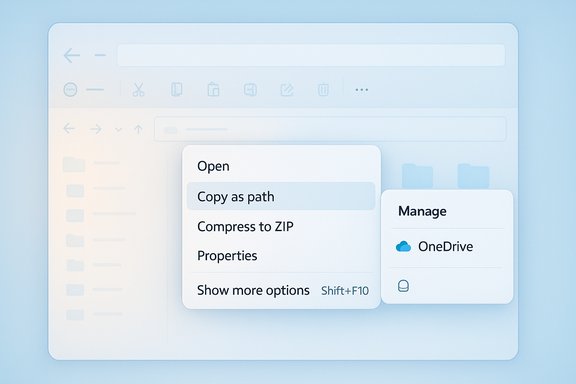
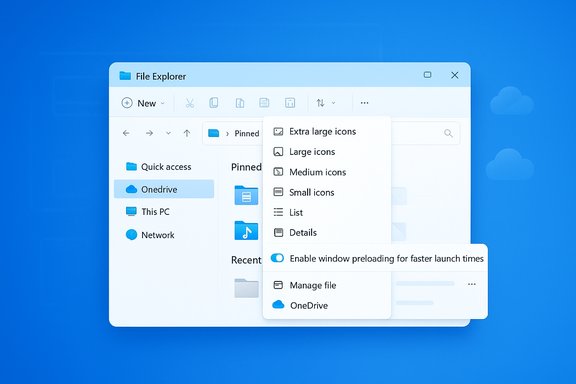
Soft-blue file explorer with a floating context menu showing Open, Copy as path, and OneDrive manage panel.Background​

File Explorer has been at the center of user frustration ever since Windows 11’s visual overhaul. Users and reviewers have consistently called out two issues: perceived launch latency (the one‑to‑two second freeze on a cold start) and a context menu that grew unwieldy as OneDrive, third‑party shell extensions, and app providers layered new entries on top of the classic verbs. Microsoft’s approach in Build 26220.7271 is deliberately incremental — not a full shell rewrite, but pragmatic UX and timing changes designed to reduce friction where it’s most visible.
Why incremental? The launch delay isn’t a single bug: it’s the sum of UI composition, thumbnail/preview handler initialization, shell extension registration, and potential network/cloud enumeration. Rather than attempting to rearchitect all of those subsystems at once, Microsoft is testing a warming strategy that moves predictable initialization into idle time and reorganizing the context menu to surface core verbs first. Microsoft describes both moves as “explorations” and exposes user controls so testers can opt out and file feedback.

What Microsoft shipped in Build 26220.7271​

The two headline changes​

  • Background preloading: File Explorer may now keep a lightweight UI skeleton warm in memory so the first visible Explorer window paints nearly instantly when you click to open it. The preload is optional and appears in Folder Options as Enable window preloading for faster launch times. The option is enabled by default for Insiders receiving the experiment.
  • Context‑menu reorganization: The right‑click menu is shorter at the top level. Actions like Compress to…, Copy as path, Rotate right/left, and Set as desktop background are grouped under a Manage file flyout; cloud provider sync options (for example, Always keep on this device and Free up space) are moved into provider‑specific submenus. Microsoft notes the Manage file label may change as the experiment evolves.
These are modest UX changes but directly target the most visible pain points for everyday users. Community reproductions of the build and independent reporting confirm the toggle and menu reorganizations, showing consistent behavior across early test machines.

How the preloading works — a practical sketch​

Microsoft’s published notes are intentionally high level, so the community has inferred the likely mechanics based on Microsoft’s precedent (Edge Startup Boost, Office prelaunch) and hands‑on tests.
  • A lightweight portion of Explorer’s UI (address bar, command bar, toolbar controls and basic shell wiring) is instantiated or primed in the background during idle time.
  • Small caches used for the initial paint (icon and thumbnail caches, common navigation state) are populated proactively.
  • A limited set of preview/thumbnail handlers and shell extension entry points may be registered so they don’t stall the first context menu or render operations.
  • The warmed instance is kept dormant or suspended to minimize CPU use and resumed when the user opens File Explorer.
The key point: preloading changes when initialization work happens, not how Explorer enumerates folders, resolves cloud placeholders, or performs network I/O. That means preloading addresses perceived latency for the first window paint, but won’t magically speed up deep folder enumeration, giant network shares, or slow NAS responses.

What users will actually see​

  • Faster perceived first launch of File Explorer after sign‑in or when no explorer window is resident.
  • A shorter top‑level right‑click menu that’s easier to scan and reaches the common verbs faster.
  • The same functionality preserved — compressed or cloud options aren’t removed, they’re just one click deeper.
  • A user‑facing toggle in Folder Options to disable preloading if a user prefers to conserve RAM or encounters regressions.
Early hands‑on reports and quick community tests show the improvement is most noticeable on low‑spec machines: HDD systems, tablets with limited RAM, and older laptops. On modern, high‑spec desktops, the difference is smaller but still measurable in cold‑start paint times. Independent outlets have validated the presence of the toggle and reported tangible speed gains on slower hardware.

Step‑by‑step: How to find and disable the preload (if you want)​

  • Open File Explorer (for example, press Win+E).
  • Click the three‑dot menu (or View) and select Options to open Folder Options.
  • Switch to the View tab.
  • Uncheck Enable window preloading for faster launch times to disable the warmed instance.
  • Apply and close.
This UI toggle gives testers and admins a non‑registry way to opt out quickly. Microsoft explicitly documented this placement in the Insider notes.

Deeper analysis — strengths, limitations, and risks​

Strengths​

  • Low‑risk, high‑visibility fix: Preloading is a small engineering change with an outsized UX win — it improves the perception of performance without requiring a full platform overhaul.
  • Preserves functionality: The context‑menu reorganization keeps advanced actions available while prioritizing the common verbs, lowering cognitive load for casual users.
  • User control and staged rollout: Microsoft exposes an opt‑out and treats both features as experiments in Insider channels first, which is appropriate for broad telemetry collection and iterative refinement.

Limitations​

  • Not a panacea for all Explorer slowness: Preloading won’t speed up slow folder enumeration, sluggish network shares, or expensive preview handlers that run after the initial paint.
  • Marginal gains on modern PCs: High‑spec machines already have minimal cold‑start latency; the biggest impact will be for older hardware. Expect diminishing returns on flagship desktops.

Potential risks and trade‑offs​

  • Background memory reservation: Keeping a warmed Explorer instance resident uses RAM persistently. On constrained systems this could reduce headroom for memory‑sensitive workloads. Early community measurements suggest the footprint is modest, but exact budgets are undisclosed.
  • Battery and CPU considerations: Although Microsoft’s design keeps warmed instances dormant, there’s still a small amount of background activity at boot or during idle — a consideration for battery‑critical laptops and tablets.
  • Interaction with third‑party shell extensions: Some slowdowns are caused by third‑party context menu handlers which may still trigger at first use. Preloading can hide initial handler cost for a single click but won’t eliminate deeper extension issues; in some configurations, preloading could change timing behavior and reveal race conditions or regressions.
  • Telemetry and privacy concerns: The experiment’s rollout relies on telemetry. Enterprises that restrict telemetry may not see the feature, and administrators should be aware of the jumpiness while telemetry refines heuristics. Microsoft asks Insiders to file Feedback Hub reports for regressions.

Enterprise implications and manageability​

For enterprise IT, a few concrete points matter:
  • Policy control: At present, the toggle is a per‑device Folder Options setting. Enterprises should watch for policy or ADMX updates that may allow admins to enforce preload behavior across fleets if the feature ships broadly.
  • Testing on image baselines: Because the behavior changes resident memory patterns, IT should validate imaging and login performance on corporate baseline hardware — especially older models and thin clients.
  • Compatibility with endpoint protection: Some security and endpoint protection tools hook deeply into the shell; preloading alters initialization timing and may expose incompatibilities. Validate AV/EDR behavior in a lab before broad deployment.
There’s no sign yet of a Group Policy for this setting in the Insider notes, so for now admins should rely on testing, user education, and the classic Folder Options toggle until Microsoft publishes formal management guidance.

What the context‑menu changes mean for workflows​

The new top‑level reduction from roughly 16 actions to 12 (as reported in some coverage) surfaces the everyday commands and tucks the rest into a secondary layer — a pattern common to modern mobile and desktop UX: surface the five to seven most likely actions, hide specialized commands behind a “Manage” or “More” flyout.
  • Pros: Shorter menus are faster to scan and easier to use on touch devices and small screens. The provider flyouts make cloud actions (OneDrive sync options, phone transfers) easier to find in a logical grouping.
  • Cons: Power users who relied on muscle memory will see a small learning curve as some actions move a click deeper. Microsoft has signaled the name Manage file may change based on feedback.
Overall, the reorganization is reversible and conservative: nothing is removed — just reorganized — which reduces the risk of breaking workflows.

How to test the changes yourself (practical checklist)​

  • Measure cold‑start times before and after enabling preload. Use a stopwatch or an automated script to record the time between pressing Win+E and the first responsive Explorer window.
  • Test on a range of hardware:
  • Older HDD laptop (most likely to benefit).
  • Midrange SSD laptop (expect moderate improvement).
  • High‑end desktop (small difference).
  • Check RAM usage with no Explorer windows open, then with Explorer preloaded, and with multiple windows/tabs. Tools: Task Manager, Resource Monitor, Process Explorer.
  • Validate context menu behavior with common tasks: Compress to ZIP, Copy as path, Send to Phone, Always keep on this device, Free up space.
  • Test with common third‑party shell extensions present (e.g., WinRAR, Dropbox, 7‑Zip) to see if timing changes cause regressions.
Document your findings and submit issues with repro steps to the Feedback Hub under Files Folders and Online Storage > File Explorer Performance if you see problems. Microsoft is explicitly asking for Insider feedback.

Wider context: where this fits in Windows 11’s evolution​

These tweaks sit alongside a broader set of File Explorer improvements Microsoft has shipped since Windows 11’s original launch: tabbed browsing, a compression wizard, tighter OneDrive integration, and incremental UI refinements across 22H2/24H2 updates. The current approach — iterative UX polish plus targeted background optimizations — reflects a pragmatic product posture: prioritize low‑risk changes that improve day‑to‑day experience while collecting telemetry for more ambitious reworks later.

Recommendations for Windows power users and administrators​

  • If you run an older or low‑spec device, enable preloading (or accept the default on Insider builds) and measure perceived improvement. If you don’t notice a benefit or see regressions, disable the checkbox in Folder Options.
  • For battery‑sensitive users (laptops/tablets), try toggling preloading on and off and monitor battery drain and idle CPU. Keep in mind the feature is designed to minimize active background work.
  • IT admins should test the feature on representative images and validate AV/EDR compatibility before broad deployment. Document any regressions and escalate to vendors where necessary.
  • Power users who prefer the previous menu layout can adapt quickly; Microsoft has kept advanced operations available and configurable.

Final verdict​

Microsoft’s experiments in Build 26220.7271 are the kind of pragmatic, focused fixes that matter to everyday Windows users. Preloading addresses a consistently visible annoyance — the cold‑start pause — with a low‑risk pattern that Microsoft has successfully used elsewhere. The context‑menu reorganization trims vertical clutter while retaining full functionality one level deeper. Both changes are modest individually, but together they improve the feeling of responsiveness and the usability of a tool most people use dozens of times a day. That said, they are not dramatic architectural fixes. Deep performance problems tied to network storage, heavy preview handlers, or misbehaving third‑party shell extensions remain outside the scope of these experiments. Administrators and power users should test the behavior on their hardware, use the Folder Options toggle if needed, and report regressions through Feedback Hub so Microsoft can refine heuristics before any wider rollout.
For the millions of Windows users who open File Explorer dozens of times every day, shaving a second off each cold start and cutting a few mid‑clicks from the right‑click menu will add up — and that quiet improvement, delivered with an explicit toggle and staged testing, is exactly the sort of iterative progress that restores polish to a staple of the Windows experience.
Conclusion
The Build 26220.7271 experiments are practical, reversible, and targeted improvements to long‑standing File Explorer pain points. They show Microsoft listening to feedback and choosing low‑risk paths to improve perceived performance and reduce UI clutter. Expect staged rollouts, continued iteration on wording and grouping, and broader telemetry‑driven tuning before either feature becomes a permanent part of general Windows 11 releases.
Source: PCMag UK Windows 11's File Explorer Will Soon Be Faster, Easier to Navigate
 

Microsoft is quietly rolling out two practical changes to File Explorer in Windows 11 that aim to reduce clicks and shave seconds off the time it takes to open and work with files: a redesigned, shorter right‑click menu that hides less‑used actions inside grouped submenus, and an optional background preloading experiment that keeps parts of File Explorer warmed in memory so windows appear faster when you open them.

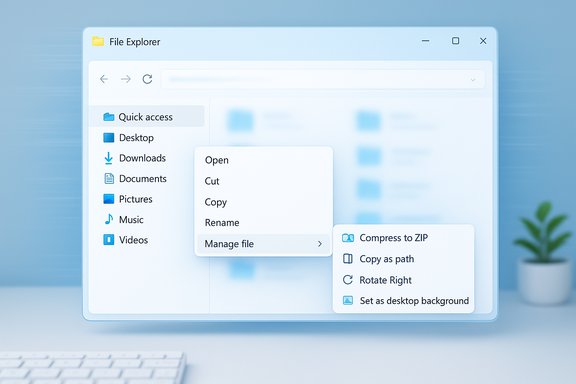
A glossy blue UI window showing a redesigned File menu with file actions and cloud options.Background​

Since Windows 11 first introduced a modernized File Explorer UI and a compact context menu, users have had a love‑hate relationship with the new layout. The pared‑down right‑click menu reduced visual clutter for many, but it also hid legacy and power features behind an extra click. Separately, File Explorer’s first‑open latency — especially on older or heavily loaded systems — has been a persistent complaint for years. Microsoft is addressing both complaints in a measured way through the Windows Insider channel: a context‑menu reorganization and an experimental preloading feature exposed in Windows 11 Insider Preview Build 26220.7271 (KB5070307).

What Microsoft shipped in Build 26220.7271 — the official summary​

  • An experimental background preload for File Explorer, described by Microsoft as “exploring preloading File Explorer in the background to help improve File Explorer launch performance.” The feature is toggled from File Explorer → View → Options → Folder Options → View with a checkbox labeled “Enable window preloading for faster launch times.”
  • A reorganization of the right‑click context menu that groups less‑used actions into new flyouts (for example, a Manage file menu that collects image‑related options and common file operations), and moves cloud provider actions into provider‑specific submenus. Microsoft notes the name “Manage file” may change as the experiment evolves.
  • The changes are in the Dev and Beta Insider channels and are explicitly framed as staged experiments rather than final features. Microsoft asks for feedback via the Feedback Hub while telemetry informs broader rollout decisions.
These are the baseline facts; the rest of this article unpacks what they mean in practice, how they trade off performance and resources, and what users — from casual laptop owners to IT administrators — should expect.

The context‑menu redesign: less clutter, more groupings​

What changed — the visible details​

The right‑click menu inside File Explorer has been shortened and reorganized. Frequently used verbs — Open, Cut/Copy, Rename, Delete — remain at the top level, while a handful of image‑ and file‑management actions have been moved into a grouped submenu labeled Manage file. That Manage file flyout includes actions such as:
  • Compress to… (archive options)
  • Copy as path
  • Rotate right / Rotate left
  • Set as desktop background
Cloud provider options (for OneDrive and other installed shell providers) are grouped into provider‑specific submenus with their own nested choices such as Always keep on this device and Free up space. The aim is to reduce the number of visible rows in the primary menu and avoid the vertical scroll that long context menus can incur.

UX rationale — why group, not remove?​

Grouping less‑used commands into submenus is a common approach to decluttering UI surfaces while keeping functionality accessible. The tradeoff is discoverability: users who relied on one‑click access to rarer commands will need an extra click and a brief relearning period. Microsoft appears to have prioritized reducing cognitive load and visual noise for the majority of users while keeping advanced functionality available.
Benefits:
  • Faster visual scanning of the menu; core actions are immediately visible.
  • Reduced accidental clicks caused by tall, dense menu lists.
  • Logical grouping (cloud actions near cloud-related items, image actions under Manage file) improves mental models for many workflows.
Costs:
  • Extra click for niche actions; power users who frequently use grouped commands may see a small productivity hit.
  • The label “Manage file” is generic and may confuse users until the submenu becomes familiar — Microsoft acknowledged the label might change.

What we could not independently verify (and why it matters)​

Some early reports and community writeups claim the redesign reduces the top‑level options from 16 to 12; however, Microsoft’s official release notes do not publish a specific before‑and‑after item count. Treat any specific numeric claim about the number of menu items removed as provisional until Microsoft publishes a precise itemized comparison or an independent UI inventory is performed across different file types and shell extension states. This is important because the number of visible items can vary by file type, installed shell extensions, and cloud provider integrations. This claim should be considered anecdotal until verified.

The background preloading experiment: how it works and the tradeoffs​

The concept​

Rather than attempting a deep rewrite of Explorer’s initialization path, Microsoft is testing a pragmatic engineering trade: instantiate and partially initialize File Explorer in idle time so the UI is ready when the user asks for it. The warmed instance may sit suspended in memory, making the first visible paint and initial interaction faster. Microsoft frames this strictly as an exploration and provides a user‑visible toggle to disable the behavior.

Expected benefits​

  • Faster perceived first‑open times: testers and early reporting indicate Explorer windows paint more fully and quickly on first open after sign‑in. This addresses the common complaint of a second or more of ‘wait time’ while Explorer composes the command bar, enumerates folders, and initializes preview/thumbnail handlers.
  • Fewer visual stutters when opening Explorer for the first time after boot, because some of the heavy initialization work was done earlier.
  • No user‑visible change other than improved launch responsiveness, in Microsoft’s intention.

The resource tradeoffs and unknowns​

Preloading is explicitly a trade: move work to idle time and use RAM to reduce interactive latency. The key unknowns are:
  • Memory footprint: Microsoft has not published the RAM budget for the warmed instance. Community reports signal it could be measurable on low‑memory devices, but there is no official figure yet. Independent benchmarks will be required to quantify the cost on systems with 4 GB, 8 GB, and 16 GB of RAM. Treat any specific claims about “only a few megabytes” as tentative until measured.
  • Battery and CPU wakeups: any background activity that preloads UI components could modestly increase background CPU use or break sleep optimizations on some devices, with potential battery implications for laptops and ARM‑based devices. Microsoft’s Insider notes do not discuss battery cost explicitly.
  • Interaction with third‑party shell extensions: a warmed instance may initialize registered shell handlers earlier, which could expose bugs or cause side effects if those handlers aren’t designed for background initialization.
  • Telemetry‑driven rollout: the preloading experiment appears staged and toggleable for Insiders so Microsoft can measure regressions and filter rollouts. Enterprises and administrators will want concrete telemetry on memory, battery, and reliability before enabling broadly.

How to disable it (today, in Insider builds)​

If you have this experiment on your device, you can turn it off via:
  • Open File Explorer.
  • Select View → Options → Folder Options.
  • Switch to the View tab.
  • Uncheck “Enable window preloading for faster launch times” and click OK.
Microsoft intentionally exposes an opt‑out to make testing safer for devices that can’t afford the memory tradeoff.

Real‑world impact: who benefits, who should be cautious​

Beneficiaries​

  • Users on older hardware with slower storage or modest CPUs will likely notice the most dramatic improvement in perceived Explorer responsiveness.
  • Casual users who open File Explorer occasionally and dislike long waits on cold open will appreciate the smoother experience without needing to tweak settings.
  • IT help desks may see fewer performance complaints from users who mostly interact with File Explorer for simple navigation and file operations.

Users who should be cautious​

  • Systems with very low RAM (4 GB and under) or machines already constrained by memory‑heavy foreground workloads should test the toggle carefully to ensure the warmed Explorer instance doesn’t cause swapping or degrade overall performance.
  • Battery‑sensitive laptop users should watch battery telemetry after enabling the feature to ensure there are no adverse effects.
  • Power users who rely heavily on immediate access to shell extension behaviors should validate that their preferred extensions initialize correctly when preloading is used.

Enterprise considerations​

  • Configuration management: enterprises will want Group Policy or MDM control over the preload toggle before enabling it broadly. Microsoft’s Insider experiment exposes the toggle to testers; channel‑wide deployment policies for production environments typically follow only after staged validation.
  • Imaging and testing: enterprise imaging teams should test the feature on representative hardware classes (low‑end laptops, typical desktops, and large‑memory workstations) to measure memory and battery impacts under normal workloads.
  • Compatibility: organizations that rely on third‑party context‑menu handlers (backup tools, encryption agents, versioning shell extensions) should validate compatibility during pilot deployments.

Performance expectations vs. marketing: a reality check​

Microsoft’s messaging is careful: this is an exploration to improve perceived launch performance, not a panacea for every File Explorer performance issue. Preloading helps perceived latency — making the UI ready earlier — but it does not fundamentally change the cost of enumerating very large network shares, rescanning thousands of files, or executing slow third‑party preview handlers. Those subsystems may still cause delays after the initial window appears.
Independent testing and benchmarks will be necessary to quantify:
  • Real time saved on first open (milliseconds to seconds).
  • Memory consumed by the warmed instance on different hardware.
  • Any battery delta from idle background initialization.
    Until such measurements are publicly available, claims of universal or dramatic speedups should be treated as optimistic and conditional on hardware and configuration.

Practical tips for Windows users and power users​

  • If you are on an Insider build and see the toggle enabled by default, try both states:
  • Enable preloading and measure Explorer launch time and system responsiveness during normal use.
  • Disable it for a day and see whether overall performance or battery life improves.
  • For low‑memory systems, default to disabled until you’ve tested the memory impact.
  • If you rely on specific context‑menu entries (for example, image rotate or shell compression workflows), explore the Manage file submenu to relearn where those commands live, and consider pinning frequent operations to the command bar or Quick Access to avoid the extra click.
  • IT administrators: pilot the change with a sample of representative devices before wide deployment, and ask for Group Policy/MDM controls to be added if they are not present when the feature reaches production channels.

How this fits into Microsoft’s broader approach​

Preloading Explorer is consistent with a wider engineering pattern Microsoft has used elsewhere: trade a modest, controlled background resource allocation to avoid latency in the interactive path (Edge’s Startup Boost and selective prelaunch strategies are precedents). Grouping and collapsing context menu items follows a long trend of UI simplification paired with an option to access legacy behaviors via “Show more options” or nested flyouts. Both changes show Microsoft prioritizing perceived snappiness and lower cognitive load in everyday interactions.

What to watch next​

  • Telemetry and benchmarks: look for independent tests measuring memory footprint and measurable latency improvements across device classes.
  • UI polish: expect Microsoft to iterate the label (for example, renaming “Manage file” to something more descriptive) and adjust what’s grouped based on Insider feedback.
  • Controls for IT: enterprise‑grade deployment controls (GPO/Intune) will be critical before broad adoption in business environments.
  • Final release timing: Microsoft has not announced an exact date for these features to graduate from Insider preview to a general Windows 11 release; the company is collecting feedback and staging rollouts based on telemetry. Treat any final release timetable as contingent on testing outcomes.

Bottom line​

Microsoft’s File Explorer updates in Windows 11 Insider Preview Build 26220.7271 are practical, iterative fixes rather than sweeping redesigns. The context‑menu reorganization makes the primary menu shorter and more scannable at the cost of an extra click for less‑common actions, while the optional background preloading aims to hide first‑open latency by warming parts of Explorer in idle time. Both changes are toggleable, experimental, and being validated in the Dev and Beta Insider channels before any broader rollout. Users on older or slower machines are the likeliest beneficiaries, but administrators and low‑memory device owners should evaluate the memory and battery implications before enabling the preload experiment at scale.

Quick reference — what to remember​

  • Build: Windows 11 Insider Preview Build 26220.7271 (KB5070307) contains the experiments described.
  • Toggle: “Enable window preloading for faster launch times” appears under File Explorer → View → Options → Folder Options → View.
  • Context menu: image and compression actions moved into a Manage file flyout; cloud actions moved to provider submenus.
  • Unknowns: exact memory footprint, battery impact, and the final label and grouping decisions remain subject to change and further testing. Treat specific numerical claims about menu item counts or memory cost as provisional until independently measured.
These are modest but meaningful changes: the kind of UX refinement that, once matured, reduces friction for millions of everyday file operations. The devil is in the details — particularly the memory/battery tradeoffs of preloading — so measured testing and staged rollouts are the right approach.

Source: PCMag Australia Windows 11's File Explorer Will Soon Be Faster, Easier to Navigate
 

Microsoft is testing a pragmatic — and potentially controversial — fix for one of Windows 11’s most persistent annoyances: the long “cold start” delay when you first open File Explorer, and a simultaneous cleanup of the increasingly crowded right‑click context menu. The change arrives in Insider Preview Build 26220.7271 as an exploratory optimization that preloads parts of File Explorer in the background at boot, presents a new “Manage file” flyout to shorten the top‑level context menu, and bundles a few other niceties such as the Xbox Full Screen Experience on PCs and AI‑driven “fluid dictation” for voice typing. Early testing is limited to the Dev and Beta channels and Microsoft exposes a user toggle if you prefer the legacy behavior.

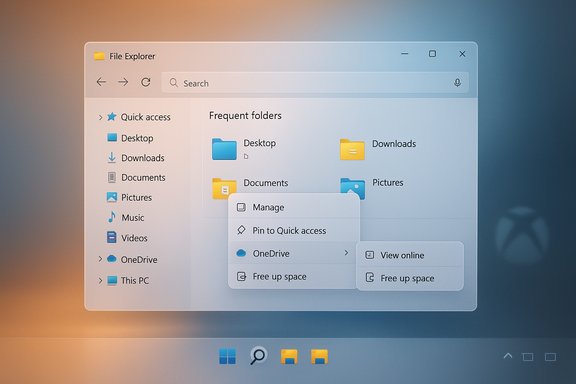
Windows 11 File Explorer on a gradient background, showing Quick Access and Frequent folders with a context menu.Background​

For many users, File Explorer is the day‑to‑day work surface of Windows. The problem Microsoft is addressing is familiar: after boot or sign‑in, opening a folder can sometimes be noticeably slow the first time, producing a half‑painted or delayed window that undermines the expectation of instant interaction. Complaints intensified as OneDrive, provider overlays, third‑party shell extensions and new UI elements layered more functionality onto the classic Windows shell. Microsoft’s response in Build 26220.7271 uses a time‑honored engineering shortcut — warm the process ahead of demand — to reduce perceived latency rather than attempting an immediate, large‑scale architectural rewrite. This preview also simplifies the File Explorer context menu by grouping less‑used actions into a new nested flyout and reorganizing cloud provider entries, aiming to reduce pointer travel and visual clutter. Additionally, the build previews other features — notably an Xbox Full Screen Experience for PC and an on‑device Small Language Model (SLM) powered fluid dictation — reflecting Microsoft’s broader push to blend UI polish with AI features.

What changed in Build 26220.7271​

File Explorer preloading: the core experiment​

  • Microsoft is “exploring preloading File Explorer in the background to help improve File Explorer launch performance.” When active, a warmed or partly pre‑initialized Explorer UI is kept resident so the first visible paint and interactions appear near‑instant. This is presented as an experiment in the Insider channels and may be adjusted or abandoned depending on telemetry and feedback.
  • The feature is user‑controllable. If your device receives the experiment, the checkbox appears in File Explorer → View → Options → Folder Options → View as “Enable window preloading for faster launch times.” Insiders report the option is enabled by default on test devices but can be unchecked to revert to legacy behavior.

Context menu reshuffle: Manage file flyout and provider submenus​

  • The right‑click menu in File Explorer has been trimmed by moving several less‑frequent verbs into a single Manage file flyout. Actions moved into the flyout include:
  • Compress to ZIP
  • Copy as Path
  • Set as Desktop Background
  • Rotate Right
  • Rotate Left
  • Cloud provider options (for example, OneDrive’s “Always keep on this device” or “Free up space”) are now tucked into the corresponding provider’s submenu instead of occupying top‑level space. ‘Send to My Phone’ and similar device/cloud actions are repositioned to form a coherent device‑to‑cloud grouping. The intent is cleaner top‑level menus while preserving access to all functionality.

Other notable additions in the same build​

  • Xbox Full Screen Experience: A controller‑friendly, console‑like interface for PCs is being previewed on additional form factors, hinting at Microsoft’s continuum between PC and Xbox UX concepts.
  • Fluid dictation: Voice typing receives AI enhancements via on‑device small language models (SLMs) that automatically correct punctuation, grammar, and remove filler words (ums/ahs). This aims to reduce manual cleanup after dictation and preserve privacy by running on device.

How the preloading likely works (technical sketch)​

Microsoft has not published code‑level details for the preload experiment. Based on official notes and precedents (Edge Startup Boost, Office prelaunch), the likely approach is:
  • Instantiate a lightweight Explorer UI skeleton (address bar wiring, common controls, command bar) early, or maintain a paused instance that has done initial registration and layout work.
  • Populate or warm frequently used caches (icon overlays, lightweight preview handlers, common shell registrations).
  • Keep the warmed state resident in RAM so when a user opens a window the shell transitions to interactive state far faster than a full cold initialization.
This pattern trades a predictable, modest background cost (memory and possibly an early CPU burst) for a dramatic reduction in first‑launch latencies. The change is perceptual: it makes the first paint faster but does not fundamentally alter deeper operations such as network enumeration, heavy thumbnail generation, or third‑party synchronous shell handlers.

Why this is sensible — and why some will object​

The upside​

  • Perceived performance wins: For most users the most noticeable improvement will be instant‑looking Explorer launches right after boot, which directly improves day‑to‑day productivity.
  • Low engineering friction: Preloading is a fast, low‑risk way to make a visible quality‑of‑life improvement without reworking decades of shell code.
  • User control: Microsoft exposes a simple toggle in Folder Options so testers or administrators can disable the behavior without registry edits or group policies.

The downsides and open questions​

  • Memory and battery cost: Keeping even a small Explorer instance warmed uses RAM. On modern desktops this may be negligible, but on machines with constrained RAM (4–8 GB) or battery‑sensitive devices the trade‑off could be meaningful. Claims that preloading consumes “only a few megabytes” are provisional; Microsoft has not published a fixed budget and community measurements are anecdotal so far. Treat impact estimates as tentative until independent benchmarks surface.
  • Boot impact: Preloading shifts some initialization work to boot time. Microsoft states the effect “shouldn’t be visible to you, outside of File Explorer hopefully launching faster,” but if implemented poorly the change could increase boot‑time work or interfere with startup power‑management heuristics. Early telemetry will determine whether boot‑time trade‑offs are acceptable.
  • Third‑party shell extensions: Explorer’s long tail of third‑party context menu handlers and preview handlers can inject delays during enumeration or first use. Preloading may mask cold‑start latency but won’t remove synchronous third‑party costs; in some environments those handlers could still slow interaction or produce unexpected side effects.
  • Not a permanent architectural fix: Preloading is an expedient optimization. It improves perceived responsiveness but doesn’t fix root causes such as slow network file enumeration, heavy thumbnailing, or badly behaving shell extensions. Deeper work will still be needed for some scenarios.

Practical impact by user group​

Casual users​

Most casual users will appreciate the snappier initial launches and reduced annoyance when opening the first folder after sign‑in. The toggle defaults on for Insiders, so most testers will experience the improvement unless they opt out.

Power users and creatives​

Users who manage heavy folders (tens of thousands of files, large asset libraries, or network mounts) will still be affected by underlying enumeration costs. The preload helps the UI show faster, but operations that require reading large directories or rendering many thumbnails will still take time. Power users should test workflows in the Insider build to validate whether the perceived improvements materialize for their specific use cases.

Enterprise and VDI administrators​

  • The extra resident memory footprint and any boot‑time side effects are the key concerns for enterprise images and VDI/remote session scenarios. Administrators should pilot the build across representative hardware profiles, particularly multi‑session images and low‑memory endpoints.
  • Microsoft’s decision to expose the toggle is helpful, but a Group Policy or MDM control will be essential for managed rollouts if organizations must disable preloading at scale. At present, preloading is an Explorer option; Insiders should watch for administrative controls in later flights.

How to try it and how to disable it​

  • Join the Windows Insider Program and opt into the Dev or Beta channel if you aren’t already.
  • Install Windows 11 Insider Preview Build 26220.7271 (the build announcement lists the relevant KB and notes).
  • Open File Explorer and go to View → Options → Folder Options → View.
  • Toggle Enable window preloading for faster launch times to enable or disable the experiment.
This simple checkbox makes the experiment low‑friction for testers and admins: if the preload causes problems, you can turn it off without digging into the registry.

The context‑menu cleanup: benefits and tradeoffs​

Microsoft’s approach with the context menu is to reduce vertical clutter by grouping infrequently used commands into nested flyouts (the Manage file flyout) and moving cloud‑provider sync actions into their own submenus. The direct benefits are:
  • Shorter, easier to scan primary context menus.
  • Fewer accidental clicks and a tidier visual hierarchy.
  • Improved ergonomics for mouse users: commonly used verbs remain top‑level while rarer verbs are one click deeper.
The tradeoff is one extra click for the buried actions. For users who frequently use those specific commands (for example, Rotate or Compress), the extra step may be mildly irritating. But overall the reorganization preserves functions while improving initial discoverability of common tasks. The change is deliberate and reversible in the sense that functionality remains accessible; Microsoft indicates the Manage file label might change as they iterate.

Fluid dictation and the on‑device SLM​

The build expands voice typing with fluid dictation, which uses an on‑device small language model (SLM) to automatically add punctuation, correct grammar, and remove filler words from spoken input. This improves dictation quality and keeps processing local for privacy reasons. It’s the same SLM approach that Microsoft has been trialing with Voice Access and other input surfaces. Users will launch voice typing with Win + H and can toggle fluid dictation from the voice typing flyout. Caveats:
  • On‑device AI features may have hardware or driver dependencies and could behave differently on older machines.
  • Real‑world accuracy will vary by accent, language, and ambient noise; testers should verify results for their own speech patterns before relying on the feature for production transcription.

Risks, unknowns and what to watch​

  • Actual memory footprint: Microsoft hasn’t published definitive numbers on how much RAM the preload reserves. Independent measurements from Insiders will be required to quantify the cost on low‑memory devices. Treat early claims about “only a few megabytes” as provisional until we have instrumented tests.
  • Battery and wakeups: If the preloading task runs at boot or wakes the CPU more often, there could be a small battery penalty on laptops. Again, telemetry will determine whether the trade‑off is acceptable for mobile users.
  • Edge cases with shell extensions: Third‑party context menu handlers that perform heavy work synchronously could still create first‑use stalls or cause functional oddities when Explorer is preloaded. Administrators should test common vendor extensions (cloud sync clients, security suites, file‑type handlers) in pilot rings.
  • Rollout uncertainty: This is an exploration. Microsoft has explicitly framed the preload as under evaluation; nothing in an Insider build is guaranteed to ship to all stable Windows 11 users. Expect refinements, name changes (for example, the “Manage file” label may evolve), and possible rollback if telemetry shows negative impact.

Recommendations​

  • If you’re curious and run supported hardware, install Build 26220.7271 in a test environment and verify:
  • File Explorer launch times immediately after boot (measure perceived and instrumented startup time).
  • Memory usage at idle with preloading enabled vs disabled.
  • Battery runtime for representative laptop workloads.
  • Compatibility with third‑party shell extensions and cloud providers in your workflow.
  • For enterprises: run a staged pilot across device classes (desktop, laptop, VDI images). Verify Group Policy/MDM controls are available where needed and report behavioral regressions to Microsoft via Feedback Hub with clear repro steps.
  • If you dislike the preload behavior or see regressions, disable it in Folder Options or keep your devices on stable channels until the experiment matures.

Verdict — pragmatic improvement, not a silver bullet​

Microsoft’s preloading experiment is a pragmatic way to improve the most visible symptom — slow first opens — and the context‑menu reorg is a sensible UI cleanup that preserves functionality while reducing clutter. Both moves reflect a realistic product‑management trade: deliver immediate quality improvements without an expensive full refactor of Explorer’s legacy plumbing.
However, this is not an architectural cure for every File Explorer pain point. Underlying issues — heavy folder enumeration, network latency, thumbnail generation, and poorly behaved third‑party extensions — remain. The preload is a visible UX band‑aid that should be judged by empirical telemetry: does the overall user experience improve without undue resource costs or regressions? Early signals are positive, but independent testing and careful enterprise piloting are essential before broad adoption. Microsoft’s posture — shipping the change behind a toggle in Insider builds and soliciting feedback — is the correct way to validate a trade‑off that touches performance, memory, and battery life. If the telemetry supports it, the preload could become a quiet improvement many users barely notice — precisely the kind of invisible engineering that makes a large OS feel faster without flashy headlines.

Microsoft continues to iterate on Windows 11 in response to persistent user feedback, and Build 26220.7271 is a useful case study in choosing pragmatic optimizations over wholesale rewrites. Testers and administrators should evaluate the feature in situ, measure real‑world effects, and report findings so that the final decision — whether to make the preload a broad release feature or to refine it further — is grounded in robust telemetry and community input.
Source: TechRadar https://www.techradar.com/computing...ch-slower-than-windows-10-and-its-about-time/
 

Microsoft’s latest Windows 11 File Explorer experiment is a practical, low‑risk attempt to fix a long‑running grievance: the feeling that Explorer opens slowly on lower‑end machines. The company is testing a background preloading mechanism and a cleaner, less cluttered context menu in recent Insider builds, and those changes — already visible in Dev/Beta preview builds — are likely to shape the Explorer experience many users see in the months ahead.

Laptop screen shows Windows File Explorer with a floating context menu and a settings panel.Background: why File Explorer still matters​

File Explorer is the single most‑used system utility on Windows. It’s the gateway to files, cloud placeholders, and many third‑party integrations such as backup agents, shell extensions, and cloud sync clients. That ubiquity means even small delays or confusing UI choices compound into daily friction for millions of users, especially on handhelds, entry‑level laptops, and older tablets where CPU, memory, and storage I/O are limited. Microsoft’s new preview work attacks two separate sources of friction: perceived launch latency and context‑menu clutter.

What Microsoft is testing now (the facts)​

Build and channel​

The changes are shipping to Windows Insiders as part of Windows 11 Insider Preview Build 26220.7271 (KB5070307), distributed via the Dev and Beta channels. Microsoft’s official Windows Insider announcement lists the build and the set of previews associated with it.

The preloading experiment​

  • Microsoft is exploring preloading File Explorer in the background to help improve File Explorer launch performance.
  • On systems that receive the experiment, a user‑visible toggle appears at: File Explorer → View → Options → Folder Options → View tab, labeled “Enable window preloading for faster launch times.” The toggle is enabled by default for many Insiders but can be turned off.
Technically, the approach keeps parts of the Explorer UI pre‑initialized in memory so a click produces a near‑instant interactive window rather than forcing initialization to run only at the moment of the click. It’s an engineering trade‑off: a small, predictable background cost (memory and some CPU time shortly after sign‑in) in exchange for much faster perceived launch times, particularly for first use after boot.

Context menu cleanup​

  • Microsoft is slimming the default right‑click menu by moving infrequently used items into submenus (for example, a Manage file flyout for compression, copy‑as‑path, rotate, and set as desktop background), and a Cloud provider flyout for OneDrive/third‑party cloud actions and features like Send to My Phone.
  • The goal is a less overwhelming, more scannable context menu that surfaces the items people use most often and hides the rest behind logical flyouts. Early tester reaction in forum feeds suggests the menu is easier to read and faster to visually parse.

Why this matters: practical user and admin impact​

For everyday users​

  • Faster cold‑start times for File Explorer will be immediately noticeable on low‑end hardware: small Windows handhelds, budget laptops, and resource‑constrained tablets will benefit most.
  • The context menu cleanup reduces cognitive load for users who felt right‑click menus had become a “wall of text.” The changes aim to make common tasks faster to find and perform.

For power users and enthusiasts​

  • The preloading change will not eliminate deeper causes of slowness — such as heavy folder enumeration, slow network shares, or problematic shell extensions — but it masks some of that latency by moving initialization earlier.
  • Power users who rely on many third‑party context‑menu extensions may see items relocated to submenus or may need to adapt workflows; they should test the new layout in Insider builds and file feedback for items that feel harder to access.

For IT administrators​

  • The experiment has a measurable cost: preloaded Explorer consumes memory and introduces work during the sign‑in window. Enterprises should pilot the feature on representative endpoints to check memory, CPU, and sign‑in telemetry.
  • Controlled Feature Rollout and server‑side gating mean twins in a fleet may show different feature sets at the same build number. This increases the need for careful testing and a defined pilot ring before broad deployment.

Technical analysis: trade‑offs and engineering rationale​

Why preloading is pragmatic​

Microsoft chose preloading because a full rewrite of the explorer subsystems (thumbnailing, async enumeration, cloud placeholder integration) would be a much larger project that takes years of validation across billions of devices. Preloading is a pragmatic, incremental fix: do some initialization early so the interactive path is short. This mirrors prior work such as Edge’s Startup Boost and Office’s scheduled preloads. The trade is predictable background resource usage for improved perceived responsiveness.

What preloading does not fix​

  • Slow enumeration of very large folders or remote/networked shares is an I/O and network problem; preloading doesn’t change the time to list thousands of files.
  • Third‑party shell extensions that run on the first right‑click or first navigation can still introduce delays.
  • Thumbnail generation and heavy metadata parsing (for large RAW image folders, for example) still need targeted optimization. The preload only reduces the time until Explorer is interactive, not every internal task that can cause stutter.

Memory, battery and sign‑in tradeoffs​

  • Preloading means Explorer’s window UI components are kept resident longer. On low‑memory devices this can be a meaningful cost; on battery‑sensitive handhelds the background activity at sign‑in could slightly change early battery curves.
  • Microsoft mitigates this by making preloading optional and controlled by user toggle during the Insider experiment, and by collecting telemetry to refine default behavior before wide rollout. Administrators should monitor sign‑in time and early session battery measurements during pilots.

UX analysis: context menu redesign — small change, big feel​

The problem: overloaded menus​

Over years of adding features, context menus accrued niche items, third‑party integrations, and cloud actions. That made the right‑click experience inconsistent and visually noisy for many users.

The proposed fix: curated menus and flyouts​

  • Consolidating rarer actions into a Manage file flyout and cloud items into a Cloud provider flyout reduces visible clutter.
  • Frequently used verbs remain top‑level so muscle memory still works for basic tasks.
  • The reorganized menu is intended to be more scannable, reducing the time users spend hunting for the function they need. Early testing reports say menus feel more sensible and faster to scan.

Potential drawbacks​

  • Users with niche workflows that rely on now‑moved items will need to adapt — there’s a short‑term productivity cost for some.
  • Third‑party shell extensions may be affected by menu reordering or new container flyouts; developers may need to update integrations to retain visibility or add their own flyout entries. IT teams should validate critical integrations in pilot rings.

What testers and admins should do now (step‑by‑step)​

  • Join Windows Insider Dev/Beta on a non‑critical device to see Build 26220.7271 (KB5070307) and the preloading experiment.
  • Measure baseline Explorer launch time: cold boot → Win+E or taskbar → record “time to interactive” across several runs. Use a stopwatch or simple automation.
  • If the preload appears, toggle it off from File Explorer → View → Options → Folder Options → View to compare with preload on/off.
  • For IT pilots: deploy to a small, representative group covering low‑end laptops, mainstream desktops, and Copilot+/handheld devices. Monitor memory, CPU, sign‑in time, and battery for the first 10 minutes after sign‑in.
  • Test third‑party backup/antivirus/sync clients and shell extensions for regressions. If an essential integration breaks, file Feedback and hold off wide deployment until fixes are validated.

Cross‑checks and verification of key claims​

  • Microsoft’s Windows Insider blog explicitly lists Build 26220.7271 (KB5070307) and notes that features are being rolled out gradually via Controlled Feature Rollout. This is the authoritative source for the build and distribution approach.
  • Independent reporting from Windows Central and The Verge confirms the preloading experiment, the presence of the Folder Options toggle, and the context menu rework — three independent outlets corroborate the same behavioral details. These outlets also report that the feature is presently limited to Insider builds and that broader availability is expected later.
  • Community and forum reporting (Insider threads and ElevenForum entries) show testers finding the toggle at the stated location and report the Manage file / Cloud provider menu changes in practice, corroborating official notes and press coverage. Use these community reports to gauge early UX sentiment but treat them as anecdotal until Microsoft confirms large‑scale telemetry results.
Caveat: some published timelines that suggest an “early 2026” general rollout are informed estimates from reporters and community sources, not a specific ship date announced by Microsoft. Treat public rollout timing as tentative until Microsoft publishes a formal schedule or enables the feature more broadly through Release Preview or stable channels.

Risks, privacy and third‑party implications​

  • Privacy: preloading per se doesn’t change what data Explorer accesses, but it may interact with cloud provider APIs earlier in a session. Administrators should revalidate data‑handling behaviors for integrated cloud clients if their compliance posture depends on precise timing of connections.
  • Third‑party shell extensions: any change to the shell UI flow can expose latent bugs in extensions; plan compatibility testing for enterprise‑critical tools.
  • Fragmentation: server‑side enablement can produce non‑uniform feature visibility across a fleet, complicating documentation and support; tracking which devices have the feature via telemetry is essential.

How this fits Microsoft’s broader Windows strategy​

Microsoft is clearly following a two‑track approach:
  • Ship pragmatic, incremental UX and performance improvements that reduce immediate friction (preloading, menu cleanup, compression wizard, drag‑and‑drop fixes introduced in recent 24H2/25H2 flights).
  • Continue larger, platform‑level modernization (AI integrations, Copilot features, recovery tooling like point‑in‑time restore) where the changes are more consequential and hardware‑gated.
Preloading Explorer is a tidy example of “do more with the existing binary” — it improves perceived performance without a risky re‑architecture, and it provides immediate user benefit while the company continues deeper backend work.

Bottom line and recommended posture​

  • The Explorer preloading and context‑menu cleanup are sensible, incremental improvements that should materially improve day‑to‑day responsiveness for users on constrained hardware and reduce UI clutter for many people.
  • The feature is experimental (Insider preview) and optional; enterprises and power users should pilot first, validate third‑party integrations, and monitor memory and battery telemetry before broad adoption.
  • Public reporting indicates a staged, early‑2026 general rollout is possible but not yet guaranteed; treat the timeline as tentative until Microsoft publishes broader availability notes.

Quick reference: Where to find the toggle and what to test​

  • Toggle location: File Explorer → View → Options → Folder Options → View tab → Enable window preloading for faster launch times. Toggle is present on Insider devices receiving the experiment.
  • Pilot checklist (short):
  • Back up critical systems before testing.
  • Enroll non‑critical devices in Dev/Beta and install Build 26220.7271 (KB5070307).
  • Compare cold‑start time with preload on/off.
  • Monitor memory, CPU, and battery in early session window.
  • Validate OneDrive/Dropbox/Google Drive clients and any custom shell extensions.

Microsoft’s File Explorer update is a textbook example of engineering pragmatism: prefer small, measurable wins that reduce everyday friction while keeping the larger modernization agenda intact. For users and IT teams, the immediate work is simple — test, measure, and adapt — but the payoff could be a significantly smoother Windows 11 experience for the devices that need it most.
Source: Tekedia https://www.tekedia.com/microsoft-t...-explorer-ahead-of-a-2026-windows-11-rollout/
 

Microsoft’s latest Windows 11 Insider Preview includes two small-but-practical experiments that aim to make File Explorer feel faster and less cluttered: an optional background preloading mechanism that keeps a warmed Explorer instance ready in memory for near‑instant launches, and a context‑menu reorganization that tucks less‑used actions into a new “Manage file” flyout and provider-specific submenus.

A 3D blue File Explorer UI with Quick Access pane and a floating action panel, plus a preloading toggle.Background​

File Explorer is one of Windows’ highest‑frequency user surfaces — most people click it dozens of times a day — and its perceived sluggishness on first open has been a persistent complaint since Windows 11’s visual refresh. The new changes arrive in Windows 11 Insider Preview Build 26220.7271 (KB5070307) and are being tested in the Dev and Beta channels, where Microsoft labels them as explorations rather than finalized features. Historically, Microsoft has used “warm a process” tactics to improve perceived app start times: Edge’s Startup Boost and Office’s scheduled prelaunch tasks are practical precedents. The preloading experiment for File Explorer follows that same pattern — do a subset of initialization work during idle time so the first interactive paint is fast when the user asks for it. Independent coverage and community testing quickly confirmed both the toggle for preloading and the context‑menu reshuffle in the Insider flight notes.

What Microsoft changed (technical summary)​

Preloading: what it is and where to control it​

  • Microsoft is exploring preloading File Explorer in the background so the app can launch faster when invoked. The company calls this an experiment and exposes it behind a user control.
  • The toggle is visible under File Explorer → View → Options → Folder Options → View with the label Enable window preloading for faster launch times. Insiders who receive the change will see it enabled by default but can uncheck the box to disable preloading. Practical step instructions for toggling the feature were reproduced by independent how‑to coverage.
What preloading likely does (Microsoft’s description is high level):
  • Instantiate or prepare a lightweight Explorer UI skeleton (address bar, command bar, common controls) in the background.
  • Prime small caches (icons, thumbnails used for first paint) so the first visible window appears fully populated.
  • Keep this warmed instance in a dormant or suspended state to limit CPU while reserving memory for fast resume.
Microsoft is clear that preloading is intended to improve the perceived launch experience, not to rearchitect file enumeration, network enumeration, or preview handler behavior. That distinction matters: preloading shortens the time to first paint but does not directly speed deep operations like large network share enumeration or heavy thumbnail generation.

Context‑menu reorganization: shorter top level, grouped flyouts​

The right‑click menu in File Explorer is being shortened and reorganized with the stated goal of reducing vertical clutter and surfacing common verbs first. Specific rearrangements called out by Microsoft include:
  • Moving image‑related and less frequently used actions — Compress to ZIP, Copy as Path, Rotate Right, Rotate Left, and Set as Desktop Background — into a new Manage file flyout.
  • Moving cloud provider options (for example, Always keep on this device and Free up space) into provider‑specific submenus.
  • Moving Send to My Phone next to cloud provider options, and placing Open Folder Location near Open and Open with for logical grouping.
Independent press and community reproductions confirm that the change shortens the initial context menu and requires one additional click for those particular operations, while keeping everything accessible one level deeper.

Why these changes matter​

File Explorer’s cold start — the visible pause between clicking the icon and getting a usable window — is a high‑frequency annoyance. Fixing even a fraction of a second across many daily interactions yields a noticeable improvement to perceived system quality. Preloading directly targets the perceptual piece of that problem.
The context‑menu cleanup addresses cognitive and visual clutter. As OneDrive, third‑party shell providers, and application integrations piled entries onto the top level of the menu, the long vertical list made it harder to find the core verbs (Open, Copy, Rename, Delete). Grouping rarely used items into an organized flyout reduces vertical space and lets users scan the top level more quickly. Both changes are small, reversible, and low‑risk ways to improve everyday ergonomics.

Hands‑on and community observations so far​

Early community testing and coverage show:
  • Perceived launch speed improves on lower‑spec devices and HDD‑backed machines; the effect is less dramatic on high‑end machines where cold start delays were already small. This aligns with the expected trade‑off: preloading trades a small, predictable background memory cost for a faster first paint on devices that previously showed the most lag.
  • The context menu is visibly shorter at the top level; image operations and cloud actions move into submenus. Some users report a brief adjustment period as muscle memory shifts, but most say the top‑level menu feels easier to scan.
  • Microsoft intentionally provides an opt‑out, which reduces risk: testers can disable preloading if they notice unwanted RAM overhead or battery impact. Community threads emphasize that independent telemetry and bench tests are still needed to quantify memory and battery costs at scale.

Benefits: who wins and why​

  • Casual users: Faster launch times feel instantly better and reduce friction when browsing files, especially on older laptops and tablets. Cleaner menus make it easier to find the most common actions at a glance.
  • Users on low‑spec hardware: Preloading yields the clearest improvement where cold start were worst — older machines, devices with HDDs, and entry‑level tablets or handheld PCs.
  • IT teams and OEMs: The opt‑out and staged rollout mean these changes can be validated progressively; enterprises can test with pilot groups without forcing changes organization‑wide.
  • Accessibility and discoverability: A shorter menu surface can help users who rely on simpler navigation patterns, though this must be validated against screen‑reader workflows (see Risks below).

Risks, trade‑offs and unresolved questions​

Every optimization is a trade‑off. Microsoft frames these updates as experiments for a reason — they need to be validated at scale.
  • Memory footprint: Preloading keeps a warmed state resident. On modern desktops this is likely modest (tens of megabytes), but on systems with 4–8 GB of RAM the cost could be noticeable if multiple warmed components accumulate. Microsoft has not published a fixed budget for the warmed instance; community tests are anecdotal so far and formal telemetry is required to quantify the impact. Treat claims about “only a few megabytes” as provisional until independent measurements are available.
  • Battery impact: Background warming may cause occasional CPU wakeups or memory residency that affect battery life on ultramobiles. Microsoft’s toggle mitigates this risk, but battery‑sensitive users will want to test the behavior on their device class.
  • Accessibility regressions: Any change to UI hierarchy needs careful accessibility testing. Moving items one level deeper increases the number of interactions for certain tasks; screen readers, keyboard navigation and discoverability must be validated to ensure the change doesn’t worsen experiences for users who rely on assistive tech. Microsoft’s Insider process is intended to gather exactly this kind of feedback.
  • Power users and discoverability: Advanced users frequently rely on quick access to operations such as Copy as Path, compression, or image rotation. Tucking these behind a flyout adds one click; power users may find it slightly slower until they adapt. However, the functional parity is preserved — nothing has been removed, only reorganized.
  • Shell extension compatibility: Some third‑party context menu handlers or preview extensions perform initialization on first use. Preloading may expose edge cases where a warmed instance changes the timing of when those handlers load, potentially surfacing compatibility issues. This is the kind of scenario the Insider channel is designed to catch.

How to control the new preloading behavior now​

  • Open File Explorer (Win + E).
  • Click the three dots menu on the toolbar and choose Options to open Folder Options.
  • Switch to the View tab.
  • Uncheck (or check) Enable window preloading for faster launch times to disable (or enable) the warmed Explorer behavior.
These steps are visible in Insider builds where the experiment has been rolled out; Microsoft’s guidance encourages Insiders to file Feedback Hub reports for performance regressions or compatibility problems.

Verification and what we confirmed​

  • Microsoft’s official Insider blog lists the changes to File Explorer — the Manage file grouping, cloud provider submenus, and the explicit preloading experiment with the Folder Options toggle — in Build 26220.7271, published November 21, 2025. This is the authoritative source for the ship notes.
  • Independent outlets and community forums reproduced the toggle and the context‑menu behavior in hands‑on tests, confirming the feature’s presence and the general effects on perceived launch speed. These reports provide independent corroboration of Microsoft’s notes.
  • Practical how‑to coverage demonstrates where the toggle lives and how to disable it, which corroborates the steps Microsoft described in the build notes.
  • Community forums and testing threads emphasize that the improvements are most visible on older hardware and that formal telemetry is needed to quantify memory and battery costs; Microsoft’s blog positions the change as experimental and toggleable to allow for that validation flow.

Claims that need caution or further verification​

  • Exact memory cost: Microsoft’s release notes do not supply a numeric memory budget for the warmed instance. Independent reports are anecdotal and vary by device; a controlled benchmark suite is required to produce representative numbers across hardware classes. Until formal telemetry or bench tests are published, memory‑footprint claims should be treated as estimations.
  • UI item counts and exact menu length reductions: Some press summaries referenced a drop in top‑level items (for example, an assertion that the first menu shrank from 16 to 12 entries). Microsoft’s notes show before/after images and list moved items but do not publish an authoritative item count, so numerical reductions like “16 to 12” are likely derived from screenshots or third‑party counts rather than a formal Microsoft metric; treat those numbers as illustrative rather than canonical.

Outlook: rollout and final release expectations​

Microsoft framed both changes as experiments in the Insider build notes and explicitly asked Insiders to provide feedback via Feedback Hub. The company did not specify an exact public release date for the features in stable Windows 11. Independent outlets speculate a broader rollout could occur in subsequent servicing updates or during a 2026 feature cadence if telemetry and accessibility validation are positive, but that timing remains unofficial until Microsoft announces formal plans. For IT administrators and power users who manage fleets, the current path is clear:
  • Pilot the Insider build or test the feature on representative hardware.
  • Use the Folder Options toggle to evaluate resource and battery trade‑offs.
  • Monitor the Feedback Hub and Microsoft release notes for any changes to the feature’s behavior, name (Microsoft indicated Manage file may be renamed), or rollout plan.

Bottom line​

Microsoft’s approach in Build 26220.7271 is pragmatic: rather than attempt a sweeping rearchitecture of the shell, it targets two visible pain points with small, reversible changes that prioritize perceived responsiveness and menu clarity. The preloading experiment is a practical engineering trade that will matter most on lower‑spec and HDD‑backed machines, while the context‑menu reorganization reduces top‑level noise and surface area for most users. Both changes are toggleable and labeled as experiments — a sensible posture given the diversity of Windows hardware and the need to validate memory, battery, and accessibility impacts at scale. Users who want faster Explorer launches without surprises can try the Insider build (if they’re comfortable with preview software), verify behavior on their device class, and use the Enable window preloading for faster launch times toggle to opt out if necessary. The design direction is positive: incremental, low‑risk polish that addresses day‑to‑day friction without breaking workflows — provided Microsoft follows up with robust telemetry and accessibility testing as the experiment matures.

Source: PCMag Windows 11's File Explorer Will Soon Be Faster, Easier to Navigate
 

Microsoft’s quiet experiment to speed up one of Windows’ most-used surfaces — File Explorer — landed in the Insider channel as a surgical set of changes that promise to shave seconds off everyday workflows while decluttering a long-complained-about right‑click menu. The two headline moves are a toggleable background preloading mechanism that keeps core Explorer components partially warmed in memory for near-instant first launches, and a context‑menu reorganization that groups seldom‑used commands into nested flyouts to reduce visual noise. Early Insider builds show meaningful perceived gains on mid‑range hardware, but the tradeoffs — memory footprint, third‑party shell extension timing, and edge cases on very low‑RAM devices — are real and deserve scrutiny.

A glowing blue Windows File Explorer window showing folders and a right-click menu.Background​

File Explorer is the single most‑frequent graphical surface for most Windows users: opening folders, previewing documents, dragging files, and invoking shell extensions happen dozens or hundreds of times per day. Historically, a “cold start” pause when no Explorer instance is resident has been a persistent source of frustration, especially on devices with slower storage or limited RAM. Microsoft’s approach in the latest Insider Preview is deliberate: change how and when initialization work happens rather than rebuild the entire app. The change appears in Windows 11 Insider Preview Build 26220.7271 (KB5070307) as an experimentally enabled behavior with a user‑visible toggle for easy rollback.
This update sits inside a larger pattern at Microsoft: pragmatic, incremental improvements focused on perceived responsiveness rather than flashy redesigns. Alongside preloading and context‑menu tweaks, the same Preview series includes features like Point‑in‑Time Restore and Store improvements, reinforcing that this cycle targets stability and daily productivity.

What changed — concise summary​

  • Background preloading (experimental, toggleable): Explorer's core UI objects and lightweight caches are initialized in the background after boot/idle so the first interactive launch appears near‑instant. Users can disable it under Folder Options → View via “Enable window preloading for faster launch times.”
  • Context menu declutter: Frequently used commands (Open, Open with, Copy, Paste, Delete) are prioritized and placed at the top level; rare or advanced actions (Compress to ZIP, Copy as path, Rotate) are moved into a “Manage file” or provider‑specific submenu/flyout to reduce visual noise. Cloud provider actions are grouped for clearer discoverability.
  • Staged rollout: Changes are visible to Insiders in Dev and Beta channels and are being validated by telemetry and community feedback before a broader release. Early messaging indicated a potential stable rollout target in early 2026, although schedules may shift based on testing.

Preloading under the hood: technical breakdown​

Microsoft’s documentation and Insider notes are intentionally high‑level; engineers and community analysts infer the likely implementation from precedent (Edge Startup Boost, Office prelaunch) and the observable behavior in Preview builds.

What the preload likely does​

  • Instantiates a lightweight Explorer runtime: UI skeleton (command bar, address bar), core threads, and a minimal set of shell components.
  • Builds or populates hot caches for thumbnails and common preview handlers for frequently accessed file types.
  • Registers a subset of shell extension handlers proactively so context actions respond faster on first use.
  • Holds the preloaded state in a paused or dormant process to avoid constant CPU use, trading a modest memory footprint for lower click‑to‑interactive latency.

How this differs from simple caching​

Traditional caching stores metadata or thumbnails; preloading keeps part of the process runtime ready. That means the OS bypasses the process start + initialization path when a user clicks File Explorer: instead, it resumes a paused instance and renders it immediately. The result is perceptual snappiness rather than a reduction in the heavy work of enumerating huge directories or scanning remote network shares.

User control and telemetry​

Importantly, Microsoft exposes the feature with a toggle in File Explorer’s Folder Options so testers can opt out without registry edits. The telemetry‑driven, staged approach lets Microsoft compare device classes, memory profiles, battery impacts, and shell‑integration regressions across real devices before committing the behavior broadly.

Context menu overhaul: design and UX implications​

The context menu in Windows 11 has been a running controversy: its modern, streamlined look improved clarity for some users but compressed and hid familiar options behind “Show more options,” which annoyed power users.

What Microsoft changed​

  • Top‑level prioritization of everyday commands (Copy, Paste, Rename, Delete).
  • A consolidated floating “Manage file” submenu that collects file‑management extras such as Compress to ZIP, Copy as path, Rotate, and other rarer commands.
  • Grouping of cloud provider actions under provider‑specific submenus (OneDrive, Dropbox, etc. so third‑party entries no longer bloat the top level.
  • Repositioning of “Open folder location” adjacent to Open/Open with to improve discoverability for navigation actions.

Why this matters​

  • For casual users: reduced visual clutter and less cognitive friction when performing everyday tasks.
  • For touch and tablet users: larger, more focused top‑level commands enhance tap targets and accessibility.
  • For power users: most advanced tweaks remain reachable via the nested menu or “Show more options,” but there is an adjustment period and a small learning curve.

Real‑world performance: what Insiders are seeing​

Early Insider reports and community testing indicate substantial perceived improvements on many systems, particularly:
  • Mid‑range laptops: launch delays cut by up to ~50% in anecdotal reports when the preload is enabled.
  • Low‑end devices: improvements are evident but can be offset by the additional resident memory used by the warmed Explorer instance on machines with tight RAM budgets (e.g., 4 GB systems).
It’s crucial to separate perceived GUI latency from heavy I/O work. Preloading improves initial paint and responsiveness but does not alter the time it takes to enumerate enormous folders, fetch thumbnails for thousands of images, or resolve cloud placeholders over a slow network. Those underlying operations still dominate total task time.

Measured vs. perceived gains​

  • Measured: the time from click→first paint is reduced because process startup is avoided.
  • Perceived: users feel the system is “snappier” because interactive controls and the address bar are ready immediately, even if subsequent file enumeration takes the same time.

Benefits — who gains the most​

  • Desktop and laptop users who open File Explorer frequently and value tight responsiveness.
  • Users on devices with moderate storage speed (e.g., older SSDs or midrange NVMe) where process startup was a notable fraction of delay.
  • Touch and tablet users who benefit from clearer top-level commands and larger tap targets in the decluttered context menu.
Benefits summarized:
  • Faster perceived launches and first interactions.
  • Cleaner, more discoverable context menu for common tasks.
  • Reduced reliance on third‑party context‑menu utilities for decluttering.

Risks, tradeoffs, and real concerns​

No optimization is free, and the preloading + reorganized menu present measurable tradeoffs.
  • Memory footprint: Keeping Explorer state resident increases idle RAM usage. On modern systems (8 GB+), this is often negligible; on 4 GB or constrained virtual machines, the impact can be material. Microsoft has not published a formal RAM budget for the experiment, so reported numbers remain anecdotal. Treat specific memory figures as provisional.
  • Battery implications: A resident process can trigger background wakeups or prevent aggressive power savings on very low‑power devices; early reports are mixed and Microsoft is tracking power telemetry during the Insider phase.
  • Third‑party shell extensions: Extensions that depend on certain registration or initialization timing may surface differently or encounter race conditions under the preload regime. Enterprises and developers should validate their integrations in controlled rings.
  • Privacy questions: Some Insiders voiced concerns that proactive preloading could trigger earlier scanning or indexing of files; Microsoft’s notes indicate preloading targets UI objects rather than aggressive content scanning, but any behavior that touches file metadata earlier than before should be monitored. Flagging such claims is prudent until Microsoft documents exact preload heuristics.
  • Muscle memory disruption: Power users accustomed to the legacy full context menu may need a short adjustment period. Microsoft keeps “Show more options” and provides workarounds for returning to older layouts if needed.

Enterprise and IT admin considerations​

Enterprises should take a conservative, test‑first approach:
  • Pilot the build in a controlled ring that mirrors the company’s hardware profile, especially for low‑RAM laptops or multi‑session hosts.
  • Validate critical third‑party shell extensions (backup agents, AV context entries, cloud storage clients) for timing regressions when preloading is enabled.
  • Use the Folder Options toggle to disable preloading via Group Policy or endpoint management until validated. Microsoft’s opt‑out toggle simplifies testing and rollback for IT admins.
Key admin recommendations:
  • Test on a cross‑section of devices (4 GB, 8 GB, 16 GB).
  • Pay attention to power profiles on battery‑sensitive fleets (convertibles, tablets).
  • Confirm that remote file shares and network drive folder enumerations behave as expected with the preload enabled.

How to try it today (Insider builds) — quick steps​

  • Enroll a test device in the Windows Insider Program (Dev or Beta as applicable).
  • Install the Preview build that contains the experiment (Build 26220.7271 / KB5070307 when available to your ring).
  • Open File Explorer → View → Folder Options → View tab.
  • Look for the checkbox labeled Enable window preloading for faster launch times and toggle it on or off as desired.
  • Monitor Task Manager for Explorer memory use and test workflows (large folder enumeration, context menu actions, third‑party shell entries).
Testing checklist:
  • Compare cold start time (click→first interactive) with preload on/off.
  • Check background idle memory footprint after sign‑in.
  • Validate context menu entries for all installed shell extensions.

What this signals about Microsoft’s strategy​

The File Explorer changes are emblematic of a broader Microsoft posture: incremental, telemetry‑driven refinements that prioritize day‑to‑day productivity rather than headline redesigns. The company’s pattern of preloading or keeping lightweight processes warm — already deployed for Edge and Office — is now being extended to the shell to provide consistent snappiness across commonly used experiences. The context menu changes also indicate a push toward thoughtful surface hygiene — reduce friction for most users while keeping advanced functionality accessible.
This pragmatic posture bodes well for hybrid work scenarios: devices that are modestly spec’d but used intensively in the field stand to benefit from perceived speedups, and clearer menus reduce training friction across mixed‑ability workforces.

Future directions and integrations to watch​

Several possible evolutions could build on this foundation:
  • AI/Recommendations: A faster Explorer could enable quicker, UI‑level AI features like a “Recommended” files strip or Copilot‑powered file insights surfaced without perceptible lag. Microsoft has already experimented with recommended files and Copilot integrations in other builds.
  • Third‑party provider APIs: Microsoft’s StorageProvider APIs make it possible for non‑OneDrive cloud vendors to integrate suggestions and contextual actions into Explorer Home, which pairs naturally with a more responsive Explorer foundation.
  • Granular preload heuristics: Expect Microsoft to refine when preloading occurs (idle heuristics, frequency‑based decisions, hardware gating) to minimize battery and memory impacts while maximizing benefit.
  • Enterprise policy controls: Broader rollout will likely come with additional Group Policy and MDM controls to centrally manage preload behavior across fleets.

Balanced verdict: engineering without fanfare​

The File Explorer updates represent solid, user‑centered engineering rather than showy feature work. The preload directly targets a long‑standing complaint — cold start lag — with a practical tradeoff that can be turned off if it proves unsuitable for particular devices. The context menu declutter is a UX tidy‑up that will make routine tasks simpler for many users and may reduce reliance on third‑party tools that attempted the same cleanup. Early Insider feedback is positive, but the real proof will be in broad telemetry across diverse hardware and in how Microsoft tunes heuristics to protect battery and low‑RAM scenarios.
Caveat: Microsoft has not published exact memory budgets, preload scheduling heuristics, or definitive battery impact measurements for public review, so any precise numbers remain provisional until formal documentation or independent benchmarks appear. Treat anecdotal improvement percentages as early signals, not final specifications.

Conclusion​

A near‑instant File Explorer and a cleaner, more focused context menu are the sort of practical refinements that transform daily friction into small, cumulative productivity gains. Microsoft’s toggleable preload and staged rollout reflect a mature, measured approach: ship the capability to testers, gather telemetry and feedback, and iterate before a wide release. For end users, the takeaway is straightforward: expect Explorer to feel snappier in future builds, but validate the feature on your hardware profile and keep an eye on memory and power metrics if you run older or resource‑constrained devices. For admins and developers, the message is to test shell integrations and prepare policies to manage preload behavior across managed fleets. The changes are not revolutionary, but they are exactly the kind of targeted polish that makes an operating system age gracefully — quietly improving the tools people use every day.

Source: WebProNews Microsoft Enhances Windows 11 File Explorer for Faster Launches and Cleaner Menus
 

Windows File Explorer showing icon size options with OneDrive highlighted on a blue background.
Microsoft’s latest Insider preview quietly acknowledges a long-running gripe: File Explorer in Windows 11 has been slow for many users, and Microsoft is now testing a background preload to make Explorer feel faster. The patch—delivered in Windows 11 Insider Preview Build 26220.7271 (KB5070307)—introduces an optional “Enable window preloading for faster launch times” toggle and reorganizes the right‑click context menu to reduce clutter. For those who’ve long blamed Explorer’s sluggishness for hamstrung productivity, this is a meaningful experiment; for others, it’s a small, low‑risk tweak that may never affect their workflow. Either way, the change signals Microsoft is listening to performance complaints even as it pushes new UI and AI features across the OS.

Background​

Windows’ native file manager has evolved from the compact, instantaneous Explorer of Windows 95 to a modernized, visually consistent but heavier File Explorer in Windows 11. That evolution brought new capabilities—tabs, cloud integration, a WinUI-based interface—and also introduced new pain points: perceived sluggish startup, momentary “flash” when opening windows, and stutters when navigating folders with lots of thumbnails or cloud-synced files.
The Windows engineering teams have publicly framed the recent preview as an exploration, not a hard commitment. The preload feature is being trialed with Insiders so telemetry and Feedback Hub responses can guide tuning or rollbacks. The context menu changes are similarly experimental: lesser-used actions are nested under a “Manage file” flyout and cloud‑provider actions are grouped into provider queues to create a cleaner top‑level menu.
These moves respond to long‑standing user complaints—documented across forums, feedback channels, and community sites—that File Explorer’s responsiveness has regressed for some workloads. The preload is a pragmatic, incremental approach: warm some Explorer state during idle time so the interactive path when a user opens a window is shorter.

What shipped in Build 26220.7271 (KB5070307)​

Preload: what it is and how it appears to users​

  • Microsoft added an experimental background preload that keeps a lightweight portion of File Explorer initialized while the system is idle.
  • The feature is enabled by default in the preview build for Insiders but is user‑controllable.
  • The toggle lives in File Explorer → three‑dot menu → Options → View → Enable window preloading for faster launch times.
  • The stated goal is simple: reduce the perceived launch latency of File Explorer so the UI paints faster when requested.
This is not a full process that stays permanently resident in memory like some startup boosters. The engineering intent is to perform predictable initialization tasks during idle cycles—caching UI skeletons, initializing common COM objects or shell APIs—so a cold start is less painful.

Context menu reorganization​

  • Common verbs remain at the top level; rarely used actions such as Compress to ZIP, Copy as path, Set as desktop background, and Rotate left/right are grouped into a Manage file flyout.
  • Cloud actions (OneDrive commands, provider‑specific sync options, third‑party cloud overlays) are relocated into provider-specific submenus, reducing top‑level clutter.
  • The change aims to shorten the visible menu while keeping advanced functions a single click away.

How the preload technically works (and what it does not)​

Understanding the preload requires separating two concepts: warming Explorer’s UI and changing core enumeration or I/O behavior.
  • The preload experiment focuses on warm‑starting UI and key shell components. That means initializing the window frame, command bar, menu structure, and common in‑process objects so they’re ready to render quickly.
  • Preload does not fundamentally change how the shell enumerates directories, reads file metadata, or fetches thumbnails from disk or cloud. Those operations can still be the dominant cost for slow folders (large image collections, network shares, or cloud‑backed directories).
  • The approach mirrors prior Microsoft optimizations (for example, Office's prelaunch scheduling and Edge’s startup boost) where small, idempotent initialization occurs during idle time to reduce the interactive latency later.
Potential implementation details likely include:
  • Creating a lightweight in‑memory Explorer host that registers necessary window classes and shell hooks.
  • Priming the thumbnail cache and read‑only UI resources.
  • Preloading commonly required DLLs and COM objects so subsequent loads are in-memory.
What it likely avoids:
  • Forcing background enumeration of user folders (which would increase disk and network activity unnecessarily).
  • Aggressively prefetching content from cloud providers or network shares without user interaction.

Why this could make a real difference​

  • Perceived responsiveness matters. If Explorer paints immediately and populates controls without an initial stall, the system feels faster even if backend enumeration still costs the same.
  • Low‑end and portable devices benefit most. Systems with slower CPUs, eMMC storage, or constrained thermal envelopes often suffer the biggest cold‑start latency; preloading can deliver the cleanest UX improvement there.
  • Respects user control. The toggle means power users can opt out if they care about background memory use or battery life.
  • Incremental and reversible. Because it’s framed as experimentation and toggled in Folder Options, Microsoft can iterate rapidly and pull the feature or refine it based on telemetry and accessibility reports.

Risks, trade‑offs, and unknowns​

No engineering optimization is cost‑free. The preload experiment introduces several trade‑offs and potential pitfalls that should be monitored:
  • Memory and battery impact
    • Any background preinitialized component uses memory and some CPU cycles. On desktop PCs with ample RAM this is negligible, but on small tablets, convertible devices, and handhelds the extra resident footprint can affect battery life and system responsiveness.
    • The toggle mitigates this risk, but default opt‑in means the initial telemetry could bias toward measuring warmed devices rather than raw resource tax.
  • Interaction with third‑party shell extensions
    • Explorer’s ecosystem includes numerous shell extensions and COM-based hooks installed by antivirus software, cloud sync clients, and context‑menu utilities.
    • Preloading could inadvertently initialize third‑party handlers earlier than they expect, exposing race conditions or crashes. Historically, explorer instability is often traceable to buggy extensions loaded into the shell process.
  • Accessibility and focus management
    • Moving options into nested flyouts changes traversal order for keyboard users and screen readers. If focus order or ARIA labeling isn’t perfect, these reorganizations can create regressions for users relying on assistive technologies.
    • Microsoft has signaled awareness of this risk; the change is being tested with feedback routes in place, but accessibility requires careful, iterative validation.
  • Security and preview pane concerns
    • File Explorer historically uses preview handlers to show file contents without fully executing them. Preloading that touches preview subsystems could increase attack surface if a handler executes earlier or without user intent.
    • Microsoft’s security teams typically segregate preview behavior by Mark of the Web and other heuristics; still, precaution is prudent.
  • Network and cloud resource interaction
    • For cloud‑backed directories (OneDrive, Dropbox, Google Drive), preloading the shell may trigger background queries or refreshes depending on provider handlers. That could incur network traffic or refresh conflicts.
  • Perception vs. reality
    • Preloading improves perceived speed by shortening time‑to‑paint, but it doesn’t fix deeper performance problems: slow folder enumeration, choked thumbnail generation, or pathological behaviors with certain storage devices remain unresolved.

Scenarios where preload helps most — and where it won’t​

Preload is a targeted fix; it’s not a silver bullet. Expect the biggest gains in these scenarios:
  • Opening Explorer from a cold state on devices with modest hardware (tablets, low‑end laptops).
  • Quick, frequent calls to open the UI (Win+E) where the underlying folder contents are already cached and don’t require heavy I/O.
  • When the bottleneck was UI initialization rather than folder enumeration.
Don’t expect preload to solve:
  • Slow navigation in folders with thousands of images or videos where thumbnail generation dominates time.
  • Network shares that are slow to respond or require authentication before enumeration.
  • Persistent stability issues caused by buggy shell extensions or core driver problems.

How Insiders can try it and provide useful feedback​

For testers in the Dev or Beta channel who want to evaluate the preload:
  1. Join the Windows Insider Program and choose Dev or Beta.
  2. Update to Windows 11 Insider Preview Build 26220.7271 (KB5070307).
  3. Open File Explorer (Win+E), click the three‑dot menu → Options.
  4. On the View tab, look for Enable window preloading for faster launch times and toggle it on/off.
  5. If you observe regressions, file detailed reports in Feedback Hub under Files & Folders → File Explorer Performance, including repro steps, system specs, and whether shell extensions or third‑party cloud clients are installed.
When reporting, include:
  • The exact build number and KB identifier.
  • A short video or trimmed timeline showing the delay and whether it occurs on cold start or repeatedly.
  • Whether the issue is specific to certain folders (e.g., OneDrive, network shares, DCIM camera import folders).

Practical user advice and workarounds now​

If File Explorer is slow for you today, before waiting for widespread rollout, consider these practical steps that address common causes:
  • Toggle the new preload option (if you’re on the preview build) to compare behavior with and without it.
  • Check for heavy shell extensions: tools exist to list and disable non-Microsoft shell extensions temporarily to isolate problems.
  • Reduce reliance on cloud overlays in heavily used directories; unsync folders you rarely access to avoid cloud sync delays.
  • Clear or rebuild thumbnail and icon caches if Explorer stalls when loading thumbnails.
  • Use alternative file managers for power workflows: many third‑party tools offer faster enumeration and leaner interfaces for directory-heavy tasks.
These are standard mitigations many admins and power users already employ; they won’t fix every case but can help in the most common slowness scenarios.

The broader context: perception of Windows development priorities​

The preload announcement sits inside a larger narrative: some users feel Microsoft has prioritized generative AI features, cloud integration, and new surface UI experiments while leaving core quality-of-life items—like consistent Explorer performance, polish, and user control—lagging.
Two balanced points are worth noting:
  • Engineering resources are finite. Incremental, telemetry‑driven experiments like preload let Microsoft try improvements without committing to risky rewrites that could cause regressions.
  • Conversely, repeated small UX tweaks can feel like rearranging deck chairs when deeper architectural problems remain: thumbnail generation, shell extension instability, and OneDrive’s aggressive overlays still create real user friction.
The preload is a pragmatic step that treats Explorer’s problems as solvable via targeted optimizations; whether that’s sufficient to change community perception depends on follow‑through and the scope of subsequent fixes.

What Microsoft needs to get right next​

If the goal is to restore confidence in the shell and in File Explorer specifically, several priorities should guide next steps:
  • Make the preload feature measurable and transparent. Publish objective telemetry categories (time‑to‑first‑paint, memory footprint, battery impact) so Insiders and admins can assess real gains against costs.
  • Harden interactions with third‑party shell extensions. A safe prelaunch should avoid initializing untrusted or optional handlers until explicitly needed.
  • Preserve accessibility. Nesting menu items must not degrade keyboard navigation or screen reader announcements; accessibility testing should be explicit in the rollout criteria.
  • Reduce OneDrive friction. Cloud integration should be optional and unobtrusive, avoiding background enumeration and overlays that slow navigation for local‑first users.
  • Offer configuration for enterprise and mobile contexts. IT admins and users of battery‑sensitive devices should have clear policies to disable preload across fleets.

Alternatives for those who can’t wait​

Power users and organizations have alternatives while Microsoft experiments:
  • Use third‑party file managers that prioritize speed and deterministic behavior (many long‑standing options exist, each with different trade‑offs in cost and complexity).
  • Configure group policies or scripts to disable Explorer features that cause delays (e.g., the preview pane, Quick Access, or cloud sync for large folders).
  • Hard‑tune storage and drivers; sometimes a slow NVMe driver, misconfigured RAID controller, or excessive shell overlays are the root cause.
For enterprise settings, testing on representative hardware is crucial before adopting any Insider-only behavior. The toggle helps, but centralized controls and rollback plans remain best practice.

Verdict: a welcome, cautious step in the right direction​

The preload experiment is a pragmatic, low‑risk approach to a widely reported pain point. It won’t magically fix every sluggish experience in File Explorer, but for users frustrated by the cold‑start pause, it promises a tangible improvement. The context menu reorganization is a UX win if accessibility and discoverability are handled carefully.
Two important cautions remain. First, the preload’s real-world benefits depend heavily on how it interacts with shell extensions and cloud providers; buggy integrations could make things worse. Second, perception matters: Microsoft must demonstrate sustained investment in core stability and performance—beyond cosmetic or AI-forward features—if it wants to rebuild trust among power users who feel the platform’s fundamentals were neglected.
This preview is the type of iterative engineering that modern OS teams should embrace: measureable, reversible, and telemetry‑guided. The next steps—rigorous accessibility testing, clear telemetry reporting, and careful management of third‑party interactions—will determine whether this becomes a small footnote in Windows’ evolution or the start of meaningful, user‑visible improvements to Explorer’s long‑standing performance issues.

Microsoft’s preload experiment for File Explorer is not a cure‑all, but it’s a signal: the company is trying targeted fixes for the slow, everyday experiences that frustrate users. If the engineering team follows through with careful tuning, open telemetry, and robust feedback handling, users could see a snappier Explorer without sacrificing battery life or stability. The default‑on nature of the preview build will let Microsoft collect data quickly; the important question for Windows’ future is whether that data leads to broader, systemic improvements across the shell—or only incremental tweaks that mask deeper architectural problems.

Source: TechSpot Microsoft finally admits File Explorer is slow, now it's testing a preload fix
 

Windows 11 is quietly testing a background preload for File Explorer that promises to make folder windows appear almost instantly after sign‑in — an optional experiment that trades a small, predictable memory cost for a much snappier click‑to‑interactive experience.

A Windows-style file explorer with Quick Access and a Folder Options toggle for preloading.Background​

Since Windows 11’s visual refresh, File Explorer has remained one of the most-used — and most-criticized — components of the OS. Users report a recurring “cold‑start” pause: the first time you open Explorer after boot it can take a measurable second or two for UI elements, thumbnails and context‑menu handlers to be ready. Microsoft’s current answer is pragmatic rather than surgical: preload key Explorer components in the background so the first user‑initiated window paints instantly. This preload appears in Windows 11 Insider Preview Build 26220.7271 (KB5070307) and is being trialed in the Dev and Beta channels. When present, the setting is exposed to users in the classic Folder Options dialog as Enable window preloading for faster launch times, located under File Explorer → View → Options → Folder Options → View. Insiders receiving the experiment typically see it enabled by default, with a one‑click opt‑out available.

What the background preload actually does​

The observable effect​

  • On systems where the experiment is enabled, the first open of File Explorer after sign‑in is noticeably faster; the window appears populated and interactive almost immediately. Early hands‑on reports call the improvement near‑instant.
  • The change is intentionally perceptual — it reduces time to first paint rather than reworking every internal subsystem of Explorer (for example, deep folder enumeration or network share scans). Think of this as warming up the UI so the surface you interact with appears responsive.

Likely technical sketch (what Microsoft has signalled and engineering inference)​

Microsoft’s public release notes describe the feature at a high level; community analysis and precedent from other Microsoft features suggest the preload will:
  • Instantiate or prepare a lightweight UI skeleton (address bar, command bar, common controls) in the background.
  • Prime small in‑memory caches (icons, frequently used thumbnails and UI state) used in the first paint.
  • Optionally pre‑register a limited set of preview/thumbnail handlers and shell extension entry points to avoid first‑use stalls.
  • Keep the warmed instance dormant or suspended to minimize CPU while reserving RAM for fast resume.
This pattern mirrors Microsoft’s earlier approaches such as Edge’s Startup Boost and Office’s scheduled prelaunch tasks. Microsoft frames the change as an exploration, leaving implementation specifics and resource budgets undisclosed. Treat any precise memory numbers or implementation details as uninformed inference until Microsoft publishes technical telemetry.

Why Microsoft chose preload — the rationale​

File Explorer’s sluggishness is not one single bug but an aggregate of several costs: UI composition, thumbnail and preview handler initialization, registration of third‑party shell extensions, and potential enumeration of cloud or network directories. A full rewrite to address all root causes would be large and time‑consuming, and would risk compatibility regressions across a vast ecosystem of extensions and provider integrations.
Preloading is a pragmatic trade: do a subset of predictable initialization during idle time (or soon after sign‑in) so the click‑to‑interactive path is much faster, without changing Explorer’s APIs or how enumeration works. Microsoft can test the approach quickly in Insider channels, gather telemetry, and tune or roll back the experiment with minimal disruption.

What’s new in Build 26220.7271 (the short list)​

  • File Explorer preloading: optional background preload to speed first opens; toggle in Folder Options labeled Enable window preloading for faster launch times.
  • Context‑menu reorganization: a decluttered right‑click menu that groups less‑used actions (Compress to ZIP, Copy as path, Rotate, Set as desktop background) into a Manage file flyout and moves cloud provider actions into provider‑specific submenus.
  • A broader set of preview features and experiments appear in the same flight (point‑in‑time restore, Xbox full‑screen experience, smarter dictation), but File Explorer preload is the most visible performance item.

The benefits: who wins and why​

  • Everyday users on low‑end devices gain the most. Machines with slower storage (HDDs), limited RAM, or heavy shell extension loads will feel the biggest difference: near‑instant Explorer launches reduce interruption and improve perceived system responsiveness.
  • Power users who open Explorer repeatedly across a workday benefit from cumulative time savings. Shaving even fractions of a second off dozens of opens can materially reduce friction.
  • Productivity and perceived polish: A responsive File Explorer maintains user flow, reduces context switching, and aligns Explorer with modern expectations for instantaneous UI. Microsoft’s own telemetry-driven approach aims to preserve that UX while providing an opt‑out.

The risks and trade‑offs: what to watch for​

Preloading is not magical — it’s a trade. The main risks are practical and measurable.

Memory and battery impact​

  • Preloading reserves memory to keep parts of Explorer resident. On a high‑spec desktop this will likely be negligible; on 4–8 GB machines or resource‑constrained tablets the effect can be noticeable. Microsoft has not published a fixed memory budget for the warmed instance; early community reports are anecdotal. Treat claims about “only a few megabytes” as provisional until formal telemetry or independent benchmarks are available.
  • Continuous background processes, even if dormant, can cause occasional CPU wakeups which may affect battery life on small devices. Early reports emphasize the trade‑off; administrators should pilot the feature on battery‑sensitive hardware.

It doesn’t fix deep structural delays​

  • Preloading shortens time to first paint but does not speed up deep operations like enumerating thousands of files on a NAS, heavy thumbnail generation, or poorly written third‑party preview handlers. Those problems require targeted fixes to file enumeration, caching, and preview handler implementations.

Enterprise and provisioning implications​

  • The preload introduces work at sign‑in. On fleets with non‑persistent VDI, image‑first provisioning, or strict sign‑in performance SLAs, the extra background initialization may affect user logon times and overall provisioning throughput. Enterprises should pilot before deployment and expect Group Policy or MDM controls if Microsoft exposes them in later builds.

User expectations and opt‑out​

  • Microsoft exposes the experiment with an in‑app toggle and has framed it as reversible. That reduces risk, but a default‑on rollout for Insiders means many users will see the behavior unless they disable it. For privacy‑ or resource‑conscious users, the opt‑out must remain easy and predictable.

How to check for the new setting and how to disable it​

If your machine has received the Insider preview with this experiment, you’ll find the toggle in the classic Folder Options dialog.
  • Open File Explorer (Win+E).
  • Click the three‑dot menu → Options to open Folder Options.
  • Select the View tab.
  • Look for Enable window preloading for faster launch times and uncheck it to disable the preload.
  • Click OK to apply.
This switch is the simplest immediate mitigation for users who prefer predictable RAM usage or suspect regressions. If you cannot see the option, your device has not received the preview experiment yet.

Practical testing recommendations​

For power users, IT pros and enthusiasts who want to evaluate the feature:
  • Baseline your system: measure cold‑start Explorer open time before enabling the preload. Tools as simple as a stopwatch or a lightweight automation script will suffice.
  • Enable preload and measure again across several reboots to account for caching effects.
  • Monitor RAM and battery telemetry while idle and during a typical work session. Compare sign‑in times and background CPU wakeups.
  • For fleets, stage the preview in a small pilot ring with devices representative of your lowest‑spec endpoints. Look specifically for logon-time regressions and unexpected background activity.
  • Collect user feedback via your support channels and Microsoft’s Feedback Hub if you encounter regressions. Microsoft explicitly asks Insiders to report issues so staged telemetry can guide decisions.

Alternatives and workarounds​

If the preload doesn’t fit your needs, you have options:
  • Disable the preload in Folder Options as described above. This restores legacy behavior where Explorer initializes on demand.
  • Use a third‑party file manager (Total Commander, Directory Opus, XYplorer, etc. if you need a different feature set or consistently faster navigation for specialized workflows. These apps often maintain their own caches and initialization behavior independent of Explorer.
  • Revert to the classic Explorer (Windows 10 style): for users who prefer the older, stable layout, there are community guides and tweaks that emulate Windows 10’s Explorer UI. These are unsupported by Microsoft and can break with future updates, so treat them as temporary workarounds.
  • Tune OneDrive and shell extensions: slow context‑menu population and folder enumeration are frequently caused by cloud placeholders or poorly coded shell extensions. Disable unnecessary shell extensions and optimize OneDrive settings (prefer selective sync or Files On‑Demand tweaks) to reduce real enumeration costs.

Context menu declutter: a companion change​

The preload arrives alongside a context‑menu reorganization intended to make the right‑click menu shorter and more scannable. Microsoft groups less‑frequent operations into a Manage file flyout and places cloud provider actions into provider‑specific submenus. This reduces top‑level vertical clutter and aims to surface core verbs first. These UI changes complement the preload by making the first visible menu easier to scan when Explorer appears instantly. This reorganization may require muscle‑memory adjustment, especially for power users who rely on many third‑party context‑menu entries. Microsoft has signaled the label and grouping may change across Insider flights, and the company asks for Feedback Hub reports when entries feel harder to reach.

What remains unverified​

  • Microsoft has not published a precise memory footprint for the warmed Explorer instance in Build 26220.7271. Early community reports are mixed and anecdotal; independent benchmarking under controlled conditions is still pending. Until Microsoft provides telemetry or third‑party benchmarks surface, specific memory and battery impacts remain unverified.
  • The exact internal mechanism (suspended process vs. preloaded components vs. cached UI skeleton) is undocumented in Microsoft’s release notes. The community’s engineering sketch is plausible and consistent with other Microsoft preloading strategies but should be treated as informed inference rather than confirmed implementation detail.

Enterprise considerations and deployment guidance​

IT administrators should treat this change like any other tuned UX experiment:
  • Pilot the feature on a representative subset of devices, including low‑spec machines, corporate laptops with stringent battery profiles, and VDI hosts. Monitor sign‑in telemetry, memory pressure, and support tickets for UI regressions.
  • Expect that staged rollouts may produce mixed behavior across a fleet (feature flags and server‑side gating can enable or disable functionality by device even at the same build number). Maintain a clear pilot → broad test → production ring strategy and record results.
  • If the feature reaches stable channels and is enabled by default, plan GPO/MDM controls and communication to end users explaining the opt‑out and recommended settings. Microsoft typically surfaces such controls if a feature becomes widely deployed, but timelines are speculative at this stage.

How this fits into Microsoft’s broader strategy​

The File Explorer preload follows a recognizable pattern: Microsoft has increasingly used background warming and prelaunch tactics to improve perceived responsiveness across first‑party apps. Edge’s Startup Boost and Office’s scheduled prelaunch are established precedents. These tactics are less invasive than full rewrites, allow for staged telemetry collection, and can be toggled with minimal user friction — appealing properties when working across a massive and diverse Windows ecosystem. The preload also signals Microsoft’s pragmatic engineering posture: when deep structural fixes are time‑consuming or risky, a targeted timing optimization can materially improve user experience while the heavier work continues in parallel.

Final assessment​

Microsoft’s background preloading of File Explorer is a sensible, low‑risk experiment that addresses a highly visible everyday annoyance: the cold‑start pause. Early reports from Insiders and independent outlets report meaningful improvements in perceived launch speed, especially on lower‑spec hardware. The in‑app toggle respects user choice and reduces rollout risk. However, it’s not a panacea. The preload trades idle memory for responsiveness and does not solve deeper I/O, network enumeration, or third‑party handler problems. Enterprises and resource‑constrained users should pilot the feature and measure telemetry before broad adoption. Microsoft’s decision to test the change in Insider channels, solicit feedback and provide an opt‑out is the right approach for such a trade‑off. In short: expect a smoother File Explorer experience if the feature reaches your device, but validate the memory and battery impact on your hardware mix and be prepared to turn it off if the so‑called RAM tax outweighs the responsiveness gains for your workflow.

Conclusion
The Windows 11 File Explorer preload experiment is an incremental, user‑facing fix that demonstrates how timing and UX adjustments can deliver large perceived improvements without wholesale architectural risk. For users frustrated by Explorer’s cold‑start lag, the improvement will likely feel immediate and welcome; for administrators and low‑spec device owners, the trade‑off is measurable and worth testing. Microsoft’s staged Insider test, explicit toggle, and request for feedback indicate the company intends to refine the approach responsibly before any broader rollout.
Source: russpain.com Windows 11 revolutionizes file access: discover how background Explorer loading speeds up your workflow
 

Microsoft is quietly testing a background preload for File Explorer in Windows 11 Insider builds — an optional experiment that keeps parts of explorer.exe warmed in memory so folder windows appear near‑instant when you open them, and it arrives alongside a tidy context‑menu reshuffle that aims to reduce clutter for everyday use.

A software UI with a toggle to enable window preloading and a settings menu.Background​

File Explorer remains the single most‑used system surface on Windows and one of the most common sources of daily friction: slow first opens after sign‑in, inconsistent thumbnail rendering, and an increasingly bloated right‑click menu as cloud and third‑party providers pile on entries. Microsoft has framed the change in the November Insider notes as an exploration — a pragmatic tradeoff that shifts some initialization out of the click path and into idle time to improve perceived responsiveness without rewriting the entire shell.
This preload experiment appears in Windows 11 Insider Preview Build 26220.7271 (KB5070307). When present it adds a folder‑options toggle labeled “Enable window preloading for faster launch times,” letting Insiders opt out if the warmed instance causes unwanted behavior on their devices. The change is currently routed through Dev and Beta channels so Microsoft can gather telemetry and feedback before wider rollout.

What Microsoft shipped in Build 26220.7271​

The preload experiment, explained​

Microsoft describes this change simply: it is “exploring preloading File Explorer in the background to help improve File Explorer launch performance.” In practice that means parts of the File Explorer UI — a lightweight “skeleton” that includes the address bar, command bar and common controls plus some small caches — are prepared while the system is idle so a click opens a populated, interactive window much faster. The toggle lives in File Explorer → View → Options → Folder Options → View.
This approach mirrors tactics Microsoft has already used for other first‑party apps: Edge’s Startup Boost and Office’s scheduled prelaunch tasks follow the same pattern of warming processes to reduce click‑to‑interactive time. The firm deliberately calls this an experiment and exposes user control so telemetry can validate whether the tradeoffs are worth it at scale.

Context‑menu cleanup​

Alongside preloading, Microsoft has restructured the File Explorer context menu to reduce vertical clutter. Several less‑used actions — for example, Compress to ZIP, Copy as Path, Rotate Left/Right and Set as Desktop Background — are grouped in a new “Manage file” flyout. Cloud provider actions (like OneDrive’s “Always keep on this device” or “Free up space”) are moved into provider‑specific submenus to avoid bloating the top‑level menu. The aim here is simple: surface core verbs quickly and tuck rarer actions under logical groupings.

How preloading likely works (a technical sketch)​

Microsoft’s official notes are intentionally high level and do not disclose implementation details or a fixed memory budget. Community analysis and precedent let us infer the likely model:
  • During idle time or soon after sign‑in, Windows instantiates a lightweight Explorer UI skeleton (address and command bars, core controls) and primes small in‑memory caches used for the first paint (icons and frequently used thumbnails).
  • The warmed instance is kept dormant or suspended to minimize CPU impact while reserving memory for rapid resume.
  • A very limited set of preview/thumbnail handlers and shell extension entry points may be registered proactively to avoid first‑use stalls in the context menu or initial folder paint.
  • When the user opens File Explorer, the warmed instance resumes and delivers a near‑instant interactive window; if disabled, Explorer falls back to the legacy cold‑start path.
Treat specific memory and wake patterns as informed inference for now. Microsoft has not published telemetry showing the average memory footprint, typical additional CPU wake events, or cross‑device battery impact; those numbers will determine whether the tradeoff is benign on modern desktops but problematic on constrained laptops and tablets.

The upside: what users actually get​

  • Near‑instant first opens. Early hands‑on reports from Insider testers consistently describe the difference as noticeable, with the first Explorer window after sign‑in appearing populated and interactive much faster than the legacy cold start. That directly improves day‑to‑day workflow for users who repeatedly open and close Explorer.
  • Smoother perceived experience. By moving work out of the user’s click path, Explorer feels snappier. This kind of perceptual win often outweighs a small background cost because speed is one of the clearest indicators of a polished OS.
  • Opt‑out control. Microsoft exposes the preload behind a toggle in Folder Options, so individual users and IT pilots can disable it quickly if it causes regressions or resource pressure. That decision reduces deployment risk and helps Microsoft gather comparative telemetry.
  • Cleaner context menus. The Manage file flyout and provider submenus reduce top‑level noise and make it quicker to find common actions. For many users the context‑menu change alone will reduce daily friction.

The downside: measurable tradeoffs and open questions​

The preload approach is pragmatic, but it is not a cure‑all. The key caveats and risks:
  • Memory footprint is unknown and device‑dependent. The warmed instance will consume resident memory. On high‑end desktops the cost is likely negligible, but on devices with 8 GB or less the reserved RAM could matter in real workloads. Microsoft has not published a fixed memory budget, and community reports remain anecdotal. Treat claims about “only a few megabytes” as provisional until independent telemetry appears.
  • Potential battery implications for portable devices. Any background activity increases the risk of additional CPU wakeups, periodic processing, or cache maintenance. That can translate to slightly higher battery drain over a day, particularly on always‑on laptops and tablets. Microsoft’s notes say the warmed instance should be dormant, but the lack of public battery measurements is a gap that matters for mobile users.
  • Third‑party shell extension and provider interactions. Preloading brings forward the moment when shell extensions and provider code run. That means bugs in third‑party context menu handlers could show up during boot/idle instead of only at first click, potentially causing stability issues or early crashes. Administrators must pilot the change to evaluate compatibility with security software, backup agents, and cloud sync clients.
  • It doesn’t fix deep I/O or network enumeration problems. Preloading improves time to first paint. It does not rearchitect how Explorer enumerates large folders, resolves network shares, or handles slow preview handlers that perform heavy I/O. Users who suffer from sluggish thumbnail generation or slow network folder listings will still see those bottlenecks. Microsoft explicitly framed the change as perceptual rather than a full shell rewrite.
  • Enterprise management and telemetry needs. For IT teams the important missing data is reliable telemetry: memory delta by device class, battery impact over 8‑hour scenarios, and crash/compatibility signals for common enterprise agents. Microsoft’s staged Insider rollout and opt‑out toggle are sensible; IT pilots should exercise the feature on representative hardware and monitor for regressions.

Practical guidance for users and IT admins​

  • If you’re running Insider Flighted builds, check whether Build 26220.7271 landed on your device (KB5070307). The toggle is at File Explorer → View → Options → Folder Options → View and appears as “Enable window preloading for faster launch times.”
  • Switch the toggle on for a few days and watch system behavior: memory usage at idle, any unexpected Explorer‑related crashes, and battery metrics for laptop usage. If you see regressions, opt out and file reproducible feedback through Feedback Hub.
  • For IT teams: run a pilot on representative hardware and capture telemetry on:
  • Resident memory increase (MB) after sign‑in with and without preload.
  • Battery discharge over active/idle cycles.
  • Crash or hung process rates tied to explorer.exe and common shell extensions.
  • Interactions with security and backup agents.
    Microsoft will likely add enterprise controls or group policy options if the experiment graduates to broader release; for now, the toggle suffices for evaluation.
  • Keep expectations realistic: preloading improves perceived responsiveness, but it does not guarantee faster file enumeration or faster thumbnail generation in problematic folders. If those remain bottlenecks, pursue other mitigations (indexing settings, thumbnail cache resets, or third‑party file managers).

Why many power users will still try an alternative file manager​

Microsoft’s preload is a pragmatic stopgap that improves the most visible pain point — first‑open latency — but it sidesteps deeper architecture issues and continues to tie Explorer to legacy extension models and provider overlays. That’s precisely why a vibrant ecosystem of alternative file managers exists: they provide features Explorer either lacks or implements with legacy constraints.
Common reasons users switch include:
  • Faster, more predictable thumbnail/preview handling in some third‑party managers that use their own preview engines.
  • Dual‑pane and tabbed workflows that speed batch file operations and reduce context switching.
  • Tagging, advanced sorting, and metadata views absent or limited in Explorer.
  • Smaller, faster codebases or modern development stacks that avoid legacy shell extension pitfalls.
Several modern alternatives have gained traction because they combine polish with productivity features that Explorer only partially addresses.

Alternatives worth considering (what they bring to the table)​

  • Files (Files Community) — A free, open‑source alternative available on GitHub and the Microsoft Store. It supports tabs, tags, custom themes, dual‑pane view, and integrated file previews. It’s actively developed and frequently updated. Some users report performance variance across machines, so it’s worth testing on your hardware. Good for users who want modern UI features and active development without cost. (Community reports and early adopters have noted both promise and some performance complaints.
  • OneCommander — Offers many of the same modern conveniences (tabs, dual‑pane, previews) plus power‑user niceties like clipboard‑driven file creation and smart paste actions. Free for home use; commercial license available for organizations. Appeals to users who want advanced workflows without steep cost. (Reported features include convenient automation friendly behaviors.
  • File Pilot — A newer entrant that markets itself as lightweight and fast while packing power features similar to OneCommander. It’s currently in beta and charges for licensed updates. Worth a trial if you want a modern, performance‑oriented alternative; licensing and update model are considerations. (Beta users should weigh the one‑year update license against long‑term feature needs.
  • Directory Opus — A long‑standing, feature‑complete commercial file manager with decades of refinement. It remains the go‑to for many longtime power users who need deep customizability and scripting. A commercial commitment, but unmatched in depth for some workflows. (Pricing and learning curve are the tradeoffs.
Note: feature sets and pricing evolve. Evaluate each option in your environment before committing, and test for compatibility with cloud providers, backup agents, and custom shells.

The broader UX and platform story​

Microsoft’s decision to warm Explorer rather than rewrite it is instructive. The company faces a complex compatibility surface — countless shell extensions, backup agents, sync providers and enterprise integrations that have come to rely on the classic shell model. A full shell rearchitecture would risk breaking the ecosystem and require years of careful migration.
Preloading lets Microsoft ship a tangible, low‑risk improvement to most users quickly. It preserves compatibility while offering a perceivable experience upgrade. However, it also signals that the company is prioritizing incremental UX polish over disruptive reworks — a sensible engineering posture, but one that means power users who want faster, more modern file workflows will keep looking elsewhere.

Verification, transparency and what remains unproven​

Several points are well documented in the Insider notes and the early reporting:
  • The change is present in Build 26220.7271 (KB5070307) and is labeled an exploration.
  • The toggle location is File Explorer → View → Options → Folder Options → View and reads “Enable window preloading for faster launch times.”
  • Context‑menu changes group several actions into a Manage file flyout and provider submenus.
What remains unverifiable from the public notes:
  • Exact memory budget and battery impact by device class. Microsoft has not published telemetry; community reports are anecdotal and device‑specific. Treat any precise MB/Battery claims as provisional until independent benchmarking or Microsoft telemetry is available.
  • Internal implementation details. Whether the warmed state is a suspended window, a helper process, or a preloaded service has not been confirmed publicly; current descriptions are engineering inference grounded in precedents like Edge Startup Boost.
Administrators and testers should therefore treat the feature as experimental in large fleets: pilot it, measure, and report reproducible bugs so Microsoft’s telemetry can inform a responsible rollout.

Conclusion​

Microsoft’s File Explorer preloading is a practical, low‑risk experiment that acknowledges a longstanding user complaint and applies a known engineering pattern to hide a dominant source of friction: the cold‑start pause. It’s an effective perceptual optimization with minimal user friction thanks to an exposed toggle, and it pairs sensibly with a cleanup of the right‑click menu that will make everyday workflows cleaner.
That said, preloading is an engineering shortcut rather than a wholesale fix. It does not rework folder enumeration, network I/O, or slow preview handlers, and it introduces tradeoffs around memory, battery and earlier exposure to third‑party extension bugs. Those tradeoffs matter for low‑spec laptops and managed enterprise environments, which is why the Insider experiment and opt‑out mechanism are the right first step.
For users seeking more dramatic improvements — dual‑pane workflows, modern preview engines, tag‑based organization, or faster thumbnailing on some hardware — alternative file managers remain a compelling route. The preload improves the default experience, but for power users who want speed and features beyond what the legacy shell can reasonably deliver, the file manager ecosystem will continue to thrive.
Test the feature, measure its impact on your hardware, and if you still feel constrained, try a modern file manager — the options are mature, and many are free or low cost. The OS is getting faster in visible ways; the larger question is whether that speed comes with the tradeoffs you can accept for your devices and workflows.

Source: PC Gamer Windows 11 is going to start quietly preloading File Explorer in the background to make it faster, which is a good reminder that you should probably try a different file manager anyway
 

Microsoft has quietly admitted that File Explorer in Windows 11 can feel sluggish and is testing a targeted but pragmatic workaround: preload Explorer into memory so folder windows open nearly instantly, with the change appearing as an experimental, toggleable setting in Windows 11 Insider Preview Build 26220.7271.

Futuristic File Explorer UI floating above a glowing circuit with a preload toggle.Background​

Windows’ File Explorer is one of the single most‑used system surfaces. Small delays when opening folders add up across a day, and many users noticed the jump from Windows 10 to Windows 11 included a perceptible “cold start” pause when Explorer was invoked after sign‑in or when no Explorer window was resident. Microsoft has acknowledged this pattern and is now testing a warm‑start approach to reduce that cold‑start latency.
The slow behavior isn’t a single bug but the sum of multiple initialization tasks: UI composition for the newer XAML/WinUI surfaces layered on top of the legacy Win32 shell, registration and invocation of preview/thumbnail handlers, enumeration of cloud or network folders (OneDrive/NAS), and third‑party shell extension load times. Because those subsystems are diverse and compatibility‑sensitive, Microsoft’s short‑term response favors a practical optimization rather than an immediate, sweeping shell rearchitecture.

What Microsoft shipped in the Insider preview​

The experiment and where to find it​

  • Build: Windows 11 Insider Preview Build 26220.7271 (distributed via Dev/Beta channels as part of the 25H2 preview stream).
  • What it does: preloads a lightweight portion of File Explorer into memory during boot or idle time so the first user‑visible window can resume from that warmed state rather than initializing cold on demand.
  • How it appears to testers: a checkbox in File Explorer → View → Options → Folder Options → View labeled “Enable window preloading for faster launch times.” The toggle is enabled by default for devices that receive the experiment and is user‑controllable.
Microsoft describes the change as an exploration rather than a permanent architectural rewrite; the feature is staged to Insiders so telemetry and Feedback Hub data can guide whether and how it reaches broad distribution.

Companion changes: context‑menu declutter​

Alongside preloading, the preview reorganizes the File Explorer context (right‑click) menu. Less‑frequently used commands (Compress to ZIP, Copy as path, Rotate, Set as desktop background) are grouped into a Manage file flyout, while cloud‑provider options are consolidated into provider‑specific submenus. This reduces top‑level visual noise and prioritizes the verbs most users rely on.

How preloading likely works (technical sketch)​

Microsoft’s release notes are intentionally high level, but the preload mechanism mirrors patterns already used elsewhere in the company (Edge Startup Boost, Office prelaunch tasks). The practical technique is to perform predictable initialization during idle time and keep a lightweight Explorer skeleton dormant until the user requests a window. The likely elements include:
  • Instantiating or priming the UI skeleton (address bar wiring, command bar, common controls).
  • Populating small caches used for first paint (icon and thumbnail caches, frequently used navigation state).
  • Optionally pre‑registering a limited set of preview/thumbnail handlers and shell extension entry points to avoid first‑use stalls.
  • Holding the instance suspended or dormant to minimize CPU activity while reserving memory for a fast resume.
This approach moves expensive initialization out of the interactive path and trades a predictable background cost for much faster perceived launches.

Benefits users will notice​

  • Near‑instant first open: Testers report that Explorer windows paint and respond far faster on first launch after boot, particularly on machines with slower storage or heavy shell components. The subjective "one‑to‑two‑second" cold‑start freeze many users complained about is substantially reduced in practice.
  • Smoother everyday interactions: For workflows that involve opening folders dozens of times per day, shaving even a second per cold start reduces friction and improves perceived system responsiveness.
  • Low‑friction rollout and rollback: Microsoft exposes a user‑facing toggle so people can disable the preload without registry edits, which simplifies testing and troubleshooting.
These benefits are immediate and tangible for many users, especially on entry‑level laptops, older devices, and HDD‑based systems where process startup and disk I/O dominate perceived latency.

Costs, trade‑offs, and risks​

Every warm‑start optimization carries trade‑offs. The most important considerations:
  • Memory footprint is unspecified — Microsoft has not published a fixed budget for the preload, and community reports about the cost so far are anecdotal. Expect the resident memory to vary by device and configuration; treat claims of “only a few megabytes” as provisional until quantified telemetry or independent benchmarks are available. This is an unverifiable claim until Microsoft publishes numbers or independent tests are performed.
  • Battery and power impact — keeping an additional process state resident may increase memory pressure and potentially influence battery life on mobile devices. The impact will depend on suspension strategy and whether preload is suppressed under battery‑saver modes.
  • Third‑party shell extensions — warming the shell earlier could surface compatibility or timing issues with badly behaved shell extensions or cloud provider overlays that assume lazy initialization. Early testing is essential because regressions may not appear immediately in synthetic tests.
  • Enterprise management — organizations will demand explicit Group Policy/Intune controls before enabling preload broadly in production images; the current experiment offers only a user toggle, not enterprise enforcement. Administrators must pilot carefully.
  • Does not fix deeper problems — preloading addresses perceived launch latency only. Slow folder enumeration on network shares, poorly implemented preview handlers that perform expensive I/O on folder change, and OneDrive sync delays are orthogonal issues that require separate fixes. Preloading is a workaround for launch latency, not a cure for all Explorer performance bottlenecks.

Why this approach is controversial​

The preloading pattern is a practical shortcut that improves daily responsiveness quickly, but critics argue it masks the underlying architectural inefficiencies introduced by mixing modern UI stacks with legacy shell components. In short: you can make Explorer feel faster without addressing the root cause that makes it heavy in the first place. That criticism matters because long‑term robustness and resource efficiency are different engineering goals than short‑term perceived responsiveness.
Microsoft appears to be aware of this trade‑off and frames the preload as an “exploration” that will be evaluated using telemetry and Insider feedback before any broader rollout. The success of the approach will hinge on sensible heuristics (for example, skipping preload on low‑RAM machines or when battery saver is engaged), transparent telemetry, and administrative controls.

Cross‑verification and what’s confirmed vs. what remains uncertain​

Confirmed facts (from multiple independent reports and preview notes):
  • The preload experiment is in Windows 11 Insider Preview Build 26220.7271 and surfaced via a Folder Options setting.
  • The setting is labeled “Enable window preloading for faster launch times” and is enabled by default for Insiders receiving the experiment, but it can be unchecked.
  • Microsoft presents the change as an exploration (not a committed permanent rearchitecture) and is collecting telemetry from the Insider channels.
Unverified / not yet published:
  • Exact memory budget, CPU profile, and battery impact across device classes — Microsoft has not released comprehensive quantitative telemetry or a fixed resource budget. Independent measurements will be needed to understand real‑world cost on low‑end devices. Flagged as unverifiable until Microsoft or independent testing publishes numbers.
  • The precise internal implementation details (suspended instance vs. helper prelaunch process vs. warmed components) — community inference is strong but Microsoft hasn’t published deep engineering notes.

What power users and administrators should do now​

For end users who see Explorer lag and want a quick fix:
  • Join the Windows Insider Program if you want to test now, and opt into Dev/Beta channels that receive build 26220.7271.
  • Look for the checkbox: File Explorer → View → Options → Folder Options → View → Enable window preloading for faster launch times. Toggle it on or off per preference.
  • Measure before/after: use a stopwatch or launch automation to record cold‑start time, then monitor memory usage (Task Manager) to estimate the preload footprint.
For IT administrators and imaging teams:
  • Pilot the preview on representative hardware classes (low‑end 4–8GB laptops, midrange desktops, and battery‑sensitive devices) and capture telemetry: cold‑start latency, resident memory, battery drain, and any shell extension regressions.
  • Validate compatibility with critical third‑party agents (backup clients, AV, cloud sync providers) in the warmed state.
  • Hold off broad deployment until Microsoft publishes admin controls (GP/Intune) or documents gating heuristics. If immediate rollout is considered, distribute a tested image with preload disabled by default and enable only after validated pilots.
  • Use the built‑in toggle for controlled rollouts and require feedback reporting through Feedback Hub for any anomalies.

Assessment: pragmatic fix or technical dodge?​

This experiment is a clear example of pragmatic incrementalism: it targets the user’s felt experience rather than attempting a multi‑year shell rewrite. That has virtues and limits.
Strengths:
  • Fast wins: Delivers immediate, perceptible improvements to startup responsiveness with minimal disruption.
  • Low‑risk rollout model: Insider staging plus a user toggle reduces the likelihood of a blind, breaking rollout.
  • Proven pattern: Similar warm‑start techniques (Edge Startup Boost, Office prelaunch) have been effective at improving perceived performance elsewhere in the ecosystem.
Weaknesses and long‑term concerns:
  • Workaround, not cure: The preload doesn’t remove expensive operations that occur every time Explorer enumerates network or cloud folders; it only shortens the time to first paint.
  • Opacity about costs: Without published budgets and gating heuristics (skip on low RAM/battery saver), administrators and users can’t make fully informed decisions.
  • Compatibility surface: Early preloading of extension points could expose flaky third‑party extensions in new ways, requiring vendor coordination and more testing.
Overall, the approach is defensible as a short‑to‑medium‑term mitigation. The judgement call for Microsoft—and for enterprise deployers—will be whether telemetry shows the net benefit outweighs the resource cost and compatibility risk across the diverse Windows install base.

Recommended follow‑up items Microsoft should publish​

  • A quantified memory and CPU budget for a warmed Explorer instance (low, medium, high device profiles).
  • Heuristics: explicit rules that disable preload on devices with X GB of RAM, battery saver enabled, or VDI session types.
  • Enterprise management controls (Group Policy and Intune settings) to enforce preload state at scale.
  • A short technical note describing which Explorer components are preloaded (UI skeleton only, limited handlers, or a more comprehensive warm start), so third‑party vendors can test and adjust.
    Publishing those details would move this from an opaque experiment to a manageable, transparent feature that IT pros and power users can adopt with confidence.

Bottom line​

Microsoft’s File Explorer preloading experiment in Build 26220.7271 is a practical, reversible fix aimed at a real, widespread annoyance: the cold‑start lag in Windows 11’s File Explorer. It promises immediate gains in perceived responsiveness and ships with a user toggle for easy opt‑out, which is the right approach for a widely used system component.
That said, it is not a replacement for long‑term investment in shell architecture or targeted fixes for network, cloud, and third‑party extension performance. Users and administrators should treat the feature as a testable mitigation: pilot it, measure its costs on representative hardware, and push for Microsoft to publish resource budgets, gating heuristics, and enterprise controls before enabling it at scale. If Microsoft couples the preload with transparent telemetry and sensible device gating, it will deliver a real day‑to‑day polish that many users will appreciate. If those controls are absent or the background cost proves higher than expected, the company may need to refine the approach or pursue deeper architectural improvements.

For readers tracking this change: the feature is experimental and confined to Insider Preview builds for now. Expect Microsoft to continue tuning the behavior based on Insider telemetry and Feedback Hub reports before any broader rollout is announced.

Source: KitGuru Microsoft acknowledges Windows 11 File Explorer lag - KitGuru
 

Microsoft’s quiet fix for one of Windows 11’s most persistent irritations lands as an opt‑in experiment in the Insider program: keep parts of File Explorer warmed in memory so the app opens almost instantly, with a user‑visible toggle to turn the behavior off if it causes problems.

A Windows 11 File Explorer window floats over a blue glowing abstract wallpaper.Background​

File Explorer is the single most‑used graphical surface in Windows. Over the last few years, many users have flagged a consistent annoyance: a perceptible “cold‑start” pause the first time they open Explorer after sign‑in or when no Explorer window is already running. That hesitation can be a brief flicker on high‑end desktops, but it becomes a productivity drag on lower‑spec laptops, tablets, and devices with slower storage. Community complaints, telemetry signals and repeated coverage in the tech press made this a high‑visibility problem for Microsoft to address.
In response, Microsoft shipped an experimental change inside Windows 11 Insider Preview Build 26220.7271 (KB5070307) that explores preloading File Explorer in the background to reduce perceived launch latency. The company frames this as an exploration, not a permanent rewrite — it’s being evaluated in Dev and Beta Insider channels while telemetry and Feedback Hub reports guide whether, and how, the feature graduates.

What Microsoft announced (the facts)​

  • The change appears in Windows 11 Insider Preview Build 26220.7271 (KB5070307), distributed to the Dev and Beta channels as part of the 25H2 preview stream.
  • Microsoft says it is “exploring preloading File Explorer in the background to help improve File Explorer launch performance.” The wording explicitly marks the work as experimental.
  • If your Insider device receives the experiment, a new checkbox appears in File Explorer → View → Options → Folder Options → View, labeled “Enable window preloading for faster launch times.” The toggle is user‑controllable and can be unchecked to revert to legacy behavior.
  • The preview build also reorganizes the right‑click context menu, grouping rarely used verbs into a Manage file flyout and moving cloud provider commands into provider‑specific submenus — a separate, but complementary, effort to reduce UI clutter.
These are the load‑bearing claims Microsoft published in its release notes and the items most outlets have repeated and tested. The official Insider blog post is the primary source for the experiment’s presence and the toggle location.

How preloading likely works (a practical technical sketch)​

Microsoft’s release notes do not disclose implementation details. Based on the company’s precedent with startup‑boost features in other products (for example, Edge’s Startup Boost and Office prelaunch tasks) and community testing, here’s a likely model for the preload architecture:
  • A lightweight portion of explorer.exe (the UI skeleton: address bar wiring, common controls, command bar) is instantiated during idle time or shortly after sign‑in.
  • Small caches used for the initial visual paint (icon thumbnails, common navigation state) may be populated proactively.
  • Certain initialization tasks that traditionally run on first click are moved to the background, so a warmed instance can resume and display a fully interactive window quickly when the user opens Explorer.
This is a warming strategy — not a sweeping architectural rewrite. It reduces perceived latency by changing when initialization work happens, trading a small predictable background cost for a faster interactive experience.

What users will notice — and what they won’t​

  • Immediate effect: On many machines, particularly low‑end or older devices, users should see Explorer windows appear nearly instantly on the first open after sign‑in. That’s the whole point: to eliminate the one‑to‑two‑second cold‑start pause that many find jarring.
  • No magic for deep problems: Preloading improves perception of startup speed. It does not fundamentally change how Explorer enumerates network shares, resolves OneDrive placeholders, or executes heavy preview/thumbnail handlers. If folder enumeration itself is slow due to network latency, the preload will not fix that root cause.
  • A toggle for control: Microsoft exposes a user‑visible checkbox so testers and regular users can disable the preload without registry edits or group policies. That’s essential for experimental features that carry resource trade‑offs.

Benefits: why this is a practical fix​

  • Fast perceptual wins: Small, frequent delays compound. Shaving one second off the first open for dozens of Explorer launches a day yields a measurable UX improvement.
  • Low‑risk, toggleable rollout: By gating the change behind an opt‑out toggle and the Insider program, Microsoft lets telemetry and real‑world usage dictate the fate of the feature.
  • Compatibility‑forward approach: Instead of rearchitecting the shell — a risky, compatibility‑heavy path — Microsoft uses a heuristic that has worked in other app domains to deliver a visible improvement quickly.
Benefits like these are why many reviewers and community testers consider the preload approach a pragmatic, user‑focused response to a longstanding gripe.

Costs and risks: the trade‑offs Microsoft and users must weigh​

Preloading is a trade: faster perceived launches in exchange for additional background resource usage and potential edge cases.
  • Memory footprint: Keeping a warmed Explorer instance (or its warmed state) resident consumes RAM. On modern desktops this may be negligible, but on 8GB or lower systems and some handheld devices the impact could be noticeable. Microsoft has not published a fixed memory budget for the preload; community reporting is anecdotal at this stage. Treat claims like “only a few megabytes” as provisional until telemetry or independent measurements are available.
  • Battery and CPU wakeups: Background initialization tasks can cause CPU bursts shortly after sign‑in and may incrementally affect battery life on laptops and tablets if not tuned carefully.
  • Third‑party extension behavior: Some shell extensions and preview handlers expect to be loaded on demand. Warming them early could change timing or surface latent compatibility issues. Enterprises with custom integrations should validate the behavior in representative images.
  • Enterprise manageability: IT admins will want explicit controls (policies to disable the behavior, telemetry indicating devices where preload runs, and a clear memory budget) before broad deployment in managed estates. Without those controls, staged adoption will be slow in corporate environments.
These are not hypothetical concerns — they are the predictable consequences of the design choice. Microsoft’s telemetry and Feedback Hub inputs will determine whether the company can tune heuristics (for example, skip preload on low‑RAM devices or while on battery saver) to mitigate these trade‑offs.

How to try it, test it, and measure it​

If you’re an Insider and your device received Build 26220.7271, follow these steps to evaluate the experiment:
  • Open File Explorer.
  • Select View → Options (Folder Options).
  • Choose the View tab.
  • Look for Enable window preloading for faster launch times and check or uncheck it to enable/disable the experiment.
Testing checklist:
  • Reboot to create a true cold start.
  • Measure “time to interactive” from click (taskbar icon or Win+E) to when the window is usable (you can use a phone camera or simple stopwatch; OS instrumentation tools and third‑party timers can provide finer granularity).
  • Monitor explorer.exe resident memory with Task Manager or Resource Monitor before and after sign‑in, and during the first minutes of use.
  • Test on battery power and on AC to see any battery‑specific differences.
  • Validate key third‑party workflows: context‑menu handlers, backup agents, and cloud sync clients used in your environment.
  • File any regressions in Feedback Hub under Files, Folders and Online Storage → File Explorer Performance. Microsoft explicitly asks Insiders to report issues there.

Enterprise and admin guidance​

Enterprises and IT pros should adopt a cautious, evidence‑based test plan:
  • Pilot on representative hardware and images, including low‑RAM endpoints.
  • Validate compatibility with enterprise shell extensions and backup/AV agents.
  • Measure memory, CPU, and battery impact; require vendor sign‑offs for critical integrations.
  • If the feature reaches production rings, expect Microsoft to offer group policy or MDM controls for toggling the behavior centrally — but don’t assume that until Microsoft announces such controls. Plan for a manual opt‑out policy via scripts or image configuration if needed.

The context menu cleanup: a separate, helpful change​

Build 26220.7271 also introduces a tidied context menu: frequently used verbs remain top‑level while lesser‑used actions (Compress to ZIP, Copy as path, Rotate, Set as desktop background) are grouped into a Manage file flyout, and cloud provider options are nested under provider submenus. That change reduces visual noise and pointer travel for many users. Like the preload, Microsoft presents the reorganization as experimental and subject to change.

Cross‑checking the claims: primary and independent confirmation​

  • Microsoft’s official Windows Insider blog is the canonical source that documents the experiment and the toggle location.
  • Independent coverage from reputable outlets (for example, Windows Central and The Verge) corroborates Microsoft’s announcement and provides early testing impressions confirming perceived launch speedups on many devices.
  • Community and forum reporting (Insider testers) provide hands‑on confirmations, practical tips for finding the toggle, and the first anecdotal measurements of memory and battery trade‑offs. These community data points are useful but remain anecdotal until broad telemetry is published.
Where claims lack independent verification (for example, precise memory budget numbers, or definitive battery impact), treat them as provisional and expect Microsoft to publish telemetry or a more detailed blog post if the feature advances.

Addressing the BGR tip and the “Control + F11” anecdote​

A number of outlets and social posts have repeated an anecdote from user reporting: that a quick double‑tap of Control + F11 toggles Explorer to and from full‑screen and (in some test cases) appears to reduce launch time — described as a quirky bug workaround. That claim is plausible as a local workaround in specific builds and configurations, but there is no official Microsoft advisory validating it as a supported fix. Until Microsoft confirms the behavior or community tests reproduce it consistently across systems and builds, treat this as an unverified anecdote and not a recommended solution. Using undocumented bugs can have side effects; some testers report unexpected behavior or broken interactions when toggling Explorer UI states in unsupported ways. Exercise caution.

Alternatives to preloading (for users who don’t want the preload)​

  • Keep Explorer running: If you rarely close Explorer windows, the perceived problem disappears because an instance is already warm.
  • Use a lighter third‑party file manager: Several alternative file managers exist that are faster on constrained hardware, but they come with compatibility trade‑offs for shell integration and preview handlers.
  • Optimize cloud and network storage: Address root causes (slow network mounts, poorly performing OneDrive placeholders) instead of masking them; syncing less aggressively or using selective sync can reduce enumeration bottlenecks.
  • Disable unnecessary shell extensions: Tools that list and let you disable third‑party context‑menu handlers can reduce cold‑start stalls caused by slow extension initialization.
These approaches address different parts of the problem spectrum. Preloading is the quickest, least disruptive user‑facing remediation for perceived startup latency; alternatives attack specific underlying contributors.

Will this ship to everyone? The realistic timeline and caveats​

Microsoft is using the Insider program to test and refine the feature. That means:
  • The preload could be adjusted, limited (for example, disabled on low‑RAM devices), renamed, or removed entirely depending on telemetry and feedback.
  • If all goes well, Microsoft often stages such changes into wider Beta/Release Preview and then to stable channels — but there’s no published guarantee or firm date for general availability. Any media timelines suggesting a fixed rollout beyond Insider channels should be considered tentative unless Microsoft confirms them.
  • Expect Microsoft to evolve heuristics: the final implementation may respect power states, available memory, and enterprise policies to avoid causing regressions at scale.
In short: the experiment is promising, but its broad deployment depends on successful tuning and the company’s ability to mitigate the trade‑offs that matter to power users and IT admins.

Final analysis: a pragmatic, incremental step — not a cure​

This preload experiment is classic Microsoft incrementalism: a pragmatic, low‑risk engineering shortcut designed to improve a highly visible user experience without destabilizing the vast compatibility surface of the Windows shell. It’s smart engineering: deliver tangible, everyday value first, then invest in deeper architectural work if telemetry shows the underlying subsystems still need attention.
Strengths:
  • Immediate, perceptible improvements for many users.
  • Low‑risk rollout model with an opt‑out toggle.
  • Consistent with proven preloading patterns used in other Microsoft products.
Weaknesses and unknowns:
  • Resource footprint and battery impact are currently anecdotal and need quantified telemetry.
  • Third‑party shell extension behavior could expose edge cases.
  • Enterprises will demand explicit manageability before broad adoption.
For everyday Windows users, the preload is a welcome experiment that could make File Explorer feel snappier without forcing users to change habits. For IT professionals and power users, the core question is whether Microsoft can tune the feature so its benefits outweigh the resource and compatibility costs on a wide range of hardware and use cases.
Microsoft deserves credit for addressing a long‑running complaint with a sensible, reversible experiment. The ultimate test will be in the telemetry, Feedback Hub reports, and real‑world compatibility tests that follow. If tuned well and rolled out with sensible gating heuristics and policy controls, this modest change will restore polish to one of Windows’ most used tools and reduce a daily friction point for millions.
Source: bgr.com Microsoft Is Finally Doing Something About Windows 11's Slow File Explorer - BGR
 

Microsoft is quietly testing two practical fixes that have frustrated Windows users for years: keeping portions of File Explorer warmed in memory so windows open almost instantly, and pruning the bloated right‑click context menu into sensible, task‑oriented flyouts. Both changes are appearing in Windows 11 Insider Preview Build 26220.7271 (KB5070307) and are exposed as experiments in the Dev and Beta channels — an approach that gives Microsoft telemetry and feedback before any broad rollout.

Blue-tinted computer monitor showing a context menu with OneDrive and file actions.Background / Overview​

File Explorer is one of the most frequently used pieces of Windows, but it has been a recurring complaint that a “cold start” — opening Explorer from a quiescent state — often produces a perceptible delay. That delay can be especially noticeable on lower‑spec machines such as tablets, handheld Windows PCs, and devices with HDDs. To address the user‑facing lag without rewriting decades of shell code, Microsoft is experimenting with a pragmatic “warm‑start” approach: initialize predictable UI elements during idle time so the click‑to‑interactive interval is dramatically reduced. At the same time, the File Explorer context menu has gradually accreted OneDrive verbs, third‑party shell integrations, and platform actions. That vertical growth makes the menu hard to scan, causes pointer travel, and can even introduce vertical scrolling on small screens. The new design trims the top level to the essentials and hides rarely used commands behind a grouped flyout labeled Manage file (name may change), while moving cloud provider options into provider‑specific submenus. Multiple independent outlets and forum reports confirm the contents of Build 26220.7271 and the experimental toggle that controls preloading; Microsoft frames both changes as explorations rather than final policy, and the company is soliciting Insider feedback via the Feedback Hub.

What’s in the preview: features and how they present to users​

The preload experiment (what you’ll see)​

  • An optional setting appears in File Explorer → View → Options → Folder Options → View as a checkbox labeled Enable window preloading for faster launch times. On machines that receive the experiment, it is enabled by default for Insiders but can be un-checked to return to legacy behavior.
  • When enabled, a lightweight portion of File Explorer — a UI skeleton and a small set of cached resources — is instantiated or primed during idle time so the first visible paint and basic interactions happen immediately when you open Explorer. Microsoft emphasizes the change is intended to improve perceived launch performance and is not a rewrite of enumeration or cloud sync code.

The context‑menu overhaul (what changes)​

  • A new Manage file flyout consolidates less‑frequently used verbs such as Compress to ZIP, Copy as path, Rotate left/right, and Set as desktop background. The label is part of the experiment and may change in future flights.
  • Cloud provider actions (OneDrive sync options like Always keep on this device and Free up space) are moved into provider‑specific submenus; Send to My Phone is relocated near those cloud entries for a more logical grouping.
  • Frequently used verbs (Open, Cut/Copy, Rename, Delete) remain at the top level to preserve quick access, and Open Folder Location has been repositioned to sit beside Open and Open with for discoverability.

Technical sketch: how preloading likely works — and what it does not fix​

Microsoft’s release notes for the preview are intentionally high level, so community analysis and hands‑on testing provide the practical interpretation: preloading moves predictable initialization work from the click path to idle time. The intent is to prime the minimal set of components that cause the visible pause without continuously running a heavy background process. What preloading likely warms
  • UI skeleton: address bar, command bar, common controls, and menu wiring so the first paint happens immediately.
  • Small caches: icons, light thumbnail caches, and common navigation state that are used for initial rendering.
  • Limited registration of preview/thumbnail handlers and shell extension entry points so the first context menu and preview actions don’t stall.
What preloading does not change
  • It does not fundamentally alter folder enumeration or solve heavyweight per‑folder operations like generating thousands of thumbnails, indexing very large directories, or network/NAS enumeration. Those operations still depend on disk, network latency, and individual preview handler performance. Preloading reduces the perceived startup time but does not eliminate deeper I/O bottlenecks.
Why this is a sensible engineering trade‑off
  • Low engineering friction: the approach reuses a pattern Microsoft has used elsewhere (for example, Edge’s Startup Boost and Office prelaunch) where a lightweight prelaunch reduces visible latency with modest engineering risk.
  • User control: exposing a simple checkbox respects users and administrators who do not want Explorer warmed passively.
Caveat: Microsoft has not published micro‑benchmarks or exact memory/CPU footprints for the warmed state. Until independent benchmarks appear, specifics about RAM reserved or battery impact remain inference‑based and should be treated as provisional.

Measured impact and real‑world devices that benefit​

Who benefits most
  • Devices with slower storage (HDDs), limited RAM, or older CPUs will see the most noticeable improvement in click‑to‑usable time. Smaller devices such as tablets and handheld Windows PCs — where snappy interactions are critical — are prime beneficiaries. High‑end modern PCs will see smaller gains because Explorer was already near instantaneous on those systems.
Expected tradeoffs
  • Memory: preloading reserves some RAM for the dormant Explorer state. Early reports and hands‑on testing from community outlets suggest the footprint is modest, but organizations should validate on representative hardware.
  • CPU and battery: the warming work occurs during idle cycles; the goal is a transient CPU burst rather than continuous CPU usage. In practice, battery‑sensitive devices should be tested with the toggle both on and off to gauge real impact.
  • Third‑party shell extensions: preloading changes the timing of when shell extensions are registered and invoked. Poorly written extensions may reveal latent bugs or cause unexpected side effects at startup. Admins should test enterprise‑critical extensions (backup clients, security overlays, content management system integrations) under the new behavior.
How to quantify the effect (suggested test plan)
  • Use a non‑production machine or VM to avoid user disruption.
  • Measure time‑to‑interactive: manual stopwatch from click (taskbar icon or Win+E) to first usable window, or use an automated UI timing tool.
  • Observe explorer.exe resident memory and CPU spikes for the first 10 minutes after sign‑in with the feature on and off.
  • Test common workflows: opening folders with many thumbnails, working with OneDrive‑backed files, and invoking context menu actions that call into third‑party shell providers.

Usability and UX analysis of the context‑menu redesign​

The decision to collapse rarely used commands into a grouped flyout is a classic usability trade-off: reduce initial visual complexity while preserving access one click deeper. The practical outcomes:
Benefits
  • Shorter top‑level menu: makes the most common verbs immediately visible and reduces the chance of vertical scrolling on narrow or scaled displays.
  • Logical grouping: grouping compression, rotation, and copy‑path under one Manage file menu aligns related operations and reduces pointer travel when performing multi‑step file tasks.
  • Cleaner cloud integration: provider submenus for OneDrive and other cloud clients reduce top‑level clutter and give cloud actions a clear, discoverable place. Send to My Phone placed with cloud entries is a sensible UX decision.
Risks and tradeoffs
  • Hidden discoverability: infrequent users might not find moved items quickly; some power users discover features by scanning the full menu rather than performing extra clicks. Microsoft’s “Show more options” legacy menu remains available, but muscle memory for menu positions will be disrupted.
  • Automation and scripting: scripts or automation tools that rely on predictable menu positions may break or require updates. IT teams that deploy scripted workflows should validate compatibility.
  • Third‑party integrations: shell extensions that expect a flat menu may need adjustments if submenus change invocation timing or ordering. Testing with the full set of enterprise extensions is essential.
Bottom line: the redesign favors clarity for the broadest set of users while retaining access to legacy or advanced actions. For many users this will be a net win; for some power users or legacy automation flows it may require adaptation.

Security, privacy, and enterprise considerations​

Preloading itself does not change the set of APIs Explorer can call, but it does change when Explorer interacts with the system and possibly providers.
Privacy and cloud interactions
  • There’s a theoretical increase in the likelihood that a provider’s client (OneDrive, third‑party cloud) may be contacted earlier in the session because Explorer is partially initialized. For organizations with strict compliance or audit requirements, this timing change deserves verification to ensure it does not affect data‑handling or telemetry windows.
Enterprise manageability
  • Microsoft exposes the toggle in Folder Options for Insiders, but enterprises will want group policy or MDM controls before broad deployment. At present, Microsoft has not publicly documented administrative policy names or CSPs for disabling Explorer preloading; expect those capabilities to be added if the feature ships broadly. Until then, test and prepare contingency steps for devices that behave poorly with preloading enabled.
Third‑party safety and compatibility testing
  • Prioritize testing for: backup/restore clients, cloud sync clients, enterprise DLP agents, content‑filter overlays, and custom shell extensions. Any component that hooks into Explorer’s shell path might be sensitive to earlier initialization and must be included in compatibility test plans.

How to try it (Insiders) and how to disable it​

If you are on the Windows Insider Program and received Build 26220.7271 (KB5070307), try the change on a non‑critical test machine:
  • Open File Explorer.
  • Click View → Options → Folder Options.
  • Select the View tab.
  • Locate Enable window preloading for faster launch times and uncheck it to disable the experiment; re‑check to enable.
For IT administrators: do this testing in a virtual machine or spare device first, collect telemetry on memory and battery impact, and confirm compatibility with any in‑house shell extensions before considering wider deployment.

Rollout timeline: what to expect and how firm the dates are​

Multiple technology outlets and community reports describe the changes as appearing in Dev/Beta Insider builds and estimate a broader rollout to Windows 11 users in early 2026. That timeline is a reporter consensus and should be treated as tentative until Microsoft publishes an official schedule or the features appear in Release Preview or stable channel updates. Microsoft frames the changes as experiments and may change timing and details based on Insider telemetry and feedback. In other words: expect public availability in 2026 if the experiments behave well, but do not treat early 2026 as a fixed ship date absent a Microsoft announcement.

Practical recommendations​

For everyday users
  • Try the feature on a spare machine or VM if you’re an Insider and want snappier Explorer launches. If you notice memory, battery, or compatibility regressions, turn the toggle off.
  • Benefit: cleaner context menus and instant launches on older hardware without losing access to advanced actions via the Manage file flyout or Show more options.
For power users
  • Be prepared for one extra click to access some legacy commands; use Show more options or customize workflows to reflect the new menu hierarchy. Test automation tools that expect flat menus.
For IT administrators and enterprises
  • Add preloading and the context‑menu changes to your compatibility matrix. Test critical shell integrations, backup clients, DLP agents, and any in‑house Explorer extensions. Confirm whether Microsoft provides GPO or MDM controls before enabling the change widely.

Strengths, risks and a balanced verdict​

Strengths
  • Low‑risk, high‑impact change: preloading addresses the most visible complaint — perceived launch latency — without a wholesale shell rewrite. This is a surgical, pragmatic fix that should benefit less powerful devices most.
  • Cleaner, more modern UX: grouping rarely used commands into flyouts reduces visual noise and improves discoverability for the majority of users.
  • User control: exposing a simple toggle respects privacy, resource, and admin preferences.
Risks and open questions
  • Memory and battery tradeoffs: while early reports suggest modest overhead, the exact footprint is not published; organizations should validate on representative fleets.
  • Third‑party compatibility: shell extensions and enterprise overlays must be validated. The timing change for initialization may expose latent bugs in poorly maintained integrations.
  • Timeline uncertainty: reporting points to an early‑2026 rollout if the experiments succeed, but that remains speculative until Microsoft confirms a ship schedule.
Verdict
  • These updates are modest but meaningful: they tackle two high‑visibility pain points with minimal disruption and reasonable user control. For most users they will be a net positive. Enterprises and power users should plan a short compatibility sweep and prepare to toggle the feature off where necessary.

Microsoft’s approach here is familiar: incremental experiments, measured telemetry, and user control. The preloading idea echoes earlier startup‑boost strategies used across Microsoft products, while context‑menu simplification answers long‑standing UX complaints. If the tests hold up, these tweaks will quietly make daily file management feel smoother for millions of Windows users — especially those on older or constrained hardware — while preserving access to advanced functionality behind a single well‑labelled click.
Conclusion
The File Explorer changes in Windows 11 Insider Preview Build 26220.7271 are not flashy, but they are precisely the kind of small, iterative improvements that compound into a noticeably better experience. By preloading a lightweight Explorer state during idle time and reorganizing the context menu into logical flyouts, Microsoft is improving perceived responsiveness and reducing on‑screen clutter without removing features. The experiment’s success will depend on how it behaves across varied hardware and how well third‑party extensions cope with the timing changes. For now, Insiders can test the toggle and provide feedback; broader availability is likely if telemetry is positive, but the exact rollout cadence remains tentative until Microsoft confirms release plans.
Source: The Hans India Microsoft Boosts File Explorer Speed and Cleans Up Windows 11 Interface
 

Microsoft has quietly begun testing two pragmatic but highly visible improvements to File Explorer in Windows 11 — an optional background preloading feature designed to eliminate the familiar “cold start” pause, and a decluttered right‑click context menu that groups seldom‑used actions into nested flyouts — both appearing in Windows 11 Insider Preview Build 26220.7271 (KB5070307).

Windows 11 File Explorer showing the Documents folder and a floating context menu.Overview​

The updates are appearing for Insiders in the Dev and Beta channels and are explicitly framed as experiments Microsoft will refine with telemetry and user feedback. The background preload aims to reduce perceived launch latency by warming a lightweight portion of File Explorer when the system is idle, while the context‑menu reorganization shortens the visible top‑level menu by moving operations such as compressing, rotating, and copy‑as‑path into a new “Manage file” flyout and cloud sync items into provider submenus. These changes echo community requests for a faster, less cluttered File Explorer and mirror earlier Microsoft tactics — such as Edge’s Startup Boost and Office’s scheduled prelaunch tasks — that improve perceived responsiveness by shifting initialization to idle time.

Background: why this matters now​

File Explorer is the most‑frequently used UI surface for most Windows users; even a one‑second pause when opening Explorer shows up dozens of times a day and compounds into a meaningful productivity drag. Since Windows 11 introduced a refreshed shell, the context menu has also grown taller and more crowded as cloud providers and third‑party shell extensions piled entries into the same list. Microsoft’s latest Insider build addresses those two recurring pain points with focused, incremental fixes rather than a full shell rewrite.
Key facts at a glance
  • Where it appears: Windows 11 Insider Preview Build 26220.7271 (KB5070307) in Dev & Beta channels.
  • What’s new: optional File Explorer preloading and a reorganized context menu with a Manage file flyout and provider submenus.
  • How to opt out: a toggle labeled “Enable window preloading for faster launch times” appears under File Explorer → View → Options → Folder Options → View.

What Microsoft shipped in Build 26220.7271​

File Explorer preloading: the mechanics and UI​

Microsoft describes the change as “exploring preloading File Explorer in the background to help improve File Explorer launch performance.” The feature keeps a warmed, partially initialized Explorer process dormant so that the first visible paint and interactive state appear almost instantly when a user opens a window. Insiders who receive the experiment will see a checkbox in Folder Options; it is enabled by default for test devices but can be unchecked to restore legacy behavior. What the preload is likely to warm (community inferences)
  • UI skeleton (address bar, command bar, toolbar controls).
  • Small caches for icons and thumbnails used to paint the initial view.
  • Minimal registration of common preview/thumbnail handlers, so early context actions don’t stall.
These are reasonable inferences based on the behavior observed in preview builds and Microsoft’s past warm‑start features; the Insider notes are high level and do not publish exact implementation details or memory budgets. Treat implementation specifics — like exact RAM reserved — as provisional until independent benchmarks are available.

Context menu overhaul: Manage file and provider flyouts​

The right‑click (context) menu is shorter at the top level. Frequently used verbs (Open, Cut, Copy, Rename, Delete) remain visible, while less‑used commands — Compress to ZIP, Copy as path, Rotate left/right, Set as desktop background — are tucked into a new Manage file flyout. Cloud provider actions, including OneDrive sync options and the Send to My Phone item, are collected under provider‑specific submenus. Microsoft notes the “Manage file” label may change as the experiment evolves. Why this grouping matters
  • It reduces vertical menu bloat on laptop and tablet displays.
  • It surfaces core actions faster, improving scanability.
  • It preserves advanced actions one click deeper, balancing discoverability and decluttering.

Cross‑verification with independent sources​

This feature set is corroborated across Microsoft’s official Insider release notes and multiple independent outlets:
  • Microsoft’s Windows Insider Blog confirms Build 26220.7271 and describes the changes in the official announcement.
  • Windows Central reported on the background preloading toggle and the optional nature of the feature, reproducing the toggle location in Folder Options.
  • BetaNews and WindowsReport published hands‑on summaries of the build and the context‑menu reorganization, matching Microsoft’s description of grouped flyouts and the new checkbox.
The file shared by the user (and related community threads) also match these summaries and provide early community testing notes about the toggle being enabled by default for Insiders and the “Manage file” flyout contents.
Taken together, the primary Microsoft announcement plus three independent tech outlets provide a consistent picture of what shipped in this Insider flight.

Practical impact for users and administrators​

For everyday users​

  • Perceived speed: the preloading toggle should make Explorer open and paint nearly instantly after boot or sign‑in, particularly on systems with slower storage (HDDs, eMMC) or constrained CPUs. The experience will be most noticeable the first time Explorer is launched after a boot.
  • Cleaner menus: the reorganized context menu reduces visual noise and the likelihood of accidental clicks on the wrong menu item. This helps users on laptops and tablets with limited vertical real estate.

For power users and IT pros​

  • One extra click for niche actions: workflow scripts or manual habits that depended on single‑click access to niche commands (e.g., Compress to ZIP via the top‑level menu) will now require an extra click. Administrators should evaluate whether the productivity cost matters in their environment.
  • Deployability: because the feature is staged as an experiment in the Insider channels and exposes a user opt‑out, organizations can pilot the change before broader rollout. The toggle’s existence makes controlled acceptance testing straightforward.

For low‑spec devices (tablets, handheld PCs)​

  • Tradeoff: preloading will likely reserve a modest amount of RAM in exchange for faster launch times. For very constrained devices that prioritize memory conservation or battery life, disabling the preload is advisable until independent measurements quantify the trade‑off. Early reports describe the preloaded state as dormant/suspended to minimize CPU use, but memory consumption remains the main trade.

Technical analysis: benefits, limitations, and risks​

Benefits​

  • Fast perceived responsiveness: warming UI skeletons eliminates the visible delay that interrupts workflows. The user‑visible result is a near‑instant File Explorer window on first open. This is a high‑impact, low‑risk UX win when implemented conservatively.
  • Incremental and reversible: Microsoft’s opt‑out toggle and staged rollout reduce risk for both consumers and enterprise admins, enabling telemetry‑driven decisions.
  • Better context menu ergonomics: grouped flyouts tidy the menu and logically associate cloud and file‑management actions, improving discoverability over time.

Limitations and technical caveats​

  • Not a fix for deep enumeration problems: preloading improves first‑paint latency but does not change how Explorer enumerates large network shares, or how slow preview handlers operate. If your performance bottleneck stems from thumbnailing or network latency, this optimization will only mask the problem for the very first open. Microsoft’s notes make this distinction explicit.
  • Memory footprint unknown: Microsoft has not published exact memory budgets for the preload. Community observers infer a small reserved footprint but warn that the preload could be noticeable on devices with very limited RAM. Treat exact memory usage as unverified until proper benchmarks appear.
  • Extra clicks for advanced workflows: power users who relied on top‑level access to certain verbs will face a modest productivity cost. While the change reduces cognitive load for most users, it shifts a small burden to those who use grouped items frequently.

Security and privacy considerations​

  • Preloading itself does not give additional file access — it initializes UI components and some handlers. Nonetheless, any background process that interacts with shell extensions or provider handlers increases the attack surface in theory. Microsoft’s pattern has been to keep warmed processes suspended and perform minimal work until user interaction, reducing real‑world exposure; still, security‑conscious admins should validate behavior in a controlled environment. This assessment is an engineering judgment rather than an auditable claim from Microsoft’s notes.

Deployment guidance and recommended checks​

  • Pilot in a controlled group: enable the Insider build on a small set of test devices representative of your environment (HDD‑backed laptops, SSD workstations, tablets). Monitor RAM, CPU, and battery usage before and after enabling preload.
  • Measure real workloads: time common Explorer operations (open, context menu, copy/move) and compare cold‑start vs warmed states. Verify whether deeper issues like network share enumeration persist.
  • Check the toggle and user experience: confirm the Enable window preloading for faster launch times checkbox appears under File Explorer → View → Options → Folder Options → View and test behavior with it on and off. Document any differences for end‑user guidance.
  • Communicate changes: if you support power users, explain the Manage file flyout and where to find previously top‑level commands. Provide short screenshots or a quick tip sheet to reduce friction.

Timeline and rollout — what to expect​

Microsoft is testing these changes with Insiders and will decide on broader distribution based on telemetry and community feedback. Some news reports and community writeups suggest a general availability timeframe could be early 2026, but Microsoft’s Insider announcement does not commit to a public release date. Treat any early‑2026 schedule as provisional until Microsoft confirms an official mass‑rollout plan. Flag: the exact rollout schedule remains tentative and is subject to change based on feedback and telemetry.

Final assessment: incremental engineering with meaningful UX wins​

Microsoft’s approach in Build 26220.7271 is a textbook example of the value of incremental engineering. By heating a narrow set of initialization paths during idle time and reorganizing the context menu to prioritize core verbs, the company targets the two most visible Explorer issues without undertaking a risky, large‑scale rewrite.
Strengths
  • Real user benefits: faster perceived launch and cleaner menus tackle long‑standing complaints for both novices and power users.
  • Low deployment risk: the explicit opt‑out toggle and staged rollout minimize disruption for enterprise environments.
Risks and unresolved questions
  • Memory and battery trade‑offs on constrained devices remain to be quantified and should be validated in real deployments.
  • Small productivity regressions for power users who frequently used top‑level advanced commands; documentation and training will soften this effect.
  • The feature improves perceived speed but does not replace deeper fixes for slow enumeration or expensive preview handlers; those problems require separate engineering effort.

What readers should remember (quick summary)​

  • These changes are experimental in Windows 11 Insider Preview Build 26220.7271 (KB5070307) and are visible in the Dev and Beta channels.
  • File Explorer preloading is optional and controlled by a Folder Options toggle labeled “Enable window preloading for faster launch times.”
  • The context menu now groups less‑used commands into a Manage file flyout and consolidates cloud actions into provider submenus for a shorter top‑level menu.
  • Broader rollout is possible if telemetry and Feedback Hub responses are positive; any early‑2026 public release date is provisional and not officially confirmed.

Microsoft’s approach here is conservative and practical: ship a small, reversible change that delivers a visible improvement for the majority of users, collect telemetry, and iterate. For most users the outcome — an Explorer that feels faster and a right‑click menu that’s easier to scan — will be an immediate usability win; for administrators and power users, a short pilot and a quick checklist will be sufficient to quantify trade‑offs and produce rollout guidance.

Source: The Hans India Microsoft Boosts File Explorer Speed and Cleans Up Windows 11 Interface
 

Microsoft’s quick fix for Windows 11’s notoriously sluggish File Explorer is simple: keep parts of it running in the background so folder windows open faster — and users aren’t happy about the trade-off.

Overlapping File Explorer windows showing Desktop, Documents, Downloads, and Pictures with a Settings panel.Background / Overview​

Windows 11 Insider Preview Build 26220.7271 (KB5070307) introduces an experimental background preloading behavior for File Explorer that Microsoft describes as an exploration to “help improve File Explorer launch performance.” The change is surfaced to Insiders as a user-facing checkbox in File Explorer → View → Options → Folder Options → View labeled “Enable window preloading for faster launch times.” Insiders who receive the experiment typically see it enabled by default but can disable it via that toggle. This update is bundled with other small Explorer refinements — notably a decluttered context menu that groups less-used verbs into a “Manage file” flyout and moves cloud-provider commands into provider-specific submenus. Microsoft frames the work as incremental UX and timing updates rather than a sweeping rearchitecture. The response has been predictably mixed. Early hands‑on reports from Insiders and a flood of forum posts show the perceived launch time is sharply improved on many machines, but public reaction has coalesced around a recurring gripe: preloading feels like masking a performance problem rather than solving it at the root. Critics worry about a hidden resource footprint, battery impact on laptops, and the engineering message it sends about the state of Explorer’s internals.

Why Microsoft chose preloading: an engineering trade-off​

The symptom: cold‑start latency​

File Explorer’s most visible regression since Windows 10 has been the “cold‑start” pause — the one‑to‑two‑second stall when opening Explorer after sign‑in or after all Explorer windows have been closed. That delay is an aggregate effect: UI composition (WinUI/XAML surfaces), thumbnail and preview handler initialization, third‑party shell extension registration, OneDrive/cloud placeholder resolution, and slow folder enumeration (especially on network shares). Addressing every one of these root causes requires a deep, compatibility‑sensitive rewrite.

The pragmatic fix: move initialization to idle time​

Preloading is an engineering shortcut with a long history in modern operating systems: do the predictable, safe work during idle time so user‑visible interactions feel instantaneous. Microsoft already uses similar techniques for other apps (Edge’s Startup Boost, Office prelaunch tasks), and Explorer’s preloading follows that pattern: instantiate a lightweight UI skeleton, prime common caches, and optionally pre-register a minimal set of handlers so the first visible paint completes quickly. This trades a small, predictable background cost for a faster foreground experience.

Why it’s a defensible choice​

  • Low‑risk: It requires no massive API or compatibility changes to third‑party shell integrations.
  • Fast iteration: Microsoft can test it in Insider rings and gather telemetry without forcing enterprise rollouts.
  • Customer‑visible: Perceived responsiveness improves immediately for many users.

Why it’s not a panacea​

Preloading reduces perceived latency but doesn’t directly fix deep problems including slow enumeration on network shares, badly written preview handlers, or OneDrive sync bottlenecks. In other words, the total work the system must do for complex operations remains the same; preloading only rearranges when some of that work happens. That distinction fuels much of the backlash.

What the feature actually does (and what Microsoft has not published)​

Observed behavior​

  • A warmed (or suspended) Explorer instance is prepared shortly after sign‑in or during idle time.
  • Common UI elements (address bar, command bar, basic shell wiring) and small caches (icons, frequently used thumbnails) are primed.
  • When the user opens Explorer, the window paints and becomes interactive much faster than a full cold initialization.

What remains undisclosed​

Microsoft’s release notes and preview announcements are intentionally high‑level. Crucial operational details remain unquantified in public documentation:
  • Exact memory footprint of the warmed state across device classes (desktop, laptop, low‑end hardware).
  • CPU wake frequency and impact on short‑term battery life.
  • Third‑party extension initialization policy (are extensions preloaded, delayed, or selectively registered?.
  • Enterprise controls (Group Policy or MDM templates for centrally disabling preloading) beyond the local Folder Options toggle.
Those gaps matter. Administrators and power users need quantitative telemetry before endorsing a broad rollout. Microsoft has left those numbers to telemetry collected from Insiders — an approach that is sensible for iteration, but incomplete from a transparency and enterprise‑governance perspective.

Community reaction: why users are sour​

The main complaints​

  • “More background processes = more bloat.” Many users view preloading as preserving latency by hiding it rather than fixing it. That sentiment is echoed across forums and social platforms where users compare the move to past Windows features like Fast Startup, which sometimes left problems “preserved” across boots.
  • Battery and memory concerns. Enthusiasts worry that leaving Explorer resident will erode battery life on thin laptops and shave free RAM on 8GB or lower machines. No published budgets mean claims like “it’s only a few megabytes” are anecdotal until telemetry is released.
  • Signal versus substance. Some long‑time power users and developers interpret the decision as evidence Microsoft prioritized higher‑visibility AI and UI work over fixing core shell performance. That fuels distrust when the visible remedy is an opaque warm‑start optimization.

Voices and viral posts​

Industry figures and prominent users amplified the critique on social platforms (a clip attributed to a well‑known game industry CEO is circulating), though some individual quotes are currently difficult to independently verify in full context; they nonetheless reflect the broader sentiment: users want less background resource use, not more. Where direct sourcing is absent, treat specific pithy quotes as anecdotal and flag them accordingly.

Strengths: what preloading achieves well​

  • Immediate user‑perceived improvement. For many Insiders, the first open of File Explorer is noticeably faster — a highly visible quality-of-life win that impacts daily workflows.
  • Minimal disruption. Because the change is opt‑out and in Insider rings, testers can evaluate trade‑offs without permanent system changes. Microsoft can roll back or tune heuristics based on telemetry.
  • Proven engineering pattern. Startup‑boost techniques have worked in other Microsoft products; extending them to the shell is logical and low‑risk from a compatibility standpoint.

Risks and potential downsides​

  • Resource tax on constrained devices. Without published budgets, the real memory and battery cost is unknown and may be nontrivial on older laptops, small tablets, or virtualized endpoints.
  • Hidden complexity with third‑party extensions. Eagerly initializing shell extensions or provider overlays could surface stability regressions that only appear in specific enterprise or developer environments.
  • Poor optics and trust erosion. For a vocal segment of users, this proves Microsoft is willing to paper over regressions rather than invest in a sustainable shell refactor. That perception can be as damaging as an actual performance regression.
  • Enterprise governance gap. GUI toggles are insufficient for managed fleets; Group Policy / MDM controls and clear documentation will be required for safe enterprise adoption.

Practical guidance: how to test, measure, and decide​

For Insiders and enthusiasts who want to evaluate the preload experiment, follow a controlled process. These steps balance simple verification with basic telemetry capture.
  • Prepare a test system: use a spare physical device or VM with representative hardware and applications.
  • Install Build 26220.7271 (KB5070307) from the Dev/Beta channels and confirm the new Folder Options toggle is present.
  • Baseline measurements: reboot and measure “time to interactive” from opening Explorer (taskbar icon or Win+E) with preloading enabled. Record resident memory for explorer.exe and battery drain for the first 5–10 minutes.
  • Toggle off preloading and repeat the measurements. Note regression or improvement in real metrics, not just perceived snappiness.
  • Test common heavy scenarios: large Downloads folder, network-mounted shares, heavy context‑menu shells, OneDrive sync states. Preloading may speed the initial paint but will not resolve enumeration and sync bottlenecks.
If you find regressions after enabling preload — memory spikes, crashes, missing context‑menu entries — file detailed reports to Feedback Hub under Files, Folders and Online Storage → File Explorer Performance. Microsoft is explicitly soliciting that feedback from Insiders.

Considerations for IT admins and enterprise rollouts​

  • Do not deploy broadly yet. The feature is experimental in Insider builds and lacks published enterprise controls. Pilot widely, measure across your fleet, and wait for official Group Policy/Intune templates.
  • Compatibility testing is essential. Organizations with custom shell extensions, legacy file‑management hooks, or network filesystems must validate their workflows under the warmed state.
  • Battery‑sensitive fleets need scrutiny. For laptop fleets where battery life is a priority, preloading may be disabled at the policy level once Microsoft publishes management hooks. Until then, treat the change as experimental.

Where Microsoft should go next (a recommended roadmap)​

  • Publish telemetry and budgets. Release measured memory, CPU, and battery impact data across representative device classes so users and admins can make informed decisions.
  • Add enterprise controls. Group Policy and MDM templates should follow any general release so organizations can centrally manage preload behavior.
  • Implement heuristics. Preload should be disabled automatically on low‑RAM devices, on battery saver mode, and in multi‑session or thin‑client environments.
  • Publish extension-loading policy. Make clear how preview handlers, third‑party overlays, and cloud providers are handled during preload to reduce surprise regressions.
  • Parallel root-cause fixes. Use preloading as a stopgap while investing in targeted refactors: faster enumeration, better preview handler sandboxing, and OneDrive placeholder optimizations. Preloading plus surgical improvements is the best long‑term outcome.

Broader context: perception, product engineering, and the “fix vs. band‑aid” debate​

The Explorer preloading controversy is as much about product philosophy as it is about technical trade‑offs. Users have grown wary of fixes that conceal problems without addressing them structurally. That cynicism is compounded when the platform’s visible priorities appear to center on new, high‑profile features rather than smoothing core workflows that affect every user. Preloading sits squarely in the middle: it improves the daily experience immediately, but it also tempts the perception that fundamental performance debt is being postponed.
That tension is familiar across software ecosystems: ship perceptual wins to keep users productive, but commit to long‑term engineering work to avoid an accumulation of technical debt. Microsoft’s experiment pattern — Insiders, opt‑out toggle, telemetry-driven rollout — is the right process for balancing these objectives. The missing piece is transparent telemetry and an explicit public commitment to the deeper refactors users ask for.

Final verdict​

Preloading File Explorer is a pragmatic and low‑risk way to make Windows feel snappier for many users today. It leverages proven warm‑start techniques that have helped other Microsoft products. But it is also only a partial solution: it improves the perception of speed without necessarily reducing the total work the system must do for complex file operations.
For Insiders and power users, the experiment is worth testing with careful measurement. For administrators and enterprise customers, the prudent approach is to hold off on broad adoption until Microsoft publishes resource budgets and centralized management controls.
Microsoft gave users an off switch — and that matters — but the broader community reaction is a clear message: performance fixes must be more than cosmetic. They must include transparent costs, enterprise controls, and parallel investments in the root causes that make Explorer feel sluggish in the first place.

Quick reference: How to toggle File Explorer preloading (Insider builds)​

  • Open File Explorer (Win + E).
  • Click the three‑dot menu → Options.
  • Select the View tab.
  • Uncheck Enable window preloading for faster launch times to disable; check it to enable.

What to report if you file feedback​

  • Exact build number (26220.7271 / KB5070307).
  • Device profile: CPU, RAM, storage type (HDD vs SSD), battery status.
  • Repro steps and whether the issue occurs only with preloading on/off.
  • Crash dumps, explorer.exe memory graphs, and any third‑party shell extension names if relevant.
Microsoft’s preload experiment is a useful test of trade‑offs: instant gratification versus systemic repair. If telemetry and community feedback are used to both tune the warm‑start heuristics and fund deeper fixes, users will have both a snappier experience now and a healthier File Explorer in the long term.

Source: TechIssuesToday.com Windows 11 File Explorer getting faster, but users hate the solution
 

Microsoft’s latest Insider preview makes File Explorer feel both leaner and quicker by quietly reorganizing the right‑click menu and experimenting with a background preload that warms parts of Explorer before you open it — changes Microsoft calls “explorations” and is currently testing in Windows 11 Insider Preview Build 26220.7271.

Blue-tinted Windows File Explorer with a right-click menu showing Compress to ZIP.Background / Overview​

File Explorer remains one of Windows’ highest‑frequency user surfaces: nearly every workflow begins and ends with files and folders. Over recent Windows 11 releases the app acquired tabs, a WinUI refresh, and deeper OneDrive integration — but it also inherited two persistent complaints: a perceptible “cold‑start” pause when opening Explorer for the first time in a session, and increasingly tall, cluttered context menus packed with cloud and third‑party actions. Microsoft’s engineering response in Build 26220.7271 addresses both issues directly: a context‑menu reorganization that groups less‑used commands into a new Manage file flyout, and an optional background preloading mechanism intended to reduce first‑open latency. These are active experiments in the Dev and Beta Insider channels, visible only to enrolled testers for now. Microsoft frames them as iterative: language in the official Insider post emphasizes that the changes will be tuned with telemetry and Insider feedback before any broader rollout.

What Microsoft changed — the visible details​

Context menu: less vertical clutter, grouped flyouts​

The right‑click menu in File Explorer is being shortened at the top level. Microsoft left the core verbs (Open, Cut/Copy, Rename, Delete) prominent, while moving several image‑ and file‑management actions into a single nested flyout labeled Manage file. The notable items called out by Microsoft that now sit inside that flyout include:
  • Compress to ZIP (and related archive options)
  • Copy as path
  • Rotate right / Rotate left
  • Set as desktop background
Cloud provider actions (OneDrive sync options like Always keep on this device and Free up space) are grouped under each provider’s own submenu, and items such as Send to My Phone have been moved adjacent to provider entries for clearer grouping. Microsoft notes the Manage file label may change during testing. Why this matters: grouping reduces vertical menu height and improves scanability on laptops and tablets where a long context menu could fill most of the screen. It also lets the top level show the day‑to‑day actions users reach for most often while keeping advanced or infrequent actions one click deeper. Independent coverage and community tests have reproduced these exact reorganizations in the same Insider builds.

Preloading File Explorer: what Microsoft is exploring​

Microsoft is “exploring preloading File Explorer in the background to help improve File Explorer launch performance.” When the experiment is active, a checkbox appears at:
File Explorer → View → Options → Folder Options → View → “Enable window preloading for faster launch times”
If enabled, a lightweight Explorer instance or a warmed subset of Explorer’s UI is prepared during idle time so the first visible paint and initial interactivity appear almost instantly when the user opens a window. The feature is optional and can be toggled off by users who prefer legacy behavior.

Technical sketch — how preloading likely works (and what it does not)​

Microsoft’s Insider notes are intentionally high‑level; they describe intent rather than implementation. Independent analysis and coverage draw a conservative, practical picture consistent with Microsoft’s prior warm‑start techniques (Edge’s Startup Boost, Office prelaunch):
  • The preload warms a UI skeleton (address bar, command/toolbar controls, basic window frame) and populates small caches used for the initial paint (icons, thumbnails for the first view).
  • It may perform minimal registrations of commonly used in‑process preview/thumbnail handlers so early context menu and render actions don’t stall.
  • The warmed state is kept dormant or suspended to limit CPU while reserving a modest amount of RAM, and then resumed when the user opens Explorer.
What the preload does not claim to change: it does not rewrite how Explorer enumerates directories, resolves cloud placeholders, or performs deep thumbnail generation for large folders or network shares. Those I/O, metadata and network costs remain the dominant delays in heavy workloads; preloading primarily affects perceived launch speed for the initial open.

UX and productivity impact — practical benefits​

  • Faster perceived launches: Warming an Explorer skeleton reduces the click‑to‑interactive time, which is especially noticeable on lower‑spec devices (tablets, budget laptops, handheld Windows PCs) and HDD systems. For users who open Explorer dozens of times a day, shaving even a second off first‑open latency compounds into meaningful time savings.
  • Cleaner menus, quicker scanning: With core verbs surfaced and peripheral commands nested, the top level becomes easier to parse visually, decreasing pointer travel and cognitive friction. This benefits both casual users and power users who rely on quick discovery.
  • Preserved functionality: Nothing is removed — commands are reorganized. Advanced functions remain one click away, which helps users retain access while reducing top‑level clutter.

Trade‑offs and real risks​

Every design and performance optimization carries trade‑offs. The preview reveals several potential costs and risks that warrant attention from users, IT admins, and Microsoft alike.

Memory and battery cost​

Preloading reserves memory (and may consume small CPU bursts) during idle time. On modern desktops with abundant RAM this is negligible, but on resource‑constrained devices or battery‑sensitive laptops, the trade‑off could be measurable: a small but persistent memory footprint and periodic background activity. Windows exposes an opt‑out toggle, but enterprise deployments and OEM configurations should evaluate battery and memory impacts before enabling by default.

Accessibility and discoverability​

Nesting commands improves scanability for many but may hurt discoverability for users who habitually relied on those items being top‑level. Assistive technologies and keyboard workflows must be validated to ensure no regressions. Community discussions and forum posts flag accessibility as a high‑risk area to test thoroughly. Microsoft’s Insider notes explicitly solicit feedback, which is where accessibility regressions should be reported.

Power‑user friction​

Power users who routinely use “Compress to” or “Copy as path” directly from the top level will face an extra click. For heavy workflows this added friction may offset any launch time savings. The design is an intentional trade: reduce global clutter at the cost of one extra click for less‑frequent actions. Whether that’s acceptable depends on the user’s cadence and the frequency of those commands.

Third‑party shell extensions​

The context menu’s height often results from installed shell extensions and third‑party providers. Preloading a subset of Explorer may not mitigate slower third‑party handlers invoked synchronously during context‑menu creation. If those handlers remain synchronous, nested menus won’t avoid their cost and could still lead to stalls or inconsistencies. This is a systemic challenge that Microsoft cannot fully solve from the shell alone.

Enterprise and administration considerations​

  • Group Policy and manageability: Enterprises will want a way to control preloading via Group Policy, MDM profiles, or registry keys before broad deployment. Microsoft’s current approach exposes a user toggle; expect administrative controls if this ships to stable channels.
  • Performance baselining: IT should trial the preview on representative device classes (ultrabooks, managed laptops, low‑end devices) and measure boot‑time memory use and battery impact before rolling out.
  • Accessibility validation: Organizations with accessibility requirements must test screen reader behavior, keyboard navigation, and any potential discoverability regressions during pilot phases.
  • Feedback and telemetry: Microsoft is collecting telemetry from Insiders; admins running the Insider preview in lab environments should document behavioral and regression metrics back to Microsoft using the Feedback Hub.

How to try it today (Insider) — step‑by‑step​

  • Join the Windows Insider Program (Dev or Beta channels).
  • Update to Windows 11 Insider Preview Build 26220.7271 (KB5070307) via Settings → Windows Update.
  • Open File Explorer (Win + E).
  • Click the three‑dot menu → Options → View tab.
  • Find and toggle Enable window preloading for faster launch times to enable or disable the experiment.
If you experience regressions, file a bug in Feedback Hub under Files & Folders → File Explorer Performance with repro steps and diagnostics. Microsoft intends to tune the behavior based on this feedback.

What’s verified — and what isn’t​

  • Verified: Microsoft’s Windows Insider post explicitly documents the Manage file flyout contents (Compress to ZIP, Copy as Path, Set as Desktop Background, Rotate Right/Left) and the preload toggle location and label in Folder Options. These are official, verifiable facts.
  • Corroborated: Multiple independent outlets (The Verge, Windows Central, TechRadar, Windows Latest and others) have reproduced the same behavior and reported the experimental preload and context‑menu reorganization in Build 26220.7271. These multiple, independent confirmations strengthen confidence that the changes are real and broadly consistent across test machines.
  • Unverified / flagged: Some reporting — and at least one article circulated in community feeds — claims the top‑level context menu shrank numerically from 16 visible options to 12, presenting that as a precise reduction. Microsoft’s official release notes do not publish a numeric before/after count, and independent reporting reproduces the reorganization but not that exact “16→12” numeric claim. Treat that specific number as unverified until Microsoft or independent benchmarks publish a consistent metric. When sources make exact counts, verify them with screenshots or machine‑level comparisons because menu contents vary by installed providers, shell extensions, and file type. Caveat emptor.

Early community reaction — what testers are saying​

  • Many Insiders welcome the decluttered menu and the idea of faster launches for low‑end devices; it addresses two of the most common Explorer complaints.
  • Some power users and accessibility advocates express hesitation: the extra click for common advanced actions and potential keyboard/screen‑reader regressions need careful testing. Community threads call out accessibility as a likely area for iterative adjustment.
  • Administrators are watching for Group Policy controls and battery impact data before approving enterprise deployments. Independent hands‑on tests show the visible improvements with the preload active but recommend empirical battery and memory measurements on representative hardware.

How this fits Microsoft’s broader approach​

The File Explorer experiments are consistent with Microsoft’s incremental optimization pattern: rather than rearchitecting the entire shell, the company applies targeted UX and timing changes that reduce visible friction with low engineering risk. Similar tactics include Edge Startup Boost and scheduled prelaunch tasks for Office apps — all aimed at shifting predictable initialization work into idle time to improve perceived responsiveness. The Insider approach (staged experiments, opt‑out toggles, telemetry‑driven tuning) allows Microsoft to weigh user impact before committing to a full‑scale rollout.

Practical guidance — what individual users should do​

  • Casual users: If you’re seeing Explorer open slowly on your device, the preview’s preload option (once available to you) may be a net positive. Try it in a controlled fashion; if you observe no battery or memory regression, leave it enabled.
  • Power users: If you rely heavily on top‑level context commands, hold off on enabling the preload until Microsoft finalizes the menu layout or provides customization options — or be prepared for an extra click when using nested commands.
  • IT admins: Pilot the build on representative hardware, measure metrics (RAM reserve, boot behavior, battery draw), and wait for Group Policy controls before wide deployment. Use Feedback Hub to report enterprise‑grade telemetry and accessibility findings.

Timeline: when will this reach stable Windows 11?​

Microsoft has not committed a firm public date. The changes are labeled experimental and limited to the Dev and Beta Insider channels while Microsoft collects telemetry and Insider feedback. Several outlets expect a broader rollout if testing is positive, but precise timing depends on Microsoft’s telemetry results and any fixes required for accessibility or performance regressions. Until Microsoft announces a channel‑wide release cadence, treat the feature as preview‑only.

Bottom line: modest changes with outsized user impact — provided the trade‑offs are managed​

The File Explorer work in Build 26220.7271 is deliberately modest and pragmatic: group seldom‑used commands to reduce clutter, and warm predictable parts of the app to improve perceived launch speed. These are low‑risk, high‑visibility wins that should help the everyday experience without forcing a full shell rewrite.
That said, the true success of the changes will depend on Microsoft’s sensitivity to edge cases: accessibility, battery and memory impact on low‑end devices, and how third‑party shell extensions behave. The experiments are sensible engineering choices, but they’re not magic bullets — they improve the interface around the problem rather than eliminating fundamental I/O or network costs in heavy workloads.
For testers and enthusiasts, the preview is worth trying — but measure battery and memory before declaring it a universal win. For administrators and power users, the opt‑out toggle and staged rollout are welcome; patience is prudent until Microsoft publishes administrative controls and accessibility test results.
Conclusion
Windows 11’s File Explorer redesign in Insider Preview Build 26220.7271 is a practical step toward a cleaner, faster file management experience: a tidier context menu that surfaces core verbs first, and an experimental preload that aims to eliminate the familiar “cold‑start” pause. The changes are well‑targeted, reversible, and consistent with Microsoft’s incremental optimization strategy — but they carry trade‑offs that require real‑world validation. As the experiments mature through Insider telemetry and feedback, the broader rollout will depend on whether Microsoft can preserve accessibility, limit resource costs, and keep advanced workflows efficient while delivering a smoother everyday File Explorer experience.
Source: Android Headlines Windows 11’s File Explorer Redesign Promises Faster, Cleaner, and Smarter Navigation
 

Attachments

  • windowsforum-windows-11-insider-preview-cleaner-file-explorer-menu-and-background-preloading.webp
    windowsforum-windows-11-insider-preview-cleaner-file-explorer-menu-and-background-preloading.webp
    1.4 MB · Views: 0
Microsoft’s latest Windows 11 Insider preview quietly tackles two of File Explorer’s longest-running annoyances: the familiar “cold‑start” pause when opening Explorer and the increasingly cluttered right‑click menu — with an optional background preload and a decluttered Manage file flyout being tested in Windows 11 Insider Preview Build 26220.7271 (KB5070307).

Blue-tinted 3D illustration of a Windows File Explorer with floating menus and a preloading toggle.Background / Overview​

File Explorer is one of Windows’ most used interfaces; almost every user opens it multiple times daily. That ubiquity magnifies even small frictions: a one‑second delay at launch, a long vertical context menu that hides useful commands, or inconsistent behavior with cloud and third‑party shell providers can cost time and cause annoyance. Microsoft’s November preview addresses those pain points with two pragmatic experiments: an optional preloading mechanism designed to improve perceived launch speed, and a reorganized context menu that groups less‑used actions into nested flyouts for a cleaner top level. These changes are being trialed in the Dev and Beta Insider channels as controlled feature rollouts; Microsoft frames them as explorations — reversible, telemetry‑driven experiments that may be refined or removed based on feedback.

What’s changing (the facts)​

Build and channel​

  • The changes ship in Windows 11 Insider Preview Build 26220.7271 (KB5070307) and are available to Insiders in the Dev and Beta channels.

The preload experiment — what it looks like to users​

  • When present, the preload appears as a Folder Options toggle labeled “Enable window preloading for faster launch times” (File Explorer → View → Options → Folder Options → View). Insiders report the toggle is enabled by default for recipients of the experiment.

The context‑menu cleanup — what gets moved​

  • The right‑click menu is shortened at the top level, with less‑used verbs grouped into a new Manage file flyout. Actions moved into that flyout include:
  • Compress to ZIP (and other archive options)
  • Copy as path
  • Set as desktop background
  • Rotate right / Rotate left
  • Cloud provider options (OneDrive and third‑party providers) are moved into provider‑specific submenus; Send to My Phone is repositioned near those cloud entries.

Expected broader rollout​

  • Multiple outlets report Microsoft expects a staged roll out to general Windows 11 users in early 2026 if Insider telemetry and feedback are positive. That timetable is a reporting consensus and is not a hard commitment from Microsoft; the company’s blog does not publish a fixed consumer release date. Treat early‑2026 expectations as provisional.

A technical sketch: what the preload actually does (and does not do)​

Microsoft’s public description is intentionally high level: it’s “exploring preloading File Explorer in the background to help improve File Explorer launch performance.” The engineering community and hands‑on reporting allow us to infer the likely mechanics and limits.

Likely mechanics (in plain English)​

  • Windows warms a lightweight Explorer UI skeleton in the background during idle time or shortly after sign‑in — the address bar, command bar, common controls and basic shell wiring are instantiated so the first visible paint happens without waiting for those objects to initialize.
  • Small, high‑value caches are primed (icons, frequently used thumbnails, and common navigation state) so the initial view is populated quickly.
  • The warmed instance is held dormant or suspended to minimize CPU while maintaining a fast resume path. This mirrors Microsoft’s previous warm‑start patterns (Edge Startup Boost, Office prelaunch scheduling).

What preloading does not do​

  • It is not a rearchitecture of Explorer’s core file enumeration, network share traversal, OneDrive placeholder resolution, or heavy thumbnail/preview handler work. Those operations still run when a folder is actually enumerated.
  • It does not directly reduce folder enumeration time for very large directories or slow NAS shares — it reduces the perceived time to first interaction, not the intrinsic cost of scanning content.

Why this approach​

  • The startup lag is an aggregation of many tasks (UI composition, thumbnail handlers, third‑party shell extensions, cloud enumerations). Preloading shifts predictable initialization into idle time, trading a small, predictable background resource cost (memory and infrequent CPU wakeups) for a much snappier click‑to‑interactive time. This is a conservative, low‑risk engineering tradeoff with rapid user‑visible benefit.

Early testing and observed effects​

Hands‑on reports from Insiders and independent outlets consistently show better perceived launch responsiveness after enabling the preload — particularly on devices with slower storage, limited RAM, or heavy shell extension loads. That said, there are no widely published, vendor‑neutral benchmarks quantifying the improvement across a representative set of hardware yet. Early evidence is anecdotal and varies by configuration. Key takeaways from early tester reports:
  • On HDD‑backed or low‑RAM machines, Explorer often appears “near‑instant” with preloading enabled.
  • The preload delivers diminishing returns on modern, NVMe‑equipped PCs where Explorer already opens quickly.
  • Some testers are monitoring memory and battery impact; initial community feedback has not flagged large penalties, but the long‑running effect across many hardware profiles requires telemetry to be conclusive.

Strengths: why this is a sensible incremental move​

  • High impact for little risk. Improving perceived launch time for a universally used surface yields outsized wins versus the modest cost of warming a small part of a process in memory. Microsoft can roll it back with the existing toggle.
  • User control and instrumentation. The explicit Folder Options toggle lets Insiders and later consumers opt out easily, while Microsoft’s controlled rollouts let telemetry and feedback guide broader distribution.
  • Precedent works. Similar warm‑start strategies (Edge Startup Boost, Office prelaunch) already delivered tangible launch improvements without major side effects. Reusing that pattern for Explorer is pragmatic.
  • Context‑menu cleanup is genuine UX polish. Grouping infrequent actions into a Manage file flyout reduces vertical clutter and improves scannability, especially on small screens and at higher scaling settings. It preserves functionality while surfacing common verbs first.

Risks, unknowns, and caveats​

  • Memory and battery on constrained devices. Even a small background resident footprint can be meaningful on very low‑RAM tablets, handhelds, or devices on battery. Microsoft will need robust heuristics (disable on low memory, aggressive eviction under pressure) to avoid regressions. Early telemetry should be watched closely.
  • Third‑party compatibility. Many enterprise and consumer workflows depend on shell extensions, backup overlays, endpoint DLP hooks and cloud sync clients. Pre‑initializing Explorer earlier could change timing assumptions in those components and surface subtle bugs — enterprises should test vendor integrations.
  • No fix for heavy enumerations. Users frustrated by slow network shares, NAS access, OneDrive sync latency or very large directory crawls should not expect this change to materially speed those operations. It improves first paint, not deep I/O work.
  • Discoverability and workflow friction for power users. Tucking advanced actions behind the Manage file flyout adds a click for those who used those verbs frequently from the top‑level menu. Power users and automation scripts that expect a flat menu may need adjustments or to use “Show more options.”
  • Rollout timing is tentative. Early‑2026 appears in reporting as the time Microsoft may push a broader rollout, but that is speculative; Microsoft’s Insider blog does not commit to a general availability date, and timelines can shift based on feedback and engineering considerations. Treat early‑2026 reporting as provisional.

Practical guidance — what users and IT teams should do now​

For everyday users (Insiders)​

  • If you’re in Dev/Beta and see Build 26220.7271, you can try the preload on a spare device or VM. Check File Explorer → View → Options → Folder Options → View and toggle Enable window preloading for faster launch times.
  • If you notice increased memory pressure, unusual battery drain, or context‑menu regressions with installed apps, uncheck the toggle to return to legacy behavior.

For power users​

  • Use Show more options or keyboard-driven workflows if you rely on legacy top‑level context items frequently. Update automation scripts or context‑menu dependent tools after testing with the new layout.

For IT administrators and enterprises​

  • Treat the Insider flight as a pilot. Add Explorer preloading and the context‑menu changes to compatibility matrices and test plans that include:
  • Backup and restore clients
  • Endpoint DLP / content filter overlays
  • Cloud sync agents (OneDrive/Dropbox/Google Drive/other providers)
  • Custom COM shell extensions
  • Monitor memory and battery in representative pilot machines, and confirm whether the warmed Explorer is disabled automatically under low‑resource conditions. If necessary, plan to block or document the feature until vendors confirm compatibility.

How to toggle File Explorer preloading (quick steps)​

  • Open File Explorer.
  • Click View → Options → Folder Options.
  • Select the View tab.
  • Locate Enable window preloading for faster launch times and uncheck it to disable preloading; check it to enable.
  • Sign out/sign in (or reboot) to confirm behavior changes on cold launches.

Bigger picture: incremental fixes vs. structural work​

This preview exemplifies Microsoft’s engineering posture of late: favoring iterative, telemetry‑driven improvements that deliver immediate, measurable benefits without risky rewrites. Preloading is a pragmatic stopgap that noticeably improves the day‑to‑day experience for many users; the context‑menu reorganization delivers UX polish that reduces visual noise.
But there is a tension. Preloading masks latency rather than eliminating root causes such as slow enumeration, preview handler inefficiencies, or third‑party extension overhead. If Explorer’s architectural pain points persist, users may see only incremental relief rather than fundamental speed or reliability gains. Microsoft will need to continue parallel engineering work on core subsystems if it wants to future‑proof the shell for increasingly complex cloud and device ecosystems.

Final assessment​

Microsoft’s File Explorer experiments in Build 26220.7271 (KB5070307) are a textbook example of high‑leverage, low‑risk product engineering: the preload improves perceived performance for many users with minimal complexity, and the context‑menu cleanup reduces daily friction. The changes ship with transparent opt‑out controls and are gated via the Insider program so Microsoft can validate compatibility and resource trade‑offs before wider distribution. That said, the approach is intentionally incremental. It’s a meaningful UX win rather than a wholesale cure for deeper Explorer performance challenges (network enumeration, preview handlers, heavy third‑party extensions). Enterprises and power users should pilot the change and verify compatibility with critical tooling; casual users on modern hardware will likely notice little change beyond a snappier first open. Finally, any expectation of a general rollout in early 2026 should be treated as provisional until Microsoft publishes an explicit schedule. These tweaks illustrate a pragmatic path forward: small, reversible, data‑driven improvements that reduce everyday friction without destabilizing the broader platform. For the millions of daily Explorer opens, that’s a sensible place to start — provided Microsoft follows through with robust telemetry, clear heuristics for constrained devices, and continued work on the shell’s deeper bottlenecks.

Source: ProPakistani Windows File Explorer is Getting Some Much Needed Upgrades
 

Microsoft is quietly testing a background “preload” for File Explorer in Windows 11 Insider builds that aims to make folder windows appear nearly instantly by warming key UI components during idle time.

Blue translucent Windows File Explorer with floating panels showing Downloads, Documents and Pictures.Background / Overview​

File Explorer is the single most‑used surface in Windows and has long been at the center of performance complaints: users frequently notice a perceptible pause the first time Explorer is opened after sign‑in, especially on older or HDD‑backed machines. Microsoft has responded by treating that perceived latency as a user‑experience problem it can address incrementally rather than by attempting a risky wholesale rewrite of shell internals. The company has begun an experiment in Windows 11 Insider Preview Build 26220.7271 (KB5070307) that explores preloading a lightweight portion of File Explorer in the background to reduce time‑to‑interactive. The change is surfaced to Insiders via a user‑visible toggle in File Explorer’s Folder Options: Enable window preloading for faster launch times (File Explorer → View → Options → Folder Options → View). When present the option is enabled by default for Insiders receiving the trial, but it can be unchecked to restore legacy behavior. Microsoft frames the change as an exploration—an experiment to be tuned with telemetry and Feedback Hub responses while staged across Dev and Beta channels.

Why Microsoft is doing this​

The visible pause on first open is not a single bug but the combined effect of several costly initialization tasks: UI composition, loading thumbnail and preview handlers, registering third‑party shell extensions, and resolving cloud placeholders (OneDrive and third‑party providers). Preloading addresses the timing of those tasks: move a predictable subset of initialization out of the click path and into idle time so the click‑to‑interactive interval feels instantaneous without changing Explorer’s public APIs or how folder enumeration works. This pragmatic trade‑off lets Microsoft deliver an immediate UX win while keeping compatibility risk low.

The mechanics of preloading: what it likely does (and does not)​

What preloading targets​

At a high level, the preload experiment appears to prepare a lightweight “UI skeleton” for File Explorer during idle periods. That skeleton likely includes:
  • the address bar and command bar wiring,
  • core controls and command handlers,
  • primed icon/thumbnail caches for the first paint,
  • pre‑registration of a limited set of preview/thumbnail handlers and shell extension entry points.
The warmed instance is likely kept dormant or suspended to minimize CPU usage while reserving RAM for a fast resume when the user opens a window. This pattern mirrors other Microsoft warm‑start features such as Edge Startup Boost and Office’s scheduled prelaunch tasks.

What preloading does not promise​

Preloading is not a cure for every Explorer performance problem. It primarily shortens perceived launch latency (time to first paint and interactivity). It does not change the underlying costs of:
  • deep folder enumeration on large or remote network shares,
  • heavy thumbnail generation for large media folders,
  • inherent slowness caused by poorly written third‑party shell extensions or slow cloud providers.
Those root causes remain in place; preloading simply reduces the initial perceptual friction for the majority of day‑to‑day opens.

Hands‑on results and early benchmarks — what testers are seeing​

Early Insider reports and hands‑on tests describe a noticeable improvement for the first open after sign‑in. On mid‑range systems testers report Explorer opening in near sub‑second times with the preload enabled, versus a more measurable 2–3 second cold start without it. These results are preliminary and vary by hardware, storage type (SSD vs HDD), and installed third‑party shell extensions. Treat specific timing numbers as early and device‑dependent: independent reviewers have reproduced perceptual gains, but Microsoft has not published a definitive benchmark suite or a fixed memory budget for the preload. Key observations from the community and media coverage:
  • The most visible benefits appear on budget or legacy hardware where process startup and disk I/O dominate latency.
  • High‑end rigs often show minimal user‑perceived benefit because their cold‑start times are already low.
  • In high‑background‑load environments (VMs, heavy antivirus scanning, enterprise images) the preload can compete for resources and may yield inconsistent gains.
Because these are early measurements, wider independent benchmarking—covering memory footprint, CPU wake events, and battery telemetry—remains essential before drawing definitive conclusions. Community testing guides and recommended measurement steps are already circulating for Insiders who want to validate the trade‑offs on their own hardware.

The user interface changes that come with the preload​

The preview build that introduced preloading also reworks the File Explorer context (right‑click) menu to reduce vertical clutter. Several less‑used actions (Compress to ZIP, Copy as path, Rotate left/right, Set as desktop background) are grouped into a new Manage file flyout. Cloud provider commands (OneDrive sync options, third‑party overlays) are relocated into provider‑specific submenus to keep the top level focused on core verbs. Microsoft notes labels like “Manage file” may evolve during testing. This decluttered menu has practical benefits for scanability—particularly on devices with small vertical real estate such as tablets and laptops—and pairs neatly with faster opens to create a snappier, less noisy Explorer experience.

Strategic implications for Microsoft and the wider ecosystem​

A product‑level, low‑risk win​

Preloading is a low‑risk, high‑perceptual payoff tactic. It lets Microsoft deliver a visible improvement to one of Windows’ most frequently used surfaces with minimal API churn and reduced compatibility risk. By staging the experiment through Insiders and exposing an opt‑out, Microsoft preserves a rollback path and collects real‑world telemetry before a wider rollout.

Competitive positioning​

Performance of core productivity tools matters when users compare operating systems. Apple’s Finder and many Linux file managers benefit from lightweight designs and aggressive caching strategies that often deliver snappier feel on equivalent hardware. Preloading helps Windows close that perceptual gap for everyday file tasks and makes room for richer integrations—such as Copilot searches inside Explorer—to feel more seamless. However, critics argue that preloading is a workaround that masks deeper architectural inefficiencies rather than fixing them outright. That rhetorical point echoes longstanding debates about Windows’ evolving complexity and resource footprint.

Platform and developer impacts​

If Microsoft formalizes and standardizes a preload API or pattern, third‑party developers could adopt similar strategies for their apps, enabling a broader ecosystem shift toward warm‑start experiences. Conversely, poorly designed preload heuristics could expose compatibility edge cases—badly behaved shell extensions or providers that assume lazy initialization could break or exhibit regressions when warmed earlier. Administrators and ISVs will want explicit policy controls and group policy/MDM settings before enabling such behavior across managed fleets.

Potential drawbacks and how to mitigate them​

No optimization is cost‑free. Key risk areas to watch:
  • Memory footprint: Preloading keeps part of Explorer resident in RAM. On low‑RAM devices the footprint may be noticeable; Microsoft has not published a fixed memory budget for the experiment, so community figures remain anecdotal. Flag: unverified until Microsoft releases telemetry or independent tests quantify the cost.
  • Battery and power consumption: On laptops and tablets, background warming may increase wakeups or keep I/O subsystems active, creating a measurable—but likely small—battery penalty depending on the suspension strategy. Users should test on battery on representative hardware.
  • Compatibility with third‑party shell components: Warming the shell earlier could surface race conditions or timing assumptions in shell extensions and preview handlers. Administrators should pilot the feature in non‑production images before fleet‑wide enablement.
  • Telemetry and privacy concerns: Microsoft states the feature is an exploration and collects telemetry to tune rollout; skeptics may worry about additional telemetry or behavior changes during preload. Microsoft’s Insider notes emphasize feedback via the Feedback Hub, and the option is user‑controllable. Still, enterprises will want clear documentation and control surfaces.
Practical mitigations:
  • Keep the preload opt‑out straightforward and discoverable (already surfaced in Folder Options).
  • Provide group policy / MDM controls for enterprises to globally enable/disable the experiment before broad deployment. (At the time of the preview these controls are not yet published.
  • Publish measured telemetry from Insiders—average resident memory, mean improvement in time‑to‑interactive, and battery impact—so administrators can make data‑driven decisions.

Enterprise and IT administrator considerations​

For IT teams the preload experiment is neither a hair‑on‑fire emergency nor an automatic accept. It’s a staged engineering experiment that demands measured evaluation:
  • Run pilots across representative hardware and user profiles (HDD vs SSD, 4–8 GB low‑end devices, and high‑end desktops).
  • Use dedicated telemetry tools (Windows Performance Recorder, Task Manager, Windows Battery Report) to measure:
  • explorer.exe resident memory after sign‑in,
  • CPU wake counts and context switches during the first 5–10 minutes after sign‑in,
  • battery drain delta over a fixed test workload.
  • Validate compatibility with security and management agents (endpoint protection, cloud storage clients, virtual‑drive drivers).
  • Hold off on broad enablement until Microsoft publishes enterprise controls and the feature graduates from an Insider experiment to a supported release with documented policies.
Microsoft’s staged rollout and opt‑out behavior are sensible for enterprise validation, but administrators should not assume zero risk until measured data is available.

Accessibility and discoverability concerns​

Any change to default UI behavior must be validated for accessibility. Microsoft’s release notes and community commentary acknowledge the need for iterative design: labels like “Manage file” may change and the team is soliciting Feedback Hub reports particularly in areas such as the context‑menu reorganization. Assistive technology users must be included in validation to ensure that grouped actions remain discoverable and keyboard/voice navigation remains reliable. Accessibility regressions can disproportionately affect daily productivity and should be considered a first‑class testing requirement before any wide rollout.

How to try it now (Insiders) and how to test safely​

If you want to experiment with preloading on a spare machine or VM:
  • Enroll in the Windows Insider Program (Dev or Beta) and update to Windows 11 Insider Preview Build 26220.7271 (KB5070307).
  • Confirm the toggle: Open File Explorer → View → Options → Folder Options → View tab → look for Enable window preloading for faster launch times. The option is present on devices that receive the experiment and is enabled by default for Insiders who get it.
  • Baseline measurement: reboot to a clean state and measure time‑to‑first‑paint (click taskbar icon or Win+E) with preload OFF. Record explorer.exe memory usage.
  • Enable preload and repeat the same scripted actions. Compare time‑to‑interactive, resident memory, CPU activity, and battery drain. Use Windows Performance Recorder for rigorous capture.
If you see regressions, submit detailed diagnostics via Feedback Hub (Files, Folders and Online Storage → File Explorer Performance) so Microsoft can triage. The feature is explicitly an exploration and Microsoft expects iterative tuning.

Future horizons — what preloading might enable​

Preloading Explorer is a small technical change with outsized product implications. If successful, it could:
  • Encourage Microsoft to adopt similar warm‑start patterns for other core apps (Settings, Microsoft Store, or even Copilot surfaces) to create a more fluid OS experience.
  • Prompt development of standardized preload APIs for third‑party apps, enabling an ecosystem norm where frequently used apps can warm themselves in a managed, policy‑aware way.
  • Open optimization work specifically tuned for ARM devices and low‑power handheld form factors, where shaving seconds off interaction latency matters more than marginal RAM use. Rumors inside Insider circles already point to continued focus on hybrid and handheld scenarios.
These are plausible trajectories; whether Microsoft pursues them will depend on telemetry, customer feedback, and the balance between perceived benefit and resource cost.

Verdict: pragmatic, conditional, and worth testing​

This preload experiment is a textbook example of pragmatic engineering: deliver a real, user‑visible improvement with a reversible, low‑surface‑area change. For day‑to‑day users on entry‑level or HDD machines the perceptual gains are meaningful. For high‑end systems the benefit will be smaller or non‑existent, while enterprises must weigh potential compatibility and battery trade‑offs carefully.
Strengths
  • Immediate perceptual win for a frequently encountered annoyance.
  • Low compatibility risk because it doesn’t alter Explorer APIs or enumeration semantics.
  • User control is built in via a visible Folder Options toggle.
Risks and unknowns
  • Quantified memory and battery impact are not yet published; community reports are anecdotal and should be validated with rigorous testing. Treat detailed resource claims as provisional.
  • Potential for subtle compatibility regressions with third‑party shell extensions and cloud providers—an enterprise pilot is strongly recommended.
  • Perception vs. architecture debate: critics see preloading as a band‑aid for efficiency issues that a deeper engineering investment might remove. Both perspectives are valid: preloading is pragmatic in the short term while foundational refactors remain long‑running and risky.

Conclusion​

Microsoft’s File Explorer preload is a modest but well‑targeted experiment: it addresses one of the most visible day‑to‑day frictions in Windows with a reversible, telemetry‑driven change. Insiders can try the feature today in Build 26220.7271 (KB5070307), and the company will use feedback and telemetry from Dev/Beta channels to decide whether and how to broaden the rollout. For most users the promise is simple and attractive: faster Explorer launches without hardware upgrades. For IT teams and power users the imperative is clear: measure, pilot, and validate before enabling the change across diverse fleets. If Microsoft can show that the resource cost is modest and compatibility regressions are rare, this small engineering choice could deliver disproportionately large improvements to the everyday Windows experience while preserving the ecosystem’s compatibility that enterprises and ISVs rely on.
Source: WebProNews Microsoft Tests Windows 11 Preload Feature for Faster File Explorer
 

Back
Top