

Microsoft is quietly experimenting with a controversial performance trade‑off in Windows 11 that aims to make File Explorer feel instantly responsive — by preloading Explorer in the background — and that experiment is already rolling out to Insiders with a toggle that, by several reports, will be turned on for many users by default in upcoming builds of Windows 11 24H2 and 25H2. The change promises faster folder opens and fewer “cold start” stutters, but it also raises legitimate concerns about increased CPU, RAM and disk activity on machines where every megabyte and watt matters. This article explains what the new File Explorer preloading feature does, verifies who rolled it out and how, weighs the performance and privacy trade‑offs, and gives practical guidance for power users and IT administrators who need to decide whether or not to accept the change.
Microsoft announced the File Explorer preloading experiment in the Windows Insider preview build notes for Build 26220.7271, explicitly describing a new option in Folder Options labeled “Enable window preloading for faster launch times.” The announcement says Microsoft is “exploring preloading File Explorer in the background to help improve File Explorer launch performance,” and notes that the toggle can be used to disable the behavior if testers encounter problems. Independent tech outlets and Windows coverage quickly picked up the change and described it as part of Microsoft’s ongoing effort to address Windows 11’s reputation for slower interactive responsiveness in some scenarios. Coverage makes the practical claim that the toggle is being enabled for many devices as Microsoft evaluates user feedback, and at least one outlet reports Microsoft intends the toggle to be on by default for broader consumer builds unless users opt out. Meanwhile, community compilations and internal commentary distributed to enthusiast forums and site archives (including the Neowin piece the user referenced) framed the change as a potential CPU/RAM/disk “hog” because preloading — by definition — keeps part of the File Explorer state resident and ready, trading background memory and possibly periodic CPU wake-ups for a faster visible launch. Those materials emphasize that the exact budget (how many MB of RAM or CPU cycles) will vary by system and Microsoft telemetry; early independent tests are anecdotal rather than comprehensive.
This is not unique to Windows — many modern apps and platforms warm processes or keep lightweight suspended instances resident to reduce perceived latency. Microsoft already uses similar strategies in Edge and Office where pre‑initialization improves first‑open responsiveness.
Strengths of the preloading approach:
Microsoft’s preview approach is the right engineering posture: roll the change to Insiders, collect telemetry and feedback, expose a simple toggle, and then decide whether to enable by default in publics releases or to gate the feature more conservatively. That said, the tentative reporting that Microsoft will enable the toggle by default in the 24H2/25H2 enablement path merits caution from administrators and savvy consumers: test, measure and be prepared to disable the feature if it increases paging, reduces battery life, or interacts badly with enterprise shell extensions. For readers who care about the details, the definitive place to monitor for updates is Microsoft’s Windows Insider blog and the Windows release health pages for the servicing cycle; independent test coverage and community measurements will follow as the feature reaches broader audiences. In the meantime, the fastest path to control is the simple Folder Options toggle — and that’s where most users should start if they notice regressed performance after installing recent preview updates.
Conclusion
Speed is a deeply persuasive user experience metric, and Microsoft’s File Explorer preloading effort targets a real pain point. The implementation is straightforward and potentially effective, but it is not cost‑free. Users and administrators should adopt a measured posture: verify the feature’s behavior on your hardware, use the provided toggle to disable it if the system is constrained, and for enterprise fleets, pilot thoroughly before accepting any default‑on configuration. Microsoft’s preview phase and the presence of the toggle illustrate that the company knows this is a trade‑off; the community’s task now is to measure the costs, advise tuning, and ensure that the final rollout favors predictable, manageable defaults across Windows’ extremely diverse hardware landscape.
Source: Neowin https://www.neowin.net/news/microso...ging-feature-default-on-windows-11-25h2-24h2/
 Background / Overview
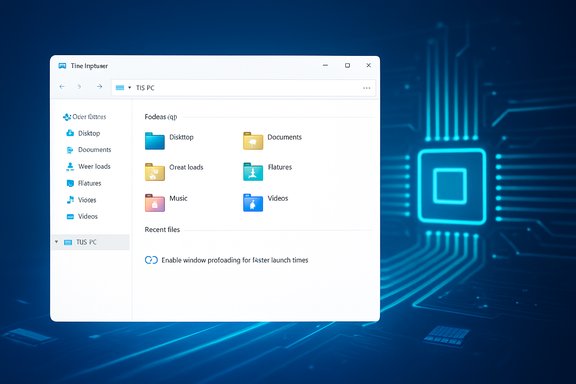
Microsoft announced the File Explorer preloading experiment in the Windows Insider preview build notes for Build 26220.7271, explicitly describing a new option in Folder Options labeled “Enable window preloading for faster launch times.” The announcement says Microsoft is “exploring preloading File Explorer in the background to help improve File Explorer launch performance,” and notes that the toggle can be used to disable the behavior if testers encounter problems. Independent tech outlets and Windows coverage quickly picked up the change and described it as part of Microsoft’s ongoing effort to address Windows 11’s reputation for slower interactive responsiveness in some scenarios. Coverage makes the practical claim that the toggle is being enabled for many devices as Microsoft evaluates user feedback, and at least one outlet reports Microsoft intends the toggle to be on by default for broader consumer builds unless users opt out. Meanwhile, community compilations and internal commentary distributed to enthusiast forums and site archives (including the Neowin piece the user referenced) framed the change as a potential CPU/RAM/disk “hog” because preloading — by definition — keeps part of the File Explorer state resident and ready, trading background memory and possibly periodic CPU wake-ups for a faster visible launch. Those materials emphasize that the exact budget (how many MB of RAM or CPU cycles) will vary by system and Microsoft telemetry; early independent tests are anecdotal rather than comprehensive.What is “File Explorer preloading”?
The concept, in plain terms
Preloading is a well‑known engineering technique: perform initialization work before the user asks for it so that the first interactive paint is immediate. For File Explorer, preloading means loading and initializing parts of the Explorer process (UI resources, shell handlers, common components) in the background during idle time or at startup, so that when the user opens a folder the window and its contents appear faster.This is not unique to Windows — many modern apps and platforms warm processes or keep lightweight suspended instances resident to reduce perceived latency. Microsoft already uses similar strategies in Edge and Office where pre‑initialization improves first‑open responsiveness.
How Microsoft is exposing it
In Build 26220.7271 Microsoft added a Folder Options toggle under View called “Enable window preloading for faster launch times.” When present, the system may keep a warmed or suspended Explorer UI instance resident so subsequent opens paint quickly. Microsoft framed this as an exploration and explicitly provided the toggle to let Insiders disable it for testing and feedback. Third‑party reporting and community notes show the change is being staged to Insiders in Dev and Beta channels and will likely be part of the feature set that arrives in 24H2/25H2-era servicing. Those reports also note the new context‑menu reorganization and other Explorer polish items shipped in the same preview build.Why Microsoft is trying this (the rationale)
- Improve first‑open latency: File Explorer cold starts have been a long‑standing pain point for many Windows 11 users. Preloading moves the costly initialization off the interactive path.
- Reduce visual stutters: By warming UI elements ahead of request, Explorer windows can render with fewer partial‑draw stutters.
- Low‑friction rollout: Exposing the capability as a toggle and rolling it to Insiders lets Microsoft collect telemetry and user feedback before a wider deployment.
What the announcements and coverage actually say (verification)
- Microsoft’s official Windows Insider blog announced the preloading experiment in the release notes for Build 26220.7271 and described the user toggle in Folder Options; the blog frames the work as exploratory and asks Insiders to file feedback if they see issues. That is the primary, authoritative source for what Microsoft shipped to Insiders.
- Established outlets such as Windows Central and BetaNews reported on the same build and summarized the preloading toggle and context‑menu changes, confirming the presence of the feature in the preview build notes. Those writeups provide independent corroboration of Microsoft’s blog.
- Coverage from WindowsLatest stated the toggle will be turned on by default in Windows 11; that assertion appears to be reporting intent rather than quoting the Insider blog verbatim. The blog post itself describes the toggle and how to disable it if needed, but it does not explicitly use the words “on by default” — so treat the “default on” claim as plausible but not conclusively documented in the Microsoft release note. That makes the claim partially verifiable and worth flagging as uncertain until Microsoft’s wider servicing documentation or final release notes confirm the default state for public releases.
- Community / aggregated commentary (including the Neowin‑linked material provided) frames the change as potentially resource‑hungry on constrained devices. Those pieces are valuable for understanding user sentiment and early anecdotal tests, but they are not a substitute for broad telemetry or Microsoft’s own performance numbers.
Potential performance impacts: what to expect
Preloading trades resource use for responsiveness. The practical effects will depend heavily on system configuration, workload, and Microsoft’s implementation. Here’s how each subsystem could be affected:- RAM (working set / standby pages): Preloading will keep some Explorer objects and UI assets resident. On modern desktops with ample RAM, this may be a modest tens of megabytes; on small‑memory systems (4–8 GB) even a 50–150 MB resident increase can be noticeable and could exacerbate paging, which hurts responsiveness more than the original issue the feature was meant to fix. Early reporting is anecdotal — independent verification across hardware classes is limited.
- CPU: A one‑time background initialization cost occurs when Explorer preloads. If Microsoft uses an idle window (or a scheduled background task), CPU usage spikes should be infrequent. However, if Microsoft periodically maintains a warmed state or reinitializes components after sleep/resume, there may be recurrent CPU wakeups that marginally reduce battery life on laptops and tablets.
- Disk / I/O: Loading Explorer assets and shell extensions into memory causes a temporary read load. On systems with HDDs or slow NVMe devices, this could produce noticeable disk activity, especially on first boot or after clearing caches.
- Battery life: The combination of extra memory pressure and occasional CPU work can reduce battery life measurably on devices that are already tight on power or that frequently enter and resume from standby.
- Interaction with third‑party shell extensions: Explorer loads shell handler DLLs and context‑menu extensions. Preloading could initialize third‑party code earlier, potentially surfacing compatibility problems (crashes, higher memory footprint) that previously occurred only on first interactive use.
Who will feel the impact most (user cohorts)
- Systems most at risk:
- Low‑RAM laptops (4–8 GB) and tablets
- Devices using DRAM‑less NVMe SSDs or constrained storage subsystems
- Machines subject to strict battery constraints (thin ultrabooks, tablets)
- Enterprise VDI images where every resident process inflates memory pressure across many sessions
- Systems likely to benefit:
- Desktop PCs and high‑RAM laptops (16 GB+)
- Machines with fast NVMe storage and plenty of memory headroom
- Power users who open many folders frequently and value snappy Explorer launches
How to check whether preloading is active and how to disable it
Microsoft has provided a user toggle in the preview build, and administrators will want direct, scriptable ways to control the behavior in managed environments. Currently the actionable steps are GUI‑based in Insider builds; policy/registry controls may follow in later servicing updates.- GUI toggle (Insider and preview builds)
- Open File Explorer.
- Click View → Show → Options (or press Alt → Tools → Folder Options).
- Select the View tab.
- Find and uncheck “Enable window preloading for faster launch times” to disable the warmed preloading behavior.
- Programmatic and admin control
- As of the initial Insider release, Microsoft’s notes mention only the Folder Options toggle. Group Policy / MDM controls and ADMX templates may arrive in later cumulative updates or in the final feature rollout; IT administrators should monitor Microsoft’s release documentation and the Windows 11 release health pages for added controls. If firm group policy controls are needed now, treat the feature as experimental and stage the update slowly.
- Monitoring impact
- Use Task Manager, Resource Monitor, and Process Explorer to watch Explorer’s working set and kernel commit after boot and after toggling preloading.
- For deep diagnostics, capture a Windows Performance Recorder (WPR) trace around boot and first Explorer launch to compare I/O and CPU work.
- Track battery drain in controlled tests to measure real world impacts on portable devices.
Enterprise and IT guidance
- Pilot first: Deploy the preview/enablement to a small representative ring (desktop, laptop, thin client, VDI) and measure memory, I/O, and battery before broad rollout.
- Monitor shell extensions: Many enterprise apps add file‑type and context‑menu handlers. Preloading could initialize these extensions earlier, increasing memory and sometimes causing stability issues. Keep a whitelist/blacklist policy for problematic handlers.
- Consider image‑level decisions: For VDI golden images or remote desktop session hosts, disabling preloading by default may be sensible until Microsoft supplies Group Policy controls.
- Communicate to users: If the feature is enabled by default on consumer devices, prepare support guidance that explains how to turn it off and what trade‑offs users should expect.
Microsoft’s trade‑offs and why this matters
Microsoft’s move reflects a broader product tension: users prize perceived speed, and modern UX teams often prefer responsiveness even when it marginally increases resource use. That trade‑off can be the correct design for many desktops, but the Windows install base is extremely heterogeneous.Strengths of the preloading approach:
- Measurably reduces the visible latency of opening Explorer.
- Low friction for most users — works without complex configuration.
- Increases resident memory and occasional CPU work, which can worsen overall responsiveness on constrained systems.
- Early opt‑in by default without enterprise controls can cause support churn and negative feedback from users on older hardware.
- Interaction with third‑party shell extensions can produce unexpected compatibility issues that are harder to diagnose.
Practical recommendations (what readers should do now)
- If you’re a home user with a modern desktop (16 GB+ RAM, NVMe SSD), try the feature and measure whether you actually prefer the snappier Explorer. If not, turn the toggle off in Folder Options.
- For laptop/tablet users with constrained RAM or short battery life, leave the toggle off until independent benchmarks show acceptable battery/thermal behavior.
- For IT admins:
- Do not push 24H2/25H2 as a blanket enablement across production fleets before piloting.
- Build a small test ring that includes low‑spec devices to measure aggregate memory impact.
- Monitor vendor guidance for new Group Policy or MDM controls and plan a policy to disable preloading for VDI/RDS hosts if needed.
- If you’re troubleshooting high memory or unusual Explorer behavior after a recent preview update, check Folder Options and consider disabling preloading as a quick mitigation.
What’s still unknown (and what to watch for)
- Exact memory budget Microsoft will assign to a warmed Explorer instance at scale: Microsoft’s preview notes do not publish a fixed footprint, and early third‑party measurements are anecdotal.
- Whether Microsoft will turn the toggle on by default in final consumer releases for 24H2/25H2 — some outlets say yes, the official blog does not explicitly confirm that phrasing. Watch the 24H2/25H2 KB and final servicing documentation for definitive language.
- Availability of enterprise controls: Group Policy, MDM CSPs or registry knobs specifically targeting Explorer preloading may appear in later cumulative updates; administrators should track Microsoft’s release health and enterprise documentation.
Final analysis — balancing speed and cost
The File Explorer preloading experiment is a textbook trade‑off: improved perceived performance at the cost of background resources. For many desktop users the trade will be net positive and unobtrusive. For low‑memory devices and managed VDI scenarios it can amplify existing resource pressure and create new support headaches.Microsoft’s preview approach is the right engineering posture: roll the change to Insiders, collect telemetry and feedback, expose a simple toggle, and then decide whether to enable by default in publics releases or to gate the feature more conservatively. That said, the tentative reporting that Microsoft will enable the toggle by default in the 24H2/25H2 enablement path merits caution from administrators and savvy consumers: test, measure and be prepared to disable the feature if it increases paging, reduces battery life, or interacts badly with enterprise shell extensions. For readers who care about the details, the definitive place to monitor for updates is Microsoft’s Windows Insider blog and the Windows release health pages for the servicing cycle; independent test coverage and community measurements will follow as the feature reaches broader audiences. In the meantime, the fastest path to control is the simple Folder Options toggle — and that’s where most users should start if they notice regressed performance after installing recent preview updates.
Conclusion
Speed is a deeply persuasive user experience metric, and Microsoft’s File Explorer preloading effort targets a real pain point. The implementation is straightforward and potentially effective, but it is not cost‑free. Users and administrators should adopt a measured posture: verify the feature’s behavior on your hardware, use the provided toggle to disable it if the system is constrained, and for enterprise fleets, pilot thoroughly before accepting any default‑on configuration. Microsoft’s preview phase and the presence of the toggle illustrate that the company knows this is a trade‑off; the community’s task now is to measure the costs, advise tuning, and ensure that the final rollout favors predictable, manageable defaults across Windows’ extremely diverse hardware landscape.
Source: Neowin https://www.neowin.net/news/microso...ging-feature-default-on-windows-11-25h2-24h2/
