

Copilot failures in 2026 rarely have one universal cause because Microsoft now uses the Copilot name across several distinct apps, account systems, subscription tiers, and enterprise services. The fastest repair strategy is therefore not to reinstall everything, but to determine which Copilot experience is broken, test whether the failure follows the device or the account, and then apply the narrowest relevant fix.
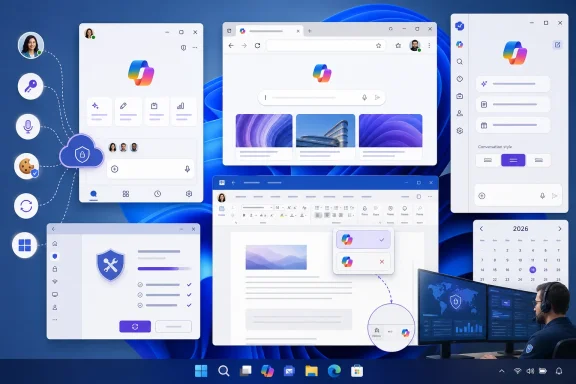
Microsoft Copilot has evolved from a Windows-integrated sidebar into a family of cloud-connected AI experiences. Consumers may use the standalone Microsoft Copilot app, the browser experience, Copilot in Microsoft Edge, or Copilot features included with eligible Microsoft 365 consumer subscriptions.
Business users face another layer of complexity. Microsoft 365 Copilot and Copilot Chat can appear in Word, Excel, PowerPoint, Outlook, OneNote, Teams, the Microsoft 365 Copilot app, and web-based Microsoft 365 services, with access controlled through Microsoft Entra ID, licensing, administrative policies, update channels, and connected-experience settings.
Voice adds another dependency chain. It requires a working microphone, Windows privacy permission, app or browser permission, internet connectivity, and access to the appropriate Copilot voice service.
The key is to avoid treating every Copilot problem as a damaged Windows app. An application repair cannot fix a missing cloud license, and a license refresh cannot repair corrupted local app data.
A personal Microsoft account is the identity typically associated with services such as Outlook.com, OneDrive Personal, Xbox, and consumer Microsoft 365 subscriptions. It is not interchangeable with a Microsoft Entra work or school account, even when both accounts use the same email address or appear together in Windows.
Consumers with eligible Microsoft 365 Personal, Family, or Premium subscriptions can also receive Copilot features in Microsoft 365 applications. For Family and Premium subscriptions, Microsoft’s current guidance limits those subscription-linked Copilot benefits to the subscription owner rather than every person sharing the plan.
If both the browser and app fail, reinstalling the app is unlikely to help. Investigate the account, subscription, supported market, browser cookies, network, organizational controls, or Microsoft service health.
If Copilot works in a private window but not a normal browser session, cached authentication data, an extension, or a cookie restriction may be interfering. Conversely, some license checks can fail specifically in private-browsing modes because those modes often impose stricter third-party cookie controls.
Avoid repeated resets during an active outage. Local repair steps can erase preferences or cached app data without addressing the remote incident.
Feature availability can also vary by language, region, age, account type, and rollout stage. A core text experience may work while a newer voice or app feature has not yet reached the same account.
Also open Settings > Windows Update and check for updates. App failures can originate in outdated WebView, framework, security, or Windows servicing components rather than the visible Copilot package alone.
After Reset finishes, reopen Copilot and sign in again. Test the app before restoring optional preferences such as background behavior or the voice wake word.
Not every Copilot package or deployment exposes Advanced options, Repair, or Reset. If those controls are missing, move to an official reinstall rather than forcing unsupported package or registry changes.
Restart Windows after removal if the app had been crashing, hanging in the background, or refusing to update. The restart releases files and processes that may otherwise remain locked.
Aggressive removal scripts can also affect Store registration, app dependencies, or future updates. They make diagnosis harder by adding a second problem to the original failure.
Depending on the application, platform, build, window size, and rollout, a Copilot control may also appear near the ribbon. Check both locations before concluding that the feature has disappeared.
The Dynamic Action Button appears only for users who have Copilot access through an eligible consumer Microsoft 365 subscription or an appropriate organizational Copilot license. Its absence can therefore be an interface issue, but it can also be a useful licensing clue.
Managed enterprise devices may not let the user initiate updates. In that case, record the version and update channel shown under Product Information and send those details to IT.
On macOS, use Microsoft AutoUpdate through the application’s update command. Close and reopen all Microsoft 365 apps after the update completes.
Eligible devices can consequently become capable of displaying Microsoft 365 Copilot after installing Version 2606, provided that the user, license, policy, and other requirements are satisfied. Microsoft says a separate channel migration is not required for those devices to receive the July experience through their existing update process.
Devices intentionally held on Semi-Annual Enterprise Channel Version 2508 remain a different case. Version 2508 is supported through September 8, 2026, but those devices will not gain the Version 2606 Copilot eligibility change until IT updates them or places them on a supported Current or Monthly Enterprise configuration.
Affected users can continue through alternatives such as Outlook on the web, the Microsoft 365 Copilot app, or the browser experience while Microsoft addresses the issue. This is an important example of why a missing button should not automatically be interpreted as a failed license assignment.
Confirm that the following options are enabled:
If these controls are unavailable or locked, the organization manages them. The user cannot override an administrative privacy policy by reinstalling Office.
In Microsoft Edge, open Settings > Cookies and site permissions > Manage and delete cookies and site data, then turn Block third-party cookies off for testing. In Google Chrome, open Settings > Privacy and security > Third-party cookies, then permit third-party cookies.
Disabling a privacy protection globally is not ideal as a permanent solution. Where the browser permits it, an organization may prefer carefully scoped exceptions for required Microsoft sign-in and Microsoft 365 services.
If that works, re-enable extensions one at a time. This process identifies the interfering component without permanently weakening the entire browser configuration.
This matters because Microsoft 365 Copilot must validate the user, file, and service context. A document exposed through an unsupported storage integration may not provide the identity or permission signals Copilot expects.
Confirm that the account currently active in the app can open and edit the file normally. If the file belongs to another tenant, uses restricted sharing, or carries a sensitivity label, ask the organization’s administrator or document owner whether Copilot processing is permitted.
This distinguishes a broad service failure from a file-specific condition. It can also reveal corruption, unsupported embedded content, or protection that only affects the original document.
If Copilot must summarize or answer questions about an open webpage or PDF, enable the setting that allows Microsoft to access page content. Without that permission, general chat may work while page-aware requests fail.
Managed Edge installations may hide these controls or enforce a fixed value. In that case, the setting is governed by organizational policy rather than a damaged browser profile.
Also check Settings > System > Sound > Input to confirm that Windows is listening to the intended microphone. Bluetooth headsets, docks, webcams, and laptop microphone arrays can change the default input device unexpectedly.
For wake-word activation to work, the PC must be on, unlocked, connected to the internet, and running the Copilot app either visibly or in the background. Wake-word recognition occurs locally, but the voice conversation uses Microsoft’s cloud service after activation.
Microsoft also warns that continuous wake-word availability can affect battery life. Some Bluetooth headsets may experience reduced playback quality while the feature is enabled, in which case updated headset firmware, drivers, or press-to-talk operation may be preferable.
To change the hardware key’s action, open Settings > Personalization > Text input and locate Customize Copilot key on keyboard. Depending on Windows configuration, available choices may include Search, Custom, or a mapped application.
The administrator should also inspect the user under Users > Active users. A base Microsoft 365 plan and a Copilot add-on may both be required, depending on the organization’s product arrangement.
Common assignment failures include:
They should also examine:
Similarly, old Office Intelligent Services and historical Trust Center instructions should give way to current Account Privacy, connected-experience, and administrative policy controls. Using obsolete guidance can produce a false sense that Copilot has been enabled or disabled when the relevant modern control lives elsewhere.
Known issues can also be license-specific, as demonstrated by the July 2026 classic Outlook problem affecting basic Copilot Chat users on newer builds. Organizations should check current service health and known-issue guidance before initiating broad reinstallations or rollbacks.
Copilot is no longer a single Windows feature with a single on-off switch. It is a cloud service delivered through multiple clients, and effective troubleshooting must follow that architecture.
The most reliable 2026 repair sequence is to identify the Copilot product, test it on the web, verify the correct account, update the relevant software, refresh licensing, and only then repair or reinstall the local app. For Microsoft 365 failures, connected experiences, third-party cookie validation, supported file storage, Version 2606 readiness, and organizational policy deserve equal attention; once those layers are checked in order, most apparently mysterious Copilot failures become specific, explainable, and fixable.
 Overview
Microsoft Copilot has evolved from a Windows-integrated sidebar into a family of cloud-connected AI experiences. Consumers may use the standalone Microsoft Copilot app, the browser experience, Copilot in Microsoft Edge, or Copilot features included with eligible Microsoft 365 consumer subscriptions.Business users face another layer of complexity. Microsoft 365 Copilot and Copilot Chat can appear in Word, Excel, PowerPoint, Outlook, OneNote, Teams, the Microsoft 365 Copilot app, and web-based Microsoft 365 services, with access controlled through Microsoft Entra ID, licensing, administrative policies, update channels, and connected-experience settings.
Why the same symptom can have different causes
A missing button in Word may indicate an outdated Microsoft 365 build, an unrefreshed license, the wrong primary account, or an organizational policy. A Copilot app that opens but cannot answer may instead point to an authentication problem, unsupported region, network restriction, or temporary service-side failure.Voice adds another dependency chain. It requires a working microphone, Windows privacy permission, app or browser permission, internet connectivity, and access to the appropriate Copilot voice service.
The key is to avoid treating every Copilot problem as a damaged Windows app. An application repair cannot fix a missing cloud license, and a license refresh cannot repair corrupted local app data.
Identify Which Copilot Is Not Working
Before changing Windows settings, identify the product, account, and failure point. Microsoft’s overlapping names make this step more important than it may initially appear.Consumer Microsoft Copilot
The consumer Copilot experience includes the standalone Copilot app for Windows, the browser version, and mobile or macOS apps. On Windows, the standalone consumer app requires a personal Microsoft account for sign-in.A personal Microsoft account is the identity typically associated with services such as Outlook.com, OneDrive Personal, Xbox, and consumer Microsoft 365 subscriptions. It is not interchangeable with a Microsoft Entra work or school account, even when both accounts use the same email address or appear together in Windows.
Microsoft 365 Copilot and Copilot Chat
Microsoft 365 Copilot for organizations uses a work or school account and depends on the services and licenses assigned by the organization. Copilot Chat may be available under a different entitlement from the paid Microsoft 365 Copilot experience, so two employees in the same tenant can see different buttons and capabilities.Consumers with eligible Microsoft 365 Personal, Family, or Premium subscriptions can also receive Copilot features in Microsoft 365 applications. For Family and Premium subscriptions, Microsoft’s current guidance limits those subscription-linked Copilot benefits to the subscription owner rather than every person sharing the plan.
Record the exact symptom
Classify the failure before troubleshooting:- The app will not launch at all. This usually favors a local installation, Store, profile, or Windows problem.
- The app opens but sign-in fails. This points toward account type, cookies, authentication, region, or organizational restrictions.
- Copilot works on the web but not in the app. This strongly suggests a local application problem.
- Copilot works in one Microsoft 365 app but not another. This may indicate an app-specific build, rollout, file, or interface issue.
- The Copilot button is missing everywhere in Microsoft 365. Licensing, update channel, connected experiences, or policy becomes more likely.
- Text works but voice does not. Microphone permissions, audio devices, or voice-specific settings should be examined first.
- Only one document fails. Its storage location, sensitivity controls, format, account ownership, or corruption may be the real cause.
Start With the Web Isolation Test
The single most useful diagnostic step is to compare the installed experience with Copilot in a modern browser. This separates device-specific app trouble from account-wide or cloud-side trouble.Run a controlled test
Use the same account, network, and prompt wherever possible:- Close the installed Copilot app completely.
- Open a current version of Microsoft Edge, Google Chrome, or another supported modern browser.
- Open the Microsoft Copilot web experience.
- Sign in with the account intended for that Copilot product.
- Submit a simple prompt that does not require an uploaded file, microphone, or organizational data.
- Compare the result with the installed app.
- If necessary, repeat the test in a normal browser window rather than an InPrivate or Incognito session.
Interpret the result correctly
If the browser version works, the account and service are probably functional. Focus on updating, repairing, resetting, or reinstalling the local app.If both the browser and app fail, reinstalling the app is unlikely to help. Investigate the account, subscription, supported market, browser cookies, network, organizational controls, or Microsoft service health.
If Copilot works in a private window but not a normal browser session, cached authentication data, an extension, or a cookie restriction may be interfering. Conversely, some license checks can fail specifically in private-browsing modes because those modes often impose stricter third-party cookie controls.
Check for a broader outage
A sudden failure across multiple devices, users, browsers, and networks can indicate a Microsoft-side incident. Consumer users should retry after a short interval and compare another network or device, while business users should ask an administrator to review Microsoft 365 service health.Avoid repeated resets during an active outage. Local repair steps can erase preferences or cached app data without addressing the remote incident.
Correct Account and Sign-In Problems
Copilot authentication problems frequently come from using a valid account of the wrong type. The credentials may be accepted, yet the desired feature remains unavailable because the entitlement belongs to another identity.Match the account to the experience
Use these general account rules:- The standalone consumer Microsoft Copilot app on Windows expects a personal Microsoft account.
- Consumer Copilot features associated with Microsoft 365 Personal, Family, or Premium use the eligible personal Microsoft account.
- Microsoft 365 Copilot for business uses a work or school account with the required organizational entitlement.
- Business Copilot Chat also uses the work or school identity permitted by the organization.
- A work document may require the organization’s account and permissions even when a personal subscription provides Copilot elsewhere.
- Files newly created or stored locally can depend on the primary licensed account displayed in the Microsoft 365 application.
Perform a clean sign-out
Do not merely add another account and hope Copilot selects it. Instead:- Open the profile or account menu in the affected app.
- Sign out of the account currently being used for Copilot.
- Close the application.
- Reopen it and select the intended account explicitly.
- Confirm that the displayed account matches the subscription or workplace identity that provides access.
- Test with a new, simple request before reopening the original document.
Confirm market availability
Consumer Microsoft Copilot is available in more than 170 markets, but it is not supported everywhere. Microsoft identifies exceptions including China, other than Hong Kong, and embargoed markets.Feature availability can also vary by language, region, age, account type, and rollout stage. A core text experience may work while a newer voice or app feature has not yet reached the same account.
Repair or Reset the Copilot Windows App
When Copilot works in a browser but its Windows app freezes, opens blank, crashes, or refuses to launch, begin with Windows’ built-in app recovery controls. Repair is less destructive than Reset and should therefore come first.Update before repairing
Open Microsoft Store, select Library, and choose Get updates. Install available updates for Copilot, Microsoft Store components, and related app dependencies, then restart Windows if prompted.Also open Settings > Windows Update and check for updates. App failures can originate in outdated WebView, framework, security, or Windows servicing components rather than the visible Copilot package alone.
Use Repair first
On Windows 11:- Select Start > Settings > Apps > Installed apps.
- Find Copilot.
- Select the three-dot More options menu.
- Open Advanced options, if available.
- Select Terminate if the app is still running.
- Select Repair.
- Reopen Copilot and test it.
Use Reset if Repair fails
Return to the same Advanced options page and select Reset. Windows will warn that resetting can remove local app data, preferences, and sign-in state.After Reset finishes, reopen Copilot and sign in again. Test the app before restoring optional preferences such as background behavior or the voice wake word.
Not every Copilot package or deployment exposes Advanced options, Repair, or Reset. If those controls are missing, move to an official reinstall rather than forcing unsupported package or registry changes.
Reinstall Copilot Safely
Reinstallation is appropriate when the browser experience works, updates and Repair have failed, or the app package no longer starts correctly. It should not be the first response to a missing Microsoft 365 license or organization-wide outage.Remove the Windows app
On Windows 11, open Settings > Apps > Installed apps, search for Copilot, open the More options menu, and select Uninstall. Copilot may also be removable by opening Start > All apps, right-clicking Copilot, and selecting Uninstall.Restart Windows after removal if the app had been crashing, hanging in the background, or refusing to update. The restart releases files and processes that may otherwise remain locked.
Reinstall from an official store
Install Copilot through the official store for the device:- Windows users should use Microsoft Store.
- Android phones, tablets, and compatible Chromebooks should use Google Play.
- iPhone and iPad users should use Apple’s App Store.
- Mac users should use the Mac App Store where Microsoft makes the application available.
Avoid obsolete removal methods
Do not begin with package-deprovisioning scripts, registry cleaners, third-party debloat tools, or policy instructions written for the old Windows-integrated Copilot sidebar. Microsoft has changed Copilot’s Windows architecture substantially, and a procedure designed for the legacy shell experience may not control the current installed application.Aggressive removal scripts can also affect Store registration, app dependencies, or future updates. They make diagnosis harder by adding a second problem to the original failure.
Restore Copilot in Word, Excel, and PowerPoint
A missing Copilot ribbon icon does not necessarily mean Copilot is unavailable. Microsoft has changed how its entry points appear in Microsoft 365 applications, including the introduction of the Copilot Dynamic Action Button.Find the Dynamic Action Button
In current versions of Word, Excel, and PowerPoint, look toward the lower-right corner of the document, workbook, or presentation. The Dynamic Action Button can provide Copilot actions based on the current context and may appear separately from the traditional ribbon button.Depending on the application, platform, build, window size, and rollout, a Copilot control may also appear near the ribbon. Check both locations before concluding that the feature has disappeared.
The Dynamic Action Button appears only for users who have Copilot access through an eligible consumer Microsoft 365 subscription or an appropriate organizational Copilot license. Its absence can therefore be an interface issue, but it can also be a useful licensing clue.
Update Microsoft 365
In a Windows Microsoft 365 application, open File > Account and review Product Information. Select Update Options > Update Now when that control is available.Managed enterprise devices may not let the user initiate updates. In that case, record the version and update channel shown under Product Information and send those details to IT.
On macOS, use Microsoft AutoUpdate through the application’s update command. Close and reopen all Microsoft 365 apps after the update completes.
Consider the July 2026 channel transition
Microsoft’s update-channel changes are especially relevant to Copilot troubleshooting in July 2026. Beginning with Microsoft 365 Apps Version 2606, devices configured for Semi-Annual Enterprise Channel receive the Monthly Enterprise Channel feature and security experience and show as Monthly Enterprise Channel in Microsoft 365 app interfaces such as File > Account.Eligible devices can consequently become capable of displaying Microsoft 365 Copilot after installing Version 2606, provided that the user, license, policy, and other requirements are satisfied. Microsoft says a separate channel migration is not required for those devices to receive the July experience through their existing update process.
Devices intentionally held on Semi-Annual Enterprise Channel Version 2508 remain a different case. Version 2508 is supported through September 8, 2026, but those devices will not gain the Version 2606 Copilot eligibility change until IT updates them or places them on a supported Current or Monthly Enterprise configuration.
Refresh Microsoft 365 Licensing
Microsoft 365 applications cache licensing information. A newly assigned Copilot entitlement, renewed subscription, account change, or corrected administrative assignment may not become visible until that local state refreshes.Refresh a Windows license
In Word, Excel, or PowerPoint on Windows:- Open File > Account.
- Confirm that the account shown is the one that owns the Copilot entitlement.
- Select Update License.
- Wait for the refresh to complete.
- Close every open Microsoft 365 application, including Outlook and OneNote.
- Reopen the affected app and test Copilot.
Refresh a Mac license
On macOS:- Open Word, PowerPoint, or another affected Microsoft 365 app.
- Select the application name in the menu bar.
- Choose About Word, About PowerPoint, or the equivalent command.
- Select More Info.
- Select Refresh License.
- Close open documents and exit all Microsoft 365 applications.
- Reopen the apps and test Copilot.
Watch for the classic Outlook exception
As of July 8, 2026, Microsoft is tracking a specific issue in classic Outlook for Windows affecting users who have only the basic Copilot Chat license. After updating to build 20026.20182 or later, those users may lose Copilot entry points from the top-right ribbon area and left app bar, while paid Microsoft 365 Copilot users are not affected in the same way.Affected users can continue through alternatives such as Outlook on the web, the Microsoft 365 Copilot app, or the browser experience while Microsoft addresses the issue. This is an important example of why a missing button should not automatically be interpreted as a failed license assignment.
Enable Connected Experiences and Browser Cookies
Copilot depends on cloud processing, so Microsoft 365 privacy controls that disable connected experiences can remove or block it. Browser cookie restrictions can separately prevent the service from validating a Copilot license.Check Microsoft 365 privacy settings
On Windows, open Word, Excel, or PowerPoint and go to File > Account. Under Account Privacy, select Manage Settings.Confirm that the following options are enabled:
- Experiences that analyze your content must be turned on for features that process document content.
- All connected experiences must be turned on so the application can use required online services.
If these controls are unavailable or locked, the organization manages them. The user cannot override an administrative privacy policy by reinstalling Office.
Allow third-party cookies for license checks
Microsoft states that third-party cookie blocking can cause Copilot license-validation errors in Microsoft 365 web apps. This is particularly relevant in private-browsing sessions and browsers that impose strict tracking protections.In Microsoft Edge, open Settings > Cookies and site permissions > Manage and delete cookies and site data, then turn Block third-party cookies off for testing. In Google Chrome, open Settings > Privacy and security > Third-party cookies, then permit third-party cookies.
Disabling a privacy protection globally is not ideal as a permanent solution. Where the browser permits it, an organization may prefer carefully scoped exceptions for required Microsoft sign-in and Microsoft 365 services.
Test without extensions
Content blockers, privacy extensions, script controls, DNS filters, and security products can interrupt authentication frames or cloud requests. Temporarily test Copilot in a clean browser profile with extensions disabled.If that works, re-enable extensions one at a time. This process identifies the interfering component without permanently weakening the entire browser configuration.
Fix Document and Storage Errors
When Copilot works in one file but not another, the app itself is probably healthy. The affected document’s location, ownership, protection, or account context deserves closer inspection.Move the file to supported Microsoft storage
Microsoft documents license-validation and related Copilot problems when files are hosted through some third-party storage providers. Move or copy the affected file to OneDrive or SharePoint, reopen it from the new location, and retry Copilot.This matters because Microsoft 365 Copilot must validate the user, file, and service context. A document exposed through an unsupported storage integration may not provide the identity or permission signals Copilot expects.
Check account ownership and access
A personal Copilot entitlement does not automatically grant access to an organization’s Microsoft Graph data. Likewise, a personal account may be unable to use Copilot against a protected work file if organizational policy requires a licensed work identity.Confirm that the account currently active in the app can open and edit the file normally. If the file belongs to another tenant, uses restricted sharing, or carries a sensitivity label, ask the organization’s administrator or document owner whether Copilot processing is permitted.
Isolate the document
Create a new blank file in OneDrive or SharePoint and test Copilot there. If the new file works, copy a small portion of the original content into another new file and test again.This distinguishes a broad service failure from a file-specific condition. It can also reveal corruption, unsupported embedded content, or protection that only affects the original document.
Restore Edge, Voice, and Keyboard Access
Copilot may be functional while a particular entry point is disabled. Edge toolbar visibility, page-context permission, microphone access, and keyboard mapping should be tested separately.Restore the Copilot button in Edge
Open Microsoft Edge settings and navigate to Appearance > Copilot and Sidebar > Copilot. Turn on the option to show the Copilot button on the toolbar.If Copilot must summarize or answer questions about an open webpage or PDF, enable the setting that allows Microsoft to access page content. Without that permission, general chat may work while page-aware requests fail.
Managed Edge installations may hide these controls or enforce a fixed value. In that case, the setting is governed by organizational policy rather than a damaged browser profile.
Repair microphone permissions
For voice problems in Windows 11, open Settings > Privacy & security > Microphone and verify all relevant levels:- Turn on Microphone access for the device.
- Turn on Let apps access your microphone.
- Permit the Copilot app or browser being used.
- Turn on Let desktop apps access your microphone when the affected client is treated as a desktop application.
Also check Settings > System > Sound > Input to confirm that Windows is listening to the intended microphone. Bluetooth headsets, docks, webcams, and laptop microphone arrays can change the default input device unexpectedly.
Configure “Hey Copilot”
The consumer “Hey Copilot” wake-word feature on Windows is opt-in. In Copilot settings, open Account > Settings, find Listen for “Hey, Copilot” to start a conversation, and turn it on.For wake-word activation to work, the PC must be on, unlocked, connected to the internet, and running the Copilot app either visibly or in the background. Wake-word recognition occurs locally, but the voice conversation uses Microsoft’s cloud service after activation.
Microsoft also warns that continuous wake-word availability can affect battery life. Some Bluetooth headsets may experience reduced playback quality while the feature is enabled, in which case updated headset firmware, drivers, or press-to-talk operation may be preferable.
Check the Copilot key and Win+C
On supported Windows 11 devices, the Copilot key or Win+C opens a Copilot entry point. The result can differ by account context: a consumer setup may open Microsoft Copilot, while a work or school setup can open a lightweight Microsoft 365 Copilot prompt that expands into the full experience.To change the hardware key’s action, open Settings > Personalization > Text input and locate Customize Copilot key on keyboard. Depending on Windows configuration, available choices may include Search, Custom, or a mapped application.
Enterprise Troubleshooting for IT Administrators
On managed devices, end-user repairs have a natural limit. Copilot’s enterprise availability depends on identity, licensing, Microsoft 365 servicing, policy, network access, data controls, and tenant-level feature configuration.Validate license assignment
Administrators should open the Microsoft 365 admin center and review Billing > Licenses. Select the relevant Microsoft 365 Copilot product and confirm that the affected user has an assignment and that enough seats are available.The administrator should also inspect the user under Users > Active users. A base Microsoft 365 plan and a Copilot add-on may both be required, depending on the organization’s product arrangement.
Common assignment failures include:
- The tenant has no unassigned Copilot seats.
- The user has conflicting service plans.
- Group-based licensing has not completed.
- The user’s usage location is invalid or missing.
- A cross-tenant or guest identity is being used where assignment is unsupported.
- A license was removed or reassigned before the client refreshed its cached state.
Review update and policy readiness
IT should verify that Microsoft 365 Apps has installed Version 2606 or a suitable Current or Monthly Enterprise build. During the July 2026 transition, management reports may not immediately use the same channel name displayed inside the application, so administrators should check version and build data rather than relying only on a label.They should also examine:
- Connected-experience and content-analysis policies.
- Microsoft 365 Copilot and Copilot Chat access controls.
- Edge sidebar and page-context policies.
- Web-search and image-generation settings.
- Conditional Access requirements.
- Proxy, firewall, DNS, and SSL-inspection behavior.
- Data-loss prevention and sensitivity-label restrictions.
- App pinning and Microsoft 365 navigation policies.
Retire obsolete policy guidance
The legacy Turn off Windows Copilot policy was designed for an older Windows Copilot implementation and is subject to deprecation. It should not be treated as the controlling policy for the current installed Microsoft 365 Copilot application.Similarly, old Office Intelligent Services and historical Trust Center instructions should give way to current Account Privacy, connected-experience, and administrative policy controls. Using obsolete guidance can produce a false sense that Copilot has been enabled or disabled when the relevant modern control lives elsewhere.
Strengths and Opportunities
The fragmented Copilot architecture makes troubleshooting harder, but it also provides several useful fallback paths and diagnostic opportunities.- The browser experience is an effective control test. It quickly distinguishes a damaged local app from an account or service failure.
- Repair and Reset reduce the need for invasive Windows changes. Store applications can often be restored without registry editing or operating-system reinstallation.
- Multiple Copilot entry points improve continuity. Users may continue through the web, Edge, Microsoft 365 Copilot app, or web-based Office applications when one desktop interface fails.
- Version 2606 simplifies enterprise servicing. The July 2026 channel unification can bring previously delayed devices onto the Monthly Enterprise feature experience without a separate manual channel migration.
- License errors are more visible to administrators. The Microsoft 365 admin center’s Errors & Issues and Reprocess controls make failed assignments easier to identify and retry.
- File-based testing narrows the problem quickly. Moving a document to OneDrive or SharePoint can separate storage integration trouble from a general Copilot outage.
- Voice and text can be diagnosed independently. A microphone failure does not require resetting an otherwise functional Copilot text experience.
Risks and Concerns
Copilot troubleshooting can create privacy, support, and operational risks when users follow outdated or overly aggressive instructions.- Resetting an app can remove local state. Users should expect to sign in again and restore preferences after a Reset.
- Globally allowing third-party cookies reduces browser privacy. Use scoped exceptions where possible and follow organizational security policy.
- Mixing personal and work identities can expose the wrong context. Always verify which account is active before prompting Copilot about sensitive documents.
- Third-party debloat scripts can damage Store registration. They may remove dependencies or provisioning data needed for future app updates.
- Wake-word listening can affect battery life and audio behavior. Users should disable it when they do not need hands-free activation.
- A valid license does not guarantee every capability. Tenant policies, staged releases, market availability, app versions, and data controls can still restrict features.
- Sensitive files may intentionally block Copilot. Circumventing those restrictions by moving or copying organizational data can violate policy.
- Rollback guidance can create security exposure. Enterprises considering an Office build rollback for a known issue must balance feature recovery against servicing and security requirements.
What to Watch Next
Microsoft’s July 2026 update-channel transition will change the troubleshooting landscape for organizations that historically kept Office on Semi-Annual Enterprise Channel. Version 2606 devices should begin showing the Monthly Enterprise Channel experience in Microsoft 365 applications, but reporting systems, deployment tools, and service-desk documentation may take time to reflect the same terminology.Confirm the post-update state
After the Version 2606 rollout, administrators should compare:- The version and build displayed in File > Account.
- The update channel reported by endpoint-management tools.
- Copilot license assignment status.
- Connected-experience policy results.
- Whether the Dynamic Action Button and other Copilot entry points appear.
- Whether the same user can access Copilot in Microsoft 365 web applications.
- Whether service-desk scripts still reference obsolete Semi-Annual behavior.
Expect interface changes
Microsoft continues to move Copilot commands between ribbons, contextual buttons, sidebars, Quick View windows, and standalone apps. Support instructions should describe the intended capability and application version rather than assuming that one icon will remain in the same place indefinitely.Known issues can also be license-specific, as demonstrated by the July 2026 classic Outlook problem affecting basic Copilot Chat users on newer builds. Organizations should check current service health and known-issue guidance before initiating broad reinstallations or rollbacks.
Maintain a repeatable support checklist
A durable Copilot support process should capture the affected product, platform, app version, update channel, account type, license, file location, network, and exact error message. Screenshots of File > Account, the app profile, and the failure can save significant time, provided they do not reveal confidential prompts or document content.Copilot is no longer a single Windows feature with a single on-off switch. It is a cloud service delivered through multiple clients, and effective troubleshooting must follow that architecture.
The most reliable 2026 repair sequence is to identify the Copilot product, test it on the web, verify the correct account, update the relevant software, refresh licensing, and only then repair or reinstall the local app. For Microsoft 365 failures, connected experiences, third-party cookie validation, supported file storage, Version 2606 readiness, and organizational policy deserve equal attention; once those layers are checked in order, most apparently mysterious Copilot failures become specific, explainable, and fixable.
References
- Primary source: Technobezz
Published: 2026-07-20T19:03:11.851000+00:00
Copilot Not Working? How to Fix It (2026) | Technobezz
Copilot not working? Fix app, browser, account, license, Microsoft 365, Edge, and voice problems with current Microsoft steps.www.technobezz.com
