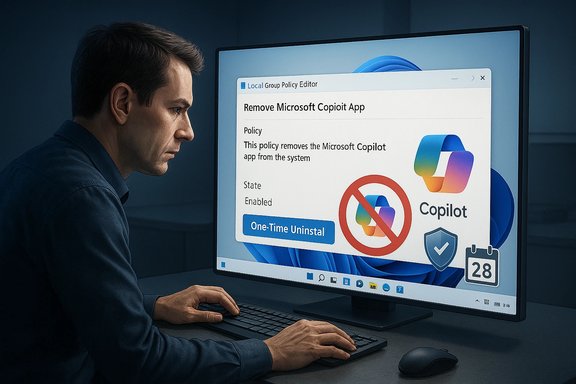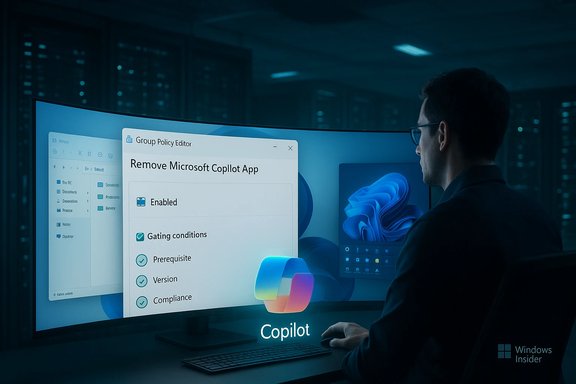
Microsoft’s latest Group Policy approach for removing Copilot from Windows 11 solves some immediate problems but creates new operational headaches: the policy frequently behaves like a one‑time uninstall rather than a durable block, leaves multiple Copilot entry points unaddressed, and pushes administrators toward heavier, more brittle controls such as AppLocker and tenant-level settings to prevent re‑provisioning.
Background
Microsoft has been integrating Copilot into Windows 11 as a platform-level assistant that surfaces in multiple places — a taskbar icon, a File Explorer “Ask Copilot” entry, a hardware Copilot key on some laptops, and as a separable app package when the OS ships that way. For admins, Microsoft published a supported Group Policy (TurnOffWindowsCopilot) and an MDM/Policy CSP to disable Copilot for users, and more recently introduced or clarified a policy that can remove the Copilot app in managed environments. However, Microsoft’s own documentation warns that older policies may be deprecated and that new Copilot delivery experiences in Insider channels may not be covered by legacy settings. Community testing and forum threads show a consistent operational pattern: toggling the UI affordances or uninstalling the Copilot package fixes most day‑to‑day annoyances, but the change is not always durable across feature updates, provisioning paths, or tenant-driven installs. For fleet administrators who want reliable removal, an immediate uninstall policy is a weak tool without complementary AppLocker/WDAC and tenant controls.What Microsoft’s Group Policy actually does today
Two related policies: TurnOffWindowsCopilot and Remove/Uninstall policies
There are two similarly named but operationally different controls administrators encounter:- TurnOffWindowsCopilot (Group Policy / MDM CSP) — a policy that sets the registry keys under SOFTWARE\Policies\Microsoft\Windows\WindowsCopilot to prevent Copilot launching and remove the taskbar affordance. Microsoft documents this policy, but also marks it as deprecated for some newer Copilot experiences and notes it may not apply to Insider-delivered variants.
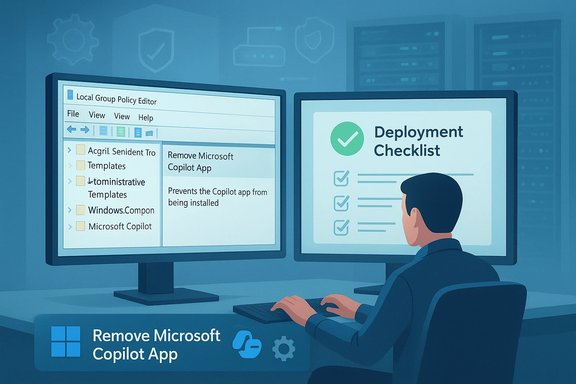
- Remove Microsoft Copilot App / RemoveMicrosoftCopilotApp (administrative template variants and rollout guidance) — a newer administrative action that performs a targeted uninstall of the consumer Copilot app under defined conditions. Microsoft’s guidance explicitly frames AppLocker as the preferred durable control and says the uninstall action is intentionally conservative — it’s a one‑time removal and not a permanent block.
Practical behavior administrators are seeing
- The TurnOffWindowsCopilot policy often hides the taskbar icon and blocks the usual launch paths on supported builds, but it does not necessarily prevent future reinstallation or block all new Copilot delivery scenarios.
- The Remove/Uninstall policy behaves like an atomic uninstall operation: it removes the consumer app where present, but it does not by itself create the AppLocker-style block that prevents future provisioning or tenant-driven reinstalls. Microsoft designed this conservatively to avoid breaking user workflows, but that choice matters for enterprises that need durable enforcement.
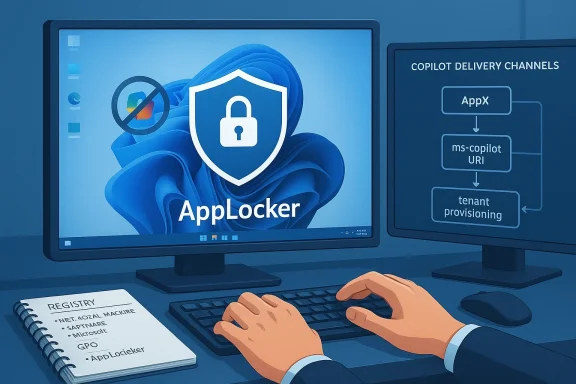
- AppLocker or Windows Defender Application Control (WDAC) is recommended as the robust, long‑term approach to prevent both installation and execution of the Copilot package family (publisher: Microsoft Corporation, package name: MICROSOFT.COPILOT). Microsoft’s docs and community guidance converge on AppLocker as the forward path.
Why this “remove but don’t block” behavior is a problem
1) It underestimates Windows’ packaging and delivery complexity
Copilot is delivered through multiple channels: a separable Appx/AppxBundle package, Packaged COM shell extensions for File Explorer, protocol handlers (ms‑copilot , and tenant provisioning via Microsoft 365 tooling. A single uninstall step only removes the currently present package; it doesn’t stop the OS or tenant from re‑provisioning Copilot via another channel or after a feature update. Multiple community reports show Copilot reappearing after updates unless admins layered additional controls.
2) It forces admins to adopt heavier controls that increase operational risk
To make removal durable, Microsoft and experts now recommend pairing the uninstall with AppLocker/WDAC rules and tenant-level settings. AppLocker is powerful but risky: a misconfigured rule can block legitimate apps, causing wide user disruption. That means organizations must invest time in pilot testing, writing exception rules, and maintaining a re‑verification cadence after every feature update. Smaller IT teams or less experienced admins will find this burdeny.3) It reduces predictability and increases support calls
When removal is not durable, users and help desks get caught in a repeating loop: uninstall, update, reappearance, repeat. That churn consumes support resources and complicates compliance audits where administrators must prove Copilot was disabled across a fleet. Multiple community playbooks now recommend keeping a small pilot device per servicing channel and running periodic verification scripts. That’s defensive operations work no one asked for.How the policy behaves technically (registry, GPO, MDM)
Registry and GPO mapping
- The TurnOffWindowsCopilot Group Policy maps to the registry key:
SOFTWARE\Policies\Microsoft\Windows\WindowsCopilot
with the DWORD value TurnOffWindowsCopilot = 1 to disable Copilot for users. This is the documented Group Policy/MDM CSP mapping. - The policy is a user-scoped setting in many deployments (User Configuration → Administrative Templates → Windows Components → Windows Copilot). For device‑wide enforcement you must set the equivalent under HKLM or use AppLocker/Intune to push machine-level constraints.
Remove/Uninstall semantics
- The “Remove Microsoft Copilot App” behavior is intentionally conservative: it performs an uninstall of the consumer Copilot package for devices where the package is present and is intended to avoid collateral impact. It does not create an AppLocker block or prevent future provisioning from tenant or update channels. Because of that, admins must treat it as a step in a layered enforcement plan rather than a final state.
Packaged COM and the “Ask Copilot” context menu
- The right‑click File Explorer entry (“Ask Copilot”) is implemented as a Packaged COM shell extension with a known GUID. Blocking that shell extension via Shell Extensions\Blocked in HKCU/HKLM removes the File Explorer menu item without uninstalling the app and is a low‑risk, reversible tweak for end users. Community testing has converged on the CLSID used by the extension for multiple builds. This is a useful targeted fix for the common UI annoyance.
Cross‑checking Microsoft documentation and community testing
Microsoft’s official guidance explicitly says AppLocker should be used instead of the TurnOffWindowsCopilot legacy policy for durable blocking because the TurnOff policy is subject to deprecation and doesn’t cover all future Copilot experiences. At the same time, Microsoft documents the TurnOffWindowsCopilot CSP and maps its Group Policy placement and registry representation for administrators who still need it. This internal contradiction — a documented policy that’s simultaneously being deprecated and still published — is the heart of the problem: admins are left to reconcile a supported “how to disable” path with a recommendation to move to stronger, more complex tools for durability. Independent community investigations and how‑to guides validate the registry keys, ADMX mappings, and the Packaged COM CLSID trick, and they uniformly report that Copilot can be reintroduced by updates or tenant provisioning unless AppLocker/tenant controls are applied. That independent corroboration aligns with Microsoft’s own community forum threads and operational notes.Enterprise impact: what IT should expect
Short‑term — damage control and user experience
- Expect a spike in help desk tickets after a broad uninstall campaign if AppLocker rules aren’t in place. Users who rely on Copilot features in Office or other apps may report lost functionality.
- Conservative uninstall behavior reduces the risk of breaking workflows, but also increases the likelihood of repeated reinstalls from tenant or update channels (which users will notice).
Medium‑term — operations and compliance
- Durable enforcement requires:
- AppLocker/WDAC publisher rules that block MICROSOFT.COPILOT.
- Intune/MDM deployment of TurnOffWindowsCopilot or registry keys for unmanaged SKUs.
- Tenant-level disablement in Microsoft 365 Apps admin settings to avoid tenant-driven provisioning.
- Ongoing verification after each feature update.
- This layered approach demands documentation, pilot testing for each update channel, and a small test fleet that mirrors production servicing channels. These are operational costs that must be budgeted.
Long‑term — policy, liability, and vendor relationships
- Aggressive removal via unsupported hacks or deletion of packaged components can complicate OEM or Microsoft support, and could potentially interfere with future OS servicing. Prefer supported Admin Templates, AppLocker, and tenant controls where possible.
Practical, prioritized playbook for admins and power users
Quick, low-risk steps (for end users and help desks)
- Hide the Copilot taskbar button: Settings → Personalization → Taskbar → toggle Copilot off. This addresses 90% of daily annoyances without risk.
- Block the File Explorer “Ask Copilot” entry (per user): add the Packaged COM CLSID to HKCU\Software\Microsoft\Windows\CurrentVersion\Shell Extensions\Blocked. This is reversible and safe for individuals.
Supported, medium‑risk steps (Pro / Enterprise)
- Apply the Group Policy: User Configuration → Administrative Templates → Windows Components → Windows Copilot → Turn off Windows Copilot = Enabled; run gpupdate /force. This maps to the TurnOffWindowsCopilot registry key.
- Uninstall the Copilot app via Settings or a guarded PowerShell script where required (confirm package names with Get‑AppxPackage first). Use a restore point for safety.
Durable enforcement (recommended for fleets that must remain Copilot‑free)
- Pre‑deploy AppLocker rules that block the Copilot package (publisher CN=MICROSOFT CORPORATION, package name MICROSOFT.COPILOT) before major feature updates. Test extensively in pilot OUs.
- Deploy AppLocker via Intune/MDM or AD GPO and use the Microsoft 365 Apps admin center to disable tenant‑level automatic provisioning of Copilot. Combine with a PowerShell uninstall script for devices that already have the app.
- Maintain an update‑verification cadence: after each cumulative or feature update re‑verify that Copilot is not reinstalled (check Settings → Apps, taskbar toggle, and the ms‑copilot: URI handler). Automate verification where possible.
Strengths and notable positives in Microsoft’s approach
- Microsoft provides a supported administrative path (Group Policy / MDM CSP) and an uninstall option, which is better than leaving admins to rely entirely on community hacks. The registry mappings and ADMX files are documented, enabling scripted or MDM-based deployments.
- The conservative uninstall semantics reduce the risk of accidentally removing functionality users depend on, a legitimate concern in enterprise environments that may rely on Copilot features in Microsoft 365. That caution avoids unexpected productivity losses and legal/regulatory landmines.
- Microsoft also recommends AppLocker for durable enforcement, which — when done correctly — provides the most robust way to prevent installation and execution across a fleet. That guidance aligns with enterprise best practices for application control.
Risks and limits — what administrators must watch for
- The TurnOffWindowsCopilot policy is explicitly marked as subject to deprecation for newer Copilot experiences. Relying on it as the single method to keep Copilot out of an enterprise is risky. Prepare for policy evolution and maintain a migration plan to AppLocker/WDAC where required.
- AppLocker and WDAC are powerful but can break legitimate applications when misconfigured. Organizations must invest time in testing and exception management to avoid business disruption.
- The Copilot delivery model is dynamic. Expect future packaging or protocol changes that require updating AppLocker rules, PowerShell scripts, and tenant controls. Treat Copilot removal as an ongoing configuration management responsibility, not a one‑off project.
- Some claims online that a single registry edit will “erase Copilot forever” are misleading; they are provisional and can be invalidated by a change in packaging or provisioning paths. Flag such claims as unreliable.
Final verdict and recommendations
Microsoft’s Group Policy and CSP tools provide necessary admin controls, but the current model — where the policy often acts as a single uninstall rather than a permanent block — leaves enterprises needing a layered enforcement approach. The good news is that Microsoft documents both the immediate and longer‑term controls (TurnOffWindowsCopilot, uninstall guidance, and AppLocker), and independent community testing validates registry keys and Packaged COM workarounds. The bad news is that the company’s conservative uninstall semantics and the deprecation notices create ambiguity and extra work for administrators. Practical, prioritized recommendations:- For everyday users: hide the Copilot taskbar button and, if necessary, remove the File Explorer context entry for a low‑risk solution that addresses most annoyances.
- For small IT shops: apply the TurnOffWindowsCopilot policy and use a careful PowerShell uninstall for devices that still show the app. Maintain a verification check after updates.
- For enterprises that must enforce Copilot removal: adopt a layered strategy — AppLocker/WDAC publisher rules, Intune/MDM deployment of policy or registry equivalents, tenant controls in Microsoft 365 admin center, and an automated verification/re‑apply playbook following each major Windows update. Budget pilot testing and exception management time for AppLocker.
Microsoft’s policy signals a reasonable intention — give admins a supported uninstall path while avoiding accidental breakage — but the implementation pushes responsibility back onto IT teams to create durable enforcement. For organizations that must keep Copilot off corporate endpoints, expect to do a little more work than flipping a GPO switch: AppLocker, tenant settings, and a maintenance cadence will be necessary to make removal stick.
Source: Neowin https://www.neowin.net/editorials/m...-remove-copilot-in-windows-11-is-kind-of-bad/