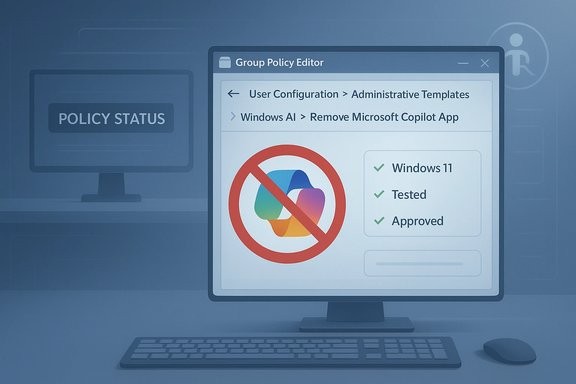
• Thread Author
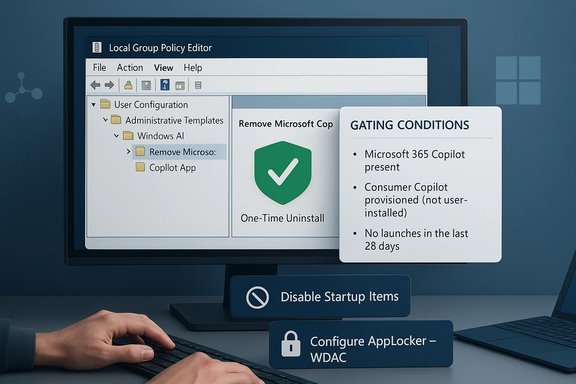
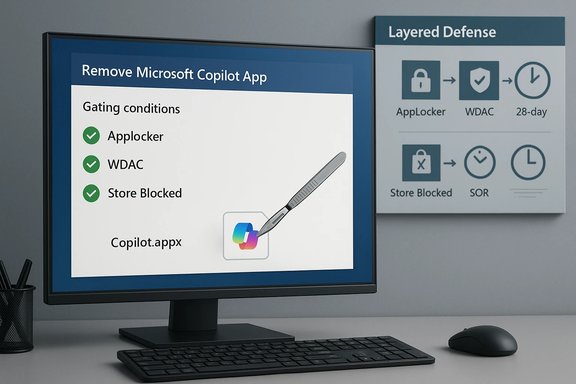
Hands typing at a keyboard as the screen shows the AppLocker shield logo and a security workflow.
Microsoft’s latest Group Policy approach for removing Copilot from Windows 11 solves some immediate problems but creates new operational headaches: the policy frequently behaves like a one‑time uninstall rather than a durable block, leaves multiple Copilot entry points unaddressed, and pushes administrators toward heavier, more brittle controls such as AppLocker and tenant-level settings to prevent re‑provisioning.

Background​

Microsoft has been integrating Copilot into Windows 11 as a platform-level assistant that surfaces in multiple places — a taskbar icon, a File Explorer “Ask Copilot” entry, a hardware Copilot key on some laptops, and as a separable app package when the OS ships that way. For admins, Microsoft published a supported Group Policy (TurnOffWindowsCopilot) and an MDM/Policy CSP to disable Copilot for users, and more recently introduced or clarified a policy that can remove the Copilot app in managed environments. However, Microsoft’s own documentation warns that older policies may be deprecated and that new Copilot delivery experiences in Insider channels may not be covered by legacy settings. Community testing and forum threads show a consistent operational pattern: toggling the UI affordances or uninstalling the Copilot package fixes most day‑to‑day annoyances, but the change is not always durable across feature updates, provisioning paths, or tenant-driven installs. For fleet administrators who want reliable removal, an immediate uninstall policy is a weak tool without complementary AppLocker/WDAC and tenant controls.

What Microsoft’s Group Policy actually does today​

Two related policies: TurnOffWindowsCopilot and Remove/Uninstall policies​

There are two similarly named but operationally different controls administrators encounter:
  • TurnOffWindowsCopilot (Group Policy / MDM CSP) — a policy that sets the registry keys under SOFTWARE\Policies\Microsoft\Windows\WindowsCopilot to prevent Copilot launching and remove the taskbar affordance. Microsoft documents this policy, but also marks it as deprecated for some newer Copilot experiences and notes it may not apply to Insider-delivered variants.
  • Remove Microsoft Copilot App / RemoveMicrosoftCopilotApp (administrative template variants and rollout guidance) — a newer administrative action that performs a targeted uninstall of the consumer Copilot app under defined conditions. Microsoft’s guidance explicitly frames AppLocker as the preferred durable control and says the uninstall action is intentionally conservative — it’s a one‑time removal and not a permanent block.

Practical behavior administrators are seeing​

  • The TurnOffWindowsCopilot policy often hides the taskbar icon and blocks the usual launch paths on supported builds, but it does not necessarily prevent future reinstallation or block all new Copilot delivery scenarios.
  • The Remove/Uninstall policy behaves like an atomic uninstall operation: it removes the consumer app where present, but it does not by itself create the AppLocker-style block that prevents future provisioning or tenant-driven reinstalls. Microsoft designed this conservatively to avoid breaking user workflows, but that choice matters for enterprises that need durable enforcement.
  • AppLocker or Windows Defender Application Control (WDAC) is recommended as the robust, long‑term approach to prevent both installation and execution of the Copilot package family (publisher: Microsoft Corporation, package name: MICROSOFT.COPILOT). Microsoft’s docs and community guidance converge on AppLocker as the forward path.

Why this “remove but don’t block” behavior is a problem​

1) It underestimates Windows’ packaging and delivery complexity​

Copilot is delivered through multiple channels: a separable Appx/AppxBundle package, Packaged COM shell extensions for File Explorer, protocol handlers (ms‑copilot:), and tenant provisioning via Microsoft 365 tooling. A single uninstall step only removes the currently present package; it doesn’t stop the OS or tenant from re‑provisioning Copilot via another channel or after a feature update. Multiple community reports show Copilot reappearing after updates unless admins layered additional controls.

2) It forces admins to adopt heavier controls that increase operational risk​

To make removal durable, Microsoft and experts now recommend pairing the uninstall with AppLocker/WDAC rules and tenant-level settings. AppLocker is powerful but risky: a misconfigured rule can block legitimate apps, causing wide user disruption. That means organizations must invest time in pilot testing, writing exception rules, and maintaining a re‑verification cadence after every feature update. Smaller IT teams or less experienced admins will find this burdeny.

3) It reduces predictability and increases support calls​

When removal is not durable, users and help desks get caught in a repeating loop: uninstall, update, reappearance, repeat. That churn consumes support resources and complicates compliance audits where administrators must prove Copilot was disabled across a fleet. Multiple community playbooks now recommend keeping a small pilot device per servicing channel and running periodic verification scripts. That’s defensive operations work no one asked for.

How the policy behaves technically (registry, GPO, MDM)​

Registry and GPO mapping​

  • The TurnOffWindowsCopilot Group Policy maps to the registry key:
    SOFTWARE\Policies\Microsoft\Windows\WindowsCopilot
    with the DWORD value TurnOffWindowsCopilot = 1 to disable Copilot for users. This is the documented Group Policy/MDM CSP mapping.
  • The policy is a user-scoped setting in many deployments (User Configuration → Administrative Templates → Windows Components → Windows Copilot). For device‑wide enforcement you must set the equivalent under HKLM or use AppLocker/Intune to push machine-level constraints.

Remove/Uninstall semantics​

  • The “Remove Microsoft Copilot App” behavior is intentionally conservative: it performs an uninstall of the consumer Copilot package for devices where the package is present and is intended to avoid collateral impact. It does not create an AppLocker block or prevent future provisioning from tenant or update channels. Because of that, admins must treat it as a step in a layered enforcement plan rather than a final state.

Packaged COM and the “Ask Copilot” context menu​

  • The right‑click File Explorer entry (“Ask Copilot”) is implemented as a Packaged COM shell extension with a known GUID. Blocking that shell extension via Shell Extensions\Blocked in HKCU/HKLM removes the File Explorer menu item without uninstalling the app and is a low‑risk, reversible tweak for end users. Community testing has converged on the CLSID used by the extension for multiple builds. This is a useful targeted fix for the common UI annoyance.

Cross‑checking Microsoft documentation and community testing​

Microsoft’s official guidance explicitly says AppLocker should be used instead of the TurnOffWindowsCopilot legacy policy for durable blocking because the TurnOff policy is subject to deprecation and doesn’t cover all future Copilot experiences. At the same time, Microsoft documents the TurnOffWindowsCopilot CSP and maps its Group Policy placement and registry representation for administrators who still need it. This internal contradiction — a documented policy that’s simultaneously being deprecated and still published — is the heart of the problem: admins are left to reconcile a supported “how to disable” path with a recommendation to move to stronger, more complex tools for durability. Independent community investigations and how‑to guides validate the registry keys, ADMX mappings, and the Packaged COM CLSID trick, and they uniformly report that Copilot can be reintroduced by updates or tenant provisioning unless AppLocker/tenant controls are applied. That independent corroboration aligns with Microsoft’s own community forum threads and operational notes.

Enterprise impact: what IT should expect​

Short‑term — damage control and user experience​

  • Expect a spike in help desk tickets after a broad uninstall campaign if AppLocker rules aren’t in place. Users who rely on Copilot features in Office or other apps may report lost functionality.
  • Conservative uninstall behavior reduces the risk of breaking workflows, but also increases the likelihood of repeated reinstalls from tenant or update channels (which users will notice).

Medium‑term — operations and compliance​

  • Durable enforcement requires:
    • AppLocker/WDAC publisher rules that block MICROSOFT.COPILOT.
    • Intune/MDM deployment of TurnOffWindowsCopilot or registry keys for unmanaged SKUs.
    • Tenant-level disablement in Microsoft 365 Apps admin settings to avoid tenant-driven provisioning.
    • Ongoing verification after each feature update.
  • This layered approach demands documentation, pilot testing for each update channel, and a small test fleet that mirrors production servicing channels. These are operational costs that must be budgeted.

Long‑term — policy, liability, and vendor relationships​

  • Aggressive removal via unsupported hacks or deletion of packaged components can complicate OEM or Microsoft support, and could potentially interfere with future OS servicing. Prefer supported Admin Templates, AppLocker, and tenant controls where possible.

Practical, prioritized playbook for admins and power users​

Quick, low-risk steps (for end users and help desks)​

  • Hide the Copilot taskbar button: Settings → Personalization → Taskbar → toggle Copilot off. This addresses 90% of daily annoyances without risk.
  • Block the File Explorer “Ask Copilot” entry (per user): add the Packaged COM CLSID to HKCU\Software\Microsoft\Windows\CurrentVersion\Shell Extensions\Blocked. This is reversible and safe for individuals.

Supported, medium‑risk steps (Pro / Enterprise)​

  1. Apply the Group Policy: User Configuration → Administrative Templates → Windows Components → Windows Copilot → Turn off Windows Copilot = Enabled; run gpupdate /force. This maps to the TurnOffWindowsCopilot registry key.
  2. Uninstall the Copilot app via Settings or a guarded PowerShell script where required (confirm package names with Get‑AppxPackage first). Use a restore point for safety.

Durable enforcement (recommended for fleets that must remain Copilot‑free)​

  1. Pre‑deploy AppLocker rules that block the Copilot package (publisher CN=MICROSOFT CORPORATION, package name MICROSOFT.COPILOT) before major feature updates. Test extensively in pilot OUs.
  2. Deploy AppLocker via Intune/MDM or AD GPO and use the Microsoft 365 Apps admin center to disable tenant‑level automatic provisioning of Copilot. Combine with a PowerShell uninstall script for devices that already have the app.
  3. Maintain an update‑verification cadence: after each cumulative or feature update re‑verify that Copilot is not reinstalled (check Settings → Apps, taskbar toggle, and the ms‑copilot: URI handler). Automate verification where possible.

Strengths and notable positives in Microsoft’s approach​

  • Microsoft provides a supported administrative path (Group Policy / MDM CSP) and an uninstall option, which is better than leaving admins to rely entirely on community hacks. The registry mappings and ADMX files are documented, enabling scripted or MDM-based deployments.
  • The conservative uninstall semantics reduce the risk of accidentally removing functionality users depend on, a legitimate concern in enterprise environments that may rely on Copilot features in Microsoft 365. That caution avoids unexpected productivity losses and legal/regulatory landmines.
  • Microsoft also recommends AppLocker for durable enforcement, which — when done correctly — provides the most robust way to prevent installation and execution across a fleet. That guidance aligns with enterprise best practices for application control.

Risks and limits — what administrators must watch for​

  • The TurnOffWindowsCopilot policy is explicitly marked as subject to deprecation for newer Copilot experiences. Relying on it as the single method to keep Copilot out of an enterprise is risky. Prepare for policy evolution and maintain a migration plan to AppLocker/WDAC where required.
  • AppLocker and WDAC are powerful but can break legitimate applications when misconfigured. Organizations must invest time in testing and exception management to avoid business disruption.
  • The Copilot delivery model is dynamic. Expect future packaging or protocol changes that require updating AppLocker rules, PowerShell scripts, and tenant controls. Treat Copilot removal as an ongoing configuration management responsibility, not a one‑off project.
  • Some claims online that a single registry edit will “erase Copilot forever” are misleading; they are provisional and can be invalidated by a change in packaging or provisioning paths. Flag such claims as unreliable.

Final verdict and recommendations​

Microsoft’s Group Policy and CSP tools provide necessary admin controls, but the current model — where the policy often acts as a single uninstall rather than a permanent block — leaves enterprises needing a layered enforcement approach. The good news is that Microsoft documents both the immediate and longer‑term controls (TurnOffWindowsCopilot, uninstall guidance, and AppLocker), and independent community testing validates registry keys and Packaged COM workarounds. The bad news is that the company’s conservative uninstall semantics and the deprecation notices create ambiguity and extra work for administrators. Practical, prioritized recommendations:
  • For everyday users: hide the Copilot taskbar button and, if necessary, remove the File Explorer context entry for a low‑risk solution that addresses most annoyances.
  • For small IT shops: apply the TurnOffWindowsCopilot policy and use a careful PowerShell uninstall for devices that still show the app. Maintain a verification check after updates.
  • For enterprises that must enforce Copilot removal: adopt a layered strategy — AppLocker/WDAC publisher rules, Intune/MDM deployment of policy or registry equivalents, tenant controls in Microsoft 365 admin center, and an automated verification/re‑apply playbook following each major Windows update. Budget pilot testing and exception management time for AppLocker.
Cautionary note: where claims or behaviors cannot be reproduced on your exact Windows build or tenant configuration, treat them as provisional; always test on representative devices and document your remediation and rollback steps. Several community reports and Microsoft’s own notices warn that packaging and delivery can change in Insider builds and future releases — plan accordingly.

Microsoft’s policy signals a reasonable intention — give admins a supported uninstall path while avoiding accidental breakage — but the implementation pushes responsibility back onto IT teams to create durable enforcement. For organizations that must keep Copilot off corporate endpoints, expect to do a little more work than flipping a GPO switch: AppLocker, tenant settings, and a maintenance cadence will be necessary to make removal stick.

Source: Neowin https://www.neowin.net/editorials/m...-remove-copilot-in-windows-11-is-kind-of-bad/
 

Microsoft has quietly handed IT administrators a narrowly scoped, supported tool to remove the consumer Microsoft Copilot app from managed Windows 11 devices — but the feature comes with strict preconditions, practical limitations, and an operational checklist that every admin should read before deciding whether to deploy it at scale.

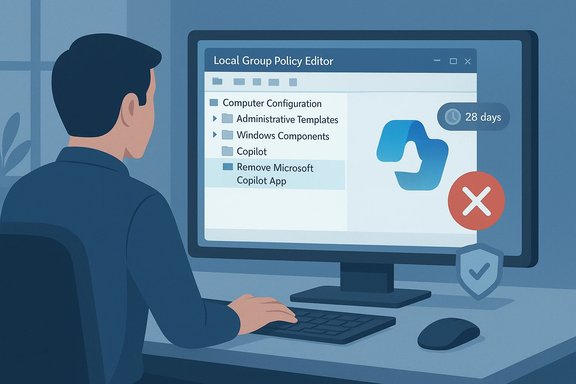
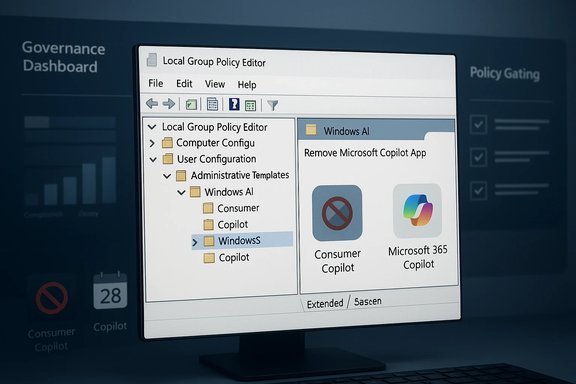
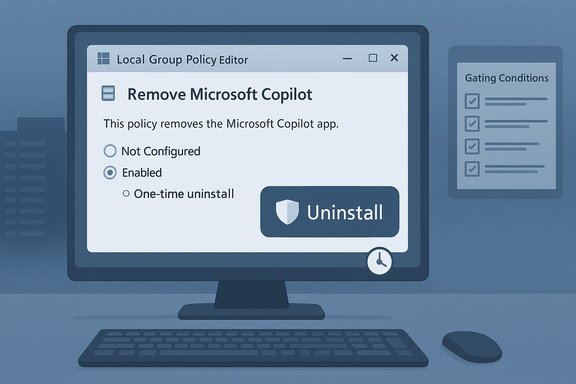
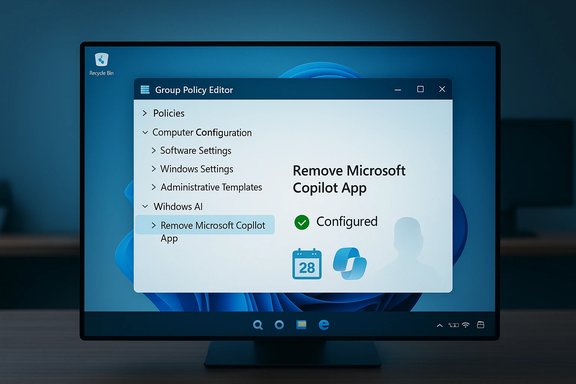
Person at a computer editing Local Group Policy Editor to remove Microsoft Copilot App.Background / Overview​

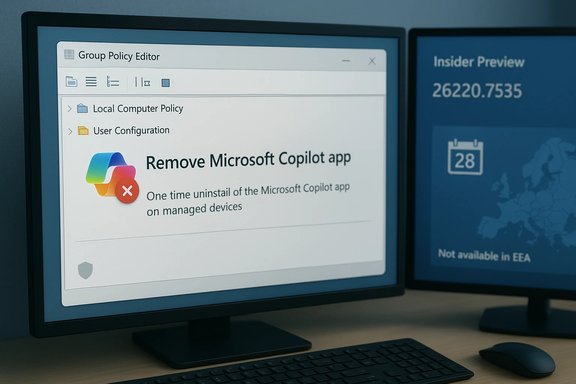
Microsoft published Windows 11 Insider Preview Build 26220.7535 (delivered as KB5072046) to the Dev and Beta channels and documented a new Group Policy named RemoveMicrosoftCopilotApp that enables a one‑time uninstall of the consumer Copilot app on managed devices when very specific conditions are met. The policy appears under User Configuration → Administrative Templates → Windows AI → Remove Microsoft Copilot App and is available to Windows 11 Pro, Enterprise, and Education SKUs. This change is aimed squarely at IT governance: it gives administrators a supported path to remove the preinstalled, consumer‑oriented Copilot front end from endpoints provisioned by an organization, while leaving the paid Microsoft 365 Copilot service (a separate app/service tied to Microsoft 365 subscriptions) intact. The policy is deliberately conservative — it performs a single uninstall action and does not impose a persistent block. Users can still reinstall the consumer Copilot app if they choose.

What the new RemoveMicrosoftCopilotApp policy does — the facts​

  • The policy performs a one‑time uninstall of the consumer Microsoft Copilot app for the targeted user on a managed device. It is not a permanent prohibition; users retain the ability to reinstall the app afterward.
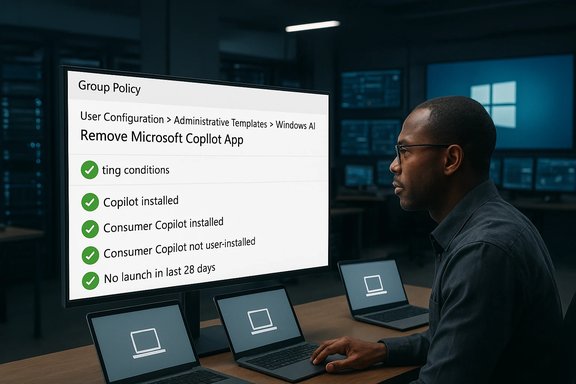
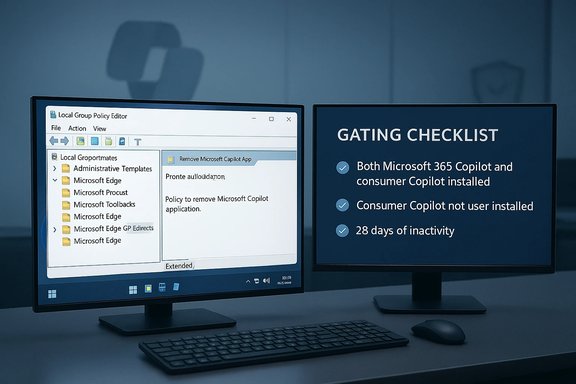
  • The uninstall only triggers when all three of these conditions are true:
  • Microsoft 365 Copilot (paid) and the consumer Microsoft Copilot app are both installed on the device.
  • The consumer Microsoft Copilot app was not installed by the user (i.e., it was provisioned, pushed by tenant tooling, or preinstalled by OEM).
  • The consumer Microsoft Copilot app has not been launched in the last 28 days.
  • The policy is surfaced in the Group Policy Editor at:
  • User Configuration → Administrative Templates → Windows AI → Remove Microsoft Copilot App.
  • This feature is currently part of an Insider preview (Dev & Beta channels) and is being rolled out gradually with server‑side gating; installing KB5072046 alone does not guarantee the feature is visible on every machine.
These are the official, verifiable points; several independent observers and community outlets have reported the same detailed behavior, confirming the documented conditions and the policy path.

Why Microsoft designed the policy this way​

Microsoft’s packaging and delivery model for Copilot has evolved into two distinct but related experiences:
  • Microsoft 365 Copilot — the subscription service integrated into Microsoft 365 apps and workflows (paid, tenant‑managed features).
  • Microsoft Copilot (consumer app) — the free, preinstalled assistant experience in Windows that provides the consumer‑oriented Copilot UI and shortcuts.
Removing the consumer Copilot app wholesale across corporate devices risks breaking workflows for users who rely on Microsoft 365 Copilot features. The new policy intentionally targets provisioned consumer Copilot installs that are unused (28 days of inactivity) and co‑exist with Microsoft 365 Copilot, providing a conservative remediation path that minimizes collateral damage to active users and tenant features. In short: Microsoft wanted a safer, targeted uninstall rather than a blunt kill switch.

Practical implications for admins — what to expect​

The three gating conditions are operationally meaningful (and restrictive)​

Each condition matters in practice:
  • Presence of both apps: the policy will not remove consumer Copilot if Microsoft 365 Copilot is absent. This is meant to avoid removing the only Copilot experience a user might need.
  • Not user‑installed: the policy is intended to remove provisioned packages (OEM images, tenant pushes), not apps deliberately installed by an individual user. That protects user autonomy and avoids surprising employees.
  • 28‑day inactivity window: the Copilot app must not have been launched within the last 28 days for the uninstall to proceed. Because the consumer Copilot app typically has Auto start on log in enabled by default on many builds, meeting this inactivity criterion can be difficult without extra steps to disable auto‑start or to ensure users do not open the app.
These constraints mean the policy is best used as a cleanup tool for devices that were provisioned with Copilot (for example classroom devices, kiosk images, or incorrectly configured enrollments), rather than as a single control to permanently and globally block Copilot across a fleet.

Admin workflow — how to test and enable the policy (practical steps)​

  • Pilot the change on a small, representative group of devices (dev/test OU or Intune pilot profile).
  • Install the Insider preview build if you are testing in Insider rings (Build 26220.7535 / KB5072046) and verify the policy ADMX/registry appears in your environment. Remember the build is gated; some features are server‑side toggled.
  • Local test via Group Policy Editor:
  • Open gpedit.msc → User Configuration → Administrative Templates → Windows AI → Remove Microsoft Copilot App → set to Enabled.
  • For MDM/Intune: deploy the equivalent ADMX-backed administrative template or registry key through a device configuration profile targeted to the same pilot group.
  • Verify the three preconditions on test devices (both apps installed, app not user‑installed, not launched in 28 days), then observe the uninstall behavior.
  • If needed, add AppLocker/WDAC rules to prevent reinstallation or execution (see next section).
These steps are intentionally conservative and echo Microsoft’s recommended operational cadence: pilot, verify, then roll out in phases.

Durability: why a one‑time uninstall is not enough for many orgs​

The RemoveMicrosoftCopilotApp policy is not a persistent enforcement mechanism. Microsoft and independent coverage recommend that organizations apply layered controls if they want to ensure Copilot does not reappear:
  • AppLocker/WDAC application control rules that explicitly block the Copilot package family (publisher and package name).
  • Tenant‑level settings in the Microsoft 365 admin portal to disable automatic provisioning of consumer Copilot if tenant provisioning is in use.
  • Ongoing verification scripts that check installed apps and installed package names after monthly or feature updates.
  • Clear support and communications plans for users who may want Copilot reinstated.
AppLocker is the recommended way to provide long‑term, durable enforcement — but it requires careful testing. Misconfigured AppLocker or WDAC rules can block legitimate apps and create help‑desk storms, so plan exception handling and pilot extensively.

Accessibility, privacy, and the broader Copilot story​

KB5072046 also expanded Narrator’s ability to ask Copilot for richer image descriptions and introduced a Cross‑Device Resume path using the Windows Notification System (WNS). Those accessibility improvements are significant for users with visual impairments, but they also highlight tradeoffs between on‑device processing (privacy friendly) and cloud processing (broader coverage). Microsoft notes Copilot‑assisted image descriptions are not available in the European Economic Area (EEA) at rollout, reflecting regulatory caution. Separately, the Copilot+ PC initiative — hardware‑branded Windows systems with higher‑performance NPUs — remains distinct from this uninstall policy. Copilot+ PCs must meet hardware criteria (an NPU capable of 40+ TOPS) to enable many on‑device AI experiences. That hardware story affects privacy and latency (on‑device processing avoids image egress to the cloud), but it does not change the uninstall policy behavior for the consumer Copilot app. Administrators should treat Copilot UI removal and Copilot+ hardware features as separate operational dimensions.

Strengths of Microsoft’s approach​

  • Supported, documented control: Microsoft added a formal Group Policy for admins rather than requiring reliance on community hacks or registry tricks. That makes enterprise deployment safer and easier to audit.
  • Targeted and conservative: The three gating conditions reduce the risk of accidentally removing an app that a user actively needs or that a tenant depends on.
  • Complemented by recommended controls: Microsoft explicitly points admins to AppLocker and MDM for durable enforcement, which aligns with enterprise best practices.

Limitations and risks — what administrators must watch for​

  • 28‑day inactivity is a brittle gate. Because consumer Copilot often auto‑starts by default, the app may register activity unintentionally (background launches, auto‑start), preventing the uninstall policy from triggering. Admins may need to disable auto‑start and document that change prior to running the removal at scale. Flagged as a practical risk.
  • Not a permanent block. The policy only uninstalls once; without AppLocker/tenant controls, Copilot can be reinstalled by updates, tenant provisioning, or a user. Numerous community reports show feature updates can change how Copilot is packaged and reintroduce it. Treat this as an operational posture, not a single project.
  • Telemetry/residual services. Removing the front‑end app does not necessarily eliminate every Copilot‑related telemetry or cloud relationship (for example, Microsoft 365 Copilot telemetry persists in tenant services). Legal and privacy teams should validate residual flows if compliance is a concern. This is an area that requires local verification; don’t assume uninstall removes all telemetry.
  • Support and update complexity. Aggressive removal via unsupported hacks or deletion of packaged components can complicate Microsoft or OEM support and increase help‑desk volume after feature updates. Use supported Group Policy + AppLocker instead of destructive package surgery whenever possible.

Recommended operational playbook (concise)​

  • Inventory: identify devices that have both Microsoft 365 Copilot and the consumer Copilot app installed and determine whether the app was tenant‑provisioned or user‑installed.
  • Pilot: choose a small pilot group (representative OS servicing channel and hardware mix) and enable the policy there first.
  • Disable auto‑start on pilot devices or instruct users how to not launch Copilot for 28 days to let the policy condition be met, then observe uninstall behavior.
  • Add AppLocker rules targeting the Copilot package family before a broad rollout if your objective is durable prevention; test thoroughly.
  • Disable tenant auto‑installs where tenant provisioning could re‑push the app.
  • Build a verification cadence: after each monthly security or feature update, re‑scan and flag reintroductions automatically.
  • Communicate to users and support staff: removal is reversible; document the reinstall path and a help process for users who need Copilot restored.

How to enable the policy now (quick reference)​

  • Open gpedit.msc.
  • Navigate to User Configuration → Administrative Templates → Windows AI → Remove Microsoft Copilot App.
  • Set the policy to Enabled and apply.
  • Run gpupdate /force or reboot to apply settings.
  • For Intune/MDM, deploy the administrative template or matching registry/CSP to the targeted device group.

Cross‑checks and verification of key technical points​

  • Microsoft’s Windows Insider Blog documents the policy, its Group Policy path, and the 28‑day inactivity condition in the official KB5072046 release notes. Administrators should read the blog entry and the KB for any caveats in the build notes.
  • Independent technology outlets (AllThings.How, Anavem and others) replicated Microsoft’s guidance and tested the Group Policy mapping and behavior, reinforcing the practical constraints and recommended layered controls. These independent reports match Microsoft’s documentation on the three gating conditions and the one‑time uninstall semantics.
  • The Copilot+ PC hardware requirements (NPU 40+ TOPS) and the privacy/latency tradeoffs between on‑device and cloud processing are documented by Microsoft in its Copilot+ materials and developer guidance; these remain separate from the RemoveMicrosoftCopilotApp policy but are relevant to broader Copilot governance. If your organization cares about on‑device privacy, map Copilot+ device inventories as part of your inventory step.
If any of these claims — especially details about how tenant provisioning interacts with the uninstall policy or the precise behavior of the 28‑day inactivity window — are critical to your deployment, validate on a local test device and log the event traces. Insider features can be server‑gated and are subject to change across builds.

Final analysis — who should use this, and when​

  • Use RemoveMicrosoftCopilotApp when you need a safe, supported cleanup for provisioned, unused consumer Copilot installs on Pro/Enterprise/Education devices, particularly for classroom, kiosk, or imaging remediation.
  • Do not rely on it as a single control if your requirement is to permanently block Copilot across a fleet; adopt AppLocker/WDAC + tenant configuration + verification for durable enforcement.
  • Expect some operational friction: the 28‑day inactivity gate and auto‑start defaults mean you may need to coordinate user behavior or apply additional configuration (disable auto‑start) before the policy can do its work.
  • Treat the policy as a useful new tool in a layered governance playbook — helpful, but not a magic bullet.

Conclusion​

KB5072046 and Build 26220.7535 give administrators an officially supported, targeted way to remove the consumer Microsoft Copilot app from managed Windows 11 devices — a pragmatic addition that respects user choice and tenancy needs. However, the policy’s conservative gates (particularly the 28‑day inactivity requirement) and its one‑time uninstall semantics mean it functions as a clean‑up tool rather than a hard enforcement mechanism. For organizations that must ensure Copilot never returns, the supported path is a layered approach: pilot RemoveMicrosoftCopilotApp where appropriate, add AppLocker/WDAC rules for durable blocking, disable tenant auto‑provisioning, and maintain a verification cadence after each Windows feature update. The new policy reduces friction for many real‑world scenarios, but it also shifts responsibility back to IT teams to operationalize and verify their desired posture across updates and tenant provisioning.
Source: Tom's Hardware Admins finally get the power to uninstall Microsoft Copilot on Windows 11 Pro, Enterprise, and EDU versions — devices must meet specific conditions to allow the removal of the AI app
 

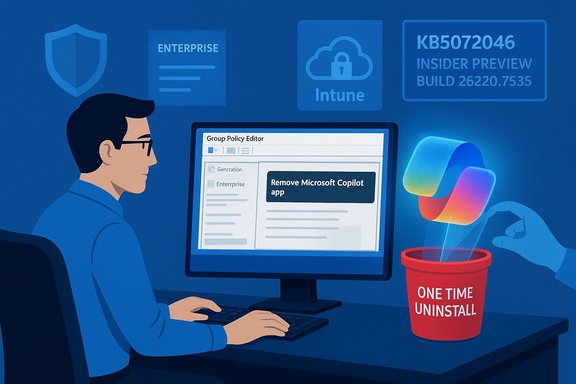
Microsoft’s Windows Insider preview now includes a narrowly scoped, admin‑facing policy that lets IT teams uninstall the consumer Microsoft Copilot app from managed Windows 11 devices — a one‑time, conditional removal designed to balance enterprise governance with user choice. The capability appears in Windows 11 Insider Preview Build 26220.7535 (delivered as KB5072046) and is exposed as a Group Policy named RemoveMicrosoftCopilotApp; it triggers only when very specific conditions are met and is deliberately conservative rather than a permanent ban.

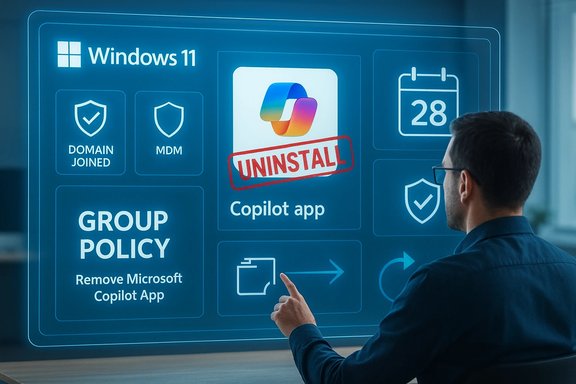
A person uses the Group Policy Editor to remove the Microsoft Copilot app.Background​

Microsoft has steadily folded AI into Windows 11 and the Microsoft 365 ecosystem through the Copilot family of experiences: a consumer‑oriented Copilot app, the paid Microsoft 365 Copilot service, and a variety of shell integrations (taskbar button, Win+C or Copilot hardware key, Explorer context entries, and protocol handlers). Enterprises have pushed back on some of those integrations, citing concerns about unexpected installs, telemetry, and data handling in regulated environments. The new RemoveMicrosoftCopilotApp policy is Microsoft’s first visibly supported answer to requests from IT teams for a documented removal path for the consumer Copilot front end. Microsoft’s announcement in the Windows Insider Blog frames this change as part of the KB5072046 Insider preview release, which bundles accessibility improvements (Narrator + Copilot image descriptions), developer extensibility (Cross‑Device Resume via WNS), and this enterprise management control. The blog and Microsoft’s management documentation lay out the policy’s purpose: targeted cleanup of provisioned consumer Copilot installs without impairing tenant‑managed Microsoft 365 Copilot capabilities.

What RemoveMicrosoftCopilotApp actually does​

The exact, verifiable conditions​

The policy is intentionally gated. According to Microsoft’s Insider announcement and subsequent management guidance, RemoveMicrosoftCopilotApp performs a one‑time uninstall of the consumer Microsoft Copilot app for the targeted user when all of the following are true:
  • Microsoft 365 Copilot and the consumer Microsoft Copilot app are both installed on the device.
  • The consumer Microsoft Copilot app was not installed by the user (it must be provisioned, pushed by tenant tooling, or preinstalled by OEM).
  • The consumer Copilot app has not been launched in the last 28 days.
If those three requirements are met and the policy is applied, the app is uninstalled once for that user; the action is not a permanent block and users can reinstall the consumer Copilot app afterward if allowed. These points are documented in Microsoft’s Insider blog and corroborated by independent reporting.

Where the setting lives​

Administrators will find the policy surfaced in the Group Policy Editor at:
User Configuration → Administrative Templates → Windows AI → Remove Microsoft Copilot App
For MDM/Intune deployments, the same ADMX/registry equivalent can be pushed as an administrative template or device configuration profile; server‑side gating of Insider features still applies, so installing KB5072046 may be necessary but not sufficient to see the policy immediately.

Why Microsoft chose a conservative, one‑time uninstall​

The policy design reflects several competing priorities:
  • Preserve tenant continuity: Many enterprises pay for Microsoft 365 Copilot and depend on tenant‑managed Copilot workflows. A blanket kill switch that removes Microsoft 365 Copilot would be disruptive. The new policy only targets the consumer front end when Microsoft 365 Copilot is present.
  • Respect user intent: Microsoft’s condition requiring that the Copilot app not be user‑installed protects users who deliberately installed the consumer app on their managed devices.
  • Provide an operationally safe path: The 28‑day inactivity window avoids surprising active users and limits the policy’s scope to devices where Copilot was effectively unused.
This approach favors surgical cleanup — useful for classroom, kiosk, or incorrectly provisioned devices — rather than fleet‑wide permanent prohibition. Administrators wanting durable blocks are expected to layer additional controls such as AppLocker, WDAC, or Intune policies.

Technical mechanics and management guidance​

Supported management surfaces​

  • Group Policy (Local / AD): The RemoveMicrosoftCopilotApp ADMX appears under the Windows AI templates in Insider builds. Apply the setting in a test OU before wider rollout.
  • Microsoft Intune / MDM: Push the ADMX-backed administrative template or equivalent registry key via device configuration profiles to apply the policy at scale. Pilot first and validate server‑side feature exposure.
  • SCCM / Configuration Manager: Use standard package and policy deployment patterns to deliver registry keys or templates that enable the policy for targeted users.

Complementary durable controls​

Microsoft explicitly recommends AppLocker (or App Control) for long‑term prevention of reinstallation or execution of the consumer Copilot package family. When configured correctly, AppLocker rules can:
  • Prevent the consumer Copilot app from being installed.
  • Block execution of Copilot if the app is already present.
  • Survive certain system updates or tenant provisioning attempts if publisher/package rules are correctly specified.
Suggested AppLocker rule metadata (from Microsoft’s management guidance) uses publisher CN=MICROSOFT CORPORATION and package name MICROSOFT.COPILOT with a wildcard package version. Administrators should create, test, and pilot AppLocker rules carefully — misconfiguration can block legitimate apps.

PowerShell and local removal options​

When Windows exposes Copilot as a separable Appx package, standard Get‑AppxPackage / Remove‑AppxPackage patterns remain valid for local removal. Example PowerShell snippet documented by Microsoft:
  • Get the package full name:
    $packageFullName = Get-AppxPackage -Name "Microsoft.Copilot" | Select-Object -ExpandProperty PackageFullName
  • Remove the package:
    Remove-AppxPackage -Package $packageFullName
Use caution: package naming varies across builds and removing provisioned system packages without proper validation can break dependencies. Always test on representative images and create restore points.

Operational playbook: testing, piloting, and rollout​

Enterprises should treat RemoveMicrosoftCopilotApp as a surgical tool and follow a layered, auditable rollout plan.
  • Inventory and classification (pilot prerequisites)
  • Confirm which devices have the consumer Copilot app and Microsoft 365 Copilot installed.
  • Determine how Copilot was installed (provisioned by tenant, OEM image, or user‑installed).
  • Identify servicing channels (Dev/Beta/Release Preview/Stable) to match Insider gating.
  • Pilot (small representative cohort)
  • Install KB5072046 on a pilot set and enable the RemoveMicrosoftCopilotApp policy locally.
  • Validate the three gating conditions and observe uninstall behavior.
  • Evaluate help‑desk impact and user communications before larger rollout.
  • Layer durable controls (if required)
  • Use AppLocker or WDAC rules to block the Copilot package family across the fleet.
  • Disable tenant‑level automatic provisioning in the Microsoft 365 admin center if your tenant pushes the consumer Copilot app.
  • Communicate & document
  • Notify impacted users and support teams that the uninstall is a one‑time action and users may be able to reinstall if allowed.
  • Create a remediation/appeal path for users who require Copilot features for specific workflows.
  • Continuous verification
  • Add verification scripts to monthly update tasks to detect re‑provisioned Copilot packages after feature updates.
  • Re‑test policies after every major Windows feature update; Insider builds have shown that feature exposure can change via server‑side gating.

Security, privacy and compliance analysis​

Privacy and data flow considerations​

Removing the consumer Copilot app tightens the local attack surface and reduces ingress points from OS‑level helpers to cloud AI services. This matters for regulated environments (healthcare, finance, government) where any additional agent that can access files, clipboard, or email raises DLP and residual telemetry questions.
  • Disabling or uninstalling the consumer Copilot app reduces the number of local‑to‑cloud AI interactions originating from that front end, but it does not automatically alter telemetry or data flows originating from other components (Microsoft 365 Copilot service, Edge integrations, or background agents). Admins must evaluate telemetry lineage holistically.
  • Microsoft’s Narrator + Copilot image description flow emphasizes explicit consent: images are shared only after user confirmation, and Copilot+ hardware can run descriptions on‑device to reduce cloud exposure. However, where on‑device execution isn’t available, cloud routing remains the default for many devices and raises standard questions about retention, telemetry, and regional data handling. Administrators should confirm Copilot data‑handling documentation for tenant environments before enabling or disabling components.

Security posture and operational risk​

  • Pros: Removing the consumer Copilot app reduces the number of active protocol handlers and shell hooks attackers could exploit, and it reduces background resource use on constrained devices.
  • Cons: Aggressive removal using unsupported hacks or blind deletion of provisioned system packages can break dependencies and complicate vendor/OEM support. AppLocker misconfiguration risks collateral app block. Microsoft recommends supported paths and layered enforcement to minimize inadvertent outages.

Limitations, edge cases and things admins must watch​

  • One‑time uninstall only: The policy does not prevent subsequent reinstallation or provisioning. For durable enforcement, combine with AppLocker/MDM rules.
  • Server‑side gating: Insider features are often gated server‑side; installing KB5072046 alone may not expose the policy in every machine. Test exposure on the intended tenant and OU before broad deployment.
  • Activity window challenge: The 28‑day inactivity requirement can be difficult to meet on devices with Copilot auto‑started by default; you may need to disable auto‑start or ensure the app is not launched for 28 days prior to applying the policy.
  • Mixed packaging models: Copilot can be delivered as a separable app, embedded shell UX, or tenant‑pushed package. Different delivery models require different controls (uninstall, policy, AppLocker). Expect to manage multiple vectors.
  • Edge and URI fallbacks: Neutralizing the app does not eliminate AI experiences routed through Edge, ms‑copilot: URIs, or other browser‑based affordances. To fully isolate Copilot experiences, evaluate Edge policies and protocol handler blocks.

Strategic and market implications​

This policy is a pragmatic concession to enterprise governance needs and reflects Microsoft’s attempt to avoid heavy‑handed friction with IT while continuing to expand AI across Windows. Allowing admins a supported uninstall path can:
  • Reduce churn and pushback from large customers who might otherwise disable Microsoft 365 features or explore alternative platforms.
  • Dampen political and regulatory scrutiny about forced bundling (a point of interest in jurisdictions evaluating platform behavior). The policy could be cited by Microsoft as evidence of responsiveness to control and choice demands — though it stops short of wholesale decoupling for consumers.
That said, Microsoft’s large-scale investments in AI and its Azure/OpenAI partnership make abandoning Copilot unlikely; the company appears to be prioritizing modular control and governance to preserve enterprise relationships while still shipping AI capabilities broadly.

Voices from IT and the community​

Early responses from admins and enterprise‑focused reporters have been mixed: many welcome a supported removal mechanism after months of community scripts and brittle workarounds, while others call out the policy’s limitations and the continued need for durable, tenant‑level controls. Community playbooks emphasize a layered approach: uninstall the app, apply TurnOffWindowsCopilot/RemoveMicrosoftCopilotApp where available, and then enforce with AppLocker or Intune App Protection for persistence. Those playbooks have been reflected in Microsoft’s own management guidance and independent how‑tos.
Historical incidents — such as the March 2025 update that unintentionally removed Copilot from some devices — have both heightened sensitivity and illustrated the fragility of Copilot’s delivery model, reinforcing why administrators demand supported, testable controls.

Practical recommendations (quick checklist)​

  • Start small: Pilot RemoveMicrosoftCopilotApp on a small group that mirrors your device types and servicing channel.
  • Layer controls: Use AppLocker/WDAC and tenant provisioning settings to prevent reinstallation or execution.
  • Document and communicate: Explain to users the one‑time nature of the uninstall and provide a support path for reinstalls.
  • Automate verification: Add checks to your update cycle to detect Copilot re‑provisioning after Windows feature updates.
  • Test telemetry impact: Coordinate with privacy and legal teams to confirm residual telemetry flows from other Copilot components are acceptable.

What remains unconfirmed or speculative​

  • Whether Microsoft will extend the RemoveMicrosoftCopilotApp behavior to non‑managed consumer SKUs in a similar, supported form remains unconfirmed. Any suggestion that consumer uninstall options will mirror enterprise controls should be treated as speculation until Microsoft announces broader availability. Regulatory pressure could influence future choices, but that outcome is uncertain. Treat consumer rollout expectations cautiously.
  • Exact telemetry retention and cross‑service linkage details for Copilot‑generated artifacts (for example, how long image descriptions or derived transcriptions are retained in cloud services) require consulting Microsoft’s official Copilot privacy documentation and tenant agreements; the preview blog does not provide full retention tables. Administrators should validate those details directly with Microsoft documentation and support.

Conclusion​

The RemoveMicrosoftCopilotApp policy is a pragmatic, narrowly defined tool that responds to a clear enterprise need: a supported way to surgically remove a provisioned, unused consumer Copilot app from managed Windows 11 devices. It’s conservative by design — a one‑time uninstall that preserves paid Microsoft 365 Copilot capabilities and user autonomy while offering IT teams a path to reduce unwanted AI surface area on select endpoints. For organizations that need durable enforcement, Microsoft’s guidance and community playbooks point to a layered approach combining this policy with AppLocker, tenant provisioning controls, and ongoing verification.
This is a meaningful step in the governance of OS‑level AI: it doesn’t end the debate over AI in the desktop, but it does give IT administrators a documented, supported tool to regain operational control where required. Admins should pilot cautiously, combine policies for persistence if needed, and validate behavior after each Windows feature update — because in the evolving ecosystem of Copilot, the maintenance work of control is ongoing.
Source: WebProNews Microsoft Tests Uninstall Option for Copilot AI on Windows Devices
 

Microsoft has finally given IT administrators a supported, one‑time way to remove the consumer Microsoft Copilot app from managed Windows 11 devices — but the new Group Policy is deliberately conservative, available only in Insider preview builds for Pro, Enterprise and Education SKUs, and it will only trigger when several strict conditions are met (both Microsoft 365 Copilot and the consumer Copilot app are installed, the app was not user‑installed, and it has not been launched in the last 28 days).

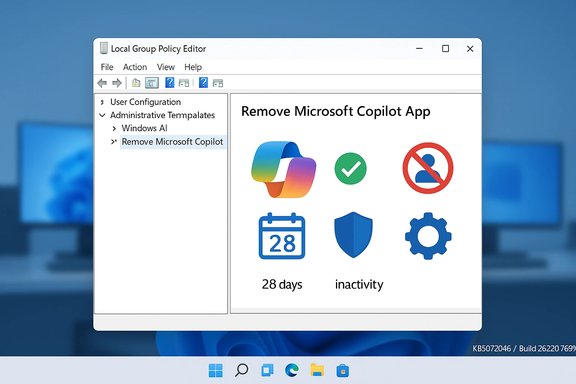
Windows Local Group Policy Editor screen showing the Remove Microsoft Copilot App option.Background​

Microsoft’s Copilot family now spans multiple products and delivery channels: a consumer‑facing Copilot app that ships with many Windows 11 installations, a paid Microsoft 365 Copilot service tied to tenant subscriptions, and a range of shell integrations (taskbar icon, keyboard shortcuts, context‑menu entries, and protocol handlers). Managing this complexity has been a recurring pain point for administrators who want deterministic control over what runs on managed endpoints. The new RemoveMicrosoftCopilotApp policy arrives inside Windows 11 Insider Preview Build 26220.7535 (delivered as KB5072046) and is exposed under Group Policy at User Configuration > Administrative Templates > Windows AI > Remove Microsoft Copilot App. Microsoft positions this change as a targeted remediation tool rather than a permanent block — the policy performs a single uninstall action for the targeted user when the policy’s gating conditions are satisfied.

What Microsoft shipped: the policy, the build, and the scope​

The precise control administrators now have​

  • The policy is named RemoveMicrosoftCopilotApp and is visible in the Local Group Policy Editor under:
    User Configuration > Administrative Templates > Windows AI > Remove Microsoft Copilot App.
  • It is available to Windows 11 Pro, Enterprise, and Education SKUs in the Insider Dev and Beta channels as part of Build 26220.7535 (KB5072046).
  • When enabled, the policy performs a one‑time uninstall of the consumer Microsoft Copilot app for the targeted user — it does not create a persistent ban or block. Users may reinstall the app afterward if local policy, tenant settings, or Store availability permit.

The gating conditions (what must be true)​

The policy only uninstalls Copilot when all of the following are true:
  • Both Microsoft 365 Copilot (the paid, tenant‑managed service) and the consumer Microsoft Copilot app are present on the device. This avoids unintentionally removing the only Copilot experience a paid user might rely on.
  • The consumer Microsoft Copilot app was not installed by the user — it must be provisioned, pushed by tenant tooling, or preinstalled by OEM image. This protects user autonomy on managed machines.
  • The consumer Copilot app has not been launched in the last 28 days. Microsoft enforces this inactivity window as a conservative safety gate to avoid surprising active users.
These three constraints make the policy conservative by design — it is intended as a cleanup tool for provisioned, unused Copilot installs (classroom devices, kiosk images, incorrectly provisioned endpoints), not as a universal “kill switch” for Copilot across a fleet.

Why Microsoft designed the policy this way​

Microsoft’s packaging and tenant models for Copilot intentionally separate the consumer UI from tenant‑managed Microsoft 365 Copilot features. Removing the consumer front end indiscriminately could disrupt paid workflows that rely on tenant integrations; the policy therefore aims to be surgically targeted so that IT can remediate unwanted, provisioned copies without breaking tenant‑managed productivity features. The 28‑day inactivity requirement, the “not user‑installed” check, and the one‑time semantics reflect that design tradeoff.
That same conservatism has practical implications: if your goal is durable, fleet‑wide prevention of Copilot’s presence or execution, this policy is one tool in a broader playbook — not the whole answer. Microsoft and community guidance both recommend layering AppLocker or Windows Defender Application Control (WDAC), tenant provisioning restrictions, and ongoing verification for durability.

Operational caveats administrators must know​

The 28‑day launch window is the trickiest real‑world gate​

Because the consumer Copilot app typically ships with “Auto start on log in” enabled by default, meeting the 28‑day inactivity requirement can be unexpectedly hard. Administrators may need to:
  • Disable the app’s auto‑start entry (via Task Manager or managed startup controls), and
  • Ensure users don’t accidentally open Copilot for 28 straight days, which requires coordination or restricted access during the pilot.
Independent reporting highlighted this operational friction and warned that the inactivity window turns the policy into a cleanup mechanism rather than a fast way to impose a persistent ban.

The policy only targets provisioned copies​

If a user deliberately installed the consumer Copilot app, RemoveMicrosoftCopilotApp will not uninstall it. That limits surprise removals but also means the policy cannot be used to remove user‑installed apps in bulk without additional detection and remediation workflows.

One‑time uninstall semantics​

Once RemoveMicrosoftCopilotApp completes, it does not prevent reinstallation. Major feature updates, Store re‑installs, tenant provisioning, or user actions can reintroduce the Copilot package. Therefore, durable enforcement requires complementary controls.

How to deploy: a practical admin playbook​

The policy is useful — if you treat it as part of a layered, audited process. Below is a recommended rollout and verification checklist for IT teams.
  • Inventory and classification
  • Identify devices that have both Microsoft 365 Copilot and the consumer Microsoft Copilot app installed.
  • Record whether the consumer copy was provisioned by tenant/OEM or installed by the user.
  • Pilot group selection
  • Choose a non‑critical pilot ring that reflects your device mix (kiosks, classroom PCs, imaging test group).
  • Ensure pilot devices are on the same Windows servicing channel as the target population (Insider Dev/Beta if testing the preview).
  • Prepare the device state
  • Disable Copilot “Auto start on log in” for pilot devices (Task Manager or startup policy) so the app can become eligible for the 28‑day inactivity window.
  • Communicate with pilot users to avoid launching Copilot for the test period, or use managed session lockdowns for kiosk/classroom devices.
  • Apply the Group Policy
  • Set RemoveMicrosoftCopilotApp via Local Group Policy Editor or push the ADMX-backed template through AD/Intune to the pilot OUs. The Group Policy path is:
    User Configuration → Administrative Templates → Windows AIRemove Microsoft Copilot App.
  • Verify the action and aftermath
  • Confirm the consumer Copilot app is removed from Settings > Apps > Installed apps or via Get‑AppxPackage queries.
  • Validate that Microsoft 365 Copilot functionality still works for users who should retain that capability.
  • Layer for durability
  • Deploy AppLocker or WDAC rules to block the Copilot package family (publisher CN=MICROSOFT CORPORATION, Package name MICROSOFT.COPILOT) if your policy requires preventing reinstallation.
  • Where tenant provisioning is used, disable automatic Copilot pushes from Microsoft 365 admin controls if available, and confirm tenant settings.
  • Ongoing verification
  • Add checks to your update cycle and patch validation process to detect re‑provisioning after feature updates or cumulative updates.
  • Document and maintain a remediation runbook for any devices that unexpectedly reintroduce Copilot.

How users (or admins) can uninstall or reinstall locally​

When Copilot is packaged as a removable app, the Settings UI or PowerShell/winget provide local uninstall and reinstall options:
  • Settings UI: Settings > Apps > Installed apps → search for “Copilot” → click the three‑dot menu → Uninstall.
  • PowerShell (advanced): confirm package with Get‑AppxPackage | Where‑Object { $_.Name -like "Copilot" } and remove with Remove‑AppxPackage for the current user or -AllUsers for a machine‑wide uninstall. Exercise caution and verify package names.
  • Winget: winget list copilot and then winget uninstall "Microsoft Copilot" when available.
If a device is managed by policy, local uninstalls may be insufficient to keep Copilot removed long‑term without the layered controls described above.

Security, privacy and compliance analysis​

Removing the Copilot front end reduces a visible on‑device agent and some associated invocation paths, but it is not a silver bullet.
  • Benefits
  • Reduced local surface area: fewer always‑running processes, shell extensions, and protocol handlers to audit and defend.
  • Lower accidental data uploads: fewer privileged prompts that could, by user action, transmit files or clipboard contents to a cloud model.
  • Residual risks and limits
  • Telemetry and indirect integrations: uninstalling the consumer Copilot app does not necessarily remove telemetry or interactions surfaced by other Microsoft components (Edge sidebar integrations, Microsoft 365 Copilot telemetry, or NPU‑accelerated Copilot+ features). Enterprises must validate residual data flows against their compliance requirements.
  • Re‑provisioning risk: Windows feature updates, Store restores, or tenant pushes can reintroduce Copilot unless prevented by AppLocker/tenant controls.
  • False sense of permanence: because RemoveMicrosoftCopilotApp is a one‑time uninstall, organizations that require absolute, ongoing prohibition should implement layered enforcement and verification.
Administrators should coordinate with privacy, legal, and security teams to map Copilot‑related telemetry to existing logging, DLP, and SIEM coverage, and treat Copilot as a privileged workload where appropriate.

Real‑world context and prior incidents​

Microsoft’s Copilot rollout has not been without friction. In March 2025 a buggy update unintentionally removed Copilot for some users, prompting surprised reactions from the community — a reminder that Copilot’s delivery model has been and remains fragile across update cycles. The new RemoveMicrosoftCopilotApp policy is a more controlled, documented response to long‑standing admin requests for a supported uninstall path.
Community reporting and forum threads underscore two lessons: administrators want predictable controls, and Microsoft’s packaging/servicing model requires them to remain vigilant across feature updates to preserve the desired posture. The policy helps with predictability for that narrow cleanup case, but it also re‑emphasizes the operational burden on IT teams to maintain a posture over time.

Strengths of Microsoft’s approach — and where it falls short​

Notable strengths​

  • Official, supported tooling: shipping a Group Policy for uninstall is better than ad‑hoc scripts — it provides traceability, supportability, and a Microsoft‑documented workflow.
  • Safety‑first design: the policy avoids blunt disruption by protecting user‑installed apps and tenant‑managed Copilot experiences, which reduces support fallout for paid users.
  • Encourages layered governance: by recommending AppLocker/WDAC and tenant controls, Microsoft reinforces best practice for durable enforcement.

Key shortcomings and practical risks​

  • Operational friction from the 28‑day requirement: the inactivity window and auto‑start defaults create real deployment complexity, especially for large fleets where user behavior is varied.
  • One‑time semantics: the policy’s non‑persistent nature means administrators must build additional controls and verification to prevent reinstallation.
  • Limited consumer reach: this is an admin tool for managed devices; consumer users outside of tenant management do not get the same supported uninstall control.

Recommendations for IT teams and power users​

  • Treat RemoveMicrosoftCopilotApp as a surgical cleanup tool and not a fleet‑wide ban.
  • Pilot widely enough to capture representative device types and user behavior (desktop, laptop, kiosk, classroom).
  • Disable Copilot auto‑start and coordinate a 28‑day quiet period before running the policy.
  • Add AppLocker/WDAC rules and tenant provisioning checks for durable enforcement.
  • Automate verification after every major Windows feature update to detect re‑provisioning quickly.
  • For compliance or regulated environments, validate all residual telemetry and document the end‑to‑end data flows before and after removal.

Conclusion​

The RemoveMicrosoftCopilotApp Group Policy is a pragmatic, targeted addition to the Windows management toolbox: a supported, one‑time way to remove the consumer Copilot app from managed devices under tightly defined conditions. For administrators who need to clean up provisioned, unused Copilot installs (imaging mistakes, classroom/kiosk scenarios), it is a welcome capability that reduces reliance on brittle scripts.
However, its conservative gates — most notably the 28‑day inactivity window and the requirement that the app not be user‑installed — mean the feature is not a universal remedy for organizations that require permanent, fleet‑wide exclusion of Copilot. Durable control still requires a layered approach: pilot the policy, pair it with AppLocker/WDAC and tenant settings, and add ongoing verification into the update cycle. Treat RemoveMicrosoftCopilotApp as a useful new tool in a broader governance playbook — effective for specific cleanup tasks, but insufficient on its own for permanent enforcement.
Source: PCMag UK Microsoft Finally Allows You to Uninstall Copilot—but There Are Quite a Few Hoops
 

Microsoft has quietly given IT teams a supported, one‑time way to remove the consumer Microsoft Copilot app from managed Windows 11 devices — but the new Group Policy is deliberately narrow, gated by three strict conditions and designed as a surgical cleanup tool rather than a permanent ban.

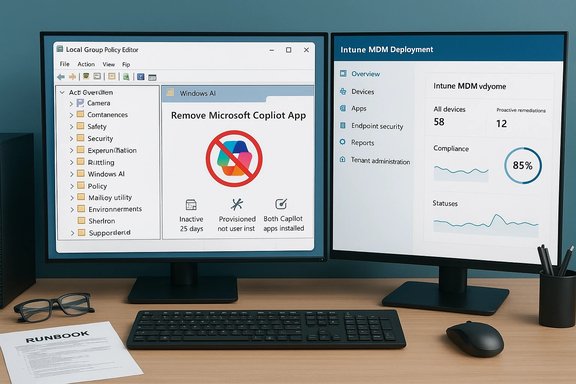
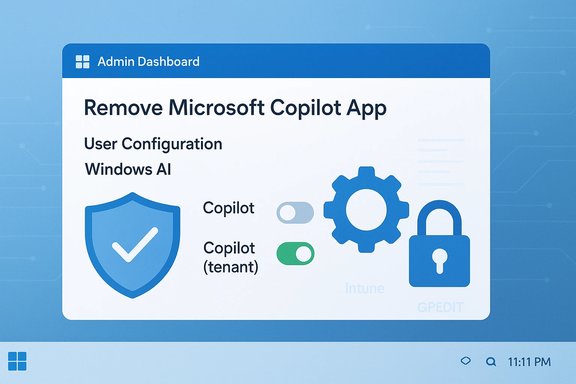
Dual-monitor setup with a policy editor on the left and an Intune MDM dashboard on the right.Background​

Microsoft’s Copilot family now spans multiple products and delivery channels: a consumer‑facing Microsoft Copilot app that ships with many Windows 11 installations, the paid, tenant‑managed Microsoft 365 Copilot service, and a growing set of shell integrations (taskbar button, keyboard shortcuts, File Explorer context entries). That complexity is the reason removal and management have been recurring pain points for admins. In the Windows Insider Preview Build 26220.7535 (delivered as KB5072046), Microsoft introduced a new Group Policy setting — RemoveMicrosoftCopilotApp — exposed in the Local Group Policy Editor under:
User Configuration → Administrative Templates → Windows AIRemove Microsoft Copilot App. When enabled on managed devices running Windows 11 Pro, Enterprise, or Education, it will uninstall the consumer Copilot app for a targeted user — but only when three conditions are met.

What the policy actually does (the facts)​

  • The policy performs a one‑time uninstall of the consumer Microsoft Copilot app for the targeted user. It does not create a persistent block — users can reinstall the app later if permitted.
  • The uninstall will trigger only when all these are true:
  • Both Microsoft 365 Copilot and the consumer Microsoft Copilot app are installed on the device.
  • The consumer Microsoft Copilot app was not installed by the user (it must be preinstalled, tenant‑provisioned, or OEM‑provisioned).
  • The consumer Microsoft Copilot app has not been launched in the past 28 days.
These gating conditions make the policy a conservative remediation tool aimed at cleaning up provisioned but unused consumer Copilot copies (classroom devices, kiosk images, or mistakenly provisioned endpoints) while protecting active tenant users who rely on Microsoft 365 Copilot. Independent reporting and community testing corroborate these rules.

Why Microsoft built it this way​

The core architectural tension is simple: Copilot exists both as a consumer front end (the app UI) and as tenant services/features tied to Microsoft 365 accounts. A blunt kill switch that removed every Copilot trace risked breaking paid customer workflows that depend on tenant integrations. By making the uninstall conditional and one‑time, Microsoft reduces the chance of unintended outages and downstream helpdesk tickets while still giving admins a supported cleanup path. That safety‑first approach has consequences: the policy won’t help organizations that need a durable, fleet‑wide prohibition without additional controls. It’s a targeted tool in a layered governance toolbox — useful, but not a silver bullet.

The operational headaches — why “uninstall” is harder than it sounds​

  • The 28‑day inactivity requirement is the single most awkward gate in practice. The consumer Copilot app commonly ships with Auto‑start on log in enabled by default, so many devices will show activity even if users never consciously “open” the app. That makes the 28‑day window difficult to satisfy unless you explicitly disable auto‑start or prevent users from launching Copilot during the period.
  • The policy will not remove user‑installed copies. If users deliberately installed Copilot from the Store, the Group Policy won’t uninstall it — an intentional design choice to avoid surprising users. That behavior forces admins who need bulk removal of user installs to combine detection + remediation workflows (PowerShell, Intune scripts, AppLocker).
  • The uninstall is one‑time only for the user on that device. Future feature updates, Microsoft Store restores, or tenant provisioning may reintroduce the app. Durable enforcement therefore requires additional application control and tenant settings.
  • The feature is currently packaged in an Insider Preview build and delivered with controlled rollouts and server‑side gating. Installing KB5072046 does not guarantee the policy appears for every device immediately — test and pilot first.
These operational realities transform RemoveMicrosoftCopilotApp from a fleet‑wide enforcement mechanism into a practical cleanup action for specific scenarios — imaging workflows, classroom/kiosk remediation, or tenant provisioning errors.

Step‑by‑step: How to test and deploy RemoveMicrosoftCopilotApp safely​

Below is a compact admin playbook that reconciles Microsoft’s documentation with community experience.
  • Inventory and classify
  • Identify devices that have both Microsoft 365 Copilot and the consumer Copilot app installed.
  • Record whether the consumer copy is provisioned/OEM or user‑installed.
  • Pick a pilot ring
  • Use a non‑critical OU (kiosks, test classroom images, development ring) running the same Insider/servicing channel as your test devices.
  • Prepare the device state
  • Disable Copilot’s Auto‑start on log in (Task Manager → Startup or via managed startup policy).
  • Communicate with pilot users or lock sessions to ensure no accidental launches during the 28‑day inactivity window.
  • Enable the policy locally (for test machines)
  • Run gpedit.msc → User Configuration → Administrative Templates → Windows AIRemove Microsoft Copilot App → set to Enabled.
  • Or push the corresponding ADMX/AD GPO to the pilot OU.
  • Scale via Intune/MDM
  • If using MDM, deliver the ADMX‑backed setting or the registry equivalent as a configuration profile. Confirm the CSP/registry mapping via Microsoft documentation before wide deployment.
  • Verify outcomes
  • Confirm the Copilot app is removed via Settings → Apps → Installed apps or with PowerShell:
  • Get‑AppxPackage | Where‑Object { $_.Name -like "Copilot" }
  • Remove‑AppxPackage -Package <PackageFullName> (only for remediation when policy doesn’t apply).
  • Add durability where required
  • Create AppLocker or WDAC rules to block the Copilot package family (publisher: MICROSOFT CORPORATION, package name examples include MICROSOFT.COPILOT), and disable tenant auto‑provisioning where possible. AppLocker is explicitly recommended by Microsoft for durable blocking.
  • Operationalize verification
  • Add checks to patch validation and update cycles to detect re‑provisioning after feature updates.
  • Maintain a runbook for re‑remediation and user escalations.

Practical examples and commands​

  • Check installed Copilot packages (PowerShell, run as Admin):
  • Get‑AppxPackage | Where‑Object { $_.Name -like "Copilot" }.
  • Remove a package for the current user:
  • $pkg = Get‑AppxPackage -Name "<Exact.Package.Name>"
  • Remove‑AppxPackage -Package $pkg.PackageFullName.
  • Force an immediate Group Policy update:
  • gpupdate /force
  • AppLocker: create a rule that blocks the package family name or publisher CN for Copilot; test in audit mode before enforcement. Microsoft’s guidance recommends AppLocker over the legacy TurnOffWindowsCopilot policy for durable enforcement.
Note: Package names can vary across builds (examples include Microsoft.Copilot or Microsoft.Windows.Copilot). Always confirm exact names with Get‑AppxPackage before removing anything. Removing the wrong package can break dependencies.

Security, privacy and compliance analysis​

Removing the consumer Copilot front end reduces a visible on‑device agent and reduces direct user‑invoked data flows to Copilot, which can be attractive for regulated environments or high‑security kiosks. Benefits include:
  • Reduced local surface area: fewer background processes, shell extensions, and protocol handlers to audit and harden.
  • Lower accidental data uploads: fewer UI entry points that might allow inadvertent sharing of files or clipboard data to AI services.
However, residual risks and limits remain:
  • Telemetry and integrations: Uninstalling the consumer app does not automatically remove telemetry or integrations surfaced by other Microsoft components (Edge sidebar, Microsoft 365 Copilot telemetry, Copilot+ features); validate residual data flows against compliance requirements.
  • Re‑provisioning risk: Windows feature updates, the Microsoft Store, or tenant pushes can reintroduce Copilot unless prevented by AppLocker/tenant controls. The one‑time uninstall semantics heighten this risk.
  • False sense of permanence: Admins should not treat RemoveMicrosoftCopilotApp as a permanent ban — it is best used in a layered enforcement strategy.
Enterprises with stringent data residency, privacy, or regulatory requirements should map Copilot‑related telemetry and DLP coverage into existing SIEM and compliance pipelines before broad deployment. Treat Copilot as a privileged workload when needed.

Strengths — where Microsoft got this right​

  • Official, supported tooling beats ad‑hoc scripts. Shipping a documented Group Policy gives IT traceability and a supported workflow rather than forcing admins to rely solely on community PowerShell recipes.
  • Safety‑first design protects active tenant users by refusing to remove user‑installed apps or Copilot experiences that may be required by Microsoft 365 Copilot. This reduces potential support fallout.
  • The policy encourages layered governance and nudges admins toward mature controls (AppLocker/WDAC, tenant settings), which is the right outcome for organizations that need durable enforcement.

Weaknesses and risks — where the tool falls short​

  • The 28‑day inactivity gate is operationally brittle. Because Copilot defaults to auto‑start in many builds, the inactivity window is easily broken by incidental launches or background activity, requiring coordination and extra configuration.
  • One‑time semantics mean the policy is not a long‑term enforcement mechanism. Organizations that need zero tolerance will still need AppLocker/WDAC plus tenant provisioning controls.
  • The policy is available only in Insider Preview builds right now; behavior, names, and gating logic could change before general availability — verify on your exact builds and pilot thoroughly.
  • Some delivery or server‑side gating behaviors are not fully documented publicly; where Microsoft relies on controlled feature rollouts or server gating, outcomes can be unpredictable in large, heterogeneous fleets. Flag these as operational unknowns and test accordingly.

Recommended best practices (concise checklist)​

  • Start with a small pilot ring matched to the target servicing channel.
  • Disable Copilot auto‑start for pilot devices and coordinate a 28‑day quiet period, or use kiosk/lockdown sessions when possible.
  • Use the RemoveMicrosoftCopilotApp policy as a cleanup action, then deploy AppLocker/WDAC rules for durable blocking if required.
  • Disable tenant auto‑provisioning of consumer Copilot where tenant controls allow.
  • Automate checks (PowerShell + Intune compliance scripts) to detect Copilot reinstalls after each feature update.
  • Maintain a documented remediation runbook and escalate user requests to reinstall where necessary.
  • Keep an eye on Insider release notes and Microsoft Learn pages for changes to policy names or registry mappings; Insider behavior can change between builds.

What to watch next​

  • Expect Microsoft to refine management guidance and ADMX templates as the policy moves out of Insider preview. Administrators should monitor Windows Insider posts and Microsoft Learn for definitive registry/CSP mappings and AppLocker guidance.
  • Watch for changes to Copilot provisioning behavior from the Microsoft 365 tenant side — better tenant‑level controls would materially reduce the need for device‑level enforcement.
  • Validate behavior after major feature updates: historically, Copilot distribution has been fragile (an update accidentally removed Copilot for some users in March 2025), underscoring the need for ongoing verification.

Final assessment​

The new RemoveMicrosoftCopilotApp Group Policy is a welcome, pragmatic tool for administrators who need a supported, low‑risk way to clean provisioned, unused consumer Copilot installs from managed Windows 11 devices. It’s an important stopgap that recognizes enterprise governance needs while preserving user and tenant continuity. That said, its conservative gating (especially the 28‑day inactivity window), the requirement that the app be provisioned rather than user‑installed, and the one‑time uninstall semantics firmly position this feature as a cleanup tool — not a permanent enforcement mechanism. Organizations that must ensure Copilot never runs on a fleet should treat RemoveMicrosoftCopilotApp as a single component in a layered strategy that includes AppLocker/WDAC, tenant provisioning controls, monitoring, and a verified remediation runbook. If you manage Windows 11 devices, pilot the policy now, automate verification, and plan for AppLocker or tenant‑level controls to achieve durable results — the new policy simplifies one piece of the puzzle, but the puzzle still needs solving.

Source: PCMag Microsoft Finally Allows You to Uninstall Copilot—but There Are Quite a Few Hoops
 

Microsoft has quietly handed IT teams a supported, targeted way to remove the consumer Microsoft Copilot app from managed Windows 11 devices — but it’s deliberately conservative, gated by specific conditions, and designed as a one‑time cleanup tool rather than a permanent fleet‑wide ban. The capability appears in the Windows 11 Insider Preview (Build 26220.7535 / KB5072046) as a new Group Policy named RemoveMicrosoftCopilotApp; it uninstalls the consumer Copilot front end only when strict checks are satisfied, leaving Microsoft 365 Copilot and tenant-managed AI capabilities intact.

Windows 11 Group Policy Editor shows removing the Microsoft Copilot app with uninstall progress.Background​

Windows 11’s Copilot family is now a multi‑layered ecosystem: a consumer‑facing Copilot app that ships with many Windows 11 installations, deep OS integrations and UI affordances (taskbar button, context menus, keyboard shortcuts), and Microsoft 365 Copilot — a paid, tenant‑managed service that integrates AI into Office apps and collaboration workflows. Managing that complexity has been a recurring operational headache: admins want deterministic controls; users see new AI entry points; regulators want clear data‑handling boundaries.
Microsoft’s new RemoveMicrosoftCopilotApp policy is a response to that governance pressure. It is surfaced under Group Policy and intended for managed editions (Windows 11 Pro, Enterprise, and Education) and environments that use domain join or MDM tooling such as Intune. The setting is currently delivered via Insider preview channels and is being phased in with server‑side gating, so installing the update is necessary but not always sufficient to see the policy immediately on every device.

What Microsoft shipped (the essentials)​

Microsoft packaged this control in Windows 11 Insider Preview Build 26220.7535 (distributed as KB5072046). The new Group Policy is exposed at:
  • User Configuration → Administrative Templates → Windows AIRemove Microsoft Copilot App.
Key behavioral points of the policy:
  • It performs a one‑time uninstall of the consumer Microsoft Copilot app for the targeted user when the policy’s gating conditions are met. The action does not create a persistent ban; users may reinstall the app later if allowed by tenant or store policies.
  • The policy is available to Windows 11 Pro, Enterprise, and Education SKUs within the Insider Dev and Beta channels at the time of the preview.
  • The update also bundled accessibility improvements (Narrator + Copilot image descriptions) and developer features (Cross‑Device Resume via WNS), highlighting that the release is not solely about Copilot removal.
These are the documented, verifiable facts; community testing from independent outlets and forum reports have reproduced the policy’s behavior and reinforced the operational caveats described below.

How the RemoveMicrosoftCopilotApp policy works (the gating conditions)​

The policy intentionally only uninstalls the consumer Copilot app when all of these conditions are true:
  • Microsoft 365 Copilot (the paid, tenant‑managed service) and the consumer Microsoft Copilot app are both installed on the device. This prevents the policy from accidentally removing the only Copilot experience a paid user might need.
  • The consumer Microsoft Copilot app was not installed by the user — it must be provisioned, pushed by tenant tooling, or preinstalled by the OEM. This preserves user autonomy and prevents surprise removals for personally installed apps.
  • The consumer Microsoft Copilot app has not been launched in the last 28 days. Microsoft enforces this inactivity window as a conservative safety gate to avoid disrupting active users.
Because of these three gates the policy functions as a surgical cleanup tool: it targets provisioned, unused Copilot installs (for example, classroom images, kiosks, or mistakenly provisioned endpoints) and avoids bluntly stripping functionality from active users. Independent reporting and community tests have reproduced these gates.

Why Microsoft ties removal to Microsoft 365 Copilot​

Linking the uninstall capability to the presence of Microsoft 365 Copilot signals a clear design intent: Microsoft wants to consolidate AI experiences into the productivity stack — where tenant licensing, admin controls, and data protections are already established — rather than supporting a loose consumer front end that could add confusion or duplicate capabilities.
By doing so Microsoft can:
  • Keep AI capabilities concentrated in Office, Outlook, Teams, and other Microsoft 365 workloads where tenant policy and data governance apply.
  • Reduce surface area and UI clutter on managed desktops while preserving productivity features that organizations have paid to enable.
  • Avoid unintended breakage: removing a consumer app that is the only Copilot exposure for a paid, tenant user would create support incidents and productivity loss.
For admins, this means the Copilot experience becomes more predictable: remove the consumer UI where unwanted, but centralize AI governance through Microsoft 365 Copilot controls. That strategy keeps organizations inside Microsoft’s management model, but it also clarifies where admins must operate to control AI: tenant settings and Microsoft 365 administration as much as device configuration.

Practical admin playbook — safe steps to evaluate and deploy​

The policy is useful, but it must be handled carefully. Below is a recommended sequence admins should follow to assess, pilot, and deploy RemoveMicrosoftCopilotApp in a managed environment.
  • Inventory and classification
  • Identify which devices have both Microsoft 365 Copilot and the consumer Copilot app installed.
  • Record whether the consumer copy is provisioned (OEM or tenant push) or user‑installed. The policy only targets provisioned copies.
  • Pick a pilot ring
  • Use a non‑critical OU or Intune pilot ring that mirrors your servicing channel and device types.
  • Run the pilot on devices that receive the same Insider/servicing channel as your target fleet, since preview behavior may differ from stable builds.
  • Prepare device state
  • Disable Copilot auto‑start on logon (Task Manager → Startup or managed startup policy). Because the policy requires 28 days of inactivity, auto‑start is the most common blocker to the uninstall condition.
  • Communicate with pilot users or restrict access during the inactivity window to avoid accidental launches.
  • Enable the policy for test devices
  • Local test (gpedit.msc): User Configuration → Administrative Templates → Windows AI → Remove Microsoft Copilot App → set to Enabled. Run gpupdate /force or restart.
  • For scale, push the ADMX/registry or use Intune configuration profiles that replicate the ADMX-backed setting.
  • Verify and iterate
  • Confirm removal via Settings → Apps → Installed apps or PowerShell: Get‑AppxPackage | Where‑Object { $_.Name -like "Copilot" }.
  • If the policy does not apply (e.g., user‑installed package or recent launch), record the reason and update your remediation playbook.
  • Add durability where required (see next section)
  • If your intent is durable blocking, pair the policy with AppLocker/WDAC and tenant provisioning controls.
Follow this measured approach to avoid surprises: the policy helps clean up provisioned, unused installs, but it is not a persistent enforcement mechanism by itself.

Complementary controls — making removal durable​

RemoveMicrosoftCopilotApp is intentionally conservative and one‑time. If you require durable prevention of re‑installation or execution across updates and provisioning channels, combine the policy with:
  • AppLocker or Windows Defender Application Control (WDAC)
  • Create rules that block the Copilot package family (publisher: Microsoft Corporation; package family name examples include MICROSOFT.COPILOT) and test in Audit mode before enforcement. AppLocker is Microsoft’s recommended approach for durable blocking.
  • Tenant‑level configuration
  • Disable any Microsoft 365 Apps automatic provisioning of Copilot in your tenant settings to prevent re‑pushes during device provisioning.
  • Intune / MDM
  • Use MDM policies to deploy registry keys, AppLocker rules, or the ADMX-backed setting at scale.
  • Monitoring and re‑verification
  • Add checks to update validation and patch cycles to detect re‑provisioning after feature updates; re‑apply controls during post‑update verification.
Remember: RemoveMicrosoftCopilotApp performs a single uninstall for the targeted user. Major Windows feature updates, Store restores, or tenant provisioning can reintroduce Copilot unless you pair the uninstall with application control and tenant settings.

Operational caveats and known friction points​

Several practical limitations make this policy best suited for targeted cleanups rather than a global “kill switch”:
  • The 28‑day inactivity window is the trickiest real‑world gate. Because Copilot often has auto‑start enabled, achieving 28 consecutive days of non‑use may require disabling startup or restricting access — a coordination challenge on large fleets.
  • The policy only targets provisioned copies. If users intentionally installed Copilot, the policy won’t remove those installs; you’ll need detection and remediation workflows for user‑installed packages.
  • The uninstall is one‑time only for the user on that device. It does not create a policy‑level block that prevents reinstallation or re‑provisioning. Durable enforcement requires layered controls.
  • Packaging and delivery change across builds. Package names reported in the wild include Microsoft.Copilot, Microsoft.Windows.Copilot and others; scripts and AppLocker rules should use publisher and package family identifiers rather than brittle exact names. Test on your servicing channel because Insider behavior may differ from stable releases.
  • The policy is currently part of an Insider preview and is server‑gated. Do not assume permanence or identical behavior in future stable releases; validate on representative devices.
These are not theoretical concerns — admins and independent tech outlets have reported and reproduced these operational conditions during early testing.

Security, privacy and regulatory considerations​

Removing the consumer Copilot front end reduces a visible on‑device agent and lowers the risk of accidental data uploads to Copilot’s cloud services — an important consideration for regulated industries and education. Blocking or uninstalling user‑invoked Copilot features can help minimize inadvertent data sharing from right‑click “Ask Copilot” flows or drag‑and‑drop image analyses.
However, there are nuances to weigh:
  • Some Copilot features (e.g., Narrator image descriptions) may process images on the device for Copilot+ PCs with NPUs and rely on cloud processing for other hardware profiles. The on‑device vs cloud execution model matters for latency, telemetry, and data residency. Microsoft’s Copilot+ hardware guidance references NPUs capable of roughly 40+ TOPS as the threshold for on‑device AI acceleration; organizations should inventory Copilot+ hardware separately as part of an AI governance plan. Administrators must check whether features are available in their region (some accessibility features were not initially available in the EEA during rollout).
  • Removing the UI does not automatically remove deeper OS hooks or tenant‑level access to AI services. For full compliance, pair device‑side controls with tenant policies and contractual protections for how Microsoft 365 Copilot handles organizational data.
Flag: Any claim about exact telemetry behavior or internal Microsoft backend processing that is not fully documented should be treated as provisional. When those details are critical to your compliance posture, validate with Microsoft’s official documentation or your Microsoft representative.

Practical commands and checks (concise reference)​

  • Check installed Copilot packages (PowerShell, elevated):
  • Get‑AppxPackage | Where‑Object { $_.Name -like "Copilot" }
  • Remove a package for the current user (advanced; confirm package name first):
  • $pkg = Get‑AppxPackage -Name "Exact.Package.Name"
  • Remove‑AppxPackage -Package $pkg.PackageFullName
  • Enable the policy locally (test machine):
  • gpedit.msc → User Configuration → Administrative Templates → Windows AI → Remove Microsoft Copilot App → Enabled. Run gpupdate /force.
  • Registry mapping (when ADMX not available):
  • Mirror the ADMX settings via the registry with the appropriate policy key; consult Microsoft’s ADMX mapping before mass deployment.
  • AppLocker rule (conceptual):
  • Publisher: CN=MICROSOFT CORPORATION
  • Package family: MICROSOFT.COPILOT
  • Test in Audit mode before enforcement.
Use these commands in test environments first; do not run destructive removal across production without validation and rollback plans.

Who should use this policy — and when​

RemoveMicrosoftCopilotApp is most valuable for targeted scenarios:
  • Classroom or kiosk devices provisioned with a consumer Copilot front end that admins prefer not to expose.
  • Imaging or enrollment errors where tenant provisioning accidentally pushed the consumer app to a group of devices.
  • Organizations that want a supported, less‑invasive cleanup mechanism that preserves Microsoft 365 Copilot for licensed users while removing an unwanted separate consumer UI.
It is less suited as the sole method for permanent, fleet‑wide prohibition of Copilot — use it as a tool in a layered governance playbook when durability and compliance matter.

Conclusion​

Microsoft’s RemoveMicrosoftCopilotApp policy is a pragmatic concession to IT governance: it gives administrators a supported, auditable way to remove a provisioned consumer Copilot front end from managed Windows 11 machines, while preserving tenant‑managed Microsoft 365 Copilot features. The policy’s conservative gating (presence of Microsoft 365 Copilot, non‑user install, and 28 days of inactivity) protects productive users from accidental disruption, but it also limits the policy’s ability to serve as a permanent blockade.
For admins the practical takeaway is clear: pilot the policy on representative devices, disable Copilot auto‑start and manage the 28‑day inactivity window, and pair the uninstall with AppLocker/WDAC and tenant settings to achieve durable enforcement. Treat the policy as a valuable new tool in a layered approach — useful for cleanup and compliance scenarios, but not a single‑tool cure for all Copilot governance needs.

Source: EJS Computers How Windows 11 Admins Can Now Remove the Microsoft Copilot App
 

Microsoft has quietly handed IT teams a long‑asked‑for tool: a Group Policy that can remove the consumer Microsoft Copilot app from managed Windows 11 devices — but the power comes with a set of deliberate limits and practical hurdles that mean this is a surgical cleanup tool, not a fleetwide “kill switch.”

Laptop screen shows a Local Group Policy Editor with Copilot icon and a large red X.Background​

Copilot has been a major pillar of Microsoft's Windows strategy since it began shipping the assistant across Windows 10 and Windows 11 systems in 2023. Over successive updates Microsoft has folded Copilot into taskbar, accessibility features, and hardware key behavior while also differentiating the free consumer Microsoft Copilot app from the paid, tenant‑managed Microsoft 365 Copilot service. That convergence—plus natural concerns about preinstalled apps, telemetry, and user choice—created persistent demand from administrators for deterministic ways to remove or block Copilot on managed endpoints.
In the latest Insider Preview rollout, Microsoft exposed a new administrative policy named RemoveMicrosoftCopilotApp (delivered in Windows 11 Insider Preview Build 26220.7535, KB5072046). The policy appears under the Group Policy path:
User Configuration → Administrative Templates → Windows AIRemove Microsoft Copilot App, and is available to the Pro, Enterprise, and Education SKUs on Insider Dev and Beta channels. When the policy’s gating conditions are met, it will perform a one‑time uninstall of the consumer Copilot app for the targeted user account. Users may reinstall the app later if permitted.
This is meaningful because previously administrators could hide, disable, or block Copilot through registry or AppLocker rules, and users could remove the app locally, but there was no built‑in, conditional Group Policy that would automatically uninstall the consumer Copilot app on managed devices at scale while protecting tenant‑managed Copilot use cases.

What RemoveMicrosoftCopilotApp actually does​

The policy in plain terms​

  • The policy is explicitly a one‑time uninstall action: when enabled and its conditions are satisfied, it uninstalls the consumer Microsoft Copilot app for the targeted user account once.
  • It does not create a persistent ban. Reinstallation remains possible through the Microsoft Store, tenant provisioning, OS image updates, or user actions.
  • The policy is surfaced in the Group Policy Editor for targeted delivery via AD Group Policy or equivalent MDM/CSP mappings for Intune-managed fleets.

The gating conditions (why this policy is conservative)​

The uninstall only runs when all of the following are true for a given device/user:
  • Both Microsoft 365 Copilot and the consumer Microsoft Copilot app are installed. The policy intentionally requires the presence of the paid tenant service so that administrators don’t accidentally remove a business‑critical Copilot experience that users rely on.
  • The consumer Microsoft Copilot app was not installed by the user. The policy targets provisioned or preinstalled copies (OEM images, tenant provisioning or push installations), not apps that users deliberately installed themselves.
  • The consumer Microsoft Copilot app has not been launched within the last 28 days. Microsoft enforces a 28‑day inactivity window as a safety gate so active users are not surprised by an automated removal.
These three constraints make the policy conservative by design: it targets provisioned, unused consumer Copilot instances (think classroom images, kiosks, or incorrectly provisioned endpoints), not every Copilot presence across a fleet.

Why the 28‑day window matters — and why it’s tricky​

On paper the 28‑day inactivity requirement looks reasonable: do not remove software someone is actively using. In practice, meeting that condition is the single biggest operational friction point.
  • Consumer Copilot commonly ships with “Auto start on login” enabled by default. That means the app may be launched in the background automatically whenever a user signs in, resetting the inactivity clock.
  • To make the 28‑day window usable, administrators must either:
  • Disable Copilot’s auto‑start entry for target accounts (via startup controls, Group Policy, or managed startup lists), and
  • Prevent users from launching the app for at least 28 consecutive days.
  • For general‑purpose user devices this is hard to guarantee. Users click shortcuts, use the Win+C or Copilot hardware key, call up Copilot from the taskbar, or trigger it through integrated app flows. In short, the inactivity gate turns RemoveMicrosoftCopilotApp into a cleanup tool for known, quiet endpoints rather than a fast, broad removal mechanism.

Practical admin playbook — how to use RemoveMicrosoftCopilotApp safely​

Below is a pragmatic sequence administrators can follow when planning a rollout that uses this policy. Treat this as a playbook rather than an automated recipe; validating each step in your environment is essential.
  • Inventory and classification
  • Create an inventory of devices with:
  • Whether Microsoft Copilot (consumer app) is present.
  • Whether Microsoft 365 Copilot (tenant/premium service) is present or required.
  • Whether the consumer app was provisioned by image/OEM or installed by a user.
  • Use Appx/Provisioned package queries and your endpoint management reporting to build this list.
  • Identify provisioned vs user‑installed copies
  • Use the platform Appx tooling and provisioning checks to discover provisioned packages (these are staged in the image for new users) and app instances already installed for users. Removing a provisioned package requires different commands than removing a per‑user Appx package.
  • If the consumer app is user‑installed, the policy won’t uninstall it — plan a script or an MDM uninstall profile for those cases.
  • Prevent accidental resets of the 28‑day timer
  • Disable the Copilot auto‑start entry for pilot devices using managed startup settings, or remove the startup entry (e.g., via Task Manager startup settings or managed configuration).
  • Restrict Copilot access on pilot devices (pin or unpin taskbar, remove shortcuts) and communicate changes to the pilot group so users do not intentionally open the app.
  • Monitor for launches during the waiting period using process start telemetry or endpoint logging.
  • Apply policy in a controlled pilot
  • Put the policy in a pilot OU/group and enable RemoveMicrosoftCopilotApp for pilot users/devices.
  • Confirm the policy is visible in the Local Group Policy Editor at User Configuration → Administrative Templates → Windows AI → Remove Microsoft Copilot App before widescale rollout.
  • Target only devices where both copilot forms are present, the app was provisioned, and you can reasonably enforce 28 days of inactivity.
  • Post‑uninstall verification and durable controls
  • After the one‑time uninstall completes, verify the app is removed for the user (Settings → Apps or PowerShell package checks).
  • To prevent reinstallation by future updates or reprovisioning, add complementary controls:
  • Use AppLocker publisher rules to block the Copilot package family name from launching or being installed, or
  • Remove the package from your OS image (deprovision via Remove‑AppxProvisionedPackage) and ensure your imaging process doesn’t reintroduce it, and
  • Combine policy with Intune/MDM app management or a script to remove user‑installed instances.
  • Reinstallation from the Store remains possible unless blocked by AppLocker/MDM policy.

Useful commands and checks for administrators​

These are practical commands and checks admins commonly use when assessing and removing Appx/AppxProvisioned packages. (Run PowerShell as Administrator.
  • List installed Copilot packages for all users:
  • Get‑AppxPackage -AllUsers Copilot
  • Remove a per‑user package (example pattern):
  • Get‑AppxPackage -AllUsers CoPilot | Remove‑AppxPackage -AllUsers
  • List provisioned (image) packages:
  • Get‑AppxProvisionedPackage -Online
  • Remove a provisioned package from the image:
  • Remove‑AppxProvisionedPackage -Online -PackageName <PackageFullName>
  • If a package is marked NonRemovable, additional remediation steps or image changes may be required; validate the NonRemovable property before attempting blanket removals.
Note: these commands are examples of typical Appx management practices. Removing provisioned or inbox packages from an image can have side effects; always test on representative images and hardware before broad application.

Complementary strategies — beyond the one‑time uninstall​

Because RemoveMicrosoftCopilotApp is purposefully narrow, durable enforcement usually requires layering additional security and management controls:
  • AppLocker or Publisher‑based blocking rule for the Copilot app package name to prevent future reinstalls or launches.
  • Remove the Copilot package from gold images (deprovision) so new users don’t receive it at first logon.
  • Configure Intune/Application Management policies to uninstall or block Store installations for targeted device groups.
  • Leverage Endpoint inventory and telemetry to detect user‑installed instances and trigger script‑based remediation.
  • If Copilot’s integration is needed for assistive technology, coordinate with accessibility teams before broad removal; Copilot is being used to expand Narrator and image description capabilities, which could be critical for some users.

Risks, limitations, and things to watch​

  • One‑time semantics. The policy removes Copilot once for a given user; it does not prevent reinstallation. Relying on it as a permanent block without complementary measures will likely result in reappearance of the app over time.
  • 28‑day inactivity gate. Because Copilot often auto‑starts, the inactivity requirement can be impractical on regular user machines. This makes the policy best suited for managed, low‑touch endpoints (classroom devices, kiosks, lab rigs).
  • Doesn’t touch Microsoft 365 Copilot. The policy intentionally requires Microsoft 365 Copilot to be present and will not remove the tenant‑managed premium service. Admins must verify license and tenant requirements before applying policy.
  • User‑installed copies are exempt. If users installed the consumer Copilot app explicitly, RemoveMicrosoftCopilotApp does not apply; admins must use app management tooling to remove those instances.
  • Preview channel caveats. The policy was introduced in an Insider Preview build. IT teams should avoid testing such policies on critical production devices until they reach GA, and should validate behavior against your update and provisioning workflows.
  • Potential functional fallout. Removing the consumer Copilot app may remove or alter functionality in places Copilot is integrated (taskbar quick access, certain accessibility features). Validate critical workflows — particularly those used by assistive tech users — before blanket removals.
  • Imaging and update reintroduction. OS images and provisioning processes can reintroduce Copilot unless the package is removed from the image and images are rebuilt or protected by AppLocker/MDM policies.

Why Microsoft designed it this way​

The policy reads like a compromise between two objectives:
  • Preserve Microsoft 365 Copilot functionality for tenants that have purchased and rely on the paid service.
  • Give administrators a safe, auditable way to remove consumer Copilot from managed, provisioned devices that shouldn’t be running it.
By making the policy conditional and a one‑time action, Microsoft minimizes the chance of unintentionally degrading user experience or removing a service users depend on. The 28‑day inactivity gate is a conservative safety step to reduce surprises, but it increases operational overhead for admins who need the policy to act quickly.

Operational checklist for a pilot rollout (concise)​

  • Confirm Insider build visibility in a lab and that Group Policy path exists.
  • Catalog devices: Copilot presence, provisioning status, M365 Copilot dependency.
  • Disable Copilot auto‑start and block quick‑launch paths for the pilot group.
  • Apply RemoveMicrosoftCopilotApp to a pilot OU and monitor policy application logs.
  • After uninstall, run verification scripts and validate the user experience for accessibility and productivity.
  • If acceptable, combine with AppLocker or image deprovisioning for a durable posture.

Final analysis: a valuable but narrow tool​

RemoveMicrosoftCopilotApp is an important administrative addition: it acknowledges the realities of modern Windows management where vendors ship integrated experiences but enterprises require precise control. The policy is carefully scoped to balance tenant needs and user choice. Yet the restrictions—especially the 28‑day inactivity requirement and the exemption for user‑installed copies—mean this is not the universal Copilot death‑switch many administrators may have hoped for.
For IT teams, the takeaway is pragmatic: treat this as a cleanup capability for provisioned, low‑touch endpoints. For durable control, continue to rely on complementary measures — AppLocker, image deprovisioning, Intune uninstall profiles, and careful change control — and avoid treating the policy as a sole enforcement mechanism. Finally, because the feature arrived via Insider Preview, maintain caution: validate in controlled rings and test for side effects on accessibility features and dependent workflows before deploying broadly.
The new policy gives administrators more control than they had before, but it also signals a clear posture from Microsoft: Copilot is a first‑class integration in Windows with managed ways to remove it where appropriate — provided administrators are willing to do the preparatory work to meet the policy’s conditions and combine it with the right management tools.

Source: PCMag Australia Microsoft Finally Allows You to Uninstall Copilot—but There Are Quite a Few Hoops
 

Two computer monitors show a Local Group Policy Editor and a green check with a red ban icon.
Microsoft’s Windows 11 Insider Preview has finally given IT teams a supported, admin-facing path to remove the consumer Microsoft Copilot app from managed devices — but the escape hatch is deliberately narrow, gated by hard conditions, and best understood as a surgical cleanup tool rather than a fleet-wide kill switch.

Background / Overview​

Microsoft has been folding Copilot into Windows and its productivity stack for more than two years, producing a family of related experiences: a consumer-facing Microsoft Copilot app (the front-end assistant), Microsoft 365 Copilot (the paid, tenant-managed service), and numerous shell integrations (taskbar affordances, Win+C/keyboard shortcuts, context menus). That complexity created a persistent admin pain point: administrators want deterministic control over what lives on managed endpoints without breaking tenant-managed AI workflows. The new Group Policy named RemoveMicrosoftCopilotApp is Microsoft’s first documented, supported response to that demand. This capability appears in Windows 11 Insider Preview Build 26220.7535 (delivered as KB5072046) and is visible in the Local Group Policy Editor under:
User Configuration → Administrative Templates → Windows AI → Remove Microsoft Copilot App. Microsoft positions the policy as a conservative, one‑time uninstall for managed devices — a measured concession that preserves active tenant workflows while giving admins a supported removal option for provisioned, unused consumer Copilot installs. Independent outlets and community tests corroborate the documented behavior.

What Microsoft shipped: the facts administrators need​

  • The capability is packaged in Windows 11 Insider Preview Build 26220.7535 (KB5072046) and is currently routed to Dev and Beta channels with controlled rollout semantics.
  • The Group Policy name is RemoveMicrosoftCopilotApp and it appears at: User Configuration → Administrative Templates → Windows AI → Remove Microsoft Copilot App.
  • When enabled, the policy performs a one‑time uninstall of the consumer Microsoft Copilot app for the targeted user only if a strict set of conditions are met.
Those preconditions — each required — are:
  1. Both Microsoft 365 Copilot and the consumer Microsoft Copilot app are installed on the device (the uninstall will not run if the tenant-managed Microsoft 365 Copilot service is absent).
  2. The Microsoft Copilot app was not installed by the user — it must be an OEM/preinstalled package or provisioned by tenant tooling. User-installed copies are intentionally excluded.
  3. The Microsoft Copilot app has not been launched in the last 28 days. This inactivity window must be satisfied for the uninstall to trigger.
These gates make the policy a targeted cleanup tool — ideal for classroom images, kiosk provisioning errors, or tenant pushes that accidentally landed on the wrong devices — but insufficient by itself for organizations that need an irrevocable, fleet-wide prohibition.

Who can use it — scope and limitations​

  • The policy is designed for managed devices and is available on Windows 11 Pro, Enterprise, and Education SKUs running the supported Insider builds. Home editions and unmanaged consumer PCs are explicitly out of scope.
  • It’s aimed at devices controlled by Group Policy or MDM/Intune; administrators should push the ADMX-backed administrative template or equivalent CSP/registry mapping for scale.
  • The uninstall is user-targeted and one-time — once the policy triggers for a specific user on a device and the app is removed, the policy does not create a permanent block: the app can be reinstalled by the user, tenant provisioning, or subsequent Windows feature updates unless additional controls are implemented.

The fine print that will trip up deployments​

Several operational and technical caveats substantially limit how widely and easily this policy can be used.

The 28‑day inactivity gate is brittle​

The requirement that Copilot not have been launched in the last 28 days is the most consequential constraint. Copilot can register activity even if a user never consciously opens it — for example, “Auto start on log in” has been enabled by default in many Copilot app releases, and background launches or accidental keystrokes (Win+C, Alt+Space, Copilot key) reset the countdown. Admins who rely on the 28‑day rule will frequently find devices fall short of the inactivity window unless they actively disable auto‑start or manage launch paths.

User-installed copies are excluded​

If an end user installs Copilot from the Microsoft Store or another permitted source, the Group Policy will not remove that instance. That behavior is intentional — Microsoft avoids surprising users by uninstalling apps they explicitly installed — but it forces admins to pair detection (who installed what, when) with remediation scripts or app control rules for broad enforcement.

One‑time uninstall semantics​

The policy performs a single uninstall for the targeted user on that device. It is not a persistent block. Feature updates, Store restores, or tenant provisioning can reintroduce the Copilot app later. For organizations that require durable prevention, this policy must be combined with application control mechanisms.

Insider preview & server-side gating​

This capability is currently exposed in Insider Preview builds and is server‑side gated; installing KB5072046 is necessary but not always sufficient to see the policy immediately. Admins should pilot on representative devices and build channels before mass deployment.

What “uninstall” actually removes — and what it doesn’t​

  • The policy removes the consumer Microsoft Copilot app front end for the targeted user account: users will no longer see the standalone app in Start, and the GUI front door is gone. This simplifies the desktop experience and reduces accidental invocations.
  • It does not necessarily remove all Copilot-related functionality or telemetry. Deep OS hooks, tenant-managed Microsoft 365 Copilot services, shell integrations, or backend telemetry tied to Microsoft 365 subscriptions remain separate concerns. Legal, privacy, and security teams must validate residual flows if compliance is required. Any specific claim about complete telemetry removal or internal Microsoft backend behavior should be treated as provisional unless documented explicitly by Microsoft.

Why Microsoft designed it this way​

Microsoft faces a fundamental tradeoff: Copilot exists both as a consumer app and as a tenant-managed productivity capability. A blunt kill switch that stripped every Copilot trace risked breaking paid customer workflows that depend on tenant integrations. The conservative design — conditional, one-time, and targeted — reduces the risk of accidental outages for paying customers while giving admins a supported remediation path for provisioned but unused consumer Copilot installs. In short: safety-first governance over a destructive enforcement model.

Practical admin playbook — how to qualify machines and remove Copilot safely​

This is an operational checklist for IT teams that want to test, pilot, and, where appropriate, remove the consumer Copilot app with the new policy.
  1. Inventory and classify (essential)
    • Identify devices that have both Microsoft 365 Copilot and the consumer Microsoft Copilot app installed. Use your inventory/EDR tools and a PowerShell probe to verify packages.
    • Record the provenance of the Copilot app: OEM-preinstalled, tenant-provisioned, or user-installed. The policy applies only to provisioned/OEM installs.
  2. Prepare a pilot ring (small and representative)
    • Select non‑critical OUs or Intune pilot groups with devices that mirror your hardware and servicing channels (Insiders if you are testing the preview behavior). Server-side gating means behavior in your pilot will reveal what to expect in production.
  3. Address the 28‑day requirement
    • Disable Auto start on log in for Copilot on pilot devices via a managed startup policy or by pushing a registry/Task Manager setting so the app won’t repeatedly mark activity. Document this change and apply it to pilot devices. Windows settings expose the toggle at Settings → Apps → Startup or in Copilot’s own settings.
  4. Communicate and control user behavior
    • Inform pilot users that opening Copilot during the test period will reset the 28‑day clock. If necessary, enforce a soft lockdown (kiosk or maintenance window) during the inactivity window.
  5. Enable the Group Policy (test machine)
    • Open gpedit.msc → User Configuration → Administrative Templates → Windows AI → Remove Microsoft Copilot App → set to Enabled. Run gpupdate /force or restart to apply. For Intune, deploy the ADMX-backed configuration profile or the corresponding registry mapping targeted at the pilot group.
  6. Verify removal and maintain rollback plans
    • Confirm uninstall via Settings → Apps → Installed apps or with PowerShell:
      • Check: Get‑AppxPackage | Where‑Object { $_.Name -like "Copilot" }
      • Remove (advanced): Remove‑AppxPackage -Package <PackageFullName> (run only after verification).
    • Keep an easy reinstall pathway in your support documentation (Company Portal, Intune, or Microsoft Store for Business) for pilot users who need Copilot restored.
  7. Scale with caution
    • If the pilot succeeds, scale in waves and pair the one‑time uninstall with the durable controls below to prevent reintroduction. Monitor after each Windows feature update for re-provisioning events.

Making removal durable — recommended layered controls​

For organizations that require permanent or durable prevention of Copilot reappearance, rely on a layered approach rather than the one-time uninstall alone:
  • AppLocker or Windows Defender Application Control (WDAC)
    • Create rules that block the Copilot package family or publisher (test in Audit mode first). AppLocker is the recommended path for durable blocking, but be careful: misconfigured rules can break legitimate apps.
  • Tenant configuration
    • Disable any tenant-level automatic provisioning of consumer Copilot in Microsoft 365 admin settings to avoid re-pushes during provisioning. This reduces the chance of tenant tooling reintroducing the app.
  • MDM/Intune orchestration
    • Use MDM to deploy AppLocker rules, ADMX-backed settings, or the registry keys necessary for consistent enforcement across platforms. Keep a verification cadence after monthly security and feature updates.
  • Ongoing verification
    • Add automated checks to your patch/update validation routine to detect reinstalled Copilot packages and flag devices for remediation. Feature updates have been known to change packaging or reinstall components.

Privacy, telemetry, and compliance considerations (what to validate)​

Removing the consumer UI reduces visible attack surface and lowers the risk of accidental data uploads from casual user interactions, but it does not automatically eliminate all Copilot-related telemetry or tenant service relationships. Administrators and compliance officers should:
  • Validate what telemetry and cloud interactions persist after uninstall at tenant and device levels. Treat any claim about backend telemetry removal as provisional unless Microsoft documents the exact behavior.
  • Inventory Copilot+ PC hardware if your compliance posture leans on on-device processing: Copilot+ PCs require NPUs rated at 40+ TOPS, which enables on-device AI for lower latency and different telemetry geometry. Inventorying those devices is a separate governance task.
  • Account for regional availability and legal restrictions; some Copilot features (for example, Copilot-assisted image descriptions) initially excluded the EEA, setting a precedent for selective enablement in regulated regions.
Flag: if telemetry guarantees or data residency assurances are central to your compliance stance, validate them with Microsoft support or your account team — these are not fully verifiable from outside Microsoft’s backend documentation and may change by region or contract.

Risks, likely friction points, and what to watch for​

  • Operational friction: The 28‑day inactivity gate and auto-start defaults will make many devices ineligible until you coordinate behavior changes. Expect to spend time disabling auto-start and re-running your eligibility scans.
  • False sense of permanence: Treat RemoveMicrosoftCopilotApp as a remediation tool, not a permanent enforcement policy. Absent AppLocker/tenant controls, Copilot can return.
  • Support complexity after updates: Major Windows feature updates or packaging changes can reintroduce Copilot. Plan verification windows after updates and include Copilot checks in your post-update assurance workflows.
  • Legal/contract risk: Uninstalling client-side components does not change tenant contractual terms about data processing. In regulated industries, pair device controls with contractual protections and technical verification.

Verdict — what this change means for Windows AI governance​

Giving admins a supported, documented uninstall path is a positive, pragmatic step by Microsoft. It acknowledges enterprise governance needs without ripping the rug out from paying customers who rely on tenant-managed AI capabilities. That balance is visible in the policy’s conservative gates: Microsoft prioritized safety and predictability over blunt enforcement.
However, the policy’s value will be operational rather than strategic. It helps clean up provisioned, unused Copilot front ends in targeted scenarios (imaging, kiosk remediation, classroom devices), but it does not remove the need for a layered governance posture if an organization wants to prevent Copilot permanently. Durable enforcement still requires AppLocker/WDAC, tenant configuration, MDM orchestration, and ongoing verification.

Quick reference: concise commands and checks (for administrators)​

  • Group Policy path: User Configuration → Administrative Templates → Windows AI → Remove Microsoft Copilot App.
  • Check installed Copilot packages (PowerShell, elevated):
    Get‑AppxPackage | Where‑Object { $_.Name -like "Copilot" }
  • Remove an Appx package for the current user (advanced; verify package name first):
    $pkg = Get‑AppxPackage -Name "Exact.Package.Name"
    Remove‑AppxPackage -Package $pkg.PackageFullName

Microsoft’s new RemoveMicrosoftCopilotApp Group Policy is a useful, supported addition to the admin toolkit — but it’s a surgical instrument, not a sledgehammer. Organizations should treat it accordingly: pilot, verify, pair with durable application control and tenant settings, and maintain an explicit verification cadence around Windows feature updates. When used as part of a layered governance program, the new policy reduces friction for many real-world scenarios and helps reconcile Microsoft’s rapid AI footprint with enterprise controls and compliance needs.


Source: findarticles.com Microsoft Permits Admins to Uninstall Copilot With Conditions
 

Microsoft has quietly handed enterprise IT teams a narrowly scoped but important control: a new Group Policy in the Windows 11 Insider Preview that can uninstall the consumer Microsoft Copilot app for managed users under specific conditions, giving administrators a supported way to clean up provisioned Copilot installs without breaking tenant-managed Microsoft 365 Copilot workflows.

Windows Group Policy Editor open on a monitor, with a badge about a one-time uninstall under specific conditions.Background​

Microsoft’s Copilot family now spans multiple experiences: a free, consumer-facing Microsoft Copilot app integrated into Windows 11, and Microsoft 365 Copilot, the paid, tenant-managed AI service embedded in Microsoft 365 apps and workflows. That diversity has created management and governance challenges for IT teams, especially in education and enterprise environments where devices are provisioned at scale and strict control over preinstalled software is often required.
In the Windows 11 Insider Preview Build 26220.7535 (KB5072046) — currently rolling to Dev and Beta channels — Microsoft introduced a Group Policy named RemoveMicrosoftCopilotApp. When enabled and when several gating conditions are satisfied, this policy performs a one-time uninstall of the consumer Copilot app for the targeted user on a managed device. The setting appears under the Group Policy Editor at:
User Configuration → Administrative Templates → Windows AI → Remove Microsoft Copilot App.
This change is part of a larger preview package that also expands Copilot’s role in accessibility (Narrator-driven image descriptions) and developer features (Cross Device Resume via the Windows Notification System), but the new uninstall policy is what grabbed IT administrators’ attention because it responds to repeated requests for more predictable Copilot management.

Overview: what RemoveMicrosoftCopilotApp actually does​

The new policy is intentionally conservative and surgical. It is designed for cleaning up provisioned but unused consumer Copilot installations — not for imposing a permanent, fleet-wide ban. Key behavioral points:
  • One-time uninstall: When the policy triggers for a user on a device, the consumer Copilot app is uninstalled once. The policy does not create a persistent block that prevents reinstallation.
  • Conditional trigger: The uninstall runs only if all of the following conditions are true:
  • Both Microsoft 365 Copilot and the consumer Microsoft Copilot app are installed on the device.
  • The consumer Microsoft Copilot app was not installed by the user — i.e., it was provisioned, pushed by tenant tooling, or preinstalled by OEM.
  • The consumer Microsoft Copilot app has not been launched in the last 28 days.
  • Scope: The setting is exposed for managed editions — Windows 11 Pro, Enterprise, and Education — and appears in devices participating in the Insider Dev and Beta channels as part of Build 26220.7535.
  • Management paths: The policy is surfaced through the traditional Group Policy path (Local Group Policy Editor) and can be deployed at scale using AD Group Policy. MDM/Intune deployments are expected to be able to push the ADMX/registry equivalent or administrative template at scale; organizations using configuration management tools map this setting into their provisioning workflows.
Because the policy deliberately requires the presence of Microsoft 365 Copilot, Microsoft avoids the risk of stripping the only Copilot experience from paid, tenant-managed users. The 28‑day inactivity gate and the check for user-installed apps further reduce the chance of surprising end users.

Why Microsoft designed it this way: intent and limits​

Microsoft built the RemoveMicrosoftCopilotApp policy to be a safety valve — not a blunt instrument. Its design choices reflect a balance between three competing priorities:
  • Preventing operational breakage: Active users who rely on Microsoft 365 Copilot should not lose access because an administrator removes the consumer front-end that some tenant features depend on.
  • Protecting user autonomy: If a user deliberately installed the consumer Copilot app, the policy won’t remove it. That avoids surprising end users and potential support escalations.
  • Reducing accidental provisioning: Devices provisioned by OEMs or tenant pushes (classroom images, kiosks, lab devices) can inadvertently include the consumer Copilot app. The policy gives admins a supported way to clean up those cases.
Those trade-offs mean the policy functions best as a targeted cleanup tool — ideal for imaging workflows, classroom devices, kiosks, or mistaken tenant pushes — rather than a one-step “disable Copilot everywhere forever” control.

Practical implications for IT administrators​

The policy introduces a useful capability, but its practical application comes with operational friction. Below are the concrete implications and recommended actions for administrators planning to adopt it.

Key operational caveats​

  • The 28‑day inactivity requirement is the trickiest gate. Because the consumer Copilot app may be configured to auto-start or be invoked by UI affordances, achieving a full 28-day window of non-use on interactive devices can be difficult. On low-touch endpoints (classrooms, kiosks) the 28-day window is easier to meet.
  • It does not remove Microsoft 365 Copilot. The policy only targets the consumer Copilot app. Microsoft 365 Copilot — the tenant-managed service — is not removed by this setting.
  • User-installed copies are exempt. If an employee or student intentionally installed Copilot from the Store, the Group Policy will not uninstall that copy. Administrators will need additional detection and remediation (scripts, Intune uninstall profiles, AppLocker enforcement) to handle user-installed instances.
  • It’s a one-time uninstall, not a permanent block. Without layered controls, Copilot can return via Windows feature updates, Store restores, tenant provisioning, or user action.
  • Insider preview caveats apply. At present the policy is in an Insider Preview build with controlled rollouts and server-side gating. Installing KB5072046 does not automatically guarantee immediate visibility of the setting; pilot and validate before mass deployment.

Recommended deployment playbook​

  • Inventory and classify devices
  • Identify devices that have both Microsoft 365 Copilot and the consumer Microsoft Copilot app installed. Use centralized inventory and Endpoint Manager reporting where possible.
  • Determine install provenance
  • Record whether the consumer Copilot instance was preinstalled (OEM/image), pushed by tenant tools, or user-installed. The policy targets only provisioned copies.
  • Pilot the policy in a controlled OU or group
  • Enable RemoveMicrosoftCopilotApp for a small pilot group (imaging labs, classroom devices) where the 28‑day inactivity window is achievable and the risk of user impact is low.
  • Mitigate the 28‑day window
  • For devices in scope, disable Copilot auto-start (managed startup settings) and remove shortcuts so the inactivity timer can be satisfied. Monitor device telemetry for Copilot process launches during the window.
  • Complement with durable controls
  • To prevent reinstallation, combine the policy with:
  • AppLocker or Windows Defender Application Control (WDAC) rules that block the Copilot package from installing or launching (test in Audit mode first).
  • Tenant-level disabling of automatic provisioning of consumer Copilot in Microsoft 365 admin settings if available.
  • Intune app management and uninstall profiles for user-installed copies.
  • Image hygiene: remove the package from base images and provisioning artifacts.
  • Verify and monitor
  • After uninstall, validate that the app is removed (Settings → Apps or PowerShell package checks) and add periodic checks to post-update verification workflows to catch reappearance.

Tools and techniques for detection & verification​

  • Use the Settings > Apps list for casual checks.
  • For scripted detection and reporting, PowerShell queries such as Get-AppxPackage Copilot (or equivalent package name filters) help identify installed packages at scale.
  • Maintain an automated post-update verification runbook to re-check Copilot presence after monthly feature updates and during reimaging cycles.

Security, privacy, and compliance considerations​

Removing the visible Copilot front end reduces a local surface area, but it is not a complete privacy or telemetry control.
  • Reduced local invocation vectors: Uninstalling the consumer Copilot app can reduce on-device processes, taskbar affordances, and accidental user actions that might upload data to cloud models — particularly useful in tightly regulated environments.
  • Residual telemetry may persist: Uninstalling the consumer app does not necessarily eliminate all Copilot-related telemetry or cloud interactions from other components (for example, Microsoft 365 Copilot telemetry tied to tenant services or integrations in Edge). Legal, privacy, and compliance teams should verify residual flows before assuming “no Copilot data leaves the device.”
  • Audit vs Enforcement: AppLocker and WDAC provide durable enforcement when correctly configured, but these controls require rigorous testing to avoid blocking legitimate workloads. AppLocker rules created with publisher rules are a common approach, but they must be evaluated in Audit mode and rolled out carefully.
IT should coordinate with security, compliance, and legal stakeholders to document the intended posture, residual risks, and verification steps.

Accessibility and user impact​

The same preview bundle that ships the removal policy also enhances accessibility — Narrator can use Copilot to provide rich image descriptions and follow-up queries. That means administrators must balance cleanup efforts with accessibility commitments.
  • Accessibility trade-offs: Uninstalling the consumer Copilot app may remove or impair certain user experiences where Narrator leverages Copilot in the cloud for extended descriptions. On Copilot+ PCs, local on-device descriptions remain available; otherwise, the cloud-backed option may be limited when the consumer app is missing.
  • Targeted deployments: Avoid sweeping removals in groups that include assistive-technology users without prior consultation and testing. Validate that assistive workflows continue to function and provide alternatives if required.

Implementation scenarios: three common use cases​

  • Classroom and shared lab devices
  • Scenario: A school image contains the consumer Copilot app by default. Devices are shared and seldom used interactively by the same user for long periods.
  • Action: Use RemoveMicrosoftCopilotApp during a controlled maintenance window, complement with AppLocker to prevent reinstallation via Store or provisioning, and verify with a PowerShell scan.
  • Kiosk and single-purpose endpoints
  • Scenario: Kiosks or exam-station images should not include consumer Copilot to avoid internet interactions.
  • Action: Ensure the 28‑day inactivity window is satisfied (kiosk images are typically low-use per user) and remove the package; additionally, strip Copilot from image provisioning and enforce with WDAC.
  • Enterprise fleets with hybrid needs
  • Scenario: Mixed estate where some users rely on Microsoft 365 Copilot while others must be restricted from consumer Copilot.
  • Action: Target RemoveMicrosoftCopilotApp at groups where both M365 Copilot and consumer Copilot are present but unused. Use AppLocker and tenant provisioning controls to maintain the desired posture for the fleet.

Risks and unknowns to watch for​

  • Re-provisioning via feature updates: Feature updates and provisioning processes can reintroduce the consumer Copilot app. Without durable AppLocker/tenant controls, removal may be temporary.
  • Visibility lag in Insider rollouts: Insider builds may gate features server-side; the policy may not appear immediately in all pilot machines even after installing the update. Test and confirm visibility in your environment.
  • Behavioral edge cases: The 28‑day rule depends on reliable launch telemetry. Confirm how Copilot counts launches (foreground launches vs. background processes) in your telemetry and logs before relying on the timer to trigger removals.
  • Supportability and OEM images: Aggressively stripping Copilot from OEM images or modifying provisioned packages can affect vendor support expectations. Follow supported methods (Group Policy, AppLocker, image deprovision) rather than destructive file-level edits.
Flag any assertions about third-party management paths that are not present in Microsoft’s official announcement. For example, claims that the policy can be directly toggled from a particular MDM UI may not be explicitly documented yet — treat vendor-specific mapping as an operational extension rather than an official Microsoft guarantee and verify in a lab.

Strategic guidance: a checklist for IT leaders​

  • Inventory devices and identify where consumer Copilot and Microsoft 365 Copilot co-exist.
  • Classify how the consumer Copilot installation was delivered (OEM, tenant push, user-installed).
  • Pilot RemoveMicrosoftCopilotApp in non-critical groups and measure outcomes.
  • Prepare durable enforcement (AppLocker/WDAC, tenant provisioning settings, Intune app controls) before broad rollout.
  • Coordinate with accessibility, privacy, and legal teams to assess residual telemetry and user impacts.
  • Add Copilot presence checks into post-update verification workflows and imaging pipelines.
  • Document rollback and user reinstallation processes for users who request Copilot back.

The bigger picture: Microsoft’s balancing act​

This policy is a recognition that Microsoft’s expanding AI footprint in Windows has real-world operational consequences for IT teams. By exposing a conservative, targeted removal mechanism, Microsoft signals two things:
  • It understands the need for enterprise control and governance over AI features that ship by default on Windows images.
  • It is unwilling to provide a permanent, blunt “off switch” at the OS layer that could break tenant or paid experiences.
For organizations that require absolute prevention of consumer Copilot, the responsibility now falls on administrators to operationalize layered controls and verification. That includes imaging hygiene, application control, tenant provisioning settings, and ongoing monitoring.

Conclusion​

The RemoveMicrosoftCopilotApp Group Policy in Windows 11 Insider Preview Build 26220.7535 gives administrators a practical, supported tool to clean up provisioned consumer Copilot installs under a tightly controlled set of conditions. It’s a welcome addition for environments where preinstalled software and tenant provisioning create friction, but it is not a turnkey solution for permanently blocking Copilot across a mixed estate.
The policy is best viewed as one part of a broader Copilot management strategy: pilot carefully, combine it with durable controls like AppLocker or WDAC, coordinate with tenant provisioning and Intune, and maintain verification after updates. When balanced against accessibility, privacy, and operational realities, this targeted uninstall capability reduces friction for many use cases — but it also places the onus on IT teams to design and maintain the operational guardrails that will prevent Copilot from reappearing when feature updates and provisioning cycles roll through.

Source: TechWorm Microsoft Tests Policy Allowing IT Admins To Uninstall Copilot
 

Microsoft’s latest Windows 11 Insider Preview build quietly hands enterprise IT a narrowly scoped but practical tool: a new Group Policy that can uninstall the consumer Microsoft Copilot app on managed devices under strict conditions — a one-time cleanup capability designed to remove provisioned, unused Copilot installs without breaking tenant-managed Microsoft 365 Copilot workflows.

An IT professional reviews a Group Policy screen to remove the Microsoft Copilot App.Background​

Windows 11’s Copilot family now spans multiple, overlapping experiences: a free consumer-facing Microsoft Copilot app that ships or is provisioned on many PCs; deep OS-level integrations (taskbar, keyboard shortcuts, context menus); and Microsoft 365 Copilot, the paid, tenant-managed AI service embedded in Microsoft 365. That multiplicity has created real management headaches for administrators who need predictable controls over software presence and data surface area on managed endpoints. The new Windows Insider Preview build — Build 26220.7535 (KB5072046) — introduces a conservative administrative control called RemoveMicrosoftCopilotApp to address a narrow but common scenario. This build and its features are being rolled out to both the Dev and Beta Insider channels as part of Microsoft’s 25H2 enablement-package strategy; feature visibility is staged through server-side gating, meaning installing the KB is necessary but not always sufficient to see every capability immediately.

What Microsoft shipped — the technical facts​

The new policy in plain language​

  • Policy name: RemoveMicrosoftCopilotApp.
  • Location in Group Policy: User Configuration → Administrative Templates → Windows AI → Remove Microsoft Copilot App.
  • Scope: visible to Windows 11 Pro, Enterprise, and Education SKUs running the Insider Preview build in Dev and Beta.
  • Behavior: performs a one-time uninstall of the consumer Microsoft Copilot app for a targeted user only when all gating conditions are satisfied.

The gating conditions (all must be true)​

  • Both Microsoft 365 Copilot and the consumer Microsoft Copilot app are installed on the device. This avoids removing the only Copilot experience for paid tenant users.
  • The consumer Microsoft Copilot app was not installed by the user — it must be provisioned, pushed by tenant tooling, or OEM/preinstalled. This protects user autonomy for personally installed apps.
  • The consumer Microsoft Copilot app has not been launched in the last 28 days. Microsoft enforces this inactivity window as a conservative safety gate to avoid surprising active users.
If those checks pass and the policy is applied, the system will uninstall the consumer Copilot app for the targeted user account once. It does not create a persistent block — users or tenant provisioning can reinstall the app later if allowed.

Why Microsoft designed the policy this way​

Microsoft’s approach is deliberately surgical rather than blunt. Removing the Copilot front end indiscriminately risks breaking tenant-managed Microsoft 365 Copilot features that enterprise users might rely on. By requiring both the tenant service and the consumer app to co-exist and by gating on “not user-installed” plus 28 days of inactivity, the policy targets common cleanup scenarios — imaging errors, classroom/kiosk devices, or mistaken provisioning — while minimizing collateral damage to active workflows. Independent reporting and community tests have reproduced the described behavior, confirming that the setting is intended as a cleanup tool and not a fleet-wide kill switch.

Accessibility and developer changes bundled with the build​

This preview is not only about management controls. Microsoft also expanded Copilot-powered accessibility features and developer integration options:
  • Narrator + Copilot image descriptions: Narrator can now invoke Copilot to describe a focused image (shortcut: Narrator key + Ctrl + D) or the entire screen (Narrator key + Ctrl + S). On Copilot+ PCs with on-device models and NPUs, descriptions can run locally; on other machines the flow can route images to cloud processing after user confirmation. Microsoft notes the initial rollout excludes the EEA for regulatory reasons.
  • Cross-Device Resume (XDR) — new WNS option: Developers building handoff/resume experiences now have a second integration path using the Windows Notification System (WNS) in addition to Link to Windows / Continuity SDK options, lowering the onboarding friction for apps that already use WNS.
These non-management features are important to accessibility and developer audiences, and their presence underscores that this flight bundles multiple, pragmatic improvements rather than a single governance change.

Practical implications for IT — what the policy will and won’t do​

This control is a genuine improvement for IT teams that need a supported, built-in way to clean provisioned, unused Copilot front ends from managed devices. However, there are several operational caveats admins must accept:
  • One-time only: After the uninstall runs, there is no persistent block. The app can return through Store reinstallation, tenant provisioning, or image updates. For durable prevention, you still need layered controls like AppLocker/WDAC and tenant provisioning restrictions.
  • 28-day inactivity gate is hard in practice: The Copilot app commonly ships configured to auto-start at login. Ensuring the app remains unused for 28 days can require disabling auto-start or coordinating user behavior—both operational headaches across a fleet. This makes the policy most useful as cleanup for devices that remain untouched (classrooms, kiosks), not as an immediate enforcement tool.
  • Does not remove Microsoft 365 Copilot: The policy intentionally preserves tenant-managed Copilot functionality to avoid breaking paid workflows. If your organization relies on Microsoft 365 Copilot, do not expect this policy to disable those capabilities.
  • Insider Preview warning: The policy appears in Insider Preview builds and may remain server-gated or change before shipping to broad audiences. Test in pilot rings before trying any large-scale deployment.

Third-party scripts and the temptation to “scrub” AI from Windows​

Open-source projects and scripts such as RemoveWindowsAI have proliferated, promising to remove AI components and block reinstallation by installing packages with DISM or modifying CBS to prevent AI packages from coming back. These scripts offer one-click appeal — they disable Copilot, Recall, voice access, and more, and often provide “revert” modes. But these approaches carry material risks:
  • System stability and updates: Some scripts install custom packages into the Component-Based Servicing (CBS) store or modify servicing behavior to prevent re-addition of AI packages. That can interfere with future Windows updates or feature updates; administrators have reported update failures or the need for system repairs after aggressive removal. Treat such scripts as unsupported modifications on production systems.
  • False positives and security tools: Because these tools perform deep system changes, antivirus and endpoint protection systems may flag them as suspicious. The recommended mitigation is to test in a VM, whitelist explicitly during validation, and maintain rollback plans.
  • Incomplete guarantees: Even if a script removes packages today, future Microsoft updates or tenant provisioning mechanisms can reintroduce components. For enterprise-grade durability, rely on supported management controls and policies, augmented by AppLocker/WDAC and tenant provisioning restrictions.
In short: third-party removal tools are useful for personal or test scenarios, but they are not a substitute for supported, sustainable management in production fleets.

Recommended admin playbook — how to evaluate and deploy RemoveMicrosoftCopilotApp​

  • Pilot in an isolated ring (non-production):
  • Create a small pilot of representative devices (imaging, classroom, kiosk) and document baseline behavior.
  • Verify prerequisites:
  • Confirm Build 26220.7535 (KB5072046) is installed on pilot devices and that the Group Policy templates are present. Check the policy path: User Configuration → Administrative Templates → Windows AI → Remove Microsoft Copilot App.
  • Prepare the device state:
  • Disable the Copilot app’s auto-start if you want to meet the 28-day inactivity gate quickly (managed startup controls, Task Manager startup policies). Otherwise expect to wait the inactivity window to elapse.
  • Apply policy to a test user:
  • Deploy RemoveMicrosoftCopilotApp as a targeted user Group Policy or equivalent MDM/Intune configuration (registry/CSP mapping).
  • Monitor event logs and MDM/Intune reports for uninstall success and side effects.
  • Validate dependent workflows:
  • Confirm Microsoft 365 Copilot functionality (if in use) remains intact for users who need it. Validate Office integration, OneDrive, and task flows that rely on tenant AI features.
  • Layer for durability:
  • If your policy goal is never to allow the consumer Copilot app on managed devices, add AppLocker or Windows Defender Application Control (WDAC) rules, block tenant auto-provisioning where possible, and maintain verification checks after Windows Feature Updates.
  • Monitor continuously:
  • After broad deployment, include Copilot app presence checks in your endpoint inventory and vulnerability/asset reporting. Re-run checks after feature updates and major servicing branches.

Critical analysis — strengths, limitations, and long-term considerations​

Strengths​

  • Supported, documented tool: For the first time Microsoft provides an official, built-in way to remove a provisioned Copilot app under defined conditions — better than ad-hoc scripts or unsupported hacks. That helps IT teams respond consistently to governance or procurement decisions.
  • Conservative safety design: Requiring Microsoft 365 Copilot presence and a 28-day inactivity window reduces the chance of unintentionally disrupting active users and paid tenant workflows.
  • Fits layered governance models: It’s a useful clean-up tool that administrators can combine with AppLocker/WDAC and tenant controls.

Limitations and risks​

  • Not a permanent block: Because the policy performs a one-time uninstall only, it is insufficient by itself for organizations that require durable prevention. Reinstallation vectors remain (Store, tenant provisioning, image updates).
  • Operational friction from 28-day rule: The inactivity gate is realistic from a user-safety perspective but operationally awkward; disabling auto-start across hundreds or thousands of devices is non-trivial.
  • Insider status and change risk: The control is currently previewed in Insider builds and could change before final release; relying on it prematurely may lead to unexpected behavior in production.
  • Third-party removers carry update risks: Scripts that modify CBS or install blocking packages can break Windows Update or feature upgrade paths and should be avoided on production machines.

Privacy note on Narrator + Copilot image descriptions​

The Narrator-Copilot integration explicitly asks for user confirmation before sharing images for cloud processing and supports on-device processing on Copilot+ hardware. However, many devices will rely on cloud inference; the preview announcement and community reporting do not publish the exhaustive data retention and telemetry schema for the image descriptions flow in the preview announcement. Administrators and accessibility stakeholders should test and consult formal Copilot privacy documentation for retention and telemetry specifics before enabling at scale, especially in regulated environments or in the EEA where availability is initially restricted.

Final verdict — practical, welcome, but not a panacea​

The RemoveMicrosoftCopilotApp Group Policy is a welcome, pragmatic addition to Windows’ device-management toolkit. It reflects Microsoft’s attempt to balance broad AI feature rollout with enterprise governance demands by providing a supported, low-risk cleanup path for provisioned, unused consumer Copilot installs. For organizations that need to reduce the visible AI surface on specific device classes (classrooms, kiosks, loaner laptops), this policy can simplify remediation workflows — provided administrators understand its limits and combine it with complementary controls for durability. For IT teams seeking permanent prevention of Copilot on managed endpoints, the policy should be treated as one part of a layered strategy: pilot RemoveMicrosoftCopilotApp where it fits, add AppLocker/WDAC rules to block reinstallation, disable tenant auto-provisioning, and maintain automated verification after each major Windows update. Avoid relying on community scripts to “scrub” AI from production devices without extensive testing; although powerful, those scripts can interfere with servicing and cause upgrade problems.

Quick reference checklist for rollout (condensed)​

  • Confirm devices are on Build 26220.7535 (KB5072046).
  • Test RemoveMicrosoftCopilotApp in a pilot ring; use the Group Policy path: User Configuration → Administrative Templates → Windows AI → Remove Microsoft Copilot App.
  • Disable Copilot auto-start on pilot devices if you need the uninstall to trigger without a 28‑day wait.
  • Validate Microsoft 365 Copilot workflows remain functional for licensed users.
  • Implement AppLocker/WDAC rules for durable blocking if required.
  • Avoid unsupported removal scripts on production devices; validate in isolated environments first.
Microsoft’s small but meaningful concession to administrators demonstrates a practical middle path: enable official tools to tidy up unwanted, provisioned AI components while leaving robust prevention and long-term governance to layered, managed controls. That is useful progress — but it still leaves the heavy lifting to IT.
Source: heise online Windows Insider Preview: Microsoft tests Copilot uninstallation
 

Group Policy Editor shows “Remove Microsoft Copilot app” with a one-time uninstall option for managed devices.
Microsoft’s first Windows 11 Insider preview of 2026 quietly introduces a new, narrowly scoped tool for IT: a Group Policy called RemoveMicrosoftCopilotApp that can target and uninstall the consumer Microsoft Copilot app on managed devices — but only when a short list of strict conditions is met, and only as a one‑time, best‑effort removal.

Background​

Microsoft has been threading a difficult needle since it began rolling Copilot into Windows: deliver a consistent AI assistant experience across consumer and commercial editions while giving enterprise customers the controls they need for compliance, licensing, and change management. The company’s January Insider release — Windows 11 Insider Preview Build 26220.7535 (KB5072046) — advances that balancing act by adding two things of note to administrators: tighter, targeted removal for the consumer Copilot app, and broader access to Copilot‑powered Narrator image descriptions across Windows 11 devices.
The admin control is implemented as a Group Policy called RemoveMicrosoftCopilotApp (exposed in Group Policy Editor under User Configuration → Administrative Templates → Windows AI → Remove Microsoft Copilot App). When enabled, it will attempt to uninstall the Microsoft Copilot app for a managed user — but only when every one of three conditions is true. If they’re not, the policy won’t act. If it does act, the uninstall is a one‑time operation and users can reinstall the app afterward from the Microsoft Store.
This update appeared in the Dev and Beta channels for Insiders; it’s a preview feature and may change before shipping to production Windows releases. It is also not available in all regions: the feature is explicitly not available in the European Economic Area in this preview.

What exactly does RemoveMicrosoftCopilotApp do?​

The policy, simplified​

  • The Group Policy setting is named RemoveMicrosoftCopilotApp.
  • It is a user-targeted, one‑time uninstall mechanism for the Microsoft Copilot consumer app on managed devices.
  • It only operates when all the required conditions are satisfied; otherwise it does nothing.
  • If it removes the app, a user who wants Copilot back can reinstall it from the Store.

The three conditions that matter​

The policy will only uninstall the Copilot app if all of these are true for the target device/user:
  1. Microsoft 365 Copilot and the Microsoft Copilot app are both installed on the device. The policy requires the presence of both the cloud‑service licensed Microsoft 365 Copilot and the consumer Copilot app.
  2. The Microsoft Copilot app was not installed by the user. The policy targets Copilot instances that were pushed or provisioned centrally, not apps that an end user explicitly chose to add.
  3. The Microsoft Copilot app has not been launched in the last 28 days. This is a calendar-based inactivity gate intended to avoid removing Copilot from actively used accounts.
If all three are true, the policy will remove the Copilot app a single time for that user. If the app is subsequently reinstalled by the user, the policy does not block reinstallation.

Why Microsoft built it this way​

There are clear design decisions behind the narrow scope:
  • Respect for user choice: Microsoft preserves end‑user freedom — even on managed devices — by making the removal conditional and non‑blocking. Users who want Copilot can reinstall it.
  • Avoid disrupting active users: The 28‑day “last launched” restriction prevents abrupt removal of software that users are interacting with. Microsoft is trying to avoid surprising logged‑in users or interrupting work.
  • Target provisioned deployments: By excluding user‑installed copies, the policy is aimed at organizations that acquired Copilot through provisioning or image builds, or where the app arrives via company‑managed processes.
  • License alignment: The requirement that Microsoft 365 Copilot is present suggests the company is considering licensing and feature parity; it separates the consumer Copilot app from commercial Copilot licensing.
These tradeoffs reflect a conservative enterprise approach: offer a mechanism to reduce unmanaged AI surface area while still leaving agency with end users and respecting existing licensing boundaries.

What this does — and does not — solve for IT​

Benefits for administrators​

  • Targeted cleanup: Organizations can reduce unwanted consumer Copilot instances on devices where the app was provisioned centrally, without deploying disruptive, blanket blocks.
  • Fewer false positives: The 28‑day inactivity requirement lowers the risk of removing the app from legitimately active users.
  • Simple deploy path: The setting is exposed as a Group Policy, making it straightforward for enterprises that manage on‑prem Group Policy Objects or centralized policy tooling that maps to ADMX templates.
  • Light‑touch governance: In environments that prefer a minimal Copilot footprint (for privacy, compliance, or strategic reasons), this lets admins reduce consumer apps while leaving Microsoft 365 Copilot (which is tied to licensing and cloud services) in place.

Limits and shortcomings​

  • Not a block, only a one‑time uninstall: The policy does not prevent reinstallation. A motivated user can reinstall the Copilot app from the Microsoft Store, circumventing administrative intent.
  • The 28‑day rule is blunt and potentially obstructive: For organizations that need immediate removal, requiring 28 days of non‑use is operationally awkward and could delay cleanup for weeks.
  • Works only when both Copilot variants are present: The policy is inert on devices where Microsoft 365 Copilot is not installed alongside the consumer app, which is a plausible configuration in many enterprise deployments.
  • User‑installed copies are out of scope: If users acquired the app themselves, admins will need other tools (AppLocker, PowerShell removal, MDM controls) to enforce removal or blocks.
  • Preview status and regional limitations: This is an Insider preview change — it may be modified, removed, or limited in scope before general release. It’s not available in all regions in the preview.

Practical implications and edge cases​

Why the 28‑day condition is the pain point​

The “not launched in the last 28 days” gate is the most operationally meaningful restriction. In practice:
  • Copilot is increasingly integrated into system workflows and accessibility features, and surface‑level prompts or background events can count as a launch.
  • Users who briefly open Copilot to try something may reset the 28‑day clock, making the device ineligible for removal for another 28 days.
  • For organizations that want to reclaim disk space or reduce AI presence quickly, having to wait up to 28 days after the last use introduces delay and ambiguity.
This makes the policy most useful for long‑term cleanup of unused, provisioned instances rather than for urgent reactions to compliance or security incidents.

Reinstallation is always a click away​

Because the policy does not change permissions or block package installs, the consumer Copilot app remains available via the Store. That means:
  • If the goal is to prevent end users from getting Copilot, the policy is insufficient on its own.
  • Administrators should pair this policy with blocking controls (AppLocker, Microsoft Store for Business controls, Intune App protection / App Install control) if they want to enforce a ban.

Microsoft 365 Copilot remains distinct​

The policy’s requirement that both Microsoft 365 Copilot and the consumer app be present indicates Microsoft treats the two components as separate entities with different governance models:
  • Microsoft 365 Copilot is a cloud‑first, licensed service integrated into productivity apps and enterprise workflows. Uninstalling the consumer app does not revoke or remove Microsoft 365 Copilot functionality if the organization is licensed and configured.
  • Microsoft Copilot (consumer app) is a packaged application that users can launch on the desktop; it is the target of RemoveMicrosoftCopilotApp.
Administrators must therefore understand what they are trying to manage: the on‑device app experience, or the cloud service tied to licensing and tenant controls.

How to operationalize RemoveMicrosoftCopilotApp — recommended admin steps​

The setting is exposed in Group Policy. For administrators planning to use it, a cautious rollout is advisable.
  1. Review your environment inventory.
    • Confirm which devices have the Microsoft Copilot app and whether Microsoft 365 Copilot is enabled for the tenant and end users.
    • Identify which instances were centrally provisioned versus end‑user installed.
  2. Define the objective.
    • Is the goal a one‑time cleanup of unused, provisioned consumer Copilot apps? Or is it to permanently stop users from running Copilot?
    • If the latter, combine this policy with blocking measures (AppLocker, MDM restrictions, Store controls).
  3. Test in a pilot (Dev/Test OU).
    • Create a Group Policy Object in a small test OU.
    • Navigate to: User Configuration → Administrative Templates → Windows AI → Remove Microsoft Copilot App and enable the policy.
    • Observe behavior: confirm the uninstall occurs only when all three conditions hold and that it runs once.
  4. Monitor outcomes and telemetry.
    • Capture event logs and inventory before and after applying the policy.
    • Track reinstallation rates; if many users reinstall, consider complementary blocking measures or internal communications.
  5. Communicate to users.
    • Announce policy changes and rationale to impacted user groups.
    • Provide guidance on approved alternatives and how to request reinstatement if business needs require the app.
  6. Harden enforcement if needed.
    • Use AppLocker or MDM App Install restrictions to block Microsoft.Copilot package signatures if your policy objective is to prevent reinstallation.
    • Use PowerShell removal scripts or build‑time image adjustments to avoid provisioning the consumer app at deployment time.

Alternatives admins should consider​

If RemoveMicrosoftCopilotApp is too limited for your needs, there are established alternatives and complementary controls:
  • AppLocker and Windows Application Control: Configure AppLocker policies to block the Microsoft.Copilot package by publisher and package name to prevent installation or execution.
  • Intune / MDM policies: Use Intune app management and store restrictions to prevent Store installs or to uninstall specific packages across managed devices.
  • PowerShell removal scripts: For immediate or forced removal, scripts using Get‑AppxPackage and Remove‑AppxPackage can be executed via provisioning or remote management tools.
  • Image customization: Exclude the consumer Copilot app from base images used for provisioning enterprise devices to avoid the issue at scale.
  • Group Policy + user education: Combine targeted removals with communication programs that explain the organization’s rationale for limiting consumer AI apps.

Security, privacy, and compliance considerations​

  • Data flow and telemetry: Even if you remove the local Copilot app, Microsoft 365 Copilot and cloud‑based AI features may still surface in Microsoft 365 apps. Understand where data is sent and how telemetry is controlled.
  • Regional differences: The preview explicitly excludes the EEA; regulatory and privacy regimes can require different approaches. Verify whether the production feature will include or exclude specific jurisdictions.
  • Licensing implications: Because the policy is aware of Microsoft 365 Copilot presence, administrators should coordinate with procurement and legal teams to align app governance with licensing entitlements.
  • Attack surface tradeoffs: Removing a preinstalled consumer app reduces possible local attack vectors, but forcing users to rely more heavily on browser‑based or cloud features can shift the security profile rather than eliminate it.

Risk analysis — what administrators should watch for​

  • False assurance: The policy can create a false sense of control if admins assume removal implies permanent enforcement. Users can reinstall the app, so pair the policy with technical controls if strict prevention is required.
  • Operational latency: The 28‑day inactivity gate can delay tactical responses. In a compliance or incident scenario, this delay may be unacceptable.
  • Incomplete coverage: The policy applies only in the scenario where Microsoft 365 Copilot is present alongside the consumer app and the app was not user‑installed. Many enterprise deployments may not meet those criteria.
  • Preview volatility: Features in Insider builds can be modified substantially before release. Relying on this mechanism as your primary enforcement strategy before it ships in GA is risky.
  • User friction and helpdesk impact: If you remove an app that users expect to have, helpdesk ticket volumes can increase as users request reinstatement or ask why functionality changed.

Recommended policy posture for enterprises​

  • Treat RemoveMicrosoftCopilotApp as a cleanup and remediation tool rather than a policy enforcement tool.
  • For long‑term, enforceable control, pair it with AppLocker or Intune device configuration policies that explicitly block or allow the Microsoft.Copilot package.
  • Build a communications and support plan prior to deploying the policy at scale — explain why the change is being made and provide guidance on approved alternatives.
  • Integrate telemetry and inventory checks to measure the policy’s effectiveness and identify reinstalls quickly.
  • Review tenant‑level Microsoft 365 Copilot settings and licensing entitlements to understand the source of Copilot experiences and where enforcement should take place (device vs. tenant vs. app governance).

Accessibility and broader Copilot functionality in the same build​

Build 26220.7535 also expands Copilot integration for accessibility: Narrator — the Windows screen reader — can now call Copilot to generate image descriptions and structured summaries for charts and graphs across all Windows 11 devices. This is notable because such features were previously tied to Copilot+ hardware that offered local, on‑device inference for lower latency. The update broadens access while preserving on‑device processing advantages for Copilot+ PCs.
From an admin and accessibility perspective, this change is positive: users who rely on Narrator will get richer content, and the flow includes explicit consent when images are shared with Copilot for description. Administrators should evaluate whether these accessibility enhancements interact with their privacy policies and consider whether to communicate the changes to assistive‑technology users.

What to test before rolling to production​

  • Verify the policy’s behavior in an isolated test OU where devices meet different permutations of the three criteria (with/without Microsoft 365 Copilot, user‑installed vs. provisioned, active vs. inactive in the last 28 days).
  • Confirm the uninstall is one‑time and that reinstallation is possible but not controlled by the policy.
  • Test AppLocker or Intune blocking in conjunction with this policy if you want to prevent reinstalls.
  • Exercise the Narrator + Copilot flows and confirm that image sharing and consent behave as expected under your organization’s privacy stance.
  • Document expected event log entries and monitoring points so helpdesk staff know what to expect when the policy runs.

Final assessment​

RemoveMicrosoftCopilotApp is a pragmatic, modest measure that recognizes enterprise demand for more control over consumer AI surface area on managed devices. It is useful as a targeted remediation tool for centrally provisioned Copilot instances that are not in active use, and it integrates neatly into Group Policy workflows familiar to enterprise IT teams.
However, it is deliberately limited. The 28‑day inactivity requirement, the one‑time uninstall behavior, and the inability to block reinstallation mean this policy is not a substitute for a robust app governance and enforcement strategy. For administrators seeking definitive prevention, the policy should be combined with AppLocker, MDM‑level Store restrictions, or image‑management practices.
In short: consider RemoveMicrosoftCopilotApp a helpful cleanup utility — a piece of the governance toolkit — but not the full solution for enterprises that must strictly control AI presence on endpoints. Treat it as a measured step in a broader policy architecture that balances user choice, accessibility, licensing realities, and the operational need for decisive enforcement when required.

Source: theregister.com Microsoft teases targeted Copilot removal for admins
 

Microsoft’s latest Windows 11 Insider Preview build quietly gives IT administrators a one‑time, supported way to remove the consumer Copilot app from managed devices — but the new control is narrow, gated, and only addresses part of the broader Copilot footprint on Windows.

Monitor showing the Local Group Policy Editor with Windows AI options.Background / Overview​

The recent Insider Preview update introduced a Group Policy named RemoveMicrosoftCopilotApp that lets administrators uninstall the consumer Microsoft Copilot app for targeted users on managed Windows 11 devices. The policy is surfaced inside the Local Group Policy Editor under User Configuration → Administrative Templates → Windows AI → Remove Microsoft Copilot App and is currently available on Windows 11 Pro, Enterprise, and Education SKUs enrolled in the Insider Dev and Beta channels.
This is not a blanket removal. The policy performs a single uninstall action and only in tightly defined circumstances: both the free (consumer) Copilot app and the paid Microsoft 365 Copilot app must be present on the device; the consumer Copilot app must not have been launched in the last 28 days; and the consumer Copilot app must not have been installed by the user (meaning it needs to be preinstalled, tenant‑provisioned, or OEM‑deployed). If those conditions are satisfied and the Group Policy is enabled, the consumer Copilot app will be uninstalled once for the targeted user; users can reinstall the app afterward if local or tenant policy allows it.
These operational limits make the policy a conservative remediation tool aimed at cleaning up provisioned but unused consumer Copilot copies on enterprise and education endpoints, rather than a permanent blocking mechanism for Copilot.

Why this change matters​

For years, administrators have struggled with managing the increasingly integrated Copilot experiences on Windows. The consumer Copilot app and the paid Microsoft 365 Copilot service are distinct but can coexist on the same machine, which creates duplication, confusion, and governance headaches for IT teams.
This Group Policy addresses a practical pain point:
  • It gives admins a supported, out‑of‑the‑box control to remove the consumer Copilot app when that app is redundant for users who rely on tenant‑managed Microsoft 365 Copilot.
  • It establishes a predictable, documented behavior (a one‑time uninstall) that can be included in provisioning and remediation workflows.
  • It prevents accidental removal of the paid Copilot experience by gating removal on the presence of both apps and on usage history.
However, the policy is narrowly scoped by design. It is not a blanket “ban” on Copilot features, nor is it a consumer‑level setting. That means organizations that want to completely minimize Copilot-related functionality on endpoints will still need to combine multiple controls and processes.

What RemoveMicrosoftCopilotApp actually does — technical specifics​

The policy’s behavior is worth calling out in precise terms because the devil is in the operational details.
  • Name: RemoveMicrosoftCopilotApp
  • Location in Group Policy Editor: User Configuration → Administrative Templates → Windows AI → Remove Microsoft Copilot App
  • Platforms: Windows 11 Pro, Enterprise, and Education SKUs on Insider Dev & Beta channels (preview)
  • Distribution: Delivered as part of the preview build package (build identifier in preview; the update provides the policy template)
  • Action: Performs a one‑time uninstall of the consumer Microsoft Copilot app for the targeted user account
  • Preconditions (all must be true for the uninstall to occur):
  • Both the consumer Microsoft Copilot app and the Microsoft 365 Copilot (paid/subscription) app are installed on the device.
  • The consumer Microsoft Copilot app was not installed by the user (it was preinstalled, tenant‑provisioned, or pushed by OEM/IT tooling).
  • The consumer Microsoft Copilot app has not been launched by the user in the past 28 days.
  • Persistence: Non‑persistent; enabling the policy does not create a permanent block or global ban. Users with the right permissions or store access can reinstall the consumer Copilot app unless other tenant or store restrictions prevent it.
  • Scope: User‑targeted; the policy uninstalls the app for the specified user account rather than enforcing a machine‑wide prohibition.
  • Limitations: Does not remove Microsoft 365 Copilot (paid) and does not neutralize other Copilot‑style integrations that are part of the OS or other apps.

The practical gating conditions — why they matter for admins​

The three gating conditions produce subtle but important consequences for rollouts.
  • Both apps must be present. This prevents removing the user’s only Copilot experience if they depend on the paid service. It also means the policy is effectively a cleanup tool for devices where both experiences were provisioned.
  • The app must not have been launched in the prior 28 days. Because some Copilot features can auto‑open or be triggered during sign‑in, this condition can block the uninstall on commonly used machines. Administrators who plan to use this policy should confirm application launch telemetry before enabling it.
  • The app must not be user‑installed. That protects users who intentionally chose the consumer app, but it also means devices where users installed the app themselves will not be affected by this policy.
These conditions make the policy conservative by design. Administrators must think like forensic investigators: check installation provenance, verify recent usage, and confirm the presence of the paid Copilot app before expecting the policy to take effect.

How admins should prepare — a checklist​

Before enabling RemoveMicrosoftCopilotApp in production, IT teams should take these preparatory steps:
  • Inventory endpoints: Establish which devices have the consumer Copilot app and which have Microsoft 365 Copilot installed. Categorize by SKU (Pro, Enterprise, EDU) and enrollment channel (Dev/Beta preview vs stable).
  • Verify installation provenance: Identify whether the consumer Copilot app is preinstalled, tenant‑provisioned, OEM‑provisioned, or user‑installed. The policy only acts on provisioned copies.
  • Check usage history: Query endpoint telemetry or local logs to determine if the consumer Copilot app was launched within the last 28 days. If it has been used recently, the policy won’t uninstall it.
  • Confirm tenant dependencies: Ensure no critical business workflows depend on the consumer Copilot front‑end. Some teams might be using features only present in that front end.
  • Test in a lab: Apply the Group Policy to a small set of test users and verify the one‑time uninstall behavior, then validate whether users can reinstall the app and what uninstall records appear in event logs.
  • Communicate to users: Inform affected users and help desk staff about the change and the possibility that the Copilot app could be removed and subsequently reinstalled by users.
  • Plan for exceptions: Draft procedures for users who need the consumer Copilot app and for managing potential help desk tickets.

Step‑by‑step: enable the Group Policy (preview)​

  • Ensure the target devices are running a Windows 11 preview build that includes the policy template.
  • Open the Local Group Policy Editor on the management machine.
  • Navigate to: User Configuration → Administrative Templates → Windows AI → Remove Microsoft Copilot App.
  • Enable the RemoveMicrosoftCopilotApp policy and scope it to the desired user/group via Group Policy Management or similar tooling.
  • Monitor targeted endpoints to confirm the uninstall occurs where conditions are met.
  • Capture telemetry and event logs to confirm the one‑time uninstall action and to troubleshoot any non‑compliant devices.
Note: Server‑side gating and staged rollout behavior may mean the policy is not immediately visible on every preview device even after installing the update that contains it. Administrators should verify availability on representative endpoints.

What this does not do — important limits and persistent Copilot presence​

It’s critical to understand what the policy does not accomplish:
  • It does not remove the paid Microsoft 365 Copilot service or app.
  • It does not create an administrative block that prevents future installations of the consumer Copilot app; users can reinstall unless other restrictions are in place.
  • It does not remove Copilot‑style features that are integrated into the OS shell, accessibility tools, search experience, or other apps — those features may still remain active or accessible even after the consumer front‑end is uninstalled.
  • It is not a consumer‑side switch; home users outside Pro/Enterprise/EDU SKUs or those not on the preview channels cannot expect to use this policy.
  • It is designed as a one‑time remediation and not an ongoing enforcement mechanism.

Real‑world implications and likely admin strategies​

Given the policy’s constraints, organizations will likely incorporate it into broader endpoint governance strategies rather than treat it as a one‑stop solution.
Possible strategies include:
  • Use the Group Policy as a cleanup step in provisioning pipelines: remove the consumer Copilot app from images or freshly provisioned devices that also have the paid Copilot client.
  • Combine with MDM policies: Mobile Device Management tools can apply broader app management, uninstall, or block policies, enabling persistent enforcement that complements the one‑time Group Policy action.
  • Leverage tenant controls: Where possible, use tenant and store restrictions to prevent reinstallation of the consumer Copilot app on managed accounts.
  • Create user‑education programs: Inform users about the difference between consumer Copilot and Microsoft 365 Copilot, and explain why the consumer app might be removed from managed devices.
  • Monitor and audit: Add Copilot app installs and launches to ongoing inventory and compliance reports so that any reinstallation is detected.
The policy is best thought of as one more tool in the admin toolbox — valuable for specific remediation tasks but insufficient for comprehensive Copilot governance.

Risks and operational gotchas​

Several practical issues can trip up administrators who apply this policy without due caution:
  • Auto‑launch and the 28‑day window. Because the consumer Copilot app can be automatically started by the system (or by other integrations), many endpoints may show recent app launches, preventing the policy from uninstalling the app. Administrators must confirm activity states before applying the policy.
  • Visibility lag. Preview features can be subject to server‑side gating or phased rollouts; simply installing the preview KB may not instantly surface the Group Policy on every device.
  • User reinstall behavior. The policy is non‑persistent; tech‑savvy users or those with store access could reinstall the consumer Copilot app, reintroducing duplicate experiences unless tenant policies prevent installation.
  • Divergent Copilot footprints. Uninstalling the consumer app does not equate to removing all AI functionality from Windows. Some Copilot integrations are built into system components or accessibility features and will persist.
  • Licensing confusion. Removing the consumer app does not change licensing for Microsoft 365 Copilot. IT must maintain clear records of who consumes paid Copilot features so that removal of the consumer front end doesn’t disrupt license compliance or workflows.
Administrators should plan for these pitfalls and treat the policy as a targeted clean‑up operation rather than a complete solution.

Alternatives and complementary controls​

For organizations seeking more persistent or broader control over Copilot‑related functionality, consider these complementary options:
  • MDM/Intune app management: Use enterprise MDM to uninstall or block specific Store apps and to enforce app‑installation whitelists.
  • Store policies: Configure enterprise Store or tenant restrictions to remove the ability for managed accounts to reinstall the consumer Copilot app.
  • Image management: Remove the consumer Copilot app from OEM images and provisioning packages used across the estate to prevent initial installation.
  • Application whitelisting and AppLocker: Use application control policies to restrict execution of specific Copilot binaries or the consumer front end.
  • User education and support: Combine technical controls with policies and training so users understand which Copilot variant they should use and why.
Each of these approaches carries tradeoffs in manageability and user experience; most organizations will apply several in combination.

Privacy and compliance considerations​

Removing the consumer Copilot app addresses a visible client component, but it is not a blanket privacy cure:
  • Telemetry and cloud interactions. Copilot features — both consumer and paid — communicate with cloud services. Uninstalling the front end reduces local UI presence but does not necessarily stop all service interactions that may be baked into other OS components or tenant services.
  • Contract and licensing. The paid Microsoft 365 Copilot service is managed through tenant licensing. Removing the consumer client has no bearing on those contractual obligations.
  • Regional limitations. Some accessibility enhancements and Copilot features have been regionally restricted. Ensure any governance decision accounts for regional regulations and availability.
Legal and privacy teams should review any removal or blocking strategy to confirm that it aligns with regulatory obligations and corporate policies.

How this fits into Microsoft’s broader Copilot strategy​

The new Group Policy is a pragmatic administrative response to real customer feedback: corporate IT wants a supported, deterministic mechanism to tidy up preinstalled consumer Copilot copies in managed estates. But it also reveals the company’s design tradeoffs:
  • The vendor is balancing user choice (users may reinstall), tenant continuity (doesn’t remove paid Copilot), and cautious governance (gates uninstall on usage).
  • The rollout is incremental and conservative — a one‑time uninstall that requires explicit conditions — reflecting the complexity of removing features from an OS without causing unintended disruption to productivity or accessibility users.
  • For users and admins who demanded a complete removal or “opt‑out” for Copilot features across the board, this update will likely feel insufficient. It’s a step forward for cleaning up duplicate apps on managed devices, but not a wholesale rollback of AI integrations.

Practical example: a migration scenario​

  • An organization images new Windows 11 Enterprise devices for a classroom deployment. The OEM image contains the consumer Copilot app and the tenant also provisions Microsoft 365 Copilot for licensed staff accounts.
  • The IT team wants to avoid student exposure to the consumer front end while keeping the paid Copilot for instructors.
  • Admins inventory devices, confirm both apps are present, and verify the consumer app has not been launched in the past 28 days on provisioned student accounts.
  • The RemoveMicrosoftCopilotApp Group Policy is applied to the student user OU. The policy runs and performs a one‑time uninstall for those accounts where all gating conditions were met.
  • The IT team continues to use MDM/store restrictions to prevent reinstallation while logging actions and monitoring for compliance.
This pattern demonstrates how the policy can be integrated into a broader provisioning and control workflow.

Final assessment — strengths and remaining gaps​

Strengths:
  • Provides a supported, documented method for administrators to remove the consumer Copilot front end under safe conditions.
  • Prevents accidental removal of the paid Microsoft 365 Copilot service by requiring the presence of both apps.
  • Exposes the policy in Group Policy Editor where admins expect to find system governance controls.
Risks and gaps:
  • The one‑time uninstall behavior and the 28‑day usage gate limit the policy’s effectiveness on actively used devices.
  • It is not an enforcement mechanism; users can reinstall the consumer app unless tenant or store policies block them.
  • The policy applies only to specific SKUs and preview channels; mainstream consumer devices and Stable‑channel machines are not covered by this control.
  • It does not address the broader Copilot integrations spread across Windows, meaning significant residual AI surface area may remain.
This feature is a meaningful administrative concession, but administrators should not expect it to solve the entire problem of Copilot governance on their own.

Recommendation for IT teams​

  • Treat RemoveMicrosoftCopilotApp as a targeted remedial tool for provisioning and clean‑up tasks.
  • Combine it with MDM app management, store restrictions, and image hygiene for persistent control.
  • Validate behavior in a lab and capture telemetry to confirm whether the 28‑day condition will block uninstall on real‑world endpoints.
  • Coordinate with security, legal, and privacy teams to ensure the chosen approach fits regulatory and contractual obligations.
  • Document end‑user communications so help desks can respond to reinstall requests or confusion.

The new policy is a practical, narrowly scoped answer to a long‑running administrative complaint: it gives IT teams an officially supported path to remove a consumer Copilot front end where it’s redundant or unwanted. But it’s deliberately conservative: a surgical instrument, not a demolition tool. Administrators should welcome the control, but treat it as one component of a layered Copilot governance strategy that includes MDM, tenant restrictions, and user‑facing policy.

Source: TechRadar Don't like Copilot? You're in luck - it can be removed...but not by everyone
 

Microsoft has quietly given IT teams a narrowly scoped but practical new lever: a Group Policy named RemoveMicrosoftCopilotApp that can automatically uninstall the consumer Microsoft Copilot app from managed Windows 11 devices — but only under strict, intentional conditions and only as a one‑time cleanup action.

A person reviews a Windows 11 dashboard showing Copilot app uninstall and policy icons.Background​

Since Copilot became a central part of Windows, Microsoft has shipped multiple, overlapping experiences: the free consumer Microsoft Copilot app that appears on many Windows 11 images, deep OS-level Copilot integrations (taskbar, keyboard shortcuts, context menus), and the paid, tenant‑managed Microsoft 365 Copilot service. That overlap created real operational friction for IT teams who needed deterministic control over what runs on managed endpoints while preserving tenant-managed AI workflows. Microsoft’s new RemoveMicrosoftCopilotApp policy is a measured response to that tension.
Enterprises and EDU customers asked for supportable ways to remove a provisioned consumer Copilot front end without impacting Microsoft 365 Copilot functionality. Rather than deliver a blunt “kill switch,” Microsoft implemented a conservative, conditional uninstall that protects active users and tenant-managed services. The policy appears in Windows Insider Preview builds and is aimed at Pro, Enterprise, and Education SKUs on managed, domain‑joined or MDM‑enrolled devices.

What Microsoft shipped — the concrete details​

  • The policy is delivered in the Windows 11 Insider Preview channel as part of Build 26220.7535 (KB5072046) and is currently visible to devices on the Dev and Beta Insider channels.
  • It is exposed in Group Policy at: User Configuration → Administrative Templates → Windows AI → Remove Microsoft Copilot App. Administrators can enable it locally, through AD/GPO, or by mapping the ADMX value into Intune/MDM configuration profiles.
  • The policy is available to Windows 11 Pro, Enterprise, and Education SKUs; Home and unmanaged consumer devices are out of scope.
These facts are the essential, verifiable points administrators need before piloting the setting. The key design choice Microsoft made here was intentional conservatism — the policy performs a one‑time uninstall action and does not create a persistent block. That means the consumer Copilot app can be reinstalled later through the Microsoft Store, tenant provisioning, or image updates unless additional controls are put in place.

How the RemoveMicrosoftCopilotApp policy actually works​

The uninstall runs only when all of the following conditions are satisfied for a given user/device:
  • Both Microsoft 365 Copilot (tenant‑managed) and the consumer Microsoft Copilot app are installed on the device. The policy will not run if Microsoft 365 Copilot is absent — that guard prevents accidentally removing the only Copilot experience paid users depend on.
  • The consumer Microsoft Copilot app was not installed by the user. The policy targets COPILOT instances that were provisioned (OEM preinstall, tenant push, or image provisioning) rather than copies explicitly installed by end users from the Store.
  • The consumer Copilot app has not been launched in the last 28 days. This inactivity gate is a calendar-based safety check intended to avoid surprising active users. If the app has been launched within that window, the uninstall will not trigger.
When the policy runs and the conditions are met, it uninstalls the consumer Copilot app for that user one time. It does not create a persistent prohibition — users may reinstall the app afterward if allowed. This behavior positions the policy as a cleanup tool for provisioned, unused installs rather than a fleet-wide enforcement mechanism.

Why the 28‑day inactivity gate is the biggest operational snag​

On paper the 28‑day inactivity requirement looks reasonable: don’t remove software someone is using. In practice, however, it’s the single most consequential friction point.
  • The consumer Copilot app commonly ships with auto‑start on sign-in enabled. That means background launches or automatic starts can reset the inactivity clock without a user consciously launching Copilot.
  • Copilot can also be triggered by keyboard shortcuts like Win+C or Alt+Space, or by a dedicated Copilot hardware key on some keyboards. Accidental keystrokes or automated integration pathways will count as launches and prevent the 28‑day window from ever closing.
To make the uninstall usable at scale, administrators must actively manage launch paths and auto‑start behavior before applying the policy — otherwise many devices will never meet the inactivity gate. That operational reality shifts the policy from “set it and forget it” to “prepare the device so the tool can do its job.”

How to enable the policy (practical steps)​

Use this as a tested playbook for initial validation in a pilot OU or MDM collection.
  • Confirm prerequisites
  • Ensure target devices run the supported Insider Preview build (Build 26220.7535 / KB5072046) and are on the Dev or Beta channel. Be aware that Microsoft may server‑gate the feature, so installing the KB does not guarantee immediate visibility.
  • Verify devices are Windows 11 Pro/Enterprise/Education and are domain‑joined or MDM‑managed.
  • Prepare devices (make the 28‑day window achievable)
  • Disable Copilot auto‑start for targeted accounts.
  • Remove or block Copilot shortcuts where possible (Win+C, Alt+Space, Copilot hardware key) using startup and shortcut policies or user configuration restrictions.
  • Enable the policy (Local Group Policy test)
  • Run gpedit.msc → User Configuration → Administrative Templates → Windows AI → Remove Microsoft Copilot App → Enable.
  • Run gpupdate /force and monitor event logs for the one‑time uninstall action.
  • Deploy at scale (AD/Intune)
  • For AD: create a GPO with the setting and link it to a pilot OU.
  • For Intune / MDM: push the ADMX-backed administrative template or replicate the registry key as a device configuration profile. Test the MDM mapping in audit mode first.
  • Verify and monitor
  • Capture Appx package inventories (Get‑AppxPackage) and monitor for uninstall events.
  • Add Copilot install/launch telemetry to compliance dashboards so re‑installs are detected.
Note: Because the policy is one‑time only, verify that the intended users indeed had the app removed. If removal does not occur, re-check the three gating conditions and review any background launches or tenant provisioning behavior that could have interfered.

Complementary controls for durable enforcement​

The RemoveMicrosoftCopilotApp policy is intentionally not a permanent block. Organizations that need to ensure the consumer Copilot app never returns should adopt a layered approach:
  • AppLocker or Windows Defender Application Control (WDAC) — create publisher/packagefamily rules to prevent installation or execution of the consumer Copilot package family (for example, the Microsoft Copilot package family identifier). Test AppLocker in Audit mode before enforcement.
  • Tenant provisioning controls — disable or restrict tenant‑level automatic provisioning of consumer Copilot via Microsoft 365 admin settings so the tenant doesn’t push the app back during enrollment or servicing.
  • Intune app management — use Intune to block Store installations or to whitelist allowed apps; combine with AppLocker for hard enforcement.
  • Imaging hygiene — remove Copilot from base images and golden images so newly provisioned devices never receive a provisioned consumer Copilot instance.
  • Ongoing verification — incorporate Copilot presence checks after each Feature Update or imaging cycle; server‑side behavior and OS updates can reintroduce or re‑provision the app.
This layered model recognizes that the Group Policy is a cleanup tool: pair it with blocking and tenant controls for durable results.

Operational playbook and checklist for IT teams​

  • Inventory first: identify devices where consumer Copilot and Microsoft 365 Copilot co‑exist and classify how the consumer Copilot was delivered (OEM image, tenant push, or user‑installed).
  • Pilot small: test the policy on a representative pilot group that mirrors production hardware, tenant settings, and typical user behavior. Capture event logs and test every step.
  • Communicate: notify affected users and helpdesk staff that the consumer Copilot app may be removed for certain endpoints, and document the reinstall and exception process.
  • Automate verification: add a compliance check that validates Copilot package absence and reports reinstallation attempts or Store pushes.
  • Prepare remediation: document the rollback path and the steps to re-enable Copilot for users who request it (including user education around the difference between consumer Copilot and Microsoft 365 Copilot).

Risks, caveats, and unverifiable areas​

  • The policy is not a permanent ban. Users with Store access or tenant provisioning rights can reinstall the consumer Copilot app unless blocked by AppLocker, Intune, or tenant configuration. Administrators must plan for that re‑introduction path.
  • Server-side gating and phased rollouts mean installing KB5072046 may be necessary but not sufficient to see the policy on every preview device. Expect varied visibility across the estate during the Insider phase.
  • Home edition and unmanaged devices are out of scope. Do not expect the policy to affect consumer PCs that are not domain‑joined or MDM‑managed.
  • Regulatory and regional differences. Some Copilot features (e.g., Narrator image descriptions) were limited in availability for legal or privacy reasons in certain areas (the preview explicitly excluded the EEA for some features). Administrators in regulated jurisdictions should treat availability and backend data‑handling details as subject to legal review and confirm specifics with contractual or Microsoft compliance documentation.
  • Telemetry and backend behavior: any precise claims about Microsoft’s internal telemetry, long‑term backend storage, or cross‑tenant data handling that are not documented in official compliance pages should be treated as provisional. When these details are critical, validate them directly with Microsoft or through contractual assurances.
Flagged claim: the file inventory noted that Copilot+ hardware uses NPUs (roughly 40+ TOPS) for on‑device processing; this is accurate in the broader Copilot+ guidance but is a separate hardware/feature discussion and not a direct dependency of the RemoveMicrosoftCopilotApp policy. Treat specific hardware thresholds and their privacy benefits as a distinct inventory and governance exercise.

Tactical and strategic recommendations​

Short term (tactical)
  • Pilot RemoveMicrosoftCopilotApp in an imaging or kiosk OU after disabling auto‑start and blocking common launch paths for the devices in the pilot. Confirm the 28‑day window can be achieved and validate the uninstall occurs as documented.
  • If permanent removal is required, stage AppLocker rules (Audit → Enforce) and tenant provisioning settings in parallel. Test re‑provisioning scenarios.
  • Add Copilot install and launch telemetry to your compliance dashboards so reinstalls are visible.
Long term (strategic)
  • Treat the new policy as one tool in a broader Copilot governance framework that includes imaging hygiene, application control (AppLocker/WDAC), tenant provisioning governance, and post‑update verification.
  • Engage privacy, legal, and procurement teams to ensure contract language and technical controls for Microsoft 365 Copilot meet your regulatory needs. Distinguish clearly between consumer Copilot UI removal and tenant‑grade Microsoft 365 Copilot protections.
  • Build a repeatable verification runbook that runs after major Windows Feature Updates and tenant provisioning cycles, because updates can change packaging and provisioning behavior.

Conclusion​

RemoveMicrosoftCopilotApp is a pragmatic, documented concession to enterprise governance: it gives administrators a supported, auditable way to clean up provisioned, unused consumer Copilot installs on managed Windows 11 machines when very specific conditions are met. That precision is Microsoft’s intent — protect active users and tenant workflows — but it also limits the policy’s utility as a single, durable enforcement mechanism. For IT teams that must ensure Copilot never reappears on certain endpoints, the correct posture is layered: pilot the new Group Policy where it fits, disable auto‑start and block launch paths to satisfy the inactivity gate, and couple the uninstall with AppLocker/WDAC, tenant provisioning controls, and continuous verification to achieve durable control. The policy reduces friction for targeted remediation scenarios, but it returns responsibility to administrators to operationalize and verify their desired AI posture across updates and provisioning cycles.

Source: Petri IT Knowledgebase Windows 11 Policy to Let Admins Automatically Remove Microsoft Copilot
 

Microsoft’s January Insider release quietly gives IT administrators a surgical, policy-driven way to remove the consumer Microsoft Copilot app from managed Windows 11 devices — but the control is narrowly scoped, one‑time, and intentionally conservative, leaving many real‑world management and privacy questions for enterprises and IT teams to resolve.

Group Policy Editor shows policy to remove Microsoft Copilot from Windows 11, with a red crossed-out Copilot logo.Overview​

Microsoft shipped Windows 11 Insider Preview Build 26220.7535 (KB5072046) to the Dev and Beta channels with two headline changes: a new Group Policy named RemoveMicrosoftCopilotApp that uninstalls the consumer Copilot app for targeted users under strict conditions, and expanded Copilot‑powered image descriptions in Narrator to all compatible Windows 11 devices. The build also bundles a handful of UI polish items and reliability fixes across Start, File Explorer, Windows Update, and printing. This is a preview release; features are rolling out under Microsoft’s controlled feature rollout mechanism and may not appear immediately on every Insider device. Microsoft lists the policy in the Group Policy Editor path as:
User Configuration > Administrative Templates > Windows AI > Remove Microsoft Copilot App.

Background: why this matters now​

The Copilot family — the free consumer Microsoft Copilot app and the paid Microsoft 365 Copilot service — has become a focal point for enterprise governance, accessibility, and user experience debates. Organizations have long requested predictable controls to manage AI surfaces on endpoints, especially where tenant licensing or regulatory regimes make automatic or OEM provisioning problematic.
Microsoft’s new policy responds to that governance pressure by offering a targeted remediation mechanism aimed primarily at cleaning up provisioned-but-unused consumer Copilot instances (for example, in classroom images, demo kiosks, or inadvertently provisioned devices) while preserving the paid Microsoft 365 Copilot experiences used by many organizations.

What RemoveMicrosoftCopilotApp does — the facts​

  • The policy is named RemoveMicrosoftCopilotApp and appears in the Local Group Policy Editor under:
    User Configuration → Administrative Templates → Windows AI → Remove Microsoft Copilot App.
  • When enabled, the policy performs a one‑time uninstall of the consumer Microsoft Copilot app for the targeted user account, but it does not create a persistent block. Users may reinstall the app later through the Microsoft Store or via tenant provisioning.
  • The uninstall action runs only if all three gating conditions are satisfied for the device/user:
  • Microsoft 365 Copilot and the consumer Microsoft Copilot app are both installed on the device.
  • The consumer Microsoft Copilot app was not installed by the user (i.e., it was preinstalled, OEM‑provisioned, or tenant‑pushed).
  • The consumer Copilot app has not been launched in the last 28 days (a calendar-based inactivity gate).
  • The policy is available to managed editions — Windows 11 Pro, Enterprise, and Education — and is not exposed on the Home SKU. It is currently distributed via the Insider preview channels; production availability depends on Microsoft’s rollout plans.
These points are validated in Microsoft’s official Insider announcement and corroborated by independent coverage across multiple outlets. The combination of official and independent reporting confirms both the policy’s existence and its intended conservative behavior.

Why Microsoft designed the policy this way — practical intent​

Microsoft’s implementation choices are deliberate and reflect a set of priorities:
  • Safety-first removal: Requiring the presence of Microsoft 365 Copilot avoids stripping the only Copilot experience from paid, tenant‑managed users who may rely on it for business workflows.
  • Non‑surprising behavior: The 28‑day inactivity gate aims to prevent administrators from removing Copilot from actively used accounts, reducing the chance of disruptive surprise removals.
  • Targeted remediation: The policy targets provisioned instances (OEM or tenant pushes) rather than user-installed apps, acknowledging the difference between centrally provisioned and user‑chosen software.
  • Non‑blocking action: Performing a one‑time uninstall — rather than instituting a persistent block — preserves user choice and respects store/tenant provisioning models.
These constraints position RemoveMicrosoftCopilotApp as a cleanup tool rather than a fleetwide prohibition.

Accessibility upgrade: Copilot + Narrator image descriptions​

Alongside admin controls, Build 26220.7535 expands accessibility capabilities by enabling Copilot-powered image descriptions in Narrator for Windows 11 devices beyond Copilot+ hardware.
  • New Narrator shortcuts:
  • Narrator key + Ctrl + D — describe a focused image.
  • Narrator key + Ctrl + S — describe the entire screen.
  • Workflow: pressing the shortcut shares the selected image or screen area with Copilot (only when the user explicitly requests it), opening a Copilot panel where a user—or a screen reader—can request descriptions, follow-ups, or ask questions about charts and visual elements. On Copilot+ PCs, on‑device AI continues to provide local descriptions with a cloud fallback available for deeper analysis. Microsoft emphasizes that sharing is explicit and opt‑in.
This change broadens accessibility reach and shows Microsoft’s dual focus on enterprise governance and assistive technologies in the same release.

Cross‑references and verification​

Key claims in this article were verified against multiple independent sources and Microsoft’s official announcement:
  • Microsoft’s official Windows Insider release notes detail Build 26220.7535 (KB5072046) and the RemoveMicrosoftCopilotApp policy.
  • Independent coverage from outlets including Windows Central, AllThingsHow, and Tom’s Hardware reproduced the policy details, the Group Policy path, and the Narrator shortcuts, independently corroborating Microsoft’s published behavior and gating conditions.
Where specific behavior varies by environment (for example, whether Copilot auto‑starts), the published guidance and hands‑on reports from Insiders and community testers were used to surface practical caveats.

Practical implications for enterprise admins​

The policy will be useful — but only if IT treats it as one tool among many in a layered management strategy. Key operational considerations:
  • Inventory first: confirm which devices have both Microsoft 365 Copilot and the consumer Microsoft Copilot app installed. The policy requires both to be present.
  • Determine provenance: identify whether the Copilot app was preinstalled or tenant‑provisioned (eligible for removal) or explicitly installed by the end user (not eligible per the policy).
  • Audit usage: collect telemetry about Copilot launches to determine which accounts meet the 28‑day inactivity gate.
  • Communication plan: removing a user’s Copilot app may be expected or unwelcome; communicate intent, rollout windows, and the reinstall path to affected users.
  • Complementary controls: to prevent reinstallation or to implement a durable decision, combine the one‑time uninstall with Store restrictions, tenant app policies, or MDM/Intune configuration profiles. The policy does not block reinstalls by itself.
Administrators should also confirm how this Group Policy will map to their MDM solution (for example, the ADMX/registry CSP equivalents for Intune) and whether their imaging or provisioning workflows will reintroduce the app after cleanups. Community reports suggest admins can deploy the ADMX mapping or equivalent registry keys at scale, but that full fleet enforcement requires layering policies and change management.

The 28‑day inactivity gate: protection or operational headache?​

The 28‑day rule is the policy’s most consequential friction point. It’s designed to protect active users, but it also creates a practical hurdle:
  • Many Copilot builds and companion apps offer an “Auto start on log in” setting that can keep Copilot running in the background. For devices where auto‑start is enabled by default or where tenant provisioning pins Copilot to startup, meeting the 28‑day inactivity gate requires disabling auto‑start and avoiding accidental launches for nearly a month.
  • The default state of auto‑start can vary by build, OEM image, or tenant configuration. Some hands‑on reports show the Copilot app prompting users to enable auto‑start, or being toggled via the Taskbar > Personalization > Ask Copilot flow, meaning admins should not assume a single default across their estate. Because of that variability, administrators should verify auto‑start settings and consider applying a startup policy or script to guarantee inactivity windows where needed.
Practical admin steps to address the 28‑day requirement:
  • Identify devices with Copilot auto‑start enabled via Settings > Apps > Startup or the Copilot app settings.
  • Push a temporary startup policy via Group Policy or MDM to disable Copilot auto‑start for targeted devices.
  • Monitor user sessions and Copilot launch events for 28 consecutive days to satisfy the inactivity condition.
  • Enable RemoveMicrosoftCopilotApp via Group Policy and verify the uninstall occurs as expected.
  • Follow up with Store/tenant restrictions if the organization intends to prevent reinstallation.
These steps combine inventory, policy, and telemetry—an approach most organizations already use for other managed app lifecycle operations.

Privacy, compliance, and regional limits​

Two important compliance and privacy points are worth noting:
  • European Economic Area (EEA) carve‑out: Microsoft’s rollout notes that some Copilot-powered experiences in this build — particularly cloud‑backed Narrator image descriptions — are not available in the EEA. This reflects ongoing regional regulatory and data‑processing constraints. Enterprises operating across regions should treat availability and data‑handling expectations as environment-specific when planning remediation or accessibility rollouts.
  • Image sharing is explicit: Microsoft repeatedly emphasizes that Narrator’s Copilot image descriptions only send content to Copilot when the user requests it (via the keyboard shortcuts). On Copilot+ PCs, local on‑device models may supply immediate descriptions without sending data to the cloud, preserving a local‑first privacy option for capable hardware. Still, organizations must weigh the cloud fallback when establishing acceptable use policies for sensitive endpoints.
From a compliance perspective, admins should document the decision to uninstall or restrict Copilot, map the possible reinstallation paths (Store, tenant provisioning, image updates), and ensure the chosen remediation aligns with any contractual or regulatory obligations around software access and data flow.

Risks, limitations, and open questions​

  • Not a permanent block: RemoveMicrosoftCopilotApp is a one‑time uninstall; users and provisioning pipelines can reintroduce Copilot. Durable enforcement therefore requires complementary Store/tenant controls or more aggressive image management.
  • Operational complexity of the 28‑day inactivity gate: For large fleets, coordinating a month‑long inactivity window is non‑trivial and may create edge cases where users unintentionally prevent removal (e.g., background auto‑starts, accidental launches via keyboard shortcuts).
  • Potential for user confusion: Because the policy is targeted and non‑blocking, end users may see their Copilot app disappear once and then reinstall it — a behavior that must be explained in communications to prevent confusion or helpdesk churn.
  • Regional regulatory interactions: The EEA exclusion and the cloud fallback for Narrator image descriptions mean organizations must carefully align removal or accessibility strategies with local privacy laws and tenant settings.
  • Server‑side gating and rollout timing: Insider builds often gate features server‑side; applying KB5072046 does not guarantee immediate exposure to the policy on every device. Admins should plan pilot deployments and validation rather than assuming uniform behavior immediately after the update.
Where claims about device defaults or OEM behavior appeared in reporting, there are occasional inconsistencies across hands‑on reports; these are called out and flagged as environment‑dependent in this article. If an enterprise needs deterministic defaults, test images and tenant provisioning workflows before broad deployment.

Recommendations for IT teams​

  • Treat RemoveMicrosoftCopilotApp as one tool in a broader Copilot governance playbook that includes tenant controls, Store restrictions, MDM profiles, and user communications.
  • Perform this operational checklist before mass deployment:
  • Inventory devices for Copilot app and Microsoft 365 Copilot presence.
  • Determine installation provenance (OEM, tenant, or user).
  • Confirm auto‑start and launch telemetry; disable auto‑start where removal is intended.
  • Pilot the Group Policy on a small cohort and validate that the uninstall behaves as documented.
  • If long‑term prevention is required, deploy Store/MDM restrictions and tenant policies to block reinstalls.
  • For accessibility teams: evaluate Narrator’s Copilot descriptions on a subset of devices (including Copilot+ and non‑Copilot+ hardware) and document the privacy model for assisted users. Ensure users understand when content is sent to the cloud and when on‑device descriptions are used.

What to watch next​

  • Microsoft’s controlled rollout means this policy and the Narrator upgrade will likely evolve; watch for:
  • ADMX/MDM mappings and official Intune guidance for RemoveMicrosoftCopilotApp.
  • Any changes to the 28‑day inactivity gate or the tool’s semantics (one‑time uninstall vs. persistent block).
  • Broader enterprise policy controls that allow durable blocking of Copilot reinstalls.
  • Localization and availability updates for regions such as the EEA.
Enterprises should also track Microsoft’s production release cadence for 25H2 and the planned migration windows between Insider channels; this affects when preview features will be considered for broad rollouts.

Conclusion​

Build 26220.7535 (KB5072046) gives administrators a cautious, narrowly scoped way to remove the consumer Microsoft Copilot app from managed Windows 11 devices — a pragmatic response to real governance requests — while simultaneously expanding accessibility with Copilot‑powered Narrator image descriptions. The policy’s conservative constraints (requirement for Microsoft 365 Copilot, user‑installation checks, and a 28‑day inactivity window) protect active users and paid tenants, but they also create operational complexity for administrators who need durable controls. For organizations that must limit Copilot footprints, RemoveMicrosoftCopilotApp is a welcome addition to the toolkit, but it should be deployed as part of a layered strategy that includes tenant and Store controls, telemetry, and clear user communications.

Source: extremetech.com Windows 11 Test Update Lets Some Admins Uninstall Microsoft Copilot
 

Microsoft’s quiet concession to enterprise customers — a narrowly scoped Group Policy that can uninstall the consumer Microsoft Copilot app on managed Windows 11 devices — marks a rare public retreat from the company’s aggressive Copilot-first strategy, yet the tool’s conservative gates and one‑time semantics mean IT teams must still do the heavy lifting to assert durable control over AI services in the workplace.

Blue-toned desktop screen showing a policy editor to remove Microsoft Copilot with an Uninstall button.Background​

Microsoft has spent the last few years embedding Copilot across Windows and Microsoft 365 as a flagship AI capability. That integration promised productivity gains through conversational assistance, document summarization, code suggestions, and even accessibility features such as AI‑driven image descriptions. However, the breadth of Copilot’s presence — from the taskbar to in‑app toolbars and keyboard shortcuts — provoked growing unease among some users and enterprise administrators who worried about unwanted installs, telemetry, and data surface area.
In response, the Windows Insider Preview released on January 9, 2026 (Build 26220.7535, KB5072046) introduces a new Group Policy named RemoveMicrosoftCopilotApp. This policy gives administrators a supported, targeted way to remove the consumer Copilot app for a user, but only when a tight set of conditions is satisfied. Microsoft positions the change as a surgical cleanup tool for provisioned or preinstalled consumer Copilot instances rather than a permanent, fleet‑wide kill switch.

What the new policy actually does​

The policy in plain language​

  • The policy is called RemoveMicrosoftCopilotApp and appears in the Local Group Policy Editor under:
    User Configuration → Administrative Templates → Windows AI → Remove Microsoft Copilot App.
  • When enabled, it will perform a one‑time uninstall of the consumer Microsoft Copilot app for a targeted user account — and only if all gating conditions are satisfied. This action does not create a persistent block; users and provisioning flows can reinstall Copilot later.

The gating conditions (all must be true)​

Microsoft deliberately limited the policy’s reach with three principal checks:
  • Both Microsoft 365 Copilot (the tenant‑managed, paid experience) and the consumer Microsoft Copilot app are present on the device. This prevents removal in cases where the tenant service would otherwise depend on the consumer front end.
  • The consumer Copilot app was not installed by the user — it must be provisioned, pushed by tenant tooling, or preinstalled by the OEM. The policy excludes per‑user installs.
  • The consumer Copilot app has not been launched in the last 28 days. Microsoft enforces this 28‑day inactivity window as a safety gate to avoid surprising active users; it is therefore critical to note that the threshold is 28 days, not 30 as some early reports or social posts misstated.
These checks make the policy conservative by design: it’s useful for cleaning up provisioned but unused Copilot instances (imaging mistakes, classroom devices, kiosks), not for sweeping rule‑based enforcement across a mixed estate.

Why the policy matters — and where it falls short​

Strengths​

  • Supported mechanism: For the first time, Microsoft exposes an official, documented Group Policy to remove the consumer Copilot app under defined circumstances. That reduces reliance on unsupported scripts and community tools that can break servicing.
  • Safety‑first design: By gating removal behind usage, install origin, and tenant presence, Microsoft avoids mass surprise removals that could disrupt users who legitimately rely on Copilot features.
  • Useful for targeted cleanups: Imaging pipelines, OEM provisioning mistakes, and demo images can be sanitized with a supported, auditable tool — particularly helpful for education and thin‑client scenarios.

Limitations and practical problems​

  • Not a permanent block. The policy performs a one‑time uninstall and does not prevent reinstallation by users, Store restores, tenant provisioning, or future update re‑provisioning. Achieving durable enforcement requires additional layers such as AppLocker, Windows Defender Application Control (WDAC), or Intune configuration.
  • The 28‑day inactivity gate is onerous. Copilot typically auto‑starts on login and is reachable via keyboard shortcuts like Win+C or Alt+Space, so keeping it unused for 28 consecutive days requires deliberate intervention to disable auto‑start and avoid accidental triggers. For many fleets this is operationally awkward.
  • Limited SKU scope. The policy is currently exposed for Windows 11 Pro, Enterprise, and Education SKUs in the Insider Dev and Beta channels; Home SKUs and unmanaged consumer devices remain out of scope for this tool. Enterprises running mixed editions or BYOD estates must still design around that fragmentation.
  • Microsoft 365 Copilot remains outside this uninstall. The policy is explicitly gated to avoid stripping tenant‑managed Microsoft 365 Copilot; administrators cannot use RemoveMicrosoftCopilotApp to remove or block Microsoft 365 Copilot itself. That distinction complicates governance when an organization wants to limit any Copilot‑branded surfaces.

Technical deployment and management paths​

Where to find the setting​

Administrators can preview and enable the policy in Windows 11 Insider Preview Build 26220.7535 via Group Policy:
  • Open gpedit.msc → User Configuration → Administrative Templates → Windows AI → Remove Microsoft Copilot App.
For large estates, the ADMX/ADML templates and registry equivalents can be deployed via Group Policy Objects (GPO), Configuration Manager, or Microsoft Intune device configuration profiles. Because this is an Insider feature at present, server‑side gating may mean that installing the KB alone does not guarantee immediate visibility on every device. Pilot rings are essential.

Recommended layered approach for durable control​

  • Pilot RemoveMicrosoftCopilotApp in a controlled OU or device group to validate behavior and telemetry.
  • Use AppLocker or WDAC to define package family names (PFNs) or publisher rules to block reinstallation or execution of the consumer Copilot package across a fleet.
  • Harden tenant provisioning: disable tenant auto‑installation of Microsoft 365 Copilot through Microsoft 365 Apps admin center settings where applicable.
  • Add monitoring and verification: build nightly checks to confirm the Copilot package family is absent and that scheduled tasks or provisioning artifacts don’t reappear after updates.
This multi‑layered playbook recognizes that RemoveMicrosoftCopilotApp is a surgical tool — effective for certain use cases, but inadequate by itself to prevent Copilot from returning.

Privacy, compliance, and regulatory implications​

The policy is a response to real privacy and compliance anxiety. Enterprises in healthcare, finance, legal, and the public sector have legitimate concerns about expanding AI surfaces that can access emails, documents, and attachments. Removing the consumer Copilot app reduces visible UI and local execution surfaces but does not inherently change backend data flows tied to Microsoft 365 Copilot or cloud inference services. Administrators should therefore treat the uninstall as one item among many in a privacy risk mitigation plan.
Key actions privacy teams should demand before wide Copilot adoption:
  • Validate data residency and retention policies for any Copilot cloud calls used in the environment. If image or screen content moves off‑device for processing, document exact retention periods and access controls.
  • Require auditable logs and immutable action trails for any agentic Copilot actions that alter system settings or workflows. Auditability remains a core ask from regulated industries.
  • Conduct threat modeling for scenarios where a local Copilot indexer or an assistant could be abused to extract sensitive content. Account for lateral movement and privileged access discoveries that generative AI could surface inadvertently.
If a permanent prohibition is required by policy or law, organizations must implement application control and tenant provisioning locks in addition to the new uninstall policy. Relying on a single Group Policy will not satisfy a compliance‑driven "never run" requirement.

Historical context and community responses​

Copilot’s rollout has been an iterative friction point. Initially launched as a productivity aid, Copilot’s expansion into Windows and its shippable UI elements (taskbar button, Copilot hotkeys, and more) provoked community backlash that grew louder as deployments became more pervasive and automated. The industry has seen several ad hoc workarounds: registry edits, PowerShell scripts, and community "debloat" tools that attempt deeper removals by altering provisioning metadata. These community approaches can work in the short term but may break updates and servicing if they touch the Component Based Servicing (CBS) inventory. Microsoft’s supported policy is therefore a welcome alternative to unsupported hacks — but it’s intentionally constrained.
Community threads and enterprise discussion boards also reveal a common sentiment: users are grateful for the ability to remove unwanted features, but skeptical whether "disabled" really means gone. That skepticism isn’t irrational; durable removal in Windows often requires coordination across imaging, servicing, and tenant provisioning — areas where a single policy can’t deliver a full guarantee.

Practical playbook for IT teams (step‑by‑step)​

  • Inventory: Identify which devices have both the consumer Microsoft Copilot app and Microsoft 365 Copilot installed. Tag whether the consumer app was provisioned/OEM‑preinstalled or user‑installed.
  • Pilot: Apply RemoveMicrosoftCopilotApp to a small pilot OU running the required Insider build to validate behavior and edge cases. Confirm the 28‑day inactivity detection and any auto‑start behaviors.
  • Harden: Implement AppLocker/WDAC rules to block the Copilot package family if a durable block is required. Map these rules to your update/testing cadence to avoid breaking future feature updates.
  • Tenant controls: Disable tenant automatic installation of Microsoft 365 Copilot for managed images where required. Use Microsoft 365 Apps admin center device configuration to prevent tenant push installs.
  • Monitor: Build scheduled verification that checks for the Copilot package, related scheduled tasks, and provisioning manifests post‑update. Automate alerts for any reappearance.
This sequence balances caution with agility. It accepts the reality that Microsoft’s policy is a surgical tool while recognizing enterprise obligations to enforce durable posture where law or policy requires it.

Competitive landscape and industry signal​

Other platform vendors expose different admin controls for their AI features: Google offers admin management for Workspace AI features, and Apple has opt‑out mechanisms for Intelligence features on its devices. Microsoft’s conservative one‑time uninstall sits somewhere between simple user opt‑outs and strict tenant blocking. For enterprises, the industry trend is clear: platform vendors will need to provide both easy opt‑outs for end users and robust, auditable admin controls for regulated environments. Microsoft’s new policy is a recognition of that trend but also a reminder that one tool alone is rarely sufficient.

Risks and unresolved questions​

  • Telemetry and residual traces: Uninstalling the consumer app removes the front end, but verifying that all local agents, telemetry hooks, or provisioning entries are cleared requires careful post‑action audits. Community testing and Microsoft guidance should be used to confirm residual artifacts. If telemetry remains, legal teams must assess data flows.
  • Servicing and upgrade cycles: Modifying provisioning metadata or the servicing store is risky. Unsupported removal tools that touch CBS can create update failures and escalate support costs. The supported policy avoids such risks, but because it’s gated and one‑time, enterprises may be tempted back to risky community tools for permanence. That tradeoff must be weighed.
  • Policy drift: Because the policy is delivered in an Insider build, final consumer/product behavior could change before general release. Admins should avoid large‑scale, irreversible actions until the policy ships in broadly supported releases and formal documentation stabilizes.
Where verification is not possible — for example, claims about hidden telemetry behavior not publicly documented — cautionary language is used here: those claims remain unverified until Microsoft publishes detailed telemetry and retention documentation or independent audits confirm the absence of hidden data flows.

Conclusion​

Microsoft’s RemoveMicrosoftCopilotApp policy is a pragmatic, incremental answer to a genuine enterprise problem: how to reduce unwanted AI surface area on managed Windows 11 devices without breaking paid tenant experiences or surprising users. The policy’s constraints — Pro/Enterprise/Education only, a 28‑day inactivity requirement, and a one‑time uninstall behavior — make it a surgical cleanup tool rather than a universal off switch. For organizations that must ensure Copilot never returns, the new policy is a useful first step but not the last: durable enforcement will still require AppLocker/WDAC, tenant provisioning controls, monitoring, and operational discipline. The broader lesson for enterprises is operational: AI governance in the workplace cannot be solved by a single toggle. It demands inventory, layered controls, privacy review, and ongoing verification. Microsoft’s concession signals attention to customer concerns and regulatory pressures, but the responsibility for sustained control over AI features now rests squarely with IT, security, and legal teams who must stitch together supported policies and hardened controls to meet compliance and trust expectations.


Source: WebProNews Microsoft Enables Copilot AI Disable Tools for Enterprise Amid Privacy Backlash
 

Microsoft has quietly handed enterprise IT a narrowly scoped but important new lever: a Group Policy that can uninstall the consumer Microsoft Copilot app from managed Windows 11 devices — but the control is deliberately conservative, gated by multiple conditions, and designed as a one‑time cleanup rather than a fleet‑wide kill switch.

Desktop screen shows Local Group Policy Editor with policy options and AppLocker actions.Background​

Microsoft’s Copilot footprint on Windows now includes multiple, overlapping experiences: the free consumer Microsoft Copilot app that appears on many Windows 11 images, deep OS-level integrations (taskbar button, Win+C, context menus), and the paid, tenant‑managed Microsoft 365 Copilot service. That multiplicity created a persistent pain point for IT: preinstalled or tenant‑pushed consumer Copilot instances can be redundant, confusing, or noncompliant for managed endpoints. Responding to enterprise feedback, Microsoft introduced a Group Policy named RemoveMicrosoftCopilotApp in the Windows 11 Insider Preview that performs a targeted uninstall when strict conditions are met.
This policy was shipped in Windows 11 Insider Preview Build 26220.7535 (delivered as KB5072046) and surfaced in the Local Group Policy Editor at: User Configuration → Administrative Templates → Windows AIRemove Microsoft Copilot App. It is visible on Pro, Enterprise, and Education SKUs that participate in the Insider Dev and Beta rings but is rolled out with server‑side feature gating.

What the new Group Policy actually does​

The policy in plain terms​

  • The Group Policy performs a one‑time uninstall of the consumer Microsoft Copilot app for targeted user accounts on managed devices.
  • It is not a persistent block; users and tenant provisioning can reinstall the app later unless additional controls are applied.
  • The policy is explicitly scoped to managed SKUs (Pro / Enterprise / EDU) and appears in Insider Preview builds at the time of announcement.

The three gating conditions​

For the uninstall to run for a given user/device, all of the following must be true:
  • Both Microsoft 365 Copilot (the paid/tenant service) and the free consumer Microsoft Copilot app are installed on the device. This prevents removing the only Copilot experience for licensed users.
  • The consumer Microsoft Copilot app was not installed by the user — it must be provisioned, OEM‑preinstalled, or pushed by tenant tooling. User‑installed copies are excluded.
  • The consumer Microsoft Copilot app has not been launched in the last 28 days. That inactivity window is enforced to avoid surprising active users.
These precise checks reflect Microsoft’s intent to make the action surgical and safe for production scenarios where removing an unintended preinstalled UI is desirable but removing tenant functionality would cause outages.

Why this matters: the practical benefits​

  • Supported, auditable remediation: Until this policy existed, admins had to rely on brittle scripts, manual removals in images, or heavy application control rules to address provisioned Copilot installs. RemoveMicrosoftCopilotApp introduces a documented, supported path that can be folded into provisioning and remediation workflows.
  • Preserves tenant workflows: By requiring Microsoft 365 Copilot to be present, the uninstall avoids removing tenant‑managed AI features that organizations pay for or rely on.
  • Reduces imaging friction: Classroom labs, kiosks, or mass‑imaged devices that accidentally ship with consumer Copilot can be cleaned up without manual intervention — provided they meet the policy’s gates.

The limits and operational pain points​

The policy’s conservative design is intentional, but several practical constraints limit its usefulness as a lone enforcement mechanism.

The 28‑day inactivity gate is brittle​

The policy requires that the consumer Copilot app has not been launched in the last 28 days. That sounds straightforward but is operationally awkward: many Copilot builds enable auto‑start on login by default, and background starts or accidental keypresses (Win+C, Copilot hardware key, Alt+Space) reset the inactivity timer. Administrators must therefore prevent auto‑starts and avoid launches for nearly a month before the uninstall can succeed — a nontrivial orchestration task on a fleet of devices.

One‑time uninstall only​

RemoveMicrosoftCopilotApp performs a single uninstall action for the targeted user. It does not create a policy‑level block that prevents reinstallation. Without additional controls, the consumer Copilot app can return through Microsoft Store installs, tenant provisioning, or image refreshes. Durable enforcement requires layering AppLocker, WDAC, Intune app manageability, or tenant provisioning changes.

The policy targets the consumer front end only​

Removing the consumer Copilot UI does not automatically remove deeper OS hooks and integrations. Protocol handlers, context menu entries, taskbar affordances, and on‑device Copilot+ features may persist or be re‑provisioned separately. Organizations that need to eliminate all Copilot invocation paths must use multiple controls and validation checks.

Insider preview and server‑side gating​

The setting arrived in an Insider Preview build and is subject to server‑side feature flags. Installing KB5072046 does not guarantee immediate visibility of the policy on every machine; admins should pilot and validate behavior in controlled rings before broad rollout.

Recommended admin playbook: how to use RemoveMicrosoftCopilotApp safely​

The new policy is best treated as one tool in a layered Copilot governance strategy. Below is a practical, step‑by‑step operational plan for IT teams.

1. Define the objective​

  • Decide whether the goal is cosmetic (hide UI), operational (prevent invocation), uninstall the consumer front end, or permanently block Copilot across the fleet.
  • Choose controls appropriate to the objective: simple UI hiding versus durable AppLocker enforcement.

2. Pilot in a representative ring​

  • Test on a small OU or Intune pilot group that mirrors real hardware, update cadence, and tenant provisioning.
  • Confirm Build 26220.7535 and KB5072046 are present and that the ADMX/Group Policy template is visible before trusting the policy.

3. Prepare devices to meet the policy gates​

  • Ensure both Microsoft 365 Copilot and the consumer Microsoft Copilot app are present where required.
  • Confirm the consumer Copilot package is provisioned (OEM/tenant) rather than installed by a user. Inventory provisioning sources.
  • Prevent auto‑start and accidental launches during the 28‑day inactivity window:
  • Disable Copilot in Task Manager → Startup apps for targeted users.
  • Remap or temporarily disable Copilot hardware keys using enterprise tooling (for example, PowerToys or configuration profiles).
  • Block Win+C and other shortcut invocations where feasible via Group Policy or endpoint configuration.
  • Monitor app launch telemetry to verify the 28‑day window is satisfied.

4. Enable the Group Policy​

  • Open gpedit.msc on a test machine.
  • Navigate to User Configuration → Administrative Templates → Windows AIRemove Microsoft Copilot App.
  • Set the policy to Enabled and run gpupdate /force.
  • Validate the uninstall occurs for the targeted user and confirm no loss of Microsoft 365 Copilot functionality.

5. Add durable enforcement (if required)​

  • Create AppLocker or WDAC rules blocking the Copilot package family (publisher: Microsoft Corporation, package family e.g., MICROSOFT.COPILOT) to prevent reinstallation and execution.
  • Use Intune/MDM to block Store installations or enforce AppLocker profiles delivered via configuration profiles.
  • Disable tenant automatic provisioning of consumer Copilot through Microsoft 365 admin controls where possible.
  • Test AppLocker/WDAC rules in Audit mode before enforcement to avoid blocking legitimate apps.

6. Verify and document​

  • Automate verification after feature updates; Windows packaging can change across builds and may alter package names or provisioning behavior.
  • Log uninstall events, create support playbooks for users who request Copilot back, and integrate Copilot checks into your post‑update validation pipeline.

Technical reference — quick commands and checks​

These are practical commands admins can use during testing and verification.
  • Check installed Copilot packages (PowerShell, elevated):
  • Get‑AppxPackage | Where‑Object { $_.Name -like "Copilot" }
  • Remove a package for the current user (advanced; confirm package name first):
  • $pkg = Get‑AppxPackage -Name "Exact.Package.Name"
  • Remove‑AppxPackage -Package $pkg.PackageFullName
  • Group Policy path for the new setting:
  • gpedit.msc → User Configuration → Administrative Templates → Windows AI → Remove Microsoft Copilot App
  • Legacy disable toggle (when appropriate):
  • Turn off Windows Copilot Group Policy → maps to registry key SOFTWARE\Policies\Microsoft\Windows\WindowsCopilot\TurnOffWindowsCopilot = 1
  • AppLocker enforcement:
  • Create rules targeting the Microsoft Copilot package family; test in Audit mode first.
Caution: PowerShell package names vary across builds (Microsoft.Copilot, Microsoft.Windows.Copilot, etc.. Always confirm the exact package name on the test device before running removal commands.

Security, compliance, and governance considerations​

  • Data flows and telemetry: Removing the consumer UI does not necessarily eliminate telemetry or cloud interactions from other Copilot integrations. For compliance‑sensitive environments, pair device‑side controls with contractual and tenant configurations for Microsoft 365 Copilot data handling. Validate telemetry claims directly with Microsoft or legal counsel if data residency is material.
  • Accessibility trade‑offs: Some accessibility features (for example, Narrator image descriptions powered by Copilot) may depend on the Copilot front end. Removing the UI may degrade those experiences unless alternatives are provided. Assess the business impact and coordinate with accessibility teams.
  • Support overhead: Layered controls (AppLocker/WDAC + Intune + policy) increase operational complexity. Expect additional helpdesk tickets and plan a communication strategy for end users.
  • Update resilience: Windows packaging and delivery change between feature updates and servicing branches. Controls that work on one build may require revalidation after major updates. Automate periodic audits.

Strategic assessment — strengths and risks​

Strengths​

  • The policy provides a supported remediation path that addresses a concrete administrative problem: removing provisioned consumer Copilot front ends without touching tenant Copilot features.
  • It minimizes the risk of breaking paid workflows by gating removal on the presence of Microsoft 365 Copilot and by excluding user‑installed apps.
  • It is easy to pilot via Group Policy and can be integrated into existing provisioning or imaging remediation steps.

Risks and trade‑offs​

  • The 28‑day inactivity requirement and auto‑start defaults make the uninstall hard to trigger in practice; many admins will find it brittle.
  • The uninstall’s one‑time nature and its inability to block reinstallation means the policy cannot be the sole mechanism for durable prohibition.
  • Deep OS integrations and recurring tenant provisioning can reintroduce Copilot behaviors; durable control requires additional tooling and ongoing validation.
Bottom line: RemoveMicrosoftCopilotApp is a pragmatic, surgical tool — valuable for cleanups and specific scenarios (classrooms, kiosks, imaging mistakes) — but it is not a permanent enforcement mechanism by design.

Recommended operational posture for organizations​

  • Treat RemoveMicrosoftCopilotApp as a cleanup and remediation tool, not a single‑step ban.
  • Combine it with configuration management: disable auto‑start, apply AppLocker/WDAC rules, and manage tenant provisioning to prevent re‑push.
  • Maintain a pilot and verification cadence: test in controlled rings, audit for changes after each feature update, and document rollback and user support flows.
  • Coordinate technical steps with legal, privacy, and accessibility stakeholders to ensure that removal aligns with contractual obligations and internal policies.

Final verdict​

Microsoft’s RemoveMicrosoftCopilotApp Group Policy in Windows 11 Insider Preview Build 26220.7535 (KB5072046) is a welcome, supported concession to enterprise control: it provides a predictable, auditable way to uninstall a provisioned consumer Copilot front end under narrow and intentionally conservative conditions. For many administrators, that adds clarity and a tool that can be slotted into remediation playbooks.
However, the policy’s design trade‑offs — the 28‑day inactivity gate, the requirement that the app be provisioned (not user‑installed), and the one‑time semantics — mean it functions best as part of a layered governance strategy rather than as a standalone solution. Teams that require durable, fleet‑wide prohibition of Copilot should plan for AppLocker/WDAC enforcement, tenant provisioning changes, Intune app restrictions, and ongoing verification after Windows updates.
Administrators who pilot this policy should prepare for operational friction but can achieve practical outcomes when the policy is combined with careful device preparation and automated verification: a pragmatic step toward better Copilot governance — surgical, not surgical‑strike.

Source: Technobezz Microsoft Lets IT Admins Uninstall Copilot App from Managed Windows 11 Devices
 

Microsoft is quietly testing a targeted, admin-facing way to remove the consumer Microsoft Copilot app from managed Windows 11 devices: a new Group Policy named RemoveMicrosoftCopilotApp delivered in Windows 11 Insider Preview Build 26220.7535 (KB5072046) that performs a conditional, one‑time uninstall when strict criteria are met.

Admin dashboard showing option to remove the Microsoft Copilot App with toggle switches.Background​

Microsoft has been integrating Copilot across Windows and Microsoft 365 for several release cycles, producing overlapping experiences that include the free, consumer-facing Microsoft Copilot app and the paid, tenant-managed Microsoft 365 Copilot service. That multiplicity — combined with OEM provisioning, tenant pushes, and automatic feature rollouts — has created real management headaches for IT teams in enterprise, education, and government environments. Organizations asked for more predictable, supported controls to remove or neutralize the consumer Copilot front end when it’s not desired.
In response, Microsoft has introduced a conservative removal mechanism in the Insider preview: the RemoveMicrosoftCopilotApp Group Policy. The feature is available to Windows Insiders in the Dev and Beta channels as part of Build 26220.7535 (delivered as KB5072046). Microsoft documents the change in the Windows Insider Blog and the update notes for the flight.

What Microsoft shipped — the essentials​

The policy in plain terms​

  • Policy name: RemoveMicrosoftCopilotApp.
  • Delivery: Windows 11 Insider Preview Build 26220.7535 (KB5072046), Dev & Beta channels.
  • Group Policy location: User Configuration → Administrative Templates → Windows AI → Remove Microsoft Copilot App.
  • Scope: advertised for managed editions — Windows 11 Pro, Enterprise, and Education — when devices participate in the Insider Dev/Beta channels for the preview.

How it behaves​

The policy is intentionally conservative and surgical: when enabled and when a short list of gating conditions are all true, the policy performs a one‑time uninstall of the consumer Microsoft Copilot app for the targeted user account. It is not a persistent block — users or tenant provisioning can reinstall the app later unless administrators apply additional enforcement layers. Independent reporting and the Insider notes line up on this behavior.

Exact gating conditions (verification)​

Microsoft’s documentation and early hands‑on reporting confirm the policy only triggers when all of the following are true:
  • Both Microsoft 365 Copilot (tenant-managed) and the consumer Microsoft Copilot app are installed on the device. This guard prevents removing the only Copilot experience for users who rely on Microsoft 365 Copilot.
  • The consumer Microsoft Copilot app was not installed by the user — it must be provisioned, pushed by tenant tooling, or OEM‑preinstalled. User-installed copies are exempt.
  • The consumer Microsoft Copilot app has not been launched in the last 28 days. This inactivity window is enforced to reduce the chance of surprising active users.
If these conditions are satisfied and the policy is applied, the system uninstalls the consumer Copilot app for that user once. Because the uninstall is one time and reinstallation remains possible, the policy is explicitly designed as a cleanup tool rather than a permanent “kill switch.”

Where administrators will find and deploy it​

  • Local Group Policy Editor: open gpedit.msc and navigate to User Configuration → Administrative Templates → Windows AI → Remove Microsoft Copilot App.
  • Centralized deployment: push the ADMX/registry equivalent via Active Directory Group Policy, or map the setting into Intune configuration profiles / MDM CSPs for scale. Early reporting indicates administrators should expect the registry/ADMX equivalents to be deliverable via standard MDM tooling.
Note: the Insider build uses server-side feature gating in some cases — installing KB5072046 is necessary but may not be sufficient to surface the policy immediately on every machine; visibility can be staged. Administrators should validate feature visibility on a test device before wider rollout.

Why Microsoft designed it this way — intent and limits​

Microsoft’s approach balances three competing priorities:
  • Preserve tenant-managed functionality: by requiring Microsoft 365 Copilot presence, Microsoft avoids inadvertently breaking paid, tenant-managed workflows.
  • Respect user choice: the policy excludes copies the user intentionally installed, preventing surprising removals that would create support escalations.
  • Provide a safe remediation path for provisioned installs: OEM preinstalls, tenant pushes, or provisioning images can create redundant consumer Copilot instances that administrators want removed. The policy provides a supported, auditable way to clean such instances at scale without being a blunt permanent ban.
Those design choices are deliberate. The policy’s conservatism reduces risk to production users but also places operational requirements on IT teams that need durable outcomes.

Practical implications for enterprise IT​

This feature is valuable but narrow in scope. Administrators should treat it as a tool in a layered strategy rather than a standalone cure-all.

Key operational realities​

  • One‑time uninstall: the policy executes a single removal action for a user. Reinstallation can occur via the Microsoft Store, tenant provisioning, or refreshed OS images. For durable prevention, combine the policy with stronger controls.
  • Re-provisioning risk: standard imaging or tenant provisioning workflows may reintroduce Copilot unless the package is removed from images or blocked by application control policies.
  • User and accessibility impact: because Copilot integrates with accessibility features such as Narrator (Copilot-powered image descriptions are part of the same Insider build), blanket removals should be validated with accessibility stakeholders. The policy’s one-time removal could affect users relying on exposed assistive workflows.

Complementary controls to achieve durability​

Administrators seeking a persistent, fleet-wide posture should consider combining the following:
  • AppLocker or Windows Defender Application Control (WDAC) to block the Copilot package family name and prevent reinstall/execute.
  • Image hygiene: permanently remove Copilot package(s) from master images and rebuild images used for provisioning.
  • Tenant provisioning settings: disable tenant-side auto-provisioning where applicable or change the provisioning package so tenant pushes don’t reintroduce the consumer Copilot front end.
  • Intune / MDM enforcement: use Intune to enforce removal and to block Store installations if appropriate for the tenant.

Security, compliance and privacy considerations​

Removing the consumer Copilot app can reduce a surface area that concerns compliance teams, but it does not automatically alter telemetry or cloud‑processing behaviors tied to other Copilot integrations or Microsoft 365 Copilot.
  • Data flows: if an organization relies on the paid Microsoft 365 Copilot, the tenant-managed service may still surface features that interact with cloud services even after the consumer app is removed. The policy specifically avoids removing Microsoft 365 Copilot.
  • Regulatory nuance: some Copilot features are restricted in certain regions (for example, certain features initially exclude the EEA). Organizations operating under strict regional regulation should validate the precise data handling model for any Copilot feature in use.
  • Auditability: the one-time uninstall mechanism is auditable through standard policy deployment logs, but administrators must build verification checks into imaging and update pipelines to ensure the posture persists over time.

Known bugs and preview caveats​

The Insider notes for Build 26220.7535 list a number of fixes and outstanding issues unrelated to the new policy, including Settings and Start menu regressions and audio device configuration crashes. Administrators should not treat this build as production-ready and should pilot in a controlled ring. Microsoft also emphasizes that features rolled out with Controlled Feature Rollout technology may not appear on every machine even after installing the KB.

Recommended pilot and rollout checklist​

  • Inventory: identify devices where the consumer Copilot app is present, how it was delivered (OEM, tenant push, user-installed), and which users depend on Microsoft 365 Copilot features.
  • Lab validation: install Build 26220.7535 on test devices and confirm the RemoveMicrosoftCopilotApp policy appears under User Configuration → Administrative Templates → Windows AI. Verify the policy triggers only when the documented conditions are met.
  • Pilot group: pick a small, non-critical OU or MDM tag for pilot. Apply the policy via GPO or Intune and monitor event logs and user support tickets for 30–60 days.
  • Complementary controls: if the goal is permanent removal, implement AppLocker/WDAC or image changes coincident with the pilot evaluation. Test that reinstall attempts are blocked.
  • Accessibility validation: include accessibility users in the pilot to validate Narrator + Copilot image description behavior and ensure removal doesn’t break assistive workflows.
  • Operationalize: if the pilot is successful, deploy to broader rings while documenting rollback and user reinstallation processes for users who request Copilot back.

Strengths of the approach​

  • Supported, auditable path: Microsoft provides a documented, Group Policy‑level mechanism — better than ad‑hoc scripts — for targeted remediation on managed devices.
  • Safety-first design: the three gating conditions protect active users and tenant-managed features, reducing the risk of breaking paid Copilot workflows.
  • Integrates with existing management tooling: the policy can be deployed via Group Policy or mapped into Intune/MDM, fitting into existing change-control processes.

Risks and limitations​

  • Not a permanent block: because the uninstall is one-time and reinstallation remains possible, the policy is not sufficient to guarantee Copilot will never return without extra enforcement.
  • 28‑day inactivity gate: for environments that must act immediately, the 28‑day inactivity requirement may be operationally inconvenient and will delay remediation for devices that were recently used.
  • Exemption for user installs: The policy purposefully ignores copies that users explicitly installed, meaning some endpoints will remain outside policy reach.
  • Reintroduction via images or tenant pushes: Imaging and provisioning remain primary reintroduction vectors; without process changes the app can reappear on reimaged or reprovisioned devices.
  • Preview instability: this capability is in an Insider preview with known UI regressions and staged rollouts; behavior could change before general availability. Microsoft has not committed to shipping this policy in a regular production release yet. Treat the feature as experimental until Microsoft announces GA.

Technical verification (concise)​

  • Build: Windows 11 Insider Preview Build 26220.7535, KB 5072046, published in the Windows Insider Blog on January 9, 2026.
  • Policy name and Group Policy path: RemoveMicrosoftCopilotApp — User Configuration → Administrative Templates → Windows AI → Remove Microsoft Copilot App. Confirmed in release notes and independent reporting.
  • Availability: previewed in Dev & Beta Insider channels for Windows 11 Pro, Enterprise, and Education SKUs. Visibility may be gated by server-side feature rollout.
If an organization requires ironclad, fleet-wide prevention of Copilot-like components, this policy should be treated as a useful cleanup tool that must be paired with application control, image management, and tenant provisioning changes to achieve durable compliance.

Conclusion​

The RemoveMicrosoftCopilotApp Group Policy in Windows 11 Insider Preview Build 26220.7535 is a pragmatic, narrowly scoped response to enterprise requests for more control over preinstalled AI components. It provides a supported, auditable mechanism to clean up provisioned and unused consumer Copilot installs without accidentally removing tenant-managed Microsoft 365 Copilot features. That focused intent is the policy’s strength — but also its limit: the one-time, conditional uninstall is not a permanent block, and operational durability requires complementary controls such as AppLocker/WDAC, image deprovisioning, and tenant provisioning changes.
Administrators should pilot the policy in controlled rings, validate accessibility and tenant workflows, and combine this tool with enforcement mechanisms tailored to their compliance and security posture. Microsoft’s Insider notes and independent reporting confirm the policy’s behavior and deployment path, but because this capability is still in preview and uses controlled rollouts, organizations should not assume production equivalence until Microsoft makes a general availability announcement.
Source: igor´sLAB Windows 11: Microsoft tests uninstalling Copilot for enterprise environments | igor´sLAB
 

Microsoft has quietly given administrators a narrowly scoped way to remove the consumer Microsoft Copilot app from managed Windows 11 devices, but the escape hatch is deliberately limited: the removal is a one‑time, conditional uninstall that depends on exact prerequisites and does not eliminate Copilot integrations or the paid Microsoft 365 Copilot service.

Monitor displays a 'Remove Microsoft Copilot App' prompt with gating checks and a Layered Defense infographic.Background​

Microsoft’s Copilot family has grown into a multi‑layered set of experiences inside Windows and Microsoft 365. That family includes the free, consumer‑facing Microsoft Copilot app that ships or is provisioned on many Windows 11 images, deep OS‑level integrations (taskbar affordances, Win+C/hardware keys, context menus, File Explorer hooks), and Microsoft 365 Copilot, the paid, tenant‑managed AI service tied to Office and enterprise subscriptions. The duplication and overlapping delivery channels created real administrative friction: administrators want deterministic control over what software runs on managed endpoints while preserving tenant‑managed services.
In response, Microsoft introduced an administrative policy in the Windows 11 Insider Preview (Build 26220.7535, delivered as KB5072046) called RemoveMicrosoftCopilotApp. The policy is visible to devices in the Dev and Beta Insider channels and is aimed at managed SKUs — Windows 11 Pro, Enterprise, and Education. It exposes a Group Policy path administrators expect to find: User Configuration → Administrative Templates → Windows AI → Remove Microsoft Copilot App.

What Microsoft shipped: exact behavior and scope​

The policy in plain language​

  • The policy performs a one‑time uninstall of the consumer Microsoft Copilot app for a targeted user account when all the gating conditions are satisfied.
  • It does not create a persistent block: the consumer Copilot app may be reinstalled later via the Microsoft Store, tenant provisioning, or imaging updates unless additional controls are applied.
  • The policy is intended for managed devices (domain‑joined or MDM/Intune‑managed) running supported Windows 11 insider preview builds in Pro/Enterprise/Education SKUs. Home and unmanaged consumer devices are out of scope.

The three gating conditions (all required)​

The uninstall runs only when every one of the following is true for the targeted user/device:
  • Both Microsoft 365 Copilot and the consumer Microsoft Copilot app are installed on the same device. This prevents accidental removal of the only Copilot experience a licensed tenant user might depend on.
  • The consumer Microsoft Copilot app was not installed by the user. The policy targets provisioned copies (OEM preinstall, image provisioning, or tenant push) and explicitly excludes instances the end user installed from the Store.
  • The consumer Microsoft Copilot app has not been launched in the last 28 days. Microsoft enforces this inactivity gate to avoid surprising active users; if Copilot was launched within that window, the uninstall will not trigger.
Those gates make RemoveMicrosoftCopilotApp a surgical cleanup tool for provisioned, unused Copilot installs — not a blanket “kill switch” to permanently remove AI functionality across a fleet.

Why Microsoft designed the policy this way​

Microsoft balanced three competing priorities when crafting the policy:
  • Preserve tenant continuity for organizations that have purchased and rely on Microsoft 365 Copilot.
  • Respect user choice by not removing copies that users intentionally installed.
  • Minimize the risk of disrupting active users by requiring a 28‑day inactivity window.
The result is intentionally conservative: a one‑time action that reduces the chance of accidental outages or accessibility regressions but increases operational complexity for administrators who need durable removal. Insider features are often subject to server‑side gating and change across builds, so administrators must validate behavior in controlled rings.

Operational realities and gotchas​

The 28‑day inactivity gate is brittle​

The inactivity requirement is the single most operationally painful restriction. In many builds the Copilot app registers activity through background auto‑starts or accidental launches (Win+C, a Copilot hardware key, or other triggers). That means a device may never become eligible for removal unless auto‑start is disabled or launch paths are actively managed. Administrators should assume the 28‑day clock will frequently reset unless they take steps to block auto‑start behavior before applying the policy.

The uninstall doesn’t remove deeper integrations​

Removing the consumer Copilot front‑end does not necessarily eliminate deep OS integrations: Explorer context entries, search integration, keyboard shortcuts, or package‑level hooks can remain or be reintroduced by feature updates and tenant provisioning. For durable blocking, administrators must layer controls (AppLocker, Windows Defender Application Control, image deprovisioning) that operate below the app layer.

One‑time action; not a permanent prohibition​

Because RemoveMicrosoftCopilotApp performs a one‑time uninstall and does not create durable store/tenant blocks, users or provisioning channels can reinstall Copilot later. Organizations that require Copilot never to appear must plan a layered enforcement posture and post‑update verification.

Insider channel and server‑gating caveats​

The capability was introduced in an Insider Preview build and is subject to server‑side gating; installing the KB may be necessary but not always sufficient to see the policy. Expect behavior to shift as Microsoft iterates and as distribution gates are toggled. Test in a controlled ring before broader rollout.

Practical guidance for IT teams — a step‑by‑step approach​

The new policy is most useful as part of a broader, repeatable workflow. Below is a recommended sequence to reduce surprises and achieve durable outcomes.
  • Inventory and classification
  • Identify devices where both the consumer Copilot app and Microsoft 365 Copilot are present.
  • Classify how the consumer Copilot copy was delivered (OEM preinstall, tenant push, image, or user‑installed). Only provisioned copies are eligible.
  • Pilot and disable auto‑start
  • Disable Copilot auto‑start and block quick launch paths (Win+C, Copilot key) on pilot devices to ensure the 28‑day inactivity window can start ticking down.
  • Run pilots in a controlled OU or MDM group; log policy application and outcomes.
  • Apply the Group Policy (test first)
  • Group Policy path: User Configuration → Administrative Templates → Windows AI → Remove Microsoft Copilot App.
  • Push the ADMX or the equivalent CSP/registry mapping in Intune for targeted OUs. Verify application with gpupdate /force and check event logs for uninstall activity.
  • Layered enforcement for durability
  • If the goal is permanent removal, combine the uninstall with:
  • AppLocker or WDAC rules to block the Copilot package family.
  • Remove Copilot from base images and rebuild imaging pipelines.
  • Intune device configuration to block Store installations where permitted.
  • Verification and monitoring
  • Automate post‑update checks to detect re‑provisioning after feature updates and to confirm the taskbar/button/context entries are gone for targeted users.
  • Maintain telemetry and helpdesk workflows for users who request reinstatement.
  • Accessibility and legal review
  • Validate critical workflows for assistive technology users before broad removals; some Copilot accessibility features (Narrator integration, image descriptions) are included in the same builds and could be affected. Coordinate with accessibility, privacy, and legal teams.

Real‑world scenarios that illustrate the policy’s intent​

  • Classroom/kiosk cleanup: An education environment images student devices with an OEM image that contains the consumer Copilot app. Instructors retain Microsoft 365 Copilot on staff accounts. IT can use RemoveMicrosoftCopilotApp to remove the provisioned consumer front‑end from student profiles — provided the student profile has not launched Copilot within 28 days and the consumer app was not user‑installed. After uninstall, AppLocker or image hygiene is used to prevent re‑installation. This is precisely the remediation Microsoft designed the policy for.
  • Imaging remediation: When an organization discovers that an OEM image accidentally contained Copilot, the policy offers a supported, auditable cleanup path for affected users while avoiding disruption for paid tenant users. For durable remediation, rebuilding images without the package or applying AppLocker is still recommended.

Strengths and clear benefits​

  • Supported administrative control: Removes the need for fragile ad‑hoc scripts to delete appx packages on managed devices; the capability is exposed as Group Policy that administrators can deploy and audit.
  • Safety‑first design: The gating conditions (tenant presence, user‑install exclusion, inactivity window) reduce the chance of unintentionally removing functionality paid users depend on.
  • Better than nothing for provisioning errors: For schools, kiosks, and imaging mistakes, the one‑time uninstall provides a practical, supported cleanup step that reduces helpdesk overhead.

Remaining risks and limitations​

  • Not a permanent “off” switch: The policy does not prevent reinstallation via Store, tenant provisioning, or subsequent imaging; durable blocking requires additional controls.
  • 28‑day gate complicates fast remediation: Auto‑start and background activity frequently reset the inactivity window, making the policy ineffective unless administrators proactively disable launch paths.
  • Doesn’t address deeper OS integrations: Removing the front‑end app leaves other AI surface area in place; context menus, keyboard shortcuts, and search interactions may remain.
  • Preview build and rollout uncertainty: The control is shipping via Insider Preview and may change; server‑side gating can mean the policy behaves differently across builds and over time. Validate before production deployment.
  • Home and unmanaged devices are out of scope: The policy targets managed enterprise/education SKUs; consumer devices and Windows 11 Home receive no equivalent supported uninstall path via this policy.

Claims that need caution — unverifiable or partial​

Some public reports and commentary have broadened the discussion beyond what the policy actually does. A few claims merit cautionary language:
  • Reports that the policy “removes Copilot entirely from Windows” are overstated. The RemoveMicrosoftCopilotApp policy targets the consumer app for a single user, under strict preconditions; it does not delete deeper integrations or prevent reinstallation.
  • Assertions that Copilot is impossible to disable in Office apps are incomplete. Microsoft 365 apps include per‑app settings for Copilot; administrators can also control Copilot behavior via tenant controls. However, platform differences (mobile, web) may affect the availability of those switches. Where vendor behavior (for example, on third‑party smart TVs) is reported, independent confirmation is needed before treating it as general fact. Treat such cross‑device claims as contextual and potentially vendor‑specific until validated.
When critical compliance, telemetry, or contractual obligations depend on precise behavior, organizations should verify behavior directly on test devices and consult Microsoft’s formal documentation and contractual terms. Insider notes and independent tests are helpful, but they are not a substitute for contractual assurances.

Practical checklist (concise)​

  • Inventory devices and classify Copilot delivery method.
  • Disable Copilot auto‑start and block quick‑launch keys in pilot groups.
  • Apply RemoveMicrosoftCopilotApp via Group Policy in a controlled OU.
  • Combine with AppLocker/WDAC and image hygiene for durability.
  • Automate verification after each feature update.
  • Validate accessibility workflows and coordinate communications with stakeholders.

Final analysis — what this change means for Windows 11 governance​

RemoveMicrosoftCopilotApp represents a pragmatic, measured concession from Microsoft to enterprise governance demands: it gives administrators a supported, auditable mechanism to clean up provisioned consumer Copilot installs under narrow conditions while protecting tenant-managed Microsoft 365 Copilot workflows. In practice, the policy will be most useful for imaging and provisioning cleanup (classrooms, kiosks, mistakenly provisioned devices) but will disappoint administrators seeking a simple, permanent off switch for all Copilot surface area across a fleet. Durable removal remains an administrative problem requiring layered enforcement and verification.
For organizations, the takeaway is straightforward: welcome the new tool as part of the admin toolkit, but design and test a layered governance posture that combines the RemoveMicrosoftCopilotApp policy with AppLocker/WDAC, image hygiene, tenant provisioning controls, and automated post‑update verification to achieve the desired long‑term posture.
The policy is a practical step forward — it reduces certain kinds of friction and makes cleanup easier — but it emphatically does not return full control to administrators in a single stroke. The responsibility now rests with IT teams to operationalize that control and to remain vigilant as Windows and Copilot continue to evolve.

Source: International Business Times UK Microsoft Has Made the Uninstall of Copilot in Windows 11 Possible Without Full Control
 

Microsoft has quietly added a narrowly scoped but important admin control to Windows 11: a Group Policy named RemoveMicrosoftCopilotApp that can perform a one‑time uninstall of the consumer Microsoft Copilot app on managed devices — but it only runs under strict conditions (Insider preview Build 26220.7535 / KB5072046) and is deliberately designed as a targeted cleanup tool rather than a universal “kill switch.”

Windows Group Policy Editor showing the “Remove Microsoft Copilot App” option.Background / Overview​

Microsoft’s Copilot effort has become a multi‑layered reality in Windows and Microsoft 365, where a free, consumer‑facing Copilot app coexists with deep OS integrations (taskbar, keyboard shortcuts, context menus) and the paid, tenant‑managed Microsoft 365 Copilot service. That multiplicity created operational and governance headaches for IT teams: preinstalled consumer Copilot instances may be redundant, confusing, or noncompliant in managed environments. Microsoft’s January Insider preview responds with a conservative option to remove the consumer front end when it’s been provisioned centrally and appears unused. This change is packaged in Windows 11 Insider Preview Build 26220.7535 (delivered as KB5072046) and is visible to devices enrolled in the Dev and Beta Insider channels. The setting appears in Group Policy at: User Configuration → Administrative Templates → Windows AIRemove Microsoft Copilot App. Administrators can enable it locally via gpedit.msc or deploy it centrally via AD/Intune once the ADMX is available.

What exactly Microsoft shipped​

The policy, in plain language​

  • The Group Policy is named RemoveMicrosoftCopilotApp and is exposed under User Configuration → Administrative Templates → Windows AI → Remove Microsoft Copilot App.
  • It performs a one‑time uninstall of the consumer Microsoft Copilot app for the targeted user on a managed device when all gating conditions are satisfied. The action is not a persistent block; users can reinstall Copilot afterward if store or tenant policies allow.

The gating conditions (all must be true)​

  • Both Microsoft 365 Copilot and the consumer Microsoft Copilot app are installed on the device. This prevents removing the only Copilot experience for users who depend on tenant‑managed features.
  • The consumer Microsoft Copilot app was not installed by the user — i.e., it was OEM‑preinstalled, image‑provisioned, or pushed by tenant tooling. User‑installed copies are intentionally exempt.
  • The consumer Microsoft Copilot app has not been launched in the last 28 days. This inactivity window is a calendar‑based safety gate intended to avoid surprising active users. Because Copilot can auto‑start on login and register background launches, meeting this gate may require deliberate configuration.
These precise checks make the policy conservative by design: it’s aimed at cleaning up provisioned but unused consumer Copilot installs (classrooms, kiosks, incorrectly provisioned images), not at being a fleet‑wide ban.

How it works — step by step for IT administrators​

The following is a practical playbook that reflects how the Group Policy behaves in the current Insider preview and how admins should pilot it.
  • Confirm build and channel
  • Ensure target machines are running Windows 11 Insider Preview Build 26220.7535 (KB5072046) or later and are in the Dev or Beta channels where the policy is surfaced. Feature availability may be server‑gated, so installing the update does not always guarantee immediate visibility.
  • Verify Microsoft 365 Copilot presence
  • The policy requires the tenant‑managed Microsoft 365 Copilot service to be present alongside the consumer Copilot app. If your tenant does not use Microsoft 365 Copilot, the policy will not run. This is a deliberate safety measure.
  • Identify the install origin
  • Detect whether the consumer Copilot app was provisioned (OEM, image, or tenant push) or installed by the end user. The RemoveMicrosoftCopilotApp policy only targets provisioned installs, not per‑user Store installations. Use inventory tooling (Intune, SCCM, endpoint management) to distinguish origin.
  • Stop Copilot from auto‑starting (if you need the 28‑day window)
  • Because the uninstall requires 28 days of inactivity, administrators should disable Copilot auto‑start on pilot devices to avoid accidental launches resetting the timer. Methods include disabling the startup entry via Task Manager or managing startup apps with Intune.
  • Deploy the Group Policy
  • Enable RemoveMicrosoftCopilotApp via Local Group Policy Editor (gpedit.msc) under User Configuration → Administrative Templates → Windows AI or deploy the ADMX/registry equivalent through GPO/Intune for scale. The policy is user‑targeted and runs once per targeted user when its conditions are satisfied.
  • Observe and validate
  • Because the uninstall is one‑time and not persistent, track results and confirm Copilot is removed as expected. If re‑provisioning or store reinstallation is a risk, plan additional controls (see recommendations).

Verified technical specifics and limitations​

  • Build and KB: The feature arrived in Windows 11 Insider Preview Build 26220.7535 (KB5072046). This is documented in Insider release notes and reported by multiple independent outlets.
  • Scope by SKU: The capability applies to managed editions — Windows 11 Pro, Enterprise, and Education. Home and unmanaged consumer PCs are out of scope for this Group Policy.
  • One‑time behavior: The policy performs a one‑time uninstall per user and does not create a persistent prohibition; users can reinstall Copilot via the Microsoft Store or tenant provisioning. This makes the policy a cleanup tool rather than a durable enforcement mechanism.
  • 28‑day inactivity gate: The 28‑day inactivity requirement is calendar‑based — Copilot must not have been launched within the last 28 days for the policy to trigger. Given Copilot’s ability to auto‑start and be invoked by shortcuts (Win+C, Alt+Space, or a hardware Copilot key), achieving that window requires coordination.
  • Dependency on Microsoft 365 Copilot: The policy will not run if Microsoft 365 Copilot (tenant service) is absent. Microsoft designed this guard to avoid removing the only Copilot interface for licensed users.

Strengths: why this matters for enterprise IT​

  • Supported, documented control: For the first time Microsoft exposes a built‑in Group Policy that can remove the consumer Copilot front end for targeted users, reducing reliance on unsupported scripts.
  • Safety‑first design: The three gating conditions (tenant service presence, install origin, inactivity) reduce the risk of surprising active users or breaking tenant workflows. That conservatism is a boon in sensitive environments like education and government.
  • Useful cleanup tool: The policy is well suited to sanitize provisioned images, classroom or kiosk devices, and other scenarios where Copilot was preinstalled by OEMs or provisioning pipelines but is not desired.

Risks, practical problems, and where it falls short​

  • Not durable by itself. Because the uninstall is one‑time and reinstallation remains possible, organizations that need persistent removal must combine this policy with AppLocker, WDAC, Intune restrictions, or imaging changes. Relying on RemoveMicrosoftCopilotApp alone will not prevent Copilot from reappearing after feature updates, Store restores, or tenant provisioning.
  • 28‑day gate is operationally awkward. Copilot often auto‑starts on login; accidental or background launches will reset the 28‑day counter. Achieving true 28‑day inactivity across a fleet requires disabling auto‑start and user coordination — a logistical pain point in large, mixed estates.
  • Limited scope. The policy is an Insider preview feature at present and is scoped to Pro/Enterprise/Education SKUs. That means BYOD, Home edition, and many consumer devices won't benefit from this control, reducing its overall utility for heterogeneous organizations.
  • Doesn’t remove deeper integrations. Uninstalling the consumer Copilot app clears the front end but may not neutralize all Copilot‑related shell hooks and integrations that other OS components or tenant services rely on. Admins should test for residual behaviors in their environments.

Alternatives and complementary controls​

For organizations that need durable removal or Home users who want to eliminate Copilot from their experience, consider the following supported and community approaches.
  • Quick, reversible user options
  • Hide the Copilot taskbar button: Settings → Personalization → Taskbar → toggle Copilot off. This clears visible clutter instantly.
  • Uninstall from Settings (when available): Settings → Apps → Installed apps → find Microsoft Copilot → Uninstall. Not all builds expose the uninstall UI.
  • System and management level
  • Turn off Windows Copilot via Group Policy (user or device mapping) or the corresponding registry key for Pro/Enterprise/Education. This setting disables Copilot behavior without removing the package.
  • AppLocker / WDAC: Block the Copilot package family to prevent reinstallation or execution. This is the most durable technical enforcement but requires careful testing to avoid collateral blocking.
  • PowerShell and imaging
  • Use Get‑AppxPackage / Remove‑AppxPackage or Winget uninstall to remove Copilot on devices where admin scripting is appropriate. Provision images without the package to prevent reappearance after updates. Exercise caution: unsupported removal of deep AI components can break features or updates.

Security, compliance, and privacy considerations​

  • Removing the consumer Copilot app reduces the visible AI surface on endpoints but does not automatically change tenant telemetry or cloud processing associated with Microsoft 365 Copilot. Admins must review tenant licensing and service configuration to ensure data flows and compliance posture meet organizational policies.
  • Be mindful of auditing and user transparency: a one‑time uninstall that silently removes a preinstalled app from a user’s device can trigger helpdesk tickets or noncompliance concerns. Communicate clearly with affected users, especially in education or public sector contexts.
  • For regulated industries, combine technical controls with contractual and policy-level safeguards (data residency, retention, and access controls) rather than relying on front‑end uninstalls alone. The RemoveMicrosoftCopilotApp policy is an operational tool, not a compliance guarantee.

Practical recommendations and best practices​

  • Pilot first: test RemoveMicrosoftCopilotApp in a small, controlled pilot ring to validate behavior, confirm that the 28‑day gating logic works as expected, and verify no tenant workflows break.
  • Disable auto‑start where appropriate: to reach the 28‑day inactivity requirement reliably, script or configure Copilot startup behavior centrally rather than relying on end users.
  • Layer enforcement: pair the one‑time uninstall with AppLocker/WDAC rules or Intune configuration profiles to achieve durable prevention of reinstallation when business needs require it.
  • Inventory and detect install origin: use endpoint management tooling to separate OEM‑provisioned or tenant‑pushed installs from user‑initiated Store installs, because only provisioned copies are eligible for this Group Policy.
  • Communicate with users: explain why the change is being made, how to reinstall if they need the feature, and what alternatives are in place for productivity AI (for example, Microsoft 365 Copilot deployment plans). Transparency reduces helpdesk load.
  • Monitor for re‑provisioning: cover your bases by monitoring for Copilot package reappearance after feature updates or image refreshes and incorporate checks into your servicing pipeline.

How this fits into the larger AI on PC conversation​

The RemoveMicrosoftCopilotApp policy is emblematic of a broader tension in the industry: vendors want to bake AI experiences into devices as differentiators, while many organizations and users want control over which AI surfaces appear and who manages them. Microsoft’s approach here is measured — offer an official, supported tool that’s safe and narrow rather than an immediate blanket ban that could disrupt legitimate tenant services. That approach aligns with enterprise priorities: stability, predictability, and minimal user surprise. At the same time, the feature underscores that effective governance will rarely be a single toggle. Durable control over AI packaging and execution will remain an orchestration of policies, prevention (AppLocker/WDAC), inventory, and user communication.

Quick reference: admin checklist (concise)​

  • Confirm devices are on Windows 11 Insider Preview Build 26220.7535 (KB5072046) and in Dev/Beta.
  • Verify Microsoft 365 Copilot presence and whether the consumer Copilot app is provisioned (not user‑installed).
  • Disable Copilot auto‑start to satisfy the 28‑day inactivity gate, or coordinate user behavior.
  • Deploy RemoveMicrosoftCopilotApp via Group Policy (User Configuration → Administrative Templates → Windows AI → Remove Microsoft Copilot App).
  • Monitor results and layer AppLocker/WDAC/Intune if durable prevention is required.

Caveats and unverifiable claims​

Some consumer‑facing commentary and news copy suggest broad consumer dissatisfaction with Copilot or quote OEMs saying customers don’t buy PCs for “AI” features. Those points reflect market sentiment and vendor marketing perspectives and are contextual, not technical facts about the Group Policy. Treat general market claims about buyer motives as opinion unless tied to explicit vendor statements or market research; verify such claims against the vendor or independent market surveys before acting on them in procurement or strategy decisions.

Conclusion​

Microsoft’s new RemoveMicrosoftCopilotApp Group Policy is a useful, supported addition to the Windows 11 admin toolbox: it lets organizations surgically remove provisioned, unused consumer Copilot apps while safeguarding tenant‑managed Microsoft 365 Copilot experiences. However, because it’s conservative by design — gated by install origin, tenant presence, and a 28‑day inactivity window — it’s best understood as a targeted cleanup mechanism rather than a standalone, fleet‑wide eradication tool. Administrators who need durable, enterprise‑grade suppression of Copilot must combine this policy with AppLocker/WDAC, careful provisioning, and ongoing monitoring. The new policy closes an important gap in official tooling, but real‑world enforcement still requires planning, testing, and layered controls.
Source: News18 https://www.news18.com/tech/microso...t-on-windows-11-pcs-how-it-works-9827002.html
 

Microsoft has quietly given administrators a supported — if deliberately narrow — way to uninstall the consumer Microsoft Copilot app from managed Windows 11 devices by shipping a new Group Policy setting in the Insider Preview that uninstalls the app when strict conditions are met.

Two monitors show a Local Group Policy Editor on the left and a Copilot gating checklist on the right.Background / Overview​

Since Copilot became a first-class element of Windows 11, Microsoft has delivered multiple, overlapping Copilot experiences: the free consumer Microsoft Copilot app that ships or is provisioned on many PC images; deep OS-level Copilot integrations (taskbar affordances, Win+C hotkey, context menus); and the paid, tenant-managed Microsoft 365 Copilot service. That overlap created real operational friction for IT teams who needed deterministic ways to remove or neutralize the consumer app on managed endpoints without breaking tenant-managed Copilot workflows. Administrators have long used registry tweaks, AppLocker, WDAC, uninstall scripts and image hygiene to hide or block Copilot, but these approaches were workarounds rather than a documented, supported Microsoft policy. The new setting — RemoveMicrosoftCopilotApp — is Microsoft’s measured response: a targeted Group Policy that performs a one-time uninstall of the consumer Copilot front end when a set of gating conditions are met. It is currently available in Windows 11 Insider Preview Build 26220.7535 (delivered as KB5072046) on the Dev and Beta channels and is visible to the Pro, Enterprise and Education SKUs.

What Microsoft shipped: concrete facts you can verify​

The policy and where to find it​

  • Policy name: RemoveMicrosoftCopilotApp.
  • Group Policy location: User Configuration → Administrative Templates → Windows AIRemove Microsoft Copilot App.
  • Delivery: Windows 11 Insider Preview Build 26220.7535 (packaged as KB5072046) on Dev and Beta channels.
  • Target SKUs: Windows 11 Pro, Enterprise, and Education (Insider Preview).
These technical details have been reproduced by independent reporting and community testing, and administrators should validate visibility in a test ring because server-side gating can delay exposure even after the KB is installed.

The gating conditions (all must be true)​

Microsoft intentionally designed this policy to be conservative. The uninstall runs only when every one of the following is true for the targeted user/device:
  • Both Microsoft 365 Copilot (tenant-managed) and the consumer Microsoft Copilot app are installed on the device. This avoids removing the only Copilot experience for an organization that relies on the paid service.
  • The consumer Microsoft Copilot app was not installed by the user — the policy targets provisioned or OEM/tenant-pushed copies, not apps a user deliberately installed.
  • The consumer Copilot app has not been launched in the last 28 days. Microsoft enforces a 28‑day inactivity window as a safety gate so active users are not surprised by an automated removal.
When these checks pass and the policy is applied, the system performs a one‑time uninstall of the consumer Copilot app for that user account. The policy does not create a persistent block — users can reinstall the consumer app later via the Microsoft Store, tenant provisioning, or image updates unless additional controls are applied.

How to prepare devices and apply the policy (practical steps)​

This section outlines a pragmatic admin playbook that aligns with Microsoft’s design and community testing. These are the operational steps most teams will need to follow before attempting an automated uninstall.

1. Inventory and classification​

  • Confirm which endpoints have the consumer Copilot app installed and whether Microsoft 365 Copilot is also present for that user/tenant.
  • Determine how the consumer app was delivered: OEM preinstall, tenant push, image provisioning, or user-installed. The policy only acts on provisioned copies.

2. Prevent Copilot launches for 28 days​

Because the policy requires 28 days of inactivity, administrators must ensure the consumer Copilot app doesn’t auto-start or get triggered accidentally during the window.
  • Disable Copilot auto-start: open Task Manager → Startup and disable Copilot for targeted users. This is commonly required because many Copilot builds enable auto-start on login.
  • Block launch paths: prevent Win+C, remap or disable Copilot hardware keys where possible, and educate pilot users not to click the taskbar icon.
  • Monitor launch telemetry: use endpoint logging to verify no Copilot launches reset the 28‑day timer.

3. Apply the Group Policy​

  • Run gpedit.msc (or deploy via AD/Intune using the ADMX mapping).
  • Navigate to: User Configuration → Administrative Templates → Windows AIRemove Microsoft Copilot App.
  • Enable the policy for the target OU or MDM group.
  • Validate policy application and check uninstall status in event logs or endpoint reports.

4. Make the uninstall durable (if required)​

The Group Policy performs a one-time uninstall. If your organization needs Copilot blocked permanently:
  • Pair RemoveMicrosoftCopilotApp with AppLocker/WDAC rules that block the Copilot package family or publisher.
  • Use Intune/MDM app restriction profiles and tenant provisioning settings to prevent automatic reinstallation.
  • Remove the consumer Copilot package from images and step up post-update verification after each feature update.

Practical caveats, risks and operational limits​

28‑day inactivity gate is the real-world friction point​

The inactivity requirement is the most discussed limitation. In practice, Copilot often has auto-start on login enabled by default in many builds; background starts or accidental keypresses (Win+C, Copilot hardware key) will reset the inactivity timer and block the uninstall. Administrators must therefore prevent auto-start and avoid launches for nearly a month — a heavy coordination cost on active user machines. If the goal is quick, broad removal across an active fleet, the 28‑day window transforms RemoveMicrosoftCopilotApp into a cleanup mechanism for low‑touch endpoints (kiosks, classroom images, lab rigs), not a fleet-wide immediate removal tool.

One-time uninstall — not a ban​

Even after the policy uninstalls the consumer front end, it does not prevent reinstallation. The package can return through Microsoft Store actions, tenant provisioning or a reimaged system. For durable enforcement admins must layer AppLocker/WDAC and tenant-level controls. Treat RemoveMicrosoftCopilotApp as a documented, supported remediation step — not a permanent “off switch.”

It doesn’t touch deeper Copilot integrations​

Uninstalling the consumer app removes the front-end UI but will not necessarily remove every Copilot integration in the OS or browser. Taskbar affordances, context menu entries, and Copilot+ on-device AI features may live in separate packages and can persist unless explicitly removed or blocked. This residual surface area can continue to appear in workflows or accessibility features. Validate the user experience post‑uninstall, especially for assistive technology users.

Insider-only preview and server-side gating​

The policy was introduced via an Insider Preview build; server-side gating means visibility is staged. Installing KB5072046 may be necessary but not sufficient to see the policy immediately on every machine. Administrators should pilot the setting in a representative ring and never deploy untested Insider features directly to production endpoints.

Accessibility and functional fallout​

Removing the consumer Copilot app could affect features that rely on the same AI components, such as Narrator image descriptions or on-device Studio Effects. IT teams must coordinate with accessibility stakeholders before broad removals, and test critical workflows.

The accidental deletion bug (why some users previously celebrated a Copilot “disappearing”)​

A year earlier, in March 2025, a Windows Update bug caused the Copilot app to be unintentionally removed from some PCs; Microsoft patched the issue with an emergency update and restored Copilot to affected machines. That incident remains salient because it illustrated both how deeply Microsoft manages Copilot rollouts and why administrators and users sometimes welcomed a way to remove the feature. Reporting on the March 2025 issue is consistent across multiple outlets: the bug was widely reported and later fixed by Microsoft. While some users reacted positively to that accidental removal — seeing it as “getting rid of an unwanted app” — the incident also underscored the fragility of package delivery and the practical need for supported, documented management tools rather than accidental outcomes. The new Group Policy is Microsoft’s controlled, auditable response to that recurring community request.

Critical analysis: strengths, trade-offs, and unanswered questions​

Notable strengths​

  • Supported, auditable remediation: RemoveMicrosoftCopilotApp gives IT teams an official, supported tool to clean up vendor/OEM-provisioned consumer Copilot installs. That matters for imaging hygiene, lab/kiosk provisioning and avoiding surprising users with unexpected UI.
  • Tenant protection built in: By requiring Microsoft 365 Copilot to be present, the policy avoids accidentally removing the paid tenant-managed service that organizations may depend on. That design choice shows Microsoft prioritized continuity for paying customers.

Key trade-offs and risks​

  • Operational friction due to the 28‑day gate. The inactivity requirement significantly reduces the policy’s applicability to active workstations. In many real-world fleets it will be impractical without disciplined automation and user coordination.
  • One-time action, not a permanent block. Admins must adopt complementary controls (AppLocker/Intune) to prevent reinstallation; otherwise the consumer Copilot app will likely return. Treat the policy as one tool in a layered governance posture.
  • Not a complete erasure of AI surface area. Deep OS hooks, browser-embedded Copilot features and on-device AI components remain; removing the consumer app does not automatically eliminate them. Organizations seeking to minimize AI surface area must plan for multi-pronged removals and thorough verification.

Unverified or mixed claims (flagged for caution)​

  • The VOI article — and some community posts — describe Copilot having an “automatic login” that is enabled by default, making the 28‑day rule difficult to meet. Community reporting shows many Copilot builds enable auto‑start on login, but this behavior can vary across OEM images and versions. Administrators should verify auto‑start behavior locally rather than assume a universal default. Treat claims of universal “auto-login enabled by default” as likely but verify for the builds and images you manage.

Recommended admin playbook (concise, sequential)​

  • Inventory devices and classify Copilot installations (OEM, tenant-pushed, user-installed).
  • Pilot RemoveMicrosoftCopilotApp in a non-critical OU or Intune ring running Build 26220.7535 (KB5072046). Validate visibility and behavior.
  • Prevent Copilot from launching for 28 days (disable Startup entry, block Win+C/hardware key, monitor telemetry).
  • Enable the Group Policy: User Configuration → Administrative Templates → Windows AI → Remove Microsoft Copilot App, then verify the uninstall and user experience.
  • For durable blocking, deploy AppLocker/WDAC rules and Intune restrictions; remove Copilot from master images.
  • Validate accessibility workflows and document rollback/reinstall steps for help desks.

What this change means — a practical verdict​

RemoveMicrosoftCopilotApp is a meaningful, pragmatic concession from Microsoft to administrative governance requests: it provides a supported, auditable path to remove provisioned consumer Copilot installs under controlled circumstances. For imaging scenarios, labs, kiosks and similar low-touch endpoints it will be immediately useful.
However, the policy is intentionally conservative. The 28‑day inactivity gate, the exemption for user-installed apps, the one-time uninstall behavior, and the fact this is currently an Insider-preview capability mean it will disappoint administrators who wanted a single permanent kill switch across an active fleet. Durable control still requires a layered approach: policy + AppLocker/WDAC + tenant provisioning settings + image hygiene + post-update verification.
Administrators should welcome the policy as a safer, supported option for cleanup — but test it, pilot it, automate verification, and pair it with durable enforcement mechanisms for long-term governance.

Final notes and cautionary advice​

  • Verify Build and KB visibility in your test ring before planning a rollout: server-side gating can make features invisible even after the KB is applied.
  • The 28‑day inactivity requirement and auto-start behavior should be tested on representative hardware and images; don’t assume the same defaults across OEM images.
  • If you need Copilot absent permanently, combine RemoveMicrosoftCopilotApp with AppLocker/WDAC rules and tenant-level provisioning controls, and track reappearance after major Windows feature updates.
Microsoft’s new Group Policy is a welcome, documented tool that brings governance into the mainstream admin toolkit — but it is surgical, conservative and only one element of a complete Copilot governance strategy.

Source: VOI.ID Microsoft Introduces Delete Copilot Feature, Here's How
 

Back
Top