

Windows 11’s latest Copilot upgrades turn a once-nice-to-have sidebar chatbot into a practical productivity tool — and a handful of smart prompts make the difference between a novelty and a daily habit.
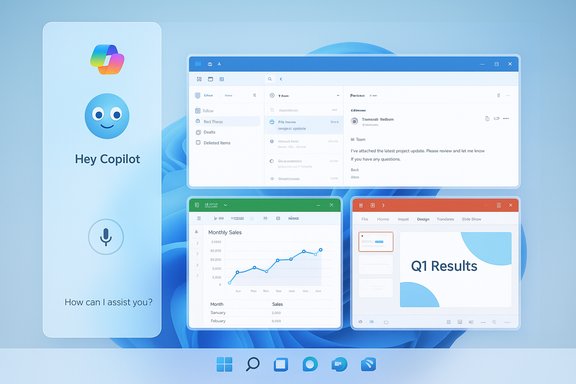
Microsoft has been steadily folding Copilot into Windows and Microsoft 365 for more than a year, but a recent wave of Windows 11 updates broadened what the assistant can actually do on your desktop. The evolution centers on three practical pillars: voice (wake-word “Hey, Copilot” and conversational input), vision (permissioned, screen-aware analysis), and actions (agentic automations that — with explicit consent — can perform multi-step tasks). Those changes, combined with deeper integrations into File Explorer, Outlook, Excel and PowerPoint, make Copilot far more useful in everyday workflows than the first-generation sidebar chat ever was.
At the same time, Microsoft is pursuing a two-track model: a baseline Copilot experience available broadly on Windows 11, and a Copilot+ hardware tier (systems with dedicated NPUs rated to a threshold Microsoft references) that unlocks lower-latency, on-device AI. The practical effect is that everyone gets better Copilot features than before, while high-end machines can deliver faster and more private local processing for certain workloads.
Tom’s Guide distilled this shift into an immediately useful list: seven prompts that turn Copilot into a time-saver across settings, email, Excel, PowerPoint, travel planning, and social copy. The prompts are straightforward, and when combined with Copilot’s system-level hooks they produce real outcomes — not just search-style responses.
Why it works:
Why it works:
Why it works:
Why it works:
Why it works:
Why it works:
Why it works:
That said, Copilot is not a magic bullet. It requires thoughtful permissioning, human review for facts, and careful IT governance at scale. Where Copilot shines is in reducing friction: open a window, ask for a summary, get action items; show an app, get step-by-step guidance; name a task, and receive a draft, a chart, or a slide deck you can finish in minutes.
Use the seven prompts as templates. Add specific context, enforce review steps, and treat Copilot as a high-quality assistant — not an infallible one. With those safeguards in place, Windows 11’s Copilot can legitimately save time, reduce stress, and improve the quality of everyday work.
Conclusion
Windows 11’s new Copilot features cross the line between interesting demo and useful tool. By combining voice, vision, and controlled actions with smart prompts, users can unlock concrete productivity gains — from inbox triage to presentations and weekend planning. The seven prompts are simple, repeatable, and effective; refine them for your context, pair them with governance where needed, and Copilot will move from novelty to necessity in your daily workflow.
Source: Tom's Guide https://www.tomsguide.com/ai/7-copilot-prompts-that-make-windows-11-way-more-useful/
 Background
Microsoft has been steadily folding Copilot into Windows and Microsoft 365 for more than a year, but a recent wave of Windows 11 updates broadened what the assistant can actually do on your desktop. The evolution centers on three practical pillars: voice (wake-word “Hey, Copilot” and conversational input), vision (permissioned, screen-aware analysis), and actions (agentic automations that — with explicit consent — can perform multi-step tasks). Those changes, combined with deeper integrations into File Explorer, Outlook, Excel and PowerPoint, make Copilot far more useful in everyday workflows than the first-generation sidebar chat ever was.At the same time, Microsoft is pursuing a two-track model: a baseline Copilot experience available broadly on Windows 11, and a Copilot+ hardware tier (systems with dedicated NPUs rated to a threshold Microsoft references) that unlocks lower-latency, on-device AI. The practical effect is that everyone gets better Copilot features than before, while high-end machines can deliver faster and more private local processing for certain workloads.
Tom’s Guide distilled this shift into an immediately useful list: seven prompts that turn Copilot into a time-saver across settings, email, Excel, PowerPoint, travel planning, and social copy. The prompts are straightforward, and when combined with Copilot’s system-level hooks they produce real outcomes — not just search-style responses.
Why these Copilot changes matter
- Less friction, more context: Copilot Vision lets the assistant “see” what’s on your screen so you don’t have to explain complex menus or paste content into a chat box.
- Multiple input modes: Voice, text, and screen-sharing all work together — speak aloud to start a task, show a window for context, then let Copilot summarize or act.
- Practical automation: Copilot Actions can (when enabled and permitted) execute repetitive, multi-step tasks that previously required manual clicks.
- Everyday value: Short prompts — the seven suggested by Tom’s Guide — map directly to frequent pain points: inbox triage, display settings, email tone, spreadsheet analysis, slide generation, trip planning, and short social copy.
The seven prompts — practical guide and refinements
Below are the seven prompt templates Tom’s Guide recommended, improved for clarity, reliability, and broader use-cases. Use them in the Copilot sidebar, in the Copilot app, or inside Office apps where Copilot is integrated.1. Creating action items
Prompt (Tom’s Guide): “Summarize the last three emails from [person] and list action items.”Why it works:
- Copilot can access Outlook and Microsoft 365 context when you authorize it, so it can extract the meaning of messages rather than just listing subjects.
- Great for end-of-day summaries or pre-meeting prep.
- “Summarize the last three messages from [name] in Outlook and list clear action items with suggested owners and deadlines.”
- “From the last three emails from [person], extract two priority tasks and draft a short reply confirming next steps.”
- Make sure Copilot is allowed to read your Outlook when you enable connectors.
- Ask the refined prompt.
- Edit the suggested action items and accept or send the drafted reply.
- Saves inbox triage time.
- Reduces the risk of missing action items buried in long threads.
- Copilot’s output depends on inbox access and correct account linkage; review before sending any automated replies.
2. Settings support
Prompt (Tom’s Guide): “Fix my display settings so everything looks sharper and clearer.”Why it works:
- Windows Copilot now surfaces Settings deep-links and, in some cases, can guide you to the correct UI; some Copilot updates provide one-click links to the Settings page for the requested change.
- “Improve screen readability for presentations: increase text size, enable ClearType, and adjust brightness for battery saving.”
- “Optimize display for photo editing: set resolution to native, turn on HDR (if supported), and set scaling to 100%.”
- Ask Copilot to adjust settings; when appropriate, follow the deep link it provides.
- Let Copilot point you to the exact Settings pane (it won’t silently change sensitive settings without your confirmation).
- Removes menu diving during urgent moments.
- Helpful for accessibility and meeting prep.
- Copilot may not have privilege to change some system-level settings automatically; it typically provides a navigation link rather than making hidden changes.
3. Drafting emails
Prompt (Tom’s Guide): “Write a polite email telling my boss I need an extension on a deadline.”Why it works:
- Copilot understands tone and intent and can craft a concise, professional message when given role, project, and desired new deadline.
- “Write a short, apologetic-but-confident email to my manager [name] asking for a two-day extension on [project name], explain the blocker briefly, and propose a new deadline.”
- Provide a first draft and ask: “Polish this into a one-paragraph email that sounds professional and confident.”
- Give Copilot specific context (project name, reason, desired new date).
- Ask for tone guidance (e.g., apologetic but confident).
- Review to ensure facts and dates are accurate before sending.
- Produces polished messages quickly.
- Helps avoid over-apologizing or oversharing.
- Always verify dates, commitments, and any sensitive wording before hitting send.
4. Decode Excel sheets
Prompt (Tom’s Guide): “Analyze this Excel sheet and highlight the top 5 trends for Q3.”Why it works:
- Copilot in Excel can summarize data, detect trends, and generate charts when you give it a workbook to analyze.
- “From the active workbook, analyze Q3 sales by region and list the top five trends in plain English. Create a bar chart for top 3 regions.”
- “Find anomalies in column [X], describe probable causes, and suggest three next steps.”
- Open the Excel file and invoke Copilot (in-app Copilot works best for deep data tasks).
- Ask for a plain-language summary for sharing with non-technical stakeholders.
- Request charts or speaker notes for a quick presentation-ready asset.
- Acts like an analyst for first-pass insights.
- Speed up reports and client-facing summaries.
- Complex statistical interpretation may need human verification; Copilot is excellent at describing patterns but may oversimplify causation.
5. Create a PowerPoint
Prompt (Tom’s Guide): “Create a 5-slide PowerPoint on ‘The Future of AI Assistants by 2035’ with speaker notes.”Why it works:
- Copilot inside PowerPoint can create headlines, bullet points, speaker notes, and suggest imagery and layout.
- “Create a 6-slide PowerPoint for executives about ‘AI Assistants in the Enterprise by 2035’ with concise speaker notes and a slide for risks and governance.”
- Include preferred tone and visuals: “Use professional tone; include a data slide and recommendation slide.”
- Provide audience and tone.
- Ask for speaker notes tailored for a 5–7 minute presentation.
- Tweak visuals and ensure citations for any quoted stats.
- Dramatically reduces deck assembly time.
- Helpful for rapid ideation and first drafts.
- Check factual claims and citations; Copilot can hallucinate or make approximations on dates or stats.
6. Plan a fun weekend
Prompt (Tom’s Guide): “Plan a 3-day Nashville itinerary for a family with kids ages 10, 8, and 4 — include food, fun, and indoor options”Why it works:
- Copilot’s broad knowledge plus local connectors makes it ideal for travel planning and family-friendly recommendations.
- “Plan a three-day Nashville itinerary for a family with kids aged 10, 8, and 4. Include budget-friendly options under $500 total, avoid long museum walks, and add at least one indoor rainy-day backup per day.”
- Add constraints (budget, mobility, dietary needs).
- Ask for morning/afternoon/evening breakdowns and transit tips.
- Rapid, tailored itineraries.
- Good starting point for bookings and reservations.
- Always verify opening hours and ticketing directly with venues; Copilot recommendations are a planning aid, not a live booking engine.
7. Help with social posts
Prompt (Tom’s Guide): “Draft five taglines for me to use on social media to promote my dog walking company.”Why it works:
- Creative copy generation is a low-risk, high-value use-case that replaces expensive agencies for small businesses.
- “Write five short, friendly, and SEO-ready taglines for Instagram to promote ‘[Brand Name]’ dog-walking service in [City]. Include a CTA and one variation for paid ads.”
- Provide brand voice and target audience.
- Ask for variations optimized for different platforms (Twitter/X, Instagram, LinkedIn).
- Fast, cheap marketing copy that scales.
- Helpful for small-business owners on tight budgets.
- Check for trademark issues and local claims; rewrite to avoid generic or legally sensitive assertions.
Practical tips for getting better results
- Add context: Always give Copilot minimal context — file names, project names, audience, tone.
- Be explicit about format: “Give me three bullet points” or “Export this to a 5-slide PowerPoint.”
- Iterate with follow-ups: Use short, targeted follow-ups like “shorten to two sentences” or “make it more formal.”
- Use connectors sparingly and deliberately: Grant access only when necessary and revoke when done.
- Ask Copilot to explain its steps when it performs an automation — especially in Office workflows.
Security, privacy, and governance — what to watch for
The Copilot upgrades bring real convenience, but they also expand the attack surface and governance demands. Key issues IT teams and privacy-conscious users should consider:- Permissions and connectors: Copilot can connect to Outlook, OneDrive, Gmail and Google Drive when explicitly authorized. That access is powerful but must be controlled in enterprise environments.
- Agentic actions: Copilot Actions can operate on local files and apps inside a contained workspace. While Microsoft indicates these agents run under limited privileges and show visible step-by-step progress, automations that can click, type, or send emails introduce new operational risks.
- Local vs. cloud processing: Some features use on-device spotters for immediate inputs (e.g., wake-word detection) but route heavy reasoning to cloud models unless a Copilot+ NPU can handle the work locally. That hybrid approach reduces latency for premium hardware but still means data may cross networks for complex tasks.
- Auditability: For enterprises, log, retention, and DLP controls are essential. Ensure Copilot connectors and agent activities are logged and governed by policy.
- User education: The presence of Copilot in the taskbar increases discoverability — which is good for productivity but means users might grant permissions thoughtlessly. Clear workplace guidelines and training reduce accidental data exposure.
Strengths and limitations — a balanced assessment
Strengths
- Task-focused productivity: The seven prompts show how Copilot accelerates real, repeatable tasks — inbox triage, settings help, drafting, data analysis, slide creation, travel planning, and marketing copy.
- Multimodal input: Voice + vision + text reduces friction and is genuinely helpful for accessibility and complex UI guidance.
- Integrated workflow: Copilot’s in-app capabilities (Excel, PowerPoint, Outlook) remove copy/paste friction and produce deliverable assets quickly.
- Rapid democratization of AI: Small businesses, solo contractors, and less-technical users get access to capabilities that previously required specialists.
Limitations & risks
- Model provenance ambiguity: Public communications and press coverage indicate Copilot relies on OpenAI models and Microsoft’s orchestration layers, but exact model versions and deployment details can vary across Copilot tiers. Treat specific claims like “Copilot runs on ChatGPT-4” cautiously — the backend mix is complex and evolves.
- Hallucination risk: Copilot is excellent at drafting and summarizing, but factual or citation-sensitive content (legal clauses, precise dates, statistical claims) must be verified independently.
- Guardrail gaps: Experimental agentic automations are powerful but complex; misconfigurations or bugs in automation scripts could produce unwanted side effects.
- Hardware variance: The richest Copilot experiences (lower latency, more on-device processing) are tied to Copilot+ hardware, meaning not all Windows 11 PCs will feel the same.
Enterprise rollout checklist
For IT leaders piloting Copilot across teams, follow a conservative, staged approach:- Define the scope: select a small pilot group with representative roles (helpdesk, finance, marketing).
- Map data flows: identify which connectors Copilot will use and where data could leave the corporate boundary.
- Configure governance: apply tenant-level controls, DLP policies, and auditing for Copilot connectors.
- Test agentic actions in a sandbox: validate that Copilot Actions behave as intended and that cancellation/rollback is reliable.
- Educate users: publish clear instructions for safe Copilot use and permission management.
- Monitor and iterate: collect telemetry and user feedback, then expand the rollout as controls prove effective.
Final verdict — is Copilot worth the effort?
For most users, the answer is yes — when used judiciously. The combination of task-focused prompts, tighter OS integration, and multimodal inputs turns Copilot from a curiosity into a practical assistant. The seven prompts Tom’s Guide highlights are a great starting point because they map to everyday productivity wins where automation and polished copy provide immediate value.That said, Copilot is not a magic bullet. It requires thoughtful permissioning, human review for facts, and careful IT governance at scale. Where Copilot shines is in reducing friction: open a window, ask for a summary, get action items; show an app, get step-by-step guidance; name a task, and receive a draft, a chart, or a slide deck you can finish in minutes.
Use the seven prompts as templates. Add specific context, enforce review steps, and treat Copilot as a high-quality assistant — not an infallible one. With those safeguards in place, Windows 11’s Copilot can legitimately save time, reduce stress, and improve the quality of everyday work.
Conclusion
Windows 11’s new Copilot features cross the line between interesting demo and useful tool. By combining voice, vision, and controlled actions with smart prompts, users can unlock concrete productivity gains — from inbox triage to presentations and weekend planning. The seven prompts are simple, repeatable, and effective; refine them for your context, pair them with governance where needed, and Copilot will move from novelty to necessity in your daily workflow.
Source: Tom's Guide https://www.tomsguide.com/ai/7-copilot-prompts-that-make-windows-11-way-more-useful/
