

Windows 11’s default setup experience has become a recurring fight over accounts, ads, telemetry, update control, and muscle memory, and How-To Geek’s latest customization guide argues that a clean install now requires deliberate countermeasures rather than a few harmless preference changes. The piece is framed as a personal checklist, but the larger story is Microsoft’s continuing attempt to turn Windows setup into a cloud-onboarding funnel. That tension is why a registry command, a Rufus checkbox, and a restored right-click menu now feel less like hobbyist tinkering and more like user self-defense.
The most revealing part of the How-To Geek guide is not the specific command it recommends for restoring the “I don’t have internet” path. It is the fact that the command matters at all.
For decades, installing Windows meant making a local user, reaching the desktop, and deciding later whether any Microsoft services were worth signing into. Windows 11 inverted that sequence. The operating system increasingly treats the Microsoft account as part of the installation itself, not as an optional services layer.
That change is not cosmetic. A Microsoft account can synchronize settings, activate OneDrive, back up recovery keys, attach Microsoft Store purchases, connect subscriptions, and make device recovery easier for many ordinary users. But it also shifts the first-run experience from “set up this PC” to “join Microsoft’s account ecosystem.”
The How-To Geek workaround uses a registry value under the Out-of-box Experience branch to restore the offline setup path. The older shorthand many Windows users remember,
Microsoft’s argument is straightforward: skipping account and network setup can bypass important configuration screens, leaving a device incompletely configured. That explanation has some merit, especially for consumer devices with encryption, recovery, and cloud backup workflows. But it is also incomplete, because Windows still supports local accounts after installation. The fight is not really about whether local accounts can exist. It is about whether users are allowed to choose one at the moment when Microsoft has the most leverage.
That boundary matters most on machines that are being staged, tested, resold, imaged, or isolated. A repair bench does not need the technician’s personal Microsoft identity burned into every temporary install. A lab VM does not need to enroll itself into a consumer services workflow. A privacy-minded home user may want the machine to remain useful before any cloud identity is attached to it.
The local-account fight also illustrates a broader mismatch between Microsoft’s consumer assumptions and power-user practice. Microsoft sees the account as the glue that makes the PC safer and more convenient. Many WindowsForum readers see it as another credential, another telemetry surface, another recovery dependency, and another thing to unwind before a system feels truly theirs.
The irony is that Microsoft has already solved this problem in business contexts. Enterprise deployment tools, provisioning packages, Autopilot, Intune, domain joins, Entra ID workflows, and policy controls all exist because managed PCs need repeatable setup. The irritation is that the consumer setup path has become less respectful of technically literate users precisely as Windows has become more dependent on cloud services.
That is why the How-To Geek guide begins with the local account rather than the Start menu, widgets, or the right-click menu. The account decision sets the tone. If the first interaction with a fresh operating system is an argument over whether you are permitted to proceed, every later annoyance feels less accidental.
Rufus occupies the mainstream end of that spectrum. It is widely used to create bootable USB drives, and its Windows 11 customization prompts have become a familiar checkpoint for anyone installing the OS on unsupported hardware or trying to avoid a Microsoft account. The attraction is obvious: instead of remembering a command during setup, the user bakes several choices into the installation media.
That workflow also reveals how Windows 11 has changed the ritual of installing Windows. The ISO is no longer treated as sacred installation media from Redmond. It is treated as raw material to be filtered, trimmed, patched, or preconfigured before use. For a certain kind of Windows user, the “real” Windows install begins with refusing parts of Windows.
There is a practical reason for this. Post-install debloating is inherently reactive. You wait for apps, settings, scheduled tasks, consumer experiences, default pins, and policy defaults to land, then you try to unwind them. Pre-install customization feels cleaner because it stops some of that from appearing in the first place.
But the trade-off is not trivial. The closer a tool gets to removing Windows components rather than changing setup preferences, the more the user becomes responsible for consequences that Microsoft, OEMs, and software vendors did not test. A stripped image may boot faster and feel calmer, but it can also remove dependencies that future updates, drivers, games, store apps, virtualization features, or security tools expect to find.
That is the line every enthusiast has to draw. Rufus-style setup choices are one thing. Deep component removal is another. There is a difference between declining the Microsoft account funnel and carving pieces out of the operating system with a scalpel borrowed from the internet.
These scripts persist because they solve a real problem. Windows 11 can arrive with consumer app promotions, cloud prompts, search integrations, Edge nudges, widget surfaces, notification suggestions, and other features that may be defensible individually but exhausting in aggregate. The operating system feels less like a neutral workspace and more like a constantly refreshed set of product placements.
This is where the word bloat becomes both useful and imprecise. For one user, bloat means preinstalled third-party trialware. For another, it means Xbox components on a work laptop. For another, it means Copilot entry points, Teams leftovers, OneDrive prompts, Start menu recommendations, telemetry settings, or background services they did not ask for. The label covers performance, privacy, aesthetics, and resentment all at once.
Community utilities thrive because Microsoft has not provided a single, honest “quiet Windows” switch. There are policies, registry values, privacy toggles, uninstall options, Start settings, scheduled tasks, and enterprise management controls, but no consumer-facing declaration that says: make this PC a local-first, ad-free, non-promotional workstation. Enthusiasts have built that switch themselves, messily and repeatedly.
The risk is that scripts collapse many choices into one appealing button. The user may intend to remove promoted apps and disable search ads, but the same preset might also change update behavior, telemetry settings, scheduled tasks, services, background apps, or security defaults. A good utility exposes what it is doing; a bad one turns Windows maintenance into superstition.
That is why transparency matters. If a debloating tool is open source, actively maintained, and clear about each tweak, it is easier to audit and reverse. If it is a mystery executable promising “maximum FPS” and “privacy,” it belongs nowhere near a production machine.
Microsoft’s modern Windows model separates monthly quality and security updates from larger feature releases, though the boundary has blurred as new capabilities increasingly arrive through cumulative updates, app updates, enablement packages, and controlled feature rollouts. For administrators, update deferral is a normal part of risk management. For home users, it can feel like a survival tactic.
The frustration is not imaginary. Windows feature updates have a long history of breaking printers, drivers, VPN clients, shell behavior, gaming performance, storage configurations, taskbar workflows, and niche hardware. Most machines update without catastrophe, but the failures are memorable because they arrive uninvited and often consume a weekend.
Still, “security updates only” should not become an all-purpose worldview. Feature updates also carry platform improvements, hardware enablement, servicing lifecycle extensions, and security architecture changes that may not arrive cleanly through monthly patches alone. A machine frozen too long can drift into its own risk category.
The better posture is delay, not denial. Let other users and early adopters discover the bad driver interaction. Watch release health dashboards, vendor advisories, and forum reports. Then move when the update matures or when support timelines require it.
For IT pros, this is routine. For home enthusiasts, it is becoming routine because Windows has made them feel like small-scale administrators of their own PCs. That may be the most underrated shift in the Windows 11 era: ordinary users are learning enterprise habits because the consumer OS no longer feels safely passive.
Windows 11’s redesigned context menu was not irrational. Microsoft wanted a cleaner surface, more consistent commands, modern icons, and less clutter from shell extensions that had turned the old menu into a dumping ground. In principle, that is defensible design work.
In practice, hiding familiar commands behind “Show more options” made the new menu feel slower and less trustworthy. The old context menu was ugly, but it was predictable. The new one is prettier, but it asks experienced users to pause.
That pause is the problem. Interface design is not just about visual order; it is about accumulated bodily knowledge. When a user has spent years right-clicking, moving a few pixels, and selecting an option without thinking, adding an extra layer feels like a tax on competence.
The registry tweak to restore the old menu has therefore become more than a tweak. It is a tiny rebellion against redesign by interruption. It says that familiarity itself is a feature, and that Microsoft undervalues the productivity of people who know exactly where things used to be.
The same dynamic explains the backlash to taskbar changes, Start menu recommendations, default app flows, and Explorer redesigns. Microsoft often sees modernization. Longtime users often experience eviction.
But the charitable reading does not erase the ownership problem. A PC is not a phone appliance, even if Microsoft sometimes seems to wish it were. It is a general-purpose computer, and many of its most loyal users expect to control identity, storage, updates, defaults, telemetry, and interface behavior with minimal negotiation.
Windows now often behaves as though the safest user is the most connected user. That may be true for some people. It is not true for every machine, every workload, every threat model, or every household.
The How-To Geek checklist is therefore not merely a list of annoyances. It is a map of where Microsoft’s defaults collide with the user’s sense of possession. Account creation, installer control, update timing, debloating, and context menus all orbit the same question: who gets the final say once Windows is installed?
That question is especially sharp because Windows remains difficult to leave. Gamers rely on anti-cheat support, DirectX behavior, GPU tooling, and compatibility layers that still favor Windows. Businesses depend on legacy applications, management stacks, macros, peripherals, and workflows that cannot be wished into Linux or macOS. Microsoft’s leverage comes from Windows’ indispensability.
That leverage is precisely why defaults matter. If users could leave frictionlessly, annoying defaults would be self-correcting. Because many cannot, each new forced step becomes another entry in a long ledger of accumulated grievance.
An ISO customization tool can remove telemetry hooks, skip hardware checks, and create a local account path. It can also disable protections, weaken update behavior, remove Defender, break virtualization-based security, or introduce supply-chain risk if the source is not trustworthy. The same convenience that makes an installer feel civilized can make it opaque.
This matters because Windows customization advice travels faster than Windows literacy. A forum regular may understand the difference between disabling consumer suggestions and gutting Defender. A teenager building a first gaming PC may not. A small-business owner trying to revive old hardware may follow a video tutorial without knowing which security features were removed.
AtlasOS-style projects and debloated images often pitch performance, latency, and simplicity. Those goals are not illegitimate, especially on low-end hardware or dedicated gaming machines. But a general-purpose PC connected to email, banking, work documents, browser sessions, and password managers is not a benchmark appliance.
Security-minded users should ask boring questions before applying exciting tweaks. Can the change be reversed? Is the project maintained? Does it document exactly what it removes? Does it preserve Windows Update, Defender or an equivalent security stack, firewall behavior, browser protections, and credential safeguards? Does it depend on a prebuilt image from someone else, or does it modify a Microsoft ISO locally?
The safest customization strategy is often the least glamorous one. Use official installation media, apply transparent setup options, remove unwanted apps through supported paths where possible, use documented policy controls when available, and reserve deep surgery for disposable machines or highly specific use cases.
Microsoft’s position is that Windows 11’s baseline enables a more secure platform. That argument is not fabricated. Hardware-backed security, measured boot chains, virtualization-based protections, and modern drivers are easier to support when the floor is higher.
The counterargument is equally real. Many excluded machines remain fast enough for everyday work, and enthusiasts understandably resent seeing capable hardware declared obsolete by policy rather than performance. Rufus became popular partly because it let users decide whether the risk of running Windows 11 on unsupported hardware was acceptable.
This is not only about thrift. It is about continuity. A family PC, a workshop machine, a ham-radio station, a retro-gaming box, a lab laptop, or a school hand-me-down may not need Microsoft’s preferred security baseline to remain useful. The owner may rationally choose extended utility over official support.
But that choice should be made with open eyes. Unsupported installs can face driver issues, update uncertainty, missing features, and reduced vendor sympathy when something breaks. If the machine matters, the unsupported path should be treated as an experiment, not a foundation.
The customization debate therefore blends two distinct impulses. One is the desire to reject Microsoft’s cloud and advertising defaults. The other is the desire to extend Windows beyond Microsoft’s supported hardware boundary. They often share tools, but they do not carry the same risk.
This does not require abandoning Microsoft accounts. It requires allowing users to decline them without tricks. It does not require freezing Windows in 2015. It requires making modern interfaces optional when they break expert workflows. It does not require disabling telemetry entirely. It requires clear, enforceable privacy tiers that do not feel like scavenger hunts.
Microsoft already knows how to build policy-driven Windows. Enterprises can control update timing, consumer experiences, app deployment, Edge behavior, identity flows, and telemetry levels through management infrastructure. The missing piece is a comparable philosophy for individual owners who are competent enough to choose but not running an Intune tenant at home.
A “quiet Windows” mode would not satisfy everyone. Some users would still debloat, strip, script, and rebuild because that is part of the enthusiast culture. But it would reduce the number of people who feel forced into unofficial tools just to make Windows stop interrupting them.
The tragedy is that many of the annoyances are small in isolation. A sign-in prompt here, a recommendation there, a hidden menu item, a feature rollout, a OneDrive nudge, a Start menu suggestion. Together, they form a climate.
That climate is why a How-To Geek customization list lands so cleanly with Windows enthusiasts. It gives names and commands to a feeling many users already have: the operating system is still powerful, still compatible, still necessary, and increasingly presumptuous.
The future of Windows customization will not be decided by one registry key or one setup bypass. Microsoft will keep tightening the account funnel, moving features through monthly servicing, and designing Windows around connected services; enthusiasts and administrators will keep building counter-flows that restore local control, reduce noise, and preserve old workflows. The healthier outcome would be for Microsoft to recognize that these users are not edge cases to be defeated but some of Windows’ most invested customers—and that an operating system people must keep taming is an operating system slowly spending its trust.
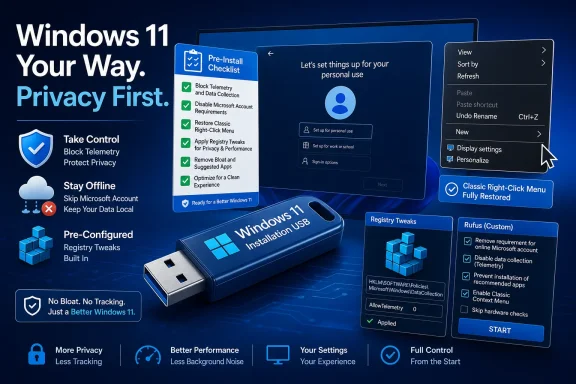 The Windows Setup Screen Became the First Battleground
The most revealing part of the How-To Geek guide is not the specific command it recommends for restoring the “I don’t have internet” path. It is the fact that the command matters at all.For decades, installing Windows meant making a local user, reaching the desktop, and deciding later whether any Microsoft services were worth signing into. Windows 11 inverted that sequence. The operating system increasingly treats the Microsoft account as part of the installation itself, not as an optional services layer.
That change is not cosmetic. A Microsoft account can synchronize settings, activate OneDrive, back up recovery keys, attach Microsoft Store purchases, connect subscriptions, and make device recovery easier for many ordinary users. But it also shifts the first-run experience from “set up this PC” to “join Microsoft’s account ecosystem.”
The How-To Geek workaround uses a registry value under the Out-of-box Experience branch to restore the offline setup path. The older shorthand many Windows users remember,
OOBE\BYPASSNRO, has already been targeted in Microsoft’s preview builds, and reporting over the past year has shown the company removing or breaking several local-account bypasses in Insider channels. That does not mean every retail image behaves identically on every edition today, but the direction of travel is unmistakable.Microsoft’s argument is straightforward: skipping account and network setup can bypass important configuration screens, leaving a device incompletely configured. That explanation has some merit, especially for consumer devices with encryption, recovery, and cloud backup workflows. But it is also incomplete, because Windows still supports local accounts after installation. The fight is not really about whether local accounts can exist. It is about whether users are allowed to choose one at the moment when Microsoft has the most leverage.
Local Accounts Are No Longer a Preference, They Are a Boundary
For enthusiasts and administrators, a local account is not nostalgia. It is a boundary between the operating system and the vendor’s services.That boundary matters most on machines that are being staged, tested, resold, imaged, or isolated. A repair bench does not need the technician’s personal Microsoft identity burned into every temporary install. A lab VM does not need to enroll itself into a consumer services workflow. A privacy-minded home user may want the machine to remain useful before any cloud identity is attached to it.
The local-account fight also illustrates a broader mismatch between Microsoft’s consumer assumptions and power-user practice. Microsoft sees the account as the glue that makes the PC safer and more convenient. Many WindowsForum readers see it as another credential, another telemetry surface, another recovery dependency, and another thing to unwind before a system feels truly theirs.
The irony is that Microsoft has already solved this problem in business contexts. Enterprise deployment tools, provisioning packages, Autopilot, Intune, domain joins, Entra ID workflows, and policy controls all exist because managed PCs need repeatable setup. The irritation is that the consumer setup path has become less respectful of technically literate users precisely as Windows has become more dependent on cloud services.
That is why the How-To Geek guide begins with the local account rather than the Start menu, widgets, or the right-click menu. The account decision sets the tone. If the first interaction with a fresh operating system is an argument over whether you are permitted to proceed, every later annoyance feels less accidental.
The Installer Is Now Where Power Users Draw the Line
The guide’s second move is more radical: stop fixing Windows after installation and alter the installer before Windows ever boots. That is where tools like Rufus, NTLite, Tiny11-style builds, and AtlasOS enter the conversation.Rufus occupies the mainstream end of that spectrum. It is widely used to create bootable USB drives, and its Windows 11 customization prompts have become a familiar checkpoint for anyone installing the OS on unsupported hardware or trying to avoid a Microsoft account. The attraction is obvious: instead of remembering a command during setup, the user bakes several choices into the installation media.
That workflow also reveals how Windows 11 has changed the ritual of installing Windows. The ISO is no longer treated as sacred installation media from Redmond. It is treated as raw material to be filtered, trimmed, patched, or preconfigured before use. For a certain kind of Windows user, the “real” Windows install begins with refusing parts of Windows.
There is a practical reason for this. Post-install debloating is inherently reactive. You wait for apps, settings, scheduled tasks, consumer experiences, default pins, and policy defaults to land, then you try to unwind them. Pre-install customization feels cleaner because it stops some of that from appearing in the first place.
But the trade-off is not trivial. The closer a tool gets to removing Windows components rather than changing setup preferences, the more the user becomes responsible for consequences that Microsoft, OEMs, and software vendors did not test. A stripped image may boot faster and feel calmer, but it can also remove dependencies that future updates, drivers, games, store apps, virtualization features, or security tools expect to find.
That is the line every enthusiast has to draw. Rufus-style setup choices are one thing. Deep component removal is another. There is a difference between declining the Microsoft account funnel and carving pieces out of the operating system with a scalpel borrowed from the internet.
Debloating Is a Symptom of Lost Trust
The How-To Geek article recommends Chris Titus Tech’s Windows Utility as a way to make an existing Windows installation leaner. That recommendation will be familiar to anyone who has watched Windows power users standardize their post-install rituals around a handful of community tools.These scripts persist because they solve a real problem. Windows 11 can arrive with consumer app promotions, cloud prompts, search integrations, Edge nudges, widget surfaces, notification suggestions, and other features that may be defensible individually but exhausting in aggregate. The operating system feels less like a neutral workspace and more like a constantly refreshed set of product placements.
This is where the word bloat becomes both useful and imprecise. For one user, bloat means preinstalled third-party trialware. For another, it means Xbox components on a work laptop. For another, it means Copilot entry points, Teams leftovers, OneDrive prompts, Start menu recommendations, telemetry settings, or background services they did not ask for. The label covers performance, privacy, aesthetics, and resentment all at once.
Community utilities thrive because Microsoft has not provided a single, honest “quiet Windows” switch. There are policies, registry values, privacy toggles, uninstall options, Start settings, scheduled tasks, and enterprise management controls, but no consumer-facing declaration that says: make this PC a local-first, ad-free, non-promotional workstation. Enthusiasts have built that switch themselves, messily and repeatedly.
The risk is that scripts collapse many choices into one appealing button. The user may intend to remove promoted apps and disable search ads, but the same preset might also change update behavior, telemetry settings, scheduled tasks, services, background apps, or security defaults. A good utility exposes what it is doing; a bad one turns Windows maintenance into superstition.
That is why transparency matters. If a debloating tool is open source, actively maintained, and clear about each tweak, it is easier to audit and reverse. If it is a mystery executable promising “maximum FPS” and “privacy,” it belongs nowhere near a production machine.
Update Control Is the Most Dangerous Kind of Convenience
The How-To Geek piece also recommends limiting Windows to security updates and deferring feature updates. This is the most understandable suggestion in the article, and also the one that deserves the most caution.Microsoft’s modern Windows model separates monthly quality and security updates from larger feature releases, though the boundary has blurred as new capabilities increasingly arrive through cumulative updates, app updates, enablement packages, and controlled feature rollouts. For administrators, update deferral is a normal part of risk management. For home users, it can feel like a survival tactic.
The frustration is not imaginary. Windows feature updates have a long history of breaking printers, drivers, VPN clients, shell behavior, gaming performance, storage configurations, taskbar workflows, and niche hardware. Most machines update without catastrophe, but the failures are memorable because they arrive uninvited and often consume a weekend.
Still, “security updates only” should not become an all-purpose worldview. Feature updates also carry platform improvements, hardware enablement, servicing lifecycle extensions, and security architecture changes that may not arrive cleanly through monthly patches alone. A machine frozen too long can drift into its own risk category.
The better posture is delay, not denial. Let other users and early adopters discover the bad driver interaction. Watch release health dashboards, vendor advisories, and forum reports. Then move when the update matures or when support timelines require it.
For IT pros, this is routine. For home enthusiasts, it is becoming routine because Windows has made them feel like small-scale administrators of their own PCs. That may be the most underrated shift in the Windows 11 era: ordinary users are learning enterprise habits because the consumer OS no longer feels safely passive.
The Right-Click Menu Became a Symbol Because It Broke Muscle Memory
The classic context menu tweak is the smallest item in the guide, but it may be the most emotionally resonant. Windows users have decades of right-click reflexes burned into their hands.Windows 11’s redesigned context menu was not irrational. Microsoft wanted a cleaner surface, more consistent commands, modern icons, and less clutter from shell extensions that had turned the old menu into a dumping ground. In principle, that is defensible design work.
In practice, hiding familiar commands behind “Show more options” made the new menu feel slower and less trustworthy. The old context menu was ugly, but it was predictable. The new one is prettier, but it asks experienced users to pause.
That pause is the problem. Interface design is not just about visual order; it is about accumulated bodily knowledge. When a user has spent years right-clicking, moving a few pixels, and selecting an option without thinking, adding an extra layer feels like a tax on competence.
The registry tweak to restore the old menu has therefore become more than a tweak. It is a tiny rebellion against redesign by interruption. It says that familiarity itself is a feature, and that Microsoft undervalues the productivity of people who know exactly where things used to be.
The same dynamic explains the backlash to taskbar changes, Start menu recommendations, default app flows, and Explorer redesigns. Microsoft often sees modernization. Longtime users often experience eviction.
Microsoft Is Optimizing for the Average PC, Not the Owned PC
There is a charitable reading of Microsoft’s Windows 11 strategy. Most users benefit when their recovery key is backed up, their settings roam, their browser has phishing protection, their device can be found, their files can sync, and their system receives updates automatically. The Microsoft account is the mechanism that makes much of that consumer safety net work.But the charitable reading does not erase the ownership problem. A PC is not a phone appliance, even if Microsoft sometimes seems to wish it were. It is a general-purpose computer, and many of its most loyal users expect to control identity, storage, updates, defaults, telemetry, and interface behavior with minimal negotiation.
Windows now often behaves as though the safest user is the most connected user. That may be true for some people. It is not true for every machine, every workload, every threat model, or every household.
The How-To Geek checklist is therefore not merely a list of annoyances. It is a map of where Microsoft’s defaults collide with the user’s sense of possession. Account creation, installer control, update timing, debloating, and context menus all orbit the same question: who gets the final say once Windows is installed?
That question is especially sharp because Windows remains difficult to leave. Gamers rely on anti-cheat support, DirectX behavior, GPU tooling, and compatibility layers that still favor Windows. Businesses depend on legacy applications, management stacks, macros, peripherals, and workflows that cannot be wished into Linux or macOS. Microsoft’s leverage comes from Windows’ indispensability.
That leverage is precisely why defaults matter. If users could leave frictionlessly, annoying defaults would be self-correcting. Because many cannot, each new forced step becomes another entry in a long ledger of accumulated grievance.
The Custom ISO Temptation Has a Security Shadow
There is one point the customization culture sometimes underplays: modifying Windows installation media is powerful enough to be dangerous.An ISO customization tool can remove telemetry hooks, skip hardware checks, and create a local account path. It can also disable protections, weaken update behavior, remove Defender, break virtualization-based security, or introduce supply-chain risk if the source is not trustworthy. The same convenience that makes an installer feel civilized can make it opaque.
This matters because Windows customization advice travels faster than Windows literacy. A forum regular may understand the difference between disabling consumer suggestions and gutting Defender. A teenager building a first gaming PC may not. A small-business owner trying to revive old hardware may follow a video tutorial without knowing which security features were removed.
AtlasOS-style projects and debloated images often pitch performance, latency, and simplicity. Those goals are not illegitimate, especially on low-end hardware or dedicated gaming machines. But a general-purpose PC connected to email, banking, work documents, browser sessions, and password managers is not a benchmark appliance.
Security-minded users should ask boring questions before applying exciting tweaks. Can the change be reversed? Is the project maintained? Does it document exactly what it removes? Does it preserve Windows Update, Defender or an equivalent security stack, firewall behavior, browser protections, and credential safeguards? Does it depend on a prebuilt image from someone else, or does it modify a Microsoft ISO locally?
The safest customization strategy is often the least glamorous one. Use official installation media, apply transparent setup options, remove unwanted apps through supported paths where possible, use documented policy controls when available, and reserve deep surgery for disposable machines or highly specific use cases.
Unsupported Hardware Keeps the Argument Alive
Windows 11’s hardware requirements are another reason installer customization became mainstream. TPM 2.0, Secure Boot, supported CPUs, and RAM requirements drew a firm line between Microsoft’s security ambitions and the reality of still-useful PCs.Microsoft’s position is that Windows 11’s baseline enables a more secure platform. That argument is not fabricated. Hardware-backed security, measured boot chains, virtualization-based protections, and modern drivers are easier to support when the floor is higher.
The counterargument is equally real. Many excluded machines remain fast enough for everyday work, and enthusiasts understandably resent seeing capable hardware declared obsolete by policy rather than performance. Rufus became popular partly because it let users decide whether the risk of running Windows 11 on unsupported hardware was acceptable.
This is not only about thrift. It is about continuity. A family PC, a workshop machine, a ham-radio station, a retro-gaming box, a lab laptop, or a school hand-me-down may not need Microsoft’s preferred security baseline to remain useful. The owner may rationally choose extended utility over official support.
But that choice should be made with open eyes. Unsupported installs can face driver issues, update uncertainty, missing features, and reduced vendor sympathy when something breaks. If the machine matters, the unsupported path should be treated as an experiment, not a foundation.
The customization debate therefore blends two distinct impulses. One is the desire to reject Microsoft’s cloud and advertising defaults. The other is the desire to extend Windows beyond Microsoft’s supported hardware boundary. They often share tools, but they do not carry the same risk.
The Real Fix Would Be a “Quiet Windows” Edition
The existence of these guides points toward a product gap Microsoft could close if it wanted to. Windows needs a supported, consumer-accessible mode that is local-first, promotion-free, and respectful of traditional desktop workflows.This does not require abandoning Microsoft accounts. It requires allowing users to decline them without tricks. It does not require freezing Windows in 2015. It requires making modern interfaces optional when they break expert workflows. It does not require disabling telemetry entirely. It requires clear, enforceable privacy tiers that do not feel like scavenger hunts.
Microsoft already knows how to build policy-driven Windows. Enterprises can control update timing, consumer experiences, app deployment, Edge behavior, identity flows, and telemetry levels through management infrastructure. The missing piece is a comparable philosophy for individual owners who are competent enough to choose but not running an Intune tenant at home.
A “quiet Windows” mode would not satisfy everyone. Some users would still debloat, strip, script, and rebuild because that is part of the enthusiast culture. But it would reduce the number of people who feel forced into unofficial tools just to make Windows stop interrupting them.
The tragedy is that many of the annoyances are small in isolation. A sign-in prompt here, a recommendation there, a hidden menu item, a feature rollout, a OneDrive nudge, a Start menu suggestion. Together, they form a climate.
That climate is why a How-To Geek customization list lands so cleanly with Windows enthusiasts. It gives names and commands to a feeling many users already have: the operating system is still powerful, still compatible, still necessary, and increasingly presumptuous.
The Four Tweaks Tell One Story About Control
The practical lessons from the guide are useful, but the pattern matters more than any single command. Each customization is a pressure valve for a place where Microsoft’s defaults have become too assertive.- A local account keeps the first-run experience tied to the PC rather than to Microsoft’s cloud identity system.
- A customized installer moves user choice earlier in the process, before Windows has a chance to apply unwanted defaults.
- A transparent debloating utility can reduce promotional surfaces and background clutter, but only if the user understands what it changes.
- Feature update deferral is best treated as a staging tactic, not a permanent escape from Windows servicing.
- Restoring the classic context menu is a reminder that productivity often depends on muscle memory, not visual novelty.
The future of Windows customization will not be decided by one registry key or one setup bypass. Microsoft will keep tightening the account funnel, moving features through monthly servicing, and designing Windows around connected services; enthusiasts and administrators will keep building counter-flows that restore local control, reduce noise, and preserve old workflows. The healthier outcome would be for Microsoft to recognize that these users are not edge cases to be defeated but some of Windows’ most invested customers—and that an operating system people must keep taming is an operating system slowly spending its trust.
References
- Primary source: How-To Geek
Published: Fri, 05 Jun 2026 15:15:20 GMT
4 ways I customize every Windows installation to avoid Microsoft's most annoying changes
This is the only way to get a usable Windows experience today. www.howtogeek.com
- Official source: support.microsoft.com
Pause updates in Windows | Microsoft Support
Under Settings, you can pause the Windows Update from being downloaded and installed for a period of time. You can also select a convenient time to restart your device after the updates are downloaded and installed.support.microsoft.com - Related coverage: techspot.com
Microsoft is removing the ability to easily install Windows 11 with a local account | TechSpot
Microsoft has released a new Windows 11 preview build for beta testers in the Insider program. Build 26220.6772 (KB5065797) introduces several changes that will gradually roll out...www.techspot.com - Official source: learn.microsoft.com
Windows 11 - release information | Microsoft Learn
Learn release information for Windows 11 releaseslearn.microsoft.com - Related coverage: pcworld.com
Microsoft kills two more ways to install Windows 11 with local accounts | PCWorld
Microsoft is increasingly clamping down on methods for bypassing the Microsoft Account requirement for Windows 11.www.pcworld.com - Related coverage: windowscentral.com
Microsoft wants Windows 11 installs to use a Microsoft Account — confirms removal of popular setup bypass | Windows Central
The popular "bypassnro" command, which let users to skip connecting to the Internet and signing into a Microsoft Account, is being removed.www.windowscentral.com
- Related coverage: pureinfotech.com
Microsoft blocks bypass to skip Microsoft Account during setup on Windows 11 - Pureinfotech
Microsoft removes workarounds to bypass the Microsoft account when setting up Windows 11, including "bypassnro" and ms-cxh:localonly." pureinfotech.com
- Official source: techcommunity.microsoft.com

Why oobe\bypassnro Not Working for Windows 11 25H2 | Microsoft Community Hub
Hi all,I managed to install windows 11 with a local account by applying the oobe\bypassnro trick. It worked like a charm in the past with Windows 11 22H2,...
techcommunity.microsoft.com
- Related coverage: tomshardware.com
Microsoft clamping down on Windows 11 local account setup — latest Insider build removes 'local-only commands,' skipping Microsoft account sign-in will crash setup process | Tom's Hardware
Microsoft is clamping down on the practicewww.tomshardware.com - Related coverage: techradar.com
Microsoft is 'removing known mechanisms for creating a local account' from Windows 11 setup - get ready to use a Microsoft account | TechRadar
This isn't a popular decision...www.techradar.com - Related coverage: pcgamer.com
Microsoft is planning to make it harder than ever to install Windows without an internet connection and a Microsoft account | PC Gamer
The number of work arounds is ever shrinking...www.pcgamer.com
