

Microsoft’s newest promises to make Windows 11 feel faster, cleaner, and more polished land at an awkward moment for the “debloat” movement. The appeal is obvious: if Windows ships with extra apps, promotional surfaces, and telemetry controls that frustrate power users, then a one-click cleanup script sounds like the perfect cure. But after reviewing the state of the platform and the official ways Windows actually works, the larger lesson is hard to ignore: most debloating tools are trying to solve the wrong problem, and some of them introduce trade-offs that are far more serious than the clutter they remove.
Windows has carried bloat complaints for years, but the debate intensified as Microsoft leaned harder into cloud services, bundled apps, and consumer-facing recommendations. The modern Windows 11 desktop is not just an operating system; it is also a distribution layer for Microsoft’s ecosystem, with Start menu suggestions, Copilot placements, Store-linked apps, OneDrive prompts, and periodic nudges that frustrate users who want a traditional local PC first and a services layer second. Microsoft’s own recent quality push acknowledges that performance, reliability, and craft still need visible work, which only reinforces why so many people keep looking for shortcuts.
That does not automatically make debloat tools the answer. Windows 11’s minimum system requirements still include 4 GB of RAM, and Microsoft’s guidance makes clear that the platform is designed to run within that footprint, at least at baseline. In other words, a fresh Windows 11 install is already much leaner than many users assume, even if it still reserves memory for background services and system components.
The bigger issue is that many “debloat” scripts do more than remove consumer extras. They often change startup behavior, background services, update-related settings, and privacy controls that are tightly coupled to Windows’ servicing model. Microsoft’s documentation is explicit that required diagnostic data is part of how Windows stays secure, up to date, and healthy; it includes signals about whether a device is ready for an update or whether something might block servicing.
That creates a central tension. Users want less noise, fewer ads, and less unsolicited software. Microsoft wants a predictable support and update ecosystem. Debloat tools sit in the middle, promising convenience while often making strong editorial judgments about how Windows should behave. The problem is not that customization is bad; it is that customization through opaque scripts is fragile by design.
The attraction is obvious for users who hate spending an afternoon digging through Settings. Instead of hunting down every app and toggle manually, you run a script and hope the machine comes out quieter, lighter, and less intrusive. That promise has become especially appealing in the era of AI features and recurring product prompts, because many users feel that Windows 11 is adding things faster than they can remove them.
But these utilities rarely change the operating system in the way users imagine. They do not rewrite Windows into a fundamentally lighter platform, and they cannot erase the architectural overhead that comes with modern security, servicing, and cloud integration. The result is often a dramatic-looking before-and-after script with a surprisingly modest real-world effect.
This is why the most interesting question is not “Can it remove something?” but “What else did it change?” A debloat tool that quietly disables a service, alters boot behavior, or weakens update settings may create more maintenance burden than it removes clutter. In other words, the script can be technically successful and still be a bad idea.
Microsoft’s own Windows 11 requirements still start at 4 GB of RAM, and the operating system is built to occupy part of that budget by design. In practical terms, a clean install already uses a substantial amount of memory, and that is not necessarily a sign of inefficiency. It is often just the cost of having a modern desktop OS with security, indexing, shell components, background services, and application frameworks ready to respond quickly.
That is why the memory story is often a red herring. Users want a visible symptom to go away, but the symptom is usually not the root cause. If a PC feels slow, the limiting factor is just as likely to be storage latency, CPU contention, browser tabs, startup bloat from unrelated software, or a weak hardware baseline.
Microsoft’s recent focus on Windows quality, reliability, and responsiveness suggests that the company knows this too: the meaningful wins are in performance and consistency, not cosmetic trimming alone. That is the kind of improvement users feel, while debloat scripts often only rearrange what is visible.
That is why many privacy-related toggles in debloat tools are less powerful than they appear. On consumer editions of Windows 11, changing certain policy or registry settings may not have the effect users expect, because the OS enforces its own rules about what can be disabled. Microsoft also notes that diagnostic data can be used to surface issues around update readiness, device health, and service performance.
That matters because debloat tools sometimes present privacy changes as if they were absolute. In reality, the operating system may ignore the tweak, reverse it, or require an enterprise servicing context for it to behave differently. The result is a false sense of control, which is often worse than a straightforward “no.”
For consumers, the meaningful privacy gains usually come from Settings, not from aggressive scripts. Turning off tailored experiences, reviewing app permissions, and managing advertising identifiers can help. But if the goal is to create a Windows install that behaves like a sealed appliance with zero diagnostic flow, debloat tools are selling an illusion.
This is not glamorous, but it is reliable. The built-in UI is the path Microsoft tests, documents, and supports. That does not make it perfect, but it does make it much less likely to break in a future update than a third-party script that depends on particular service names, registry locations, or shell behaviors.
Just as important, manual cleanup makes cause and effect easier to understand. If you change one thing at a time, you know what caused the result. Debloat scripts often bundle dozens of modifications together, which makes troubleshooting difficult when something later breaks.
For many users, the right answer is not “debloat Windows” but “curate Windows.” There is a real difference between trimming a personal PC and altering a platform wholesale. The former is maintenance; the latter is surgery.
Some debloat tools go after update-related services or policies because those changes can make the machine feel more static and less intrusive. But that convenience has an obvious downside. Once you start disabling the plumbing that lets Windows patch itself, you are no longer optimizing the system; you are changing its risk profile.
This is especially troubling because update issues often surface later, after the script has been forgotten. A machine can appear to be “fine” for weeks or months while silently missing patches, failing to report correctly, or carrying a broken servicing configuration. That kind of latent damage is exactly what makes aggressive debloating so hard to recommend.
Microsoft’s latest quality messaging may make some users skeptical, but the answer is not to amputate the update system. It is to push for better updates, clearer control, and less disruption. That is precisely the direction Microsoft says it is pursuing in its quality work.
That emotional pitch is strong. It says you do not need to learn all the settings or tolerate the defaults. It also gives users a feeling of efficiency: one command, one reboot, one cleaner desktop. In a world where operating systems increasingly ship with services attached, that pitch lands.
But social media is a poor judge of operating-system hygiene. It optimizes for spectacle, not robustness. If a tweak makes a system look cleaner in a screenshot, that does not mean it is the right choice for long-term stability or security.
The best response to user frustration is a better OS, not a more invasive script. Until Windows gets there, manual cleanup and careful Settings adjustments remain the least risky path.
For enterprises, the main issue is governance. Microsoft already provides policy frameworks, deployment tooling, and diagnostic controls that are designed for managed devices. Random scripts are a poor substitute for centrally supported configuration, especially when servicing and compliance matter.
That is why using debloat tools as a bandage for aging systems often disappoints. They may help declutter the machine, but they rarely convert marginal hardware into a satisfying modern Windows experience. At that point, the better answer may be more RAM, a faster SSD, or a lighter workflow—not a more aggressive script.
The paradox is that the same machine you want to strip down for gaming also needs to remain stable enough to handle drivers, anti-cheat systems, and updates. Aggressive debloating can undermine that balance, especially if it changes service behavior in ways the user no longer remembers.
There is also an opportunity for Microsoft to meet users halfway by making cleanup easier, reducing redundant prompts, and giving home users clearer controls over consumer extras. A better Settings experience could absorb much of the appeal of third-party debloat utilities and do so safely.
Another concern is maintenance drift. A change that seems harmless today can become a support issue after a feature update, a driver install, or a policy change. Microsoft’s own documentation makes clear that diagnostic data, update readiness, and system health are interconnected; disrupting that fabric can have consequences beyond aesthetics.
For now, the safest path remains the least dramatic one. Remove what you do not use, adjust the settings Microsoft actually supports, and avoid tools that make hard-to-audit changes to Windows’ core behavior. A cleaner machine is good; a broken one is not.
Source: PCMag I Tested 4 Windows Debloating Tools. Spoiler: They're Basically Useless
 Background
Windows has carried bloat complaints for years, but the debate intensified as Microsoft leaned harder into cloud services, bundled apps, and consumer-facing recommendations. The modern Windows 11 desktop is not just an operating system; it is also a distribution layer for Microsoft’s ecosystem, with Start menu suggestions, Copilot placements, Store-linked apps, OneDrive prompts, and periodic nudges that frustrate users who want a traditional local PC first and a services layer second. Microsoft’s own recent quality push acknowledges that performance, reliability, and craft still need visible work, which only reinforces why so many people keep looking for shortcuts.That does not automatically make debloat tools the answer. Windows 11’s minimum system requirements still include 4 GB of RAM, and Microsoft’s guidance makes clear that the platform is designed to run within that footprint, at least at baseline. In other words, a fresh Windows 11 install is already much leaner than many users assume, even if it still reserves memory for background services and system components.
The bigger issue is that many “debloat” scripts do more than remove consumer extras. They often change startup behavior, background services, update-related settings, and privacy controls that are tightly coupled to Windows’ servicing model. Microsoft’s documentation is explicit that required diagnostic data is part of how Windows stays secure, up to date, and healthy; it includes signals about whether a device is ready for an update or whether something might block servicing.
That creates a central tension. Users want less noise, fewer ads, and less unsolicited software. Microsoft wants a predictable support and update ecosystem. Debloat tools sit in the middle, promising convenience while often making strong editorial judgments about how Windows should behave. The problem is not that customization is bad; it is that customization through opaque scripts is fragile by design.
What Debloat Tools Actually Try to Do
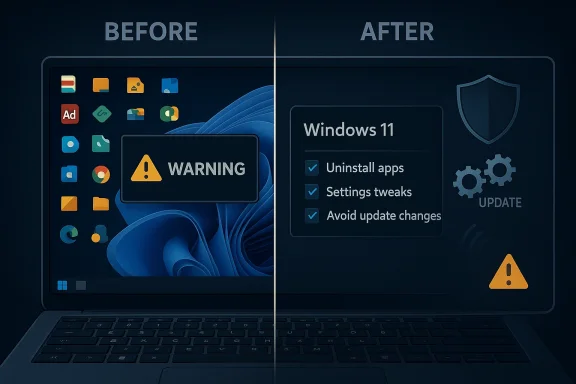
Debloat tools are usually marketed as one-click cleanup utilities, but in practice they cover a wide range of changes. Some focus on uninstalling bundled apps, others disable recommendations and telemetry toggles, and a few go much further by editing registry values or services. That means the term “debloating” is doing a lot of work; it can mean anything from trimming a Start menu to altering the lifecycle of Windows itself.The attraction is obvious for users who hate spending an afternoon digging through Settings. Instead of hunting down every app and toggle manually, you run a script and hope the machine comes out quieter, lighter, and less intrusive. That promise has become especially appealing in the era of AI features and recurring product prompts, because many users feel that Windows 11 is adding things faster than they can remove them.
The core promise
At the most basic level, debloat tools claim to remove preinstalled apps and reduce clutter. They may target items like promotional apps, shortcuts, or consumer services that not every user wants on day one. Some tools also adjust Settings options that Windows already exposes, making them seem more powerful than they really are.But these utilities rarely change the operating system in the way users imagine. They do not rewrite Windows into a fundamentally lighter platform, and they cannot erase the architectural overhead that comes with modern security, servicing, and cloud integration. The result is often a dramatic-looking before-and-after script with a surprisingly modest real-world effect.
- They can remove a few consumer apps.
- They can hide or disable some UI surfaces.
- They can change startup or service behavior.
- They usually cannot transform Windows into a different OS.
The hidden cost
The hidden cost is trust. When you run a GitHub script or a third-party utility with administrative privileges, you are granting it deep access to your machine. Even well-meaning tools can contain mistakes, and even popular tools can make choices that do not fit your hardware or workflow. That is not theoretical; it is simply the reality of automation with system-level reach.This is why the most interesting question is not “Can it remove something?” but “What else did it change?” A debloat tool that quietly disables a service, alters boot behavior, or weakens update settings may create more maintenance burden than it removes clutter. In other words, the script can be technically successful and still be a bad idea.
The Memory Myth
One of the most persistent claims about debloating is that it dramatically lowers RAM usage. That claim sounds intuitive, because Windows does load services, helpers, and background components at startup, and many users see a big number in Task Manager and assume there must be waste everywhere. But Windows memory management is more nuanced than that, and most of the memory in use on a healthy system is not the same thing as memory “wasted.”Microsoft’s own Windows 11 requirements still start at 4 GB of RAM, and the operating system is built to occupy part of that budget by design. In practical terms, a clean install already uses a substantial amount of memory, and that is not necessarily a sign of inefficiency. It is often just the cost of having a modern desktop OS with security, indexing, shell components, background services, and application frameworks ready to respond quickly.
What the numbers really mean
If a debloat tool saves 100 MB or 200 MB, that may look impressive in a chart but matter very little in day-to-day use. On a machine with plenty of RAM, the difference is negligible. On a machine with too little RAM, the system is already under pressure, and removing a few apps will not magically change that underlying constraint.That is why the memory story is often a red herring. Users want a visible symptom to go away, but the symptom is usually not the root cause. If a PC feels slow, the limiting factor is just as likely to be storage latency, CPU contention, browser tabs, startup bloat from unrelated software, or a weak hardware baseline.
Why cleanup and performance are not the same thing
Windows can feel cleaner after debloating without actually becoming materially faster. That distinction matters. A clean Start menu, fewer promotional tiles, and fewer bundled extras improve perceived quality, but they do not necessarily reduce boot time, app launch time, or sustained system load.Microsoft’s recent focus on Windows quality, reliability, and responsiveness suggests that the company knows this too: the meaningful wins are in performance and consistency, not cosmetic trimming alone. That is the kind of improvement users feel, while debloat scripts often only rearrange what is visible.
- RAM savings are usually modest.
- Visual cleanup is easier than architectural optimization.
- Performance gains, if any, are often indirect.
- Baseline hardware still matters more than script tweaks.
Telemetry, Privacy, and What Can Actually Be Turned Off
Telemetry is one of the biggest emotional drivers behind debloating, and it is also one of the easiest areas to oversell. Microsoft distinguishes between required diagnostic data and optional diagnostic data, and the company states that required data helps keep Windows secure, up to date, and functional. In other words, some diagnostic flow is part of the operating system’s maintenance model rather than a removable add-on.That is why many privacy-related toggles in debloat tools are less powerful than they appear. On consumer editions of Windows 11, changing certain policy or registry settings may not have the effect users expect, because the OS enforces its own rules about what can be disabled. Microsoft also notes that diagnostic data can be used to surface issues around update readiness, device health, and service performance.
The limits of the privacy switch
There is a real distinction between data you can reduce and data you can fully eliminate. Users can often disable optional diagnostic data, tailor experiences, and trim some app permissions. But the notion that a script can simply “turn off telemetry” across the board is usually too simplistic for modern Windows.That matters because debloat tools sometimes present privacy changes as if they were absolute. In reality, the operating system may ignore the tweak, reverse it, or require an enterprise servicing context for it to behave differently. The result is a false sense of control, which is often worse than a straightforward “no.”
Consumer versus enterprise reality
Microsoft’s documentation makes clear that some diagnostic controls and update-reporting features are designed with organizations in mind, not home users. Windows Update for Business reporting, for example, requires at least required diagnostic data, and some advanced controls sit in enterprise policy frameworks rather than consumer settings. That means the average home PC is not supposed to behave like a managed fleet device.For consumers, the meaningful privacy gains usually come from Settings, not from aggressive scripts. Turning off tailored experiences, reviewing app permissions, and managing advertising identifiers can help. But if the goal is to create a Windows install that behaves like a sealed appliance with zero diagnostic flow, debloat tools are selling an illusion.
- Required diagnostic data is part of Windows servicing.
- Optional diagnostic data is the more realistic place to reduce sharing.
- Enterprise policies are not the same thing as consumer toggles.
- “Disable telemetry” often sounds broader than it is.
Manual Cleanup Still Wins
One of the most underappreciated points in this debate is that a lot of “debloating” can be done natively, and safely, through Windows itself. If the issue is unwanted bundled apps, most users can uninstall them directly. If the concern is ad surfaces, Windows Settings provides controls for many of them. If the problem is storage use, built-in cleanup tools can reclaim space without granting a script deep system access.This is not glamorous, but it is reliable. The built-in UI is the path Microsoft tests, documents, and supports. That does not make it perfect, but it does make it much less likely to break in a future update than a third-party script that depends on particular service names, registry locations, or shell behaviors.
What you can do without a tool
A lot of the cleanup users want is already only a few clicks away. Uninstalling OneDrive, removing unused apps, adjusting privacy settings, and disabling some notifications are standard maintenance tasks. These are the kinds of changes that improve day-to-day usability without requiring you to gamble on a developer’s assumptions.Just as important, manual cleanup makes cause and effect easier to understand. If you change one thing at a time, you know what caused the result. Debloat scripts often bundle dozens of modifications together, which makes troubleshooting difficult when something later breaks.
The case for incremental changes
The safer approach is usually incremental. Remove what you do not use, test the system, and only then consider deeper changes if you have a specific need. That method is boring, but it keeps the machine understandable.For many users, the right answer is not “debloat Windows” but “curate Windows.” There is a real difference between trimming a personal PC and altering a platform wholesale. The former is maintenance; the latter is surgery.
- Uninstall unwanted apps directly.
- Use Settings before using scripts.
- Remove only what you can identify.
- Test after each change.
- Prefer reversible actions over sweeping edits.
The Risk of Breaking Windows Update
If there is a line most users should not cross, it is the one involving Windows Update. Microsoft treats update infrastructure as a core part of Windows’ security and maintenance model, and its own documentation ties diagnostic data and device health to servicing. That makes sense: if the OS cannot reliably update, it cannot reliably stay secure.Some debloat tools go after update-related services or policies because those changes can make the machine feel more static and less intrusive. But that convenience has an obvious downside. Once you start disabling the plumbing that lets Windows patch itself, you are no longer optimizing the system; you are changing its risk profile.
Why update suppression is dangerous
Security updates are not optional window dressing. They close vulnerabilities, patch driver interactions, and keep the system aligned with Microsoft’s servicing model. If a debloat script disrupts that pipeline, the user may not notice immediately, but the machine is still accumulating risk.This is especially troubling because update issues often surface later, after the script has been forgotten. A machine can appear to be “fine” for weeks or months while silently missing patches, failing to report correctly, or carrying a broken servicing configuration. That kind of latent damage is exactly what makes aggressive debloating so hard to recommend.
The false economy of “more control”
The appeal of disabling Windows Update is emotional: fewer interruptions, fewer reboots, fewer surprises. But the cost is that you give up one of the most important protective layers in the OS. If you are building a kiosk or a controlled lab system, that is a separate conversation; for a general-purpose personal PC, it is usually a poor trade.Microsoft’s latest quality messaging may make some users skeptical, but the answer is not to amputate the update system. It is to push for better updates, clearer control, and less disruption. That is precisely the direction Microsoft says it is pursuing in its quality work.
Why Popular Debloat Scripts Still Attract Users
Even with all those caveats, debloat tools remain popular because they speak to a real frustration. Windows 11 has a lot of moving parts, and many of them do not feel user-first. If your goal is a quiet local machine for work, study, or gaming, the default experience can look crowded and oddly commercial. The scripts promise to restore a sense of control.That emotional pitch is strong. It says you do not need to learn all the settings or tolerate the defaults. It also gives users a feeling of efficiency: one command, one reboot, one cleaner desktop. In a world where operating systems increasingly ship with services attached, that pitch lands.
The social-media factor
Part of the popularity comes from how debloat tools circulate online. Short videos and posts reward dramatic before-and-after transformations, and they rarely show the maintenance burden six weeks later. A script that removes a few apps and hides some surfaces looks like a win when the result is immediate and visual.But social media is a poor judge of operating-system hygiene. It optimizes for spectacle, not robustness. If a tweak makes a system look cleaner in a screenshot, that does not mean it is the right choice for long-term stability or security.
What users are really asking for
The deeper demand is not usually “remove these exact packages.” It is “make Windows feel less pushy, less noisy, and less self-promotional.” That is a fair request, and Microsoft should take it seriously. Still, the existence of a demand does not make every third-party answer wise.The best response to user frustration is a better OS, not a more invasive script. Until Windows gets there, manual cleanup and careful Settings adjustments remain the least risky path.
- Users want control, not just removal.
- Visual changes are easier to market than stable improvements.
- Social proof often outpaces technical evidence.
- A cleaner interface is not the same as a healthier system.
Enterprise, Gaming, and Lightweight-PC Use Cases
Not every debloat discussion comes from the same place. Enterprise admins want consistent images and manageable endpoints. Gamers want fewer background distractions and predictable performance. Owners of older or low-end PCs want Windows to feel usable on constrained hardware. Those are distinct goals, and one script rarely serves them all well.For enterprises, the main issue is governance. Microsoft already provides policy frameworks, deployment tooling, and diagnostic controls that are designed for managed devices. Random scripts are a poor substitute for centrally supported configuration, especially when servicing and compliance matter.
Lightweight machines and aging hardware
On old PCs, the temptation to debloat is understandable because every megabyte feels precious. But if a machine is truly underpowered, removing a few built-in apps is not usually enough to change its character. The real bottleneck is often the hardware itself, not the presence of a few bundled utilities.That is why using debloat tools as a bandage for aging systems often disappoints. They may help declutter the machine, but they rarely convert marginal hardware into a satisfying modern Windows experience. At that point, the better answer may be more RAM, a faster SSD, or a lighter workflow—not a more aggressive script.
Gaming and background noise
Gamers are another common audience because they care about startup time, overhead, and stability. Some of them want to minimize background services so the OS stays out of the way. That is reasonable, but games are also sensitive to driver issues, overlays, and update behavior, which means a bad tweak can cause more harm than good.The paradox is that the same machine you want to strip down for gaming also needs to remain stable enough to handle drivers, anti-cheat systems, and updates. Aggressive debloating can undermine that balance, especially if it changes service behavior in ways the user no longer remembers.
- Enterprises should use supported policy tools.
- Aging PCs need hardware judgment, not just scripts.
- Gamers need stability as much as minimalism.
- Different use cases demand different risk tolerance.
Strengths and Opportunities
The strongest argument for debloat tools is not that they are perfect, but that they expose how much users care about agency. People clearly want a cleaner Windows 11, and Microsoft’s own quality push suggests the company knows it has work to do. If the platform improves in ways that feel tangible, many users may no longer feel the need to reach for scripts at all.There is also an opportunity for Microsoft to meet users halfway by making cleanup easier, reducing redundant prompts, and giving home users clearer controls over consumer extras. A better Settings experience could absorb much of the appeal of third-party debloat utilities and do so safely.
- Microsoft can reduce the need for scripts by improving defaults.
- Cleaner setup flows would build trust.
- Better app uninstallation paths would help.
- More transparent privacy controls would reduce frustration.
- Fewer promotional surfaces would lower the emotional need to “debloat.”
- Performance gains would matter more than cosmetic removal.
- Clearer update controls would make users less suspicious of servicing.
Risks and Concerns
The biggest risk is that users confuse minimalism with safety. A stripped-down-looking Windows install can still be fragile if the tool that produced it altered services, telemetry, or update behavior in ways the user does not understand. That is especially dangerous because the breakage may not show up immediately.Another concern is maintenance drift. A change that seems harmless today can become a support issue after a feature update, a driver install, or a policy change. Microsoft’s own documentation makes clear that diagnostic data, update readiness, and system health are interconnected; disrupting that fabric can have consequences beyond aesthetics.
- Scripts can make undocumented changes.
- Future updates may reverse or conflict with tweaks.
- Security posture can weaken if update paths are altered.
- Privacy gains are often overstated.
- Troubleshooting becomes harder when multiple changes are bundled.
- Home users may assume enterprise-like controls that do not exist.
- A “clean” desktop can hide a less stable system.
Looking Ahead
Microsoft’s quality messaging is a signal that the company understands the criticism, even if it has not fully solved it. The next meaningful step is not more cosmetic branding, but practical changes: fewer interruptions, clearer controls, stronger performance, and more predictable updates. If those improvements continue, the market for aggressive debloat scripts should shrink on its own.For now, the safest path remains the least dramatic one. Remove what you do not use, adjust the settings Microsoft actually supports, and avoid tools that make hard-to-audit changes to Windows’ core behavior. A cleaner machine is good; a broken one is not.
- Watch whether Microsoft simplifies Windows 11 defaults.
- Pay attention to future changes in update control and restart behavior.
- Monitor whether new quality improvements reduce the urge to debloat.
- Expect privacy settings to remain nuanced rather than absolute.
- Treat any script that touches updates or services with extra caution.
Source: PCMag I Tested 4 Windows Debloating Tools. Spoiler: They're Basically Useless
