Windows 11 December 2025 Patch Update: MCT Now Uses Patch Tuesday Image

  • Thread Author
Microsoft’s December Patch Tuesday rolled out an important servicing update for Windows 11 — and quietly, the company has updated the Media Creation Tool so it now pulls the same December 2025 image used for the Patch Tuesday build, making it considerably easier to build a USB installer that lands on the newest OS revision straight away.

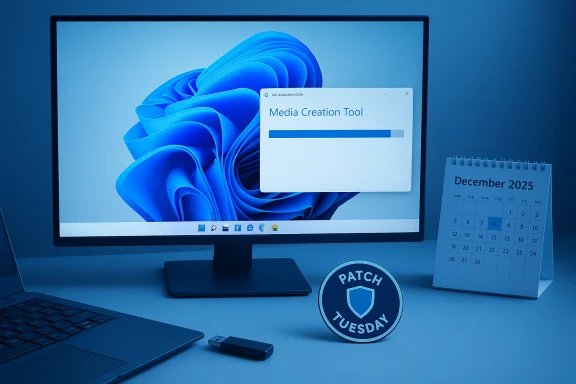
Blue desk setup with a monitor showing Media Creation Tool progress, a December 2025 calendar, and a Patch Tuesday sign.Background / Overview​

Microsoft released the December 9, 2025 cumulative update KB5072033 for Windows 11, advancing 25H2 and 24H2 systems to build numbers 26200.7462 and 26100.7462 respectively. This is a standard Patch Tuesday cumulative that bundles security fixes, servicing stack updates, and non-security quality improvements delivered previously in optional previews. The release notes and support page list the affected versions and the build targets. At the same time, third‑party reporters and community trackers observed an operational change to Microsoft’s Media Creation Tool (MCT): the tool’s backend image — the set of ESD/ISO files the tool downloads and packages — was swapped to the December 2025 image so that media created with MCT will be at the same build level as the Patch Tuesday release. Multiple independent outlets reported the change, and community sites refreshed their ESD listings and download guidance accordingly. Why this matters: historically, users who created installation media with MCT often had to apply multiple large cumulative updates after a fresh install because MCT packaged a slightly older image. With the backend image now aligned to Patch Tuesday, fresh installs from MCT media should require fewer immediate updates — a clear convenience win for end users and technicians alike.

What changed in the Media Creation Tool (MCT)​

The practical change​

  • The MCT backend image that MCT downloads now points at the December 2025 Windows 11 25H2 image (build 26200.7462) used by KB5072033. This means when you ask MCT to create installation media, the files it retrieves are the same patched files Microsoft shipped through Windows Update on December 9, 2025.
  • Several reporting outlets note the MCT application itself — the small executable you download from Microsoft’s Windows 11 download page — has not been rewritten to a new major version number. Observers report the tool binary remains at the same file version observed in prior months while the image files it pulls have been updated. Community trackers indicated the tool’s front-end/executable version remained unchanged, while the packaged OS image changed. This distinction matters for troubleshooting and for verification (see "Verification and caveats" below).

The immediate user experience​

  • When you run MCT and choose “Create installation media (USB flash drive, DVD, or ISO file)”, the tool downloads the updated ESD/ISO files and can create an 8 GB (minimum) USB installer that contains the December 2025 patched image. The process and UI remain the same; only the backend payload differs.
  • For users who prefer a manual ISO/ESD workflow, community repositories and ESD listings have already been updated with the 26200.7462 payload, so alternatives such as UUP‑based builders or manual ESD conversion workflows will also be able to produce media at the same patched level. Community mirrors and aggregation pages reflected the update within hours of Patch Tuesday.

Verification and caveats​

  • Official Microsoft documentation for KB5072033 confirms the build numbers (26200.7462 for 25H2 and 26100.7462 for 24H2) and lists the change log and known issues; that’s the canonical reference for what the cumulative update contains. The Microsoft support pages are the authoritative source for the build numbers and the security/service details.
  • Reports that the MCT executable file version remains at prior values (a widely reported number in community posts) are based on observations from sites that inspect the downloaded tool and the ESD outputs. those community reports are consistent, but direct verification of the MCT binary’s EXE file version (for example, the file metadata stamped in the downloaded MediaCreationTool executable) requires an inspection of the file on a test machine or a checksum comparison of Microsoft’s download link; public Microsoft pages do not always list the tool's internal file version. Where a claim is not directly visible in Microsoft’s public documentation, it should be treated as reported rather than officially confirmed.
  • In short: the backend image update is confirmed by multiple independent trackers and community writeups; the executable version claim is repeatable in community tests but is not always enumerated on a Microsoft landing page. Treat executable-version claims as verified by reporting sites rather than explicitly declared by Microsoft.

ESD/ISO availability and alternatives​

Community download aggregators and ESD trackers reported updated ESDs and ISO builds carrying the December 2025 patch (26200.7462 for 25H2). That means you can:
  • Use MCT to produce an official USB installer that contains the December image.
  • Use UUP‑based tools (community projects) to fetch the same UUP files and assemble an ISO yourself.
  • Alternatively, wait for Microsoft’s ISO downloads to reflect the patched image directly on the Microsoft download page; community evidence shows the MCT path is already serving the updated payload.
Pros and cons:
  • Pros: media created from the updated image will minimize immediate cumulative-update traffic after first boot and will include the security fixes and quality patches included in KB5072033.
  • Cons: enterprise IT teams that rely on tightly controlled golden images or managed deployment channels should still vet the updated image through their standard change control and imaging processes before broad deployment.

Known issues, install errors, and workarounds​

Error 0x800F0991 and install failures​

Shortly after KB5072033 began rolling out, many users reported repeated failures and installation loops with the update, often showing error code 0x800F0991. Microsoft’s community threads and the Q&A forum indicate this became a fairly common complaint and that Microsoft support acknowledged the problem in user communications. The common interim workarounds reported by users and support staff include:
  • Attempting a manual installation of the offline package (MSU) downloaded from the Microsoft Update Catalog.
  • Using the Media Creation Tool to perform an in-place upgrade or to create media and run setup from the USB installer.
  • Waiting for a subsequent servicing-stack update or follow-up patch if the device continues to fail with the known error.
These steps are pragmatic stopgaps; enterprises should test manual MSU installs in a controlled environment before broad application, and users who see persistent failures should follow Microsoft’s guidance and consider manual deployment of the package or rolling back if necessary.

Additional cautions in the release notes​

The KB5072033 support documentation also highlights non-installation items IT teams should be aware of — for example, guidance about servicing stack updates, combined SSU + LCU packages, and announcements about upcoming Secure Boot certificate expirations that may affect some devices in mid‑2026. Read the Microsoft support notes for the full list of known issues and administrative advisories.

How to use the Media Creation Tool to create an 8GB USB installer (quick guide)​

The process is unchanged functionally — only the payload it downloads has been updated. Follow these steps to create a bootable USB installer using MCT:
  • Download the Media Creation Tool from Microsoft’s Windows 11 download page (click Download now under Create Windows 11 installation media).
  • Run the downloaded executable as an administrator; accept the license terms.
  • Choose Create installation media (USB flash drive, DVD, or ISO file) and continue. Select language/edition (or leave defaults).
  • Insert an empty USB flash drive with at least 8 GB free space — MCT will format it and erase all contents.
  • Proceed and let MCT download the image and write it to the USB. Wait until the process finishes and you see the confirmation message.
Notes:
  • The tool will download several gigabytes of files; use a stable, reasonably fast connection.
  • If you prefer an ISO file instead of a USB stick, MCT offers an ISO option that you can save and then write with Rufus or another imaging tool.
  • For enterprise deployments, do not use unvetted MCT media to upgrade production fleets without prior testing.

Enterprise implications and deployment guidance​

For IT administrators managing multiple endpoints, a few points deserve emphasis:
  • Do not assume a single PC’s success implies fleet readiness. The updated MCT image reduces downstream update volume for fresh installs, but local driver, firmware, and OEM tooling differences can still cause post‑install issues. Validate the December image against representative hardware and workflows before mass rollout.
  • If you manage updates via WSUS, SCCM (ConfigMgr), or Windows Update for Business, continue to stage the KB5072033 packages through your usual test/validation rings and apply the update via your management stack rather than relying on ad‑hoc media deployment for broad rollout. Microsoft’s servicing guidance still applies: combined SSU + LCU packages require administrative consideration when planning removals or rollbacks.
  • For bare‑metal imaging and provisioning, update your golden images to incorporate the December build to save time on in-field patching; the MCT media may serve as a temporary bridge to create fresh instances that are nearer to fully patched state from first boot.
  • If you manage ARM‑based Windows devices, note that there were earlier reports and patches addressing ARM-specific MCT issues; verify that your ARM toolchain and images are the ones intended for your devices before deployment. Community reporting indicates Microsoft has addressed several earlier ARM issues via optional updates, but confirm on your target hardware.

Strengths, limits, and risk analysis​

Notable strengths​

  • Faster on-box readiness: Updated backend images in MCT directly reduce the quantity of cumulative updates that must be applied after a fresh install, saving time and bandwidth for both home users and technicians.
  • Cleaner recovery and repair paths: Having patched media available simplifies recovery scenarios and in-place repairs where an internet connection or full Windows Update sequence would otherwise delay remediation.
  • Consistency with Patch Tuesday: The alignment between the MCT image and the Patch Tuesday release eliminates the mismatch that previously forced immediate, large post‑install updates.

Potential risks and limitations​

  • Unverified binary metadata: While reporting sites agree the MCT payload is updated, the exact internal version of the MCT executable used to orchestrate the download is not always documented in Microsoft’s public UI. Where precise executable-version control matters (for example, in forensic or strict change-control environments), administrators should download and inspect the binary or use a known good repository. Treat executable‑version claims as reported until verified in your environment.
  • Known installation issues: The KB5072033 rollout is accompanied by a nontrivial set of user reports about installation failures (error 0x800F0991) that can affect both update‑over‑Windows‑Update and standalone installations until mitigations or follow‑ups are applied. Use the manual MSU or installation media pathways carefully and have rollback or recovery options ready.
  • Change control needs in enterprises: Automatically relying on MCT to supply production images bypasses an important step in enterprise change control. Always snapshot and validate golden images for driver, security, and policy compliance before wide deployment.

Practical recommendations​

  • For home users and small businesses: use the updated MCT if you want a patched installer quickly. For fresh installs, create an 8GB USB with MCT and perform the install from media; it will typically need fewer cumulative updates after first boot.
  • For IT teams and system builders: download the KB5072033 packages and apply them in a staging lab first. Consider integrating the patched build into your golden image and update your deployment documentation and driver packs accordingly. Don’t skip standard validation checks.
  • If you see the error 0x800F0991 on update: try the manual MSU installer from the Microsoft Update Catalog or use MCT to perform an in-place upgrade or a USB-based repair install. If failures persist, follow Microsoft’s published guidance and open a support case for persistent, reproducible failures.

Conclusion​

The Media Creation Tool’s quiet backend update to the December 2025 patched Windows 11 image is a welcome operational improvement: it reduces the post‑install update burden and gives users an easy path to create recovery or installation media that’s already aligned with Patch Tuesday. At the same time, the KB5072033 rollout has surfaced install reliability problems in some scenarios, and enterprises should continue to exercise validated deployment workflows. Community trackers and Microsoft’s support pages provide the canonical build numbers and the immediate troubleshooting guidance; combine those resources with your internal testing and you’ll get the best balance of speed and stability when using the updated Media Creation Tool.
Source: Windows Report Microsoft's Updated Media Creation Tool Can Now Help With Windows 11 25H2 USB Setup
 

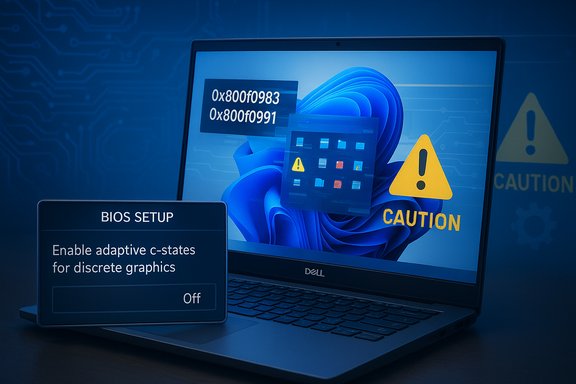
Dell laptop shows BIOS setup warning about adaptive c-states for discrete graphics with caution icons.
Several Dell desktops and laptops have hit serious stability and installation problems after installing Microsoft’s December cumulative update for Windows 11, KB5072033, with reports ranging from repeated update failures (error codes such as 0x800f0983 and 0x800f0991) to complete system freezes on select Dell Pro Max models and a non‑functional Start Menu on some 24H2 systems.

Background​

Microsoft published the December 9 cumulative update KB5072033 for Windows 11 (builds 26100.7462 for 24H2 and 26200.7462 for 25H2). The package is distributed as a combined Servicing Stack Update (SSU) + Latest Cumulative Update (LCU), which improves servicing reliability but also changes rollback characteristics. Microsoft’s official documentation lists known issues and provides administrative mitigations (including a Known Issue Rollback Group Policy for affected organizations). At the same time, community and OEM reports flagged two broad classes of failures after KB5072033 rolled out: (1) installs repeatedly failing or looping with servicing error codes (notably 0x800f0983 / 0x800f0991), and (2) device-specific functional regressions on certain Dell hardware — in particular system freezes on Dell Pro Max 16250 systems linked to a BIOS power‑management/graphics setting. These reports have been amplified across vendor forums, independent blogs and Microsoft’s own Q&A threads.

What users are seeing right now​

Installation failures and servicing error codes​

  • Symptoms: Windows Update will download KB5072033 and start installation, but the installer hangs or rolls back at the commit phase. Users report progress stalling at an early percentage (often in the 10–20% range) or during finalizing changes, then an error appears in Update History. The most common error codes reported are 0x800f0983 and 0x800f0991, both of which indicate a servicing/component store failure during the cumulative update commit.
  • Scope: Failures appear on a mix of hardware and OS channels — consumer and enterprise machines have both been reported — but noise in the forums suggests clusters on certain OEM models and some newly imaged fleets. Microsoft’s Q&A threads show multiple users reproducing the same failure patterns.

System freezes on Dell Pro Max 16250 (and similar models)​

  • Symptom: After applying the update, some Dell Pro Max 16250 units exhibited frequent system freezes and hard hangs that required power cycling. Initial community speculation pointed to GPU drivers (Intel Arc was suspected), but hands‑on troubleshooting and forum collaboration led to a different root cause hypothesis: a BIOS power/graphics interaction.
  • Working mitigation discovered by users: Disabling the BIOS setting “Enable adaptive c‑States for discrete graphics” (found under Advanced Setup → Performance) reportedly eliminated the freezing behavior on affected machines. That BIOS option is documented in Dell’s owner manual; by default it can be enabled to allow the system to switch power states dynamically when the discrete GPU is in use. Several community posts and Dell forum threads cite turning that option off as an effective workaround. This is a user‑discovered mitigation and should be treated as such until Dell posts an official advisory or firmware/driver update.

Start Menu / XAML app failures on 24H2​

  • Symptom: On some Windows 11 24H2 systems the Start Menu fails to open at all after KB5072033 installs, and Explorer/XAML‑based apps may crash or not initialize correctly.
  • Connection to known Microsoft issue: Microsoft previously documented a separate but related problem under KB5072911 that affects XAML‑dependent components (Explorer, StartMenuExperienceHost, System Settings) after certain cumulatives on provisioned or enterprise-managed devices. KB5072911 explains that XAML packages may not register in time after an update, causing the shell and other components to fail to initialize; Microsoft’s guidance has been to re‑register missing packages or use other administrative workarounds while a fix is developed. The Start Menu failures reported after KB5072033 appear consistent with the symptoms described in KB5072911, especially in managed or non‑persistent environments.

Deep technical analysis​

Why servicing errors like 0x800f0983 and 0x800f0991 keep appearing​

Error codes in the 0x800f0xxx range typically indicate a failure in the Component‑Based Servicing (CBS) pipeline — the subsystem that sequences and commits updates to the Windows Component Store (WinSxS). Causes can include:
  • Component store corruption or mismatched payloads so the LCU can’t be committed.
  • Missing prerequisite SSUs or ordered MSU components when installing manually.
  • Interference from third‑party filter drivers or security products that prevent file replacement during commit.
  • Corrupted local payload caches or transient IO issues during the commit phase.
Community troubleshooting consistently recommends the usual servicing playbook (Windows Update Troubleshooter, reset SoftwareDistribution/catroot2, DISM /RestoreHealth, sfc /scannow) first, but some environments required deeper remediation such as running an in‑place repair, using the Media Creation Tool, or applying the SSU manually before the LCU. Microsoft rolled fixes earlier in the autumn to address some permutations of 0x800f0983, but community reports show that some permutations persist depending on OEM drivers, firmware, and imaging configurations.

The Dell Pro Max freezes: BIOS + power management + GPU interactions​

The Dell Pro Max manual documents an Enable adaptive C‑States for discrete graphics option that lets the system adapt power/performance behavior when the discrete GPU is active. The community’s troubleshooting trace suggests that after KB5072033’s changes to GPU/graphics/UI handling (or after a driver/firmware handshake), the system could enter a state where low‑level power transitions misbehave on specific firmware builds — producing hard hangs rather than graceful crashes.
Two important caveats:
  • This BIOS toggle is documented in Dell’s manual and exists to manage power/performance tradeoffs; disabling it reduces dynamic power gating in favor of a more static (and reportedly stable) configuration. But toggling firmware settings alters thermal and battery behavior and is not a universal fix for all hardware.
  • The community fix (turning the setting off) is an empirical workaround, not an engineering root‑cause analysis validated by Dell or Microsoft. Until OEM firmware or Microsoft servicing changes are issued, treat the BIOS switch as a targeted mitigation for affected units only.

The Start Menu / XAML problem’s enterprise angle​

KB5072911 is explicit that these XAML registration failures disproportionately affect managed, provisioned, or non‑persistent environments (such as VDI or images that rely on per‑logon package registration). The risk: a fleet can be partially or completely blocked from using critical shell components after provisioning or after an update if application packages fail to register in the expected sequence. Microsoft’s remediation guidance centers on re‑registering missing packages and using Known Issue Rollback where applicable, but the episode highlights a structural fragility when large OS updates involve XAML package sequencing and provisioning workflows.

What Microsoft and Dell have (or haven’t) done so far​

  • Microsoft’s KB for KB5072033 documents the release and includes administrative guidance and Known Issue Rollback Group Policy packages for mitigations that can be applied by IT administrators. The company is tracking related issues and has published relevant KBs for related symptoms. However, Microsoft has not yet published a one‑line “fix” that resolves every community report; instead, administrators are given mitigations and monitoring guidance while fixes are developed.
  • Dell’s public manuals document the BIOS setting at the center of the Pro Max freeze workaround, but at the time of writing Dell has not broadly published a KB explicitly tying a firmware patch to KB5072033 or issuing a model‑specific advisory for all affected Pro Max machines. Community threads on Dell’s support forums show technicians and owners experimenting with BIOS toggles as an interim step; enterprise customers should engage Dell Support for formal guidance on firmware updates or validated mitigations.

Practical guidance: what to do now​

The situation differs for home users, power users, and IT administrators. The following steps prioritize preserving stability and minimizing exposure.

For home and small‑business users​

  1. Pause automatic updates if you have a critical workflow or if your machine is showing the symptoms described above. Use Settings → Windows Update → Pause updates. This prevents repeated failed attempts that can complicate repair.
  2. If you’ve already updated and see hangs or Start Menu failures:
    • Try the safe first steps: reboot, run Windows Update Troubleshooter, then run DISM /Online /Cleanup‑Image /RestoreHealth and sfc /scannow. Many install failures are resolved after component store repairs and a retry.
    • If servicing errors persist, use the Media Creation Tool to perform an in‑place upgrade / reinstall (this preserves files/apps but refreshes system components). Several community reports found this clears stubborn servicing errors.
  3. If your Start Menu or Explorer is broken, Microsoft’s guidance for KB5072911 recommends re‑registering XAML packages via PowerShell and restarting the shell processes; that is a known mitigation for XAML package registration failures.

For Dell Pro Max 16250 or similar affected systems (workaround approach)​

  1. If the system freezes after installing KB5072033, consider testing the BIOS change reported by users: reboot into BIOS → Advanced Setup → Performance → set Enable adaptive c‑States for discrete graphics to Off. Reboot and validate stability. This is an empirical workaround that many owners report as effective. Note: changing BIOS power management settings affects power profile and may alter thermals or battery life.
  2. If you’re managing a fleet of Pro Max machines, pilot the BIOS change on a small set first and collect telemetry (minidumps, Event Viewer, Windows Reliability Monitor entries) before rolling out a wide policy. Open a support case with Dell and request model‑specific guidance and firmware updates.

For IT administrators and enterprise fleets​

  • Defer rapid mass deployment of KB5072033 until pilot rings (representative hardware + drivers + imaging) validate the update on your critical platforms. Microsoft’s packaging of SSU+LCU makes clean rollback harder; a failed mass rollout complicates operations.
  • Use Known Issue Rollback (KIR) Group Policy packages where Microsoft has published them to temporarily disable specific changes that cause breakage in your environment. Microsoft’s KB for KB5072033 includes references to KIR deployment guidance.
  • If you manage provisioned or non‑persistent images (VDI), apply Microsoft’s KB5072911 mitigations: register the missing XAML packages in user sessions, restart SiHost/ImmersiveShell, and ensure your provisioning flow registers required packages before first user logon.
  • Capture logs proactively (WindowsUpdate.log, CBS.log, DISM logs, minidumps). If you escalate to Microsoft or Dell, a support bundle with these artifacts speeds root‑cause analysis.

Risks, tradeoffs and the larger picture​

  • Security vs stability tradeoff: KB5072033 contains security fixes and servicing‑stack improvements; delaying the update protects stability in the short term but leaves devices without the latest security hardening. Administrators must weigh the risk profile of their environment — high‑risk exposed endpoints should prioritize security patches but only after validation of device compatibility.
  • Firmware/driver interplay: Many of the reported regressions are not purely “Windows” problems; they occur at the hardware/firmware/driver boundary. That means a combination of vendor BIOS updates, GPU driver updates, and Windows servicing changes will likely be required for a durable fix. Expect cross‑vendor coordination cycles and test accordingly.
  • Workaround caution: BIOS toggles and driver rollbacks are pragmatic mitigations, but they change device behavior and must be tested for side effects (battery life, throttling, power consumption, thermal profiles). Use pilot testing and monitoring before broad application.

What to watch next (short checklist)​

  1. Microsoft service updates: monitor Microsoft’s release health / KB updates for a patched servicing update or an explicit known‑issue entry resolving the 0x800f0983/0x800f0991 install failures. The KB pages and Q&A threads are the authoritative place Microsoft posts mitigation and fixes.
  2. Dell firmware/drivers: watch Dell Support for BIOS firmware updates or model advisories that reference the December cumulative or advise on the adaptive C‑States setting. Engage Dell ProSupport for enterprise impact and escalation paths.
  3. Independent reporting and community threads: community troubleshooting often surfaces reproducible mitigations faster than vendor advisories; however, validate community fixes in a test environment before applying to production. Recent community writeups and forum threads provide tactical steps that many admins have used to recover affected machines.

Final analysis and recommendations​

KB5072033 is a standard December cumulative that delivered security and quality fixes alongside a bundled SSU. The update is useful and necessary — but its rollout has exposed several edge cases in real‑world device fleets, particularly at the nexus of OEM firmware, GPU drivers, and Windows’s servicing pipeline. Microsoft has provided administrative mitigations and is tracking the issues; meanwhile, OEM documentation and community troubleshooting have identified practical workarounds for some of the more disruptive symptoms (notably the Dell BIOS toggle for Pro Max freezes). For individual users and small businesses, the conservative approach is to pause updates temporarily and apply the update only after you can validate it on a test machine or after a confirmed fix is available. For administrators and enterprises, stage KB5072033 through a pilot ring, use Microsoft’s Known Issue Rollback where applicable, and prepare recovery plans (in‑place repair images, tested rollback images, and a logging/telemetry collection process). If you run Dell Pro Max devices that freeze after the patch, test the BIOS “Enable adaptive c‑States for discrete graphics = Off” workaround under a controlled pilot and coordinate with Dell for formal firmware/driver guidance. Caution: community fixes are valuable but not a substitute for vendor‑validated patches. Where a claim (for example, “BIOS toggle fixes all problems”) is only reproduced by a small number of users or appears only in forum threads, treat it as an operational workaround and seek vendor confirmation before making it your default operational posture.

KB5072033’s rollout demonstrates the fragility that can occur when servicing touches low‑level components, firmware interactions and packaging sequencing at scale. The path forward combines careful staging, vendor coordination, and rapid log capture/analysis — practical steps administrators and power users can act on today to keep systems secure without accepting unnecessary downtime.
Source: Gizmochina Dell PCs face installation failures and system freezes after Windows 11 December update - Gizmochina
 

Back
Top