

Microsoft rolled out a Windows 11 preview update that quietly fixes several nasty stability problems — including an Explorer.exe crash that could take down the taskbar and Start menu — but the same preview also introduced a jarring visual regression in File Explorer’s dark mode and other edge-case issues that make this release a mixed bag for most users and IT teams.
Microsoft published an optional, non‑security preview cumulative on December 1, 2025 (KB5070311 for the LCU and an accompanying servicing stack update KB5071142) that targets a set of user‑facing reliability and UI problems across Windows 11. The update set includes fixes for a race condition that could cause explorer.exe to stop responding — which in turn can make the taskbar, Start menu and other core shell surfaces vanish — plus fixes for display enumeration delays that produced a brief stutter when launching certain high‑resolution games. Microsoft’s release notes list the builds as OS build 26200.7309 (25H2) and 26100.7309 (24H2). That’s the good news. The preview also ships at least two known issues: a bright white “flash” in File Explorer when dark mode is active, and an intermittent sign‑in icon visibility problem on the lock/sign‑in screen. Microsoft has acknowledged both problems in the KB article and marked them as known issues while they work on fixes. Multiple independent outlets and community reports confirm both the fixes and the regressions.
For power users and IT pros, the preview system remains valuable: it allows early access to fixes and the chance to validate changes. For mainstream users — especially those using dark mode or shared sign‑in experiences — the safer path is to wait for the cumulative that has had time to absorb preview feedback or for Microsoft to issue a follow‑up patch addressing the regressions.
Source: TechRadar https://www.techradar.com/computing...-grab-it-yet-especially-if-you-use-dark-mode/
 Background / Overview
Microsoft published an optional, non‑security preview cumulative on December 1, 2025 (KB5070311 for the LCU and an accompanying servicing stack update KB5071142) that targets a set of user‑facing reliability and UI problems across Windows 11. The update set includes fixes for a race condition that could cause explorer.exe to stop responding — which in turn can make the taskbar, Start menu and other core shell surfaces vanish — plus fixes for display enumeration delays that produced a brief stutter when launching certain high‑resolution games. Microsoft’s release notes list the builds as OS build 26200.7309 (25H2) and 26100.7309 (24H2). That’s the good news. The preview also ships at least two known issues: a bright white “flash” in File Explorer when dark mode is active, and an intermittent sign‑in icon visibility problem on the lock/sign‑in screen. Microsoft has acknowledged both problems in the KB article and marked them as known issues while they work on fixes. Multiple independent outlets and community reports confirm both the fixes and the regressions. What the update fixes — the practical wins
The previews like KB5070311 are focused on quality-of-life and stability patches rather than feature drops. The most consequential corrections in this release are:- Explorer.exe stability: Microsoft lists and addresses a condition where explorer.exe could become unresponsive (leading to a non‑functional taskbar and Start menu) after certain notifications. This was a high‑impact, reproducible failure for a subset of users, and it is explicitly called out in the Microsoft advisory.
- File Explorer UI and toolbar bugs: A stray toolbar that could appear unexpectedly in File Explorer and various thumbnail/display inconsistencies are reported as fixed. These are important for daily usability and reduce random visual noise.
- Taskbar icon sizing / scaling glitches: Fixes address scenarios where taskbar icons would shrink unnecessarily (not due to expected scaling), which could confuse users and break discoverability.
- Display enumeration and game launch micro‑stutter: For very high‑resolution or high‑refresh monitors, some games experienced a short hitch on launch when the game queried the monitor’s supported modes. Microsoft reports that this timing path has been smoothed to avoid that perceptible startup stutter. This reduces the initial jolt though it did not affect in‑game framerate once the session began.
- False “unsupported GPU” messages: The update corrects cases where fully supported GPUs would throw an “unsupported graphics card detected” error. This can break game or app launch flows and creates needless support tickets.
- All‑in‑one PC brightness slider bug: Some AIO devices saw their brightness revert to original levels while interacting with the slider; that behavior is listed as fixed.
The regressions and risks — why this preview is a mixed bag
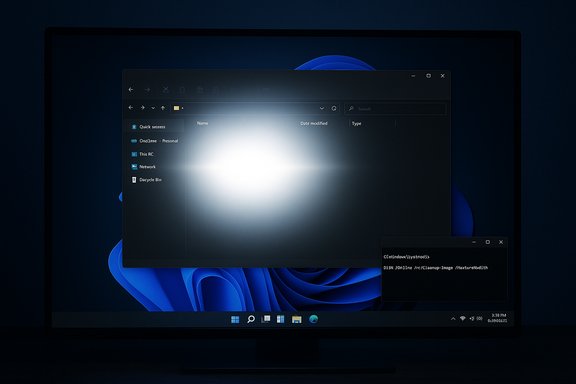
Preview or optional updates are testbeds; they can solve long‑standing faults but also introduce new problems. In KB5070311 the tradeoff is clear:- File Explorer white flash in dark mode: After installing the preview, users who run Windows in dark mode can experience a brief, visually aggressive white flash when opening File Explorer, creating a jarring experience that defeats the purpose of dark mode. Microsoft has documented this as a known issue and is working on a remedy. The problem has been widely observed across community posts and coverage from mainstream outlets. If you rely on dark mode for low‑light readability or accessibility reasons, this is a show‑stopper.
- Sign‑in / lock screen icon visibility: In a small subset of configurations the password type icons on the sign‑in screen can become invisible (though still functional). That’s a UX/UX accessibility regression that particularly affects shared and kiosk devices. Microsoft lists it as a known issue.
- Preview update complexity and rollback friction: This preview ships as a combined SSU + LCU package. Because the servicing stack update (SSU) is included, naive uninstalls (for example via wusa.exe /uninstall) won’t remove the package cleanly. Microsoft documents using DISM to locate and remove the LCU component by package name (DISM /online /get-packages and then DISM /Online /Remove‑Package /PackageName:<name>), but that workflow is more technical and riskier for large deployments than a simple Control Panel rollback. Administrators should treat uninstalls carefully and test rollback procedures in their environment before wide deployment.
- Unclear root cause for explorer crashes: Microsoft’s notes and the available public material stop short of a root‑cause write‑up for the Explorer/notification crash; the fix is described as addressing the symptom (race condition) rather than disclosing specifics. That means teams relying on forensic details to mitigate similar custom software interactions may lack the full picture. Treat the root cause as unverified until Microsoft publishes further diagnostics.
How to decide: who should install and who should wait
This update is optional and not security‑critical. Here’s an operational decision tree that balances benefit and risk.- You should install the preview if:
- You are an enthusiast or a power user who experiences the specific bugs it fixes (taskbar/Explorer crashes, gaming micro‑stutter, false GPU errors), and you are comfortable with testing and rolling back via DISM if necessary.
- You run test or lab machines and need to validate the fixes ahead of broader organizational rollout.
- You provide feedback or telemetry to Microsoft through Insider/preview channels and intend to help accelerate any follow‑up fixes.
- You should wait (recommended for most users and production systems) if:
- You use dark mode regularly — the white flash is disruptive and unavoidable until Microsoft fixes it.
- You manage enterprise or shared devices where the sign‑in UX must be consistent and accessible.
- You are not equipped to perform or test a DISM‑based rollback and prefer the simplicity of a fully vetted cumulative release.
Practical steps — check, install, roll back, and mitigate
1. How to check whether KB5070311 is installed
- Open Settings → System → About.
- Check the OS build number; the preview will show build 26200.7309 or 26100.7309 depending on your 25H2/24H2 branch.
2. How to install (if you choose to)
- The preview is available via Settings → Windows Update → Optional updates available — look for the KB5070311 entry and install from there. The Microsoft KB article describes the same install pathways and the inclusion of the servicing stack update.
3. How to remove the preview if you encounter regressions
- Because the preview includes an SSU and LCU together, the safe removal path is via DISM:
- Open an elevated Command Prompt or PowerShell.
- Run: DISM /online /get‑packages — locate the package name for the LCU that corresponds to KB5070311.
- Run: DISM /Online /Remove‑Package /PackageName:<that‑package‑name>
- Note: wusa.exe /uninstall will not work for combined SSU+LCU packages; Microsoft documents the DISM method as the required approach. Test this rollback process in a non‑production environment before applying it across many endpoints.
4. Short‑term mitigation for the File Explorer white flash
- If you must keep the preview but can’t tolerate the white flash, temporarily switch off dark mode: Settings → Personalization → Colors → Choose your mode → Light. This is inelegant and not a real fix, but it avoids the visual jolt while Microsoft patches the regression. Several outlets and community guides call this the straightforward workaround for affected users.
Deeper technical analysis — what likely caused the problems
Microsoft’s notes describe the explorer crash as a race condition triggered “after certain notifications” without publishing a public root‑cause analysis. The symptom profile (Explorer crash on notification arrival) strongly suggests an interaction between the notification plumbing, explorer’s UI thread, and an unexpected state or payload in the notification path that led to a deadlock or unhandled exception.- Race conditions in UI shells are common after modularization: when UI components (XAML, AppX shells) are moved into more modular subsystems, ordering and registration timings matter. If a notification triggers a UI action before a required subsystem is fully registered, the result can be a crash or an assert that terminates explorer.exe. The preview’s remedy likely hardens ordering or adds guard checks to avoid the failure path. This is consistent with Microsoft’s wording and the fix’s symptom profile. (This is an informed inference based on the supplied symptom; Microsoft has not confirmed the internal design details.
- The display enumeration stutter points to blocking calls in the monitor/driver enumeration path. When apps query monitors for supported modes, the driver stack and EDID parsing can be slow on some high‑resolution/high‑refresh combos, and if that path is called synchronously on the foreground thread, it produces a perceptible hitch. Smoothing this interaction usually requires moving enumeration to async paths, caching results, or failing fast to maintain UI responsiveness. Microsoft’s notes indicate such a timing path was optimized.
- The File Explorer white flash is likely a rendering or theming regression introduced while expanding dark mode across more dialogs. Dark mode rendering often requires consistent initialization of theme resources and double‑buffering; if a window paints using default (light) resources before the dark theme is applied, the result is a white frame followed by dark paint. Fixing this typically involves ensuring theme resources are applied before any visible paint occurs or masking the initial paint until the final theme is ready. Microsoft has acknowledged the issue and will need to adjust the rendering or initialization order. Until Microsoft confirms the exact fix, this remains a plausible technical explanation.
Enterprise and IT operations guidance
- Do not deploy KB5070311 broadly to production devices. Treat it as a preview test build: stage in lab networks, validate the specific fixes you need, and confirm rollback procedures. The combined SSU/LCU packaging makes uninstalls more complex and demands careful change control.
- If you have endpoint telemetry showing Explorer crash signatures, prioritize testing this preview on a small set of representative machines. Confirm whether the crash signature disappears and whether any new UI regressions present unacceptable risk.
- Communicate with users about dark mode: If your organization uses dark mode images, educate users about the potential white flash and how to temporarily switch themes, or simply wait for the fully vetted cumulative.
- If you rely on kiosk or shared sign‑in experiences, delay the preview until Microsoft resolves the sign‑in icon issue.
Broader context — what this says about Microsoft’s update strategy
Microsoft continues to push frequent servicing updates and to broaden dark mode coverage, accessibility improvements and gaming refinements. That ambition comes with a well‑known tradeoff: more rapid change increases the chance of regressions slipping through, particularly where UI rendering and driver interactions are tightly coupled. The December preview shows Microsoft is responsive to user reports (fixing high‑impact explorer crashes and gaming hitches), but the File Explorer dark mode regression is a reminder that UI consistency is fragile and easily impacted by layered changes.For power users and IT pros, the preview system remains valuable: it allows early access to fixes and the chance to validate changes. For mainstream users — especially those using dark mode or shared sign‑in experiences — the safer path is to wait for the cumulative that has had time to absorb preview feedback or for Microsoft to issue a follow‑up patch addressing the regressions.
Quick summary and final recommendations
- KB5070311 (preview, released December 1, 2025) addresses serious stability issues including explorer.exe crashes that affect the taskbar and Start menu, and it improves display enumeration and gaming launch stutters.
- The same preview introduces at least two known issues: a bright white flash in File Explorer when dark mode is active, and an invisible sign‑in icon problem. Microsoft has acknowledged both and marked them in the KB as known issues.
- For home power users who see the specific bugs fixed, installing the preview after backing up and verifying rollback procedures is reasonable. For the majority of users and all production fleets, wait for the December cumulative (Patch Tuesday, likely December 9, 2025) or until Microsoft publishes an immediate follow‑up that resolves the File Explorer regression. This minimizes disruption and avoids the technical rollback complexity that combined SSU+LCU packages introduce.
- If you do install and hit the white flash, temporarily switch to Light mode as a stopgap. If you need to remove the preview, follow Microsoft’s DISM guidance to remove the LCU package safely.
Source: TechRadar https://www.techradar.com/computing...-grab-it-yet-especially-if-you-use-dark-mode/
