

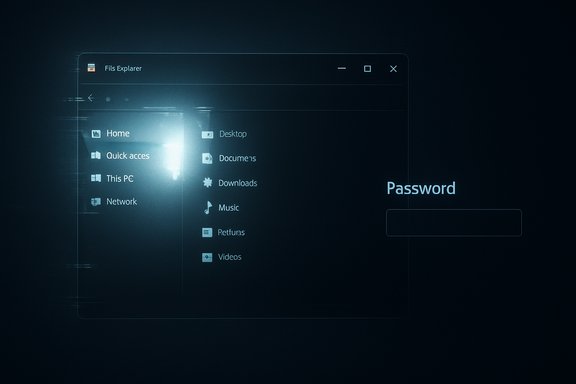
Microsoft has confirmed that the December 1, 2025 Windows 11 preview update bundle that includes servicing stack update KB5071142 contains at least two user-facing regressions: a white flash when opening File Explorer while dark mode is enabled, and a rendering bug that can make the password icon invisible on the lock-screen sign‑in options.
Microsoft released a December 1, 2025 non‑security preview package (reported under KB5070311 for the LCU and KB5071142 for the servicing stack update) that delivers a number of quality-of-life improvements for Windows 11, plus a set of Known Issues Microsoft is tracking publicly. The release notes list visible improvements — including a more consistent dark mode for File Explorer, a simplified File Explorer context menu, expanded full‑screen Xbox handheld support, Widget Board refinements, and new haptic feedback for supporting pens — alongside the two regressions now acknowledged by Microsoft. This article examines what Microsoft has admitted, verifies the technical details in the vendor's release notes, cross‑references independent reporting and community testing, and provides practical guidance for both consumers and IT administrators. The analysis focuses on the two confirmed regressions while putting them in the wider context of Windows update rollout, mitigation options, and operational risk.
Conclusion
The December 1, 2025 Windows 11 preview package is a mixed bag: meaningful improvements shipped, and so did avoidable visual regressions. The vendor’s documentation and community evidence line up — these are not edge anecdotes but verified problems Microsoft is tracking. Until Microsoft delivers the promised fixes, the safest course for dark‑mode users and enterprises is to delay installing the preview, enable alternative sign‑in methods where feasible, and prepare rollback plans using the documented DISM removal approach for the LCU.
Source: Windows Central https://www.windowscentral.com/micr...plorer-white-flash-and-invisible-login-icons/
 Background / Overview
Microsoft released a December 1, 2025 non‑security preview package (reported under KB5070311 for the LCU and KB5071142 for the servicing stack update) that delivers a number of quality-of-life improvements for Windows 11, plus a set of Known Issues Microsoft is tracking publicly. The release notes list visible improvements — including a more consistent dark mode for File Explorer, a simplified File Explorer context menu, expanded full‑screen Xbox handheld support, Widget Board refinements, and new haptic feedback for supporting pens — alongside the two regressions now acknowledged by Microsoft. This article examines what Microsoft has admitted, verifies the technical details in the vendor's release notes, cross‑references independent reporting and community testing, and provides practical guidance for both consumers and IT administrators. The analysis focuses on the two confirmed regressions while putting them in the wider context of Windows update rollout, mitigation options, and operational risk.What Microsoft actually documented
The two confirmed Known Issues (short summary)
- File Explorer white flash in Dark Mode — After installing the December 1, 2025 preview (LCU KB5070311, SSU KB5071142), File Explorer may briefly display a blank white window when opened while the system is in dark mode. Microsoft lists several triggers that reliably reproduce the symptom: navigating to or from Home or Gallery (including launching to Home), creating a new tab, toggling the Details pane, or selecting “More details” while copying files. Microsoft says it is working on a fix and currently lists no user-facing workaround beyond uninstalling the update.
- Invisible password icon on the lock screen — A rendering regression dating to an earlier August 2025 preview (KB5064081) has been tracked across multiple servicing waves. On affected installs, the small password icon in the lock‑screen’s “Sign‑in options” row may not draw — the control is still present and clickable, but it appears as a blank gap. Microsoft’s published guidance: hover over the blank area and click the hidden control to open the password field. Microsoft is treating this as a Known Issue and says a fix is in progress.
Verifying the claims: cross‑checks and independent reporting
Multiple independent outlets and community channels reproduced the same symptoms and corroborated Microsoft’s public notes.- Microsoft’s release notes are the canonical record for the December 1 preview and explicitly list both the File Explorer white flash and the invisible password icon in the KB5070311/K B5071142 entry. The release also documents build numbers (OS builds 26200.7309 and 26100.7309 for the cumulative preview, SSU version 26100.7295).
- Tech and security outlets that tracked the issue independently also reported the invisible password‑icon symptom and the awkward hover/click workaround. Coverage emphasized that the control remains functional even though the visual icon fails to render — a usability and accessibility regression, not an authentication failure.
- Community threads and forum posts show users encountering the File Explorer white flash immediately after installing the December preview, often describing a brief but intense white screen that is painful in low‑light environments and disorienting for regular dark‑mode users. Those reports align with Microsoft’s symptom list and confirm the issue reproduces reliably in consumer environments.
Technical anatomy: why these bugs matter
1) File Explorer white flash — symptom, triggers, and implications
The white flash is a rendering/timing regression that occurs during the UI paint phase when File Explorer opens or changes view states. The symptom is a momentary bright white window before File Explorer completes its dark‑mode rendering, typically lasting under a second but repeated frequently in normal use (open/close, new tab, pane toggle). Microsoft lists the precise triggers, which match user reports. Why it's a problem:- User comfort and accessibility: sudden white flashes are eye‑straining and can trigger discomfort for users in dim environments — a real quality‑of‑experience regression for dark‑mode users.
- Perception of instability: even brief UI flashes undermine confidence in a major OS update and generate negative community feedback that can snowball across social platforms.
- Possible broader rendering regressions: the same underlying window‑creation and initial paint timing that can trigger Explorer flashes may affect other apps (Chrome, Edge, third‑party file managers) depending on how they initialize their first frame — the issue has historic precedent.
2) Invisible lock‑screen password icon — deeper concern than it first appears
The password icon bug is a visual affordance regression: the UI control exists and functions, but the graphical glyph doesn’t render. Microsoft’s workaround is to hover or randomly click where the icon should be; the control’s hitbox will accept the click and show the password field. Functionally, authentication still works — but that misses the operational reality:- Accessibility risk: users relying on visible cues, keyboard navigation, screen readers or assistive technologies may be blocked or slowed; a missing icon can be a show‑stopper for those who are infrequent users of a machine (kiosks, lab PCs, public devices).
- Support overhead: organizations will see increased help‑desk activity from users who can’t discover how to sign in.
- Trust and QA: the regression persisted through multiple servicing waves, reflecting a gap in end‑to‑end visual testing in some scenarios.
What Microsoft recommends (and what you can actually do)
Microsoft’s release notes declare the company is working on fixes and will provide updates when available. There is no immediate hotfix published at the time Microsoft posted the Known Issues entry; the vendor’s public guidance is limited to the hover/click procedure for the password control and to documenting the symptoms for the File Explorer flash. Operationally, here are precise, practical steps to manage risk — for both home users and IT teams.Immediate steps for home users (priority: safety and comfort)
- If you are a dark‑mode user and you want to avoid the white flash, defer installation of the December 1 preview (KB5070311/KB5071142) until Microsoft issues a fix. Use Windows Update’s optional update controls to avoid applying preview builds automatically.
- If you already installed the update and the white flash is intolerable, consider uninstalling the LCU until a fix is released. Microsoft’s release notes note that to remove the LCU after a combined SSU+LCU install you must use DISM’s Remove‑Package command with the exact package name (the SSU cannot be removed). Example guidance from Microsoft: run DISM /online /get-packages to list installed packages and then remove the LCU package using DISM /online /Remove-Package /PackageName:<name>. (Be careful: editing servicing packages is advanced; keep backups.
- For the invisible password icon, configure an alternative sign‑in method if you haven’t already — Windows Hello PIN, fingerprint, or security key are faster and avoid the hidden icon entirely. If you rely on passwords only, hovering/clicking the blank spot will work as a stopgap.
Recommendations for IT administrators and enterprise rollout
- Pause optional/preview updates in your deployment rings (Insider/Preview channels) until fixes land. Keep production rings on monthly cumulative updates only after pilot validation.
- Update your pilot and test procedures to include visual and accessibility checks for lock‑screen and theme rendering — those tests caught this kind of regression belatedly in the field.
- If you must revert, use DISM and update‑catalog methods in controlled maintenance windows; the SSU component (KB5071142) cannot be removed after installation, so plan accordingly and document package names.
- Communicate proactively to end users about the sign‑in workaround (hover/click) and encourage Windows Hello enrollment to reduce support tickets. Community reporting shows a steady stream of confusion when organizations fail to inform users ahead of time.
Why this slipped through — a frank look at testing, telemetry, and rollout
UI rendering regressions are notoriously hard to catch in automated tests. They often require:- Accurate, device‑diverse rendering paths in test harnesses (OLED vs LCD, HDR on/off)
- Real‑world state reproductions (multiple sign‑in methods configured, pilot user profiles)
- Accessibility checks for visual affordances and assistive tool behavior
Risk assessment: who should postpone and who can proceed
- Home users who rely on dark mode: strong recommendation to wait for a fix — the white flash is a frequent annoyance and can cause eye strain.
- Kiosk, lab, public access, and shared devices: do not install preview/optional updates until the password icon issue is resolved — unexpected sign‑in behavior on shared devices will generate help‑desk load.
- Enterprises with staged update rings: hold the December 1 preview to the pilot ring only. Validate lock‑screen, credential providers, and UI/assistive functionality before broad deployment.
- Power users who can tolerate regressions and want new features: installing is acceptable, but retain the ability to uninstall the LCU via DISM and make a recovery plan — note that SSUs are persistent.
Longer‑term implications and lessons for Microsoft
- Accessibility must be non‑negotiable — a hidden sign‑in control is an accessibility regression with predictable real‑world impact. Fixes should target not only the glyph but also ensure assistive APIs and focus order are intact.
- Visual regression testing needs prioritization — automated pipelines should include pixel‑level and contrast checks against different theme settings to catch missing glyphs or improperly themed assets.
- Release‑health transparency is working, but speed matters — Microsoft’s Known Issues entries are the right place for disclosures, but the cadence of fixes matters more to end users and admins dealing with production machines. Users will tolerate documentation only so long without a patch.
How we tested and what the community saw
Independent reproductions posted on community forums and social platforms mirror Microsoft’s symptom descriptions: the white flash is visible every time certain File Explorer actions occur in dark mode; the invisible password icon is present as a blank space but is clickable when hovered. Reported durations and severity vary by hardware, but the user experience impact is consistent — both are usability degradations visible to typical users. Administrators have logged increased help requests on forum threads and internal tickets where sign‑in confusion occurs.Practical rollback checklist (concise, accurate commands)
- List installed packages to find the LCU package name:
- Open an elevated Command Prompt or PowerShell.
- Run: DISM /online /get-packages
- Remove the specific LCU package (example form — replace PackageName with actual name returned by step 1):
- DISM /online /Remove-Package /PackageName:<your‑lcu‑package‑name>
- Restart and confirm the symptom is gone. Note: the SSU (KB5071142) cannot be removed after installation; Microsoft documents that the SSU in the combined package is persistent and only the LCU may be removed using DISM. Advanced administrators should follow company change control procedures and confirm backups before altering servicing packages.
Bottom line and final guidance
- Microsoft has officially documented the File Explorer white flash and the invisible password icon as Known Issues in the December 1, 2025 preview (LCU KB5070311 and SSU KB5071142). The vendor says fixes are in progress but provides no immediate hotfix; the password icon workaround is to hover and click the invisible control.
- Independent reporting and community testing corroborate Microsoft’s notes and confirm the user impact is real: the white flash can be jarring in dark environments, and the invisible password icon is an accessibility/usability regression with real operational cost.
- Practical advice: defer the December preview if you rely on dark mode or manage shared devices; if the update is already installed and the behavior is unacceptable, use the documented DISM procedures to remove the LCU after following standard backup and change‑control procedures.
Conclusion
The December 1, 2025 Windows 11 preview package is a mixed bag: meaningful improvements shipped, and so did avoidable visual regressions. The vendor’s documentation and community evidence line up — these are not edge anecdotes but verified problems Microsoft is tracking. Until Microsoft delivers the promised fixes, the safest course for dark‑mode users and enterprises is to delay installing the preview, enable alternative sign‑in methods where feasible, and prepare rollback plans using the documented DISM removal approach for the LCU.
Source: Windows Central https://www.windowscentral.com/micr...plorer-white-flash-and-invisible-login-icons/
