

A handful of cosmetic and usability changes in Microsoft’s December 1, 2025 Windows 11 preview have left some users feeling that their PC “looks wrong” — File Explorer can briefly flash white in Dark mode, and the password icon on the lock screen can vanish while the underlying sign-in control remains active — issues Microsoft has acknowledged and is working to fix.
Microsoft published an optional, non‑security preview cumulative on December 1, 2025 as part of its preview servicing cadence. The package is commonly referenced by its LCU identifier KB5070311, and it shipped alongside a servicing stack update (SSU) KB5071142 aimed at ensuring reliable installation. The update targeted Windows 11 builds for both 24H2 and 25H2 and bundled a range of quality and UI refinements while also addressing several stability problems reported by users.
Those improvements — most notably efforts to make File Explorer’s legacy file‑operation dialogs respect system Dark mode — were widely welcomed in principle. Unfortunately, the preview also introduced at least two visible regressions: a white flash in File Explorer when Dark mode is enabled, and an intermittent rendering bug that can make the password (sign‑in) icon invisible on the lock screen. Microsoft lists both as known issues and has said fixes are in progress.
These episodes are a reminder that even cosmetic improvements can carry outsized UX risk when they touch decades of compatibility code — and that careful rollout planning, strong pilot rings, and prompt vendor communication are essential to keep daily computing predictable and accessible for everyone.
Source: Lifewire Think Something’s Off On Your PC? This Windows Update Might Be The Cause
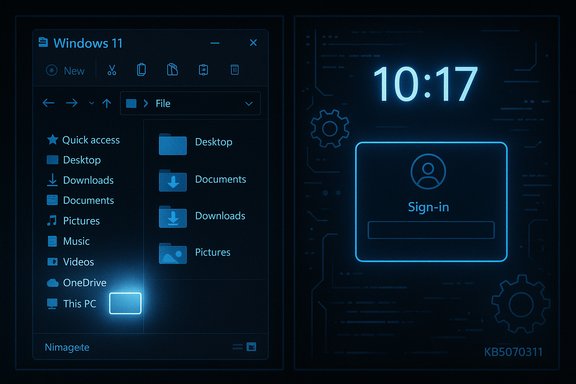 Background / Overview
Microsoft published an optional, non‑security preview cumulative on December 1, 2025 as part of its preview servicing cadence. The package is commonly referenced by its LCU identifier KB5070311, and it shipped alongside a servicing stack update (SSU) KB5071142 aimed at ensuring reliable installation. The update targeted Windows 11 builds for both 24H2 and 25H2 and bundled a range of quality and UI refinements while also addressing several stability problems reported by users.Those improvements — most notably efforts to make File Explorer’s legacy file‑operation dialogs respect system Dark mode — were widely welcomed in principle. Unfortunately, the preview also introduced at least two visible regressions: a white flash in File Explorer when Dark mode is enabled, and an intermittent rendering bug that can make the password (sign‑in) icon invisible on the lock screen. Microsoft lists both as known issues and has said fixes are in progress.
What the update changed (the intended improvements)
Dark mode consistency for legacy Explorer surfaces
For years users have complained that Windows 11’s Dark theme was uneven: the modern shell and many Fluent UI surfaces went dark, but several legacy Win32 dialogs used during file operations — copy/move progress windows, delete confirmations and similar — remained bright white. KB5070311’s stated intent was to extend the dark palette to those legacy surfaces so the experience would be visually consistent for users who prefer Dark mode.Stability and quality fixes
Beyond UI polish, the preview included fixes for a variety of higher‑impact bugs reported in recent months: explorer.exe race conditions that could leave the taskbar or Start menu unresponsive, display enumeration timing improvements to reduce a game launch stutter on very high‑refresh monitors, and a set of smaller File Explorer and taskbar fixes. These are meaningful stability gains for users who were affected.The regressions users are seeing
1) File Explorer: brief white flash in Dark mode
- Symptom: When File Explorer opens or when certain view changes occur (navigating to/from Home or Gallery, creating a new tab, toggling the Details pane, or selecting “More details” during file copy operations), the window can momentarily display a white background before the dark UI finishes rendering.
- Scope: Reproductions and community reports indicate this is observable on a subset of systems and triggers reliably under the steps above. Microsoft’s release notes list it as a known issue.
2) Lock screen / sign‑in: invisible password icon
- Symptom: The password sign‑in icon or cue can disappear from the lock/sign‑in interface. Although the underlying clickable area still works if hovered over or clicked, the visual affordance is missing — creating uncertainty for users who rely on the icon to identify credential options.
- Scope: This rendering regression has been noted in multiple preview waves and resurfaced with this December preview. Microsoft has acknowledged the issue and included it in the known‑issues list.
Technical analysis: what likely went wrong
A paint/timing regression in legacy UI modernization
The work to darken legacy Explorer surfaces touches code paths that date back decades — Win32 dialog painting, composition timing, and compatibility layering between modern shell components and older UI. The most plausible technical explanation — supported by community reproductions and Microsoft’s characterization — is a race condition in paint ordering: the system briefly paints the default background (white) before theme styles have been applied to every legacy dialog control. This can be worsened by driver timing, GPU composition differences, or display pipeline delays on certain hardware.Why it’s tricky to fix
- The legacy UI code paths being modified are widely reused and must behave identically across thousands of third‑party drivers, OEM shells, and accessibility settings.
- Fixes that change paint sequencing risk introducing regressions elsewhere (for example, reintroducing flicker in other scenarios or breaking assistive technologies).
- The underlying servicing model (LCU + SSU) means a fix must be validated across both the payload and how the servicing stack applies it, increasing QA burden before broad distribution.
Who is affected (and how severe it is)
- Casual users who installed the optional December 1 preview and run Dark mode in Windows 11 are most likely to see the white flash. Users on Light theme are unaffected by the flash.
- Users who frequently use the lock screen sign‑in options — multi‑account households, managed devices with multiple credential choices, or accessibility‑dependent sign‑in flows — are more likely to run into the invisible password icon symptom.
- Device dependence: the flash has been reproduced more often on systems with particular GPU drivers, OLED panels, or high refresh‑rate displays, suggesting the hardware and driver stack influence the symptom frequency.
Immediate mitigations for end users
Until Microsoft ships a remediation, users have a small set of practical options.- Switch to Light theme (fastest, simplest)
- Settings > Personalization > Colors > Choose your color > Light.
- This avoids the white flash because the default background is already light, removing the jarring contrast. Microsoft and community testers list this as a pragmatic short‑term workaround.
- Uninstall the preview update (if already installed)
- Settings > Windows Update > Update history > Uninstall updates, then select the preview update (KB5070311) and uninstall. A restart will be required.
- Alternate path: Control Panel > Programs and Features > View installed updates, find the LCU entry and uninstall it.
- Note: uninstalling reverts the fixes included in the preview as well, so weigh trade‑offs (stability gains vs. visual regressions) before proceeding. Community guidance and Microsoft’s release notes mention uninstalling the preview as a supported mitigation.
- Avoid installing optional preview updates until the official monthly rollup
- Preview releases are designed for early testers and pilot rings. Ordinary users should generally defer preview updates until they are validated in later cumulative releases distributed through normal Patch Tuesday channels.
- Report the problem to Microsoft
- Use the Feedback Hub to report reproduction steps, hardware details, and video/screenshots of the flash or the missing icon. Detailed repro data accelerates vendor debugging and helps prioritize fixes. Enterprise teams should capture diagnostic traces where possible.
Actionable guidance for IT administrators and helpdesks
- Pilot and validate before broad deployment
- Add the update to a pilot ring and validate Explorer workflows on representative hardware profiles (OLED, multi‑monitor setups, specific GPU drivers). Several community advisories recommend treating this preview as a pilot for controlled validation.
- Update helpdesk templates and scripts
- Prepare clear troubleshooting guidance: how to remove the preview, how to switch to Light theme, and how to capture Feedback Hub reports and diagnostic logs. Encouraging users to not apply preview updates in production reduces unnecessary tickets.
- Use update management tools to block optional previews
- In enterprise environments managed by Windows Update for Business, WSUS, or Intune, do not approve or make optional preview packages available to production rings. Treat KB5070311 as a preview offering and withhold it until Microsoft releases a validated fix.
- Accessibility escalation
- For accessibility leads: document reports and capture video/screenshot evidence to share with Microsoft via support channels. Sudden luminance spikes are accessibility issues and warrant escalation. Community guidance emphasizes that the flash can affect users with light sensitivity and should be handled accordingly.
- Avoid unofficial workarounds that inject or patch UI
- Community mods exist but they carry security and support trade‑offs; they are not recommended for managed fleets or compliance‑bound devices.
Step‑by‑step: how to uninstall the December preview (GUI and command line)
Note: administrative privileges are required to uninstall updates. A restart is usually necessary.- GUI (recommended for most users)
- Open Settings.
- Navigate to Windows Update > Update history.
- Click Uninstall updates.
- In the Installed Updates window, locate the preview entry (look for the KB number or the date: December 1, 2025).
- Select it and choose Uninstall. Restart when prompted.
- Control Panel alternative
- Open Control Panel > Programs > Programs and Features.
- Click View installed updates.
- Locate the update and choose Uninstall.
- Command line (advanced)
- If the KB package name is known, Windows Update Standalone Installer (wusa.exe) can be used:
- Open an elevated Command Prompt (Run as Administrator).
- Run: wusa /uninstall /kb:5070311
- Follow prompts and restart when required.
Risk assessment and trade‑offs
- Cosmetic vs. functional: The two confirmed issues are primarily cosmetic and accessibility/UX regressions rather than security vulnerabilities. They do not appear to break sign‑in functionality or cause data loss. That said, a missing visual affordance at sign‑in and a high‑contrast luminance spike are meaningful harms for certain user groups.
- Enterprise helpdesk impact: Even non‑critical visual regressions can spike support calls and create avoidable friction in large deployments. Rolling out optional preview updates broadly without pilot validation can amplify this effect.
- Accessibility concerns: Users with photosensitive conditions or who rely on consistent visual cues for sign‑in should be treated as priority stakeholders. Until Microsoft patches the issue, the conservative posture is to block the preview in production.
- Unverified scope: Public reporting and community reproductions indicate the issue is real and reproducible on a subset of hardware, but quantifying the percentage of impacted devices is currently not possible from the available data. Any claim about how many users are affected should be treated as an estimate unless substantiated by telemetry from Microsoft or broad community sampling. This limitation should frame risk communications.
How Microsoft is responding (vendor posture)
Microsoft has marked the white flash and invisible password icon as known issues tied to the December 1 preview and indicated they are working on fixes. The typical pattern for such regressions is:- A fix prepared and validated internally and in Insider rings.
- Inclusion of that remediation in the next cumulative update or a targeted out‑of‑band release.
- For managed environments, a widened rollout once the fix is validated against common OEM drivers and display stacks.
Practical recommendations (short checklist)
- If you are a home user:
- Don’t install optional preview updates unless you enjoy troubleshooting.
- If already affected, switch to Light theme or uninstall the preview.
- If you manage devices:
- Treat KB5070311 as a pilot; do not push it to production rings.
- Update helpdesk scripts, capture diagnostic evidence, and escalate accessibility reports to Microsoft.
- If you are an accessibility lead:
- Prioritize remediation and documentation; collect media demonstrating impact and report via Feedback Hub and enterprise support channels.
What to watch for next
- Microsoft’s fix cadence: Expect a remediation in a subsequent preview or in the monthly cumulative rollup; monitor the Windows Health / KB article entries and the Microsoft Update Catalog for new packages.
- OEM and driver updates: Because display and GPU drivers can influence paint timing, updated drivers from OEMs or GPU vendors may reduce symptom frequency; check vendor advisories for any targeted driver updates.
- Community reproductions and telemetry reports: If reports expand beyond initial samples, the issue will likely be escalated in priority. Conversely, if reproductions remain limited, Microsoft may release a more targeted fix.
Conclusion
The December 1, 2025 Windows 11 preview aimed to close a long‑standing visual gap by bringing legacy File Explorer dialogs into a cohesive Dark mode and to shore up several stability issues — but the rollout demonstrates the fragility of making cosmetic changes to long‑running UI code paths. The white flash in File Explorer and the invisible password icon on the lock screen are real, user‑visible regressions that Microsoft has acknowledged and is working to fix. Until a patch arrives, the responsible approach for most users and organizations is conservative: avoid optional preview updates, pilot them on test hardware, and use straightforward mitigations (switch to Light theme or uninstall the preview) when the regressions affect workflows or accessibility.These episodes are a reminder that even cosmetic improvements can carry outsized UX risk when they touch decades of compatibility code — and that careful rollout planning, strong pilot rings, and prompt vendor communication are essential to keep daily computing predictable and accessible for everyone.
Source: Lifewire Think Something’s Off On Your PC? This Windows Update Might Be The Cause
