

Windows 11 still ships with a cluster of default settings that promote Microsoft services, feed personalized content, collect optional diagnostic signals, and blur local PC workflows with cloud and web features, and users can disable many of them through Settings, policy, or registry changes. The MakeUseOf piece lands because it says the quiet part out loud: the irritation is not one toggle, one ad, or one panel. It is the accumulated feeling that a fresh Windows install now arrives with an agenda.
That agenda is not mysterious. Microsoft wants Windows to be a service surface, not just an operating system, and Windows 11 is the clearest expression yet of that strategy. The company’s defenders will say most of these settings are optional, configurable, and useful to some people. They are right. But the deeper complaint is about defaults, because defaults define the first experience, shape user behavior, and tell us who Microsoft thinks the PC belongs to before the owner has had a chance to answer.
There was a time when a clean Windows install felt like neutral ground. You installed drivers, pinned a few apps, chose a wallpaper, and slowly turned the machine into yours. Windows still offers that satisfaction, but it now arrives with a layer of pre-assembled assumptions: web search in Start, content in Widgets, cloud prompts in File Explorer, lock-screen suggestions, personalized offers, and diagnostic choices that require a second look.
None of these features is catastrophic in isolation. A weather widget is not a hostile act. A recommendation pane is not malware. An advertising ID is not the same thing as a keylogger. The problem is that Windows increasingly asks users to distinguish between operating-system functionality and Microsoft engagement machinery, and it asks them to do it after the machinery has already been switched on.
That is why articles like this resonate well beyond the usual “debloat Windows” crowd. The annoyance is not merely aesthetic. It is architectural. Windows 11’s default posture assumes that the desktop is a channel for services, content, telemetry, and cross-promotion unless the user says otherwise.
For enthusiasts and IT pros, that flips the traditional relationship. The PC used to be a general-purpose machine that vendors had to earn their way onto. In Windows 11, Microsoft’s own services increasingly begin inside the velvet rope.
But the lived experience is different. A user who installs Windows 11 and never visits the privacy menus has still been placed into a system where app-level ad personalization is part of the default privacy landscape. Turning it off does not remove all ads, and it does not stop every form of tracking or measurement, but it does sever one obvious identifier that apps can use for behavior-linked advertising.
This is where Microsoft’s language matters. “Personalized experiences,” “recommendations,” and “offers” are softer words than “ads,” “tracking,” and “profiling,” but the distance between those terms is often a matter of corporate preference rather than user experience. If a setting uses activity signals to decide what commercial or promotional material appears, users are not wrong to understand it as advertising infrastructure.
The MakeUseOf recommendation to disable related options in “Recommendations & offers” or “General” reflects the messy reality of modern Windows settings. Microsoft has moved and renamed some controls across builds, channels, and regional configurations. That alone is part of the story: privacy is easier to advertise than to navigate.
The more defensible Microsoft argument is that these controls exist and that the company has gradually made more privacy choices visible during setup. But visibility is not the same as neutrality. If the default outcome benefits Microsoft’s engagement systems, the burden remains on the user to claw back quiet.
For some users, that is convenient. For many others, it is maddening. If someone types “Device Manager,” “invoice,” or “Notepad,” they usually are not asking Windows to perform a Bing query. They are asking the local machine to find the local thing.
The web results are not merely clutter; they change the mental model of the Start menu. A local launcher becomes a hybrid portal. Results that should feel deterministic now compete with suggestions, cards, and searches that belong in a browser. That is a small tax on every interaction, and Windows collects it dozens of times a day.
Microsoft’s incentives are obvious. Search distribution matters, Bing usage matters, and the Start menu is some of the most valuable interface real estate on a Windows PC. But that is precisely why the lack of a simple consumer-facing toggle irritates power users. When a feature is easy to enable but awkward to disable, users reasonably infer that the friction is intentional.
The registry fix exists, as do third-party tools that wrap the same tweak in a friendlier interface. But the need for those tools is its own indictment. A PC owner should not have to perform surgery to make the Start menu behave like a Start menu.
This distinction matters. A widget is a small, user-directed information object. A feed is a publisher-directed attention machine. Windows 11’s Widgets experience has often felt like the second wearing the costume of the first.
Microsoft appears to understand the criticism. Recent preview changes have pointed toward a quieter Widgets board that reduces the prominence of the MSN-style feed and gives user-selected widgets more room. That is a tacit admission that the earlier balance was wrong. If the company is now trying to make Widgets less distracting, then users who found it distracting were not imagining things.
The background-process complaint is more complicated. Modern Windows features frequently rely on WebView2 and shared components, and memory use alone does not prove abuse. Idle resources on a modern PC are not sacred in the same way they were on a 4GB machine from a decade ago. Still, users are right to ask why a panel they never open should feel present at all.
For administrators, Widgets are also a policy question. Consumer annoyance becomes enterprise hygiene when a content feed appears on managed desktops, especially in environments where distraction, data governance, or political and financial content are concerns. Microsoft provides policy routes to disable Widgets, but again the burden sits downstream with IT.
The better version of Widgets is not hard to imagine. It would be opt-in, widget-first, locally respectful, and silent unless summoned. Windows 11 has often offered something else: a small door on the taskbar through which the web keeps trying to enter.
Microsoft would say this is productivity. Plenty of users do want quick access to recent work, and Windows has long had recent-file affordances in Jump Lists and File Explorer. The problem is not the existence of recency. The problem is the forced prominence of a section that many users cannot fully convert into something more useful.
Even when recommendations are disabled, the Start menu has historically retained awkward empty space or reduced flexibility compared with what users expect from a launcher. That makes the feature feel less like a convenience and more like an allocation decision Microsoft made on the user’s behalf.
This is where Windows 11’s design minimalism works against it. The centered Start menu, simplified layout, and stripped-down customization options look clean, but they also make every imposed element feel larger. When there are fewer knobs, each default carries more authority.
The MakeUseOf advice to disable recently added apps, recommended files, and tips is sensible. It does not restore the full configurability many users want, but it removes the operating system’s habit of guessing what should be surfaced next. Sometimes the best recommendation engine is a row of pinned apps chosen by the person who owns the machine.
But Windows 11 also distinguishes between required diagnostic data and optional diagnostic data, and that distinction is where users should pay attention. Required data is the baseline Microsoft says it needs to keep Windows secure, updated, and functioning. Optional diagnostic data can include broader details about app and feature usage, enhanced error reporting, and browsing-related signals in certain contexts.
The question is not whether Microsoft can write a reasonable explanation for collecting this data. It can. The question is whether a home user, setting up a new PC after work, meaningfully understands the trade. Most do not. They click through setup screens because the machine is waiting on the other side.
Turning off optional diagnostic data is therefore not paranoia. It is proportionality. If Windows says the device remains secure and functional without that extra layer, many users will reasonably decide Microsoft does not need it.
The “Improve inking and typing” setting belongs in the same mental bucket. Microsoft uses this kind of input diagnostic data to improve language and recognition features, and there are legitimate engineering reasons to collect samples and signals. But typing is intimate. Even when data is processed under privacy controls, users are right to default to less sharing unless they actively benefit from the feature.
For enterprises, the debate is less emotional and more procedural. Diagnostic levels, data boundaries, regional requirements, and policy controls all need to map to compliance expectations. The consumer framing of “make my PC feel mine again” becomes, in managed environments, “make the fleet behave according to organizational risk tolerance.”
But the lock screen is not neutral space. It is the threshold of the machine. It is what appears before work begins, before privacy is established, and sometimes before a user has fully oriented themselves. Turning that surface into a rotating discovery panel changes the tone of the operating system.
The MakeUseOf recommendation is straightforward: switch from Windows Spotlight to Picture or Slideshow, then disable tips and lock-screen extras. This is not a rejection of good photography. It is a rejection of the idea that every beautiful surface must become an engagement surface.
Notifications deserve the same treatment. Windows tips, setup suggestions, welcome experiences, and ecosystem nudges may be helpful after a major update or for a novice user. They are also a recurring reminder that Microsoft sees Windows as a place to guide behavior, not merely support it.
The line between help and advertising is not always clean. A prompt to finish setting up OneDrive may be useful if the user wants folder backup. It is promotional if the user has repeatedly declined it. The difference is not the text of the prompt; it is whether Windows respects the refusal.
Microsoft’s OneDrive integration is genuinely useful for many people. Known Folder Move can save users from losing Desktop, Documents, and Pictures data. Cloud sync is now a mainstream expectation, and Windows would be incomplete if it did not include first-class cloud backup hooks. The issue is not integration. The issue is persistence.
When File Explorer displays sync provider notifications, Microsoft is using a core system utility as a persuasion surface. That may be good business, but it is poor boundaries. Users go to File Explorer to locate, copy, rename, delete, and organize. They do not go there to be reminded that the cloud exists.
The fix is mercifully simple: open Folder Options, visit the View tab, and disable sync provider notifications. No registry hack, no third-party utility, no enterprise console required. The fact that the setting exists suggests Microsoft knows the prompts are not universally welcome.
This is a pattern across Windows 11. Microsoft often provides an escape hatch, but it places the promotional default first. The company gets the engagement benefit from everyone who never changes the setting, while power users get just enough control to keep the peace. That compromise may be rational. It is not user-first.
That has always been part of Windows culture. The registry is old territory for enthusiasts, and Group Policy is the language of enterprise administration. But Windows 11 has widened the gap between the friendly interface and the meaningful control underneath it. Simple desires often require disproportionate tools.
Want Start search to stay local? Registry. Want Widgets disabled beyond hiding the taskbar button? Policy or registry. Want a fleet-wide standard for consumer experiences? Policy. Want to remove bundled apps in a repeatable way? PowerShell, provisioning, or imaging strategy.
This is fine for IT pros and hobbyists, but it is a bad answer for ordinary PC owners. The user who simply wants less noise should not have to distinguish between HKCU and HKLM. They should not have to trust a debloating script from the internet because Microsoft declined to expose a clean switch.
Third-party tools like Winaero Tweaker exist because Windows leaves demand on the table. They are popular because they translate scattered system controls into human intent: remove web search, disable ads, restore context menus, reduce telemetry, stop suggestions. Microsoft could learn from that language.
Instead, Windows Settings often reflects corporate taxonomy rather than user goals. Users do not think, “I would like to configure recommendations and offers.” They think, “Stop showing me things I did not ask for.”
A consumer news feed on a corporate desktop may sound harmless until it surfaces distracting headlines in a regulated workspace. Optional diagnostic data may be acceptable under one organization’s policy and problematic under another’s. OneDrive prompts may be valuable in a Microsoft 365 shop and confusing in an environment using another storage provider.
This is why Windows 11’s consumer defaults matter even in professional contexts. Microsoft’s out-of-box assumptions often become the baseline administrators must undo. The more the operating system mixes core functionality with service promotion, the more work IT must do to separate what is needed from what is merely wanted by Redmond.
To Microsoft’s credit, many of these surfaces can be managed. Policy controls exist for Widgets, diagnostic data, Windows consumer experiences, taskbar configuration, and more. Windows Enterprise and Education editions give organizations more leverage than a retail Home machine.
But manageability is not the same as restraint. Every policy required to suppress a consumer-facing nudge is a small reminder that the default Windows experience is designed for Microsoft’s ecosystem first and only then adapted for controlled environments.
That is what makes the defaults feel so self-defeating. Microsoft does not need to cheapen Windows with little engagement traps. The product is important enough, and in many areas good enough, to stand without turning every surface into a funnel.
A quieter Windows 11 would still promote Microsoft services where appropriate. OneDrive backup during setup is reasonable if clearly optional. Microsoft 365 integration makes sense for signed-in users who use those subscriptions. Widgets can be useful when they behave like widgets. Diagnostic data can be requested with plain-language trade-offs.
The distinction is consent. Not legal consent buried in setup flow design, but practical consent: a user understands the feature, chooses it, and can later find the switch to change their mind. Windows 11 too often offers discoverability for Microsoft’s features and scavenger hunts for disabling them.
That is why the MakeUseOf checklist feels less like a hack guide and more like a restoration project. Disable the ad ID. Remove web results from Start. Hide or disable Widgets. Clean up Recommended. Turn off optional diagnostics. Quiet the lock screen. Stop File Explorer prompts. None of these tweaks reinvents Windows. Together, they restore its center of gravity.
Microsoft is slowly learning that users notice when Windows feels noisy, and recent moves to make some experiences quieter suggest the company knows the pendulum swung too far. But the lesson should not be that Microsoft needs subtler ads, better feeds, or more elegant prompts. The lesson should be that the Windows desktop is most valuable when it is trusted, and trust begins with defaults that behave like they were chosen for the person at the keyboard rather than the services behind the screen.
That agenda is not mysterious. Microsoft wants Windows to be a service surface, not just an operating system, and Windows 11 is the clearest expression yet of that strategy. The company’s defenders will say most of these settings are optional, configurable, and useful to some people. They are right. But the deeper complaint is about defaults, because defaults define the first experience, shape user behavior, and tell us who Microsoft thinks the PC belongs to before the owner has had a chance to answer.
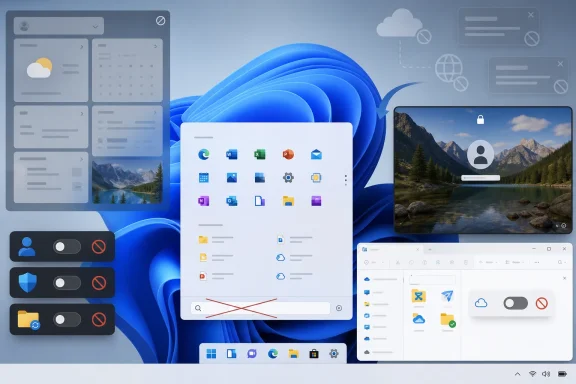 The Fresh Install Is No Longer a Blank Slate
There was a time when a clean Windows install felt like neutral ground. You installed drivers, pinned a few apps, chose a wallpaper, and slowly turned the machine into yours. Windows still offers that satisfaction, but it now arrives with a layer of pre-assembled assumptions: web search in Start, content in Widgets, cloud prompts in File Explorer, lock-screen suggestions, personalized offers, and diagnostic choices that require a second look.None of these features is catastrophic in isolation. A weather widget is not a hostile act. A recommendation pane is not malware. An advertising ID is not the same thing as a keylogger. The problem is that Windows increasingly asks users to distinguish between operating-system functionality and Microsoft engagement machinery, and it asks them to do it after the machinery has already been switched on.
That is why articles like this resonate well beyond the usual “debloat Windows” crowd. The annoyance is not merely aesthetic. It is architectural. Windows 11’s default posture assumes that the desktop is a channel for services, content, telemetry, and cross-promotion unless the user says otherwise.
For enthusiasts and IT pros, that flips the traditional relationship. The PC used to be a general-purpose machine that vendors had to earn their way onto. In Windows 11, Microsoft’s own services increasingly begin inside the velvet rope.
Microsoft’s Most Important Setting Is the One You Never Chose
The advertising ID is a small setting with an outsized symbolic role. Microsoft describes it as a way for apps to deliver more relevant advertising, and the company provides a toggle to disable it. That is the official, sanitized framing: a personalization mechanism, under user control, available in privacy settings.But the lived experience is different. A user who installs Windows 11 and never visits the privacy menus has still been placed into a system where app-level ad personalization is part of the default privacy landscape. Turning it off does not remove all ads, and it does not stop every form of tracking or measurement, but it does sever one obvious identifier that apps can use for behavior-linked advertising.
This is where Microsoft’s language matters. “Personalized experiences,” “recommendations,” and “offers” are softer words than “ads,” “tracking,” and “profiling,” but the distance between those terms is often a matter of corporate preference rather than user experience. If a setting uses activity signals to decide what commercial or promotional material appears, users are not wrong to understand it as advertising infrastructure.
The MakeUseOf recommendation to disable related options in “Recommendations & offers” or “General” reflects the messy reality of modern Windows settings. Microsoft has moved and renamed some controls across builds, channels, and regional configurations. That alone is part of the story: privacy is easier to advertise than to navigate.
The more defensible Microsoft argument is that these controls exist and that the company has gradually made more privacy choices visible during setup. But visibility is not the same as neutrality. If the default outcome benefits Microsoft’s engagement systems, the burden remains on the user to claw back quiet.
Start Search Became the Front Door for Bing
The Start menu used to be one of Windows’ most efficient local interfaces. Press the Windows key, type a few characters, launch the app or open the file. Windows 11 still does that, but it also insists on treating the Start search box as a web search surface.For some users, that is convenient. For many others, it is maddening. If someone types “Device Manager,” “invoice,” or “Notepad,” they usually are not asking Windows to perform a Bing query. They are asking the local machine to find the local thing.
The web results are not merely clutter; they change the mental model of the Start menu. A local launcher becomes a hybrid portal. Results that should feel deterministic now compete with suggestions, cards, and searches that belong in a browser. That is a small tax on every interaction, and Windows collects it dozens of times a day.
Microsoft’s incentives are obvious. Search distribution matters, Bing usage matters, and the Start menu is some of the most valuable interface real estate on a Windows PC. But that is precisely why the lack of a simple consumer-facing toggle irritates power users. When a feature is easy to enable but awkward to disable, users reasonably infer that the friction is intentional.
The registry fix exists, as do third-party tools that wrap the same tweak in a friendlier interface. But the need for those tools is its own indictment. A PC owner should not have to perform surgery to make the Start menu behave like a Start menu.
Widgets Reveal the Real Cost of “Glanceable” Content
The Windows 11 Widgets panel is Microsoft’s most revealing default because it is not just a utility. It is a content strategy sitting on the taskbar. Weather, sports, finance, traffic, calendar cards, news headlines, and Microsoft Start all coexist in a panel that Microsoft can describe as helpful while users experience it as a feed.This distinction matters. A widget is a small, user-directed information object. A feed is a publisher-directed attention machine. Windows 11’s Widgets experience has often felt like the second wearing the costume of the first.
Microsoft appears to understand the criticism. Recent preview changes have pointed toward a quieter Widgets board that reduces the prominence of the MSN-style feed and gives user-selected widgets more room. That is a tacit admission that the earlier balance was wrong. If the company is now trying to make Widgets less distracting, then users who found it distracting were not imagining things.
The background-process complaint is more complicated. Modern Windows features frequently rely on WebView2 and shared components, and memory use alone does not prove abuse. Idle resources on a modern PC are not sacred in the same way they were on a 4GB machine from a decade ago. Still, users are right to ask why a panel they never open should feel present at all.
For administrators, Widgets are also a policy question. Consumer annoyance becomes enterprise hygiene when a content feed appears on managed desktops, especially in environments where distraction, data governance, or political and financial content are concerns. Microsoft provides policy routes to disable Widgets, but again the burden sits downstream with IT.
The better version of Widgets is not hard to imagine. It would be opt-in, widget-first, locally respectful, and silent unless summoned. Windows 11 has often offered something else: a small door on the taskbar through which the web keeps trying to enter.
The Start Menu’s Recommended Area Is Microsoft’s Theory of Productivity
The Recommended section in Windows 11’s Start menu is not as aggressive as web search or Widgets, but it provokes a subtler irritation. It assumes that recent files, newly installed apps, cloud documents, and suggestions deserve permanent space in one of the operating system’s most important surfaces.Microsoft would say this is productivity. Plenty of users do want quick access to recent work, and Windows has long had recent-file affordances in Jump Lists and File Explorer. The problem is not the existence of recency. The problem is the forced prominence of a section that many users cannot fully convert into something more useful.
Even when recommendations are disabled, the Start menu has historically retained awkward empty space or reduced flexibility compared with what users expect from a launcher. That makes the feature feel less like a convenience and more like an allocation decision Microsoft made on the user’s behalf.
This is where Windows 11’s design minimalism works against it. The centered Start menu, simplified layout, and stripped-down customization options look clean, but they also make every imposed element feel larger. When there are fewer knobs, each default carries more authority.
The MakeUseOf advice to disable recently added apps, recommended files, and tips is sensible. It does not restore the full configurability many users want, but it removes the operating system’s habit of guessing what should be surfaced next. Sometimes the best recommendation engine is a row of pinned apps chosen by the person who owns the machine.
Optional Diagnostic Data Is Optional Only If Users Notice It
Telemetry is the Windows privacy debate that never really ends. Microsoft needs diagnostic data to maintain a billion-scale operating system across chaotic hardware, driver, and software combinations. Crash information, update health, compatibility signals, and reliability data are not imaginary needs. Without telemetry, Windows would be worse.But Windows 11 also distinguishes between required diagnostic data and optional diagnostic data, and that distinction is where users should pay attention. Required data is the baseline Microsoft says it needs to keep Windows secure, updated, and functioning. Optional diagnostic data can include broader details about app and feature usage, enhanced error reporting, and browsing-related signals in certain contexts.
The question is not whether Microsoft can write a reasonable explanation for collecting this data. It can. The question is whether a home user, setting up a new PC after work, meaningfully understands the trade. Most do not. They click through setup screens because the machine is waiting on the other side.
Turning off optional diagnostic data is therefore not paranoia. It is proportionality. If Windows says the device remains secure and functional without that extra layer, many users will reasonably decide Microsoft does not need it.
The “Improve inking and typing” setting belongs in the same mental bucket. Microsoft uses this kind of input diagnostic data to improve language and recognition features, and there are legitimate engineering reasons to collect samples and signals. But typing is intimate. Even when data is processed under privacy controls, users are right to default to less sharing unless they actively benefit from the feature.
For enterprises, the debate is less emotional and more procedural. Diagnostic levels, data boundaries, regional requirements, and policy controls all need to map to compliance expectations. The consumer framing of “make my PC feel mine again” becomes, in managed environments, “make the fleet behave according to organizational risk tolerance.”
The Lock Screen Became a Billboard With Pretty Photography
Windows Spotlight is one of Microsoft’s cleverest defaults because it wraps promotion in beauty. The rotating lock-screen images are often excellent. They make a PC feel fresh, and they are far more polished than a static OEM wallpaper. That makes the accompanying tips, prompts, facts, and engagement hooks easier to tolerate.But the lock screen is not neutral space. It is the threshold of the machine. It is what appears before work begins, before privacy is established, and sometimes before a user has fully oriented themselves. Turning that surface into a rotating discovery panel changes the tone of the operating system.
The MakeUseOf recommendation is straightforward: switch from Windows Spotlight to Picture or Slideshow, then disable tips and lock-screen extras. This is not a rejection of good photography. It is a rejection of the idea that every beautiful surface must become an engagement surface.
Notifications deserve the same treatment. Windows tips, setup suggestions, welcome experiences, and ecosystem nudges may be helpful after a major update or for a novice user. They are also a recurring reminder that Microsoft sees Windows as a place to guide behavior, not merely support it.
The line between help and advertising is not always clean. A prompt to finish setting up OneDrive may be useful if the user wants folder backup. It is promotional if the user has repeatedly declined it. The difference is not the text of the prompt; it is whether Windows respects the refusal.
File Explorer Should Not Have a Sales Department
File Explorer is where the argument becomes almost absurdly simple. A file manager should manage files. It should not regularly ask users to reconsider cloud backup, storage upgrades, or sync-provider features they have already evaluated.Microsoft’s OneDrive integration is genuinely useful for many people. Known Folder Move can save users from losing Desktop, Documents, and Pictures data. Cloud sync is now a mainstream expectation, and Windows would be incomplete if it did not include first-class cloud backup hooks. The issue is not integration. The issue is persistence.
When File Explorer displays sync provider notifications, Microsoft is using a core system utility as a persuasion surface. That may be good business, but it is poor boundaries. Users go to File Explorer to locate, copy, rename, delete, and organize. They do not go there to be reminded that the cloud exists.
The fix is mercifully simple: open Folder Options, visit the View tab, and disable sync provider notifications. No registry hack, no third-party utility, no enterprise console required. The fact that the setting exists suggests Microsoft knows the prompts are not universally welcome.
This is a pattern across Windows 11. Microsoft often provides an escape hatch, but it places the promotional default first. The company gets the engagement benefit from everyone who never changes the setting, while power users get just enough control to keep the peace. That compromise may be rational. It is not user-first.
The Registry Has Become the Unofficial Settings App for Adults
One uncomfortable truth in the Windows customization debate is that many of the best fixes still live outside the polished Settings app. Group Policy, registry values, PowerShell scripts, provisioning packages, and third-party tweakers remain the real control plane for people who want Windows to behave predictably.That has always been part of Windows culture. The registry is old territory for enthusiasts, and Group Policy is the language of enterprise administration. But Windows 11 has widened the gap between the friendly interface and the meaningful control underneath it. Simple desires often require disproportionate tools.
Want Start search to stay local? Registry. Want Widgets disabled beyond hiding the taskbar button? Policy or registry. Want a fleet-wide standard for consumer experiences? Policy. Want to remove bundled apps in a repeatable way? PowerShell, provisioning, or imaging strategy.
This is fine for IT pros and hobbyists, but it is a bad answer for ordinary PC owners. The user who simply wants less noise should not have to distinguish between HKCU and HKLM. They should not have to trust a debloating script from the internet because Microsoft declined to expose a clean switch.
Third-party tools like Winaero Tweaker exist because Windows leaves demand on the table. They are popular because they translate scattered system controls into human intent: remove web search, disable ads, restore context menus, reduce telemetry, stop suggestions. Microsoft could learn from that language.
Instead, Windows Settings often reflects corporate taxonomy rather than user goals. Users do not think, “I would like to configure recommendations and offers.” They think, “Stop showing me things I did not ask for.”
The Enterprise Version of This Argument Is Governance, Not Vibes
For home users, the phrase “my PC finally feels mine again” is emotional and accurate. For administrators, the same concern becomes governance. Defaults are not just annoyances when they appear across hundreds or thousands of endpoints. They are support tickets, compliance questions, user training issues, and occasionally security review items.A consumer news feed on a corporate desktop may sound harmless until it surfaces distracting headlines in a regulated workspace. Optional diagnostic data may be acceptable under one organization’s policy and problematic under another’s. OneDrive prompts may be valuable in a Microsoft 365 shop and confusing in an environment using another storage provider.
This is why Windows 11’s consumer defaults matter even in professional contexts. Microsoft’s out-of-box assumptions often become the baseline administrators must undo. The more the operating system mixes core functionality with service promotion, the more work IT must do to separate what is needed from what is merely wanted by Redmond.
To Microsoft’s credit, many of these surfaces can be managed. Policy controls exist for Widgets, diagnostic data, Windows consumer experiences, taskbar configuration, and more. Windows Enterprise and Education editions give organizations more leverage than a retail Home machine.
But manageability is not the same as restraint. Every policy required to suppress a consumer-facing nudge is a small reminder that the default Windows experience is designed for Microsoft’s ecosystem first and only then adapted for controlled environments.
The Better Windows 11 Is Already Hiding Inside the Noisy One
The frustrating part is that Windows 11 is, underneath all this, a strong operating system. Its security baseline is better than Windows 10’s. Its hardware requirements pushed the ecosystem toward TPM-backed protections, virtualization-based security, and newer CPU platforms. Its interface, while controversial, is coherent in many places. Its windowing, snapping, terminal tooling, and developer story have improved substantially.That is what makes the defaults feel so self-defeating. Microsoft does not need to cheapen Windows with little engagement traps. The product is important enough, and in many areas good enough, to stand without turning every surface into a funnel.
A quieter Windows 11 would still promote Microsoft services where appropriate. OneDrive backup during setup is reasonable if clearly optional. Microsoft 365 integration makes sense for signed-in users who use those subscriptions. Widgets can be useful when they behave like widgets. Diagnostic data can be requested with plain-language trade-offs.
The distinction is consent. Not legal consent buried in setup flow design, but practical consent: a user understands the feature, chooses it, and can later find the switch to change their mind. Windows 11 too often offers discoverability for Microsoft’s features and scavenger hunts for disabling them.
That is why the MakeUseOf checklist feels less like a hack guide and more like a restoration project. Disable the ad ID. Remove web results from Start. Hide or disable Widgets. Clean up Recommended. Turn off optional diagnostics. Quiet the lock screen. Stop File Explorer prompts. None of these tweaks reinvents Windows. Together, they restore its center of gravity.
The Settings Worth Changing Are the Ones That Change the Relationship
The practical lesson is not that every Windows 11 user should turn off every connected feature. Some people like Spotlight, rely on OneDrive, enjoy Widgets, and benefit from recent-file recommendations. The point is that these features should survive because users choose them, not because they were blended into the default install and forgotten.- Windows 11’s advertising ID is worth disabling if you do not want apps using a dedicated identifier for ad personalization.
- Start menu web search is worth removing if you expect Start to behave as a fast local launcher rather than a Bing entry point.
- Widgets are worth hiding or disabling if the panel feels more like a content feed than a utility dashboard.
- Optional diagnostic data is worth turning off if you want Windows to send only the baseline data Microsoft says is required.
- Lock-screen tips, notification suggestions, and File Explorer sync prompts are worth auditing because they turn system surfaces into promotional space.
Microsoft is slowly learning that users notice when Windows feels noisy, and recent moves to make some experiences quieter suggest the company knows the pendulum swung too far. But the lesson should not be that Microsoft needs subtler ads, better feeds, or more elegant prompts. The lesson should be that the Windows desktop is most valuable when it is trusted, and trust begins with defaults that behave like they were chosen for the person at the keyboard rather than the services behind the screen.
References
- Primary source: MakeUseOf
Published: Mon, 18 May 2026 10:00:30 GMT
I turned off these Windows 11 features that ship on by default, and my PC finally feels mine again
You only need to spare about 10 mins. www.makeuseof.com
- Official source: learn.microsoft.com
Optional diagnostic data for Windows 11 and Windows 10 - Windows Privacy | Microsoft Learn
Use this article to learn about the types of optional diagnostic data that is collected.learn.microsoft.com - Official source: support.microsoft.com
Stay up to date with Widgets in Windows | Microsoft Support
Learn more about how to use the widgets board to keep track of the things you care about.support.microsoft.com - Related coverage: windowscentral.com
Microsoft will hide Windows 11's annoying MSN feed by default as it moves to reduce ads and noise across the OS | Windows Central
A new Windows 11 preview build has confirmed that the OS will soon hide the MSN feed by default, replacing it with a new default behavior that opens straight to your widgets instead.www.windowscentral.com - Related coverage: techradar.com
Microsoft continues the good work on Windows 11, with tweaks to 'quiet' ads — and that big taskbar change is 'coming soon' | TechRadar
Useful changes for the widgets panel are in testingwww.techradar.com - Official source: microsoft.com
- Related coverage: teachucomp.com
