Windows 11 DoSvc Memory Growth Linked to Delivery Optimization Auto Start

  • Thread Author
Windows 11’s built‑in update‑sharing engine, Delivery Optimization (service name DoSvc), is being blamed for steady RAM growth on many machines running 24H2 and 25H2 — a symptom that looks and behaves like a memory leak and that has left some 8 GB and 16 GB systems sluggish or unusable unless the service is limited or disabled.

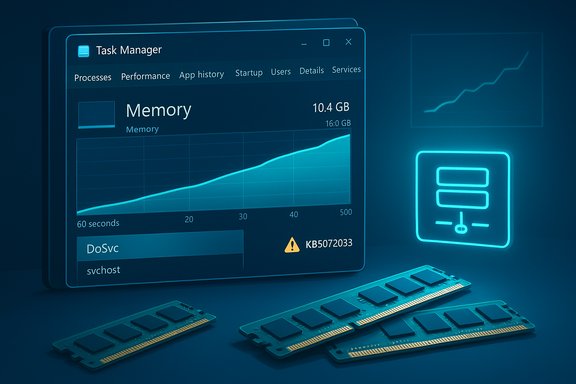
Neon blue Task Manager window shows memory usage with RAM sticks on a futuristic desk.Background​

Delivery Optimization is Microsoft’s peer‑assisted distribution layer for Windows Update and Microsoft Store content. It breaks update payloads into chunks and can fetch pieces from other devices on the same LAN (or, optionally, from Internet peers) to reduce repeated downloads from Microsoft’s servers and to speed distribution in dense deployments. End users can view activity, set bandwidth limits, or toggle peer sharing in Settings → Windows Update → Advanced options → Delivery Optimization. In early December 2025 Microsoft shipped the cumulative update identified as KB5072033 (build 26100.7462 for 24H2 and 26200.7462 for 25H2). The KB explicitly documents a configuration change: the AppX Deployment Service (AppXSVC) was moved from a trigger/manual start type to Automatic to “improve reliability in some isolated scenarios.” That startup change increases the runtime exposure of services that historically ran only when needed — and community reporting shows that this can amplify any background resource usage by those services.

What users are seeing (symptoms and scope)​

  • The observable pattern across multiple community reports and forum traces is a monotonic rise in memory use for an svchost.exe instance that hosts Delivery Optimization (DoSvc). Memory usage can begin at modest levels (hundreds of megabytes) and climb across hours to multiple gigabytes in some anecdotal cases, producing swapping, UI lag, and even RDP session freezes on memory‑constrained hosts.
  • Machines with 8 GB or 12 GB of RAM tend to show the worst user impact; systems with 16 GB or more often tolerate the effect without noticeable disruption, though the process still appears near the top of Task Manager’s memory ranking.
  • The growth pattern is consistent with a memory leak hypothesis: private bytes and working set rise over time without obvious release points, even when the PC is idle and no downloads are in progress. Community diagnostics (Process Explorer, RAMMap, ETW traces) have been used to reproduce and quantify the behavior on affected machines.
  • At the time community reporting spiked there was no Microsoft public advisory explicitly labelling DoSvc as a confirmed leak; instead, Microsoft’s KB confirmed the AppXSVC startup change and users linked the timing to growing DoSvc footprints. Treat the leak characterization as a credible community diagnosis that awaits engineering confirmation and root‑cause detail from Microsoft.

Why this surfaced now: trigger start vs automatic start​

Windows services use different startup semantics for performance and resource stewardship:
  • Trigger/manual start: the service remains dormant until a specific trigger (e.g., Store activity, scheduled update) launches it. This minimizes steady‑state memory and thread footprints.
  • Automatic start: the binary is loaded at boot and remains resident (or remains subject to automatic restart behavior). Even idle services consume mapped pages, timers, thread pools, and cached state — all of which increase working set and private bytes.
When AppXSVC was changed to Automatic, previously dormant subsystems ran more frequently or stayed resident longer. That increased runtime exposure makes any small untrimmed allocations or cache retention inside related services — like DoSvc — far more visible on machines with limited RAM. In short: a small configuration change can amplify previously minor allocations into a user‑visible problem.

What’s verified and what still needs confirmation​

Verified facts
  • KB5072033’s release notes document AppXSVC’s change to Automatic.
  • Delivery Optimization is configurable via Settings and has bandwidth and peer controls that users can change.
  • Numerous independent community reports, forum threads and user traces document rising DoSvc memory usage and successful mitigation via disabling or limiting Delivery Optimization on symptomatic machines.
Claims that require caution
  • Extreme user anecdotes quoting DoSvc growing to 20 GB are real reports from individuals but remain anecdotal outliers until validated by Microsoft engineering traces. Community numbers are important signals but should be treated with caution when used as a universal expectation.
  • The definitive root cause — whether a native memory leak inside DoSvc, an untrimmed cache made visible by a startup semantics change, or a cross‑service interaction — requires ETW/RAMMap/PoolMon traces and Microsoft’s engineering analysis before it can be confirmed. Community artifacts accelerate that work, but they are not a substitute for vendor validation.

How to detect and triage the problem (step‑by‑step)​

  • Quick check
  • Open Task Manager (Ctrl+Shift+Esc) → Details tab → sort by Memory. Look for an svchost.exe process running as NetworkService and check the Services column to confirm it hosts DoSvc (or check the PID → Services mapping).
  • Deeper inspection (power users / admins)
  • Use Process Explorer to view Private Bytes, Working Set, thread counts and loaded DLLs for the DoSvc host.
  • Run RAMMap to inspect kernel pools and the standby list to separate user‑space allocations from kernel allocations.
  • Capture ETW traces using Windows Performance Recorder (WPR) and collect ProcMon if you can reproduce the growth window. Structured artifacts greatly increase the chance of meaningful Microsoft engineering engagement.
  • Correlate with Delivery Optimization UI
  • Settings → Windows Update → Advanced options → Delivery Optimization → Activity monitor: check upload/download totals and cache size to see if DoSvc is actually doing network work or if memory growth occurs while the service is idle.

Immediate mitigations (safe, reversible) — prioritized​

  • Easiest and safest (recommended for most home users)
  • Settings → Windows Update → Advanced options → Delivery Optimization → toggle Allow downloads from other devices to Off. Reboot and monitor Task Manager. Many users report the memory growth stops after this change.
  • Middle ground (preserve LAN peering)
  • Set Delivery Optimization to Devices on my local network only and apply bandwidth caps under Advanced options. This keeps LAN caching while preventing Internet peers from being used.
  • Power‑user / temporary troubleshooting
  • Stop the service: open Services (services.msc) → Delivery Optimization → Stop; set Startup type to Manual for testing.
  • Registry change for persistent disable (advanced): set HKEY_LOCAL_MACHINE\SYSTEM\CurrentControlSet\Services\DoSvc\Start to 4 (Disabled) and reboot. Use this only if comfortable with registry edits — managed systems may prevent or revert this.
  • Clearing cache
  • Settings → System → Storage → Temporary files → select Delivery Optimization Files and remove, or run Disk Cleanup as admin and clear Delivery Optimization files. Reboot after clearing. This reclaims space and can reduce immediate background activity.
  • Server / VDI mitigation (test in a pilot cohort)
  • Revert AppXSVC to a demand (trigger) start in a small pilot: open elevated command prompt and run sc config AppXSVC start= demand and sc stop AppXSVC. This can reduce start/stop flapping and resident memory on image‑managed hosts, but must be tested because it impacts Store app readiness and registration. Use managed policies (Intune / Group Policy) to apply consistent behavior at scale.
Caveats: Disabling Delivery Optimization increases direct upstream bandwidth from Microsoft servers and removes peer caching benefits. In single‑PC households this is usually acceptable; for offices and large fleets it raises upstream load and may slow broad rollouts.

Enterprise considerations and remediation workflow​

  • Pilot first: roll KB and any start‑type reversion to a small, representative test group before deploying at scale.
  • Prefer policy controls: use Group Policy / Intune to set Delivery Optimization to LAN‑only or to apply throttling, rather than ad‑hoc registry edits that can drift.
  • Collect structured diagnostics when escalating: periodic Process Explorer dumps, RAMMap snapshots, ETW traces, and a concise reproduction plan (steps, time to growth) dramatically improve the chance Microsoft will engage and provide a Known Issue Rollback (KIR) or hotfix if required. Community experience shows Microsoft engineers react faster to well‑formed artifacts.
  • Monitoring systems: for server images, watch for start/stop flapping alerts tied to AppXSVC after KB5072033 and correlate with update windows — revert AppXSVC to demand start in the pilot ring if flapping floods the monitoring queue.

Analysis: strengths, risks and longer‑term implications​

Strengths of Delivery Optimization
  • Efficient at scale: reduces repeated downloads across many devices, saving upstream bandwidth and improving update delivery speed in dense networks.
  • Tunable: Microsoft provides UI controls and MDM/Group Policy settings to adapt behavior to different environments.
Primary risks and root causes that matter here
  • Visibility amplification: changes that make previously dormant services run more often will magnify any latent resource issues. The AppXSVC change to Automatic is an example of a small servicing change with outsized operational effect.
  • Unbounded caches or retained references: if DoSvc holds caches or references without proper trimming over long lifetimes (or if a leak exists in native allocations), that will produce steady, system‑affecting growth on low‑RAM hosts.
  • Operational cost at scale: For enterprises, disabling P2P adds bandwidth cost and slows deliveries. For servers, unexpected automatic residency can produce monitoring noise and density regressions in VDI and multi‑tenant hosts.
What Microsoft and administrators should do next
  • Microsoft needs to validate the community traces, reproduce the growth on instrumented test rigs, and publish an engineering advisory that distinguishes between (a) a true native memory leak, (b) untrimmed caches made visible by startup changes, or (c) service interaction effects; then ship a fix or KIR as appropriate. Community artifacts speed that work.
  • Administrators should collect and escalate structured diagnostics for devices where mitigations do not help, while balancing bandwidth and update distribution trade‑offs across their fleets.

Context: increasing hardware expectations for AI features​

Microsoft’s recent guidance around Copilot+ PCs and other on‑device AI experiences has raised the bar for recommended memory configurations: Copilot+ PCs are documented to require 16 GB of RAM as a baseline for those experiences, together with NPU and storage requirements. That makes low‑RAM systems (8 GB or less) increasingly sensitive to resident service footprints introduced by updates and feature rollouts. In other words, the platform’s evolution toward on‑device AI and richer background services magnifies the operational importance of background service resource stewardship.

Practical checklist (one‑page takeaways)​

  • Confirm your Windows build: Win + R → winver; KB5072033 corresponds to builds 26100.7462 / 26200.7462.
  • Quick remedy (home users): Settings → Windows Update → Advanced options → Delivery Optimization → turn Allow downloads from other devices to Off, reboot, monitor Task Manager.
  • If you need LAN‑only caching: choose Devices on my local network only and set bandwidth caps.
  • Power‑user check: use Process Explorer and RAMMap to verify whether DoSvc’s private bytes are climbing. Collect ETW traces if the problem persists.
  • For servers/VDI: pilot sc config AppXSVC start= demand and measure monitoring noise before wider rollout. Use Intune/Group Policy to apply consistent changes.
  • When escalating to Microsoft: attach structured artifacts (Process Explorer dumps, RAMMap snapshots, ETW traces, Activity monitor screenshots) and a clear reproduction plan.

Conclusion​

Delivery Optimization performs a useful role in Windows, but recent servicing changes and a wave of community diagnostics have exposed a problematic interaction: DoSvc’s memory footprint can grow steadily on some 24H2/25H2 installations, producing visible performance degradation on systems with constrained RAM. The safest short‑term action for affected users is to limit or disable peer downloads via Settings (a reversible change), while IT teams should pilot AppXSVC startup reversion and collect structured diagnostics for escalation. Microsoft’s documented KB change that moved AppXSVC to Automatic is the concrete, verifiable event that explains why this symptom surfaced now; however, the precise engineering root cause of DoSvc’s growth still requires Microsoft confirmation and a targeted patch. Until then, balanced mitigations — preserving bandwidth where necessary while protecting device responsiveness — are the practical path forward.
Source: Mix Vale Delivery Optimization in Windows 11 24H2 presents memory leak and high RAM consumption
 

Delivery Optimization — the Windows subsystem that quietly shares update chunks between PCs — has been linked to a wave of memory‑consumption complaints on Windows 11 24H2 and 25H2 after December servicing, producing steady RAM growth in DoSvc (Delivery Optimization service) hosts, severe slowdowns on memory‑constrained machines, and a string of practical mitigations for home users and administrators.

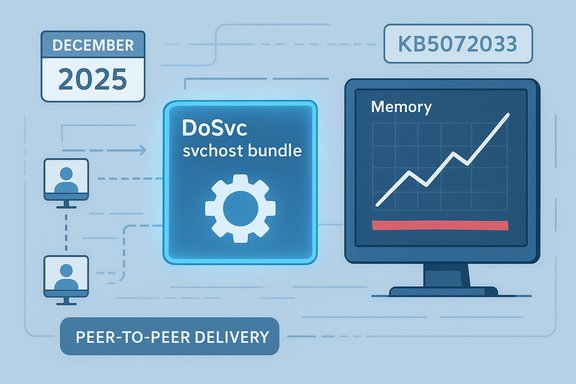
DoSvc svchost bundle enabling peer-to-peer delivery of updates.Background / Overview​

Delivery Optimization (service name DoSvc) is Microsoft’s peer‑assisted distribution engine: it breaks update and Store packages into chunks so devices can fetch parts from Microsoft servers, local network peers, or (optionally) internet peers. The aim is straightforward — reduce upstream bandwidth and accelerate distribution in dense environments — and the feature is controllable from Settings and enterprise policy. In the December 2025 cumulative rollup identified as KB5072033 (OS builds 26100.7462 for 24H2 and 26200.7462 for 25H2), Microsoft made a terse but consequential configuration change: the AppX Deployment Service (AppXSVC) was moved from trigger/manual start to Automatic startup to “improve reliability in some isolated scenarios.” That single line in the KB is the documented, verifiable event that correlates with the timing of recent reports. Community diagnostics quickly tied two observable phenomena together: (1) services that historically ran only on demand now remain resident earlier in the boot cycle, and (2) in many installations an svchost instance hosting DoSvc shows monotonic memory growth over hours until manual intervention. The combined pattern looks very much like a memory leak in practice, though the precise engineering root cause remains to be confirmed by Microsoft.

How Delivery Optimization works — the quick technical primer​

  • Delivery Optimization mixes HTTP downloads from Microsoft with a peer‑to‑peer layer. Chunks of update payloads can be sourced from:
  • Microsoft update endpoints,
  • Devices on the local network, or
  • Permissioned devices on the internet (when enabled).
  • The service maintains a local cache of downloaded parts and tracks upload/download accounting to limit its impact.
  • Controls exposed in Settings let users:
  • Turn peer downloads off entirely,
  • Restrict sharing to the local network only,
  • Set download/upload bandwidth ceilings, and
  • Inspect an Activity monitor showing recent upload/download stats.
Delivery Optimization’s design is pragmatic: it trades a modest resident footprint for significant upstream bandwidth savings at scale. The feature is most valuable in offices and classrooms where many devices need the same payloads. But that trade only holds if the runtime behavior remains bounded and well‑behaved.

What changed in December 2025 and why it matters​

Microsoft’s KB entry for KB5072033 explicitly records the AppXSVC startup change. That change matters because Windows uses two different service startup models:
  • Trigger/manual start — service is launched by an explicit trigger (Store operation, scheduled task) and typically exits when done; this minimizes steady‑state memory and thread counts.
  • Automatic start — service binary and worker infrastructure are instantiated at boot and stay resident; even idle services consume mapped pages, timers, threads and cached state.
Moving AppXSVC to Automatic increases runtime exposure for AppXSVC and related subsystems. When previously dormant components are resident for longer periods, any small, untrimmed allocations or retained caches inside related services (including those that interact with Delivery Optimization) are more visible on machines with limited RAM. The change is therefore a plausible amplifier for symptoms that may previously have been rare or unnoticed. Practical takeaway: a configuration flip in the servicing stack — not a code change to DoSvc itself — is the documented trigger that explains why users began seeing different behavior after the update.

Evidence from the field: what users and admins report​

Independent community traces and forum captures show a consistent pattern:
  • DoSvc (often running inside an svchost host like svchost.exe -k NetworkService -p -s DoSvc) starts at modest resident memory (hundreds of MB) and climbs monotonically over hours to gigabytes in many anecdotes. On lower‑spec machines this produces swapping, UI jank, RDP freezes and crashes.
  • The worst effects appear on systems with 4–12 GB of RAM; machines with 16 GB+ generally tolerate the extra resident footprint without visible disruption, though DoSvc can still appear near the top of Task Manager’s memory list.
  • Community reproductions used Process Explorer, RAMMap, ETW traces and time‑stamped Task Manager snapshots to show monotonic increases in private bytes and working set for the DoSvc host. Those are the traces Microsoft engineering would want to triage the issue.
  • Anecdotal extremes (single reports of svchost peaking at ~20 GB) exist in public threads; these are alarming but remain user‑reported outliers until Microsoft validates them with formal traces. Treat the largest numbers as anecdotal until confirmed.
Independent tech outlets and regional press picked up the story and reproduced both the KB change and the user reports, making the issue widely visible in a matter of days.

How to detect and prove the problem on your device​

If you suspect Delivery Optimization is the culprit, collect structured diagnostics before making sweeping changes. Follow this checklist:
  • Quick check (low risk)
  • Open Task Manager (Ctrl+Shift+Esc) → Details tab → sort by Memory.
  • Find svchost.exe entries and match the PID to services (right‑click → Go to Service(s) to confirm it hosts DoSvc.
  • Open Settings → Windows Update → Advanced options → Delivery Optimization → Activity monitor to see recent upload/download activity.
  • Deep inspection (power users)
  • Run Process Explorer to capture Private Bytes, Working Set, handle and thread counts for the DoSvc host.
  • Use RAMMap to inspect kernel pools and the standby list to separate user‑space from kernel allocations.
  • If you can reproduce the growth, collect ETW traces with Windows Performance Recorder (WPR) and a ProcMon trace for the growth window. These artifacts are what Microsoft engineers need to determine root cause.
  • Reproduce & isolate
  • Reboot and let the machine idle; take time‑stamped snapshots every hour.
  • Test a clean boot (disabling third‑party services) to rule out application interference.
  • If the leak reproduces on a clean image, escalate with the captured traces.
Collecting disciplined, time‑stamped artifacts dramatically increases the chance of meaningful vendor engagement.

Immediate mitigations and step‑by‑step workarounds​

These mitigations are reversible; prioritize the least intrusive first.

For home users (fast, reversible)​

  • Open Settings → Windows Update → Advanced options → Delivery Optimization.
  • Toggle Allow downloads from other PCs to Off, or select Devices on my local network (LAN‑only) instead of Internet peers. Reboot and observe Task Manager. Many users report immediate relief after this change.
Benefits:
  • Stops peer activity and reduces DoSvc background work instantly.
  • Reversible — you can re-enable peer downloads later.
Trade‑offs:
  • Updates will come directly from Microsoft servers instead of peers; on a single‑PC home network this is usually acceptable.

For power users and technicians (more control)​

  • Stop Delivery Optimization temporarily:
  • Elevated command: net stop DoSvc
  • Or Services.msc → Delivery Optimization → Stop; set Startup type to Manual for troubleshooting.
  • Clear the Delivery Optimization cache:
  • Settings → System → Storage → Temporary files → Delivery Optimization Files → Remove files.
  • Or run Disk Cleanup (cleanmgr) as admin and delete Delivery Optimization Files.
  • If necessary, disable the service persistently (advanced):
  • sc config DoSvc start= disabled
  • Or set registry key HKEY_LOCAL_MACHINE\SYSTEM\CurrentControlSet\Services\DoSvc\Start = 4 (use with caution).
Always stop the service before deleting cache files to avoid file‑in‑use errors.

For servers, VDI and managed fleets (test in a pilot)​

  • Revert AppXSVC to demand (trigger) start on sensitive hosts:
  • Elevated command: sc config AppXSVC start= demand
  • Optionally: sc stop AppXSVC; reboot and monitor.
  • Do not set AppXSVC to Disabled unless you accept consequences for Store/app servicing. Microsoft Q&A and community guidance recommend Manual/Trigger rather than Disabled on server SKUs.
  • Use Group Policy / Intune to enforce Delivery Optimization mode (LAN‑only or disabled) for fleets where bandwidth and stability are priorities.
  • Pilot changes in a small representative ring before rolling out broadly. Prepare a rollback plan and collect structured diagnostics for Microsoft support if symptoms persist.

Commands and quick reference (do this in an elevated shell)​

  • Stop Delivery Optimization temporarily:
  • net stop DoSvc
  • Disable Delivery Optimization persistently:
  • sc config DoSvc start= disabled
  • Revert AppXSVC to trigger start:
  • sc config AppXSVC start= demand
  • sc stop AppXSVC
Caveat: registry edits and disabling core services can be reversed, but uncontrolled changes across an enterprise can break update workflows; use managed policy where possible.

Impact by hardware configuration — who feels it most​

  • 4–8 GB RAM: Most vulnerable. A steady few hundred MB or multiple GB of resident growth becomes system‑affecting quickly; swapping and UI jank are common.
  • 8–12 GB RAM: Noticeable pain. Many users with 8–12 GB reported slowdowns after hours of uptime; the process can dominate the memory list and degrade responsiveness.
  • 16 GB+: Tolerant but visible. Machines with 16 GB or more rarely become unusable, but DoSvc may still appear near the top of Task Manager ongoing. Microsoft’s Copilot+ PC guidance explicitly targets modern AI scenarios with 16 GB as a steering baseline for on‑device AI experiences (NPU‑equipped devices), which reflects broader industry expectations about practical headroom.
  • 32 GB+: Seldom impacted materially. These systems show the problem in monitoring dashboards but rarely in user‑facing slowdowns.
The broader industry has converged on 16 GB as a practical baseline for modern Windows machines that run AI features and heavy multitasking, but that is a practical recommendation — not a hard fix for behavioral bugs in background services.

Critical analysis — strengths, risks and what to expect next​

Delivery Optimization is a sensible engineering trade: at scale it saves upstream bandwidth and accelerates large rollouts. Its strengths are real in enterprise and campus networks where many devices request the same payloads.
But the episode exposes three lessons and one clear risk:
  • Small servicing changes ripple. Moving AppXSVC to Automatic was documented, but the operational consequences were underestimated: a configuration change that increases runtime exposure will amplify any latent resource retention behavior across subsystems.
  • Community diagnostics matter — but they are not a substitute for vendor validation. The field traces (Process Explorer, RAMMap, ETW) are credible and reproducible in many cases; however, the definitive classification (true native memory leak vs. untrimmed cache vs. cross‑service interaction) requires Microsoft engineering traces. Reported extreme numbers (multi‑GB, 20 GB) should be treated cautiously until confirmed by vendor analysis.
  • Operational trade‑offs: disabling Delivery Optimization reduces risk but increases upstream bandwidth and may slow enterprise rollouts. For fleets, the right answer is policy‑driven throttling or LAN‑only peering rather than blunt disables unless the environment cannot tolerate instability.
What to expect from Microsoft: historically, Microsoft addresses regressions via one of these paths — a subsequent cumulative update that fixes the code path, an out‑of‑band hotfix for critical regressions, or a Known Issue Rollback (KIR) for enterprise rings. Administrators should monitor the Windows release health dashboard, Microsoft Q&A threads, and official KB updates for a formal advisory and patch. Meanwhile, escalate with structured artifacts if the problem affects production images.

Recommended action plan — concise checklist​

  • For affected home devices:
  • Turn off Delivery Optimization or set it to LAN‑only. Reboot and verify memory stabilizes.
  • For power users:
  • Collect Process Explorer/RAMMap/PerfMon traces; stop DoSvc temporarily; clear the Delivery Optimization cache; test whether memory growth stops.
  • For servers/VDI and managed fleets:
  • Pilot sc config AppXSVC start= demand in a small ring; use Group Policy/Intune to set Delivery Optimization to LAN‑only or controlled mode; collect ETW traces and open a Microsoft support case if symptoms reproduce on clean images.
  • For monitoring teams:
  • Triage AppXSVC flapping alerts triggered after KB5072033; adjust monitoring thresholds while piloting startup reversion to prevent alert storms.

Final verdict and cautionary note​

The public evidence is strong that a December servicing change (KB5072033) increased the runtime exposure of AppXSVC and that, in many installations, a DoSvc host has shown monotonic memory growth that degrades user experience on memory‑constrained machines. The root cause — whether a classic native memory leak inside DoSvc, an untrimmed cache exposed by new startup timing, or a cross‑service interaction — remains an engineering question that requires Microsoft’s internal traces to confirm. Until Microsoft publishes a formal engineering advisory and patch, the practical, reversible mitigations described above are the safest path for both home users and administrators. If you manage multiple devices, pilot changes and attach the structured diagnostics (Process Explorer dumps, RAMMap snapshots, ETW traces, Activity Monitor screenshots) to your Microsoft support case or Feedback Hub submission — documented evidence shortens the time to a definitive fix.

Delivery Optimization remains a useful distribution mechanism when it behaves; this episode is a reminder that small platform configuration changes can produce outsized operational effects. The most pragmatic route for now is measured mitigation: protect device responsiveness first, collect evidence second, and re‑enable bandwidth‑saving features once Microsoft releases an engineering fix that restores stable, bounded behavior.
Source: Mix Vale Delivery Optimization in Windows 11 24H2 presents memory leak and high RAM consumption
 

Back
Top