

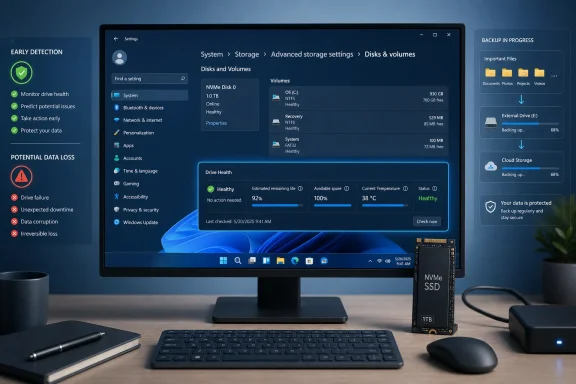
Windows 11 lets users inspect a drive’s basic health in Settings by pressing Win + i and opening System > Storage > Advanced storage settings > Disks & volumes, where supported hardware can report status, estimated remaining life, available spare capacity, and current temperature before failure becomes obvious. The check takes less than a minute, requires no third-party utility, and can provide enough warning to move important files before a storage problem becomes a data-loss emergency. But the simplicity of the interface conceals an important limitation: Microsoft’s detailed health monitoring does not cover every SSD or hard disk that Windows can display. The feature is best understood as an early-warning instrument, not a certificate that a drive is safe.
Storage failure is unusually disruptive because the same component often holds Windows, installed applications, personal documents, browser data, and the working files that users have not yet backed up. A failed memory module or graphics card can stop a PC from working, but replacing the component may restore the machine without destroying its information; a failed system drive can take the operating system and the user’s only copies of important files down together.
That is why Neowin’s guide to the built-in Windows 11 disk-health page is more useful than its short procedure might suggest. The feature moves a small but meaningful piece of storage telemetry into the Settings app, where it is accessible to people who would never open a command prompt, decode raw device statistics, or install a manufacturer-specific diagnostic package.
The route begins with Win + i, the Windows keyboard shortcut for opening Settings. From there, select System, open Storage, expand Advanced storage settings, and choose Disks & volumes. Windows then presents the physical storage devices and the volumes associated with them, rather than limiting the view to the familiar drive letters shown in File Explorer.
Under each disk, Windows can display a general status such as Healthy. Selecting the main drive and opening its Properties page exposes the Drive Health section on supported hardware, including Estimated remaining life, Available spare, and Current Temperature.
The design matters because storage diagnostics have traditionally been scattered across several layers of Windows. File Explorer shows capacity and free space, Disk Management concentrates on partitions and volumes, Windows Security may warn about capacity pressure, and command-line tools can inspect or repair file-system problems. None of those views, by itself, answers the more basic question most people are asking: Is the physical device holding my files beginning to wear out?
Microsoft’s Settings page brings that question closer to the surface. It is not a full diagnostic laboratory, but it reduces the distance between a drive’s internal warning signals and the person who needs to act on them.
Open Settings with Win + i, then follow System > Storage > Advanced storage settings > Disks & volumes. Locate the physical disk containing Windows or the data you want to inspect, read the status displayed beneath it, and select the disk before opening Properties.
If the drive and its connection support Windows’ detailed health reporting, the Properties page will include the Drive Health information described by Neowin and Microsoft. A normal result may be summarized as Healthy, followed by the three more informative measurements.
This is a read-only inspection in ordinary use. Checking the page does not format the disk, alter its partitions, move files, or initiate a repair. That makes it suitable as a routine check even on a production PC, although administrators should still pay attention to exactly which disk they are viewing on systems with multiple storage devices.
That distinction becomes especially important on desktops, workstations, and gaming systems where a smaller system SSD may coexist with a larger secondary SSD or hard disk. A Healthy status under one disk says nothing about another disk in the same machine. Each physical device must be evaluated separately.
The same rule applies when a user reports that “the C drive is slow.” C: identifies a volume, not necessarily the complete physical storage layout. The Disks & volumes page helps connect the user-facing drive letter to the device whose health telemetry actually matters.
Storage devices can deteriorate gradually, but they can also fail because of controller faults, firmware defects, electrical problems, physical damage, overheating, or other events that do not provide a convenient countdown. Health telemetry is strongest when a failure mode produces measurable wear or crosses a manufacturer-defined threshold. It is weaker when the failure arrives suddenly or occurs outside the signals Windows is monitoring.
That makes the general status a screening result rather than a warranty. A Healthy reading is useful evidence, particularly when it is consistent over repeated checks and the system shows no other symptoms. It is not a reason to stop backing up the files that cannot be replaced.
The opposite result deserves more urgency. Microsoft’s support guidance for a critical storage warning tells users to open the same Disks & volumes area and inspect the affected disk’s Properties page. The practical implication is that a warning should trigger data protection first and diagnosis second.
Users often reverse that order. They begin searching for a repair command, running benchmarks, installing utilities, updating drivers, or repeatedly restarting the PC while the only copy of their data remains on the questionable device. Every additional write, reboot, scan, or troubleshooting experiment assumes the drive will survive long enough to complete it.
The safer sequence is to copy irreplaceable data while the disk is still readable, confirm that the copy can be opened from another location, and only then investigate whether the drive can remain in service. A diagnostic exercise is valuable; a successful backup is valuable even if the diagnosis later proves to be a false alarm.
For a solid-state drive, the figure generally reflects how much of the manufacturer’s projected endurance has been consumed. Flash storage wears as cells are programmed and erased, so the device can estimate its position within the expected write-life envelope. That estimate can be useful for spotting a heavily used drive, but it cannot account perfectly for every possible controller, firmware, power, or component failure.
Nor should remaining life be interpreted as ordinary free storage space. A drive can have plenty of unused file capacity while having consumed a significant portion of its write endurance. Conversely, a nearly full drive is not automatically close to physical failure, although lack of working space can hurt performance and complicate maintenance.
Available spare refers to replacement capacity reserved internally by the SSD, not the free space shown beside C: in File Explorer. Solid-state drives keep spare flash available so that the controller can retire problematic blocks and continue operating. A reduction in that reserve can therefore indicate that the device is consuming the resources designed to absorb wear and defects.
The crucial point is that Available spare is not extra user storage waiting to be unlocked. Deleting files may create more free space within a Windows volume, but it does not restore flash cells that the controller has already removed from normal service. If Windows reports a serious spare-capacity warning, ordinary disk cleanup is not a remedy for the physical condition.
Current Temperature provides another kind of evidence. Temperature changes constantly with workload, airflow, ambient conditions, laptop design, and the location of the drive inside the chassis. A single reading is a snapshot, while repeated high or sharply rising readings are more useful as an indication that cooling or workload conditions deserve attention.
Temperature also needs context. A drive can become hotter during large file transfers, application installation, gaming, content creation, or other sustained activity. The significant pattern is not simply that the number increased, but that it remains unusually elevated, coincides with throttling or instability, or has changed from the machine’s normal behavior.
The three measurements therefore answer different questions. Estimated remaining life addresses accumulated wear, Available spare reflects the reserve capacity the device can use to manage degraded flash, and Current Temperature captures an immediate operating condition. No single number replaces the others, and none replaces a backup.
Windows Central makes the same distinction in its coverage of the Windows 11 Drive Health page. Its guide notes that the detailed health feature is available for modern NVMe SSDs and not for SATA-connected SSDs or HDDs, even though those devices may still appear elsewhere in Windows storage management.
This is the central limitation that a quick walkthrough can leave implicit. The presence of a disk in Disks & volumes does not guarantee that Windows can expose Estimated remaining life, Available spare, and Current Temperature for it. The interface can manage or identify more hardware than the health-warning system can fully monitor.
The comparison explains why two users following the same instructions may see different results. One may find a complete Drive Health panel, while another sees only device, capacity, partition, or volume information. The absence of the three metrics does not prove the second drive is healthy or unhealthy; it may simply be outside the scope of the built-in monitoring feature.
It also explains some of the contradictory guidance found in PC support coverage. An older PCWorld guide says Windows lacks a built-in tool for checking SSD health and recommends a third-party utility, while newer Windows-focused instructions point to the Settings page. Both statements can appear plausible depending on whether “health” means Windows’ limited NVMe warning interface or a broader view of diagnostic information across multiple drive types.
Tom’s Hardware takes the broader approach, describing command-line checks, general-purpose disk utilities, and tools supplied by drive manufacturers. Those alternatives can expose substantially more information than Settings, but they also impose more responsibility on the user to understand what is being reported and to obtain software from a trustworthy source.
For ordinary owners of supported NVMe systems, Settings should be the first stop because it is built in, easy to find, and difficult to misuse. For SATA SSDs, HDDs, mixed-storage machines, or cases where Windows provides an ambiguous result, it should be treated as the beginning of the investigation rather than its end.
This matters because consumer PCs contain a wide range of storage configurations. Newer systems commonly boot from NVMe storage, but older PCs, upgraded desktops, low-cost systems, external enclosures, and secondary storage arrays may rely on SATA SSDs or mechanical disks. Windows can use all of them without necessarily presenting the same health information.
Users should therefore identify the actual device before interpreting the screen. If the Drive Health section shows Estimated remaining life, Available spare, and Current Temperature, there is meaningful telemetry to evaluate. If those fields are missing, do not mentally substitute Healthy for the information Windows did not provide.
A manufacturer’s own management utility may offer more specific health data, firmware information, diagnostic tests, or warning explanations for a supported SSD. General-purpose disk utilities can also read device telemetry across a wider variety of hardware. Such tools can be useful, but software provenance matters because a disk utility may require low-level access and can become a security or stability risk if downloaded from an unofficial mirror or bundled installer.
Administrators should also avoid treating a simple pass/fail command as equivalent to a full health assessment. A generic status response can be a convenient triage signal, but it may omit wear information, thermal behavior, error history, or vendor-specific attributes. The more valuable the data and the more suspicious the symptoms, the less appropriate it is to rely on one green label.
The built-in page is at its best when it lowers the barrier to inspection. It is at its worst when the clean design encourages users to believe that Windows has performed a more comprehensive examination than it actually has.
No single symptom proves that the storage device is responsible. Slow startup can be caused by overloaded background software, file corruption can result from an interrupted write or malware, and system crashes can originate in memory, drivers, power delivery, or other hardware. The important signal is a pattern, especially when storage-related symptoms begin appearing together.
Clicking and grinding deserve special treatment because they are mechanical symptoms associated with hard disks, not normal behavior from an SSD. If an HDD begins producing unfamiliar repetitive noises while files become difficult to open, continued testing can be counterproductive. The priority is to recover readable data without placing unnecessary additional load on the mechanism.
Sudden slowness is more ambiguous. An SSD may slow because it is nearly full, overheated, busy with background work, or suffering from another system bottleneck. But when slow file access coincides with read errors, disappearing folders, corrupted documents, or repeated application hangs during large transfers, storage moves much higher on the list of suspects.
Temperature changes require the same pattern-based judgment. A temporary rise under sustained activity is not equivalent to unexplained overheating during light use. If the Current Temperature reading climbs alongside instability, unusually low transfer performance, or a chassis that has lost airflow because of dust or a failed fan, the thermal data becomes operationally relevant.
The essential lesson is that Windows’ health page and the machine’s behavior should be read together. A warning in Settings can validate a user’s suspicions, but a Healthy status should not overrule obvious evidence that files are becoming inaccessible or the disk is behaving abnormally.
The interval is not a countdown to safety. A drive checked at the beginning of a quarter can still fail before the next inspection. Routine checks improve the chance of noticing gradual wear or a warning, but they do not create continuous protection.
The better maintenance model combines periodic inspection with event-driven checks. Open the health page every few months when the computer is behaving normally, but inspect it immediately after unexplained storage errors, repeated crashes, significant performance changes, unusual heat, or difficulty opening files.
A check is also sensible before a task that places unusual value on the system remaining available. That could include a major project, an extended trip, a hardware move, or any other period when a drive replacement would be especially disruptive. The purpose is not to certify the machine, but to notice an existing warning while there is still time to respond.
Administrators need a more deliberate cadence because “every few months” does not map neatly onto managed fleets. Systems that hold important local data, operate continuously, or cannot tolerate unplanned downtime may justify more frequent telemetry collection and automated alerting. The consumer Settings interface is informative on one PC; it is not, by itself, a fleet-management strategy.
Begin with documents, photographs, project files, financial records, saved work, and any other information that cannot simply be reinstalled. Copy them to another physical device, a suitable network location, or a cloud-backed location, and verify that representative files open correctly from the destination.
That final verification is important. A progress bar reaching completion does not prove that every needed file was readable or that the destination contains a usable copy. Backup confidence comes from testing recovery, even if the test is only opening several important files and confirming that the expected folders are present.
Large, easily replaceable data should usually come later. Applications, downloaded installers, cached media, and games may consume most of the disk while having little recovery value. Prioritizing them can waste the remaining operating time of a failing drive before the unique files have been secured.
Users should also avoid assuming that synchronization and backup are identical. A synchronized cloud folder can provide an off-device copy, which is valuable during hardware failure, but synchronization can also propagate unwanted changes or deletions. A resilient data-protection plan keeps recoverable copies rather than relying solely on the current synchronized state.
Microsoft’s backup guidance distinguishes backup, restore, and recovery for good reason. Backup protects copies of data, restore retrieves those copies, and system recovery addresses the wider operating environment. A recovery drive can help reinstall or recover Windows, but Microsoft explicitly warns that recovery media does not contain the user’s personal files.
That separation is often misunderstood during a disk emergency. Reinstalling Windows may return a PC to service after the drive is replaced, but it cannot recreate a folder that existed only on the failed device. Drive health monitoring buys time; backup preserves the data.
The first administrative task is inventory. IT needs to know which endpoints use NVMe SSDs covered by Windows’ detailed monitoring, which rely on SATA devices or hard disks, and which have multiple physical drives with different support characteristics. Without that distinction, a fleet-wide absence of warnings can be mistaken for fleet-wide health.
The second task is data placement. If important organizational information exists only on local endpoints, every drive failure becomes a potential data-loss incident. Redirected folders, managed cloud storage, network locations, and tested endpoint-backup systems reduce the consequences of hardware failure even when the health warning arrives late or not at all.
The third task is response consistency. A user who sees a warning should not be left to search the web, install an unknown utility, or decide which files matter most. The support process should define how the alert is captured, how the data is protected, how the device is evaluated, and when replacement is mandatory.
Replacement thresholds should err on the side of preserving continuity. Storage devices are consumable components, and the cost of replacing one is usually lower than the cost of emergency recovery, user downtime, forensic work, or permanent data loss. The warning system is valuable precisely because it creates an opportunity to schedule replacement rather than wait for an outage.
Yet the interface could communicate its scope more clearly. A disk shown in the same Disks & volumes list as a fully monitored NVMe drive may not provide the same health telemetry, and users are unlikely to understand why. Windows should state plainly when detailed monitoring is unavailable for a device rather than leaving the absence of metrics open to interpretation.
The word Healthy also carries more authority than the underlying mechanism warrants. A label such as “No monitored health warning detected” would be less elegant but more accurate, especially when the device is not covered by every aspect of the feature. Consumer interfaces simplify technical states, but simplification becomes dangerous when it erases uncertainty.
There is also a broader opportunity for Windows to connect warning and response. A critical drive alert could lead directly into a guided workflow that identifies important local files, checks backup status, explains which physical device is affected, and prepares the user for replacement. Today, the warning can reveal the problem while leaving the most consequential decisions to someone already facing a possible failure.
Until that gap closes, WindowsForum readers should treat the Settings page as a useful observation point rather than a complete storage-management solution. It provides a quick answer when supported hardware has something important to report, but it cannot make an unsupported device observable or transform telemetry into recovery.
 Windows Puts a Useful Warning System Inside Settings
Storage failure is unusually disruptive because the same component often holds Windows, installed applications, personal documents, browser data, and the working files that users have not yet backed up. A failed memory module or graphics card can stop a PC from working, but replacing the component may restore the machine without destroying its information; a failed system drive can take the operating system and the user’s only copies of important files down together.That is why Neowin’s guide to the built-in Windows 11 disk-health page is more useful than its short procedure might suggest. The feature moves a small but meaningful piece of storage telemetry into the Settings app, where it is accessible to people who would never open a command prompt, decode raw device statistics, or install a manufacturer-specific diagnostic package.
The route begins with Win + i, the Windows keyboard shortcut for opening Settings. From there, select System, open Storage, expand Advanced storage settings, and choose Disks & volumes. Windows then presents the physical storage devices and the volumes associated with them, rather than limiting the view to the familiar drive letters shown in File Explorer.
Under each disk, Windows can display a general status such as Healthy. Selecting the main drive and opening its Properties page exposes the Drive Health section on supported hardware, including Estimated remaining life, Available spare, and Current Temperature.
The design matters because storage diagnostics have traditionally been scattered across several layers of Windows. File Explorer shows capacity and free space, Disk Management concentrates on partitions and volumes, Windows Security may warn about capacity pressure, and command-line tools can inspect or repair file-system problems. None of those views, by itself, answers the more basic question most people are asking: Is the physical device holding my files beginning to wear out?
Microsoft’s Settings page brings that question closer to the surface. It is not a full diagnostic laboratory, but it reduces the distance between a drive’s internal warning signals and the person who needs to act on them.
The Five-Click Check Separates the Disk From the Drive Letter
The most important conceptual step is recognizing that a disk and a Windows volume are not necessarily the same thing. A physical SSD can contain the Windows system volume, recovery areas, and other partitions, while File Explorer may show only the volume assigned a drive letter. The Disks & volumes page exposes that underlying structure.Open Settings with Win + i, then follow System > Storage > Advanced storage settings > Disks & volumes. Locate the physical disk containing Windows or the data you want to inspect, read the status displayed beneath it, and select the disk before opening Properties.
If the drive and its connection support Windows’ detailed health reporting, the Properties page will include the Drive Health information described by Neowin and Microsoft. A normal result may be summarized as Healthy, followed by the three more informative measurements.
This is a read-only inspection in ordinary use. Checking the page does not format the disk, alter its partitions, move files, or initiate a repair. That makes it suitable as a routine check even on a production PC, although administrators should still pay attention to exactly which disk they are viewing on systems with multiple storage devices.
That distinction becomes especially important on desktops, workstations, and gaming systems where a smaller system SSD may coexist with a larger secondary SSD or hard disk. A Healthy status under one disk says nothing about another disk in the same machine. Each physical device must be evaluated separately.
The same rule applies when a user reports that “the C drive is slow.” C: identifies a volume, not necessarily the complete physical storage layout. The Disks & volumes page helps connect the user-facing drive letter to the device whose health telemetry actually matters.
“Healthy” Describes the Present, Not the Future
The word Healthy is reassuring, but it is easy to assign it more certainty than Windows can justify. It means the device has not presented Windows with the particular warning conditions that the interface recognizes at that moment. It does not mean the drive has been exhaustively tested or that failure is impossible.Storage devices can deteriorate gradually, but they can also fail because of controller faults, firmware defects, electrical problems, physical damage, overheating, or other events that do not provide a convenient countdown. Health telemetry is strongest when a failure mode produces measurable wear or crosses a manufacturer-defined threshold. It is weaker when the failure arrives suddenly or occurs outside the signals Windows is monitoring.
That makes the general status a screening result rather than a warranty. A Healthy reading is useful evidence, particularly when it is consistent over repeated checks and the system shows no other symptoms. It is not a reason to stop backing up the files that cannot be replaced.
The opposite result deserves more urgency. Microsoft’s support guidance for a critical storage warning tells users to open the same Disks & volumes area and inspect the affected disk’s Properties page. The practical implication is that a warning should trigger data protection first and diagnosis second.
Users often reverse that order. They begin searching for a repair command, running benchmarks, installing utilities, updating drivers, or repeatedly restarting the PC while the only copy of their data remains on the questionable device. Every additional write, reboot, scan, or troubleshooting experiment assumes the drive will survive long enough to complete it.
The safer sequence is to copy irreplaceable data while the disk is still readable, confirm that the copy can be opened from another location, and only then investigate whether the drive can remain in service. A diagnostic exercise is valuable; a successful backup is valuable even if the diagnosis later proves to be a false alarm.
Three Metrics Tell Different Parts of the Story
Estimated remaining life is the most immediately understandable of the three measurements, but its wording can be misleading. It is an estimate derived from information supplied by the device, not a prediction that the disk will keep working until a particular day and then fail.For a solid-state drive, the figure generally reflects how much of the manufacturer’s projected endurance has been consumed. Flash storage wears as cells are programmed and erased, so the device can estimate its position within the expected write-life envelope. That estimate can be useful for spotting a heavily used drive, but it cannot account perfectly for every possible controller, firmware, power, or component failure.
Nor should remaining life be interpreted as ordinary free storage space. A drive can have plenty of unused file capacity while having consumed a significant portion of its write endurance. Conversely, a nearly full drive is not automatically close to physical failure, although lack of working space can hurt performance and complicate maintenance.
Available spare refers to replacement capacity reserved internally by the SSD, not the free space shown beside C: in File Explorer. Solid-state drives keep spare flash available so that the controller can retire problematic blocks and continue operating. A reduction in that reserve can therefore indicate that the device is consuming the resources designed to absorb wear and defects.
The crucial point is that Available spare is not extra user storage waiting to be unlocked. Deleting files may create more free space within a Windows volume, but it does not restore flash cells that the controller has already removed from normal service. If Windows reports a serious spare-capacity warning, ordinary disk cleanup is not a remedy for the physical condition.
Current Temperature provides another kind of evidence. Temperature changes constantly with workload, airflow, ambient conditions, laptop design, and the location of the drive inside the chassis. A single reading is a snapshot, while repeated high or sharply rising readings are more useful as an indication that cooling or workload conditions deserve attention.
Temperature also needs context. A drive can become hotter during large file transfers, application installation, gaming, content creation, or other sustained activity. The significant pattern is not simply that the number increased, but that it remains unusually elevated, coincides with throttling or instability, or has changed from the machine’s normal behavior.
The three measurements therefore answer different questions. Estimated remaining life addresses accumulated wear, Available spare reflects the reserve capacity the device can use to manage degraded flash, and Current Temperature captures an immediate operating condition. No single number replaces the others, and none replaces a backup.
Microsoft’s NVMe Limitation Changes the Meaning of the Guide
Neowin frames the Windows 11 procedure as a way to check an SSD or HDD, which is understandable because the Disks & volumes page can enumerate different kinds of storage. Microsoft’s own support material, however, adds the caveat that its critical storage warning and detailed health monitoring apply to NVMe solid-state drives rather than SATA SSDs or conventional hard disks.Windows Central makes the same distinction in its coverage of the Windows 11 Drive Health page. Its guide notes that the detailed health feature is available for modern NVMe SSDs and not for SATA-connected SSDs or HDDs, even though those devices may still appear elsewhere in Windows storage management.
This is the central limitation that a quick walkthrough can leave implicit. The presence of a disk in Disks & volumes does not guarantee that Windows can expose Estimated remaining life, Available spare, and Current Temperature for it. The interface can manage or identify more hardware than the health-warning system can fully monitor.
| Storage device | Listed in Disks & volumes | Detailed Drive Health metrics | Built-in early-warning value |
|---|---|---|---|
| NVMe SSD | Yes | Supported when the device reports the required information | Most useful case for the Windows 11 health page |
| SATA SSD | May be listed | Not covered by Microsoft’s detailed monitoring | Use vendor or compatible diagnostic tooling |
| HDD | May be listed | Not covered by Microsoft’s detailed monitoring | Watch symptoms and use an appropriate disk diagnostic |
It also explains some of the contradictory guidance found in PC support coverage. An older PCWorld guide says Windows lacks a built-in tool for checking SSD health and recommends a third-party utility, while newer Windows-focused instructions point to the Settings page. Both statements can appear plausible depending on whether “health” means Windows’ limited NVMe warning interface or a broader view of diagnostic information across multiple drive types.
Tom’s Hardware takes the broader approach, describing command-line checks, general-purpose disk utilities, and tools supplied by drive manufacturers. Those alternatives can expose substantially more information than Settings, but they also impose more responsibility on the user to understand what is being reported and to obtain software from a trustworthy source.
For ordinary owners of supported NVMe systems, Settings should be the first stop because it is built in, easy to find, and difficult to misuse. For SATA SSDs, HDDs, mixed-storage machines, or cases where Windows provides an ambiguous result, it should be treated as the beginning of the investigation rather than its end.
A Missing Health Panel Is Not a Passing Grade
One of the dangerous assumptions in PC maintenance is that no warning means no problem. With Windows 11 drive health, the absence of a warning can mean the drive is operating normally, but it can also mean that Windows is not monitoring that device in the detailed manner the user expects.This matters because consumer PCs contain a wide range of storage configurations. Newer systems commonly boot from NVMe storage, but older PCs, upgraded desktops, low-cost systems, external enclosures, and secondary storage arrays may rely on SATA SSDs or mechanical disks. Windows can use all of them without necessarily presenting the same health information.
Users should therefore identify the actual device before interpreting the screen. If the Drive Health section shows Estimated remaining life, Available spare, and Current Temperature, there is meaningful telemetry to evaluate. If those fields are missing, do not mentally substitute Healthy for the information Windows did not provide.
A manufacturer’s own management utility may offer more specific health data, firmware information, diagnostic tests, or warning explanations for a supported SSD. General-purpose disk utilities can also read device telemetry across a wider variety of hardware. Such tools can be useful, but software provenance matters because a disk utility may require low-level access and can become a security or stability risk if downloaded from an unofficial mirror or bundled installer.
Administrators should also avoid treating a simple pass/fail command as equivalent to a full health assessment. A generic status response can be a convenient triage signal, but it may omit wear information, thermal behavior, error history, or vendor-specific attributes. The more valuable the data and the more suspicious the symptoms, the less appropriate it is to rely on one green label.
The built-in page is at its best when it lowers the barrier to inspection. It is at its worst when the clean design encourages users to believe that Windows has performed a more comprehensive examination than it actually has.
Drives Often Signal Trouble Before Windows Does
Neowin lists several familiar warning signs of a failing disk: clicking or grinding noises, repeated crashes or sudden blue screens, slow startup and file access, corrupted or missing files, unexpected temperature spikes, frequent read or write errors, and applications that freeze or crash while accessing large files.No single symptom proves that the storage device is responsible. Slow startup can be caused by overloaded background software, file corruption can result from an interrupted write or malware, and system crashes can originate in memory, drivers, power delivery, or other hardware. The important signal is a pattern, especially when storage-related symptoms begin appearing together.
Clicking and grinding deserve special treatment because they are mechanical symptoms associated with hard disks, not normal behavior from an SSD. If an HDD begins producing unfamiliar repetitive noises while files become difficult to open, continued testing can be counterproductive. The priority is to recover readable data without placing unnecessary additional load on the mechanism.
Sudden slowness is more ambiguous. An SSD may slow because it is nearly full, overheated, busy with background work, or suffering from another system bottleneck. But when slow file access coincides with read errors, disappearing folders, corrupted documents, or repeated application hangs during large transfers, storage moves much higher on the list of suspects.
Temperature changes require the same pattern-based judgment. A temporary rise under sustained activity is not equivalent to unexplained overheating during light use. If the Current Temperature reading climbs alongside instability, unusually low transfer performance, or a chassis that has lost airflow because of dust or a failed fan, the thermal data becomes operationally relevant.
The essential lesson is that Windows’ health page and the machine’s behavior should be read together. A warning in Settings can validate a user’s suspicions, but a Healthy status should not overrule obvious evidence that files are becoming inaccessible or the disk is behaving abnormally.
Checking Every Few Months Is Sensible—Checking After Symptoms Is Urgent
Neowin recommends checking drive health every few months. That is a reasonable cadence for a home PC because it creates a habit without turning the Settings page into a daily ritual that produces more anxiety than useful information.The interval is not a countdown to safety. A drive checked at the beginning of a quarter can still fail before the next inspection. Routine checks improve the chance of noticing gradual wear or a warning, but they do not create continuous protection.
The better maintenance model combines periodic inspection with event-driven checks. Open the health page every few months when the computer is behaving normally, but inspect it immediately after unexplained storage errors, repeated crashes, significant performance changes, unusual heat, or difficulty opening files.
A check is also sensible before a task that places unusual value on the system remaining available. That could include a major project, an extended trip, a hardware move, or any other period when a drive replacement would be especially disruptive. The purpose is not to certify the machine, but to notice an existing warning while there is still time to respond.
Administrators need a more deliberate cadence because “every few months” does not map neatly onto managed fleets. Systems that hold important local data, operate continuously, or cannot tolerate unplanned downtime may justify more frequent telemetry collection and automated alerting. The consumer Settings interface is informative on one PC; it is not, by itself, a fleet-management strategy.
The First Response to a Warning Is Data Evacuation
When Windows reports a storage warning, the user’s first job is not to make the warning disappear. It is to reduce the amount of irreplaceable information that depends on the suspect device continuing to work.Begin with documents, photographs, project files, financial records, saved work, and any other information that cannot simply be reinstalled. Copy them to another physical device, a suitable network location, or a cloud-backed location, and verify that representative files open correctly from the destination.
That final verification is important. A progress bar reaching completion does not prove that every needed file was readable or that the destination contains a usable copy. Backup confidence comes from testing recovery, even if the test is only opening several important files and confirming that the expected folders are present.
Large, easily replaceable data should usually come later. Applications, downloaded installers, cached media, and games may consume most of the disk while having little recovery value. Prioritizing them can waste the remaining operating time of a failing drive before the unique files have been secured.
Users should also avoid assuming that synchronization and backup are identical. A synchronized cloud folder can provide an off-device copy, which is valuable during hardware failure, but synchronization can also propagate unwanted changes or deletions. A resilient data-protection plan keeps recoverable copies rather than relying solely on the current synchronized state.
Microsoft’s backup guidance distinguishes backup, restore, and recovery for good reason. Backup protects copies of data, restore retrieves those copies, and system recovery addresses the wider operating environment. A recovery drive can help reinstall or recover Windows, but Microsoft explicitly warns that recovery media does not contain the user’s personal files.
That separation is often misunderstood during a disk emergency. Reinstalling Windows may return a PC to service after the drive is replaced, but it cannot recreate a folder that existed only on the failed device. Drive health monitoring buys time; backup preserves the data.
IT Departments Need a Policy, Not a Settings Walkthrough
The Windows 11 health page is designed around a person looking at one PC. In an organization, storage risk is distributed across devices, users, hardware generations, purchasing cycles, and support boundaries. A manual visit to Settings can confirm a condition, but it cannot reliably find every machine that needs attention.The first administrative task is inventory. IT needs to know which endpoints use NVMe SSDs covered by Windows’ detailed monitoring, which rely on SATA devices or hard disks, and which have multiple physical drives with different support characteristics. Without that distinction, a fleet-wide absence of warnings can be mistaken for fleet-wide health.
The second task is data placement. If important organizational information exists only on local endpoints, every drive failure becomes a potential data-loss incident. Redirected folders, managed cloud storage, network locations, and tested endpoint-backup systems reduce the consequences of hardware failure even when the health warning arrives late or not at all.
The third task is response consistency. A user who sees a warning should not be left to search the web, install an unknown utility, or decide which files matter most. The support process should define how the alert is captured, how the data is protected, how the device is evaluated, and when replacement is mandatory.
Action checklist for admins
- Inventory the physical storage type in each Windows 11 device and identify systems outside the built-in detailed monitoring scope.
- Document the System > Storage > Advanced storage settings > Disks & volumes path for help-desk triage.
- Treat a critical drive warning or degraded status as a backup-and-replacement event, not merely a software ticket.
- Confirm that important endpoint data is backed up somewhere other than the physical disk being monitored.
- Verify backups by restoring representative files rather than relying only on job-completion reports.
- Escalate systems showing read errors, corruption, unusual noises, overheating, or repeated crashes even when Settings says Healthy.
Replacement thresholds should err on the side of preserving continuity. Storage devices are consumable components, and the cost of replacing one is usually lower than the cost of emergency recovery, user downtime, forensic work, or permanent data loss. The warning system is valuable precisely because it creates an opportunity to schedule replacement rather than wait for an outage.
The Interface Needs More Honesty About What It Cannot See
Microsoft deserves credit for putting drive health in the mainstream Settings app. The feature turns information that once belonged mainly to enthusiasts and support technicians into something an ordinary Windows 11 user can inspect without downloading software.Yet the interface could communicate its scope more clearly. A disk shown in the same Disks & volumes list as a fully monitored NVMe drive may not provide the same health telemetry, and users are unlikely to understand why. Windows should state plainly when detailed monitoring is unavailable for a device rather than leaving the absence of metrics open to interpretation.
The word Healthy also carries more authority than the underlying mechanism warrants. A label such as “No monitored health warning detected” would be less elegant but more accurate, especially when the device is not covered by every aspect of the feature. Consumer interfaces simplify technical states, but simplification becomes dangerous when it erases uncertainty.
There is also a broader opportunity for Windows to connect warning and response. A critical drive alert could lead directly into a guided workflow that identifies important local files, checks backup status, explains which physical device is affected, and prepares the user for replacement. Today, the warning can reveal the problem while leaving the most consequential decisions to someone already facing a possible failure.
Until that gap closes, WindowsForum readers should treat the Settings page as a useful observation point rather than a complete storage-management solution. It provides a quick answer when supported hardware has something important to report, but it cannot make an unsupported device observable or transform telemetry into recovery.
What the Windows 11 Health Screen Can—and Cannot—Promise
The practical value of this feature lies in its modesty. It is fast, built in, and potentially capable of turning an unexpected drive death into a planned migration, but only if users understand the limits of the result.- Press Win + i and follow System > Storage > Advanced storage settings > Disks & volumes.
- Read the status under each physical disk rather than checking only the C: volume.
- On supported hardware, inspect Estimated remaining life, Available spare, and Current Temperature.
- Remember that Microsoft’s detailed monitoring is aimed at NVMe SSDs, not every SATA SSD or HDD shown by Windows.
- Check every few months and immediately when crashes, corruption, unusual noise, heat, or file-access problems appear.
- Back up regardless of whether Windows reports Healthy.
References
- Primary source: Neowin
Published: 2026-07-12T16:10:08.323414
How to check your disk health in Windows 11 to prevent data loss - Neowin
In this guide, we tell you how to check your HDD or SSD disk health in Windows 11. This can tell you if your disk faces imminent failure. www.neowin.net
- Official source: support.microsoft.com
What to do about a critical warning for a storage device | Microsoft Support
Here's what to do if you see a critical warning for a storage device.support.microsoft.com - Official source: learn.microsoft.com
NVME_HEALTH_INFO_LOG - Win32 apps | Microsoft Learn
Contiene campos que especifican la información contenida en la página Registro de información de estado/SMART.learn.microsoft.com - Related coverage: windowscentral.com
How to find out the SSD health on Windows 11 | Windows Central
On Windows 11, you can quickly check the SSD health from the Settings app through the Drive health feature, and for regular SSDs and HDDs, you can use the Performance Monitor app. In this guide, I'll show you how.www.windowscentral.com - Official source: microsoft.com
- Related coverage: tomshardware.com
How to Check SSD Health in Windows 10 and Windows 11 | Tom's Hardware
Find out how many writes your SSD has left.www.tomshardware.com
- Related coverage: pcworld.com
How to check your SSD's health and other stats | PCWorld
CrystalDiskInfo is a free tool that can provide deeper insight into your SSD's health and other hidden stats. Here's how to use it.www.pcworld.com