

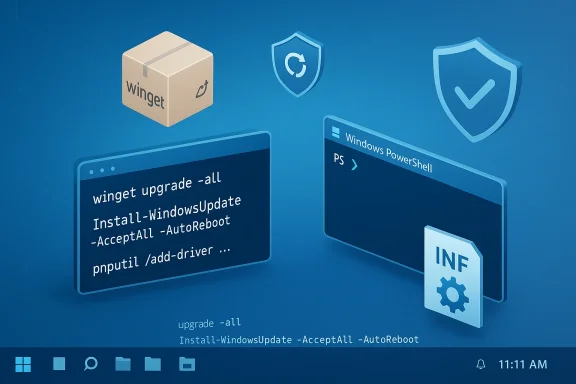
Keeping every driver on a Windows 11 PC fully up to date with a single native Command Prompt command is a tempting idea, but it’s not how Microsoft designs driver servicing — there is no single built‑in CMD instruction that scans, downloads, and installs every device driver on a modern Windows 11 system in one step. Instead, you can achieve the same end result by combining a small toolkit of built‑in and community tools — WinGet, PSWindowsUpdate (PowerShell), and PnPUtil — and by understanding when to rely on Windows Update and when to use vendor installers. This article explains each method, verifies the commands and behaviors against authoritative sources, and gives a practical, safe workflow you can run from the command line to bring most drivers current on a Windows 11 PC.
Background / Overview
Windows driver servicing is intentionally split across multiple systems to balance compatibility, security, and vendor control. The operating system gets many drivers and driver updates through Windows Update (recommended for most users), while hardware vendors often publish their own installers (for features, firmware or vendor‑specific enhancements). Tools such as WinGet (Windows Package Manager) update packaged vendor software and some vendor drivers, PSWindowsUpdate brings command‑line control to Windows Update, and PnPUtil is the built‑in command‑line utility for installing INF‑based driver packages. None of these pieces alone is a single “update all drivers CMD” button, but together they allow nearly complete, scriptable driver maintenance.Why Microsoft separates driver channels:
- Windows Update distributes many certified, recommended drivers after Microsoft and OEM validation.
- OEMs and GPU vendors distribute feature or beta drivers via their own installers (these may include firmware, control panels or additional software).
- For administrators, Intune / Windows Autopatch provide additional policy controls over which drivers are approved for devices in managed environments.
The short answer — what you can and cannot do from CMD
- You cannot run a single native CMD command that will reliably scan and install every available driver from every possible source for Windows 11.
- You can use a small set of command‑line tools to cover the three main driver sources: vendor packages (WinGet), Windows Update (PowerShell + PSWindowsUpdate), and manually downloaded INF packages (PnPUtil).
Method A — Update third‑party vendor packages with WinGet
What WinGet is good at
- WinGet (Windows Package Manager) is a Microsoft‑supported package manager for Windows apps and packages. It can upgrade many vendor installers and utilities — for example, GeForce experience, Intel driver installers, and other vendor packages that are available in the WinGet repository. It is designed for app/package updates, not core driver servicing by Windows Update.
The command
Run Command Prompt or PowerShell as Administrator and execute:winget upgrade --allThis command enumerates installed packages known to WinGet and attempts to update them to the latest manifested versions. Use
winget upgrade without --all to preview available updates before installing.Strengths
- Fast and safe for vendor installer packages and utilities.
- Useful for keeping GPU control panels, vendor assistants, and other packaged software current.
- Scriptable and easily included in scheduled maintenance tasks.
Limitations and gotchas
- WinGet updates only what’s packaged in WinGet sources; many OEM drivers are not distributed this way.
- WinGet will not update Windows Update‑delivered drivers (chipset, base NIC, integrated graphics in some systems) — those remain controlled by Windows Update or vendor installers. Always verify whether the package is actually a driver installer or merely a vendor utility.
Method B — Update Windows‑certified system drivers using PowerShell (PSWindowsUpdate)
Why use PowerShell instead of CMD
- Windows Update is the primary source for many system drivers (chipset, network, storage, core graphics in many configurations). The native Windows GUI (Settings > Windows Update > Optional updates) is the user‑facing method, but for automation you need PowerShell. The widely used community module PSWindowsUpdate exposes scan/install commands you can run from scripts and scheduled tasks.
Install and run PSWindowsUpdate (verified commands)
- Open an elevated PowerShell (Run as Administrator).
- Install the module:
Install-Module -Name PSWindowsUpdate -Force - Import (if needed) and run a full scan/install:
Or, to scan then install:Code:Import-Module PSWindowsUpdate Install-WindowsUpdate -AcceptAll -AutoReboot
Get-WindowsUpdate -Install -AcceptAll -AutoReboot
PSWindowsUpdate exposesInstall-WindowsUpdate,Get-WindowsUpdate,Get-WUHistory,Hide-WindowsUpdate, and other cmdlets used in automation. Note that behavior can vary slightly by Windows build and environment (WSUS, Intune policies).
Strengths
- Can install Windows Update driver packages unattended (including the ones Microsoft distributes).
- Scriptable across many devices; works with scheduled tasks or remote management cmdlets.
- Provides options to accept, hide or selectively install updates.
Important limitations & operational notes
- PSWindowsUpdate is a community module (PowerShell Gallery / GitHub) and not a built‑in single CMD; installing it requires an internet connection and administrative privileges. While widely used and well maintained, check corporate policy before using on managed endpoints.
- In WSUS or managed environments, Windows Update/GPO/Intune policies may prevent direct downloads from Microsoft Update; PSWindowsUpdate must run with the same service availability or use
-MicrosoftUpdateflag to include broader catalogs. Microsoft support documentation notes administrative nuances when automating updates; for example, you may need to run as SYSTEM in some scenarios or ensure Windows Update services are available. - PSWindowsUpdate’s
-AutoRebootbehavior can vary on servers or when other pending reboots exist; scripts should check the reboot registry key and handle reboots explicitly for reliability.
Method C — Install downloaded driver packages manually with PnPUtil (native CMD tool)
What PnPUtil does
- PnPUtil.exe is a native Windows command included since Vista that manages the driver store. It can add, install and delete driver packages from the local driver store using INF files. This is the canonical CLI tool to install known INF driver packages on a system without running a GUI installer.
The command (verified syntax)
From an elevated Command Prompt:pnputil /add-driver "C:\PathToDrivers\*.inf" /subdirs /install/subdirstells PnPUtil to recurse subfolders./installattempts to install the added driver onto any matching devices.- Use
/rebootto request a reboot if needed.
Important implementation details
- PnPUtil adds to the driver store and will install drivers matching devices, but it will not force an older driver to replace a higher‑ranked driver. The tool respects driver ranking and will not downgrade a device to a lower‑ranked or unsigned driver unless you explicitly change driver selection. Check driver ranking and device match with
pnputil /enum-driversandpnputil /enum-devicesas necessary. - PnPUtil is ideal for offline deployments, slipstreamed driver installs, and enterprise imaging scenarios where you control the driver packages.
Strengths
- Native to Windows — no extra modules required.
- Deterministic and scriptable for deployment workflows.
- Works offline and integrates with imaging/MDT/SCCM workflows.
Risks
- Applying wrong or unsigned INF drivers can lead to device instability or blue screens.
- Always verify INF source and vendor signature; prefer vendor downloads or Microsoft‑certified packages from Windows Update.
Putting it together — a practical, safe “one‑script” workflow (Windows 11)
You can combine the above into a simple maintenance script that runs as Administrator and covers the three major sources. Below is a safe sequence for most power users and technicians. The commands shown are intentionally explicit; run them from an elevated PowerShell session or an administrative script.- Create a restore point (recommended manual step — or ensure system protection is enabled). Windows will automatically create many restore points, but a manual one before mass driver changes is prudent.
- Update vendor packages with WinGet:
- Open elevated shell, run:
winget upgrade --all - Review output and rerun with
--include-unknownor--include-pinnedonly if you understand the implications.
- Open elevated shell, run:
- Run Windows Update installs using PSWindowsUpdate:
- Install module (if not already installed):
Code:Install-Module -Name PSWindowsUpdate -Force Import-Module PSWindowsUpdate - Perform a full scan and install (reboots are automatic if needed):
Install-WindowsUpdate -AcceptAll -AutoReboot - Alternatively, for finer control:
Get-WindowsUpdate -MicrosoftUpdate -Install -AcceptAll -AutoReboot - If you run this across servers or WSUS‑managed endpoints, verify policy interactions first.
- Install module (if not already installed):
- Install any downloaded OEM or vendor INF packages with PnPUtil:
- Place vendor INF packages in a folder such as
C:\Drivers\Intel\and run:
pnputil /add-driver "C:\Drivers\Intel\*.inf" /subdirs /install - Reboot if required, or add
/rebootto the PnPUtil command.
- Place vendor INF packages in a folder such as
- Create a restore point (or ensure backups).
- winget upgrade --all
- Install-Module PSWindowsUpdate; Install-WindowsUpdate -AcceptAll -AutoReboot
- pnputil /add-driver "C:\Path*.inf" /subdirs /install
- Reboot and verify devices in Device Manager.
Enterprise & automation considerations
- For managed fleets, use Intune / Windows Autopatch / Configuration Manager to control which driver families are approved and when they deploy. These tools offer driver approval lists, staged rollouts and compliance reporting that a one‑off script cannot match. Microsoft’s Intune driver update policies ensure only approved drivers get deployed to managed devices.
- If you run updates at scale, test updates on a small pilot group, especially GPU and chipset updates which have historically caused regressions on some models.
- In WSUS environments, PSWindowsUpdate may not fetch Microsoft Update sources without explicit flags or policy changes; the module’s documentation and Microsoft Q&A guidance show nuances for server contexts. Run scheduled jobs under SYSTEM or create a scheduled task when deploying remotely.
Rollback and recovery — safety first
Before performing mass driver updates, do these three things every time:- Create a restore point or full image backup. System Protection + manual restore point gives a quick rollback for drivers and registry changes.
- Record current driver versions (Export Device Manager list or use
pnputil /enum-driversandGet-WUHistory) so you can identify recent changes. PSWindowsUpdate offersGet-WUHistoryfor logging. - Prefer signed, vendor‑certified drivers from the manufacturer or Windows Update. Avoid anonymous driver download sites or generic “driver updater” tools that aggregate from unvetted sources. Security best practice: drivers run in kernel mode and a malicious/unsigned driver is a major risk.
Common pitfalls and how to avoid them
- Installing the wrong OEM GPU driver on a laptop: many laptop vendors ship OEM‑customized drivers that include power/thermal and function‑key integrations — a desktop GPU driver can remove those features or produce instability. If you have a laptop, try the OEM first.
- Relying solely on WinGet: it will update packaged installers but won’t replace Microsoft’s driver distribution via Windows Update. Use WinGet for utilities and PSWindowsUpdate/PnPUtil for core drivers.
- Blind automation: unattended, large updates can leave systems in a pending reboot or “stuck” state. Scripts must check for pending reboot flags (
HKLM:\SOFTWARE\Microsoft\Windows\CurrentVersion\Component Based Servicing\RebootInProgress,HKLM:\SOFTWARE\Microsoft\Windows\CurrentVersion\WindowsUpdate\Auto Update\RebootRequired) and handle them gracefully. Microsoft guidance and community threads emphasize explicit reboot handling in automation.
When to avoid command‑line mass updates
- Critical production servers with tight uptime windows: use staged rollouts and scheduled maintenance windows with a tested approval pipeline.
- When a device relies on vendor‑locked firmware or OEM features (special docking stations, hybrid graphics switching): prefer vendor‑recommended upgrade paths.
- If device drivers are already managed by corporate policies (Group Policy / WSUS / Intune), follow those channels instead of overriding them locally.
Final analysis — strengths, weaknesses, and the safest path
Strengths of the command‑line approach:- Full automation: scheduled maintenance windows can update many systems unattended.
- Granular control: you can target exactly what to update (apps, Windows Update packages, or offline INF files).
- Integrates into enterprise tooling and imaging workflows.
- No single native CMD command exists for the entire stack — the orchestration still requires multiple tools and proper sequencing.
- Automation can surface compatibility regressions at scale; always pilot test.
- Community modules (PSWindowsUpdate) require trust and validation in sensitive environments.
- Third‑party driver updaters are unnecessary and can introduce security and stability risks; prefer Microsoft Update or OEM sources.
- Let Windows Update be the default source for drivers. Use Settings → Windows Update → Optional updates for driver choices.
- Use WinGet for vendor utilities and packaged installers (quick, safe).
- Use PnPUtil to apply offline INF driver packages for controlled deployments.
- For automation and full system patching in one go, use PSWindowsUpdate in a scripted workflow — but test it first and handle reboot logic explicitly.
Quick reference — verified commands and what they do
winget upgrade --all
Updates all WinGet‑managed packages (vendor utilities, some driver installers when packaged).- PSWindowsUpdate (PowerShell, elevated):
Install-Module -Name PSWindowsUpdate -Force
Installs the module from PowerShell Gallery.Install-WindowsUpdate -AcceptAll -AutoReboot
Installs all available Windows updates (including driver updates surfaced by Windows Update) and reboots if needed. Use with caution and test first.
- PnPUtil (native CMD, elevated):
pnputil /add-driver "C:\PathToDrivers\*.inf" /subdirs /install
Adds INF driver packages to the driver store and installs them on matching devices. Will not force a lower‑ranked driver onto devices.
Closing thoughts
There is no magic single CMD line that updates every driver from every source on Windows 11. The platform intentionally distributes responsibilities between Windows Update, OEM channels and local management tools. The best outcome — a fully patched system with minimal risk — comes from combining tools in a controlled sequence: WinGet for packaged vendor tools, PSWindowsUpdate for Windows Update packages and drivers, and PnPUtil for offline INF installs. Always back up or create a restore point, test changes on a pilot machine, and prefer signed, vendor‑certified drivers.If your goal is simple, occasional maintenance on a single PC, use the Settings → Windows Update → Optional updates route. If you manage multiple systems or want automation, build a small script that runs the commands in the safe order described above and monitor the results. With careful use, command‑line tools give you the power of automation without sacrificing the safety that driver updates demand.
Source: HowToiSolve Update All Drivers in Windows 11 Using One CMD Command
