

If your Windows 11 desktop freezes and every normal restart method fails, there’s a built‑in, under‑the‑radar option that can get you moving again: the Emergency Restart from the Ctrl+Alt+Del screen — a software‑initiated, last‑resort reboot you trigger by holding Ctrl while clicking the power icon on the Secure Attention Sequence (SAS) screen.
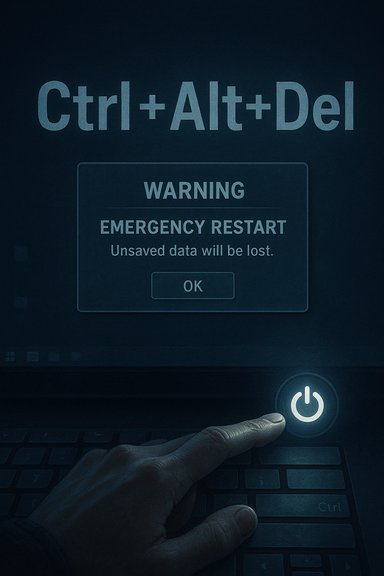
Windows exposes the Secure Attention Sequence — the full‑screen menu you get when you press Ctrl+Alt+Del — as a privileged escape hatch when the regular desktop and shell are misbehaving. Within that environment Microsoft hides a deliberately gated option: hold the Ctrl key and click the power icon in the lower‑right corner to invoke an Emergency Restart. The system will display a full‑screen warning telling you unsaved data will be lost, and then it will reboot immediately if you confirm.
This method is not a GUI trick; it’s a kernel‑level, software‑triggered hard reboot designed for scenarios where the desktop shell or critical UI components (like Start, taskbar, or File Explorer) are unresponsive while the SAS remains available. It’s intentionally narrow in scope and protected by a two‑step input (SAS + hold Ctrl + click) to prevent accidental activation.
For everyday users, the best defense is preventative: enable autosave, backup frequently, and keep drivers and firmware current. For IT teams, document and test Emergency Restart behavior in your environment, integrate it into runbooks for inaccessible devices, and ensure your remote tools and policies support safe recovery workflows. When Emergency Restart is used appropriately it saves time and avoids a trip to the hardware, but repeated reliance on it should prompt a deeper investigation into system stability and hardware health.
If you find yourself reaching for Emergency Restart often, treat that as data: it’s a symptom, not a solution. Run the diagnostic checklist, update drivers and firmware, validate hardware health, and build an incident response plan so the next time your Windows 11 PC freezes you have a safe, documented path back to stability.
Source: KnowTechie Windows 11 Frozen Solid? Try This Emergency Restart
 Background
Windows exposes the Secure Attention Sequence — the full‑screen menu you get when you press Ctrl+Alt+Del — as a privileged escape hatch when the regular desktop and shell are misbehaving. Within that environment Microsoft hides a deliberately gated option: hold the Ctrl key and click the power icon in the lower‑right corner to invoke an Emergency Restart. The system will display a full‑screen warning telling you unsaved data will be lost, and then it will reboot immediately if you confirm.This method is not a GUI trick; it’s a kernel‑level, software‑triggered hard reboot designed for scenarios where the desktop shell or critical UI components (like Start, taskbar, or File Explorer) are unresponsive while the SAS remains available. It’s intentionally narrow in scope and protected by a two‑step input (SAS + hold Ctrl + click) to prevent accidental activation.
What Emergency Restart does — and what it doesn’t
What it does
- Forces an immediate reboot from a privileged OS surface when the standard shutdown/restart paths are unavailable.
- Bypasses most application‑level shutdown routines so the system can restart without relying on a responsive shell.
- Is initiated by Windows kernel mechanisms, making it generally cleaner than an abrupt removal of power.
What it doesn’t do
- It is not a factory reset and does not delete your files or user profiles.
- It does not give applications time to save unsaved work; any unsaved documents are lost instantly.
- It does not guarantee avoidance of disk or application corruption if critical disk writes are in progress. Modern filesystems mitigate many risks, but they don’t eliminate them.
How to trigger Emergency Restart (step‑by‑step)
- Press Ctrl + Alt + Del to open the Windows Security (SAS) screen.
- While the SAS screen is visible, press and hold the Ctrl key.
- With Ctrl held down, click the power icon in the lower‑right corner.
- Read the full‑screen warning and click OK to confirm; Windows will restart immediately.
Why use Emergency Restart: practical scenarios
- The desktop shell (explorer.exe) is frozen, Start and taskbar won’t respond, and Task Manager cannot be launched.
- You are troubleshooting remotely (RDP, VNC) and physical access to the machine is impossible.
- The device’s physical power button is broken, recessed, or otherwise inaccessible.
- You need a predictable, software‑initiated reboot path that doesn’t require yanking power from the machine.
Risks and caveats — what can go wrong
- Immediate data loss: Any unsaved documents are gone once you confirm the emergency reboot.
- File or application corruption: If Windows was in the middle of critical disk writes (database transactions, imaging, backups), forced reboots can leave files or application state inconsistent. NTFS journaling reduces the odds of catastrophic filesystem failure but does not eliminate risk entirely.
- Misuse masks root causes: Habitually using Emergency Restart conceals underlying driver, hardware, or software problems that require debugging. Frequent emergency reboots are a red flag and should trigger diagnostic work.
- Enterprise and managed devices: Some corporate configurations, Group Policy settings, or endpoint management solutions may restrict access to SAS actions or change how remote clients send SAS to the host. Test and document behavior in managed environments before relying on the feature for support.
Alternatives to try before Emergency Restart
Always attempt less destructive recovery methods first:- Press Alt + F4 on the focused window to try a graceful close.
- Use Ctrl + Shift + Esc or Ctrl + Alt + Del → Task Manager to terminate the misbehaving process or restart explorer.exe.
- Run shutdown /r /t 0 from a Command Prompt or PowerShell if you can open a shell.
- Use Win + Ctrl + Shift + B to reset the graphics driver if the freeze looks display‑related.
- If remote, send the SAS through your remote client (many RDP and remote tools provide this option) and then try the above methods.
Troubleshooting checklist to run after an Emergency Restart
After a forced reboot, follow a structured diagnostic routine to prevent recurrence:- Inspect Event Viewer (System and Application logs) for errors, driver failures, kernel crashes, or service crashes around the freeze time.
- Run sfc /scannow and DISM /Online /Cleanup-Image /RestoreHealth to verify and repair corrupted system files.
- Run chkdsk on system volumes and check S.M.A.R.T. health for SSD/HDD using vendor tools.
- Update crucial drivers: graphics, storage controller, chipset, and network drivers directly from vendor sites rather than relying solely on Windows Update.
- Update BIOS/UEFI and firmware for the system or laptop.
- Run memory tests (Windows Memory Diagnostic or MemTest86) to rule out RAM errors.
- Monitor thermals and power delivery — overheating or unstable PSU/battery behavior can cause freezes.
For IT teams: how Emergency Restart fits into support workflows
- Add the Emergency Restart procedure to endpoint runbooks as an explicit, documented step for devices that are physically hard to access. Train helpdesk staff on data loss implications and when to escalate for diagnostics rather than repeatedly forcing restarts.
- Use out‑of‑band management (iDRAC, iLO, AMT) for servers when available; these platforms offer controlled power cycles and are preferable to forced OS reboots for infrastructure.
- Configure logging and telemetry so every emergency reboot is visible in monitoring dashboards — repeated events should trigger automated escalation.
- Confirm remote tools can inject the SAS or provide equivalent controls for remote recovery; otherwise, Emergency Restart may not be available over certain remote sessions.
When Emergency Restart is the right call — real world examples
Scenario 1: Frozen shell but SAS works
Explorer.exe locks up, Start and taskbar refuse to respond, and Task Manager won’t open from the desktop. Ctrl+Alt+Del still opens the SAS screen. Use the Emergency Restart sequence to reboot without needing physical access to the machine. On reboot, inspect logs and run driver and filesystem checks.Scenario 2: Remote help where physical access is impossible
You’re assisting a user through a remote session and the remote UI is stuck. If your remote client can send Ctrl+Alt+Del and the SAS is responsive, Emergency Restart can reboot the endpoint without having a colleague physically press the power button. Verify managed policies allow this in your environment.Scenario 3: Recessed or damaged power button
A modern thin laptop with a recessed or broken power button makes a long power‑press impractical. Emergency Restart provides a software route to reset the device in those edge cases.Preventing freezes so you won’t need Emergency Restart
- Keep device drivers and firmware up to date, especially storage, chipset, and GPU drivers.
- Schedule and apply Windows updates during maintenance windows and avoid interrupting critical disk activity.
- Enable autosave and versioning for productivity apps and use regular backups (cloud or local) so unsaved data exposure is minimized.
- Use clean‑boot troubleshooting to identify misbehaving startup items and services, and remove or update any problematic third‑party drivers or utilities.
- Monitor system health with telemetry tools to detect hardware degradation early (battery wear, SSD health, thermal throttling).
Quick decision flow: should you use Emergency Restart?
- Can you save work or gracefully close apps? If yes → do that first.
- Can you open Task Manager or run shutdown /r /t 0? If yes → do that.
- Is the SAS screen accessible (Ctrl+Alt+Del)? If yes and other methods fail → consider Emergency Restart.
- Is the system performing critical write operations (backup, imaging, database commit)? If yes → avoid Emergency Restart and prefer controlled power or out‑of‑band management.
- If the system is unresponsive in every way → physical power cut is the final option.
FAQ (short, practical answers)
- Will Emergency Restart delete my files?
No. It forces a reboot but does not remove user files, profiles, or installed programs. Unsaved data in open applications, however, will be lost. - Is Emergency Restart available on all Windows versions?
Variations of the SAS emergency reboot behavior have been observed in multiple Windows releases (Windows 10, Windows 11 and community reports suggest earlier versions), but the exact historical origin is unclear and not formally documented by Microsoft; treat origin claims as anecdotal community memory rather than definitive engineering fact. - What if Ctrl+Alt+Del doesn’t work remotely?
Many remote clients provide a “Send Ctrl+Alt+Del” command; use that. If the remote tool or a Group Policy blocks SAS injection, Emergency Restart won’t be reachable. Use out‑of‑band management where feasible.
Final verdict — practical guidance you can use right now
The Emergency Restart buried in the Ctrl+Alt+Del screen is a pragmatic, rarely needed rescue feature that belongs in every power user and support engineer’s toolkit. It fills a specific niche: get a frozen machine back online when the desktop shell is dead but the Secure Attention Sequence still responds. Use it sparingly, as a last resort, because it discards unsaved work and can complicate ongoing disk operations.For everyday users, the best defense is preventative: enable autosave, backup frequently, and keep drivers and firmware current. For IT teams, document and test Emergency Restart behavior in your environment, integrate it into runbooks for inaccessible devices, and ensure your remote tools and policies support safe recovery workflows. When Emergency Restart is used appropriately it saves time and avoids a trip to the hardware, but repeated reliance on it should prompt a deeper investigation into system stability and hardware health.
If you find yourself reaching for Emergency Restart often, treat that as data: it’s a symptom, not a solution. Run the diagnostic checklist, update drivers and firmware, validate hardware health, and build an incident response plan so the next time your Windows 11 PC freezes you have a safe, documented path back to stability.
Source: KnowTechie Windows 11 Frozen Solid? Try This Emergency Restart
