ZDNet’s recent write-up re‑surfaced a little‑known Windows trick: a hidden “Emergency Restart” buried in the Ctrl+Alt+Del (Secure Attention Sequence) screen that forces an immediate reboot when the rest of the system is frozen. The shortcut is simple—press Ctrl+Alt+Del, hold Ctrl and click the power icon in the lower‑right, then accept the “Emergency Restart” dialog—but its implications deserve careful explanation. This article verifies the behavior, traces the feature’s history, explains the technical and practical differences from other restart methods, and evaluates when — and when not — to use it.
Finally, for administrators managing fleets or remote systems, document the procedure and post‑reboot checks in runbooks, and ensure remote management tooling is configured to forward SAS if you plan to rely on this path during remote troubleshooting. With proper training and controls, the Emergency Restart can be a welcome addition to system recovery procedures — provided its risks are respected.
Source: Inbox.lv A Secret Way to Shut Down Windows Has Been Found
 Background
A hidden feature, not a bug
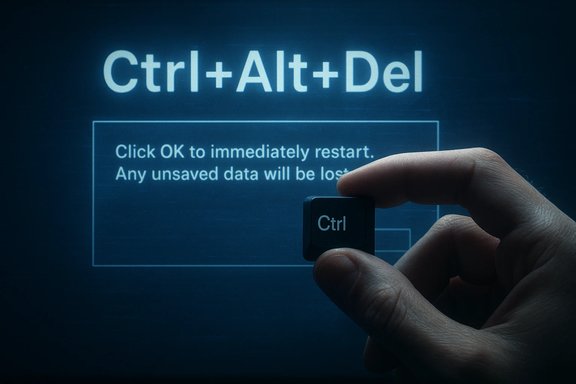
The Emergency Restart option is a purposely obscure recovery path tucked into the Secure Attention Sequence (SAS) screen; it’s been observed and documented by multiple tech outlets and community threads that predate the recent article cycle. Journalists and power users rediscovered it recently, but community posts calling it out go back several years. The sequence consistently reported across sources is the same: press Ctrl+Alt+Del, hold the Ctrl key, click the power icon in the lower‑right, and confirm the full‑screen warning to immediately restart.Why it exists
The SAS (Ctrl+Alt+Del) runs at a privileged level handled by Winlogon — a part of the OS intended to remain responsive even when the shell or user session is hung. Microsoft’s documentation for Winlogon explains that registering Ctrl+Alt+Del creates a trusted, kernel‑handled pathway for secure dialogs and recovery actions; that same trust boundary is what makes the Emergency Restart reachable even if explorer.exe or the Start menu is stuck. In other words: SAS is the right place to put a last‑resort reboot button.What the Emergency Restart does (and how it differs from other restarts)
The observable behavior
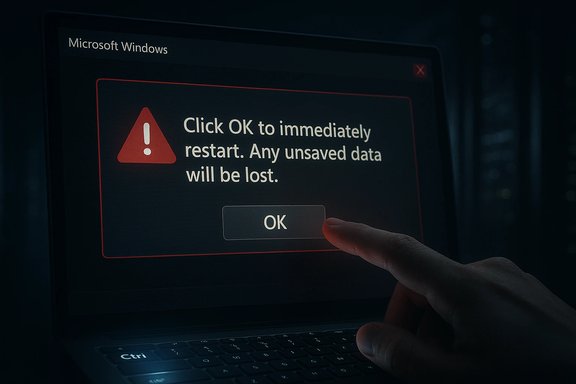
- When you confirm an Emergency Restart, Windows shows a warning: “Click OK to immediately restart. Any unsaved data will be lost. Use this only as a last resort.” After confirmation, the system reboots extremely quickly — far faster than a normal, graceful restart — and appears to bypass many user‑level shutdown negotiations. Multiple independent write‑ups reproduce the same behavior.
Not a graceful shutdown
A normal restart requests applications and services to close cleanly, gives processes time to flush file buffers, run shutdown code, and preserve unsaved state if possible. Emergency Restart intentionally truncates that choreography: it forces an immediate reboot and will discard unsaved data and in‑flight changes. That makes it functionally closer to a hard reset than to a normal Restart, but initiated from inside Windows rather than by cutting power. This makes it a safer option than yanking the plug or holding the physical power button, but still far from risk‑free.Key differences, at a glance
- Normal Restart (Start → Power → Restart): Graceful, waits for apps to close and services to stop.
- Emergency Restart (Ctrl+Alt+Del + hold Ctrl + click Power → OK): Immediate, skips app negotiations, discards unsaved work.
- Hardware hard reset (hold power button or remove power): Abrupt, may not allow Windows to coordinate the reboot at all, higher risk of corruption.
Exactly how to trigger it — step by step
- Press Ctrl + Alt + Del to open the Windows Security / SAS screen.
- While the SAS screen is displayed, press and hold the Ctrl key.
- With Ctrl held down, click the Power icon in the lower‑right corner of that screen.
- A full‑screen confirmation appears. Click OK to proceed with the Emergency Restart.
History and provenance
Not brand new — decades‑old lineage
Although recent press cycles pushed the trick back into public awareness, community traces suggest the emergency reboot pathway has existed in Windows variants for many years (some commentators trace behavior back to Windows Vista or even XP). Early community posts and sysadmin threads calling out an “undocumented” emergency restart predate these news stories by years, indicating this is a longstanding, intentionally low‑visibility tool rather than a recent “secret” Microsoft introduced for 2025.Rediscovery in the mainstream press
Tech sites and mainstream rehosts documented the trick after community threads highlighted its usefulness in frozen sessions; ZDNet’s staff coverage and numerous technology outlets then reproduced the steps and warnings for general readers. That wave of reporting is what brought the buried functionality into the news cycle again.Security, remote access, and enterprise implications
Secure Attention Sequence and remote sessions
Ctrl+Alt+Del is the Secure Attention Sequence and is deliberately handled locally by the OS. That means certain remote clients and remote desktop setups do not forward the SAS by default (or they implement a secure, virtualized pathway). Microsoft documentation for remote‑desktop components makes clear: the true Ctrl+Alt+Del key press is locally handled and isn’t automatically passed to remote servers unless the client explicitly supports it. As a practical effect: Emergency Restart cannot always be invoked from every remote session unless the remote management channel supports SAS or provides an equivalent.Could malware misuse it?
The action requires the SAS screen and a user action (holding Ctrl + clicking the power icon). Because SAS is kernel‑level and requires user interaction, direct automated misuse by code running in a normal user session would be hard to achieve without breaking core OS protections. That said, a compromised privileged process or a controller with physical/remote interactive access could of course trigger it. In the threat model, Emergency Restart is not an obvious elevation vector; it’s a recovery tool gated behind a secure UI.Practical guidance: when to use Emergency Restart
Use it when:
- The desktop shell or Start menu is entirely unresponsive, and you can still invoke Ctrl+Alt+Del; OR
- You are accessing a remote system where physical power cycling is impossible but SAS can be sent; OR
- The system is so hung that Task Manager, typical restart commands, and other recovery routes fail.
Avoid it when:
- You still have time to save work or close applications gracefully.
- Windows Update or an installer is running and you suspect an interrupted update could leave the system in an inconsistent state.
- You are troubleshooting disk or filesystem errors where a more controlled shutdown could allow journaling to finish.
Risk assessment: data loss, filesystem harm, and frequency of use
Data loss
Any unsaved documents or transient memory state will be lost immediately. That includes unsaved Office documents, not‑yet‑committed database transactions, and scratch files. Many modern applications implement autosave and journaling; rely on those features to reduce exposure. But the Emergency Restart will still drop anything that wasn’t safely flushed to durable storage.Filesystem and transactional risk
Modern file systems (NTFS with journaling) and storage stacks are resilient and minimize corruption risk after abrupt reboots, but they do not eliminate it. Emergency Restart is generally less dangerous than cutting power because the kernel still initiates the restart, but it’s not the same as a graceful shutdown that waits for services and user processes to finish. Use it sparingly — frequent forced restarts increase the chance of encountering corrupted state over time.Hardware considerations
On desktops, repeatedly holding a hardware power button can stress power circuitry and, in worst cases, lead to transients that stress attached storage. Emergency Restart avoids hardware hold‑downs and plug pulls, so it’s arguably better for the physical platform than repeated forced power‑offs — but that doesn’t make it harmless.Alternatives and safer first steps
Before invoking Emergency Restart, try these safer options in order:- Attempt to open Task Manager (Ctrl+Shift+Esc) and end the offending process.
- Try Alt+F4 on the frozen app or the desktop to see if a graceful close is possible.
- Use the Start → Power → Restart if the Start menu is responsive.
- If you can open a command prompt, run shutdown /r /t 0 (or shutdown /r to restart with a delay) to request a normal restart.
- If remote, use hypervisor tools or management interfaces to send a graceful reboot (VM hosts, iDRAC, iLO, etc..
Troubleshooting the underlying causes (how to reduce reliance on force restarts)
Repeated freezes that force last‑resort reboots usually indicate deeper issues. Address these root causes to reduce Emergency Restart use:- Keep Windows and drivers up to date; many hangs are driver or firmware related.
- Run a full disk check (chkdsk) and analyze SMART data for possible failing drives.
- Review Event Viewer (System and Application logs) for recurring errors (filter on Event IDs like 41, 6008, 1074 where relevant).
- Test memory with MemTest86 or Windows Memory Diagnostic to rule out RAM faults.
- Use SFC and DISM to repair corrupt system files: sfc /scannow and DISM /Online /Cleanup‑Image /RestoreHealth.
- Remove or update third‑party shell extensions and utilities that hook Explorer.
- For persistent lockups, consider clean boot or clean installation to eliminate software conflicts.
Policy and enterprise considerations
- IT teams should document Emergency Restart as a last‑resort procedure in runbooks for remote troubleshooting, but they should also educate help‑desk staff about its data‑loss risk.
- For managed fleets, Conditional Access and group policies can influence SAS behavior; ensure that remote management solutions support SAS forwarding if admins need to trigger an emergency reboot from console. Microsoft’s remote desktop components and settings can affect whether SAS is available from the remote client.
Is Emergency Restart “undocumented”? How to interpret the discovery narrative
Tech outlets framed the recent coverage as a discovery because the option isn’t prominently documented in consumer‑facing Windows marketing or widespread Microsoft KBs. The feature sits behind SAS and has historically been referenced in community and admin discussions. That combination — documented in engineering/Winlogon lore and community posts but not heavily marketed — explains why many users encounter it as a surprise. The behavior’s presence across Windows 10 and Windows 11, and its persistence through multiple releases, reflect an intentional design choice: keep the option reserved for power users and admins who understand the risk profile.Quick checklist: safe execution of Emergency Restart
- Save or sync any open cloud documents if possible first (OneDrive/Google Drive/Office AutoSave).
- If critical updates or installers are running, do not use Emergency Restart unless absolutely required.
- If system responsiveness is intermittent, try Task Manager, Alt+F4, or a remote graceful restart before emergency action.
- When using Emergency Restart: Ctrl+Alt+Del → hold Ctrl + click Power → read dialog → click OK.
- After reboot, check Event Viewer and run a disk health check; verify application state and data integrity.
Cross‑checks and verification we performed
- Multiple mainstream tech outlets reproduced the same steps and dialog text for Emergency Restart; those independent accounts corroborate the UI flow and warning text.
- Community posts and sysadmin threads documented the trick years earlier, supporting the claim that the feature is longstanding rather than brand new.
- Microsoft’s Winlogon/SAS documentation confirms the privileged handling of Ctrl+Alt+Del, explaining why a kernel‑level emergency action would be available from that screen. This explains the mechanism logically even where Microsoft does not publish a dedicated consumer KB describing “Emergency Restart.”
The practical headline for users and admins
- The Emergency Restart is a valid, safer-than-hard‑power last‑resort way to reboot a frozen Windows session when Ctrl+Alt+Del is still responsive. Use it deliberately: it discards unsaved work and skips graceful shutdown processing. Keep it as a tool in the recovery toolbox, not a daily reset shortcut.
Closing analysis: power, responsibility, and digital hygiene
Hidden features like Emergency Restart underscore the complexity and resilience built into modern desktop OSes: Microsoft provided an escape hatch that’s accessible even in partial system failure, and that design can save time and hardware in the right circumstances. But convenience and forcefulness are a trade‑off — the feature accelerates reboot at the expense of data safety. The responsible approach is clear: prioritize graceful shutdowns, maintain good backup and autosave practices, and treat Emergency Restart as the final defensible action when all other controlled recovery options fail.Finally, for administrators managing fleets or remote systems, document the procedure and post‑reboot checks in runbooks, and ensure remote management tooling is configured to forward SAS if you plan to rely on this path during remote troubleshooting. With proper training and controls, the Emergency Restart can be a welcome addition to system recovery procedures — provided its risks are respected.
Source: Inbox.lv A Secret Way to Shut Down Windows Has Been Found