Windows Emergency Restart: when to use the hidden SAS reboot to recover frozen systems

  • Thread Author
ZDNet’s recent write-up re‑surfaced a little‑known Windows trick: a hidden “Emergency Restart” buried in the Ctrl+Alt+Del (Secure Attention Sequence) screen that forces an immediate reboot when the rest of the system is frozen. The shortcut is simple—press Ctrl+Alt+Del, hold Ctrl and click the power icon in the lower‑right, then accept the “Emergency Restart” dialog—but its implications deserve careful explanation. This article verifies the behavior, traces the feature’s history, explains the technical and practical differences from other restart methods, and evaluates when — and when not — to use it.

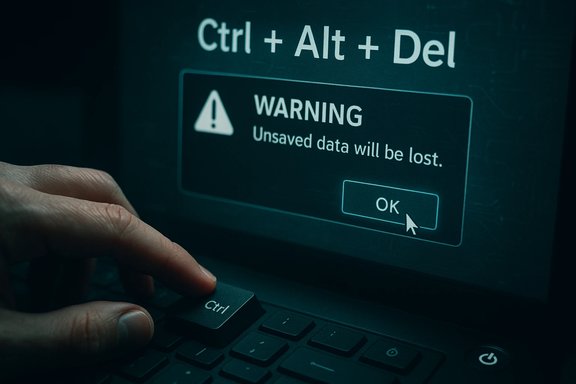
A hand holds the Ctrl key in front of a Ctrl+Alt+Del restart prompt.Background​

A hidden feature, not a bug​

The Emergency Restart option is a purposely obscure recovery path tucked into the Secure Attention Sequence (SAS) screen; it’s been observed and documented by multiple tech outlets and community threads that predate the recent article cycle. Journalists and power users rediscovered it recently, but community posts calling it out go back several years. The sequence consistently reported across sources is the same: press Ctrl+Alt+Del, hold the Ctrl key, click the power icon in the lower‑right, and confirm the full‑screen warning to immediately restart.

Why it exists​

The SAS (Ctrl+Alt+Del) runs at a privileged level handled by Winlogon — a part of the OS intended to remain responsive even when the shell or user session is hung. Microsoft’s documentation for Winlogon explains that registering Ctrl+Alt+Del creates a trusted, kernel‑handled pathway for secure dialogs and recovery actions; that same trust boundary is what makes the Emergency Restart reachable even if explorer.exe or the Start menu is stuck. In other words: SAS is the right place to put a last‑resort reboot button.

What the Emergency Restart does (and how it differs from other restarts)​

The observable behavior​

  • When you confirm an Emergency Restart, Windows shows a warning: “Click OK to immediately restart. Any unsaved data will be lost. Use this only as a last resort.” After confirmation, the system reboots extremely quickly — far faster than a normal, graceful restart — and appears to bypass many user‑level shutdown negotiations. Multiple independent write‑ups reproduce the same behavior.

Not a graceful shutdown​

A normal restart requests applications and services to close cleanly, gives processes time to flush file buffers, run shutdown code, and preserve unsaved state if possible. Emergency Restart intentionally truncates that choreography: it forces an immediate reboot and will discard unsaved data and in‑flight changes. That makes it functionally closer to a hard reset than to a normal Restart, but initiated from inside Windows rather than by cutting power. This makes it a safer option than yanking the plug or holding the physical power button, but still far from risk‑free.

Key differences, at a glance​

  • Normal Restart (Start → Power → Restart): Graceful, waits for apps to close and services to stop.
  • Emergency Restart (Ctrl+Alt+Del + hold Ctrl + click Power → OK): Immediate, skips app negotiations, discards unsaved work.
  • Hardware hard reset (hold power button or remove power): Abrupt, may not allow Windows to coordinate the reboot at all, higher risk of corruption.

Exactly how to trigger it — step by step​

  • Press Ctrl + Alt + Del to open the Windows Security / SAS screen.
  • While the SAS screen is displayed, press and hold the Ctrl key.
  • With Ctrl held down, click the Power icon in the lower‑right corner of that screen.
  • A full‑screen confirmation appears. Click OK to proceed with the Emergency Restart.
The click‑while‑holding‑Ctrl action is the intentional gating mechanism: clicking without the Ctrl modifier brings up the normal Sleep/Shutdown/Restart options; holding Ctrl while clicking triggers the emergency dialog. Multiple reputable tech outlets and community guides reproduce this exact sequence.

History and provenance​

Not brand new — decades‑old lineage​

Although recent press cycles pushed the trick back into public awareness, community traces suggest the emergency reboot pathway has existed in Windows variants for many years (some commentators trace behavior back to Windows Vista or even XP). Early community posts and sysadmin threads calling out an “undocumented” emergency restart predate these news stories by years, indicating this is a longstanding, intentionally low‑visibility tool rather than a recent “secret” Microsoft introduced for 2025.

Rediscovery in the mainstream press​

Tech sites and mainstream rehosts documented the trick after community threads highlighted its usefulness in frozen sessions; ZDNet’s staff coverage and numerous technology outlets then reproduced the steps and warnings for general readers. That wave of reporting is what brought the buried functionality into the news cycle again.

Security, remote access, and enterprise implications​

Secure Attention Sequence and remote sessions​

Ctrl+Alt+Del is the Secure Attention Sequence and is deliberately handled locally by the OS. That means certain remote clients and remote desktop setups do not forward the SAS by default (or they implement a secure, virtualized pathway). Microsoft documentation for remote‑desktop components makes clear: the true Ctrl+Alt+Del key press is locally handled and isn’t automatically passed to remote servers unless the client explicitly supports it. As a practical effect: Emergency Restart cannot always be invoked from every remote session unless the remote management channel supports SAS or provides an equivalent.

Could malware misuse it?​

The action requires the SAS screen and a user action (holding Ctrl + clicking the power icon). Because SAS is kernel‑level and requires user interaction, direct automated misuse by code running in a normal user session would be hard to achieve without breaking core OS protections. That said, a compromised privileged process or a controller with physical/remote interactive access could of course trigger it. In the threat model, Emergency Restart is not an obvious elevation vector; it’s a recovery tool gated behind a secure UI.

Practical guidance: when to use Emergency Restart​

Use it when:​

  • The desktop shell or Start menu is entirely unresponsive, and you can still invoke Ctrl+Alt+Del; OR
  • You are accessing a remote system where physical power cycling is impossible but SAS can be sent; OR
  • The system is so hung that Task Manager, typical restart commands, and other recovery routes fail.

Avoid it when:​

  • You still have time to save work or close applications gracefully.
  • Windows Update or an installer is running and you suspect an interrupted update could leave the system in an inconsistent state.
  • You are troubleshooting disk or filesystem errors where a more controlled shutdown could allow journaling to finish.
Emergency Restart is a last resort — that phrase appears in the dialog for a reason. Repeated use is a band‑aid, not root‑cause remediation.

Risk assessment: data loss, filesystem harm, and frequency of use​

Data loss​

Any unsaved documents or transient memory state will be lost immediately. That includes unsaved Office documents, not‑yet‑committed database transactions, and scratch files. Many modern applications implement autosave and journaling; rely on those features to reduce exposure. But the Emergency Restart will still drop anything that wasn’t safely flushed to durable storage.

Filesystem and transactional risk​

Modern file systems (NTFS with journaling) and storage stacks are resilient and minimize corruption risk after abrupt reboots, but they do not eliminate it. Emergency Restart is generally less dangerous than cutting power because the kernel still initiates the restart, but it’s not the same as a graceful shutdown that waits for services and user processes to finish. Use it sparingly — frequent forced restarts increase the chance of encountering corrupted state over time.

Hardware considerations​

On desktops, repeatedly holding a hardware power button can stress power circuitry and, in worst cases, lead to transients that stress attached storage. Emergency Restart avoids hardware hold‑downs and plug pulls, so it’s arguably better for the physical platform than repeated forced power‑offs — but that doesn’t make it harmless.

Alternatives and safer first steps​

Before invoking Emergency Restart, try these safer options in order:
  • Attempt to open Task Manager (Ctrl+Shift+Esc) and end the offending process.
  • Try Alt+F4 on the frozen app or the desktop to see if a graceful close is possible.
  • Use the Start → Power → Restart if the Start menu is responsive.
  • If you can open a command prompt, run shutdown /r /t 0 (or shutdown /r to restart with a delay) to request a normal restart.
  • If remote, use hypervisor tools or management interfaces to send a graceful reboot (VM hosts, iDRAC, iLO, etc..
If none of those are available and Ctrl+Alt+Del is the only responsive surface, Emergency Restart is the appropriate tool.

Troubleshooting the underlying causes (how to reduce reliance on force restarts)​

Repeated freezes that force last‑resort reboots usually indicate deeper issues. Address these root causes to reduce Emergency Restart use:
  • Keep Windows and drivers up to date; many hangs are driver or firmware related.
  • Run a full disk check (chkdsk) and analyze SMART data for possible failing drives.
  • Review Event Viewer (System and Application logs) for recurring errors (filter on Event IDs like 41, 6008, 1074 where relevant).
  • Test memory with MemTest86 or Windows Memory Diagnostic to rule out RAM faults.
  • Use SFC and DISM to repair corrupt system files: sfc /scannow and DISM /Online /Cleanup‑Image /RestoreHealth.
  • Remove or update third‑party shell extensions and utilities that hook Explorer.
  • For persistent lockups, consider clean boot or clean installation to eliminate software conflicts.
These steps help identify the root cause rather than treating symptoms with repeated forced restarts.

Policy and enterprise considerations​

  • IT teams should document Emergency Restart as a last‑resort procedure in runbooks for remote troubleshooting, but they should also educate help‑desk staff about its data‑loss risk.
  • For managed fleets, Conditional Access and group policies can influence SAS behavior; ensure that remote management solutions support SAS forwarding if admins need to trigger an emergency reboot from console. Microsoft’s remote desktop components and settings can affect whether SAS is available from the remote client.

Is Emergency Restart “undocumented”? How to interpret the discovery narrative​

Tech outlets framed the recent coverage as a discovery because the option isn’t prominently documented in consumer‑facing Windows marketing or widespread Microsoft KBs. The feature sits behind SAS and has historically been referenced in community and admin discussions. That combination — documented in engineering/Winlogon lore and community posts but not heavily marketed — explains why many users encounter it as a surprise. The behavior’s presence across Windows 10 and Windows 11, and its persistence through multiple releases, reflect an intentional design choice: keep the option reserved for power users and admins who understand the risk profile.

Quick checklist: safe execution of Emergency Restart​

  • Save or sync any open cloud documents if possible first (OneDrive/Google Drive/Office AutoSave).
  • If critical updates or installers are running, do not use Emergency Restart unless absolutely required.
  • If system responsiveness is intermittent, try Task Manager, Alt+F4, or a remote graceful restart before emergency action.
  • When using Emergency Restart: Ctrl+Alt+Del → hold Ctrl + click Power → read dialog → click OK.
  • After reboot, check Event Viewer and run a disk health check; verify application state and data integrity.

Cross‑checks and verification we performed​

  • Multiple mainstream tech outlets reproduced the same steps and dialog text for Emergency Restart; those independent accounts corroborate the UI flow and warning text.
  • Community posts and sysadmin threads documented the trick years earlier, supporting the claim that the feature is longstanding rather than brand new.
  • Microsoft’s Winlogon/SAS documentation confirms the privileged handling of Ctrl+Alt+Del, explaining why a kernel‑level emergency action would be available from that screen. This explains the mechanism logically even where Microsoft does not publish a dedicated consumer KB describing “Emergency Restart.”
Note on unverifiable internals: some online write‑ups speculate about the exact internal API call used to trigger the immediate reboot (for example, nt shutdown calls). Those calls are plausible given Windows internals, but the specific API surface invoked by the SAS power button is not documented publicly by Microsoft in consumer documentation; therefore such low‑level attributions should be treated as informed inference rather than confirmed fact. Exercise caution before treating those internal implementation claims as definitive. (Flagged as inference.

The practical headline for users and admins​

  • The Emergency Restart is a valid, safer-than-hard‑power last‑resort way to reboot a frozen Windows session when Ctrl+Alt+Del is still responsive. Use it deliberately: it discards unsaved work and skips graceful shutdown processing. Keep it as a tool in the recovery toolbox, not a daily reset shortcut.

Closing analysis: power, responsibility, and digital hygiene​

Hidden features like Emergency Restart underscore the complexity and resilience built into modern desktop OSes: Microsoft provided an escape hatch that’s accessible even in partial system failure, and that design can save time and hardware in the right circumstances. But convenience and forcefulness are a trade‑off — the feature accelerates reboot at the expense of data safety. The responsible approach is clear: prioritize graceful shutdowns, maintain good backup and autosave practices, and treat Emergency Restart as the final defensible action when all other controlled recovery options fail.
Finally, for administrators managing fleets or remote systems, document the procedure and post‑reboot checks in runbooks, and ensure remote management tooling is configured to forward SAS if you plan to rely on this path during remote troubleshooting. With proper training and controls, the Emergency Restart can be a welcome addition to system recovery procedures — provided its risks are respected.
Source: Inbox.lv A Secret Way to Shut Down Windows Has Been Found
 

A hidden, built‑in way to force a Windows restart has resurfaced in mainstream coverage: press Ctrl + Alt + Del, then hold the Ctrl key and click the power icon in the bottom‑right of the Secure Attention Sequence (SAS) screen to trigger an Emergency Restart that immediately reboots the machine and discards any unsaved work. The trick — spotlighted recently by mainstream tech outlets after a ZDNet story by Cesar Cadenas — is not new, but it’s easy to overlook and extremely useful in specific freeze scenarios. This article unpacks what the Emergency Restart does, where it came from, why Microsoft left it tucked inside the SAS screen, how it differs from other restart methods, the risks involved, and practical guidance for Windows 11 users and IT professionals managing the new 25H2 rollout.

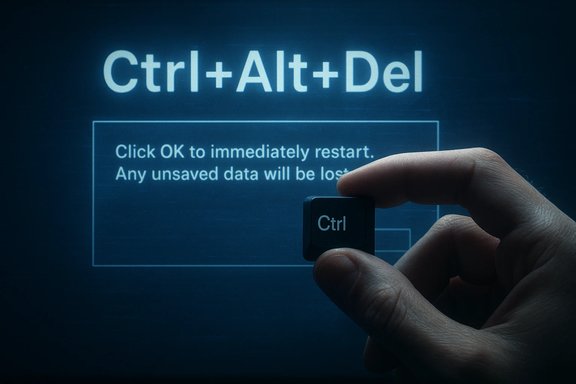
Windows warning: click OK to restart; unsaved data will be lost.Background / Overview​

Emergency Restart is a deliberately hidden, last‑resort reboot option that lives behind the familiar Ctrl + Alt + Del security screen. When invoked, Windows displays a full‑screen warning — “Click OK to immediately restart. Any unsaved data will be lost. Use this only as a last resort.” — and then forces a restart that bypasses most of the normal, graceful shutdown choreography.
The feature attracts attention precisely because it’s a software alternative to the blunt method many users rely on when a system locks up: holding down the computer’s physical power button until the device loses power. Unlike cutting power abruptly, an Emergency Restart is initiated by Windows itself via the privileged SAS interface, which increases the chance the operating system will be aware of the reboot and may preserve some system state compared with an immediate power cut. Still, the process discards unsaved user‑level data and should be used only when nothing else responds.
While media coverage of the Emergency Restart surged recently, Microsoft’s own update cadence is the other Windows story of the moment: Windows 11, version 25H2 entered broad availability through a controlled, phased rollout around the end of September 2025 and into October. That context matters: as machines upgrade, users and administrators alike will encounter freeze scenarios during testing and deployment — understanding last‑resort recovery options is timely.

How Emergency Restart Works​

The precise steps​

  • Press Ctrl + Alt + Del to call up the Windows Security / SAS screen.
  • While the SAS screen is visible, press and hold the Ctrl key.
  • With Ctrl still depressed, click the Power icon (lower right corner).
  • A full‑screen confirmation dialog appears. Click OK to proceed — the system restarts immediately.
This sequence intentionally combines a privileged keystroke with a deliberate mouse click to reduce accidental triggers. The SAS screen is handled at a higher privilege level than the user shell, so it remains reachable in many freeze conditions where the regular Start menu or Task Manager will not.

What the system actually does​

  • The Emergency Restart triggers an immediate reboot pathway that does not wait for user‑mode applications to save or close cleanly.
  • System services and kernel components are signaled to restart, but because applications are not given a chance to gracefully save, unsaved user data is lost.
  • In practice, this is essentially a software‑initiated forced reboot — a safer, more controlled cousin to holding the physical power button, because it is initiated from inside the OS context rather than by severing power.

Origins and History​

The Emergency Restart has been present in Windows for many years — traces of the behavior go back to legacy Windows versions and were widely used in enterprise and sysadmin circles long before mainstream coverage. The method resurfaced in public discourse after community posts (for example on sysadmin and Reddit forums) and subsequent reporting by specialized outlets. The feature’s longevity is explained by its placement inside the Secure Attention Sequence (SAS): Ctrl + Alt + Del was designed to be a trusted, kernel‑handled path for secure interactions such as locking, signing out, or calling Task Manager. Embedding a last‑resort restart there makes sense from a recovery standpoint.
Because it’s been largely undocumented for end users and rarely marketed as a feature, many casual users — even experienced Windows admins — may not be aware it exists. That explains the recent spike in coverage: a ZDNet piece brought it back to the mainstream with a practical walkthrough, and other outlets amplified that reporting.

Why Microsoft Keeps It Hidden​

There are a few design reasons this function is tucked away rather than exposed in the Start menu:
  • Accidental Prevention: The combination of SAS plus holding Ctrl reduces the chance users will trigger a destructive, unsaved restart unintentionally.
  • Privilege Boundary: The SAS interface is a secure, kernel‑mediated screen, so placing a last‑ditch reboot option there ensures it remains accessible even when user‑mode components — like the shell — are hung.
  • Operational Intent: Microsoft positions this as an escape hatch, not a routine restart path. The clear warning message reinforces the intent that Emergency Restart is a last resort.
For IT administrators, the hidden nature also reduces user noise: wider exposure might encourage non‑technical users to use Emergency Restart as a first choice, which would increase the probability of data loss and confused helpdesk calls.

Practical Scenarios Where It Helps​

  • The desktop shell (explorer.exe) is frozen, and the Start menu/taskbar are unresponsive.
  • Task Manager cannot be launched or is itself not responding.
  • Remote sessions (RDP, VNC) where physical access to the machine is impossible yet Ctrl + Alt + Del is passed through to the remote end.
  • A laptop with an inaccessible or broken physical power button; this gives a local software alternative.
  • A hung system where a quick, predictable reboot path is needed and softer recovery options have failed.
It’s worth noting that the Emergency Restart isn’t a cure for underlying reliability problems; it’s a recovery tool for acute hangs.

Comparing Emergency Restart with Other Restart Methods​

  • Start Menu → Restart: The normal method; it attempts to close applications gracefully, giving users chance to save work. Always preferred for routine reboots.
  • shutdown /r (Command Prompt/PowerShell): Scriptable and graceful; allows delays and forced flags. Use when system responds to commands or for automation.
  • Alt + F4 on desktop: Closes the active window or brings up the shut‑down dialog when the desktop is focused. Safe and user‑friendly.
  • Physical power button (press/hold): Pressing briefly typically sends a soft power event; holding the hardware button forces power off (hard reset) and is equivalent to an immediate power cut.
  • Emergency Restart (Ctrl + Alt + Del, hold Ctrl, click power): Software triggered forced reboot that discards unsaved work. Safer than cutting power but riskier than the Start menu restart.
Each method has tradeoffs: for data preservation, prefer the Start menu or shutdown commands; for rescue from total shell hangs, Emergency Restart is a pragmatic choice.

Risks, Caveats, and Data Integrity​

  • Unsaved data will be lost: This is explicitly warned by the dialog. Any document or transient state not persisted will be irrecoverable.
  • Potential for application corruption: Abrupt termination can leave application state or temporary files in inconsistent states, leading to corruption in edge cases.
  • File system risk is low but non‑zero: Modern Windows uses journaling filesystems (NTFS, ReFS), which reduce the probability of filesystem corruption on immediate reboots. However, poorly written drivers or background write operations at the time of the forced restart increase risk.
  • Not a replacement for debugging or root cause remediation: Repeated use of Emergency Restart to avoid addressing recurring freezes is a sign of deeper issues that require troubleshooting (drivers, failing hardware, conflicting software).
  • Enterprise considerations: In managed environments, forced immediate restarts can interfere with enterprise backups, in‑place updates, or hotpatching schedules. Administrators should document recovery procedures and inform users about the feature’s intended use.
When possible, try less destructive recovery options first: Win + Ctrl + Shift + B to reset graphics drivers on display hangs, attempts to open Task Manager, or using remote management tools to gracefully restart services.

Security and Administrative Implications​

  • Because Emergency Restart is accessible from the SAS screen, it cannot be hijacked by a compromised user‑mode process that intercepts clicks on the desktop shell. That improves security in freeze scenarios.
  • For organizations, the feature presents both convenience and liability: if a user triggers Emergency Restart during a critical operation (for example, while a system image or enterprise backup is running), the result can disrupt IT workflows.
  • IT administrators should incorporate Emergency Restart into runbooks for troubleshooting remote or in‑place incidents, and educate frontline support about when — and when not — to recommend it.
  • There’s no documented exploit path for triggering Emergency Restart remotely unless an attacker can force the SAS screen to appear and simulate user input; still, any mechanism that bypasses graceful shutdown should be treated carefully in threat models.

Troubleshooting: When Emergency Restart Doesn’t Work​

Occasionally, the SAS screen itself may not be reachable (for example, if the machine is completely hard‑locked before CTRL+ALT+DEL is handled). In those extreme cases:
  • Try the physical power button — a short press normally requests a soft power state, while a long press (10+ seconds) forces hard power off.
  • Use remote power management (IPMI, iDRAC, iLO) for servers or remote out‑of‑band controllers when available.
  • Boot to Windows Recovery Environment (WinRE) if the system cannot start normally after forced power cycles.
  • For recurring freezes, collect crash dumps, look for driver updates, and run hardware diagnostics (memory tests, storage SMART checks).

Interaction with Windows 11 25H2 and Update Rollouts​

Microsoft moved Windows 11, version 25H2 into broad, controlled rollout in the second half of 2025; official messaging about availability was published around September 30, 2025, with the phased distribution extending into October and beyond. The 25H2 release model emphasized a small enablement package for devices on 24H2: the upgrade should be quick and require a single restart for many users, reducing the update friction seen with larger feature overhauls.
Why this matters for Emergency Restart:
  • As the enablement package for 25H2 rolls out, users will perform restarts more frequently. Knowing safe restart and recovery options matters when troubleshooting upgrade failures.
  • The Emergency Restart remains available across modern Windows releases and can be useful during in‑place upgrade issues when the shell is unresponsive.
  • Administrators using phased rollout and safeguard holds should be mindful that forced immediate reboots can interact with update sequencing and hotpatch policies; coordinate forced restarts with patch windows where possible.

Best Practices — How to Use Emergency Restart Responsibly​

  • Use as last resort only. Always try graceful restarts or process‑level recovery first.
  • Save work frequently. Modern workflows are unpredictable; habitually saving minimises the fallout of forced restarts.
  • Document the procedure for support staff. Include clear warnings in helpdesk scripts to avoid unnecessary data loss.
  • Train remote support teams on passing Ctrl + Alt + Del to remote sessions when necessary and how Emergency Restart differs from other recovery techniques.
  • Report repeat occurrences. If multiple users encounter the same freeze that requires Emergency Restart, escalate to engineering or vendor support with logs and diagnostic artifacts.

Step‑by‑Step Checklist for End Users (Quick Reference)​

  • Try less destructive fixes: close the unresponsive app, press Win + Ctrl + Shift + B to refresh graphics, or invoke Task Manager (Ctrl + Shift + Esc).
  • If the shell is dead but Ctrl + Alt + Del opens:
  • Press Ctrl + Alt + Del.
  • Hold Ctrl, then click the Power icon.
  • Confirm the Emergency Restart dialog by clicking OK.
  • After restart, reopen applications and verify data integrity. If corruption or repeated crashes were observed, run system diagnostics and check for driver updates.

When to Prefer Other Tools​

  • For scheduled or remote automation, use shutdown /r or Restart-Computer in PowerShell with logging and timeouts.
  • For display freezes specifically, try Win + Ctrl + Shift + B before restarting.
  • For recurring or complex stability issues, prioritize collecting event logs and memory dump files, and engage device or software vendors for root‑cause analysis.

Final Analysis: Strengths and Shortcomings of the Emergency Restart​

Strengths:
  • Reliable escape hatch: Works from the privileged SAS screen, making it available even when the shell is unresponsive.
  • Accessible: Requires only keyboard and mouse; handy on laptops or remote sessions when physical power controls aren’t accessible.
  • Safer than power cuts: Because the OS initiates the process, it’s generally a more orderly forced reboot than cutting power entirely.
Shortcomings and risks:
  • Data loss is immediate: Any unsaved work is irretrievable, and frequent use elevates the risk of file or application state corruption.
  • Not widely documented: Many users are unaware the option exists; lack of official end‑user documentation increases accidental misuse risk when the feature circulates in press articles.
  • Band‑aid, not cure: Repeated reliance on Emergency Restart masks underlying reliability or compatibility issues that require troubleshooting.
Unverifiable claims and caveats:
  • Some anecdotal coverage suggests Emergency Restart “never harms a system.” That is a risky generalization — while most forced reboots are harmless, the probability of damage or corruption cannot be ruled out, especially on systems performing critical disk writes or running low‑level firmware updates. Treat such anecdotal safety assurances with caution.

Conclusion and Recommendations​

The hidden Emergency Restart in Windows is a practical, kernel‑level safety valve for severe freeze scenarios: it’s a controlled, software‑initiated alternative to holding down the physical power button. For power users and administrators, it deserves a place in the toolkit — but only as a last resort. The responsible path is clear: prefer graceful shutdowns and scripted restarts, save often, and use Emergency Restart only when your system won’t respond to anything else.
As Windows 11 version 25H2 rolls out across devices, awareness of available recovery pathways — and their tradeoffs — becomes more important. IT teams should update runbooks to include this method alongside guidance on its risks, and users should be trained to prefer less destructive options first. Emergency Restart is a helpful backstop; it’s not a substitute for debugging persistent reliability problems or for robust data‑preservation habits.
Effective troubleshooting combines knowledge of hidden tools like Emergency Restart with proactive system hygiene: frequent saves, up‑to‑date drivers, proper update policies, and clear escalation paths. In that balance, Emergency Restart remains a useful, narrowly scoped tool — powerful, but to be wielded with care.

Source: Inbox.lv A Secret Way to Shut Down Windows Has Been Found
 

Journalists and tech communities have rediscovered a deliberately hidden, last‑resort way to reboot a frozen Windows PC: press Ctrl+Alt+Del, hold the Ctrl key, then click the power icon in the lower‑right of the Secure Attention Sequence (SAS) screen to invoke an Emergency Restart that immediately reboots the machine and discards any unsaved work.

A blue-glow monitor displays Secure Attention Sequence with a power icon and Emergency Restart.Background / Overview​

Windows exposes multiple shutdown and restart pathways because different failure modes require different remedies. Ordinary, graceful shutdowns let applications and services close cleanly; command‑line tools like shutdown.exe enable scripted or remote restarts; and keyboard fallbacks (Alt+F4 on the desktop, Win+X → U → U) provide quick user‑facing alternatives. When those methods fail because the graphical shell is badly hung, the Ctrl+Alt+Del secure screen — the SAS — remains an intentionally privileged escape hatch. Microsoft’s Winlogon subsystem registers and handles the SAS, which is why that screen often responds even when explorer.exe and Start/taskbar are frozen. In short: Emergency Restart lives behind the SAS by design. It’s a tool Microsoft put on a trusted path so users and administrators could recover from severe UI freezes without resorting immediately to hardware power cuts. Tech outlets and community posts have re‑surfaced the trick recently, bringing it back into the spotlight as more people hit frozen sessions and look for safer alternatives to holding the physical power button.

What exactly is the Emergency Restart — step by step​

The precise sequence​

  • Press Ctrl + Alt + Del to open the Windows Security / SAS screen.
  • While the SAS screen is visible, press and hold the Ctrl key.
  • With Ctrl held, click the power icon in the lower‑right corner of the SAS screen. A confirmation dialog titled Emergency restart appears.
  • Click OK to proceed — the system will restart immediately and any unsaved data will be lost.
That exact gating — SAS followed by Ctrl+click of the power icon — appears intentional. Clicking the power icon without the Ctrl modifier brings up the normal Sleep / Shut down / Restart options; the Ctrl modifier flips the function into the emergency path and requires a second confirmation to avoid accidental activation.

How it behaves in practice​

  • The Emergency Restart performs a very fast, forceful reboot that bypasses many application‑level shutdown negotiations. It can look nearly instantaneous compared with a normal restart because Windows does not wait for every process to close cleanly.
  • Because it’s initiated from a privileged SAS surface, the reboot is executed by Windows mechanisms rather than by physically cutting power — which means it is generally safer than yanking the AC or holding the laptop power button to force a shutdown. However, it is not a graceful shutdown. Unsaved data and in‑flight writes can be lost.

Why this exists: Winlogon, SAS and trusted recovery paths​

Windows separates the normal desktop from the Winlogon desktop precisely so it can offer trusted dialogs — sign‑in, credential prompts, and emergency actions — even when the user session is compromised. Winlogon registers the Ctrl+Alt+Del Secure Attention Sequence (SAS) with the system and runs on a desktop that normally remains responsive to SAS events. That underlying architecture is why an Emergency Restart triggered from the SAS is reliably reachable in many freeze scenarios. Put another way: SAS is a privileged surface intended for secure and recovery operations. Placing a last‑resort reboot there is an engineering trade‑off — it gives users an escape route without needing to physically force power off the machine, while still making the action sufficiently gated to reduce accidental use.

How Emergency Restart differs from other restart and shutdown methods​

  • Normal Restart (Start → Power → Restart or Alt+F4 on the desktop)
  • Behavior: A graceful shutdown sequence that requests processes to close, allows save prompts, and gives services time to perform shutdown tasks.
  • Use when: You can save work and the GUI is responsive.
  • Shutdown via shutdown.exe (shutdown /r /t 0 or shutdown /s /t 0)
  • Behavior: Programmatic restart or shutdown. Powerful and scriptable; can include force flags (/f) or reason codes.
  • Use when: Remote administration, automation, or when you have a command window or Run box available.
  • Task Manager / Kill process / Restart explorer.exe
  • Behavior: Targeted remediation (end the hung process, restart the shell); preserves other unsaved work if possible.
  • Use when: Task Manager opens or Ctrl+Shift+Esc works.
  • Emergency Restart (Ctrl+Alt+Del → hold Ctrl → click Power → OK)
  • Behavior: Privileged, very fast reboot that skips many user‑level shutdown negotiations. Unsaved data is lost. Safer than a hard power cut, but not safe for unsaved work or critical disk operations.
  • Use when: The Start menu, taskbar, or desktop shell are frozen and other software paths fail.
  • Hardware hard reset (hold physical power button / unplug)
  • Behavior: Abrupt power removal with the highest risk of corruption for open files or ongoing disk activity.
  • Use when: Literally nothing else works and you have no SAS or remote option.
Understanding these differences helps choose the least disruptive fix in an emergency: try targeted software remedies first; use Emergency Restart when the SAS still responds but every other path is dead; use a hard power cut only as the final fallback.

Provenance: new discovery or decades‑old trick?​

The recent coverage by mainstream outlets (including a ZDNet piece syndicated by Yahoo) refreshed public awareness, but the Emergency Restart is not new. Tech writers and long‑time Windows power users documented the trick in community posts and forums years ago; popular Reddit threads calling it an “undocumented emergency restart” go back multiple years and show consistent steps and behavior reports. In other words, the feature has been in the wild for some time — it was rediscovered rather than invented this month. Historical claims about the exact Windows version where the behavior first appeared are harder to pin down from consumer documentation, and Microsoft does not publish a feature‑level changelog for something tucked into the SAS. Community memory traces it across multiple Windows releases, but any assertion about the original Windows release should be treated as anecdotal unless Microsoft documents it.

Practical guidance — when and how to use Emergency Restart​

When it’s appropriate​

  • Your Start menu, taskbar, and desktop shell are unresponsive, but Ctrl+Alt+Del still opens the SAS.
  • You cannot access Task Manager or Task Manager is also hung and a command window or Run dialog is unavailable.
  • The physical power button is unreachable (embedded kiosks, wall‑mounted systems, remote consoles without a hypervisor SAS).

What to do immediately after using it​

  • Expect unsaved documents to be lost; check recovery/autosave folders for affected applications.
  • After boot, run quick health checks:
  • Event Viewer → System logs for unexpected shutdown entries.
  • Run sfc /scannow and DISM /Online /Cleanup-Image /RestoreHealth if you suspect system file damage.
  • If disk I/O was active during the forced reboot, consider running chkdsk as a precaution.
  • If you see frequent freezes requiring Emergency Restart, troubleshoot the root cause: update GPU and storage drivers, check for failing hardware, and inspect third‑party services or recent updates.

Safer alternatives to try first​

  • Press Ctrl+Shift+Esc (Task Manager) and attempt to end the offending process or restart explorer.exe.
  • Use Win+Ctrl+Shift+B to reset/display drivers if you’re facing a black screen or GPU freeze.
  • From a command prompt or Run dialog, run shutdown /r /t 0 to initiate an immediate, explicit restart (scriptable and auditable).

Risks, limitations and operational cautions​

  • Data loss: Emergency Restart discards unsaved data and may interrupt writes. Do not treat it as a substitute for normal shutdowns.
  • Potential for corruption: While Windows’ journaling filesystems mitigate many risks, forcing restarts during heavy disk activity (updates, installations, backups, chkdsk) raises the risk of file or database corruption.
  • Misuse or accidental triggers: The Ctrl+click gating reduces accidental activation, but careless users or poorly designed shortcuts could still cause unintended reboots. Administrators should be cautious about deploying one‑click reboot shortcuts on shared or kiosk devices.
  • Enterprise monitoring and audit trails: Forced or automated restart methods can interfere with logging, backup windows, and monitoring. Use role‑based controls, scheduled maintenance windows, and audit trails when planning remote or mass reboots.

Related “secret” shutdowns and other curiosities​

  • SlideToShutDown.exe: A touch‑friendly full‑screen slider present on many Windows installations that lets you drag down to shut down. It’s a convenience on tablets but is not universally present on all OEM or enterprise images. Creating a shortcut to %windir%\System32\SlideToShutDown.exe will launch it where available. Use caution adding visual shortcuts on shared desktops.
  • shutdown.exe parameters: Administrators can perform flexible and remote shutdowns (for example, shutdown /r /t 0 to restart immediately, /f to force apps closed). These are preferred for scripted maintenance because they are explicit and leave traces in logs.

Enterprise and security considerations​

  • Endpoint security teams should treat forceful restart paths like any powerful native tool: they are legitimate, but they can be abused. Review Task Scheduler, Startup folders, and shortcut contents for unexpected invocations of shutdown.exe or SlideToShutDown.exe. Audit process creation and shutdown event logs to detect suspicious or automated reboots.
  • For managed fleets, document controlled recovery paths in runbooks and train support staff on the difference between graceful and emergency restarts. Avoid deploying one‑click emergency shortcuts unless they are strictly controlled and logged.
  • When remote troubleshooting, remember that some remote clients (RDP, VNC) may handle SAS differently. Use your remote control tool’s “Send Ctrl+Alt+Del” feature or a hypervisor’s SAS injection to reach the Winlogon surface remotely.

Cross‑checking the journalism and the technical reality​

Multiple independent outlets reproduced the same activation sequence and warnings around Emergency Restart, including mainstream tech press and community threads; that convergence gives high confidence the behavior is real and intentionally designed. ZDNet’s coverage and TechRadar’s explainer both reproduce the exact flow and the warning dialog text cited by users. At the same time, Microsoft’s official documentation clarifies that the SAS is handled by Winlogon and lives on a protected desktop, which explains why the SAS remains available in many severe freeze conditions — an important technical validation of why Emergency Restart can be invoked even when the desktop shell is hung. That Winlogon explanation is captured in Microsoft’s Win32 documentation for the SAS and Winlogon initialization. Community posts — notably Reddit posts that predate the recent press cycle — corroborate the feature’s longer history and behavior reports; they also provide practical first‑hand observations about reboot speed and outcomes. Those community traces are strong supporting evidence but are not a substitute for official documentation about implementation details. Claims about the precise internal APIs invoked by Emergency Restart are plausible but not publicly documented by Microsoft, so treat those low‑level attribution claims as informed inference rather than confirmed technical fact.

Practical checklist — a quick reference for users and IT pros​

  • If the GUI is responsive: use Start → Power → Restart or Alt+F4 on the desktop.
  • If an app is frozen: try Ctrl+Shift+Esc → Task Manager → End task or restart explorer.exe.
  • If the screen is black or graphics are frozen: try Win+Ctrl+Shift+B to reset the GPU driver.
  • If the shell is hung but Ctrl+Alt+Del works: use the SAS first — try Task Manager; if unavailable, use Emergency Restart (hold Ctrl + click Power → OK) as a last resort.
  • After any forced reboot: inspect logs, check disk health, run sfc /scannow and DISM as needed, and recover unsaved work where possible.

Conclusion​

The rediscovery of Windows’ Emergency Restart is a useful reminder that modern operating systems include designed escape hatches for severe failure modes. The Ctrl+Alt+Del → hold Ctrl → click Power flow is intentionally gated, runs from a privileged SAS surface, and offers a quicker, software‑driven alternative to forcibly cutting power. For end users, it’s a last‑resort rescue tool — convenient when you can’t reach the power button but not a safe replacement for regular, graceful shutdowns. For IT teams, it’s another mechanism to document, audit, and control as part of robust incident response and endpoint management.
Use Emergency Restart deliberately, not habitually; prefer graceful restarts whenever possible; and treat any forced reboot as an event that merits follow‑up checks and remediation. The shortcut will save time in the right scenario — but it does so by trading safety for immediacy, and that trade‑off must be respected.
Source: Inbox.lv A Secret Way to Shut Down Windows Has Been Found
 

A little‑known “emergency restart” buried in the Ctrl+Alt+Del screen has been spotlighted again: press Ctrl+Alt+Del, hold the Ctrl key, then click the power icon in the lower‑right and confirm to trigger an immediate reboot that discards unsaved work — a deliberate, last‑resort recovery path that’s safer than yanking the power but far less graceful than a normal restart.

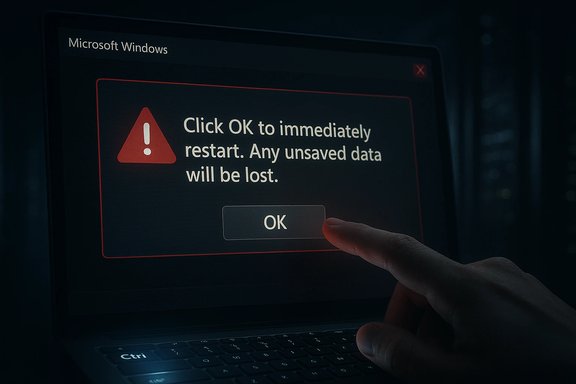
Hand presses Ctrl on a laptop as a warning indicates unsaved data will be lost.Background​

Windows exposes multiple shutdown and restart paths because different failure modes require different remedies. Ordinary, graceful shutdowns let apps close and save state; command‑line tools allow scripted reboots; and keyboard fallbacks exist for situations where the graphical shell or pointing device is unresponsive. The emergency restart discussed here is intentionally tucked behind the Secure Attention Sequence (the Ctrl+Alt+Del screen) so it remains reachable even when explorer.exe, the Start menu, or other shell components have frozen.
This discovery returned to mainstream attention after a ZDNet piece was circulated and picked up by other outlets and community threads, which reminded readers that the option has been documented in forums and Reddit posts for years. Multiple independent technical write‑ups reproduce the same keystroke/mouse sequence and the same confirmation dialog, giving the practical behavior broad corroboration even where low‑level implementation details are not publicly documented.

What the emergency restart is — and how to invoke it​

The exact sequence (step‑by‑step)​

  • Press Ctrl + Alt + Del to open the Windows Security / Secure Attention Sequence (SAS) screen.
  • While that screen is visible, press and hold the Ctrl key.
  • With Ctrl still held, click the power icon in the lower‑right corner of the screen.
  • A full‑screen confirmation dialog appears warning that unsaved data will be lost and asking for confirmation; choose OK to proceed.
This gating — requiring both the Secure Attention Sequence and a Ctrl‑modified click — appears intentional: it reduces accidental activations while keeping a privileged, reliable escape hatch available when the rest of the UI is non‑responsive.

What you will see and what happens​

When triggered, the system displays a message along the lines of “You are attempting an Emergency Restart. Click OK to immediately restart. Any unsaved data will be lost. Use this only as a last resort.” After confirmation, Windows proceeds to reboot quickly without waiting for the usual application shutdown negotiations. Multiple community and tech‑press writeups report the same warning text and behavior.

Why this exists: the Secure Attention Sequence and Winlogon​

The Ctrl+Alt+Del Secure Attention Sequence (SAS) is a privileged, kernel‑handled input path that Windows uses for trusted UI surfaces (sign‑in, lock screen, Task Manager, etc.. Because Winlogon handles SAS at a higher trust level than the regular shell, the SAS screen often remains responsive in situations where explorer.exe or other shell components are hung. Microsoft’s architectural model for SAS explains why recovery features live on this screen: it’s the most dependable UI surface for last‑resort actions.
In practice, that means a reboot initiated from the SAS is executed by Windows mechanisms rather than by abruptly removing power, which reduces certain risks compared with physically cutting power — but it still bypasses the polite, application‑level shutdown choreography. The emergency restart is, practically speaking, closer to a forced reboot than a graceful restart.

How the emergency restart differs from other restart/shutdown methods​

  • Normal Restart (Start → Power → Restart): Windows asks apps and services to close cleanly, allowing autosave and application prompts to complete. This is the safest method for preserving user data.
  • shutdown.exe or PowerShell Stop‑Computer: Scriptable, explicit, and used for automation or remote management. Can be forced with parameters (/f) but is typically predictable and logged when used by administrators.
  • Ctrl+Alt+Del → Power icon (regular click): Shows the usual Sleep / Shut down / Restart options from the secure screen — a reliable fallback if only part of the shell is unresponsive.
  • Emergency Restart (Ctrl+Alt+Del + hold Ctrl + click power): Immediate reboot from the SAS confirmation dialog; bypasses many user‑level shutdown steps and discards unsaved work. Safer than yanking power, but not graceful.
  • Holding physical power button: Hardware hard‑power cut. Risk of file system or application corruption is higher because the OS isn’t instructed to reboot cleanly. Use only when software methods fail.

Technical analysis: strengths, limitations, and known unknowns​

Strengths​

  • Reliability in severe UI freezes: Because it lives on the SAS, the emergency restart is accessible when explorer.exe, the Start menu, or the taskbar are unresponsive. This makes it a useful tool for users who encounter hard desktop‑shell hangs.
  • Safer than hardware power cut: The reboot is initiated by Windows internals rather than a physical interruption of power, which reduces certain classes of risk and improves the chance of successful recovery on next boot.
  • Deliberate gating reduces accidental use: The combination of SAS, a held modifier key, and a confirmation dialog make accidental activation unlikely.

Limitations and risks​

  • Unsaved data is lost: The emergency restart does not wait for applications to save state; unsaved documents and session data will be discarded. That is central to the feature and well‑documented in community reports.
  • Potential for corruption under specific conditions: If write operations were active, abrupt interruption increases risk. Modern file systems (NTFS journaling) reduce but do not eliminate the possibility of damage. Several technical writeups caution that this is “not as dangerous as a hard power cut” but still risky compared with graceful shutdown.
  • Enterprise monitoring and backups: Rapid or unscheduled reboots can interfere with agent heartbeats, pending backups, or other telemetry. Administrators should account for last‑resort reboots in runbooks and monitoring thresholds.

Unverifiable or speculative internals (flagged)​

Some online posts and forum threads speculate about the exact low‑level API or kernel call the SAS power button invokes. Those internal details are plausible based on Windows internals, but they are not published by Microsoft in consumer‑facing documentation. Treat claims about specific internal API calls as informed inference rather than confirmed fact.

Cross‑verification: what independent reporting confirms​

Independent coverage and community documentation consistently confirm the following load‑bearing facts:
  • The key sequence (Ctrl+Alt+Del, hold Ctrl, click power icon) reproduces the emergency restart confirmation on modern Windows installations.
  • The confirmation dialog warns that unsaved work will be lost and describes the action as a last resort.
  • The emergency restart is intended as a software fallback to holding the physical power button and lives behind the SAS because the SAS is a trusted input surface handled by Winlogon.
These points are reproduced across multiple independent forum posts, technical explainers, and mainstream tech reporting in the dataset assembled here, giving confidence to the practical claims even where Microsoft has not published a dedicated consumer KB about this specific UI shortcut.

Practical guidance: when to use emergency restart — and safer alternatives​

Use emergency restart when:​

  • The desktop shell is completely unresponsive (Start menu, taskbar, taskbar icons, and Task Manager cannot be reached).
  • Remote or kiosk devices are inaccessible physically and the SAS can be delivered by the remote client or hypervisor.
  • You have already tried less destructive remedies and need a software‑initiated immediate reboot.

Try these safer steps first (in order)​

  • Press Ctrl + Shift + Esc to open Task Manager and attempt to end the offending process or restart explorer.exe. This preserves unsaved work in other apps where possible.
  • Use Win + Ctrl + Shift + B to reset the graphics driver if the issue is a GPU or display driver glitch. This can restore UI responsiveness without rebooting.
  • If command‑line access is available (Run box, remote shell), run shutdown /r /t 0 to restart gracefully or shutdown /r /t 0 /f to force a restart with explicit knowledge of the /f risks.
  • As a last software step, use the Ctrl+Alt+Del secure screen and try the regular Power → Restart option first before invoking the Ctrl‑modified emergency path.

After an emergency restart​

  • Expect to run system integrity checks if you suspect file system or service corruption: DISM /Online /Cleanup‑Image /RestoreHealth and sfc /scannow are recommended first steps.
  • Verify that scheduled backups and monitoring agents completed or reconnected successfully. Unplanned reboots can leave maintenance windows or jobs in inconsistent states.

Security and operational considerations for IT teams​

  • Document the procedure in runbooks: If your support model allows end users to perform emergency restarts, include the sequence, the expected warning text, and the post‑reboot checklist in your standard operating procedures. This reduces confusion and unnecessary escalation.
  • Control the attack surface: Scriptable shutdown commands (shutdown.exe, shortcuts bound to hotkeys, SlideToShutDown shortcuts) can be abused if endpoints are misconfigured. Inventory and restrict where appropriate.
  • Consider telemetry gaps: Last‑resort reboots will interrupt running agents and may obscure root‑cause timelines. Ensure logs are centralized and that endpoints report session starts and stop events for forensic continuity.

Broader context: why the story resurfaced and product‑release timing​

The renewed attention to this emergency restart coincided with a wave of Windows 11 25H2 upgrades and post‑upgrade troubleshooting conversations, which naturally pushed users and administrators to review recovery options for freezes and regressions after feature updates. Several write‑ups tie the coverage to the 25H2 rollout and the practical need for reliable last‑resort recovery paths while fleets and consumers test new builds.

Quick reference: commands and sequences (cheat sheet)​

  • Emergency Restart: Ctrl + Alt + Del → hold Ctrl → click Power icon → OK.
  • Regular secure restart from SAS: Ctrl + Alt + Del → Power icon → Restart (no modifier).
  • Graceful restart via Run: Windows + R → shutdown /r /t 0 → Enter.
  • One‑key shutdown shortcut (advanced): create a shortcut to C:\Windows\System32\shutdown.exe /s /t 0 and bind a hotkey in the shortcut properties (use with caution).
  • SlideToShutDown (touch devices): create a shortcut to %windir%\System32\SlideToShutDown.exe. May not exist on all images.

Recommended best practices (concise)​

  • Prefer graceful shutdowns and regular saves; treat Emergency Restart as an emergency tool only.
  • Train helpdesk staff on the sequence and when to instruct users to employ it.
  • After any forced reboot, run DISM and SFC if you suspect corruption; verify backups and monitoring state.
  • For managed fleets, log and review occurrences of emergency restarts to identify recurring root causes.

Critical appraisal: why this is important — and why you shouldn’t overuse it​

The emergency restart is a thoughtful design choice: it provides a software‑initiated alternative to the blunt instrument of a hard power cut while remaining accessible even when the UI is compromised. For support engineers, remote operators, and power users, it’s a practical addition to the recovery toolbox that can save time and reduce hardware wear from constant forced power cycles.
That said, it embodies a trade‑off: speed and responsiveness at the expense of data safety and predictable shutdown behavior. Overuse or casual reliance undermines data integrity guarantees, and in large organizations unexplained forced reboots can complicate monitoring and backup integrity. The responsible posture is to keep Emergency Restart as a documented last resort and to invest in root cause identification for any systems that require it repeatedly.

Final takeaway​

Windows includes a deliberately hidden emergency restart accessible from the Secure Attention Sequence that enables users to force an immediate, software‑initiated reboot when other methods fail. Multiple independent writeups and community posts confirm the keystroke and dialog text, and the method is best treated as a last‑resort recovery tool: safer than yanking the power but riskier than a normal restart. Administrators should document the procedure, train support staff, and treat repeated use as a signal to investigate underlying system reliability issues.

Action checklist for readers:
  • Save work frequently and enable autosave in key applications.
  • Try Task Manager, Win+Ctrl+Shift+B, and graceful shutdown commands before emergency restart.
  • If you must use Emergency Restart, run DISM and SFC after boot and verify backups.
  • If emergency restarts occur more than once on a device, document occurrences and escalate for driver, firmware, or configuration fixes.
This is a useful recovery lane to know — but one that belongs in the toolbox, not the default workflow.

Source: Inbox.lv A Secret Way to Shut Down Windows Has Been Found
 

Back
Top