

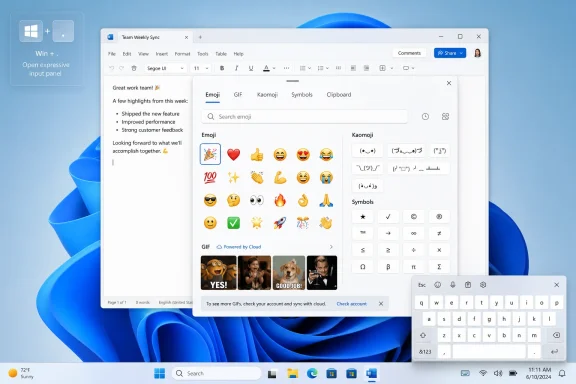
Emojis on Windows are no longer confined to chat apps or touchscreens: in 2026, Windows 11 provides a system-wide expressive input panel that can insert emoji, GIFs, kaomoji, symbols, and clipboard items into most text fields. The essential command is Windows key + Period, with Windows key + Semicolon available as an alternative. That shortcut works across browsers, email clients, Office documents, messaging services, and many traditional desktop programs, making it the fastest method to learn even when individual apps provide their own emoji controls.
Emoji entry on a PC once depended heavily on copying characters from websites, memorizing application-specific shortcuts, or using a mobile device. Microsoft began changing that experience during the Windows 10 era by introducing a dedicated emoji panel and gradually expanding it into a broader input surface.
Windows 11 developed the panel further. Rather than treating emoji as a niche feature, Microsoft integrated expressive input with GIF search, kaomoji, typographic symbols, and clipboard history, although the exact tabs and controls visible on a PC can vary by Windows version, build, region, policy, and rollout status.
Windows 10 machines do not suddenly lose their emoji keyboard after support ends. The panel remains available, but unsupported installations may miss fixes for search, fonts, input services, security vulnerabilities, and compatibility problems that emerge over time.
For that reason, Windows 10 users should regard the built-in picker as a continuing legacy feature rather than an actively evolving service. Organizations enrolled in an applicable extended-support program may receive additional operating-system updates, but that does not necessarily guarantee every new Windows 11 expressive-input capability.
This distinction explains why the same emoji can look different on Windows, Android, iOS, a website, or another messaging platform. The underlying character may be identical even when its color, expression, shading, or level of detail changes.
Then use the following sequence:
It is therefore useful in a broad range of places:
The punctuation key may move on non-US layouts, and localized keyboards can make one combination easier than the other. If one shortcut appears unresponsive, test the alternative after confirming that the cursor is in a normal text field.
Windows filters the available results as text is entered. Search quality depends on the installed language resources, the term used, and the Windows build, so trying a simpler synonym can produce better results than entering a long phrase.
Recent history is particularly valuable for workplace communication, where the same small set of characters tends to recur. A check mark, warning sign, thumbs-up, calendar, or colored heart can usually be recovered much faster from recent items than from the full collection.
A practical search strategy is:
Emoji can also contain gender, profession, family, and relationship sequences formed from multiple Unicode components. A modern application may render the components as one combined image, while older software may display separate people, symbols, or empty boxes.
Use simpler variants when compatibility matters more than visual specificity. This is especially relevant in customer databases, ticketing systems, older web applications, exported spreadsheets, and documents that will be opened on mixed platforms.
Clipboard history also carries a different privacy profile. It can retain copied information for later use, so users should avoid casually storing passwords, authentication codes, confidential customer data, or other sensitive material in a synchronized or persistent clipboard.
Microsoft began delivering the transition in Windows 11 updates released on June 23, 2026, with users advised to install the latest update by June 30, 2026 to retain GIF functionality. An unupdated machine may display a message stating that the GIF service is unavailable even though ordinary emoji insertion continues to work.
This change illustrates why GIFs should not be confused with the core emoji feature. Unicode emoji are locally available text characters, while GIF search relies on an external catalog, network access, service integration, content filtering, and current Windows components.
Traditional Alt codes still work in many Windows programs, but they generally require a numeric keypad and depend on the relevant code-page behavior. The panel is easier to discover, easier to search, and more suitable for laptops without a dedicated number pad.
Where available, open Settings > Personalization > Taskbar and look under the system-tray controls for Emoji and more. The available choices can include Always, While typing, and Never.
If it is missing, greyed out, or unreliable, do not use unofficial registry modifications as the first response. Windows key + Period remains the simplest supported fallback and does not depend on a visible taskbar icon.
The touch keyboard is another reliable route, particularly on tablets and convertible PCs. It provides a dedicated emoji control alongside the on-screen keys.
The touch keyboard and On-Screen Keyboard are not the same component. The classic On-Screen Keyboard emphasizes a conventional desktop-keyboard layout and accessibility, while the touch keyboard is optimized for tapping, compact layouts, handwriting, suggestions, and expressive input.
This approach works particularly well because the inserted character becomes part of the message text. However, appearance can still change after delivery because the recipient’s email client, operating system, and chosen font control rendering.
Microsoft’s interfaces continue to evolve, so the Windows-level shortcut is generally more stable than menu instructions tied to one Outlook edition. It also avoids granting an unnecessary third-party add-in access to mailbox content.
If an organization requires a specialized emoji package, administrators should review the add-in’s permissions, publisher, data-handling practices, and deployment scope. An emoji add-in should not receive broad mailbox access merely to solve a problem already handled by Windows.
Useful professional patterns include:
Select Emoji, GIFs and Stickers, search or browse, choose the item, and then send the message. Unlike the Windows panel, the Teams picker can expose platform-specific presentation, sticker features, reactions, and content controlled by Microsoft 365 policies.
For example, beginning with
Teams reactions are separate from emoji typed into a message. A typed emoji becomes part of the message body, while a reaction attaches an acknowledgement to an existing message and can be counted, changed, or removed independently.
This distinction applies to Slack, Discord, WhatsApp, browser-based chat systems, and many customer-support platforms. Their native pickers may offer custom artwork or service-specific features, but Windows key + Period remains a universal fallback for ordinary text fields.
Managed Teams tenants can restrict GIFs, stickers, memes, custom emoji, or other expressive features. If a company policy hides these controls, the absence may be deliberate rather than a Windows failure.
Word for the web also provides an application-level route under Insert > Emoji. A smaller initial gallery may appear, with a More Emojis option opening the larger selection.
Problems become more likely when a document is:
Do not use emoji as the only carrier of important information. A warning sign should accompany the word Warning, and a red circle should not be the sole indication that a system is offline.
The same principle applies to visual scanning. Excessive emoji can make business documents look inconsistent and can interfere with readers who need direct, structured information.
If the replacement is unwanted, press Ctrl + Z immediately. This reverses the individual AutoCorrect action without requiring a permanent configuration change.
To remove a specific punctuation conversion:
When troubleshooting an automatic replacement, first determine where it occurs. Test the same punctuation in Notepad, a browser form, desktop Word, and Word for the web; the results can reveal whether Windows, Office, or the website is performing the conversion.
Open it with Windows key + Period, then use Tab to move among search and category controls. Arrow keys navigate groups and individual entries, while Enter selects the highlighted item.
Voice Access can also operate the on-screen keyboard through numbered overlays. A user can show the keyboard, speak the number assigned to the emoji button, select an item by number, and hide the keyboard afterward.
These routes make emoji available without relying on precise pointer movement. More importantly, they reinforce that expressive input is now part of Windows accessibility infrastructure rather than merely a decorative messaging feature.
If the panel works in Notepad but not in another program, the application is probably intercepting the shortcut, using a custom text editor, or blocking pop-up input surfaces. Check the program’s shortcut settings and test its own emoji command.
Windows 10 previously received a fix for an emoji-panel search problem through the July 2025 non-security update identified as KB5062649 and subsequent cumulative updates. In 2026, supported Windows 11 installations should use Windows Update rather than hunting for an old standalone workaround.
Try these remedies:
A missing GIF tab or disabled custom-emoji control may therefore be a governance decision. Enterprises often restrict online media search because queries and results cross service boundaries, while regulated environments may prefer plain text that can be archived, searched, and reviewed predictably.
That distinction matters for compliance teams. A locally inserted check mark does not carry the same data-flow implications as searching an external GIF catalog from a confidential conversation.
Administrators should document which expressive-input features are permitted rather than relying on users to infer policy from missing buttons. Clear rules reduce support tickets and prevent employees from installing unapproved add-ins to restore functionality.
Emoji failures are rarely a sufficient reason to replace a PC by themselves. They can, however, reveal a broader servicing problem: an endpoint that cannot render current text standards may also be missing security and platform updates with far greater operational consequences.
The June 2026 move from Tenor to GIPHY also demonstrates that expressive-input services can change without altering the panel’s basic appearance. Future provider transitions may affect content moderation, regional availability, enterprise filtering, privacy assessments, and the range of searchable GIFs.
WindowsForum users should expect compatibility to improve gradually rather than instantly. For cross-platform communication, simpler and older characters will remain safer than newly introduced or highly complex sequences.
That consolidation is convenient, but it also increases the importance of updates and policy management. A failure in one online tab should not be mistaken for a failure of the entire Windows text-input system, and enterprises should distinguish local character entry from cloud-connected content.
The essential Windows emoji workflow in 2026 remains refreshingly simple: click where text belongs, press Windows key + Period, search, and select. The surrounding ecosystem is more sophisticated than the shortcut suggests, spanning Unicode compatibility, cloud-delivered GIFs, touch interfaces, accessibility, Office AutoCorrect, and enterprise controls, but users who master the system panel first can move confidently between almost every modern Windows application.
 Background
Emoji entry on a PC once depended heavily on copying characters from websites, memorizing application-specific shortcuts, or using a mobile device. Microsoft began changing that experience during the Windows 10 era by introducing a dedicated emoji panel and gradually expanding it into a broader input surface.Windows 11 developed the panel further. Rather than treating emoji as a niche feature, Microsoft integrated expressive input with GIF search, kaomoji, typographic symbols, and clipboard history, although the exact tabs and controls visible on a PC can vary by Windows version, build, region, policy, and rollout status.
Windows 10 versus Windows 11 in 2026
The core emoji shortcut continues to work in both Windows 10 and Windows 11. However, Windows 10 reached the end of free consumer support on October 14, 2025, so Windows 11 is now the supported platform for ongoing panel improvements, service changes, and reliability fixes.Windows 10 machines do not suddenly lose their emoji keyboard after support ends. The panel remains available, but unsupported installations may miss fixes for search, fonts, input services, security vulnerabilities, and compatibility problems that emerge over time.
For that reason, Windows 10 users should regard the built-in picker as a continuing legacy feature rather than an actively evolving service. Organizations enrolled in an applicable extended-support program may receive additional operating-system updates, but that does not necessarily guarantee every new Windows 11 expressive-input capability.
Emoji are text, not miniature attachments
Most emoji inserted through the Windows panel are Unicode characters. They travel with the surrounding text rather than being attached as separate image files, and the receiving operating system or application decides how to draw them.This distinction explains why the same emoji can look different on Windows, Android, iOS, a website, or another messaging platform. The underlying character may be identical even when its color, expression, shading, or level of detail changes.
Open the Windows Emoji Panel
The most dependable route begins with a text cursor. Click inside the message, document, form, search box, or other field where the character should appear before opening the panel.Then use the following sequence:
- Place the insertion point in an editable text field.
- Press Windows key + Period or Windows key + Semicolon.
- Browse a category or begin typing an emoji description.
- Select the desired emoji with the mouse, touch input, or keyboard.
- Continue selecting items if you need more than one.
- Press Esc or click outside the panel when finished.
Why the shortcut should be your default method
App-specific emoji buttons move around whenever developers redesign their interfaces. The Windows shortcut remains relatively consistent because it belongs to the operating system rather than the application.It is therefore useful in a broad range of places:
- It can insert emoji into browser forms, webmail messages, and social networks.
- It can work inside Notepad, Word, Outlook, OneNote, and many third-party editors.
- It can add symbols to filenames when the target file system and application accept them.
- It can enter emoji in messaging clients that do not expose a visible picker.
- It can provide an alternative when an app’s own emoji gallery is slow, hidden, or difficult to navigate.
The semicolon alternative
Microsoft documents Windows key + Semicolon alongside the more familiar period shortcut. Both are intended to open the same panel, so users can choose whichever combination feels more comfortable on their keyboard.The punctuation key may move on non-US layouts, and localized keyboards can make one combination easier than the other. If one shortcut appears unresponsive, test the alternative after confirming that the cursor is in a normal text field.
Search, Browse, and Personalize Emoji
Scrolling through hundreds of entries is rarely the most efficient approach. Once the panel opens, begin typing a descriptive word such as laugh, coffee, heart, warning, check, or birthday.Windows filters the available results as text is entered. Search quality depends on the installed language resources, the term used, and the Windows build, so trying a simpler synonym can produce better results than entering a long phrase.
Use categories and recent items
Category navigation remains useful when the name of an emoji is unclear. Typical groups cover faces, people, animals, food, travel, activities, objects, and symbols, while the recently used area provides quick access to frequently selected characters.Recent history is particularly valuable for workplace communication, where the same small set of characters tends to recur. A check mark, warning sign, thumbs-up, calendar, or colored heart can usually be recovered much faster from recent items than from the full collection.
A practical search strategy is:
- Check the recently used group.
- Search with a short, common noun or emotion.
- Try a synonym if no useful result appears.
- Browse the most likely category.
- Use the Symbols tab if the item is typographic rather than expressive.
Choose skin-tone and person variants carefully
Some people and hand emoji support skin-tone variants. Depending on the panel design, Windows may reveal these options through a secondary menu, a long press, or another selection control.Emoji can also contain gender, profession, family, and relationship sequences formed from multiple Unicode components. A modern application may render the components as one combined image, while older software may display separate people, symbols, or empty boxes.
Use simpler variants when compatibility matters more than visual specificity. This is especially relevant in customer databases, ticketing systems, older web applications, exported spreadsheets, and documents that will be opened on mixed platforms.
Use GIFs, Kaomoji, Symbols, and Clipboard History
The Windows 11 panel is more than an emoji keyboard. Depending on the installed version and available services, it can act as a compact hub for several input types that would otherwise require separate menus or websites.Understand the tabs
The panel can include the following areas:- Emoji inserts standardized Unicode characters into the current text field.
- GIF searches an online catalog and inserts or shares animated media where the destination supports it.
- Kaomoji provides text-based expressions assembled from punctuation and Unicode symbols.
- Symbols offers punctuation, currency signs, mathematical characters, geometric marks, and other special characters.
- Clipboard history exposes previously copied text and supported content when clipboard history is enabled.
Clipboard history also carries a different privacy profile. It can retain copied information for later use, so users should avoid casually storing passwords, authentication codes, confidential customer data, or other sensitive material in a synchronized or persistent clipboard.
The 2026 GIPHY transition
Windows 11 received an important GIF-panel change in June 2026. Following the deprecation of the previously used Tenor interface, Microsoft changed the Windows 11 emoji panel to use GIPHY for GIF content.Microsoft began delivering the transition in Windows 11 updates released on June 23, 2026, with users advised to install the latest update by June 30, 2026 to retain GIF functionality. An unupdated machine may display a message stating that the GIF service is unavailable even though ordinary emoji insertion continues to work.
This change illustrates why GIFs should not be confused with the core emoji feature. Unicode emoji are locally available text characters, while GIF search relies on an external catalog, network access, service integration, content filtering, and current Windows components.
Insert useful symbols without Alt codes
The Symbols tab is one of the panel’s most practical but overlooked features. It can provide characters such as em dashes, copyright signs, registered marks, arrows, mathematical operators, accented letters, and currency symbols.Traditional Alt codes still work in many Windows programs, but they generally require a numeric keypad and depend on the relevant code-page behavior. The panel is easier to discover, easier to search, and more suitable for laptops without a dedicated number pad.
Add a Visible Taskbar or Touch Keyboard Button
Keyboard shortcuts are not ideal for every user. Windows 11 has been rolling out an Emoji and more system-tray experience that can expose a visible route to the same broader panel.Where available, open Settings > Personalization > Taskbar and look under the system-tray controls for Emoji and more. The available choices can include Always, While typing, and Never.
Availability can vary by build
The Emoji and more control has not appeared uniformly across every Windows 11 configuration. Feature rollouts, Insider channels, device capabilities, language settings, managed policies, and installed updates can affect whether the setting is present or active.If it is missing, greyed out, or unreliable, do not use unofficial registry modifications as the first response. Windows key + Period remains the simplest supported fallback and does not depend on a visible taskbar icon.
The touch keyboard is another reliable route, particularly on tablets and convertible PCs. It provides a dedicated emoji control alongside the on-screen keys.
Keep the touch keyboard icon visible
On current Windows 11 builds, right-click the taskbar and select Taskbar settings. Under System tray icons, configure Touch keyboard with the appropriate behavior:- Always keeps the icon visible even when a physical keyboard is connected.
- When no keyboard is attached targets tablets and detachable devices.
- Never hides the icon and prevents it from serving as a manual launcher.
The touch keyboard and On-Screen Keyboard are not the same component. The classic On-Screen Keyboard emphasizes a conventional desktop-keyboard layout and accessibility, while the touch keyboard is optimized for tapping, compact layouts, handwriting, suggestions, and expressive input.
Insert Emoji in Outlook and Email
Outlook users can rely on the Windows picker rather than installing an add-in. Click in the message body, press Windows key + Period, select one or more characters, and close the panel when finished.This approach works particularly well because the inserted character becomes part of the message text. However, appearance can still change after delivery because the recipient’s email client, operating system, and chosen font control rendering.
Classic Outlook and new Outlook differ
Classic Outlook for Windows retains many long-established Office editing systems, including desktop AutoCorrect settings and traditional add-in management. New Outlook uses a more web-oriented architecture and places app or add-in controls in different locations.Microsoft’s interfaces continue to evolve, so the Windows-level shortcut is generally more stable than menu instructions tied to one Outlook edition. It also avoids granting an unnecessary third-party add-in access to mailbox content.
If an organization requires a specialized emoji package, administrators should review the add-in’s permissions, publisher, data-handling practices, and deployment scope. An emoji add-in should not receive broad mailbox access merely to solve a problem already handled by Windows.
Use restraint in professional email
Emoji can clarify tone in short internal messages, but they do not translate equally across cultures, industries, and organizational hierarchies. A symbol that appears friendly in a team chat may feel dismissive in a complaint response, legal discussion, disciplinary notice, or security alert.Useful professional patterns include:
- A check mark can confirm that a task has been completed.
- A warning symbol can draw attention to an operational risk.
- A calendar can reinforce a deadline or scheduled event.
- A restrained smile can soften an informal internal message.
- A thumbs-up can acknowledge receipt when a full reply is unnecessary.
Use Emoji in Microsoft Teams and Other Chat Apps
Microsoft Teams provides its own expressive-input gallery on the right side of the compose box. It combines emoji, GIFs, and stickers in an environment designed for chat rather than generic text entry.Select Emoji, GIFs and Stickers, search or browse, choose the item, and then send the message. Unlike the Windows panel, the Teams picker can expose platform-specific presentation, sticker features, reactions, and content controlled by Microsoft 365 policies.
Type Teams shortcodes
Teams also supports emoji name entry from the keyboard. In the compose box, type a colon, begin entering the emoji name, and choose a suggestion or press Enter to accept the top match.For example, beginning with
:smile can filter the available suggestions. This method is efficient for users who already know the expected names and want to avoid moving to the mouse.Teams reactions are separate from emoji typed into a message. A typed emoji becomes part of the message body, while a reaction attaches an acknowledgement to an existing message and can be counted, changed, or removed independently.
Know when to use the Windows picker instead
The Teams gallery is preferable when you need a GIF, sticker, Teams reaction, custom organizational emoji, or platform-specific option. The Windows panel is preferable when you need a standard Unicode character quickly and want the same workflow used in other applications.This distinction applies to Slack, Discord, WhatsApp, browser-based chat systems, and many customer-support platforms. Their native pickers may offer custom artwork or service-specific features, but Windows key + Period remains a universal fallback for ordinary text fields.
Managed Teams tenants can restrict GIFs, stickers, memes, custom emoji, or other expressive features. If a company policy hides these controls, the absence may be deliberate rather than a Windows failure.
Add Emoji in Word and Other Documents
Desktop Word normally accepts input from the Windows panel wherever ordinary text can be inserted. Place the cursor, press Windows key + Period, and choose the character.Word for the web also provides an application-level route under Insert > Emoji. A smaller initial gallery may appear, with a More Emojis option opening the larger selection.
Treat emoji like font-dependent characters
Emoji in documents can react to fonts, styles, export formats, and compatibility settings. Windows typically uses an emoji-capable font for color rendering, but a document theme or application may substitute another font or display a monochrome glyph.Problems become more likely when a document is:
- Opened on an older operating system.
- Converted to an old Word format.
- Exported through a third-party PDF engine.
- Imported into publishing or accounting software.
- Printed through a driver without color-glyph support.
- Copied into a database that uses incomplete Unicode handling.
Searchability and accessibility matter
An emoji is not always announced by a screen reader in the way the author expects. The spoken description can be surprisingly literal, lengthy, or different from the intended emotional meaning.Do not use emoji as the only carrier of important information. A warning sign should accompany the word Warning, and a red circle should not be the sole indication that a system is offline.
The same principle applies to visual scanning. Excessive emoji can make business documents look inconsistent and can interfere with readers who need direct, structured information.
Control Automatic Emoji Replacement
Word and classic Outlook can automatically convert familiar punctuation sequences into emoji. Typing a smiley such as:) or :-) may trigger AutoCorrect and replace the characters with a graphical Unicode result.If the replacement is unwanted, press Ctrl + Z immediately. This reverses the individual AutoCorrect action without requiring a permanent configuration change.
Disable one replacement without disabling everything
In Word, go to File > Options > Proofing > AutoCorrect Options. In classic Outlook, go to File > Options > Mail > Editor Options > Proofing > AutoCorrect Options.To remove a specific punctuation conversion:
- Open the AutoCorrect dialog.
- Enter the punctuation sequence in the Replace field.
- Select the matching entry in the list.
- Choose Delete.
- Confirm the change and return to the document or message.
Understand web-app limitations
Web versions of Word and Outlook do not always expose the same AutoCorrect controls as their desktop counterparts. Some substitutions may be built into the web editor, browser, or service rather than the local Office configuration.When troubleshooting an automatic replacement, first determine where it occurs. Test the same punctuation in Notepad, a browser form, desktop Word, and Word for the web; the results can reveal whether Windows, Office, or the website is performing the conversion.
Navigate the Emoji Panel Without a Mouse
The panel is designed to support keyboard navigation as well as pointer input. This is important for accessibility, high-speed workflows, and situations where a touchpad or mouse is unavailable.Open it with Windows key + Period, then use Tab to move among search and category controls. Arrow keys navigate groups and individual entries, while Enter selects the highlighted item.
A keyboard-only workflow
A practical sequence is:- Press Windows key + Period.
- Press Tab until the desired panel area is announced or highlighted.
- Use Left Arrow and Right Arrow to move among Emoji, GIF, Kaomoji, Symbols, and Clipboard history.
- Press Enter to open the selected section.
- Use the arrow keys to move through items.
- Press Enter to insert the highlighted result.
- Press Esc to close the panel.
Screen readers and Voice Access
Windows screen readers can announce panel controls, categories, and item descriptions. The quality of the experience depends partly on the active Windows language and the accessible names assigned to each character.Voice Access can also operate the on-screen keyboard through numbered overlays. A user can show the keyboard, speak the number assigned to the emoji button, select an item by number, and hide the keyboard afterward.
These routes make emoji available without relying on precise pointer movement. More importantly, they reinforce that expressive input is now part of Windows accessibility infrastructure rather than merely a decorative messaging feature.
Troubleshoot Missing Emoji, Search, or GIFs
When the shortcut does nothing, begin with the simplest explanation: the insertion point may not be inside a compatible field. Click in a plain-text area such as Notepad and test Windows key + Period again.If the panel works in Notepad but not in another program, the application is probably intercepting the shortcut, using a custom text editor, or blocking pop-up input surfaces. Check the program’s shortcut settings and test its own emoji command.
Update Windows before editing the Registry
For system-wide failures, install current Windows updates:- Open Start and select Settings.
- Go to Windows Update.
- Select Check for updates.
- Download and install the offered updates.
- Restart the PC if prompted.
- Test the panel in several applications.
Windows 10 previously received a fix for an emoji-panel search problem through the July 2025 non-security update identified as KB5062649 and subsequent cumulative updates. In 2026, supported Windows 11 installations should use Windows Update rather than hunting for an old standalone workaround.
Repair boxes and missing glyphs
An empty rectangle, square, or placeholder usually indicates a rendering problem rather than a broken shortcut. The application may not support the character, the chosen font may lack a glyph, or the installed Windows build may predate that emoji’s Unicode version.Try these remedies:
- Apply all current Windows and application updates.
- Test the character in Notepad, Word, and a modern browser.
- Change the surrounding text to a Windows font with emoji support.
- Run Windows repair tools if the standard emoji font appears damaged.
- Use an older or simpler emoji when recipients run legacy systems.
- Avoid copying complex sequences from unknown generator websites.
Enterprise and Managed-PC Considerations
Work and school devices can expose fewer expressive-input features than personal PCs. Administrators may regulate input experiences, online content providers, app add-ins, clipboard synchronization, Teams custom emoji, and optional Windows experiences.A missing GIF tab or disabled custom-emoji control may therefore be a governance decision. Enterprises often restrict online media search because queries and results cross service boundaries, while regulated environments may prefer plain text that can be archived, searched, and reviewed predictably.
Separate local emoji from cloud-delivered content
Standard Unicode emoji are generally local characters. GIF search, stickers, custom organizational emoji, and some recommendation features can involve cloud services or application-specific storage.That distinction matters for compliance teams. A locally inserted check mark does not carry the same data-flow implications as searching an external GIF catalog from a confidential conversation.
Administrators should document which expressive-input features are permitted rather than relying on users to infer policy from missing buttons. Clear rules reduce support tickets and prevent employees from installing unapproved add-ins to restore functionality.
Windows 10 creates an additional support risk
Organizations still running Windows 10 in 2026 must account for its post-support status. Even when emoji entry works, aging builds can develop compatibility gaps with newer Unicode characters, Office releases, browsers, authentication systems, and cloud services.Emoji failures are rarely a sufficient reason to replace a PC by themselves. They can, however, reveal a broader servicing problem: an endpoint that cannot render current text standards may also be missing security and platform updates with far greater operational consequences.
Strengths and Opportunities
Windows now offers several overlapping routes to expressive input, allowing users to choose the interface that fits the application and hardware.- The system-wide shortcut creates consistency. Users do not need to locate a different emoji button in every editor, browser, or communication tool.
- Search is faster than visual browsing. Typing a simple keyword can retrieve a character in seconds.
- The panel consolidates useful tools. Emoji, symbols, kaomoji, GIFs, and clipboard history are available from one compact surface on Windows 11.
- Touch and accessibility options broaden participation. Touch keyboards, screen readers, keyboard navigation, and Voice Access reduce dependence on a mouse.
- Unicode text remains portable. Standard emoji can travel through documents, databases, websites, and messaging systems without becoming image attachments.
- Application pickers add richer capabilities. Teams and similar services can combine standard emoji with reactions, stickers, custom artwork, and managed organizational content.
- The Symbols tab improves everyday writing. It offers a discoverable alternative to memorizing Alt codes for punctuation and specialist characters.
Risks and Concerns
Emoji remain deceptively complex because one visual symbol can involve Unicode standards, fonts, rendering engines, online providers, application policies, and cultural interpretation.- Rendering is not universal. The same character can look materially different on another platform or fail to display on older software.
- Meaning is contextual. A gesture, color, face, or object can carry different implications across cultures and age groups.
- GIF search depends on external services. Provider changes, network filtering, regional restrictions, and Windows servicing can interrupt availability.
- Clipboard history can retain sensitive material. Users should not treat a convenient input panel as a secure secrets manager.
- Third-party add-ins introduce permissions. Installing an emoji extension may grant more access than the feature justifies.
- Automatic replacement can alter formal text. Office AutoCorrect may transform punctuation that was intended to remain literal.
- Accessibility can suffer through overuse. Long sequences may produce distracting screen-reader announcements and obscure the actual message.
- Managed environments may require consistency. Informal symbols can complicate records retention, customer correspondence, investigations, and automated processing.
What to Watch Next
The most immediate area to monitor is Microsoft’s continuing rollout of the Windows 11 Emoji and more taskbar experience. Availability can still differ among builds, and the visible system-tray button may evolve independently of the established keyboard shortcut.The June 2026 move from Tenor to GIPHY also demonstrates that expressive-input services can change without altering the panel’s basic appearance. Future provider transitions may affect content moderation, regional availability, enterprise filtering, privacy assessments, and the range of searchable GIFs.
New Unicode support
Unicode continues to add characters and refine emoji sequences, but Windows support depends on operating-system updates, fonts, and application rendering. A newly standardized emoji may therefore appear on one device before another.WindowsForum users should expect compatibility to improve gradually rather than instantly. For cross-platform communication, simpler and older characters will remain safer than newly introduced or highly complex sequences.
A broader Windows input hub
Microsoft’s direction suggests that the panel will continue functioning as an input hub rather than a narrowly defined emoji keyboard. Clipboard integration, symbols, online media, accessibility, and touch input already overlap inside the experience.That consolidation is convenient, but it also increases the importance of updates and policy management. A failure in one online tab should not be mistaken for a failure of the entire Windows text-input system, and enterprises should distinguish local character entry from cloud-connected content.
The essential Windows emoji workflow in 2026 remains refreshingly simple: click where text belongs, press Windows key + Period, search, and select. The surrounding ecosystem is more sophisticated than the shortcut suggests, spanning Unicode compatibility, cloud-delivered GIFs, touch interfaces, accessibility, Office AutoCorrect, and enterprise controls, but users who master the system panel first can move confidently between almost every modern Windows application.
References
- Primary source: Technobezz
Published: 2026-07-20T16:26:01.085000+00:00
Loading…
www.technobezz.com