

Microsoft’s optional February preview for Windows 11 arrives as a tightly focused, pragmatic package: a one‑click network speed test in the taskbar, native Sysmon (System Monitor) surfaced as an optional in‑box feature, new pan/tilt camera controls in Settings, RSAT support expanded to Arm64, Quick Machine Recovery behavior changes for certain Pro devices, support for .webp wallpaper files, and Emoji 16.0 glyphs — all delivered under KB5077241 for versions 24H2 and 25H2, with companion preview notes for Windows 11 version 26H1 (KB5077239) for Insiders. om]
Microsoft is continuing its post‑launch cadence of incremental, user‑facing improvements delivered through optional preview packages and staged rollouts. The February optional preview — released in late February 2026 as KB5077241 for Windows 11 24H2 and 25H2 — is not a major feature update. Instead, it’s a collection of convenience features, platform modernienterprise‑relevant changes that collectively reduce friction for helpdesks and security teams.
At the same time Microsoft published preview notes for Windows 11 version 26H1 as KB5077239; that package targets Insider builds and a different OS core intended for upcoming silicon, making the 26H1 preview more of a developer/tester item today than a general release. Administrators and enthusiasts should treat KB5077241 (24H2/25H2) as the practical update to watch for most production and lab environments, while 26H1 remains an Insider preview with narrower applicability.
Why this matters:
Key operational details:
Security implications and benefits:
If you rely on managed update channels, expect the preview to remain optional; Microsoft will likely roll many of these changes into the next normal monthly cumulative releases only after Release Preview gates pass. If you are running Insider builds or managing a lab farm, this is a good time to validate the features and bake them into your rollout plans.
For IT teams: pilot, tune, and document. For security teams: test Sysmon configs and monitor log volume. For desktop users: enjoy the new conveniences but remember that optional preview packages are not automatically installed in managed environments — they are for testing and validation ahead of broader rollouts. If you want stability and wide hardware compatibility, let the preview run through Release Preview validation and the regular monthly servicing cadence before deploying to critical endpoints.
In short: this February’s optional preview is not transformative, but it is practical — and a clear signal of Microsoft’s direction: integrate defensive telemetry into the platform, surface lightweight consumer conveniences where they help support flows, and gradually close platform gaps (such as RSAT on Arm64). Treat it as an invitation to test and refine your deployment playbooks rather than a signal to flip switches broadly without measurement and planning.
Source: Thurrott.com Microsoft Releases February Optional Updates for Windows 11
 Background / Overview
Microsoft is continuing its post‑launch cadence of incremental, user‑facing improvements delivered through optional preview packages and staged rollouts. The February optional preview — released in late February 2026 as KB5077241 for Windows 11 24H2 and 25H2 — is not a major feature update. Instead, it’s a collection of convenience features, platform modernienterprise‑relevant changes that collectively reduce friction for helpdesks and security teams.At the same time Microsoft published preview notes for Windows 11 version 26H1 as KB5077239; that package targets Insider builds and a different OS core intended for upcoming silicon, making the 26H1 preview more of a developer/tester item today than a general release. Administrators and enthusiasts should treat KB5077241 (24H2/25H2) as the practical update to watch for most production and lab environments, while 26H1 remains an Insider preview with narrower applicability.
What’s new — feature by feature
Taskbar network speed test: convenience, not a native engine
Microsoft has added a “Perform speed test” shortcut reachable from the network system tray icon and the Wi‑Fi/Cellular quick settings. The control launches the speed test in your default browser and reports download, upload, and ernet, Wi‑Fi, and cellular connections. It is a one‑click path to a web‑hosted measurement (Bing’s speed‑test widget/Ookla backend in practice), not a kernel‑level, in‑OS network diagnostic. That design keeps shipping lightweight and lets Microsoft update the measurement UI without an OS servicing cycle.Why this matters:
- It’s a useful stopgap for helpdesk triage and novice users who need a quick sanity check without hunting for a site or CLI tool.
- It is not a replacement for repeatable, automated measurements used by network teams; scripted tests (iperf3, Speedtest CLI) and managed telemetry remain the correct tools for diagnostics and SLAs.
- Because it launches a browser page, organizations can control its availability via browser policies or by restricting access to the hosting web resource if they need to avoid external telemetry.
Built‑in System Monitor (Sysmon): a platform shift for defenders
One of the more consequential items in this preview is the decision to ship Sysmon functionality as an optional, in‑box Windows feature. Sysmon (Sysinternals’ System Monitor) is an established endpoint logging tool used by SOCs and IR teams to capture process creations, network connections, file creation time changes, driver loading, and more. In this update, Sysmon is delivered as an Optional Feature (disabled by default) and writes its events into the Windows Event Log, preserving compatibility with existing SIEM and monitoring stacks.Key operational details:
- Enable the optional feature via Settings > System > Optional features > More Windows features, or enable it remotely via DISM/PowerShell (Dism /Online /Enable‑Feature /FeatureName:Sysmon).
- Complete setup by running the familiar Sysmon installer command (sysmon -i) and supply a vetted XML configuration to control event collection.
Security implications and benefits:
- Easier deployment: Sysmon as a platform feature reduces operational friction for mass deployments because it can be managed with the OS servicing and feature lifecycle.
- Compatibility: Events are written to standard Windows channels, simplifying integration with existing tooling.
- Risk: Misconfigured or overly broad Sysmon rules can generate very high log volumes and CPU overhead — a real operational risk on resource‑constrained endpoints. Treat Sysmon as a security control that requires planning, testing, and tuned configs.
Camera Settings: pan/tilt (PTZ) controls in Settings
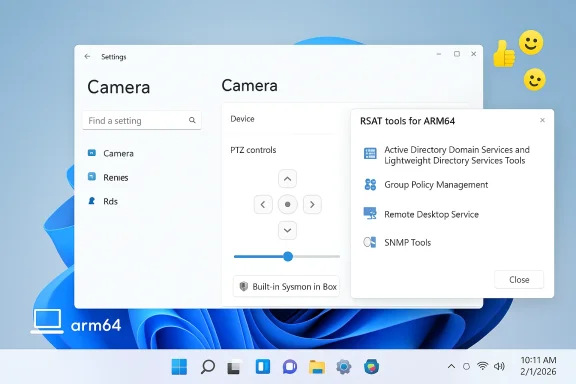
For webcams that expose pan/tilt capabilities, Settings > Bluetooth & devices > Cameras now surfaces simple PTZ controls. This moves basic camera adjustments into Windows’ native settings UI, reducing reliance on vendor utilities for common tasks like centering a presenter or re‑positioning a fixed camera during a meeting. Expect the feature to be limited to cameras that expose standardized controls (UVC/PTZ) via drivers or firmware.Remote Server Administration Tools (RSAT) on Arm64
This update extends RSAT support to Windows 11 Arm64 devices, meaning administrators using Arm‑based laptops and PCs (Qualcomm‑based or Apple silicon in virtualization scenarios) will be able to install common RSAT modules — Active Directory tools, Group Policy Management, Server Manager, DNS/DHCP tools — via Optional Features. This is an important step toward parity for IT teams that choose Arm hardware for mobility or battery life reasons. Administrators should verify exact tool availability per device and edition before assuming full parity with x64 tools.Quick Machine Recovery: Pro devices get a safety net
Microsoft adjusted Quick Machine Recovery (QMR) behavior so that Windows 11 Pro devices that are not domain‑joined and not enrolled in enterprise endpoint management receive the same automated recovery protections previously reserved for Home devices. The change reduces the likelihood of irrecoverable PCs for home and small‑office Pro users, while domain‑joined or enterprise‑managed endpoints remain under administrative control. This aligns Pro behavior more closely with consumer recovery experiences and makes out‑of‑box recovery more consistent.Desktop background (.webp) and Emoji 16.0
Two smaller but welcome additions: you can now set .webp images as desktop backgrounds directly from Settings and File Explorer, and Windows’ emoji panel includes selected glyphs from Emoji 16.0 (a curated subset, not the full standard). These are convenience and accessibility improvements for everyday desktop users and content creators.BitLocker reliability improvement
The update addresses a specific reliability regression: in some cases entering the BitLocker recovery key caused devices to stop responding. The KB lists a fix that prevents the device from becoming unresponsive after recovery key entry. That’s a narrowly scoped but high‑impact fix for admins and users who rely on BitLocker. Always validate recovery flows in a lab before broad deployment.KB5077239 and the 26H1 preview: what’s different
Microsoft also published release notes for KB5077239, a preview non‑security update for Windows 11 version 26H1 (OS Build 28000.1643) targeted at Insiders and Canary Channel testers. Unlike the 24H2/25H2 preview, 26H1 is based on a different Windows core and is initially limited to specific new devices and silicon types; it’s not yet a general consumer channel release. Administrators should not treat 26H1 preview changes as broadly applicable until Microsoft publishes general availability guidance.Analysis: strengths, practical value, and deployment risks
Strengths — why this update matters
- Practicality over spectacle. KB5077241 is full of targeted fixes and small UX improvements that directly reduce friction for end users and support staff (speed test shortcut, .webp backgrounds, widget settings, camera PTZ). These are high‑utility, low‑surprise changes that help daily workflows.
- Enterprise telemetry alignment. Bringing Sysmon into the OS as an optional feature is an operational win: easier mass deployment, OS‑managed updates, and standard Event Log integration make host telemetry more accessible to many organizations.
- Better platform parity. RSAT on Arm64 and QMR policy changes reduce friction for administrators and make recovery scenarios more consistent across device classes.
Risks and caveats — what to test before broad rollout
- Sysmon is powerful — and potentially noisy. If enabled with overly broad configuration, Sysmon can generate huge volumes of events, consume CPU and storage, and create billable SIEM ingestion costs. Treat Sysmon like any endpoint sensor: pilot with tuned XML configs, monitor performance, and stage retention policies.
- Browser‑hosted speed test raises policy questions. The taskbar launcher uses a web widget. That means measurement metadata and possibly IP/telemetry flows pass through the hosting web provider. Organizations with strict egress/telemetry requirements should control access via browser policy or document the behavior in helpdesk scripts. The convenience is real, but it is not a closed‑loop, enterprise‑grade measurement.
- Compatibility surprises. Optional features and platform changes still carry risk: previous monthly updates (for example, KB5077181) introduced significant installation and post‑update regressions on some hardware configurations, prompting uninstalls and rollbacks for affected users. Test on representative hardware sets and maintain rollback plans.
- RSAT on Arm64: tool parity may vary. Although RSAT support expands to Arm64, not every management tool or snap‑in may behave identically. Validate your critical tooling (GPO editing, AD health checks, ADCS tasks) on Arm devices before trusting them for production admin work.
Recommended rollout checklist for IT and power users
- Inventory and pilot
- Identify a small, representative pilot group covering both x64 and Arm64 devices and both managed and unmanaged (non‑domain) Pro PCs. Validate QMR behavior, RSAT modules, and BitLocker recovery flows.
- Test Sysmon safely
- If you plan to enable built‑in Sysmon, develop and test a tuned Sysmon XML config in a lab environment to control event volume. Enable retention, filtering, and SIEM ingestion caps before scaling. Remember to uninstall any previously installed Sysmon before enabling the in‑box feature.
- Validate Quick Machine Recovery (QMR)
- For non‑domain Pro devices, test QMR behavior and document how it interacts with your backup/recovery tooling and policies. If QMR is undesirable in a given environment, ensure enterprise‑management enrollment or domain‑join avoids the auto‑enable path.
- Control the taskbar speed test if needed
- If organizational policy forbids external measurement widgets, apply browser restrictions or blocklist the hosting widget via enterprise web filtering. Otherwise, add the taskbar speed test to triage documentation for helpdesk use.
- Validate RSAT tools on Arm64
- Confirm that the specific RSAT modules you rely on show and work correctly on Arm64 clients. Where gaps exist, maintain x64 admin workstations or use Windows Admin Center as a fallback.
- Maintain rollback and monitoring
- Keep rollback scripts and system images ready. After deployment, monitor for post‑update symptoms such as driver regression, third‑party AV conflicts, or sleep/resume anomalies (historic causes of update pain).
Deep technical notes for defenders and admins
Enabling built‑in Sysmon — step sequence
- Enable feature: Settings > System > Optional features > More Windows features > check Sysmon; or run: Dism /Online /Enable‑Feature /FeatureName:Sysmon.
- Initialize Sysmon: Launch an elevated command prompt and run: sysmon -i <your‑config.xml>. Deploy a vetted configuration (community or vendor‑provided templates are starting points, but always tune for your environment).
- Uninstall if needed: To move back to the standalone approach, remove the built‑in feature and reinstall the Sysinternals package per your change control policy. Note Microsoft’s guidance to uninstall the older Sysmon before enabling the built‑in variant to avoid conflicts.
Sysmon configuration considerations
- Focus on high‑value event types (process create, file create time, network connect) and use exclude rules to avoid logging predictable, high‑volume noise (for example, known build or update processes).
- Test configuration changes with a subset of hosts first; measure CPU, memory, and log ingestion rates.
- Implement SIEM parsers and retention policies to avoid wild cost increases from verbose logging.
The user perspective: what to expect on the desktop
For most everyday Windows 11 users, the February optional preview will feel like a series of minor polish items: small improvements in Settings, one‑click access to a speed check, and updated emoji. Power users and IT admins will care most about Sysmon appearing in Optional Features and RSAT expanding to Arm64 — changes that materially affect deployment and security workflows.If you rely on managed update channels, expect the preview to remain optional; Microsoft will likely roll many of these changes into the next normal monthly cumulative releases only after Release Preview gates pass. If you are running Insider builds or managing a lab farm, this is a good time to validate the features and bake them into your rollout plans.
Final assessment and practical verdict
KB5077241 is a compact, operationally meaningful preview: it prioritizes pragmatic fixes and platform parity over headline features. The inclusion of Sysmon as a supported, in‑box optional component is the standout change for enterprises and defenders — it lowers deployment friction but raises legitimate operational concerns about tuning and ingestion costs. The taskbar speed test is an elegant little convenience that will speed triage for many users, but because it’s a browser‑hosted widget it should not be mistaken for an enterprise measurement instrument.For IT teams: pilot, tune, and document. For security teams: test Sysmon configs and monitor log volume. For desktop users: enjoy the new conveniences but remember that optional preview packages are not automatically installed in managed environments — they are for testing and validation ahead of broader rollouts. If you want stability and wide hardware compatibility, let the preview run through Release Preview validation and the regular monthly servicing cadence before deploying to critical endpoints.
In short: this February’s optional preview is not transformative, but it is practical — and a clear signal of Microsoft’s direction: integrate defensive telemetry into the platform, surface lightweight consumer conveniences where they help support flows, and gradually close platform gaps (such as RSAT on Arm64). Treat it as an invitation to test and refine your deployment playbooks rather than a signal to flip switches broadly without measurement and planning.
Source: Thurrott.com Microsoft Releases February Optional Updates for Windows 11
