

Microsoft’s February 2026 Windows 11 package is not a dramatic redesign — it’s a pragmatic, quality‑first release that stitches together eight targeted improvements designed to smooth everyday workflows, tighten security manageability, and modernize platform plumbing for creators and accessibility users.
Microsoft pushed preview builds 26100.7701 and 26200.7701 (packaged as KB5074105) to the Release Preview Channel on January 27, 2026, and has signaled a staged rollout into the Stable channel in the February Patch Tuesday window (expected February 10, 2026). This update is a cumulative preview that mixes two delivery models: a gradual, server‑gated feature rollout for new capabilities and a normal rollout for reliability fixes. That hybrid approach means installing the update makes your device eligible for new functionality, but visibility and activation are controlled remotely and can vary by device, account, region, OEM relationship, or app integration.
Why that matters: the package’s headline items are practical rather than flashy — they resolve long‑standing usability problems, expand continuity with Android phones, modernize Windows’ MIDI stack, and improve accessibility onramps. For end users, the payoff is lower friction in daily tasks; for IT teams and creators, the update requires measured testing because some features are gated, require companion app or hardware support, or ship as separate SDK/tools recommended only for test environments.
Windows’ February 2026 package demonstrates a subtle but meaningful shift: fewer headline features and more surgical improvements that reduce friction and restore manageability. For the bulk of Windows users, the changes are quietly useful — better continuity with phones, more manageable security settings, improved accessibility setup, and a real modernization push for MIDI workflows. For administrators and creators, the update is a pilotable opportunity: valuable if you test deliberately, verify hardware and app readiness, and rely on staged deployment rather than an everything‑at‑once approach.
In short, this release is less about bold new directions and more about repairing and enabling the everyday — the kind of engineering that, when done well, fades into the background and simply makes work less annoying. Take the measured path: back up, pilot, validate, and then scale.
Source: mibolsillo.co https://www.mibolsillo.co/be-aware-...n-the-february-2026-update-t202602030005.html
 Background / Overview
Microsoft pushed preview builds 26100.7701 and 26200.7701 (packaged as KB5074105) to the Release Preview Channel on January 27, 2026, and has signaled a staged rollout into the Stable channel in the February Patch Tuesday window (expected February 10, 2026). This update is a cumulative preview that mixes two delivery models: a gradual, server‑gated feature rollout for new capabilities and a normal rollout for reliability fixes. That hybrid approach means installing the update makes your device eligible for new functionality, but visibility and activation are controlled remotely and can vary by device, account, region, OEM relationship, or app integration.Why that matters: the package’s headline items are practical rather than flashy — they resolve long‑standing usability problems, expand continuity with Android phones, modernize Windows’ MIDI stack, and improve accessibility onramps. For end users, the payoff is lower friction in daily tasks; for IT teams and creators, the update requires measured testing because some features are gated, require companion app or hardware support, or ship as separate SDK/tools recommended only for test environments.
What’s included: the eight headline changes
Below I break down the eight changes most Windows users and administrators will notice, explain what they do, list prerequisites and limitations, and assess the real‑world impact.1) Cross‑Device Resume: true phone → PC handoffs
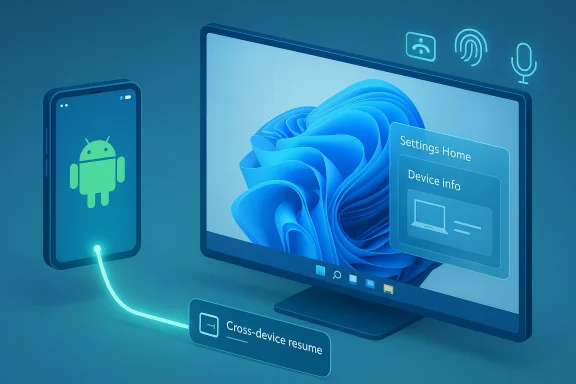
What it does- Cross‑Device Resume surfaces a taskbar prompt on Windows 11 when a supported activity is active on a linked Android phone. Clicking the prompt resumes the activity on the PC in the best local handler — preferably a native desktop app, otherwise a browser fallback.
- Resume Spotify playback started on the phone in the desktop Spotify client.
- Open Microsoft 365 files started in the Microsoft Copilot mobile app on supported phones in Word/Excel/PowerPoint on the PC.
- Restore browsing sessions handed off from certain OEM browsers on supported phones.
- This is a metadata‑driven handoff (an “activity descriptor” or AppContext) rather than Android UI streaming. The phone remains the authority for runtime state; Windows receives enough context to open an appropriate handler.
- Requires a Windows 11 PC, a linked Android phone (Link to Windows / Phone Link pairing), and app/OEM support for the AppContext handshake.
- Availability is phased. Expect differences by phone brand (initial OEM mentions include HONOR, OPPO, Samsung, Vivo, Xiaomi in early rollouts), app integration, and user account entitlements.
- This feature reduces context switching and avoids the bandwidth/complexity of emulating Android on PC. For users who switch between phone and PC constantly, it makes resuming content more reliable and native.
- Because it’s gated and requires app/OEM integration, don’t expect universal coverage day one. If you need the feature today, pilot with supported phones and apps.
2) Smart App Control (SAC) becomes reversible
What it does- Smart App Control can now be toggled on or off from Windows Security > App & Browser Control > Smart App Control without requiring a clean OS reinstall.
- Previously, disabling SAC effectively prevented re‑enabling it without a full reinstall — a support headache that forced many users and admins into awkward workarounds. Making SAC reversible removes that dead end and simplifies troubleshooting.
- Turning off SAC reduces a protective layer that defends against suspicious/untrusted binaries. For home users, the toggle adds flexibility; for enterprise environments, it reintroduces the potential for inconsistent device posture if end users change settings.
- IT should manage SAC through Group Policy or MDM profiles to maintain consistent protection levels across the fleet.
- If SAC blocks a legitimate installer, temporarily toggle SAC off, run the install, then re‑enable SAC. Record changes for audit trails and align the behavior with endpoint protection policies.
3) Windows Hello: Enhanced Sign‑in Security (ESS) for peripheral fingerprint readers
What it does- Windows Hello Enhanced Sign‑in Security (ESS), previously limited to built‑in sensors on many systems, now supports compatible external/peripheral fingerprint readers.
- Desktop ecosystems often rely on external biometrics (USB or proprietary readers). Extending ESS to those peripherals gives desktop users the same attestation‑backed sign‑in guarantees that many laptops already enjoy.
- Peripheral hardware must be ESS‑certified or vendor‑supported; firmware and drivers must meet Microsoft’s attestation expectations.
- Some older or low‑cost readers will not be supported; expect a hardware compatibility matrix from sensor vendors to appear in the weeks after rollout.
- IT should validate peripheral support in a controlled pilot and coordinate firmware/driver updates with hardware vendors before enabling ESS widely.
4) Windows MIDI Services: a long‑overdue modernization
What it does- The update modernizes Windows’ MIDI stack with WinMM and WinRT MIDI 1.0 support, built‑in translation, shared MIDI ports across apps, custom port names, loopback, and app‑to‑app routing — features aligned with MIDI 2.0 readiness and modern DAW workflows.
- Musicians and audio professionals will see better reliability for virtual ports, lower friction connecting apps and instruments, and more predictable routing behavior that respects modern audio workflows.
- Microsoft publishes separate SDK/tools for MIDI Services. Early SDKs or preview tools should be tested only in non‑production environments. Verify signing, latency, and throughput in your DAW before switching production systems.
- Use the official MIDI SDK for development, test on dedicated machines, and avoid installing preview MIDI tools on live production PCs until Microsoft releases signed, stable packages.
5) Settings: Device info card moved to Settings Home
What it does- A Device info card now appears on the Settings Home page for Microsoft account–linked devices. The card displays key hardware specs (CPU, RAM, GPU, storage) and links to the full About section.
- This is a small but helpful quality‑of‑life change: quicker access to system information for troubleshooting, warranty checks, or remote support.
- The card’s visibility is account‑tied and may appear only after sign‑in with a Microsoft account. It is part of the phased rollout and may be flipped server‑side.
6) File Explorer and System responsiveness fixes
What it does- The update includes targeted fixes for File Explorer responsiveness, especially for network locations, as well as bug fixes for Lock Screen unresponsiveness and desktop icon movement that some users have reported in recent months.
- These reliability fixes address everyday frustrations that impair productivity — slow Explorer responses when accessing network paths, momentary freezes, and user interface oddities.
- These fixes are part of the normal rollout and should appear broadly once the package reaches GA. Still, keep standard update rollback plans and restore points for critical systems.
7) Voice Access and Voice Typing: easier setup and better timing controls
What it does- Voice Access gets a redesigned setup wizard that helps users pick the right microphone, configure permissions, and download speech models more reliably.
- Voice Typing introduces a “Wait time before acting” setting so users can control how long Windows waits after you finish speaking before it executes a command.
- These improvements lower the adoption barrier for voice control and dictation, particularly for users who rely on speech input and may struggle with microphone selection or timing sensitivity.
- Voice features may download speech models (potentially large). Allow for bandwidth considerations when deploying Voice Access to groups or managed devices.
8) Miscellaneous UX and management polish
Included items- Better visibility and discoverability of device specs in Settings (Device card).
- UI polish and bug fixes across the OS (taskbar, Start, notification stability).
- Continued reliance on Controlled Feature Rollout (CFR) to gate select features.
- Collectively, these smaller changes increase system manageability, reduce helpdesk calls for trivial information lookups, and improve the perception of reliability after a period of more aggressive feature experimentation.
Deep analysis: strengths, trade‑offs, and enterprise implications
Strengths — pragmatic, targeted improvements
- Usability over novelty. Microsoft is prioritizing friction reduction: reversible SAC, better phone‑to‑PC continuity, and practical accessibility onboarding matter day‑to‑day more than a visual refresh.
- Creator‑centric modernization. Modernizing MIDI is overdue and positions Windows as a more competitive platform for music production by supporting app‑to‑app routing, shared ports, and translation layers.
- Reduced administrative friction. Allowing SAC toggling and providing device info in Settings shrink support overhead for helpdesk teams.
- Controlled rollout reduces blast radius. CFR means Microsoft can limit exposure, iterate on feedback, and avoid a global disruptive change.
Trade‑offs and risks
- Feature visibility ≠ feature presence. Installing KB5074105 doesn’t guarantee you’ll see every headline feature immediately. CFR, OEM integration, and app support mean that expectations must be managed.
- Hardware and vendor dependencies. ESS for peripherals and Cross‑Device Resume both depend on vendor cooperation. Inconsistent peripheral certification or OEM app support will fragment the experience.
- MIDI toolchain caution. Early SDKs and preview tools can be unsigned or unstable. Creators should not adopt preview MIDI packages on production machines without thorough testing.
- Security posture risk from user toggles. Easier SAC toggling empowers users but can be abused or misused. Enterprises should enforce SAC policy via MDM/Group Policy to prevent drift.
- Stability context. The update arrives shortly after a January cumulative that generated reports of regressions in some environments. That history reinforces the need to pilot before broad deployment.
Recommended rollout plan for IT and power users
- Pilot group selection
- Start with a small, cross‑functional pilot that includes developers, creative staff (audio), remote workers, and users with common peripheral hardware (external fingerprint readers).
- Pre‑deployment validation
- Confirm firmware/drivers for any ESS‑capable fingerprint readers. Verify Link to Windows pairing for Cross‑Device Resume scenarios with supported Android phones.
- MIDI testing
- Install MIDI SDK/tools only on isolated test rigs or VMs. Run latency and routing tests in your DAW of choice and validate compatibility with virtual instruments and audio drivers.
- Security policy
- Enforce Smart App Control settings with Group Policy/Intune if you require consistent security posture. Document exceptions and maintain audit trails when SAC is toggled.
- Accessibility checks
- Validate Voice Access microphone selection across USB and Bluetooth headsets. Ensure speech models download successfully under your network policies.
- Staged deployment
- Expand to additional users in waves only after no major issues arise in the pilot. Keep telemetry and user feedback channels open.
- Rollback readiness
- Maintain system restore points or imaging rollbacks for critical workstations, and schedule updates outside peak production hours.
Troubleshooting and practical tips
- If Cross‑Device Resume doesn’t appear:
- Confirm Link to Windows / Mobile devices pairing, the phone model and brand are on the supported list, and the app on the phone supports the resume handshake.
- Check Settings → Apps → Resume to enable per‑app resume behavior.
- If Smart App Control blocks a needed installer:
- Toggle SAC to Evaluation or Off temporarily, run the installer, then re‑enable SAC. Record the action for compliance.
- If ESS won’t enroll an external fingerprint reader:
- Confirm the peripheral is ESS‑certified, update firmware/drivers, and attempt enrollment on a test device first.
- For MIDI tool warnings or instability:
- Use preview MIDI tools only on test machines. Wait for signed, production SDKs before adopting in studios.
What to watch next
- Expansion of Cross‑Device Resume to additional phone brands and broader third‑party browser/app support.
- Official ESS hardware certification lists and vendor guidance for external biometric devices.
- Availability of signed, production‑ready MIDI SDK/tools and vendor adoption in major DAW ecosystems.
- Whether Microsoft flips more items from gradual to normal rollout once Release Preview telemetry proves stable.
- Community feedback around install reliability and any new regressions; prudence is warranted until Stable channel wide availability.
Final assessment — who should install now, and who should wait
- Install now (or pilot) if:
- You are an enthusiast, developer, or admin who can accept phased feature visibility and actively test app/OEM integrations.
- You manage non‑critical audio workstations where you can validate MIDI changes without risking production sessions.
- You need the SAC toggle for support scenarios and can control devices via policy where required.
- Wait (or stage) if:
- You operate production audio environments or single‑workstation studios that cannot tolerate even short disruptions.
- Your fleet contains a wide variety of external biometric sensors whose ESS support is unverified.
- You prioritize maximum stability in enterprise environments and prefer to deploy only after the update reaches GA and vendor compatibility is confirmed.
Windows’ February 2026 package demonstrates a subtle but meaningful shift: fewer headline features and more surgical improvements that reduce friction and restore manageability. For the bulk of Windows users, the changes are quietly useful — better continuity with phones, more manageable security settings, improved accessibility setup, and a real modernization push for MIDI workflows. For administrators and creators, the update is a pilotable opportunity: valuable if you test deliberately, verify hardware and app readiness, and rely on staged deployment rather than an everything‑at‑once approach.
In short, this release is less about bold new directions and more about repairing and enabling the everyday — the kind of engineering that, when done well, fades into the background and simply makes work less annoying. Take the measured path: back up, pilot, validate, and then scale.
Source: mibolsillo.co https://www.mibolsillo.co/be-aware-...n-the-february-2026-update-t202602030005.html
