

Microsoft’s February 2026 Windows 11 update is less a splashy feature roll‑out and more a deliberate quality push: Microsoft has bundled targeted usability refinements, performance and stability work, deeper but gated Copilot/AI improvements, and several under‑the‑hood security and manageability hardenings that together aim to make everyday Windows 11 noticeably smoother for both consumers and enterprise fleets.
Windows 11’s servicing approach in 2025–2026 has shifted from headline feature drops to an iterative, enablement-style model: Microsoft distributes common cumulative binaries while using server-side gating and device entitlements to flip features on gradually. That pattern means the February 2026 package primarily updates platform binaries and reliability code paths, while visible features (especially Copilot+ and hardware-accelerated AI behaviors) may appear only for entitled devices or after additional server-side enablement.
This update surfaces as a Release Preview / servicing rollup in late January and early February for the 24H2/25H2 servicing tracks (build families reported in the 26100, 26200 and 26220 ranges, with KB-class updates such as KB5070311 / KB5074105 mentioned in preview notes). The delivery model matters operationally: installing the cumulative package includes reliability and security code immediately, but what a user sees in the shell can still vary based on hardware (notably NPU capabilities), region, and Microsoft’s rollout schedule.
Caution for security teams: broadened VBS coverage and kernel hardenings can surface compatibility issues with third‑party endpoint agents and legacy drivers. Plan a compatibility window, and test security agents and device attestation flows before broad rollout.
Privacy considerations are real: features like Recall (snapshot history) are encrypted and gated behind Windows Hello/TPM where available, but they also raise questions around local indexing, retention, and enterprise data governance. Security and compliance teams should review these behaviors during pilot runs.
Recommended deployment steps:
At the same time, Microsoft continues to pursue an AI-first posture through Copilot and Copilot+ work, but the company is also learning the operational lesson that AI features must be useful and predictable. That tradeoff explains the staged, hardware‑gated approach: stronger user experiences on capable devices, conservative exposure elsewhere.
For admins, the update is an opportunity to reduce migration friction from Windows 10 and to reassert control over rollout mechanics; for enthusiasts and everyday users, it promises a less brittle Windows with usability fixes that have been requested for years. The one unambiguous recommendation is simple: pilot first, validate telemetry, and deploy with policy controls in place.
Microsoft’s February 2026 update may not make headlines for a single marquee feature, but its cumulative focus on quality, usability, and measured AI integration could make this one of the most practically valuable Windows 11 updates — precisely because it chooses stability and user trust over spectacle.
Source: thewincentral.com Windows 11 February 2026 Update: New Features, Quality Improvements & Everything Changing - WinCentral
 Background / Overview
Windows 11’s servicing approach in 2025–2026 has shifted from headline feature drops to an iterative, enablement-style model: Microsoft distributes common cumulative binaries while using server-side gating and device entitlements to flip features on gradually. That pattern means the February 2026 package primarily updates platform binaries and reliability code paths, while visible features (especially Copilot+ and hardware-accelerated AI behaviors) may appear only for entitled devices or after additional server-side enablement.This update surfaces as a Release Preview / servicing rollup in late January and early February for the 24H2/25H2 servicing tracks (build families reported in the 26100, 26200 and 26220 ranges, with KB-class updates such as KB5070311 / KB5074105 mentioned in preview notes). The delivery model matters operationally: installing the cumulative package includes reliability and security code immediately, but what a user sees in the shell can still vary based on hardware (notably NPU capabilities), region, and Microsoft’s rollout schedule.
What’s actually new in February 2026
The update is best read as a multi‑layered package that focuses on four practical themes: update reliability and reduced disruption; platform performance and power management; subtle UX polish across Start, File Explorer and Settings; and expanded Copilot/AI experiences that are device‑gated. Below is a concise inventory drawn from preview notes and community reporting.- Update delivery and installation reliability improvements (background install impact, fewer spurious restarts).
- Performance and memory management tweaks (thread scheduling tuned for hybrid P/E‑core CPUs, better memory handling).
- Security hardening (kernel protections, VBS expansion, telemetry and phishing mitigations).
- File Explorer: native tabs, dark‑mode dialog polish, improved previews and cloud integration.
- Start menu refinements and restored customization options to reduce friction for enterprise users.
- Search: incremental indexing, natural‑language parsing and AI relevance signals to surface frequently used apps and documents.
- Copilot / Copilot+ tweaks: faster Click‑to‑Do prompts on Copilot+ hardware, improved Studio Effects and agent-driven Settings experiences — but many of these are region‑ and hardware‑gated.
- Enterprise manageability: tighter Intune and Group Policy controls, improved Windows Update for Business deployment rings, Quick Machine Recovery tooling.
Smarter, less intrusive Windows Update
What Microsoft changed
Microsoft is explicitly optimizing how updates are delivered and applied. The February package emphasizes:- Reduced background CPU and I/O impact during update downloads and staging.
- Better installation reliability and fewer failed rollbacks.
- Minimized random restarts and more predictable reboot windows for end users and admins.
Why it matters
Frequent unexpected restarts and long install windows were recurring pain points for users and IT departments. Reducing resource impact and improving install robustness directly lowers helpdesk tickets and operational risk during mass deployments. For enterprises, the update’s manageability improvements (WSUS/ConfigMgr scheduling, Windows Update for Business ring controls) allow administrators to maintain stricter rollout gates during migrations from Windows 10.Caveat
Vendor-provided numbers about reduced restart rates or percentage improvements come from internal tests and Insider telemetry; administrators should validate in their own pilot rings and treat vendor claims as directional until corroborated in‑tenant.Performance and reliability: the engineering pivot
Targeted improvements
Rather than broad new features, the update focuses on practical system behavior:- Faster responsiveness and reduced UI jank through scheduler and memory manager tuning, especially on hybrid core architectures (P‑ and E‑cores).
- Better handling of memory pressure and background process prioritization to reduce app evictions and improve foreground performance.
- Fixes for long‑standing UI glitches and stability issues in Explorer, Start, and Search.
Real‑world impact
Users should see smoother task switching, fewer unexplained app terminations, and fewer crashes tied to long‑running services (for example LSASS stability fixes noted in Release Preview patches). These are the kinds of improvements that don’t make splashy headlines but materially improve the day‑to‑day experience.Testing notes for admins
- Include representatively aged devices in pilot groups (some regressions only appear on devices with long uptimes or complex driver histories).
- Validate line‑of‑business apps and virtualization (VDI / Hyper‑V) because scheduler and memory changes can interact with certain workloads.
Security and platform hardening
Security work in this update is mostly “under the hood,” but important.- Kernel protections and expanded use of Virtualization‑Based Security (VBS) are emphasized to reduce attack surface.
- Telemetry and phishing detection improvements aim to harden legacy components and networked services.
- Fixes such as LSASS stability patches have both reliability and security implications for authentication systems.
Caution for security teams: broadened VBS coverage and kernel hardenings can surface compatibility issues with third‑party endpoint agents and legacy drivers. Plan a compatibility window, and test security agents and device attestation flows before broad rollout.
UI & UX refinements: small changes, higher polish
What to expect visually
- Start menu gets restored customization options and performance optimizations to reduce load times and restore muscle memory for users transitioning from Windows 10.
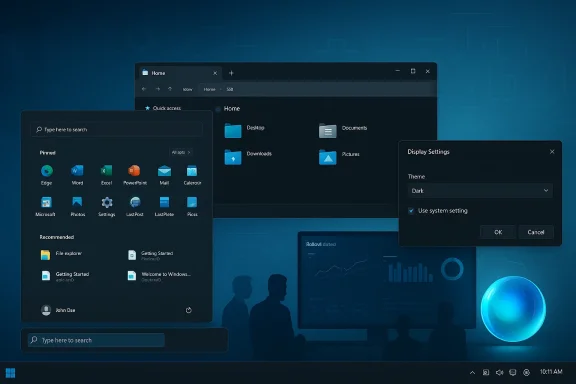
- File Explorer arrives with native tabs, richer previews, dark‑mode consistency for copy/move dialogs, and improved cloud integration with OneDrive/SharePoint.
- Settings pages are made more consistent; several high-frequency dialogs are reimplemented in WinUI for theme and accessibility parity.
Accessibility and small wins
Improved Narrator shortcuts, better text scaling in dialogs, and corrected Snap Bar visuals address concrete accessibility and ergonomics problems that users reported for years. These incremental changes often have outsized impact for users relying on assistive technologies.Copilot & AI changes: refinement not expansion
The core message
Copilot-related improvements in this update are focused on usefulness and balance rather than aggressive feature expansion. Expect:- Faster Click‑to‑Do responses and prompt suggestions on Copilot+ eligible devices (NPU-enabled), where local inference reduces latency.
- Improved Copilot integration behavior, including better system-level prompts, inline workflow suggestions, and agent-driven Settings controls — often server-gated and region-limited.
Hardware gating and privacy tradeoffs
Microsoft distinguishes Copilot+ PCs (devices with NPUs above a performance threshold) from regular Windows 11 machines. Many low-latency features rely on on‑device NPU capability (the preview notes mention a performance threshold used by Microsoft), which means the most responsive AI behaviors will be limited to specific OEM devices. This both improves performance and keeps some sensitive processing local, but it fragments the experience across the installed base.Privacy considerations are real: features like Recall (snapshot history) are encrypted and gated behind Windows Hello/TPM where available, but they also raise questions around local indexing, retention, and enterprise data governance. Security and compliance teams should review these behaviors during pilot runs.
File Explorer: tabs, dark polish, cloud workflows
File Explorer continues to be a focal point. The February update includes:- Native tabs enabling consolidated folder contexts in one window and restoring session tab restore at logon when the appropriate setting is enabled.
- Dark‑mode coverage beyond chrome styling so dialogs (copy, move, delete, progress) render consistently in dark themes.
- Context menu and preview fixes that improve thumbnails, share flows and cloud file previews.
Enterprise implications and rollout guidance
This update is designed to ease migrations and reduce support costs, but it still demands a cautious rollout strategy.Recommended deployment steps:
- Pilot: Choose a small, diverse pilot group with a cross-section of hardware (including Copilot+ eligible machines) and representative workloads (VDI, printing, conferencing).
- Validate: Test authentication (LSASS), endpoint security agents, Windows Hello/TPM flows, docking and display scenarios, and line‑of‑business apps.
- Staged rollout: Use Windows Update for Business and WSUS rings to stagger adoption; monitor telemetry and user feedback closely for regressions that might be device or driver specific.
- Policy controls: Enforce Smart App Control, Enhanced Sign‑in Security, and relevant Group Policy/MDM settings rather than relying on end‑user toggles.
Risks, unknowns, and what to watch
- Progressive enablement means features can be present in the binary but hidden by server flags — what you install may not be what you immediately see. That complicates troubleshooting because telemetry can show that code paths are present even when the UI isn’t surfaced.
- Hardware and driver dependencies (NPUs, OEM drivers) create a fragmented Copilot experience; expect inconsistent AI latency and feature availability across fleets.
- Kernel and VBS hardenings can break legacy drivers or third‑party endpoint agents; security teams must validate compatibility.
- Vendor performance claims (e.g., “X% faster Start menu load”) should be validated in your environment: use representative telemetry and user testing rather than accepting preview numbers at face value.
Practical checklist: prepare, pilot, and deploy
- Back up: Ensure a full backup and create a recovery point before pilot installs.
- Pilot cohort: Select at least 25–50 representative devices across OEMs and hardware classes.
- Test matrix: Authentication paths, printing, audio (USB DACs and USB cameras), virtualization/VDI, remote desktop, and any driver-heavy workflows.
- Telemetry & KPIs: Track update success rates, unexpected restarts, LSASS faults, Explorer crashes, app reliability, and Copilot prompt latency (where applicable).
- Policies: Lock down Smart App Control and Enhanced Sign‑in Security via Group Policy/MDM for broader rollouts.
Final analysis — why this release matters
The February 2026 Windows 11 update is notable not because it reinvents the desktop, but because it represents a strategic maturity: Microsoft is prioritizing day‑to‑day reliability, tighter update experiences, and pragmatic UX fixes that reduce friction for users and IT alike. When those smaller improvements are aggregated — fewer unexpected reboots, tabs in File Explorer, consistent dark dialogs, and a more predictable Start menu — the OS becomes measurably more pleasant to live with on a daily basis.At the same time, Microsoft continues to pursue an AI-first posture through Copilot and Copilot+ work, but the company is also learning the operational lesson that AI features must be useful and predictable. That tradeoff explains the staged, hardware‑gated approach: stronger user experiences on capable devices, conservative exposure elsewhere.
For admins, the update is an opportunity to reduce migration friction from Windows 10 and to reassert control over rollout mechanics; for enthusiasts and everyday users, it promises a less brittle Windows with usability fixes that have been requested for years. The one unambiguous recommendation is simple: pilot first, validate telemetry, and deploy with policy controls in place.
Microsoft’s February 2026 update may not make headlines for a single marquee feature, but its cumulative focus on quality, usability, and measured AI integration could make this one of the most practically valuable Windows 11 updates — precisely because it chooses stability and user trust over spectacle.
Source: thewincentral.com Windows 11 February 2026 Update: New Features, Quality Improvements & Everything Changing - WinCentral
