

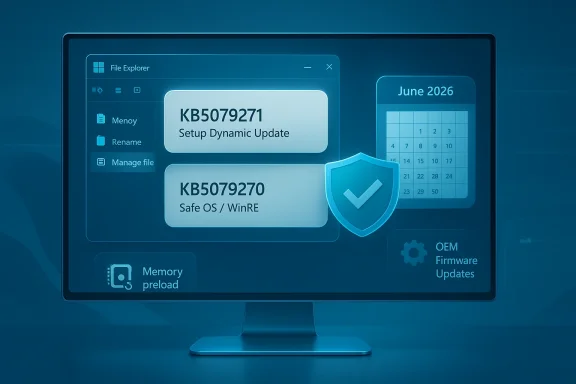
Microsoft quietly shipped a pair of targeted Windows 11 updates on February 24, 2026 — a Setup Dynamic Update (KB5079271) and a Safe OS / WinRE refresh framed in public documentation as KB5079270 — while Windows’ file-management surface also saw parallel refinements: Microsoft is testing an optional File Explorer background preload and a decluttered right‑click flow, and third‑party file‑manager ecosystems continue evolving to bring more compact context menus to Windows users.
Windows servicing splits “dynamic updates” into narrow, surgical packages delivered outside regular cumulative updates to refresh the tiny runtime bits Setup and the Windows Recovery Environment (WinRE) use during installs, upgrades, and recovery flows. These Safe OS and Setup Dynamic Updates are not feature rollouts; they’re operational, image‑level fixes meant to keep the pieces that run before the full OS boots current and interoperable with firmware and deployment tooling.
At the same time, Windows’ most‑used UI surface — File Explorer — has been the subject of repeated user complaints for years: long first‑open “cold starts” on low‑powered machines, and ever‑bloating right‑click context menus that bury the most common verbs under numerous provider and shell extensions. Microsoft has started testing pragmatic, toggleable changes aimed at addressing both issues with minimal platform disruption.
This article explains what landed, why it matters for both consumers and IT teams, what trade‑offs are involved, and practical steps you should take now — whether you manage a fleet or tune your personal PC.
Developers who ship shell extensions or provider menus should:
But there are real operational risks:
On the user‑experience front, the File Explorer preload and context‑menu rework are thoughtful, incremental fixes that tackle long‑standing gripes. Making preload optional and grouping less‑used commands into flyouts strike a balance between performance gains and backward compatibility. But the memory trade‑off and temporary discoverability challenges are real; this will require developer cooperation and measured enablement to land smoothly across the ecosystem.
If there’s a single takeaway: the February releases remind us that the smallest Windows packages — the ones that patch recovery images or adjust how Explorer behaves at first open — often matter more than their KB number implies. Administrators must treat them as operational tasks, and users should take a moment to validate recovery and daily workflows. Time is the scarce resource here: Secure Boot certificate rotations are on a calendar, and the window to test and deploy safely narrows as we approach the June 2026 expirations.
End of article.
Source: Neowin Microsoft released Windows 11 KB5079271, KB5079270 setup and recovery updates
Source: Neowin Popular Windows 11 file manager Files gets improved context menus and more
 Background
Windows servicing splits “dynamic updates” into narrow, surgical packages delivered outside regular cumulative updates to refresh the tiny runtime bits Setup and the Windows Recovery Environment (WinRE) use during installs, upgrades, and recovery flows. These Safe OS and Setup Dynamic Updates are not feature rollouts; they’re operational, image‑level fixes meant to keep the pieces that run before the full OS boots current and interoperable with firmware and deployment tooling.At the same time, Windows’ most‑used UI surface — File Explorer — has been the subject of repeated user complaints for years: long first‑open “cold starts” on low‑powered machines, and ever‑bloating right‑click context menus that bury the most common verbs under numerous provider and shell extensions. Microsoft has started testing pragmatic, toggleable changes aimed at addressing both issues with minimal platform disruption.
This article explains what landed, why it matters for both consumers and IT teams, what trade‑offs are involved, and practical steps you should take now — whether you manage a fleet or tune your personal PC.
What Microsoft released (exactly)
KB5079271 — Setup Dynamic Update (published Feb 24, 2026)
Microsoft published KB5079271 as a Setup Dynamic Update on February 24, 2026. These Setup updates refresh the tiny set of binaries Setup uses during feature upgrades, media-based installs, or in-place repairs and can contain critical fixes for boot‑time validation, the Windows Boot Manager, and other pre‑OS runtime components. The public notices that accompany targeted setup packages are intentionally short, but operational summaries indicate the package is part of a sequence of small updates Microsoft has been quietly delivering to harden install and recovery flows.KB5079270 — Safe OS / WinRE refresh (published Feb 24, 2026)
On the same day Microsoft framed a Safe OS dynamic update entry — referenced publicly as KB5079270 — which refreshes the Windows Recovery Environment (WinRE) image and related pre‑boot tooling. Safe OS updates are applied to the on‑device WinRE image and affect tools such as Reset, Automatic Repair, and cloud re‑install flows. The February Safe OS bulletin explicitly ties to an urgent platform maintenance item: the rotation of Microsoft’s Secure Boot certificates, which imposes a hard deadline for timely deployment.Why these tiny updates matter — the Secure Boot clock
The seemingly small livelies released in February are operationally consequential because they run against a calendar‑driven task: Microsoft’s legacy Secure Boot signing certificates from around 2011 begin expiring in mid‑June 2026. Microsoft and major OEMs prepared a replacement certificate family (the “2023 CA”), and the February Safe OS/Setup notices are a dual message: (1) a technical refresh for recovery/setup binaries and (2) a clear operational trigger for IT teams to ensure certificate replacement and boot‑chain compatibility are applied before the expiration window. Devices that do not receive the replacement certificates on time risk degraded boot‑time protection and potential inability to receive future boot‑time updates.- Why the deadline matters: Secure Boot’s trust anchors sit in firmware and in the UEFI signature stores (DB/KEK). Certificates that expire or are missing can prevent verification of updated boot components and impede future secure boot updates if the replacement process is not completed beforehand. Microsoft’s Safe OS dynamic updates and partner firmware updates are the mechanism to push updated anchors and to ensure boot‑time reliability across the ecosystem.
The practical impact for admins and power users
These Dynamic Updates are deliberately narrow, but their operational consequences are broad.- They are typically installed automatically by Windows Update during normal servicing or when an image is used for feature upgrades; for large fleets that rely on image maintenance, the changes may behave like an image‑level modification that is hard to revert. Administrators must treat them as image‑level maintenance and verify in test images.
- Safe OS updates modify WinRE images on disk; once a WinRE image is updated, that updated image becomes the recovery snapshot used by Reset and Automatic Repair on that device. This means the update is not just cosmetic — it replaces the code that can run when a system is broken.
- If your deployment tooling creates fresh images or offline media (install.wim / custom recovery images), those artifacts must be re‑captured or updated to include the new WinRE/Setup bits; failing to do so risks distribution of images that lack the certificate rotation or other pre‑boot fixes.
Recommended immediate steps for IT (ordered)
- Inventory: Identify devices that rely on UEFI Secure Boot, and check firmware versions and OEM advisories for certificate support. Prioritize hardware produced before 2018 for early validation; these are more likely to need firmware coordination.
- Test in lab: Apply KB5079271 and KB5079270 to representative test images and verify:
- WinRE functionality (Reset, Automatic Repair, WinRE boot)
- Boot manager signature behavior after reboot
- BitLocker/TPM interactions during OOBE and recovery scenarios
Use reagentc to inspect WinRE registration and the current WinRE image version as part of validation (reagentc and image inspection are standard gov‑tooling steps for WinRE validation). - Update images: Rebuild golden images and recovery media used for deployment to include the new dynamic update bits if your lab validation is successful. Do not assume older ISO media will automatically contain these changes.
- Coordinate OEM firmware updates: Certificate rotations often require coordinated firmware work from OEMs; consult your hardware vendor timelines and apply firmware updates before June 2026 where required.
- Staged rollout: Do not push these updates fleet‑wide immediately. Use phased rings (pilot → broader → full) and monitor telemetry for reboot or Boot Manager anomalies.
- WSUS / SCCM: If you control update delivery with WSUS or Configuration Manager, ensure you allow these dynamic updates to flow to test rings and that blocking policies do not inadvertently prevent critical pre‑boot certificate updates.
- Communication: Notify users that a recovery‑oriented update will be applied and that admins will validate recovery and reset flows; this reduces helpdesk noise if Reset or Automatic Repair behavior changes.
File management: the UX changes worth knowing
While the servicing updates shore up recovery and pre‑boot trust, Microsoft continues iterative work on file management UX — both in the built‑in File Explorer and in the third‑party “Files” ecosystem. Two practical, low‑risk experiments have appeared in Insider builds and are now being observed by testers:- An optional background preload that keeps parts of File Explorer warmed in memory so the first open after sign‑in feels near‑instant.
- A context‑menu reorganization — surfaced as a new “Manage file” flyout and provider submenus — that reduces top‑level clutter by grouping seldom‑used commands behind nested flyouts. These changes were shipped to Insiders in Windows 11 Insider Preview Build 26220.7271 (KB5070307) and are explicitly framed as experiments.
What the preload does (and why Microsoft chose it)
The preload approach is straightforward: instead of launching the core Explorer process and all UI components on first open (the classic “cold start”), Windows keeps a minimal, warmed instance resident during idle time so subsequent opens require only a near‑instant UI handoff. The feature is surfaced as an opt‑in/opt‑out toggle so telemetry and user feedback can shape its rollout.Trade‑offs and measured outcomes
Independent hands‑on tests and early Insider reporting indicate the preload delivers modest real‑world launch gains for many users, but it also increases Explorer’s idle memory footprint. For systems with very constrained RAM, the perceived gains may not offset the additional resource consumption. Microsoft appears to be taking a pragmatic approach: make the behavior optional and gather telemetry before broad enablement.Context menu changes: Manage file flyout and provider submenus
The right‑click context menu problem is two decades in the making — every installer, shell extension, cloud provider, and app can add verbs. The Manage file flyout and provider submenus are a UX strategy to:- Surface the most common verbs (Cut, Copy, Paste, Rename, Delete) at the top level.
- Tuck provider‑specific or rare actions into grouped nested areas, improving scanability and reducing vertical list length.
- Preserve older verbs and provider entries behind discoverable flyouts to avoid breaking workflows while improving default readability.
Developer and extension implications
Microsoft’s WinUI and app tooling are evolving to help developers adopt the split/flyout patterns that underlie the new context menu ideas (for example, SplitMenuFlyoutItem and similar controls), which can shrink menu length without removing capabilities. The aim is to provide parity for existing shell extensions while nudging developers toward clearer, single‑click primary actions with secondary flyouts for less common verbs. This approach preserves backwards compatibility while making the UI more approachable for new and infrequent users.Developers who ship shell extensions or provider menus should:
- Test their verbs in the nested flyout environments to ensure discoverability is maintained.
- Prioritize the most common single‑click actions as the “primary” entry that users expect to be one click away.
- Monitor Insider builds and adapt to new APIs or WinUI controls that Microsoft publishes for context‑menu modernization.
Security and privacy considerations
Both topics — dynamic updates touching WinRE and File Explorer preload/context menu changes — raise a common theme: trade‑offs between functionality and subtle security/privacy surface area.- Safe OS updates modify the recovery image that can run when systems fail; this is inherently privileged code. Administrators should validate the updated WinRE image and confirm that essential protections like BitLocker pre‑boot behavior and signed‑boot flows remain intact. Treat Safe OS updates as configuration changes with post‑deployment verification.
- File Explorer preload keeps part of a UI process resident longer. Any process resident in memory becomes a larger target surface for local attackers or for processes that might attempt to enumerate or hook into Explorer. While there is no public evidence that the preload introduces an exploitable remote attack vector, the preload’s acceptance should be tempered with memory‑footprint and local‑attack‑surface considerations for high‑security environments.
- Microsoft has previously tightened preview handlers and other Explorer integrations to mitigate NTLM leakage and similar threats; those security hardening moves underline that even benign‑seeming UI features can have unintended interaction effects with older extensions. Admins should be cautious about enabling new Explorer experiments on machines with legacy shell extensions.
Recommendations for consumers and power users
- If you run a single personal machine, let Windows Update install the Safe OS and Setup dynamic updates automatically, but after installation:
- Reboot and test the Recovery Environment (hold Shift + Restart) to make sure Reset / Repair flows behave as expected.
- If you use third‑party shell extensions that add many context‑menu verbs, expect their entries to be nested in new flyouts; learn where your common commands moved to avoid productivity regressions.
- If you’re an Insider tester and see the Explorer preload or Manage file flyout, try it with your typical workload. If you are on a low‑RAM machine and notice memory pressure, turn preload off while Microsoft tunes the experiment.
- If you deploy custom recovery media or frequently use the Windows installation media you built, refresh your install.wim and recovery images after Microsoft publishes an updated golden‑image guidance to the Update Catalog.
Why this approach is both pragmatic and fragile
Microsoft’s dual focus here is sensible: harden the boots‑up and recovery stack that runs when things go wrong, while also addressing daily friction in Explorer. Both moves are understated, iterative, and avoid breaking large swathes of legacy behavior — which is the pragmatic approach enterprises expect.But there are real operational risks:
- Safe OS and Setup dynamic updates are image‑level and can be effectively irreversible for existing images unless you rebuild them. That raises coordination costs for IT.
- The secure‑boot certificate rotation imposes a firm calendar deadline (mid‑June 2026). Miss it and you face degraded pre‑boot protection and potential update failures.
- User experience fixes that hide commands by nesting them can reduce cognitive load for newcomers but may temporarily reduce productivity for some power users who expect verbs to be at the top level. App and shell extension authors must proactively adapt.
Quick checklist — what to do this week
- For admins:
- Schedule a lab validation of KB5079271 and KB5079270 this week and rebuild a test golden image that includes the updates.
- Confirm OEM firmware timelines for the Secure Boot certificate rotation and prioritize devices without the 2023 CA replacement.
- Coordinate a staged rollout with monitoring for Boot Manager anomalies and BitLocker recovery prompts.
- For power users:
- Allow the Safe OS/Setup updates to install and then validate Reset/Recover flows on at least one machine.
- If you’re an Insider, try the Explorer preload toggle and report if the memory vs. responsiveness trade‑off is unacceptable for your device.
- For developers and ISVs:
- Test shell extension discoverability in the new nested flyouts and ensure primary verbs are surfaced as expected.
Final analysis: measured improvements, non‑trivial operational work
Microsoft’s February 24 dynamic updates and the concurrent UI experiments show a dual craft: keep the platform resilient under the hood and iteratively improve the parts users touch most. The dynamic updates are small in size but large in consequence — they are precisely the kinds of surgical packages that can prevent disaster during a firmware/boot‑chain transition, but they obligate administrators to move beyond “set it and forget it” update processes.On the user‑experience front, the File Explorer preload and context‑menu rework are thoughtful, incremental fixes that tackle long‑standing gripes. Making preload optional and grouping less‑used commands into flyouts strike a balance between performance gains and backward compatibility. But the memory trade‑off and temporary discoverability challenges are real; this will require developer cooperation and measured enablement to land smoothly across the ecosystem.
If there’s a single takeaway: the February releases remind us that the smallest Windows packages — the ones that patch recovery images or adjust how Explorer behaves at first open — often matter more than their KB number implies. Administrators must treat them as operational tasks, and users should take a moment to validate recovery and daily workflows. Time is the scarce resource here: Secure Boot certificate rotations are on a calendar, and the window to test and deploy safely narrows as we approach the June 2026 expirations.
End of article.
Source: Neowin Microsoft released Windows 11 KB5079271, KB5079270 setup and recovery updates
Source: Neowin Popular Windows 11 file manager Files gets improved context menus and more
