

Microsoft’s February preview update for Windows 11 made two small-but-visible changes that matter to everyday users: the taskbar battery icon has been reworked with colour cues and a visible percentage option, and the redesigned Start menu is being flipped on for more devices. At the same time, Microsoft is quietly moving millions of PCs away from decade‑old Secure Boot certificates that begin expiring in June 2026 — a slow, staged security update that administrators and advanced users should verify now. This article explains what changed, how Microsoft is rolling these pieces out, what is confirmed versus anecdotal, and the practical checks and mitigations every user and IT team should run before June 2026.
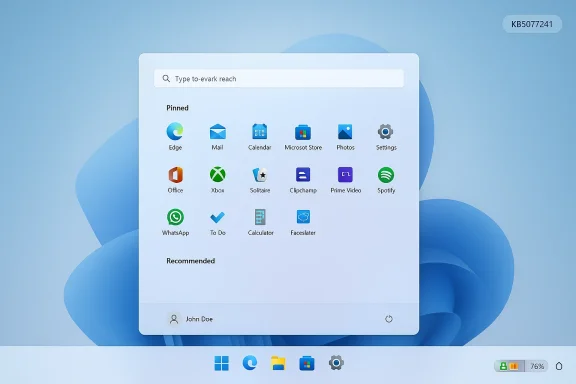
Microsoft published an optional cumulative preview (KB5077241) on February 24, 2026, that includes broader device enablement for several user‑facing features that were first introduced as previews in 2024–2025. Among the notes for that package Microsoft lists the updated battery icon experience and the redesigned Start menu as continuing staged rollouts — meaning the update delivers the binaries, but Microsoft flips features on for groups of devices over time.
At the same time, Microsoft and its partners have been working to replace the original Secure Boot certificates issued in 2011. Those certificates are on a planned lifecycle that leads to expiration starting in June 2026, so Microsoft has been shipping replacement certificates (the “2023” CA family) via Windows updates and working with OEMs to provide firmware hooks where needed. The certificate refresh is a distinct but related rollout that affects platform security rather than the user interface.
Together, these changes illustrate two things about modern Windows delivery: small visual improvements and significant security maintenance both travel to users through staged updates rather than a single monolithic release. That model reduces risk, but it also creates complexity for troubleshooting, image management, and corporate rollouts.
In short: devices left on the 2011 certificates will gradually lose the ability to receive and validate new boot security protections.
The Secure Boot certificate refresh is the more consequential item. It’s not visible to most users, but it’s essential platform maintenance. Replacing long‑lived certificates is routine cryptographic hygiene — but the practical challenge is operational: firmware dependencies, image management, and fleet heterogeneity make a technically simple concept a careful deployment problem.
The rollout model Microsoft uses — delivering binaries via optional updates and enabling features server‑side — improves safety and lets Microsoft gather feedback, but it shifts complexity into verification and support. Administrators and power users must verify their endpoints proactively, monitor event logs, and coordinate firmware updates with OEM partners.
Action list (summary)
Source: Windows Latest Microsoft confirms a wider roll out of Windows 11's new colourful battery icons on the taskbar
 Background and overview
Microsoft published an optional cumulative preview (KB5077241) on February 24, 2026, that includes broader device enablement for several user‑facing features that were first introduced as previews in 2024–2025. Among the notes for that package Microsoft lists the updated battery icon experience and the redesigned Start menu as continuing staged rollouts — meaning the update delivers the binaries, but Microsoft flips features on for groups of devices over time.At the same time, Microsoft and its partners have been working to replace the original Secure Boot certificates issued in 2011. Those certificates are on a planned lifecycle that leads to expiration starting in June 2026, so Microsoft has been shipping replacement certificates (the “2023” CA family) via Windows updates and working with OEMs to provide firmware hooks where needed. The certificate refresh is a distinct but related rollout that affects platform security rather than the user interface.
Together, these changes illustrate two things about modern Windows delivery: small visual improvements and significant security maintenance both travel to users through staged updates rather than a single monolithic release. That model reduces risk, but it also creates complexity for troubleshooting, image management, and corporate rollouts.
What changed: colour battery icons and visible percentage
The UI changes you’ll notice
- The taskbar battery icon is no longer a single monochrome glyph in all scenarios. The icon now uses colour to communicate status at a glance: a green fill and charging bolt when the adapter is attached, a yellow/orange hue when battery saver is engaged, and a red treatment when the battery is critically low.
- The battery glyph itself is visually wider and uses an internal progress bar to give a clearer sense of remaining charge.
- A Battery percentage toggle is now (or soon will be) available in Settings so you can show the numeric percentage directly on the taskbar next to the icon.
- The new icons appear not only in the system tray but also in Quick Settings and, as Microsoft incrementally enables it, on the Lock screen.
What’s confirmed (what Microsoft says)
- Microsoft’s February preview lists “updated battery icons” and the “redesigned Start menu” as features that “continue their gradual rollout” to Windows devices. The update is optional and staged, so installing the package does not guarantee feature activation immediately.
- The optional preview package (KB5077241) was published on February 24, 2026 and updates Windows 11 servicing builds for supported releases.
- The battery percentage toggle is surfaced in Settings under System > Power & battery on battery‑powered devices when the feature is present.
What’s anecdotal or inconsistent (what to treat cautiously)
- Several independent testers and outlets have reported slightly different numeric thresholds for automatic battery saver activation and for the “critical” threshold that triggers the red icon. Microsoft documentation and earlier preview notes consistently referenced battery saver engaging at 20% or below; some hands‑on reports claim the system turned energy saver on at 30% and changed to red below 6%. Those latter values appear to be observations from individual devices and are not uniform across documentation and Microsoft’s preview notes. Treat precise percentage thresholds as potentially variable: Microsoft’s staged rollout and device‑specific settings (OEM battery profiles, BIOS/firmware power settings, or manufacturer drivers) can influence behavior.
The redesigned Start menu — staged rollout, not a guarantee
The new Start menu that Microsoft first circulated in preview builds last year is included in the optional servicing bits, but its enablement is controlled server‑side. That means:- Installing the update that contains the Start menu code does not mean the new Start will appear immediately.
- Microsoft uses a controlled feature rollout (CFR) model, sometimes called server‑side feature flighting or A/B testing, to turn new experiences on for subsets of devices. The company monitors telemetry and incremental feedback before enabling the experience more broadly.
- If you want to increase the chance of seeing the new Start quickly, opt into Microsoft’s “get updates earlier” toggle in Windows Update (more on that below) or install preview/release‑preview channel packages — with the caveat that those channels and toggles are not suitable for every production machine.
How Microsoft is delivering these changes (the rollout model explained)
Microsoft increasingly decouples “shipping code” from “turning features on.” The company distributes optional non‑security preview packages that contain feature binaries, then flips settings server‑side to enable experiences for sampled devices. The rollout model has a few concrete characteristics:- Phased delivery: updates are delivered in waves. The preview package makes the experience available to eligible machines; Microsoft still controls activation.
- Get‑latest toggle: there’s a Windows Update toggle labeled “Get the latest updates as soon as they’re available” (or similar wording under Windows Update). Turning it on signals interest in receiving preview/optional content and tends to surface optional updates and staged features earlier on those devices.
- Targeting & telemetry: Microsoft uses signals such as hardware model, driver/firmware compatibility, and telemetry to restrict feature activation where stability risk is higher.
- Enterprise controls: organizations can use Windows Update for Business policies, group policy, or management tools to prevent optional content, or to enable optional servicing and controlled feature rollouts in a managed fashion.
Hands‑on: what users see and how to enable the new UI bits
To check whether you have the updated battery icons and percentage toggle
- Open Settings (press Win + I).
- Go to System > Power & battery.
- Under the Battery section, look for a Battery percentage toggle. If present and enabled, the numeric percentage will appear next to the taskbar battery icon.
- If the toggle is missing, the feature may not be enabled on your device yet. Installing the February 24, 2026 preview (KB5077241) gives your machine the necessary components, but activation can still be server‑side gated.
The “Get the latest updates as soon as they’re available” toggle
- Location: Settings > Windows Update.
- Switch it on to increase the likelihood that optional updates and staged features will be offered to your device sooner.
- Note: Enabling this toggle may prompt a restart and is not a guarantee — it simply includes your device in the population that is allowed to receive preview/optional content and server‑side flights earlier.
Secure Boot certificate refresh: what it means and why it matters
The problem
The original Secure Boot certificate authorities that Microsoft used in platform firmware were issued around 2011. Cryptographic material has finite lifetimes. Microsoft has stated that those certificates begin to expire in June 2026. If a firmware environment or an OS has only the old certificates, it will still boot, but it will no longer be able to receive new protections for the early boot process, including updates to the Windows Boot Manager signing chain, Secure Boot revocation lists (DBX), or mitigations for newly discovered boot‑level vulnerabilities.In short: devices left on the 2011 certificates will gradually lose the ability to receive and validate new boot security protections.
Microsoft’s response
- Microsoft prepared a 2023 CA family (new certificates) and has been rolling those certificates to devices via Windows updates and working with OEMs to deliver firmware updates where required.
- Microsoft is shipping certificate updates through normal servicing channels and has included additional device targeting telemetry in recent cumulative updates to increase coverage for machines eligible to receive the updated Secure Boot certificates.
- The migration is staged: devices receive the new certificates only after meeting sufficient success signals, and Microsoft will continue the rollout to cover all supported devices by the June 2026 timeline.
Who needs to act
- Consumers on Windows 11 who receive Microsoft‑managed updates are likely to be handled automatically, but you should verify enrollment and certificate presence — especially on older hardware (pre‑2024 machines) or custom images.
- Enterprise admins must plan: custom golden images, pre‑provisioned VMs, Windows 365/Cloud PC images, and fleet devices should be verified and updated in test rings to ensure that the firmware and image chain accept the new CA entries.
- Windows 10 devices that were not enrolled in Extended Security Updates will not receive the automatic migration unless explicitly supported by Microsoft guidance — those devices are a higher risk and should be migrated to supported Windows versions.
How to verify Secure Boot certificate state (practical checks)
The following checks are safe for experienced users and administrators; run them with administrative privileges and as part of a controlled verification process for fleets.- Confirm that Secure Boot is enabled on the device:
- Open PowerShell as Administrator and run:
- Confirm-SecureBootUEFI
- A return value of True indicates Secure Boot is enabled.
- Inspect the firmware Secure Boot DB for the presence of the 2023 CA:
- In an elevated PowerShell session run:
- ([System.Text.Encoding]::ASCII.GetString((Get‑SecureBootUEFI db).bytes) -match 'Windows UEFI CA 2023')
- If the command returns True, the firmware DB contains the new Windows UEFI CA 2023 entry. (Similar checks can be done on KEK/DBX to look for KEK strings with “2023”.)
- Check servicing progress indicators in the registry:
- Look under:
- HKEY_LOCAL_MACHINE\SYSTEM\CurrentControlSet\Control\SecureBoot\Servicing
- Values such as UEFICA2023Status may show migration progress (NotStarted → InProgress → Updated).
- Monitor the System event log for Secure Boot-related events:
- Event IDs related to Secure Boot DB/DBX changes and certificate application will appear in System logs; monitoring and correlating these entries helps determine whether the certificate refresh was applied.
- For mass verification, script the above checks and collect results into your management system (Intune, ConfigMgr, etc.). Microsoft and community guidance both recommend automating fleet checks.
Risks, gotchas, and operational guidance
Visual/UI rollout risks (battery/Start)
- Inconsistent experience across fleets and helpdesk confusion: two identical machines may show different UIs, complicating documentation and support scripts.
- Accessibility considerations: colour changes help sighted users but colour alone is not sufficient for accessibility; Microsoft includes the numeric percentage and aims to preserve compatibility with assistive technologies, but test with your assistive toolchain.
- Enterprise policies and OEM customizations can hide or change these toggles: Windows 11 Enterprise or heavily managed devices may not expose the battery percentage toggle.
Secure Boot certificate migration risks
- Firmware compatibility: some older motherboards and firmware stacks may need OEM firmware updates before they can accept the new certificates. Failure to coordinate can leave machines in a limbo where new boot protections can’t be applied.
- Image and Golden Master problems: deploying a Golden Image created before certificate enrollment can propagate stale trust states to many systems — bake images only after certificate enrollment is confirmed.
- Anti‑cheat and third‑party dependencies: several anti‑cheat systems rely on Secure Boot; changes in Secure Boot keys can affect their validation logic. Test gaming and software that interacts with early boot components before broad deployment.
- Windows 10 and unsupported systems: devices on unsupported Windows versions may not receive automatic migration and need a migration path off unsupported OSes.
Practical mitigations
- Test early in a controlled pilot ring: apply KB5077241 and the relevant cumulative updates to a small group of test devices, verify the new Start and battery UI, and validate Secure Boot certificate presence.
- Validate OEM BIOS/UEFI updates: confirm firmware versions in your fleet and whether OEMs have published updates that enable certificate enrollment where necessary.
- Update Golden Images: only capture Golden Images after the Secure Boot certificate enrollment is verified on reference hardware.
- Script compliance checks: use PowerShell commands and registry checks to report coverage across the estate and set remediation runbooks for devices that return negative results.
- Communicate to end users: explain that UI changes may appear gradually and that the “get latest updates” toggle can speed the process for those who opt in.
How to speed access (for enthusiasts) and why you might not want to
- If you’re an enthusiast who wants the new Start and battery UI immediately: enable the Get the latest updates as soon as they’re available toggle in Windows Update and install the optional preview package when shown. For users on Insider channels, the preview path is straightforward.
- Why you might not want to: preview packages are optional and by definition less conservative than security or cumulative updates. Some preview features are server‑gated and may change, and enterprise devices should not use preview channels for production workloads. Use caution on work machines.
Final analysis: sensible UI changes, substantial platform work
Microsoft’s colourful battery icons and visible percentage are modest but meaningful user‑experience improvements. They solve a real annoyance — the need to hover or open Quick Settings to know battery state — and they align Windows with modern expectations set by mobile OSes. From a UX standpoint the change is low risk and high value.The Secure Boot certificate refresh is the more consequential item. It’s not visible to most users, but it’s essential platform maintenance. Replacing long‑lived certificates is routine cryptographic hygiene — but the practical challenge is operational: firmware dependencies, image management, and fleet heterogeneity make a technically simple concept a careful deployment problem.
The rollout model Microsoft uses — delivering binaries via optional updates and enabling features server‑side — improves safety and lets Microsoft gather feedback, but it shifts complexity into verification and support. Administrators and power users must verify their endpoints proactively, monitor event logs, and coordinate firmware updates with OEM partners.
Action list (summary)
- If you want the new UI early: enable Settings > Windows Update > Get the latest updates as soon as they’re available and check Optional updates. Understand preview risk.
- To show battery percentage: check Settings > System > Power & battery and enable Battery percentage if the toggle is present.
- Verify Secure Boot: run Confirm‑SecureBootUEFI in an elevated PowerShell session, and scan the firmware DB for the 2023 CA string if you manage endpoints.
- For enterprises: script these checks, update golden images only after certificate enrollment, and validate OEM firmware updates.
- Treat anecdotal thresholds (e.g., “battery saver at 30%” or “red at 6%”) as device‑specific observations — rely on Microsoft‑documented defaults (battery saver typically engages at 20% where referenced) and validate on representative hardware.
Source: Windows Latest Microsoft confirms a wider roll out of Windows 11's new colourful battery icons on the taskbar
