

A capable Windows 11 freelance home office does not require Windows 11 Pro, a premium ultrawide monitor, or a large software subscription—but it does require a deliberate workflow for displays, files, client communication, backups, and distraction control. Start with a reliable PC, one good external display, comfortable input devices, and a setup that separates client work without making files harder to find.
For most freelance work, the biggest upgrade from a laptop-only desk is an external monitor. A 27-inch 1440p display is a practical baseline for writing, spreadsheets, design review, coding, research, and video calls: it provides noticeably more working room than a typical laptop panel without making text uncomfortably small. A 4K monitor can be worthwhile for visual design, photography, video, or dense spreadsheets, but Windows display scaling should be set carefully so text remains readable.
A second monitor is useful when work routinely involves two active sources at once—such as a brief and a draft, a video call and project files, or a browser-based client system and a spreadsheet. It is less useful if it becomes a permanent source of notifications and chat windows. For many freelancers, one large external display plus the laptop’s built-in screen is the most efficient compromise.
Before buying a docking station, verify the laptop’s actual display capability. A USB-C connector alone does not guarantee support for two high-resolution external displays. Check whether the laptop supports USB-C DisplayPort Alt Mode, Thunderbolt, USB4, or a manufacturer-specific dock, then confirm the dock’s supported resolution and refresh rate for the exact laptop. A dock should provide the ports you use every day:
Place the main display directly in front of you, with the top portion of the screen near eye level and the display roughly an arm’s length away. Position a second display beside it at a slight angle rather than forcing your neck to twist. If the desk is shallow, a monitor arm can reclaim usable space and make display height easier to adjust.
Choose a keyboard and mouse based on comfort rather than appearance. A full-size keyboard is helpful for frequent numeric entry; a compact keyboard creates more room for the mouse. If wrist discomfort is already a concern, try an ergonomic or split keyboard and a vertical or sculpted mouse before committing to expensive hardware. A mouse with programmable buttons can also save time for common actions such as back, forward, copy, paste, push-to-talk, or switching virtual desktops.
An adjustable chair and desk matter more than a decorative desk setup. The goal is simple: feet supported, elbows near a right angle, shoulders relaxed, and wrists not bent upward while typing. Alternate between sitting and standing if an adjustable desk helps you move more often, but do not assume standing all day is automatically better.
Windows 11 Pro becomes more compelling if you specifically need capabilities such as Remote Desktop hosting, Hyper-V virtualization, Windows Sandbox, Local Group Policy management, domain or Microsoft Entra ID joining, or the fuller BitLocker management experience. For a typical one-person freelance business, Windows 11 Home is usually sufficient.
For example, a writer might use a two-column layout with research on one side and a document on the other. An accountant or project manager may prefer a three-column arrangement for email, a spreadsheet, and an invoicing or client portal.
Review the behavior under Settings > System > Multitasking. Keep Snap windows enabled, then adjust options such as showing suggested windows after snapping and remembering snapped window locations when a monitor reconnects. The latter is valuable for laptop-and-dock setups.
Virtual desktops are an organization tool, not a security boundary. They do not stop a document, browser session, download, or notification from being accessible elsewhere on the PC. For stronger separation, use separate browser profiles, separate Windows user accounts, or dedicated client-approved accounts and devices where required.
Starting a Focus session normally enables Do Not Disturb automatically. Review notification settings first, especially if a client, family member, authentication app, or security tool needs to reach you during a session.
Night light, available under Settings > System > Display, can make screens more comfortable in the evening by reducing blue-toned light. It is a personal comfort preference rather than a replacement for regular breaks, reasonable display brightness, and good room lighting.
A simple example is:
Use a date-first or versioned naming scheme for deliverables, such as
For cloud storage, decide which service is authoritative for each client. OneDrive works well for personal business files and Microsoft 365 collaboration, but some clients may require SharePoint, Google Drive, Dropbox, Box, or a proprietary portal. Do not create parallel copies across several services unless there is a clear backup or collaboration reason.
Enable File Explorer’s File name extensions under View > Show. Seeing extensions makes it easier to distinguish a real document from an executable file disguised with a familiar-looking icon.
Use a unique password for every account and enable multifactor authentication on email, cloud storage, invoicing platforms, banking, client portals, and password managers. Email deserves the strongest protection because it is often the account used to reset everything else.
Keep Windows, browsers, Office apps, and security software updated. Use Windows Security’s built-in protection and periodically check Windows Security > Device performance & health for warnings. If the PC supports device encryption or BitLocker, enable it before storing sensitive client files locally. Windows 11 Pro provides more BitLocker management options, while device encryption availability on Windows 11 Home depends on the hardware and configuration.
Use at least two copies of important working files: a primary working copy and a separate backup. For high-value work, keep an additional copy that is not continuously connected to the PC, such as encrypted external storage or an independent cloud backup. Sync is useful, but it is not automatically a complete backup—deleted, corrupted, or ransomware-encrypted files may synchronize too.
If you use a home router supplied by an ISP, change its default administrator password, install firmware updates when available, use WPA2 or WPA3 Wi-Fi security, and create a guest network for visitors and smart-home devices. A wired Ethernet connection is worthwhile for video calls, remote desktops, large uploads, and any work where connection stability is billable time.
Freelancers who want a one-time Office purchase for commercial use should evaluate Office Home & Business 2024, which adds Outlook and includes commercial-use rights for one PC or Mac. It is best suited to people who primarily want locally installed Office apps, do not need continuous feature updates, and can manage cloud storage separately.
A Microsoft 365 subscription is the better fit when work moves among a desktop, laptop, tablet, or phone; when you need substantial OneDrive storage; or when real-time collaboration and current Office features matter. The subscription model also makes more sense if you regularly use Outlook, Teams, and cloud-based client collaboration.
Use Word for contracts, briefs, and deliverables; Excel for invoices, estimates, time tracking, and expense records; OneNote for structured meeting notes; and Outlook or another properly secured business email service for calendar and client communication. Keep financial records separate from client-project folders so bookkeeping is easier at tax time.
A small UPS battery backup can be valuable if power interruptions are common. It will not keep a workstation running indefinitely, but it can provide time to save work, prevent sudden shutdowns, and keep networking equipment online briefly.
An external SSD is useful for local backups, project archives, large media files, or travel work. Encrypt it if it contains client data, label it clearly, and do not leave the only copy of a critical project on that drive.
The ultimate Windows 11 freelance setup is ultimately the one that makes work repeatable: a clear display arrangement, a comfortable desk, predictable client separation, reliable backups, and software licensed for the work you are paid to do. Start with those foundations, then add a second monitor, dock, specialty peripherals, or Windows 11 Pro only when a real workflow requirement justifies the cost.
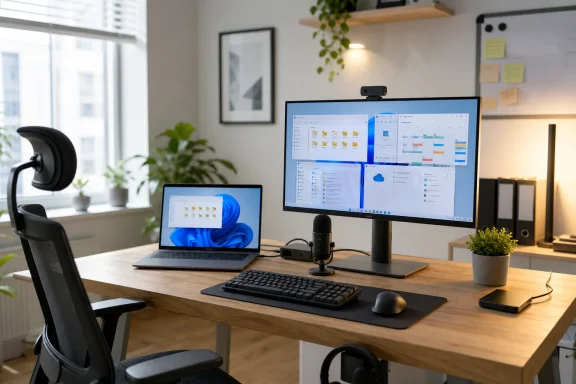 Start with the PC, display, and dock—not accessories
For most freelance work, the biggest upgrade from a laptop-only desk is an external monitor. A 27-inch 1440p display is a practical baseline for writing, spreadsheets, design review, coding, research, and video calls: it provides noticeably more working room than a typical laptop panel without making text uncomfortably small. A 4K monitor can be worthwhile for visual design, photography, video, or dense spreadsheets, but Windows display scaling should be set carefully so text remains readable.A second monitor is useful when work routinely involves two active sources at once—such as a brief and a draft, a video call and project files, or a browser-based client system and a spreadsheet. It is less useful if it becomes a permanent source of notifications and chat windows. For many freelancers, one large external display plus the laptop’s built-in screen is the most efficient compromise.
Before buying a docking station, verify the laptop’s actual display capability. A USB-C connector alone does not guarantee support for two high-resolution external displays. Check whether the laptop supports USB-C DisplayPort Alt Mode, Thunderbolt, USB4, or a manufacturer-specific dock, then confirm the dock’s supported resolution and refresh rate for the exact laptop. A dock should provide the ports you use every day:
- Power delivery sufficient for the laptop’s normal charger rating
- Display outputs appropriate for the monitor or monitors
- Wired Ethernet if the home Wi-Fi connection is unreliable
- USB ports for keyboard, mouse, webcam, storage, and phone charging
- A front-facing USB-C or USB-A port for quick access
Build for comfort during long sessions
Freelancers usually interact with the keyboard, mouse, chair, desk, and monitor far more than with the PC itself. Those are the items most likely to determine whether a setup remains comfortable after a full workday.Place the main display directly in front of you, with the top portion of the screen near eye level and the display roughly an arm’s length away. Position a second display beside it at a slight angle rather than forcing your neck to twist. If the desk is shallow, a monitor arm can reclaim usable space and make display height easier to adjust.
Choose a keyboard and mouse based on comfort rather than appearance. A full-size keyboard is helpful for frequent numeric entry; a compact keyboard creates more room for the mouse. If wrist discomfort is already a concern, try an ergonomic or split keyboard and a vertical or sculpted mouse before committing to expensive hardware. A mouse with programmable buttons can also save time for common actions such as back, forward, copy, paste, push-to-talk, or switching virtual desktops.
An adjustable chair and desk matter more than a decorative desk setup. The goal is simple: feet supported, elbows near a right angle, shoulders relaxed, and wrists not bent upward while typing. Alternate between sitting and standing if an adjustable desk helps you move more often, but do not assume standing all day is automatically better.
Configure Windows 11 for client work
Windows 11 Home includes the core multitasking tools most freelancers need. Snap layouts, virtual desktops, Focus, File Explorer tabs, and standard Windows security features are not reasons by themselves to upgrade to Windows 11 Pro.Windows 11 Pro becomes more compelling if you specifically need capabilities such as Remote Desktop hosting, Hyper-V virtualization, Windows Sandbox, Local Group Policy management, domain or Microsoft Entra ID joining, or the fuller BitLocker management experience. For a typical one-person freelance business, Windows 11 Home is usually sufficient.
Set up multiple displays correctly
- Connect the external display or displays, then open Settings > System > Display.
- Select Identify to see which numbered box corresponds to each physical screen.
- Drag the numbered boxes into the same arrangement as the monitors on your desk. This prevents the pointer from appearing to “jump” in the wrong direction.
- Select each display and set its Scale and Display resolution. Use the monitor’s native resolution; adjust scale if text is too small.
- Under Multiple displays, choose Extend these displays rather than duplicate mode.
- Mark the display you use most as Make this my main display.
Use Snap layouts for active tasks
Snap layouts keep open windows visible without constant resizing. Hover over the maximize button or press Windows key + Z, then choose a layout. Windows will prompt you to fill the remaining positions with other open apps.For example, a writer might use a two-column layout with research on one side and a document on the other. An accountant or project manager may prefer a three-column arrangement for email, a spreadsheet, and an invoicing or client portal.
Review the behavior under Settings > System > Multitasking. Keep Snap windows enabled, then adjust options such as showing suggested windows after snapping and remembering snapped window locations when a monitor reconnects. The latter is valuable for laptop-and-dock setups.
Assign a virtual desktop to each client or work mode
Virtual desktops reduce visual clutter. Press Windows key + Tab, select New desktop, then rename desktops for specific clients or functions—for example:- Administration
- Client A
- Client B
- Writing or production
- Meetings
Virtual desktops are an organization tool, not a security boundary. They do not stop a document, browser session, download, or notification from being accessible elsewhere on the PC. For stronger separation, use separate browser profiles, separate Windows user accounts, or dedicated client-approved accounts and devices where required.
Use Focus when the deadline matters
Windows 11 Focus can temporarily suppress interruptions. Open Settings > System > Focus, choose a session duration, and configure whether Windows hides taskbar badges, suppresses flashing, shows a timer, and turns on Do Not Disturb.Starting a Focus session normally enables Do Not Disturb automatically. Review notification settings first, especially if a client, family member, authentication app, or security tool needs to reach you during a session.
Night light, available under Settings > System > Display, can make screens more comfortable in the evening by reducing blue-toned light. It is a personal comfort preference rather than a replacement for regular breaks, reasonable display brightness, and good room lighting.
Separate work files from personal clutter
A freelance workstation becomes difficult to manage when client files live in Downloads, the desktop, email attachments, random cloud folders, and removable drives at the same time. Create one consistent folder structure and use it every time.A simple example is:
Code:
Freelance
├── Administration
│   ├── Invoices
│   ├── Taxes
│   ├── Contracts
│   └── Templates
├── Client-A
│   ├── Briefs
│   ├── Working
│   ├── Deliverables
│   └── Archive
└── Client-B
    ├── Briefs
    ├── Working
    ├── Deliverables
└── Archive2026-07-22_ClientA_WebCopy_v03.docx. Avoid filenames such as final, final-final, or new version; they become ambiguous quickly when client revisions arrive.For cloud storage, decide which service is authoritative for each client. OneDrive works well for personal business files and Microsoft 365 collaboration, but some clients may require SharePoint, Google Drive, Dropbox, Box, or a proprietary portal. Do not create parallel copies across several services unless there is a clear backup or collaboration reason.
Enable File Explorer’s File name extensions under View > Show. Seeing extensions makes it easier to distinguish a real document from an executable file disguised with a familiar-looking icon.
Protect client data before investing in productivity software
The highest-value home-office upgrades are often unglamorous: full-disk encryption, strong account protection, a backup plan, and a reliable network.Use a unique password for every account and enable multifactor authentication on email, cloud storage, invoicing platforms, banking, client portals, and password managers. Email deserves the strongest protection because it is often the account used to reset everything else.
Keep Windows, browsers, Office apps, and security software updated. Use Windows Security’s built-in protection and periodically check Windows Security > Device performance & health for warnings. If the PC supports device encryption or BitLocker, enable it before storing sensitive client files locally. Windows 11 Pro provides more BitLocker management options, while device encryption availability on Windows 11 Home depends on the hardware and configuration.
Use at least two copies of important working files: a primary working copy and a separate backup. For high-value work, keep an additional copy that is not continuously connected to the PC, such as encrypted external storage or an independent cloud backup. Sync is useful, but it is not automatically a complete backup—deleted, corrupted, or ransomware-encrypted files may synchronize too.
If you use a home router supplied by an ISP, change its default administrator password, install firmware updates when available, use WPA2 or WPA3 Wi-Fi security, and create a guest network for visitors and smart-home devices. A wired Ethernet connection is worthwhile for video calls, remote desktops, large uploads, and any work where connection stability is billable time.
Choose Microsoft Office based on licensing and workflow
Microsoft Office Home 2024 is not the correct perpetual-license edition for paid freelance work. It includes Word, Excel, PowerPoint, and OneNote for one PC or Mac, but it is licensed for non-commercial use. It also does not include the classic Outlook desktop app or Microsoft 365 cloud-storage benefits.Freelancers who want a one-time Office purchase for commercial use should evaluate Office Home & Business 2024, which adds Outlook and includes commercial-use rights for one PC or Mac. It is best suited to people who primarily want locally installed Office apps, do not need continuous feature updates, and can manage cloud storage separately.
A Microsoft 365 subscription is the better fit when work moves among a desktop, laptop, tablet, or phone; when you need substantial OneDrive storage; or when real-time collaboration and current Office features matter. The subscription model also makes more sense if you regularly use Outlook, Teams, and cloud-based client collaboration.
Use Word for contracts, briefs, and deliverables; Excel for invoices, estimates, time tracking, and expense records; OneNote for structured meeting notes; and Outlook or another properly secured business email service for calendar and client communication. Keep financial records separate from client-project folders so bookkeeping is easier at tax time.
Add peripherals only where they remove friction
A good webcam, microphone, headset, and lighting setup can improve client calls more than an expensive monitor upgrade. If you take regular video meetings, prioritize clear audio first. A USB headset or dedicated microphone placed close to your mouth usually delivers more consistent results than relying on a laptop microphone from across a desk.A small UPS battery backup can be valuable if power interruptions are common. It will not keep a workstation running indefinitely, but it can provide time to save work, prevent sudden shutdowns, and keep networking equipment online briefly.
An external SSD is useful for local backups, project archives, large media files, or travel work. Encrypt it if it contains client data, label it clearly, and do not leave the only copy of a critical project on that drive.
The ultimate Windows 11 freelance setup is ultimately the one that makes work repeatable: a clear display arrangement, a comfortable desk, predictable client separation, reliable backups, and software licensed for the work you are paid to do. Start with those foundations, then add a second monitor, dock, specialty peripherals, or Windows 11 Pro only when a real workflow requirement justifies the cost.