

TweakTown has revived attention around Windows’ long-running “GodMode” shortcut: a special Explorer folder that gathers a large set of Control Panel tasks and legacy administrative applets into one searchable view.
Despite the nickname, it is not a hidden administrator mode, a registry hack, or a way around UAC and Group Policy. It is Explorer’s All Tasks shell view, exposed through a known class identifier. Microsoft’s own support forums have documented the same identifier for years.
Create a new empty folder, then rename it:
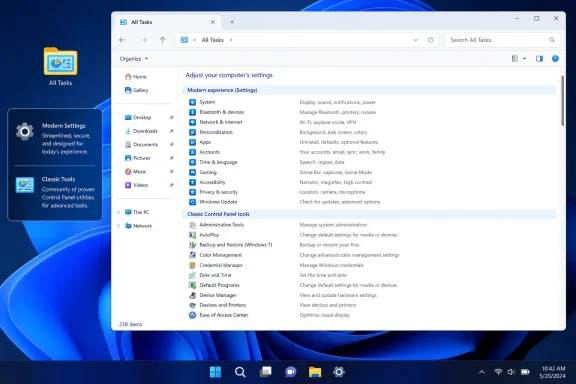
The text before the period is only a label; the identifier in braces is what matters. When Explorer accepts the name, the folder icon changes and opening it presents an alphabetical, categorized collection of settings shortcuts.
TweakTown’s guide notes that the exact list varies by Windows build, installed hardware, optional features and management policies. Expect familiar entries such as Device Manager, Credential Manager, power-plan controls, display calibration, mouse settings, performance options, and assorted legacy troubleshooters.
A shortcut is often cleaner than putting the special folder on the desktop, particularly because some Windows builds display the converted folder with a blank or awkward name. Create a desktop shortcut with this target instead:
That opens the same All Tasks view while allowing the shortcut itself to have a normal name.
It does not, however, consolidate every modern Settings page. Account management, much of Windows Update, newer privacy controls and other Settings-first features may remain absent. It also does not elevate permissions: opening a task that requires administrative rights still triggers UAC, while managed PCs retain their existing policy restrictions.
For administrators and enthusiasts, the better use may be to open All Tasks once, then create ordinary shortcuts for the few items used regularly. That avoids treating the oversized list as a new daily control panel while preserving quick access to harder-to-find tools.
The trick remains a convenience layer for Windows’ older control surfaces, not a fix for the split between Settings and Control Panel.
Despite the nickname, it is not a hidden administrator mode, a registry hack, or a way around UAC and Group Policy. It is Explorer’s All Tasks shell view, exposed through a known class identifier. Microsoft’s own support forums have documented the same identifier for years.
 How it works
Create a new empty folder, then rename it:GodMode.{ED7BA470-8E54-465E-825C-99712043E01C}The text before the period is only a label; the identifier in braces is what matters. When Explorer accepts the name, the folder icon changes and opening it presents an alphabetical, categorized collection of settings shortcuts.
TweakTown’s guide notes that the exact list varies by Windows build, installed hardware, optional features and management policies. Expect familiar entries such as Device Manager, Credential Manager, power-plan controls, display calibration, mouse settings, performance options, and assorted legacy troubleshooters.
A shortcut is often cleaner than putting the special folder on the desktop, particularly because some Windows builds display the converted folder with a blank or awkward name. Create a desktop shortcut with this target instead:
explorer.exe shell:::{ED7BA470-8E54-465E-825C-99712043E01C}That opens the same All Tasks view while allowing the shortcut itself to have a normal name.
Useful, but not a Settings replacement
The practical benefit is discovery. Windows 11 still divides controls among Settings, Control Panel applets, MMC-style tools and other shell pages. Searching inside the All Tasks window can be quicker than remembering which interface now contains a particular legacy option.It does not, however, consolidate every modern Settings page. Account management, much of Windows Update, newer privacy controls and other Settings-first features may remain absent. It also does not elevate permissions: opening a task that requires administrative rights still triggers UAC, while managed PCs retain their existing policy restrictions.
For administrators and enthusiasts, the better use may be to open All Tasks once, then create ordinary shortcuts for the few items used regularly. That avoids treating the oversized list as a new daily control panel while preserving quick access to harder-to-find tools.
The trick remains a convenience layer for Windows’ older control surfaces, not a fix for the split between Settings and Control Panel.
References
- Primary source: TweakTown
Published: 2026-07-12T23:56:08+00:00
I stopped digging through Windows menus after I set up this one folder
Windows keeps splitting its controls between the Settings app and the old Control Panel. This folder drags the scattered half into one searchable list. www.tweaktown.com