

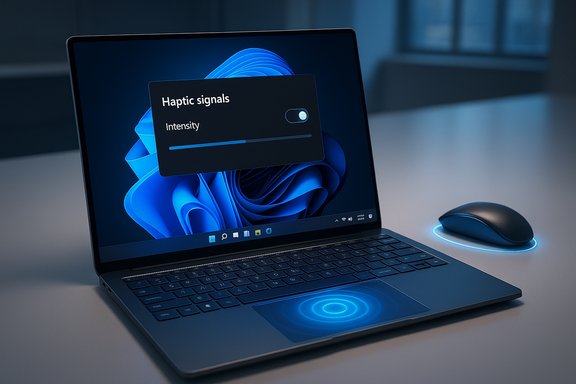
Microsoft’s Windows 11 is quietly showing the first signs of system-level haptic feedback: a hidden Settings page found in Insider preview builds promises a global “Haptic signals” toggle and an intensity slider so the OS can vibrate a compatible mouse or touchpad when you perform UI actions such as snapping windows, aligning objects, or completing drag boundaries. This user-visible string and the related UI fragments have been exposed in Dev/Beta builds but remain behind feature flags and hardware checks — the controls appear in the Settings app, yet the underlying effect is not yet broadly functional on most devices.
Important cautionary notes:
Microsoft’s “good vibrations” on the desktop are no longer a speculative UI fantasy — the strings and controls are in preview builds and the platform-level work already exists. The success of system-level haptics will depend on coordination across Microsoft, OEMs, and peripheral vendors, along with conservative defaults and enterprise manageability. For now, the visible slider and toggle are a tempting preview of a subtly richer Windows UX — but they’re also a reminder that polished sensation takes careful engineering, calibration, and time.
Source: theregister.com Secret setting hints haptic feedback coming to Windows 11 UI
 Background
Why haptics matter on PCs
Haptic feedback — short, context-aware vibrations — is ubiquitous on phones because it delivers immediate, low-attention confirmation of user actions without adding visual or audible clutter. The same principle is now feasible on PCs: many modern laptops ship with precision haptic touchpads, and some high-end mice include builtin tactile motors. Exposing haptics at the OS level would let Windows map common UI events (for example, Snap Layout completion) to short vibration patterns, creating a second sensory channel for feedback that can speed workflows and improve accessibility for users who benefit from non-visual cues.The discovery and what’s visible today
Community sleuths and Insider observers discovered a new hidden Settings surface in recent Windows 11 preview builds. The on-screen copy reads, in essence: “Feel subtle vibrations when you snap windows, align objects, and more.” That Settings surface shows a toggle labeled Haptic signals and an intensity slider, along with separate controls that appear to distinguish haptic clicks (touchpad click-simulation) from haptic signals (event-driven pulses). The controls are invisible to the average Insider and are gated by feature flags; enabling them with community tools makes the UI visible but does not necessarily make the feature function on all hardware yet.What Microsoft already provides: the platform plumbing
Device and driver-level support
Microsoft’s platform already contains the building blocks for host-initiated haptics. The Windows Haptic Touchpad Implementation Guide lays out the HID and feature-report expectations for haptic touchpads, including the SimpleHapticsController abstractions, waveform lists, and SET_FEATURE/GET_FEATURE reports that let the host query supported waveforms and trigger discrete patterns. In short: Microsoft has specified how touchpad firmware and drivers must expose haptic capabilities and how the OS can address them. That guide explicitly covers both device-initiated feedback (e.g., the pad itself deciding when to pulse) and host-initiated feedback (the OS or apps commanding specific waveforms).OS-level APIs and developer hooks
Windows exposes haptics in developer APIs (Windows.Devices.Haptics / SimpleHapticsController), originally used for pen and inking scenarios and now applicable to other device classes. Those APIs let drivers and apps advertise supported feedback types and accept waveform requests from the OS or applications. The existence of these APIs means that, once drivers present the capabilities, Windows can map high-level UI events to tactile patterns while honoring user settings for intensity and power policies.Who can (and likely will) support this first
First-party laptops and precision touchpads
Microsoft’s own Surface line uses precision haptic touchpads (Surface Laptop, Surface Laptop Studio, and newer Surface models) that simulate clicks via haptic actuators. These devices are natural candidates for early support because Microsoft controls both hardware and OS behavior, easing calibration and driver updates. Surface product pages already advertise precision haptic touchpads and expose some haptic-related controls via OEM drivers and Settings.External mice and peripherals
Peripherals that already include tactile motors — most notably recent Logitech releases — could also be targets for OS-driven haptics. Logitech’s MX Master 4, for example, includes a dedicated Haptic Sense panel and exposes vibration behavior via the Logi Options+ app and plugin ecosystem. Logitech documents haptics tooling for the MX Master 4 and positions the device as capable of responding to contextual events, which means Windows-level haptic signals could be mapped to a peripheral’s motor if the vendor exposes the required hooks. Independent reviews note the MX Master 4’s haptics as a headline feature.How the UI shows the feature today (what insiders are seeing)
- The Settings path reported by observers places the control under Bluetooth & devices → Mouse (in some builds the touchpad/haptics controls have also appeared grouped under the touchpad area).
- The visible elements include:
- An Haptic signals on/off toggle with the subhead: “Feel subtle vibrations when you snap windows, align objects, and more.”
- An intensity slider to set vibration strength.
- Separate UI elements that reflect haptic clicks and other signals (the exact layout varies across experimental builds).
- The feature is invisible by default and appears only when certain feature flags are enabled. On most devices the toggle and slider are visible but do not produce actual vibration until OEM drivers and firmware hooks are present.
How some power users are making the UI visible (and why you probably shouldn’t on production machines)
Community guides explain how to reveal hidden Settings pages in certain Insider builds by toggling feature flags with ViVeTool, an open-source utility that manipulates Windows’ local feature-management records. The basic, community-adopted pattern is:- Download ViVeTool from its official GitHub releases and extract to a folder (for example: C:\vive).
- Open an elevated command prompt (Run as Administrator).
- Change to the ViVeTool folder (cd c:\vive).
- Run ViVeTool with the enable command and the feature IDs that correspond to the hidden UI in the target build.
- Reboot and check Settings → Bluetooth & devices → Mouse for the new controls.
Important cautionary notes:
- Feature IDs vary between builds and can change without notice; an ID that worked yesterday may not work today.
- ViVeTool is not supported by Microsoft; toggling flags can expose incomplete functionality or trigger odd regressions.
- Enabling UI is not the same as enabling functional behavior — the UI may appear but haptics will remain non-functional without matching drivers and hardware support.
- Always test on a non-production, fully backed-up machine or a VM, and avoid using ViVeTool on managed enterprise endpoints.
The exact enabling commands: what was reported and how reliable those numbers are
Some articles and insiders have published concrete ViVeTool commands to reveal the haptics Settings. That reporting includes the use of specific numeric IDs in a compound enable command. Community-provided step sequences exist and are well-worn for other staged features, but those numeric IDs are fragile: Microsoft can and does change internal IDs between servicing branches and builds. Treat published ID lists as ephemeral pointers rather than authoritative procedures. Use ViVeTool only after verifying build numbers and mandatory servicing updates detailed in Microsoft KB notes; if you proceed, follow the usual safeguards (full backup, test machine, restore plan).Practical UX and UX design implications
Where haptics help the most
- Snap Layout completion — a short pulse when a window is snapped into a tile confirms placement without making you look at the screen.
- Alignment guides — feel a micro-pulse when layout guides or snapping aids engage while arranging objects in design tools or UIs.
- Drag boundary crossing — tactile confirmation on crossing a boundary when dragging files between windows or displays.
Potential UX pitfalls
- Inconsistent feel across hardware. Different actuator technologies (piezo, LRA, ERM) and firmware tuning produce different sensations, which could make the same OS event feel very different on different laptops and mice.
- Overuse and fatigue. If every micro-event produces a vibration, the accumulated effect can be distracting or irritating. Defaults and sensible intensity limits are crucial.
- Audio interference and meetings. Vibrations can be audible on thin chassis or in conference recordings. Defaults should mute or reduce haptics during microphone use or when battery-saving profiles are active.
- Accessibility edge cases. Some users rely on silence or minimal tactile input; proper per-user controls, per-app opt-outs, and clear accessibility explanations are necessary.
Power, thermal, and reliability trade-offs
- Battery life: Actuators consume power; frequent haptic events may measurably reduce battery life on ultra-thin laptops. A robust OS implementation will honor battery mode and provide sensible defaults such as “haptics off on battery” or a lower intensity while unplugged.
- Driver/firmware reliability: Host-initiated haptics require firmware and driver support to advertise waveforms and accept commands. Driver regressions or timing mismatches could render haptics unreliable or cause spurious behavior on some devices.
- Testing surface: System-level haptics increase the test matrix — OEMs must validate interactions across apps, background services, and accessible modes. Enterprise administrators will want MDM/Group Policy controls for manageability.
Vendor readiness and examples
- Microsoft Surface models are already shipping with precision haptic touchpads and have documentation and firmware pathways that match the host-initiated model — this makes Surface devices logical candidates for early, high-quality support.
- Logitech’s MX Master 4 and Logitech G Pro X2 Superstrike demonstrate peripheral-level haptics in practice: Logitech provides OS-level software hooks and a plugin marketplace that exposes haptic-enabled actions and workflows, proving that third-party hardware can accept OS- or app-directed haptic triggers. Reviews and vendor documentation confirm these capabilities are shipping and being actively integrated.
Recommendations for different audiences
For enthusiasts and Insiders
- Use ViVeTool only on test hardware or a VM, and only after confirming your build and installing the servicing updates that contain the feature binaries. Follow community guidance but treat ID lists as temporary and build-specific.
- If you surface the Settings UI, start with low intensity and test haptics in meeting/recording scenarios to avoid audible artifacts.
For OEMs and peripheral vendors
- Implement host-initiated haptic support following Microsoft’s Haptic Touchpad Implementation Guide so drivers can advertise capabilities and accept waveform triggers reliably. Provide firmware tuning, per-device calibration, and power-trim policies for battery environments.
For IT administrators and enterprises
- Treat this as an upcoming configuration surface that will likely need Group Policy or MDM controls. Avoid enabling experimental toggles on production fleets.
- Pilot in a small, representative group covering major hardware classes. Validate driver updates and ensure compatibility with EDR, screen-capture, and conferencing stacks.
What remains uncertain (and what to watch next)
- Exact triggers and waveform definitions. The Settings strings mention “snap windows” and “align objects,” but Microsoft has not publicly documented the complete list of OS events that will map to haptic signals.
- Rollout timing. The presence of the Settings strings in preview builds is a strong signal of intent, but there’s no confirmed ship date or guarantee it will reach stable channels on a fixed schedule. Microsoft typically stages features and will wait for driver/OEM readiness.
- Manageability controls. Enterprise-ready Group Policy and MDM settings have not yet been announced; administrators should watch Microsoft’s official release notes for policy names and supported CSPs.
- Feature IDs and ViVeTool commands. Any numeric IDs published by community outlets are build-specific and can change; they should not be treated as permanent or supported. Use official Windows Insider channels and Microsoft documentation for authoritative guidance.
Bottom line
The presence of a hidden Haptic signals control in Windows 11 preview builds is the clearest sign yet that Microsoft intends to make tactile feedback a first-class OS feature rather than leaving it to OEM utilities or app-specific solutions. The platform pieces are in place — Microsoft’s haptic touchpad guidance and the Windows.Devices.Haptics APIs provide the technical scaffolding — and hardware already exists in laptops and peripherals to act on OS requests. That combination could deliver genuinely useful, low-attention confirmations (snap, align, drag) that speed workflows and help users with accessibility needs. However, the experience will only be as good as the weakest link: driver and firmware quality, OEM calibration, sensible power policies, and careful UX defaults. The Settings UI is visible in some Insider builds today, but the feature is still under test and heavily device-dependent; community methods can surface the UI, but those steps are build-specific and unsupported. Proceed with curiosity, not production change-control, and monitor official Microsoft notes and OEM driver updates for the first stable, supported rollouts.Quick reference: safe checklist for power users who want to preview the UI
- Confirm your Windows build (winver) is at or beyond the servicing baseline where these binaries were reported to ship.
- Create a full system backup or snapshot; record BitLocker recovery keys.
- Use a non-production machine or VM for experiments.
- If you still choose to proceed, download ViVeTool from its official GitHub release and follow community guides to toggle flags — but understand numeric IDs are fragile and toggling flags is unsupported by Microsoft.
- Keep drivers and firmware up-to-date from OEMs (Surface, Dell, Lenovo) and peripheral vendors (Logitech) to maximize the chance the hardware will actually respond once the OS-side plumbing is enabled.
Microsoft’s “good vibrations” on the desktop are no longer a speculative UI fantasy — the strings and controls are in preview builds and the platform-level work already exists. The success of system-level haptics will depend on coordination across Microsoft, OEMs, and peripheral vendors, along with conservative defaults and enterprise manageability. For now, the visible slider and toggle are a tempting preview of a subtly richer Windows UX — but they’re also a reminder that polished sensation takes careful engineering, calibration, and time.
Source: theregister.com Secret setting hints haptic feedback coming to Windows 11 UI
