

Windows 11’s best “hidden features” are not really hidden at all; they are scattered across Settings, inbox apps, optional components, Microsoft Store utilities, and Copilot+ PC hardware features that Microsoft has been steadily refining through Windows 11 versions 23H2 and 24H2. That sprawl is the story. Microsoft has stopped trying to sell every Windows release as a single dramatic reinvention and has instead turned the operating system into a rolling collection of small affordances. The result is a better Windows, but also a more fragmented one: the useful stuff is there, if users know where to dig.
The popular complaint about Windows 11 has always been that it changed the furniture without renovating the house. The Start button moved. The taskbar lost some old behaviors. Context menus became prettier but, for a while, less useful. Microsoft asked users to relearn muscle memory in exchange for a cleaner interface and a future-looking security baseline.
That criticism was not wrong, but it now feels incomplete. Windows 11 in 2026 is a different product from the Windows 11 that arrived in 2021. The operating system has accumulated enough small quality-of-life improvements that the original debate over centered icons and rounded corners misses what Microsoft has actually been doing.
The company’s strategy is not to ship one killer feature. It is to make dozens of everyday interactions slightly less annoying. Clipboard history, tabs in File Explorer, passkeys, Nearby Sharing, Snap Layouts, better battery reporting, richer Bluetooth support, archive compression, Phone Link, PowerToys, Windows Backup, and Copilot all live in different corners of the experience. None of them alone justifies an upgrade. Together, they change the texture of using a PC.
That texture matters because Windows is not a luxury appliance. It is the workbench for hundreds of millions of users, and workbenches improve when the tools are easier to reach, not when the manufacturer adds a giant blinking novelty button.
That is because the centered Start menu was never just about pixels. It represented Microsoft’s attempt to make Windows feel more modern, more tablet-aware, and more visually symmetrical. For longtime users, it also felt like needless disruption. The left-aligned Start button was not merely a UI convention; it was a landmark.
Microsoft’s compromise is telling. Windows 11 keeps the new default but lets users restore the old alignment. That pattern repeats across the OS. The company nudges users toward newer workflows while leaving escape hatches buried in Settings. Windows 11 wants to look opinionated, but it still has to behave like Windows.
The same tension appears in the Start menu itself. Live Tiles are gone, replaced by pinned apps, folders, and a Recommended area. Users can pin apps, group them into folders, tweak whether recent files and installed apps appear, and add shortcuts such as Settings, File Explorer, Documents, Downloads, Music, Pictures, and Network beside the power button. The Start menu is less information-dense than Windows 10’s, but it is also less chaotic.
Microsoft’s bet is that most users want a launch surface, not a dashboard. The problem is that many Windows users are not “most users.” They are admins, developers, spreadsheet warriors, gamers, and habitual tinkerers. For them, every removed surface becomes a negotiation.
PowerToys is where Microsoft experiments without forcing every consumer PC to inherit the complexity. Bulk Rename makes large file operations tolerable. Image Resizer handles a task that should never have required a third-party app. FancyZones gives window management addicts the custom layouts that Snap Layouts only gestures toward. Always On Top, Color Picker, Mouse utilities, Keyboard Manager, PowerToys Run, and cross-PC input tools fill gaps that Windows veterans have patched with shareware for decades.
The important thing is not merely that PowerToys exists. It is that Microsoft keeps adding to it. That gives Windows a safety valve. Features that are too niche for default Settings can still become official Microsoft-supported tools, avoiding the old ecosystem of abandoned utilities, unsigned binaries, and registry hacks downloaded from dubious corners of the web.
For IT departments, PowerToys is both attractive and awkward. It is Microsoft-made and open-source, which helps. But it is also a grab bag of capabilities that can alter user behavior, keyboard mappings, window layouts, and file operations. In a managed environment, “free utility” is never the same thing as “safe to deploy everywhere.”
Still, PowerToys captures the best version of modern Windows: modular, pragmatic, and willing to serve users who know exactly what they want.
Startup app management is a good example. Windows apps have a long history of inviting themselves to boot. Messaging clients, game launchers, update agents, peripheral control panels, and cloud sync tools all compete for early attention. Windows 11 gives users a direct path through Settings > Apps > Startup, while Task Manager still offers a more technical view, including startup impact and BIOS timing.
This is the kind of feature that feels boring until it is missing. A slow startup is rarely caused by a single villain. It is death by a dozen “helpful” background processes. By making startup control more visible, Windows 11 gives ordinary users a sysadmin-grade hygiene tool.
Clipboard history is another underrated shift. Windows+V turns copy and paste from a one-item buffer into a short-term working memory. For anyone moving snippets between documents, chats, terminals, tickets, and browser forms, this is a quiet revolution. Pinning repeat items turns it into a lightweight text expander without the ceremony of a dedicated app.
Snap Layouts similarly extend an old idea rather than inventing a new one. Windows has supported snapping since Windows 7, but Windows 11 makes layouts more discoverable through the maximize button and keyboard shortcuts. On large monitors, ultrawides, and laptop-plus-external-display setups, this matters. The modern PC workspace is no longer a single maximized window; it is a constellation of documents, dashboards, chats, browsers, shells, and media.
Multiple desktops complete that story. Windows has had virtual desktops for years, but Windows 11 makes them easier to create, rearrange, personalize, and understand. Different wallpapers for different desktops may sound cosmetic, yet visual separation helps users build mental boundaries between work, study, personal browsing, remote sessions, and focused writing.
Windows 11’s Explorer improvements are therefore more important than they first appear. Tabs reduce window clutter. The streamlined command bar surfaces common actions such as cut, copy, paste, rename, share, delete, sort, and view. Context-sensitive controls shift based on what the user is doing. Recent builds have improved dark mode consistency and simplified some context menu behavior.
The addition of archive support is especially practical. Windows has long handled ZIP files, but Windows 11 version 24H2 expanded support for formats such as 7z and TAR. That is not exciting in the consumer marketing sense, but it is very exciting to anyone who downloads open-source packages, exchanges logs, handles Linux-adjacent tooling, or works with compressed assets outside the ZIP monoculture.
Explorer’s AI Actions are the more controversial layer. Right-clicking an image and seeing an action such as background removal, or selecting a document and seeing summarization options, pushes the file manager closer to a task launcher. That could be genuinely useful. It could also become another place where Microsoft stuffs cloud-connected suggestions into workflows that used to be deterministic.
The line between convenience and intrusion will be decided by restraint. File Explorer is not a social feed. It is infrastructure with a user interface. Microsoft can add intelligence there, but it must not make Explorer feel like a billboard, a chatbot, or a funnel.
This is where the “hidden features” framing becomes slippery. Clipboard history is a Windows feature. Snap Layouts are a Windows feature. Passkeys are a Windows security feature. Copilot is an evolving service, a shell integration, a web-connected assistant, and, on supported hardware, a gateway to local AI features. It is less a feature than a moving boundary.
Copilot Vision and Click to Do point toward a future where Windows understands what is on screen and offers actions in place. That is a real platform shift. The old operating system model waited for users to open apps and choose commands. The AI model watches context and suggests intent. If it works, it reduces friction. If it overreaches, it turns the desktop into an interruptive layer of guesses.
Recall remains the emblem of that tension. Microsoft’s idea is straightforward: help users find things they have seen or done on their PC by creating a searchable history. The security and privacy implications are just as obvious. A photographic memory for a computer is powerful precisely because a computer sees sensitive things: messages, documents, credentials, internal dashboards, customer data, medical portals, legal drafts, and private browsing mistakes.
Microsoft has responded by emphasizing security controls, Windows Hello, encryption, filtering, and user choice. That is necessary, but not sufficient to settle the debate. Recall and adjacent features will be judged not by launch language but by operational behavior: what is captured, what is excluded, how controls are surfaced, how enterprises can manage it, and whether users can trust the defaults.
For many WindowsForum readers, the correct posture is neither panic nor cheerleading. It is inspection. AI features should be evaluated like any other endpoint capability that touches data: inventory it, test it, document it, control it, and disable it where the risk exceeds the benefit.
That shift matters because passwords are not merely inconvenient. They are structurally weak. Users reuse them, attackers phish them, databases leak them, and help desks reset them. A passkey bound to a device and protected by local authentication changes the attack surface.
Windows 11 is not alone here; Apple, Google, Microsoft, and major web platforms have all moved in this direction. But Windows’ role is uniquely important because it sits inside workplaces where identity compromise is not just a personal problem. A stolen password can become an inbox breach, a VPN session, a cloud console login, or the first move in a ransomware incident.
The security baseline also extends beyond passkeys. Windows 11’s hardware requirements, controversial at launch, were partly about raising the floor for TPM-backed security, virtualization-based protections, and modern firmware assumptions. Many enthusiasts disliked the cutoff for older PCs, and understandably so. But from Microsoft’s perspective, the future Windows endpoint is harder to defend if it must carry indefinite compatibility with every machine that can technically boot.
This is the uncomfortable bargain of Windows 11. It is better secured because Microsoft narrowed the hardware path. It is also more exclusionary because some functional machines were left behind. That tradeoff will continue to define Windows as Microsoft pushes more features into secured-core PCs and Copilot+ hardware.
For Android users, the integration can be deep, particularly on selected devices. Messages and calls on the PC are table stakes now, but app streaming, hotspot support, and webcam use move the phone closer to being part of the Windows hardware graph. iPhone support exists but remains more constrained, reflecting Apple’s tighter platform boundaries.
The Start menu’s phone panel and Settings toggles for cross-device behavior show Microsoft trying to make this less of a separate app and more of a native PC feature. That is the right direction. Users do not think in product categories; they think in interruptions. If a text arrives while they are working on a laptop, answering it from the keyboard feels natural.
The comparison with Apple’s ecosystem remains unavoidable. Apple’s Handoff, Continuity Camera, AirDrop, Universal Clipboard, and iMessage integration benefit from vertical control. Microsoft has to negotiate across Android vendors, Bluetooth behavior, permissions, Windows updates, phone OS changes, and carrier-era habits that still haunt telephony features.
Even so, Phone Link is one of Windows 11’s strongest everyday arguments. It makes the PC less isolated. For a platform that once tried and failed to bring Windows to the phone, making the phone useful inside Windows is a humbler and better strategy.
These are ambient features. They do not dominate the OS; they sit at the edge of attention. Their success depends on whether they appear at the right moment and disappear when not needed.
Nearby Sharing is the most obviously practical. In homes, classrooms, labs, and small offices, moving a file between two PCs should not require uploading it to someone else’s server. The caveat is that Microsoft’s cloud integration can complicate the path. If the file lives in a OneDrive-synced folder, sharing behavior may route the user toward OneDrive rather than local proximity. That is logical from Microsoft’s ecosystem perspective, but it is not always what the user intended.
Wireless projection to a PC is similarly underappreciated. A laptop or desktop display can become a receiver for another Windows device or supported Android device. In a world of hybrid meetings, second-screen improvisation, and repurposed hardware, that flexibility has value.
Widgets are more divisive. The concept is sound: glanceable information without opening a browser. The execution depends heavily on curation, performance, account behavior, and whether the panel feels useful or promotional. Microsoft Start integration gives the feature content, but it also risks turning a productivity surface into another news feed.
Windows works best when ambient features are optional and legible. Users should understand why a panel appeared, what data it uses, and how to turn it off. A helpful OS anticipates. An annoying one intrudes.
The ability to enlarge the mouse pointer, change its color, or use an inverted style that remains visible against different backgrounds is not cosmetic for users who lose track of the cursor on high-resolution displays. It is accessibility, ergonomics, and productivity at once. Large monitors and multi-display setups make pointer visibility a mainstream issue, not a niche accommodation.
Touch gestures tell a similar story. Windows 11 revised how swipes behave on tablets and convertibles, including gestures for widgets, notifications, Task View, minimizing windows, and showing open apps. Microsoft has been trying to make Windows touch-friendly since the Windows 8 era, but the modern approach is less radical. Instead of forcing the entire OS into a tablet-first shell, Windows 11 adds gestures while keeping the desktop intact.
Audio settings have also become more approachable. Pairing input and output devices, enabling mono audio, selecting enhanced audio modes, and viewing all connected sound devices are now less buried than they once were. Windows 11 version 24H2’s support for Bluetooth Low Energy Audio hearing devices is particularly important because it treats accessibility hardware as part of the mainstream device ecosystem.
This is where Microsoft deserves more credit than it often receives. Accessibility features are frequently presented as special accommodations, but they usually benefit everyone. Better pointer visibility helps presenters. Mono audio helps anyone using a single earbud. Cleaner sound settings help podcasters, gamers, remote workers, and support technicians. Good accessibility engineering is just good engineering with a wider lens.
Auto HDR and gaming-oriented display features are part of the same spillover. The PC gaming market pushed Microsoft to improve latency, graphics, capture, and hardware integration. Those improvements then raise expectations for the broader desktop. Users now expect smooth recording, fast switching, better display handling, and easy device overlays as baseline capabilities.
The trick for Microsoft is keeping gaming infrastructure from becoming bloat for non-gamers. Game Bar should be easy to ignore when unused and powerful when needed. Windows has often struggled with this balance, particularly when consumer services, Xbox branding, and enterprise desktops collide.
Still, gaming remains one of Windows’ most defensible advantages. macOS has creative software prestige, Linux has developer and server credibility, ChromeOS has simplicity, but Windows is still the default PC gaming platform. Features that serve gamers while helping ordinary users are a rare win-win.
These apps are not going to scare Adobe, Audacity, VLC, or enterprise backup vendors. That is not the point. The inbox app layer should cover basic jobs without embarrassment. For years, Windows’ default apps often felt like placeholders users immediately replaced. Windows 11’s newer apps are not always powerful, but they are less neglected.
Windows Backup is the most strategically loaded of the group. It makes PC migration easier, especially for consumers moving to a new Windows 11 machine. It also deepens OneDrive’s role as the default continuity layer. That is convenient for users already in Microsoft’s account ecosystem and potentially frustrating for those who prefer local backup, third-party tools, or non-Microsoft cloud storage.
The lesson is familiar: Microsoft’s best convenience features often double as ecosystem hooks. That does not make them bad. It means users and admins should understand the bargain.
Themes now work cleanly with light and dark modes, changing wallpaper, accent color, sounds, and cursor style together. The Start menu can be tuned, but not transformed into the Windows 10 tile board. Default apps can be changed, but Microsoft has historically made the process more granular and, at times, more tedious than users wanted. Quick Settings can be rearranged, but recent design changes favor a scrollable panel over the older add-remove model.
Title Bar Shake is the perfect microcosm. It is a beloved old behavior that clears every other window when you shake the active window’s title bar. In Windows 11, it is off by default but available under multitasking settings. Microsoft did not kill it. Microsoft demoted it.
That is Windows 11 customization in one sentence. The old knobs often still exist, but they are no longer the face of the product. Microsoft wants a cleaner default experience for the mass market while preserving enough depth to avoid alienating veterans.
The risk is that power users feel patronized and ordinary users never discover the controls. A hidden setting is not the same thing as a supported workflow if nobody can find it.
 Windows 11’s Real Upgrade Is Not One Feature, but a Thousand Small Corrections
The popular complaint about Windows 11 has always been that it changed the furniture without renovating the house. The Start button moved. The taskbar lost some old behaviors. Context menus became prettier but, for a while, less useful. Microsoft asked users to relearn muscle memory in exchange for a cleaner interface and a future-looking security baseline.That criticism was not wrong, but it now feels incomplete. Windows 11 in 2026 is a different product from the Windows 11 that arrived in 2021. The operating system has accumulated enough small quality-of-life improvements that the original debate over centered icons and rounded corners misses what Microsoft has actually been doing.
The company’s strategy is not to ship one killer feature. It is to make dozens of everyday interactions slightly less annoying. Clipboard history, tabs in File Explorer, passkeys, Nearby Sharing, Snap Layouts, better battery reporting, richer Bluetooth support, archive compression, Phone Link, PowerToys, Windows Backup, and Copilot all live in different corners of the experience. None of them alone justifies an upgrade. Together, they change the texture of using a PC.
That texture matters because Windows is not a luxury appliance. It is the workbench for hundreds of millions of users, and workbenches improve when the tools are easier to reach, not when the manufacturer adds a giant blinking novelty button.
The Start Menu Fight Was Always a Proxy War
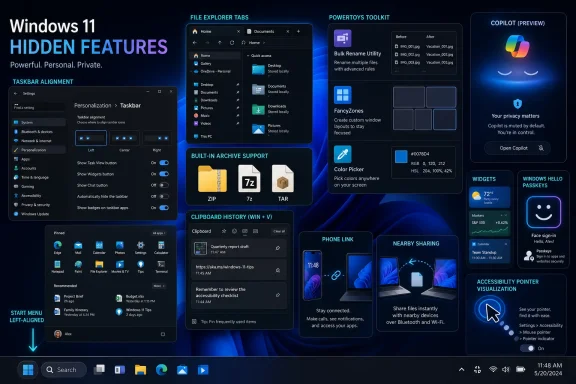
The first “hidden” feature many users discover is also the most symbolic: you can move the Start button back to the left side of the taskbar. Right-click the taskbar, open Taskbar Settings, expand Taskbar behaviors, and change alignment from center to left. It is a tiny setting with disproportionate emotional weight.That is because the centered Start menu was never just about pixels. It represented Microsoft’s attempt to make Windows feel more modern, more tablet-aware, and more visually symmetrical. For longtime users, it also felt like needless disruption. The left-aligned Start button was not merely a UI convention; it was a landmark.
Microsoft’s compromise is telling. Windows 11 keeps the new default but lets users restore the old alignment. That pattern repeats across the OS. The company nudges users toward newer workflows while leaving escape hatches buried in Settings. Windows 11 wants to look opinionated, but it still has to behave like Windows.
The same tension appears in the Start menu itself. Live Tiles are gone, replaced by pinned apps, folders, and a Recommended area. Users can pin apps, group them into folders, tweak whether recent files and installed apps appear, and add shortcuts such as Settings, File Explorer, Documents, Downloads, Music, Pictures, and Network beside the power button. The Start menu is less information-dense than Windows 10’s, but it is also less chaotic.
Microsoft’s bet is that most users want a launch surface, not a dashboard. The problem is that many Windows users are not “most users.” They are admins, developers, spreadsheet warriors, gamers, and habitual tinkerers. For them, every removed surface becomes a negotiation.
PowerToys Is the Confession That Windows Still Needs a Toolbox
The clearest proof that Windows 11’s built-in experience is not enough is Microsoft PowerToys. Officially, PowerToys is a free, open-source suite of utilities for power users and developers. Unofficially, it is Microsoft’s admission that the Windows shell cannot satisfy everyone through mainstream defaults.PowerToys is where Microsoft experiments without forcing every consumer PC to inherit the complexity. Bulk Rename makes large file operations tolerable. Image Resizer handles a task that should never have required a third-party app. FancyZones gives window management addicts the custom layouts that Snap Layouts only gestures toward. Always On Top, Color Picker, Mouse utilities, Keyboard Manager, PowerToys Run, and cross-PC input tools fill gaps that Windows veterans have patched with shareware for decades.
The important thing is not merely that PowerToys exists. It is that Microsoft keeps adding to it. That gives Windows a safety valve. Features that are too niche for default Settings can still become official Microsoft-supported tools, avoiding the old ecosystem of abandoned utilities, unsigned binaries, and registry hacks downloaded from dubious corners of the web.
For IT departments, PowerToys is both attractive and awkward. It is Microsoft-made and open-source, which helps. But it is also a grab bag of capabilities that can alter user behavior, keyboard mappings, window layouts, and file operations. In a managed environment, “free utility” is never the same thing as “safe to deploy everywhere.”
Still, PowerToys captures the best version of modern Windows: modular, pragmatic, and willing to serve users who know exactly what they want.
Microsoft’s Productivity Story Starts With Friction Removal
Windows 11’s most useful improvements are often the least glamorous. Startup app controls, clipboard history, Snap Layouts, multiple desktops, Focus Sessions, and File Explorer tabs do not make for dazzling launch demos. They save seconds, reduce mess, and let users keep working without reaching for another utility.Startup app management is a good example. Windows apps have a long history of inviting themselves to boot. Messaging clients, game launchers, update agents, peripheral control panels, and cloud sync tools all compete for early attention. Windows 11 gives users a direct path through Settings > Apps > Startup, while Task Manager still offers a more technical view, including startup impact and BIOS timing.
This is the kind of feature that feels boring until it is missing. A slow startup is rarely caused by a single villain. It is death by a dozen “helpful” background processes. By making startup control more visible, Windows 11 gives ordinary users a sysadmin-grade hygiene tool.
Clipboard history is another underrated shift. Windows+V turns copy and paste from a one-item buffer into a short-term working memory. For anyone moving snippets between documents, chats, terminals, tickets, and browser forms, this is a quiet revolution. Pinning repeat items turns it into a lightweight text expander without the ceremony of a dedicated app.
Snap Layouts similarly extend an old idea rather than inventing a new one. Windows has supported snapping since Windows 7, but Windows 11 makes layouts more discoverable through the maximize button and keyboard shortcuts. On large monitors, ultrawides, and laptop-plus-external-display setups, this matters. The modern PC workspace is no longer a single maximized window; it is a constellation of documents, dashboards, chats, browsers, shells, and media.
Multiple desktops complete that story. Windows has had virtual desktops for years, but Windows 11 makes them easier to create, rearrange, personalize, and understand. Different wallpapers for different desktops may sound cosmetic, yet visual separation helps users build mental boundaries between work, study, personal browsing, remote sessions, and focused writing.
File Explorer Is Becoming a Real Workspace Again
File Explorer has spent years as one of Windows’ most neglected power centers. It is the place where users touch the file system, cloud sync, removable storage, network shares, archives, photos, documents, downloads, and application data. When Explorer is clumsy, the whole OS feels clumsy.Windows 11’s Explorer improvements are therefore more important than they first appear. Tabs reduce window clutter. The streamlined command bar surfaces common actions such as cut, copy, paste, rename, share, delete, sort, and view. Context-sensitive controls shift based on what the user is doing. Recent builds have improved dark mode consistency and simplified some context menu behavior.
The addition of archive support is especially practical. Windows has long handled ZIP files, but Windows 11 version 24H2 expanded support for formats such as 7z and TAR. That is not exciting in the consumer marketing sense, but it is very exciting to anyone who downloads open-source packages, exchanges logs, handles Linux-adjacent tooling, or works with compressed assets outside the ZIP monoculture.
Explorer’s AI Actions are the more controversial layer. Right-clicking an image and seeing an action such as background removal, or selecting a document and seeing summarization options, pushes the file manager closer to a task launcher. That could be genuinely useful. It could also become another place where Microsoft stuffs cloud-connected suggestions into workflows that used to be deterministic.
The line between convenience and intrusion will be decided by restraint. File Explorer is not a social feed. It is infrastructure with a user interface. Microsoft can add intelligence there, but it must not make Explorer feel like a billboard, a chatbot, or a funnel.
Copilot Is Both the Flashiest Feature and the Least Settled
Copilot is the most visible sign of Microsoft’s current Windows strategy, and also the least settled. It can draft text, summarize content, answer questions, generate images, explain selected screen areas, and assist with files or settings depending on the device, region, account, and rollout stage. On Copilot+ PCs, Microsoft layers in features such as Recall, Click to Do, improved Windows search, image tools, and semantic retrieval.This is where the “hidden features” framing becomes slippery. Clipboard history is a Windows feature. Snap Layouts are a Windows feature. Passkeys are a Windows security feature. Copilot is an evolving service, a shell integration, a web-connected assistant, and, on supported hardware, a gateway to local AI features. It is less a feature than a moving boundary.
Copilot Vision and Click to Do point toward a future where Windows understands what is on screen and offers actions in place. That is a real platform shift. The old operating system model waited for users to open apps and choose commands. The AI model watches context and suggests intent. If it works, it reduces friction. If it overreaches, it turns the desktop into an interruptive layer of guesses.
Recall remains the emblem of that tension. Microsoft’s idea is straightforward: help users find things they have seen or done on their PC by creating a searchable history. The security and privacy implications are just as obvious. A photographic memory for a computer is powerful precisely because a computer sees sensitive things: messages, documents, credentials, internal dashboards, customer data, medical portals, legal drafts, and private browsing mistakes.
Microsoft has responded by emphasizing security controls, Windows Hello, encryption, filtering, and user choice. That is necessary, but not sufficient to settle the debate. Recall and adjacent features will be judged not by launch language but by operational behavior: what is captured, what is excluded, how controls are surfaced, how enterprises can manage it, and whether users can trust the defaults.
For many WindowsForum readers, the correct posture is neither panic nor cheerleading. It is inspection. AI features should be evaluated like any other endpoint capability that touches data: inventory it, test it, document it, control it, and disable it where the risk exceeds the benefit.
Security Improvements Are Quietly More Important Than AI
If Copilot gets the keynote time, passkeys may deserve more of the respect. Windows 11’s support for passkeys through Windows Hello is part of a broader industry move away from passwords and toward phishing-resistant authentication. For users, the benefit is simple: sign in with a face, fingerprint, or PIN-backed device credential instead of typing a reusable secret into a website.That shift matters because passwords are not merely inconvenient. They are structurally weak. Users reuse them, attackers phish them, databases leak them, and help desks reset them. A passkey bound to a device and protected by local authentication changes the attack surface.
Windows 11 is not alone here; Apple, Google, Microsoft, and major web platforms have all moved in this direction. But Windows’ role is uniquely important because it sits inside workplaces where identity compromise is not just a personal problem. A stolen password can become an inbox breach, a VPN session, a cloud console login, or the first move in a ransomware incident.
The security baseline also extends beyond passkeys. Windows 11’s hardware requirements, controversial at launch, were partly about raising the floor for TPM-backed security, virtualization-based protections, and modern firmware assumptions. Many enthusiasts disliked the cutoff for older PCs, and understandably so. But from Microsoft’s perspective, the future Windows endpoint is harder to defend if it must carry indefinite compatibility with every machine that can technically boot.
This is the uncomfortable bargain of Windows 11. It is better secured because Microsoft narrowed the hardware path. It is also more exclusionary because some functional machines were left behind. That tradeoff will continue to define Windows as Microsoft pushes more features into secured-core PCs and Copilot+ hardware.
The Phone Is Now a Peripheral, Not a Rival
Phone Link is one of Microsoft’s most strategically revealing Windows apps. Microsoft lost the smartphone platform war, but it did not give up on phone integration. Instead, Windows 11 treats the phone as an adjacent peripheral: a source of texts, calls, notifications, photos, hotspots, app continuity, camera input, and cross-device copy-paste.For Android users, the integration can be deep, particularly on selected devices. Messages and calls on the PC are table stakes now, but app streaming, hotspot support, and webcam use move the phone closer to being part of the Windows hardware graph. iPhone support exists but remains more constrained, reflecting Apple’s tighter platform boundaries.
The Start menu’s phone panel and Settings toggles for cross-device behavior show Microsoft trying to make this less of a separate app and more of a native PC feature. That is the right direction. Users do not think in product categories; they think in interruptions. If a text arrives while they are working on a laptop, answering it from the keyboard feels natural.
The comparison with Apple’s ecosystem remains unavoidable. Apple’s Handoff, Continuity Camera, AirDrop, Universal Clipboard, and iMessage integration benefit from vertical control. Microsoft has to negotiate across Android vendors, Bluetooth behavior, permissions, Windows updates, phone OS changes, and carrier-era habits that still haunt telephony features.
Even so, Phone Link is one of Windows 11’s strongest everyday arguments. It makes the PC less isolated. For a platform that once tried and failed to bring Windows to the phone, making the phone useful inside Windows is a humbler and better strategy.
Nearby Sharing, Projection, and Widgets Show the OS Becoming Ambient
Not every useful Windows feature is about the local machine. Nearby Sharing lets PCs move files without cloud storage, email attachments, or USB drives. Wireless Display lets another device project to a PC screen after the optional component is installed. Widgets pull weather, calendar, news, tasks, sports, stocks, traffic, and third-party app snippets into a glanceable panel.These are ambient features. They do not dominate the OS; they sit at the edge of attention. Their success depends on whether they appear at the right moment and disappear when not needed.
Nearby Sharing is the most obviously practical. In homes, classrooms, labs, and small offices, moving a file between two PCs should not require uploading it to someone else’s server. The caveat is that Microsoft’s cloud integration can complicate the path. If the file lives in a OneDrive-synced folder, sharing behavior may route the user toward OneDrive rather than local proximity. That is logical from Microsoft’s ecosystem perspective, but it is not always what the user intended.
Wireless projection to a PC is similarly underappreciated. A laptop or desktop display can become a receiver for another Windows device or supported Android device. In a world of hybrid meetings, second-screen improvisation, and repurposed hardware, that flexibility has value.
Widgets are more divisive. The concept is sound: glanceable information without opening a browser. The execution depends heavily on curation, performance, account behavior, and whether the panel feels useful or promotional. Microsoft Start integration gives the feature content, but it also risks turning a productivity surface into another news feed.
Windows works best when ambient features are optional and legible. Users should understand why a panel appeared, what data it uses, and how to turn it off. A helpful OS anticipates. An annoying one intrudes.
Accessibility and Input Improvements Are Not Side Quests
Windows 11’s pointer, touch, sound, and Bluetooth improvements are easy to overlook because they are not headline features. They are also exactly the kind of improvements that make an operating system feel mature.The ability to enlarge the mouse pointer, change its color, or use an inverted style that remains visible against different backgrounds is not cosmetic for users who lose track of the cursor on high-resolution displays. It is accessibility, ergonomics, and productivity at once. Large monitors and multi-display setups make pointer visibility a mainstream issue, not a niche accommodation.
Touch gestures tell a similar story. Windows 11 revised how swipes behave on tablets and convertibles, including gestures for widgets, notifications, Task View, minimizing windows, and showing open apps. Microsoft has been trying to make Windows touch-friendly since the Windows 8 era, but the modern approach is less radical. Instead of forcing the entire OS into a tablet-first shell, Windows 11 adds gestures while keeping the desktop intact.
Audio settings have also become more approachable. Pairing input and output devices, enabling mono audio, selecting enhanced audio modes, and viewing all connected sound devices are now less buried than they once were. Windows 11 version 24H2’s support for Bluetooth Low Energy Audio hearing devices is particularly important because it treats accessibility hardware as part of the mainstream device ecosystem.
This is where Microsoft deserves more credit than it often receives. Accessibility features are frequently presented as special accommodations, but they usually benefit everyone. Better pointer visibility helps presenters. Mono audio helps anyone using a single earbud. Cleaner sound settings help podcasters, gamers, remote workers, and support technicians. Good accessibility engineering is just good engineering with a wider lens.
Gaming Features Have Escaped the Gaming Box
The Xbox Game Bar is nominally a gaming feature, summoned with Windows+G, but its usefulness has leaked into general computing. Screen recording, performance monitoring, resource visibility, audio controls, social overlays, and capture tools are relevant well beyond games. A support technician recording a bug, a teacher capturing a workflow, or a developer monitoring performance can all benefit from tooling originally aimed at players.Auto HDR and gaming-oriented display features are part of the same spillover. The PC gaming market pushed Microsoft to improve latency, graphics, capture, and hardware integration. Those improvements then raise expectations for the broader desktop. Users now expect smooth recording, fast switching, better display handling, and easy device overlays as baseline capabilities.
The trick for Microsoft is keeping gaming infrastructure from becoming bloat for non-gamers. Game Bar should be easy to ignore when unused and powerful when needed. Windows has often struggled with this balance, particularly when consumer services, Xbox branding, and enterprise desktops collide.
Still, gaming remains one of Windows’ most defensible advantages. macOS has creative software prestige, Linux has developer and server credibility, ChromeOS has simplicity, but Windows is still the default PC gaming platform. Features that serve gamers while helping ordinary users are a rare win-win.
Backup, Media, and Recorder Apps Reveal the Inbox App Reset
Windows 11’s built-in apps have been undergoing a slow reset. Sound Recorder replaced Voice Recorder with a cleaner interface, waveform display, and multiple output formats. Media Player replaced Groove Music as the more coherent default for music and video playback, even as the old Windows Media Player lingers for legacy tasks such as CD ripping. Windows Backup arrived with Windows 11 version 23H2 to sync files, settings, apps, credentials, and Wi-Fi logins through OneDrive.These apps are not going to scare Adobe, Audacity, VLC, or enterprise backup vendors. That is not the point. The inbox app layer should cover basic jobs without embarrassment. For years, Windows’ default apps often felt like placeholders users immediately replaced. Windows 11’s newer apps are not always powerful, but they are less neglected.
Windows Backup is the most strategically loaded of the group. It makes PC migration easier, especially for consumers moving to a new Windows 11 machine. It also deepens OneDrive’s role as the default continuity layer. That is convenient for users already in Microsoft’s account ecosystem and potentially frustrating for those who prefer local backup, third-party tools, or non-Microsoft cloud storage.
The lesson is familiar: Microsoft’s best convenience features often double as ecosystem hooks. That does not make them bad. It means users and admins should understand the bargain.
Customization Is Back, but It Lives Behind Microsoft’s Guardrails
Windows has always attracted users who customize first and ask questions later. Themes, accent colors, dark mode, cursor settings, Start menu folders, pinned apps, title bar shake, taskbar alignment, Quick Settings arrangement, and default app controls all support that instinct. But Windows 11’s customization model is more curated than the old Windows tradition.Themes now work cleanly with light and dark modes, changing wallpaper, accent color, sounds, and cursor style together. The Start menu can be tuned, but not transformed into the Windows 10 tile board. Default apps can be changed, but Microsoft has historically made the process more granular and, at times, more tedious than users wanted. Quick Settings can be rearranged, but recent design changes favor a scrollable panel over the older add-remove model.
Title Bar Shake is the perfect microcosm. It is a beloved old behavior that clears every other window when you shake the active window’s title bar. In Windows 11, it is off by default but available under multitasking settings. Microsoft did not kill it. Microsoft demoted it.
That is Windows 11 customization in one sentence. The old knobs often still exist, but they are no longer the face of the product. Microsoft wants a cleaner default experience for the mass market while preserving enough depth to avoid alienating veterans.
The risk is that power users feel patronized and ordinary users never discover the controls. A hidden setting is not the same thing as a supported workflow if nobody can find it.
The Best Windows 11 Features Are the Ones You Stop Noticing
The most concrete lesson from this long list of Windows 11 features is that the operating system is improving through accumulation. A single tweak rarely changes anyone’s computing life. But ten small improvements, used daily, can make a PC feel meaningfully better.- Moving the Start button, tuning the Start menu, and arranging Quick Settings are small acts of reclaiming muscle memory from Microsoft’s defaults.
- PowerToys remains the official escape hatch for users who want Windows to behave more like a configurable workstation than a sealed appliance.
- Clipboard history, Snap Layouts, File Explorer tabs, virtual desktops, Focus Sessions, and startup app controls are the productivity features most users should learn first.
- Passkeys, Windows Hello, and newer hardware-backed protections are more strategically important than many of the flashier AI features.
- Copilot+ PC features such as Recall, Click to Do, and semantic search should be treated as powerful but policy-sensitive capabilities, especially in managed environments.
- Windows 11’s best recent additions work when they reduce friction without demanding attention, which is why features like Nearby Sharing, archive compression, improved sound settings, and pointer visibility matter more than their marketing weight suggests.
References
- Primary source: PCMag Australia
Published: 2026-06-29T16:20:17.203122
These 34 Hidden Features Make Windows 11 So Much Better
Windows 11 is packed with powerful features and hidden settings that many users overlook. Discover these lesser-known tools and tweaks to customize your experience, boost performance, and strengthen your PC's security.au.pcmag.com - Related coverage: windowscentral.com
Microsoft accidentally made a better Surface by failing its own AI requirements | Windows Central
The new budget-friendly 8GB Surface Pro and Surface Laptop aren't Copilot+ PCs, and that might be a blessing in disguise.www.windowscentral.com - Official source: learn.microsoft.com
Microsoft PowerToys - Windows Utilities for Power Users | Microsoft Learn
Microsoft PowerToys includes 25+ free Windows utilities including FancyZones, PowerToys Run, Color Picker, PowerRename, and more. Boost productivity for power users on Windows 10/11.learn.microsoft.com - Official source: support.microsoft.com
Click to Do in Recall: do more with what’s on your screen | Microsoft Support
Click to Do in Recall: do more with what’s on your screensupport.microsoft.com - Official source: microsoft.com
Copilot+ PCs and AI Features for Businesses | Microsoft
Discover Microsoft Copilot+ PCs for your business. Learn how these AI-powered computers and laptops deliver business solutions with Copilot+ PC AI features that streamline work.www.microsoft.com
- Official source: blogs.windows.com
Previewing Recall with Click to Do on Copilot+ PCs with Windows Insiders in the Dev Channel
UPDATE 12/6: With Build 26120.2510, we are welcoming Windows Insiders on AMD and Intel®-poweredblogs.windows.com
- Related coverage: tomshardware.com
Microsoft launches Recall to Windows 11 general availability — Click to Do and Improved Search also coming | Tom's Hardware
It's been a long road, but the long-awaited — and maligned — AI feature is finally here.www.tomshardware.com - Related coverage: techradar.com
I'm impressed that Microsoft keeps on improving PowerToys with smart additions — but I wonder why the newest monitor trick isn't in Windows 11 by default | TechRadar
In fact, there are a few features Microsoft should incorporate into Windows 11 itself, rather than having them served in a side dishwww.techradar.com - Official source: news.microsoft.com